> ## Documentation Index
> Fetch the complete documentation index at: https://www.conductor.com/docs/llms.txt
> Use this file to discover all available pages before exploring further.
# Actions Activity
> Create and track tasks in Asana, Trello, Jira, and other work management apps directly from Conductor.
Fast-moving marketing teams like yours have to constantly coordinate on key projects. Odds are you use a work management app like Asana, Trello, or Jira to plan out all the details: Who’s doing what and by when? How is your progress coming along? What resources do we need to share?
Conductor Actions can help.
## What are Actions in Conductor?
The insights you uncover in Conductor often evolve into work projects that you eventually track with these task management apps. With Conductor Actions, you can create trackable tasks and actionable items in your work management app directly from Conductor—so you can make sure everything gets done with clear accountability and no tasks falling through the cracks.
You can keep an eye on the follow-ups and takeaways from your research in Conductor with the **Actions activity**. Here, you can manage your [Conductor Actions](/docs/creator/actions-activity/#what-are-actions-in-conductor) and monitor and review your Marketplace requests from a single activity in Conductor.
## What is the Actions Panel?
Conductor's **Actions Panel** gives you the most relevant tools to take action on your efforts wherever you are in the platform. Create briefs, notes, or other Conductor Actions to send through to your work management app of choice.
To open the Actions Panel, simply click the Actions icon in the bottom-right corner anywhere in Conductor.\\
 The Action Panel appears and is maintained when you navigate to other reports and features in Conductor. At the top you can create Actions, and below that you can see recently-created Actions.
For full directions for creating and sharing Conductor Actions, refer to the [Creating and Sharing Conductor Actions](/docs/creator/creating-and-sharing-conductor-actions/) article.
**Content** > **More** > [**Actions**](https://app.conductor.com/u/actions)
## Overview
### Review your Action or Marketplace request
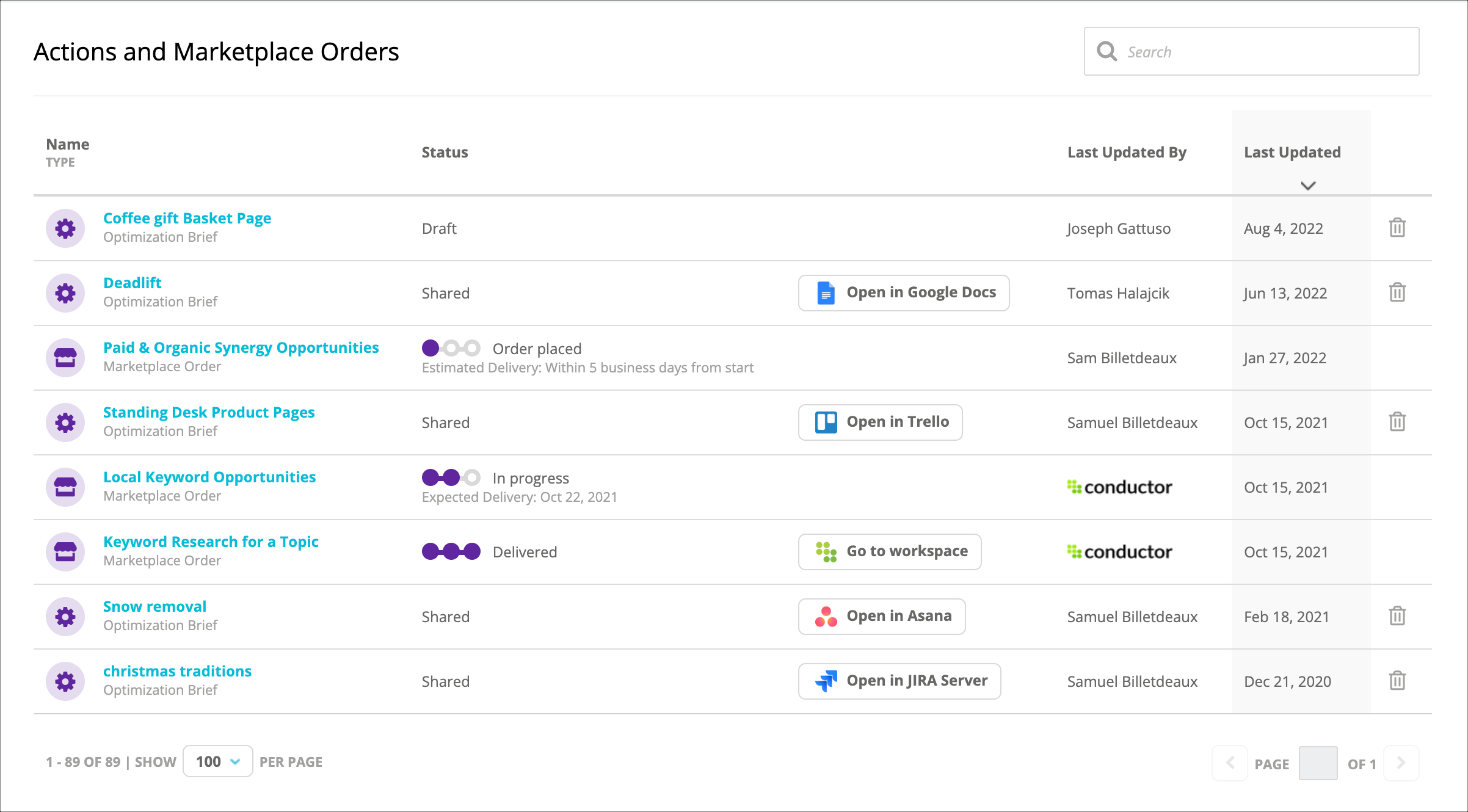
In the table, you can see:
* The **Status** of each Action or Marketplace request.
* The location to which an Action was shared or the workspace in which a Marketplace request was published.
* The user or organization that last updated the Action or Marketplace request and the date of the most recent update.
The Action Panel appears and is maintained when you navigate to other reports and features in Conductor. At the top you can create Actions, and below that you can see recently-created Actions.
For full directions for creating and sharing Conductor Actions, refer to the [Creating and Sharing Conductor Actions](/docs/creator/creating-and-sharing-conductor-actions/) article.
**Content** > **More** > [**Actions**](https://app.conductor.com/u/actions)
## Overview
### Review your Action or Marketplace request
In the table, you can see:
* The **Status** of each Action or Marketplace request.
* The location to which an Action was shared or the workspace in which a Marketplace request was published.
* The user or organization that last updated the Action or Marketplace request and the date of the most recent update.
 ### Take action on your Actions
Click the name of an Action or Marketplace request to open the [**Actions Panel**](/docs/creator/creating-and-sharing-conductor-actions/#create-actions-with-the-actions-panel). From the Panel, you can:
* View details about the Action or Marketplace request.
* If a draft Action, continue to add or edit information in the Action.
* Download a completed Action.
* Jump to a completed Action or Marketplace request.
Refer to the [Creating and Sharing Conductor Actions](/docs/creator/creating-and-sharing-conductor-actions/) article to learn more.
### Jump to a completed Action or Marketplace request
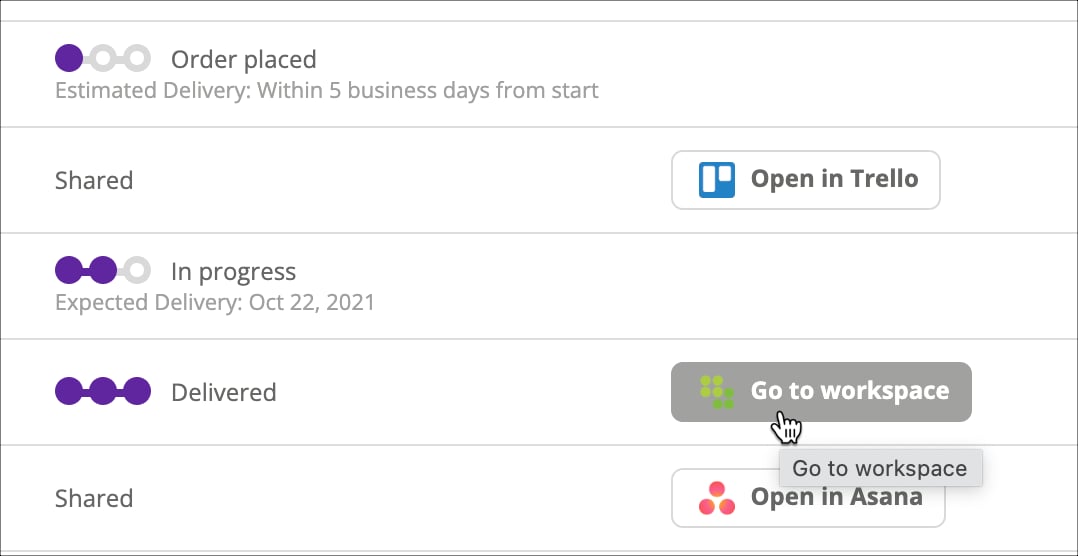
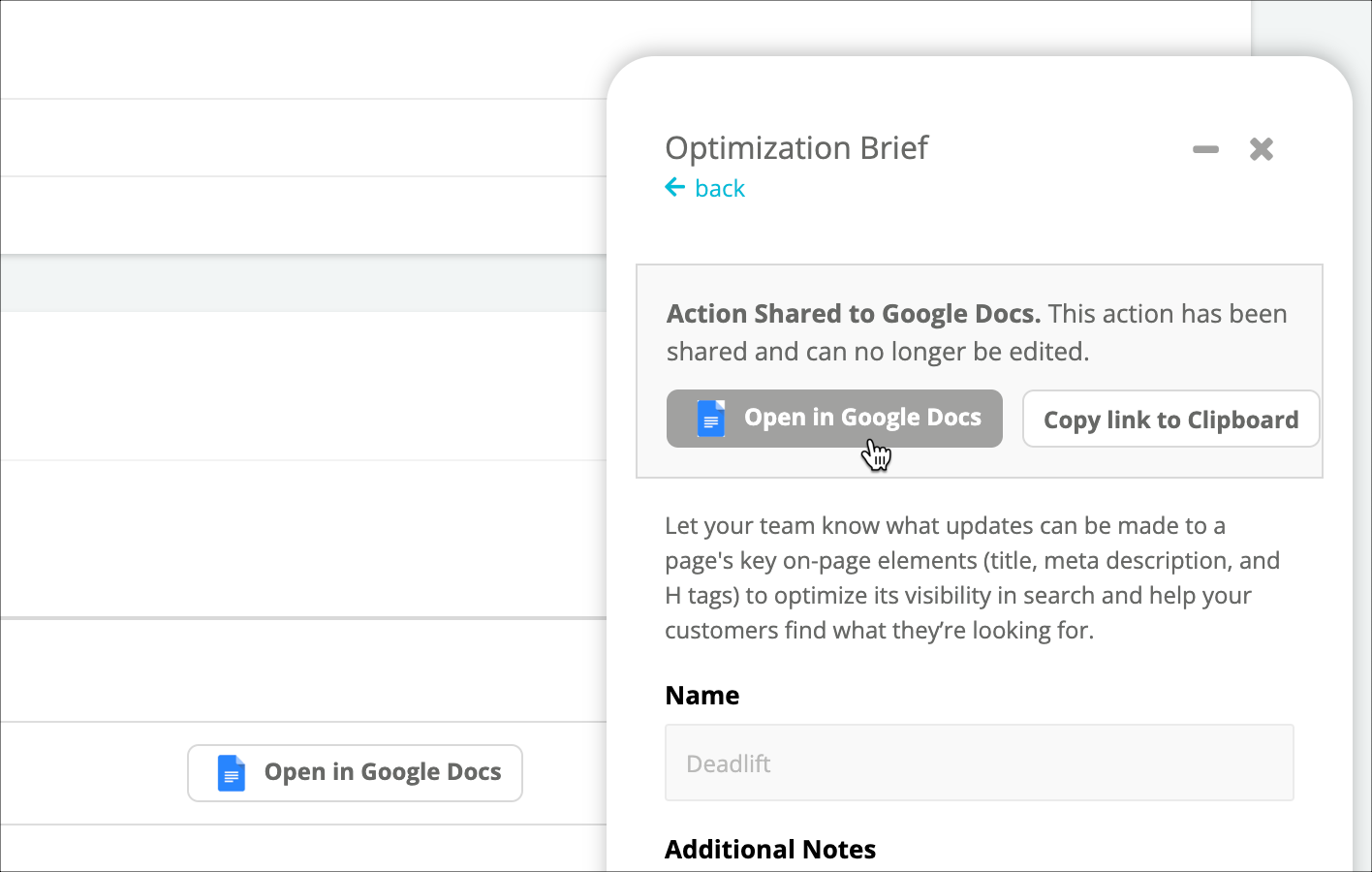
You can follow up on completed Actions and Marketplace requests by jumping to their destinations. Just click the button that appears:
* In the table.\\
### Take action on your Actions
Click the name of an Action or Marketplace request to open the [**Actions Panel**](/docs/creator/creating-and-sharing-conductor-actions/#create-actions-with-the-actions-panel). From the Panel, you can:
* View details about the Action or Marketplace request.
* If a draft Action, continue to add or edit information in the Action.
* Download a completed Action.
* Jump to a completed Action or Marketplace request.
Refer to the [Creating and Sharing Conductor Actions](/docs/creator/creating-and-sharing-conductor-actions/) article to learn more.
### Jump to a completed Action or Marketplace request
You can follow up on completed Actions and Marketplace requests by jumping to their destinations. Just click the button that appears:
* In the table.\\
 * In the Actions Panel.\\
 **Note**
You can open Actions only in applications where you have an authenticated account.
## Using Actions
Refer to the [Creating and Sharing Conductor Actions](/docs/creator/creating-and-sharing-conductor-actions/) article to learn more about configuring and using Actions.
## FAQs
[Review this feature's frequently asked questions](/docs/creator/actions-faqs/)
**Note**
You can open Actions only in applications where you have an authenticated account.
## Using Actions
Refer to the [Creating and Sharing Conductor Actions](/docs/creator/creating-and-sharing-conductor-actions/) article to learn more about configuring and using Actions.
## FAQs
[Review this feature's frequently asked questions](/docs/creator/actions-faqs/)