> ## Documentation Index
> Fetch the complete documentation index at: https://www.conductor.com/docs/llms.txt
> Use this file to discover all available pages before exploring further.
# AI Topic Map
> Cluster your website's content into semantic topics and surface gaps and optimization opportunities with Conductor's AI Topic Map.
Alpha
This feature is in an Alpha program. Aspects of it are subject to change
with little or no notice. Conductor may also decide not to continue
developing or supporting this feature.
Conductor's AI Topic Map provides a comprehensive, semantic map of your website's content. It groups semantically similar pages into topic clusters, and identifies opportunities to either create new content to fill gaps or optimize existing content for better performance.
Content organizations often struggle to understand and manage the vast amount of content on their websites. It can be difficult to navigate relationships between pages, identify content gaps, and detect underperforming (but important) content. The AI Topic Map provides a visual map of a website's content, grouping pages into semantic topic clusters to help you understand what your website content is about—and what it should *be* about.
### Conductor's AI Map Projection
Conductor analyzes your content and clusters your pages into "high-dimensional space" (it actually accounts for over 1,000 dimensions!) where the clusters represent semantically-related content and its relative semantic similarity to other clusters nearby.
This high-dimensional space is then flattened into the two-dimensional map visualization that is easier to review and draw insights from. Think of it like mapping countries on a globe, and then flattening the globe into a two-dimensional map projection so you can see the whole world at the same time.
**Content** > [**AI** **Topic** **Map**](https://app.conductor.com/u/ai-topic-map/)
## Select a website to review for opportunities
Just below the report header, use the **Website** menu to select the website you want to review.
## Review your topics and opportunities at the site level
At the top of the report, you can review a summary of:
* The topics Conductor's AI engine identified for your selected website.
* Opportunities for new content creation.
* Opportunities for optimization.
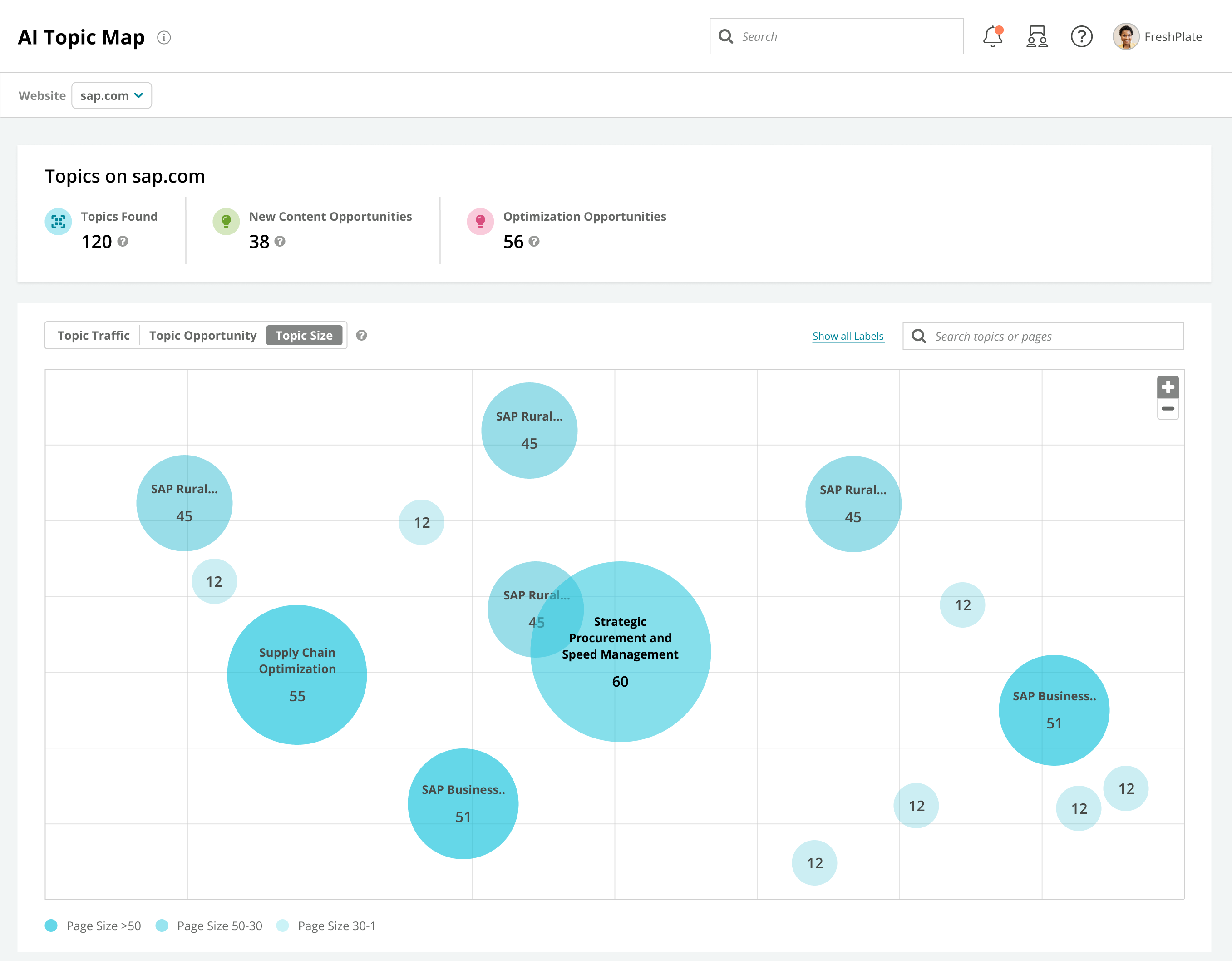
Below the summary, you'll find an interactive map of your topics across semantic space. You can view topics:
* By the organic traffic they drive, in the **Topic** **Traffic** tab.
* By the number of opportunities identified, in the **Topic** **Opportunity** tab.
* By the number of your pages that belong to the topic, in the **Topic** **Size** tab.
 ## Review the pages and opportunities in a topic
Hover over a topic in the map to see the number of pages and opportunities for content creation and optimization.
Click the topic to view the pages in relationship to one another, to find the specific opportunities Conductor has identified.
## Review the pages and opportunities in a topic
Hover over a topic in the map to see the number of pages and opportunities for content creation and optimization.
Click the topic to view the pages in relationship to one another, to find the specific opportunities Conductor has identified.
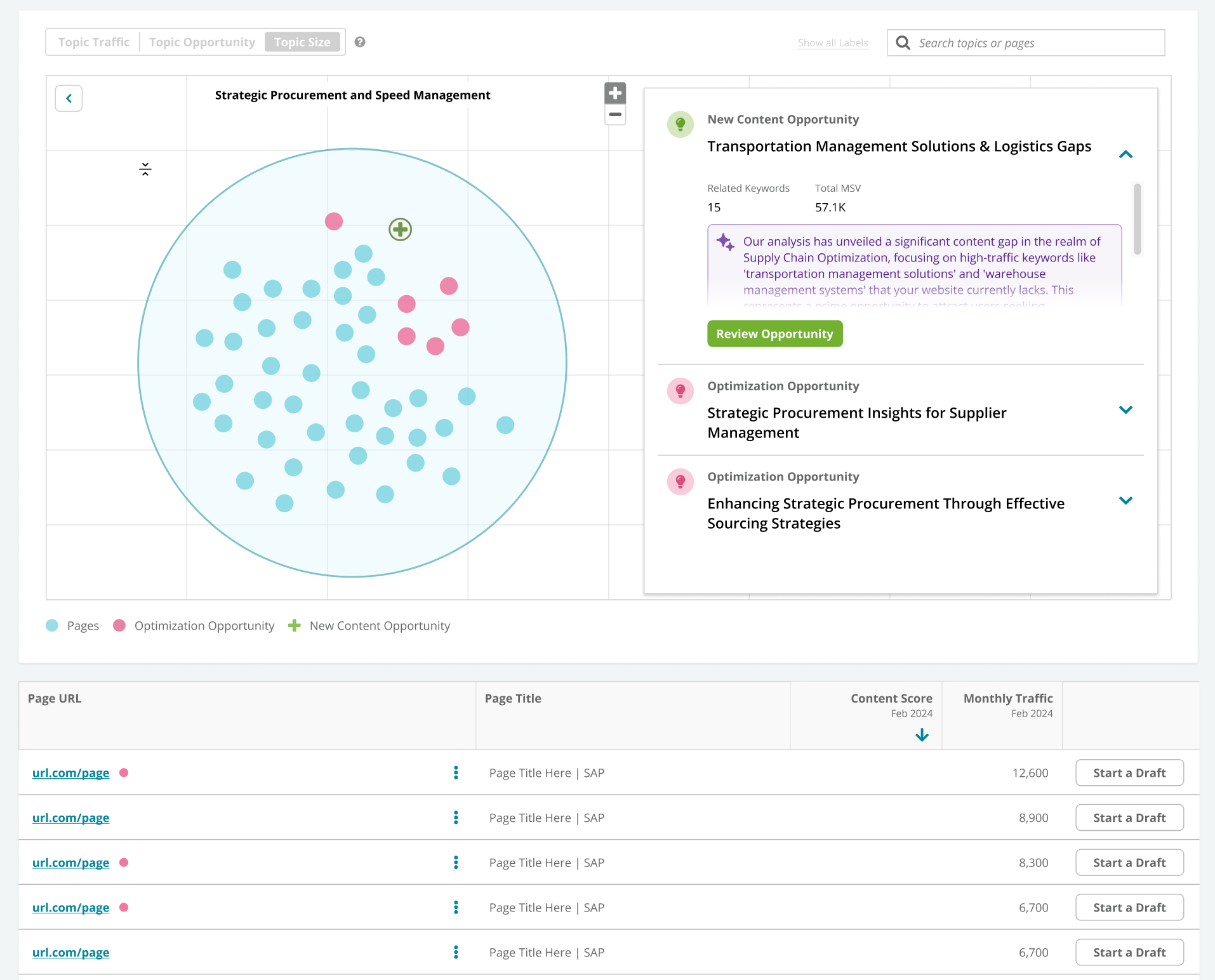 At the bottom of this topic-level view, you'll see the individual pages that make up the topic.
## Take action on topic opportunities
While reviewing the pages and gaps in the report, you can:
* Click **Review Opportunity** to learn about the identified opportunity and take action to create new content or optimize existing content:
* For new content opportunities, you'll see Conductor's recommendation, review related keywords you might want to target for the topic, and then click **Start Writing** to start a draft in [**Writing Assistant**](/docs/creator/writing-assistant/).\\
At the bottom of this topic-level view, you'll see the individual pages that make up the topic.
## Take action on topic opportunities
While reviewing the pages and gaps in the report, you can:
* Click **Review Opportunity** to learn about the identified opportunity and take action to create new content or optimize existing content:
* For new content opportunities, you'll see Conductor's recommendation, review related keywords you might want to target for the topic, and then click **Start Writing** to start a draft in [**Writing Assistant**](/docs/creator/writing-assistant/).\\
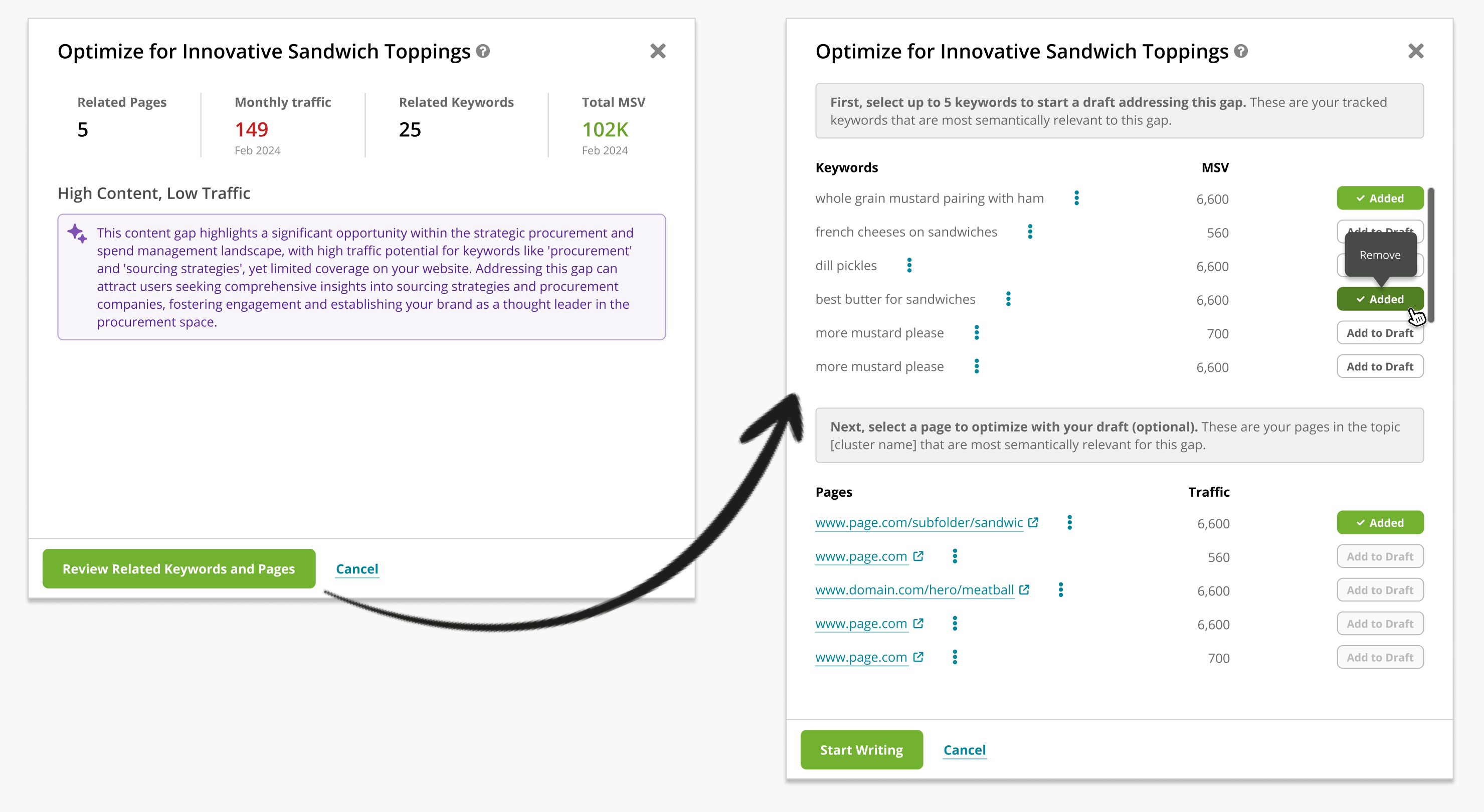
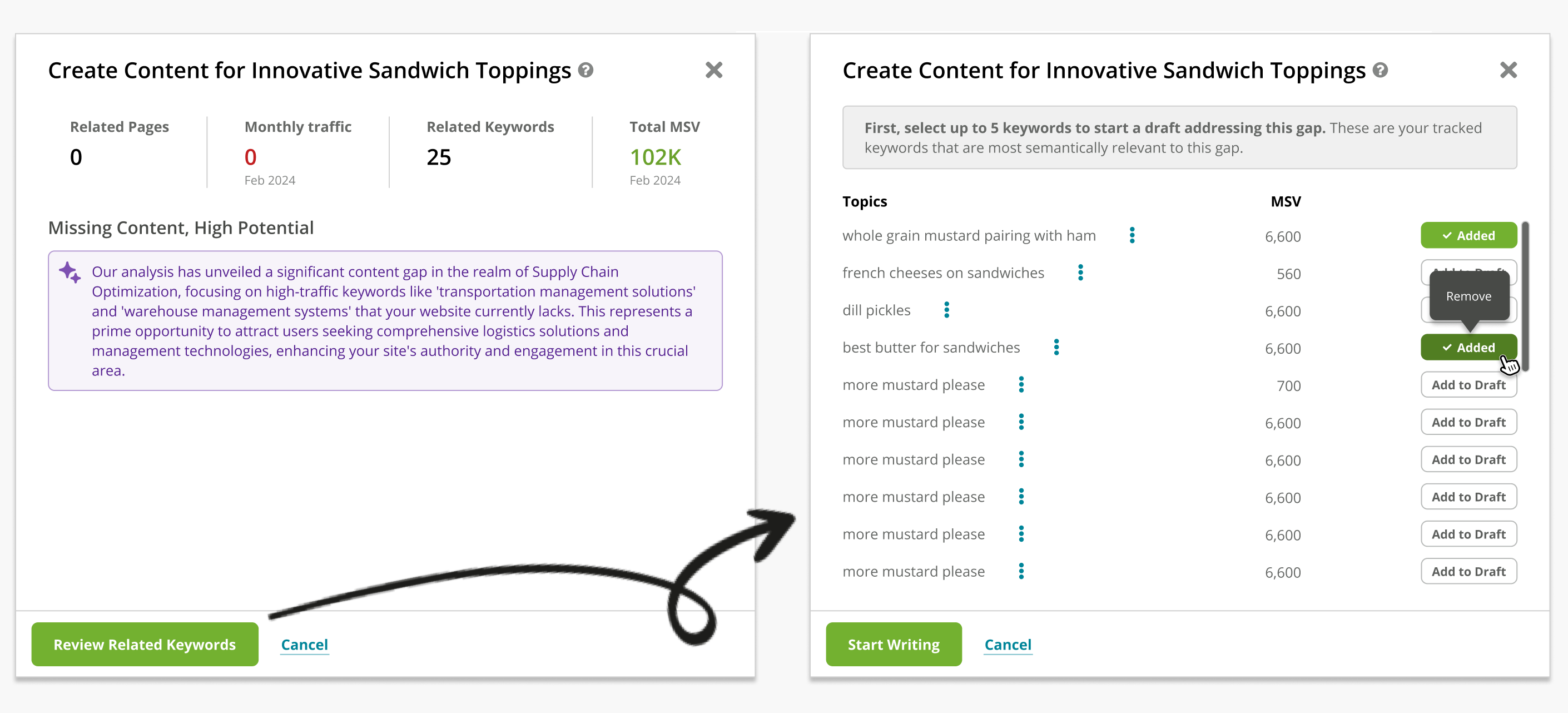 * For content optimization opportunities, you'll see Conductor's recommendation, review related keywords and identified pages you might want to target and optimize for, and then click **Start Writing** to start a draft in [**Writing Assistant**](/docs/creator/writing-assistant/).\\
 * Click the **Page URL** in the table to jump to the [**Page Details**](/docs/intelligence/page-details/) report for the page.
* Click **Start a Draft** to jump to [**Writing Assistant**](/docs/creator/writing-assistant/), where you can work on optimizing the page's content.
## FAQs
[Review this feature's frequently asked questions](/docs/creator/ai-topic-map-faqs/)
* Click the **Page URL** in the table to jump to the [**Page Details**](/docs/intelligence/page-details/) report for the page.
* Click **Start a Draft** to jump to [**Writing Assistant**](/docs/creator/writing-assistant/), where you can work on optimizing the page's content.
## FAQs
[Review this feature's frequently asked questions](/docs/creator/ai-topic-map-faqs/)