> ## Documentation Index
> Fetch the complete documentation index at: https://www.conductor.com/docs/llms.txt
> Use this file to discover all available pages before exploring further.
# Content Profiles
> Capture your brand voice, style, and compliance rules in a reusable profile that Writing Assistant applies to every draft.
Content Profiles consolidate your brand voice, style, and compliance requirements into your AI-generated content, ensuring your content reflects your brand's identity.
You can create them in the **Content Profiles** activity and then apply them to your drafts in [Writing Assistant](/docs/creator/writing-assistant/).
**Settings** > [**Content Profiles**](https://app.conductor.com/u/content-profiles)
## Overview
### Review Your Content Profiles
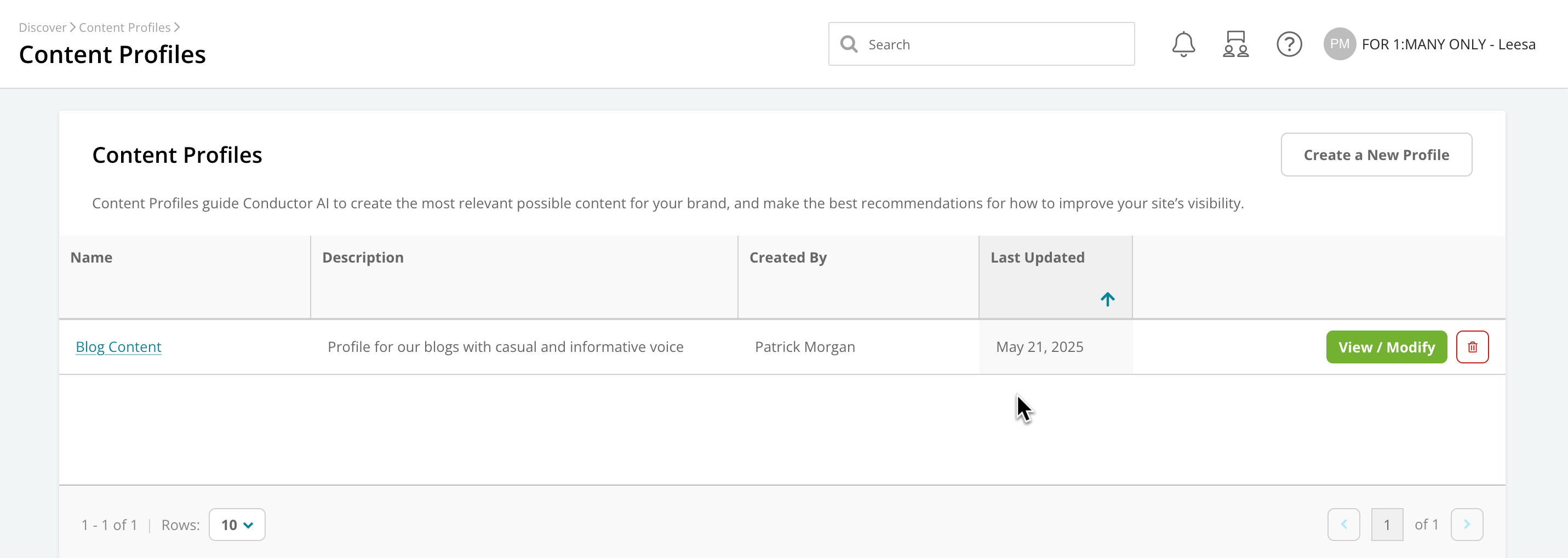
You can view all of the Content Profiles created in your account from the Content Profiles activity. See details like who created the profile and when it was most recently updated.
 ### Create a Content Profile
1. Click **Create a New Profile**.
2. In the **Profile Details** section, enter a **Name** and a **Description** for your profile.\\
### Create a Content Profile
1. Click **Create a New Profile**.
2. In the **Profile Details** section, enter a **Name** and a **Description** for your profile.\\
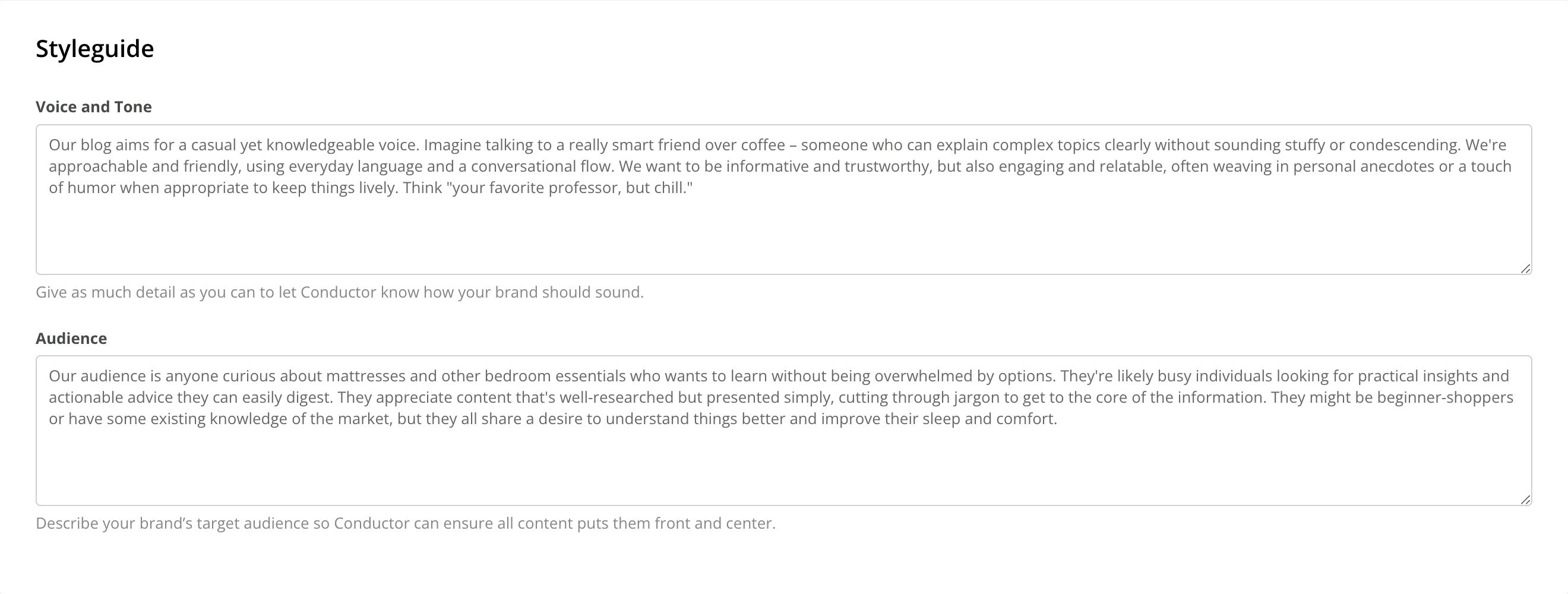
 3. In the **Style Guide** section, add details about the **Voice** and **Tone and Audience** that relate to this profile. \\
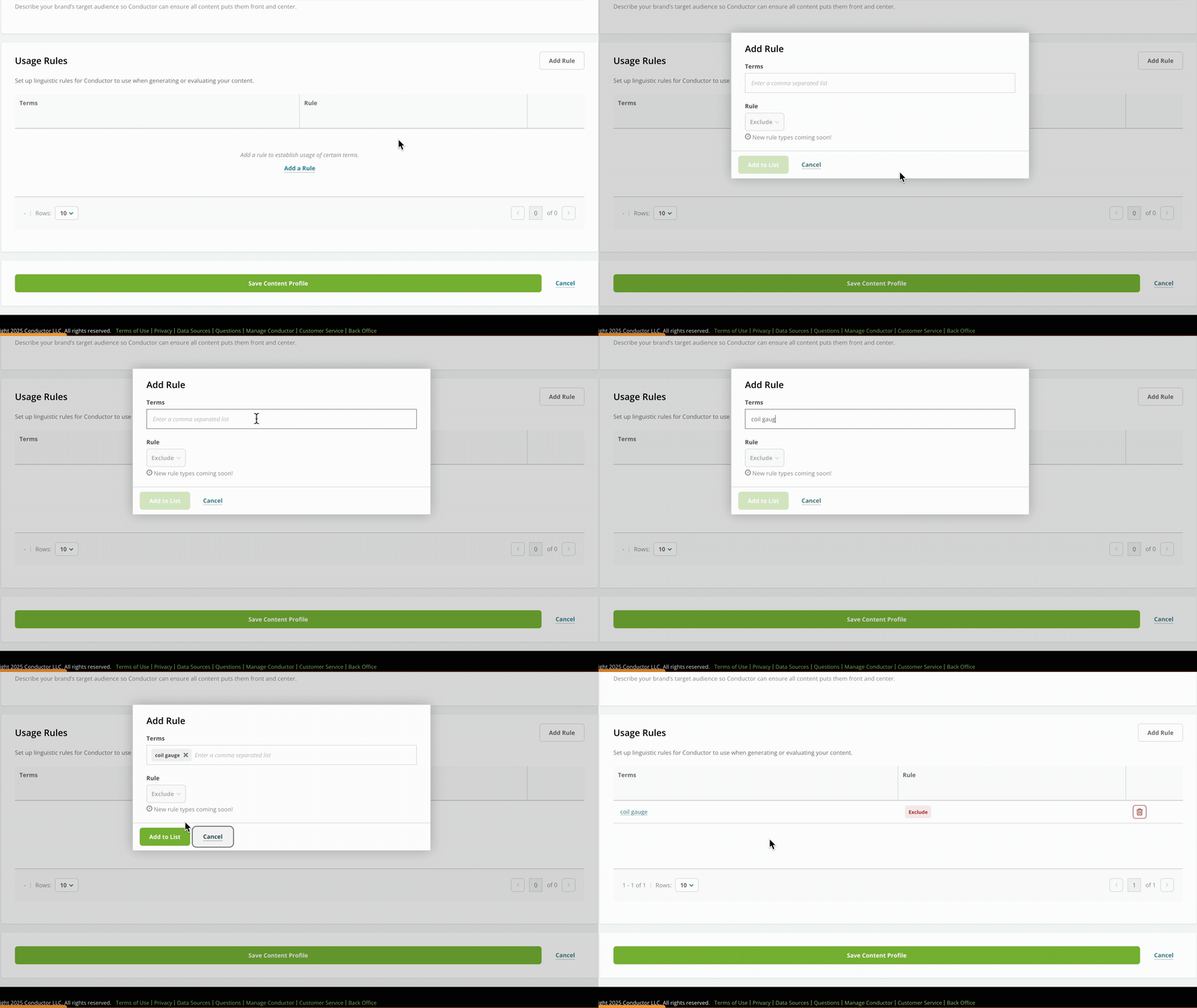
 4. In the **Usage Rules** section, add rules as necessary to exclude any terms or phrases you want to avoid in your content.\\
 5. Click **Save Content Profile**.
### Edit a Content Profile
1. Identify the Content Profile you want to edit and click the **View / Modify** button on the right.
2. Make any changes to profile settings you want.
3. Click **Save Content Profile**.
### Pro-Tip
You can use the **Make a copy** button to save a copy you can edit—so you can maintain the original version.
5. Click **Save Content Profile**.
### Edit a Content Profile
1. Identify the Content Profile you want to edit and click the **View / Modify** button on the right.
2. Make any changes to profile settings you want.
3. Click **Save Content Profile**.
### Pro-Tip
You can use the **Make a copy** button to save a copy you can edit—so you can maintain the original version.
 ### Delete a Content Profile
You can delete existing Content Profiles:
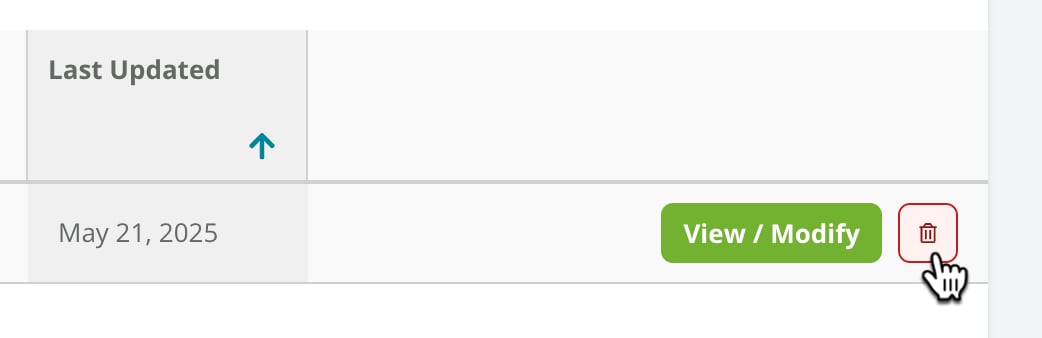
* From the list in the **Content Profiles** activity. Just identify the profile you want to delete and click the **Delete** icon on the far right.\\
### Delete a Content Profile
You can delete existing Content Profiles:
* From the list in the **Content Profiles** activity. Just identify the profile you want to delete and click the **Delete** icon on the far right.\\
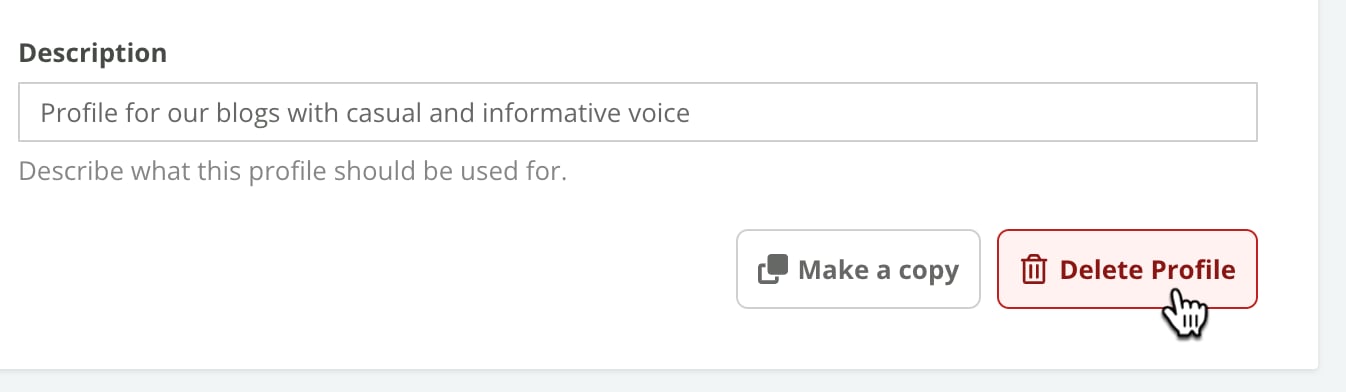
 * While [editing a Content Profile](#edit-a-content-profile). Just click the **Delete Profile** button.\\
 ### Apply a Content Profile
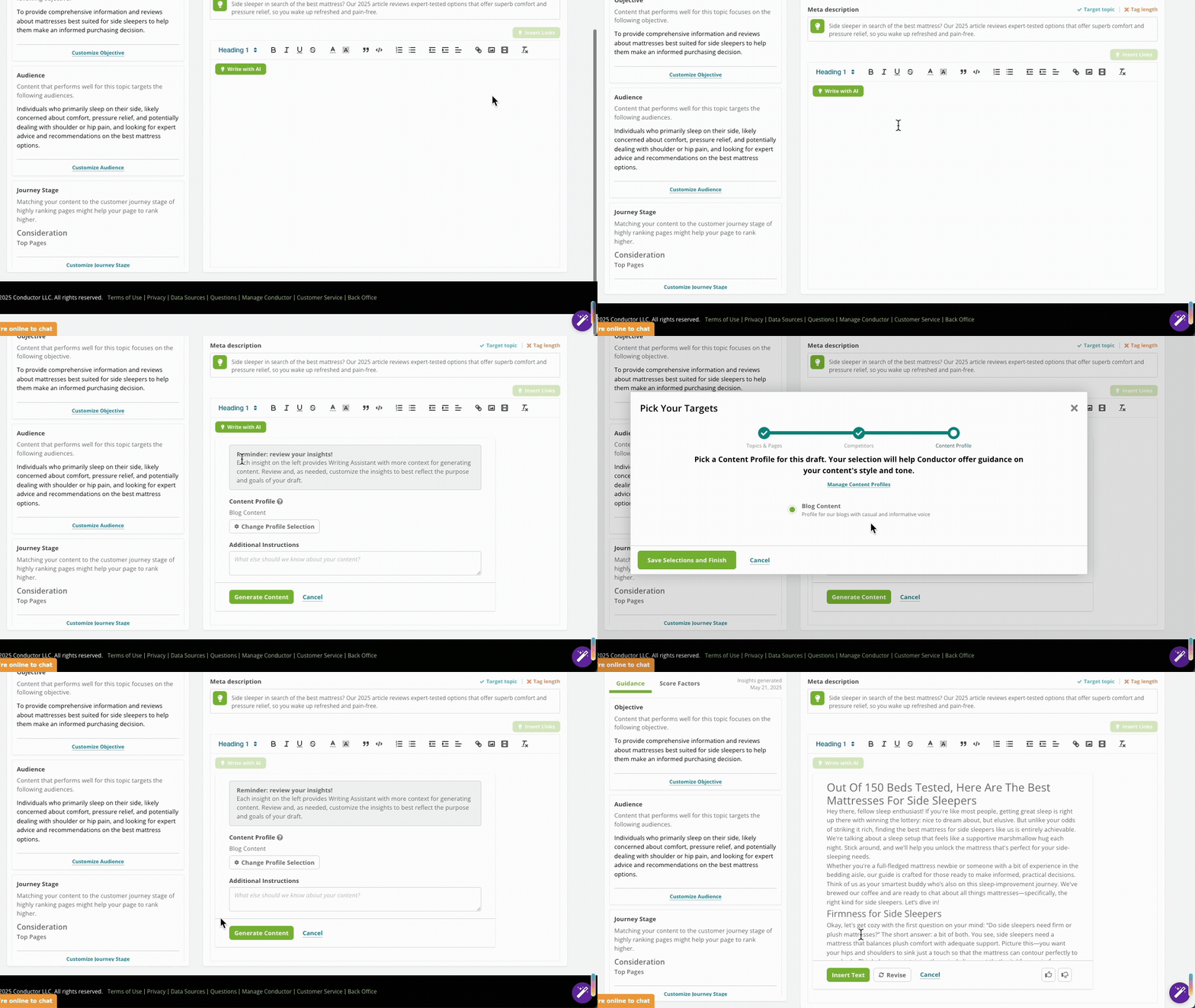
As you build a draft in Writing Assistant, you can apply a Content Profile:
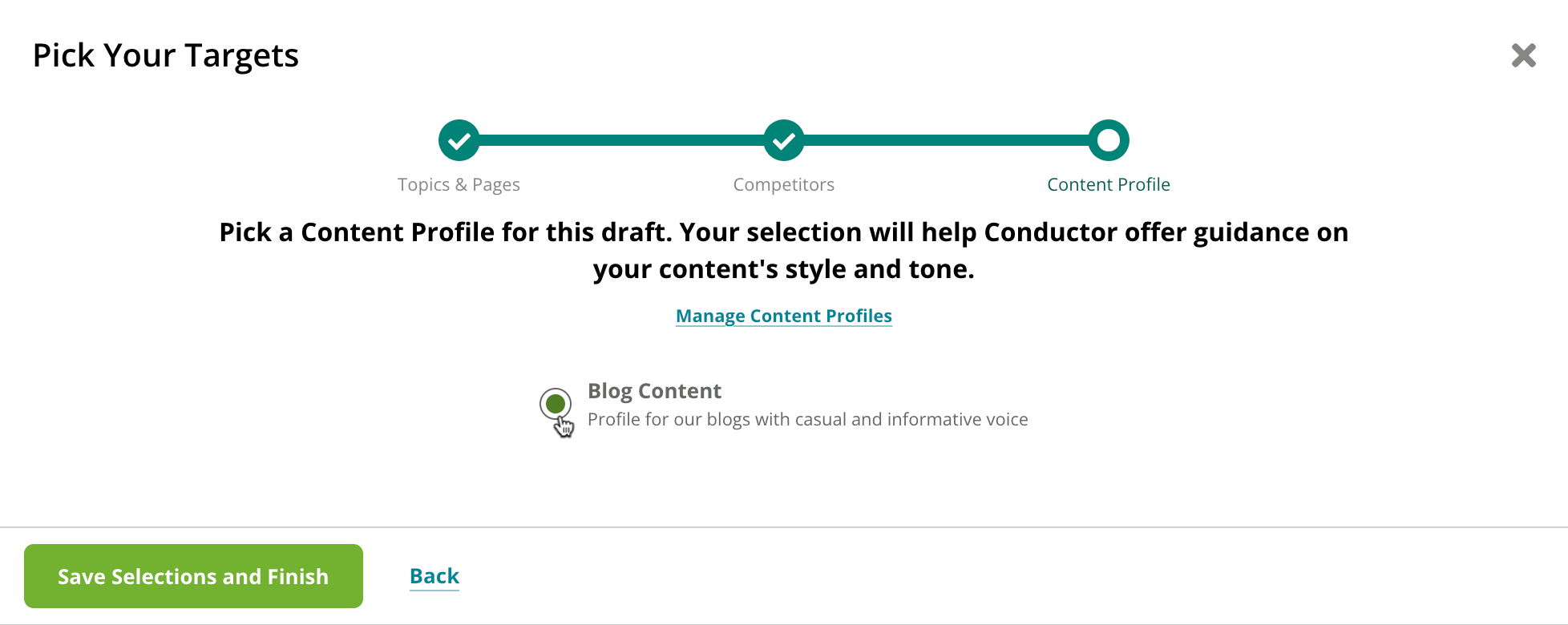
* In the **Pick Your Targets** form.\\
### Apply a Content Profile
As you build a draft in Writing Assistant, you can apply a Content Profile:
* In the **Pick Your Targets** form.\\
 * In the **Generate Draft** form in the text editor (**Write with AI** > **Generate Draft**).\\