> ## Documentation Index
> Fetch the complete documentation index at: https://www.conductor.com/docs/llms.txt
> Use this file to discover all available pages before exploring further.
# Creating and Sharing Conductor Actions
> Turn any Conductor insight into a trackable task in your work management app and share it with the right teammates.
Conductor Actions let you create trackable tasks and actionable items in your task management app directly from Conductor.
Refer to the instructions below to learn how to create and share these tasks.
You can review existing Actions in the **Actions activity** and **Actions Panel**. Refer to the [Actions Activity](/docs/creator/actions-activity/) article to learn more about using these features.
## Integrate your task management app
Conductor Actions currently integrates with Asana, Google Docs, Jira Cloud, and Trello. Refer to the [Conductor Actions Setup](/docs/creator/conductor-actions-setup/) article to learn how to integrate.
## Create Actions with the Actions Panel
You can access all your Action types from the **Actions Panel** by clicking the **Actions icon** in the bottom-right corner throughout the app:\\
 You can also start creating an Action by clicking:
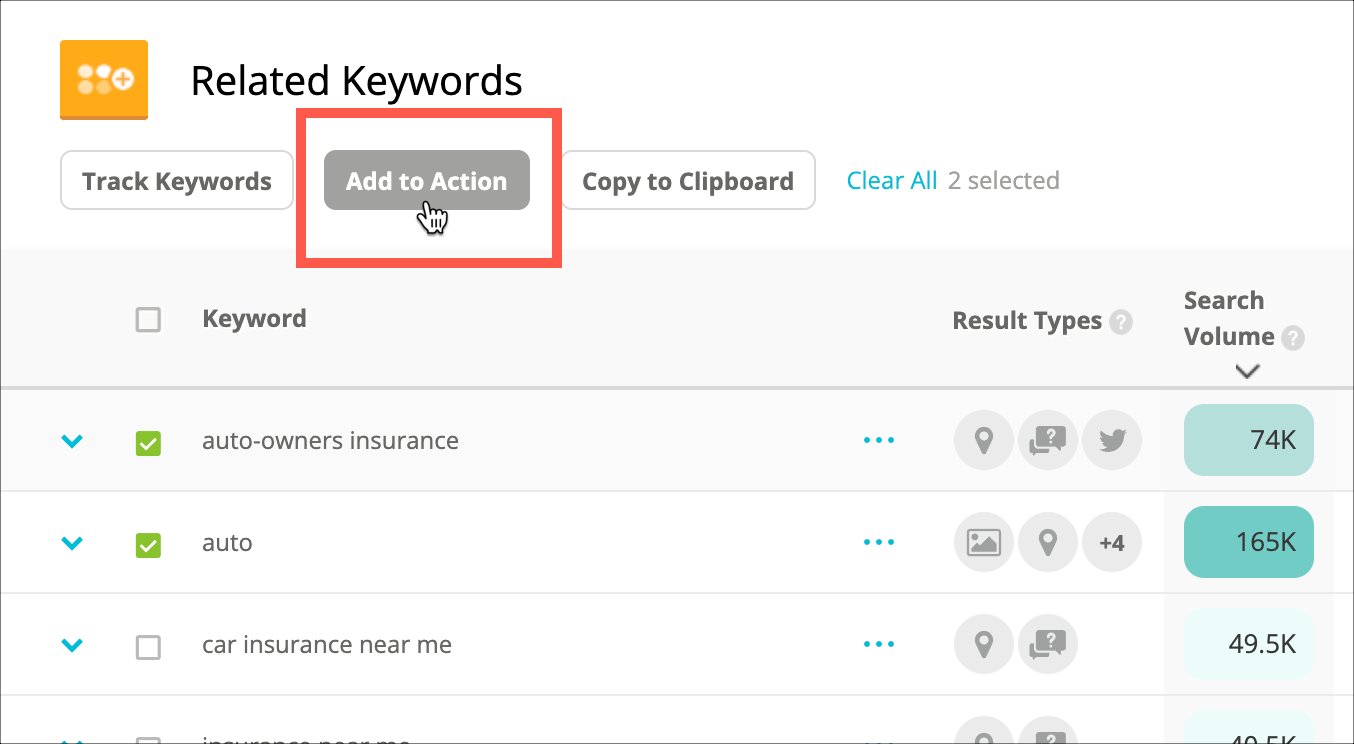
* The **Add to Action** button in [Research](/docs/creator/research/):\\
You can also start creating an Action by clicking:
* The **Add to Action** button in [Research](/docs/creator/research/):\\
 * Wherever you see the **Add to Action** icon:\\
 1. From the **Actions Panel**, select one of the following types of Actions:
* **Optimization Brief**: Let your team know what updates can be made to a page's key on-page elements (title, meta description, and header tags) to optimize its visibility in search and help your customers find what they’re looking for.
* **Content Creation Brief**: Planning to create a new piece of content? Use this brief to provide your content writer with all the recommended keywords, questions, and metadata to be covered by the piece.
* **Keyword** **List**: Planning a content calendar or wondering how to optimize your site? Make a list of topics your customers care about in order to create content that meets their needs.
* **To-do**: Discover an opportunity to help your customers find what they are looking for? Maybe something else? Take a note about something you might want to look into later or share with a teammate.
2. Enter information to share with the Action as necessary. You can include as much or as little information as needed.
* Enter a **name** for the Action.
* If you chose an **Optimization Brief**, enter the **URL** of the page for which you are providing optimization recommendations in the Page URL field and click **Add**. The page's current metadata appears in the relevant fields below.
* Add other high-level information like a description or notes for the Action.
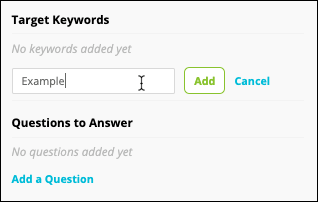
* If applicable, add information specific to the type of Action you are creating, such as suggestions for on-page elements or keywords and questions to address.\
1. From the **Actions Panel**, select one of the following types of Actions:
* **Optimization Brief**: Let your team know what updates can be made to a page's key on-page elements (title, meta description, and header tags) to optimize its visibility in search and help your customers find what they’re looking for.
* **Content Creation Brief**: Planning to create a new piece of content? Use this brief to provide your content writer with all the recommended keywords, questions, and metadata to be covered by the piece.
* **Keyword** **List**: Planning a content calendar or wondering how to optimize your site? Make a list of topics your customers care about in order to create content that meets their needs.
* **To-do**: Discover an opportunity to help your customers find what they are looking for? Maybe something else? Take a note about something you might want to look into later or share with a teammate.
2. Enter information to share with the Action as necessary. You can include as much or as little information as needed.
* Enter a **name** for the Action.
* If you chose an **Optimization Brief**, enter the **URL** of the page for which you are providing optimization recommendations in the Page URL field and click **Add**. The page's current metadata appears in the relevant fields below.
* Add other high-level information like a description or notes for the Action.
* If applicable, add information specific to the type of Action you are creating, such as suggestions for on-page elements or keywords and questions to address.\
 \
Note that, from some reports in Conductor, you can add these pieces of information using the **Actions icon** that appears next to a keyword or question:\\
* You can minimize the panel while you work on an Action:\
\
Note that, from some reports in Conductor, you can add these pieces of information using the **Actions icon** that appears next to a keyword or question:\\
* You can minimize the panel while you work on an Action:\
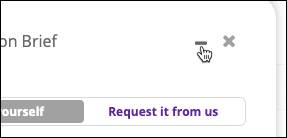 \
The minimized panel appears at the bottom of your screen:\\
\
The minimized panel appears at the bottom of your screen:\\
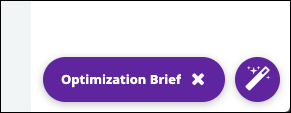 * Note that you can click **Save** at the bottom of the **Actions Panel** at any time to save this Action as a draft. You can access saved drafts from:
* The **Actions Panel**.\\
* Note that you can click **Save** at the bottom of the **Actions Panel** at any time to save this Action as a draft. You can access saved drafts from:
* The **Actions Panel**.\\
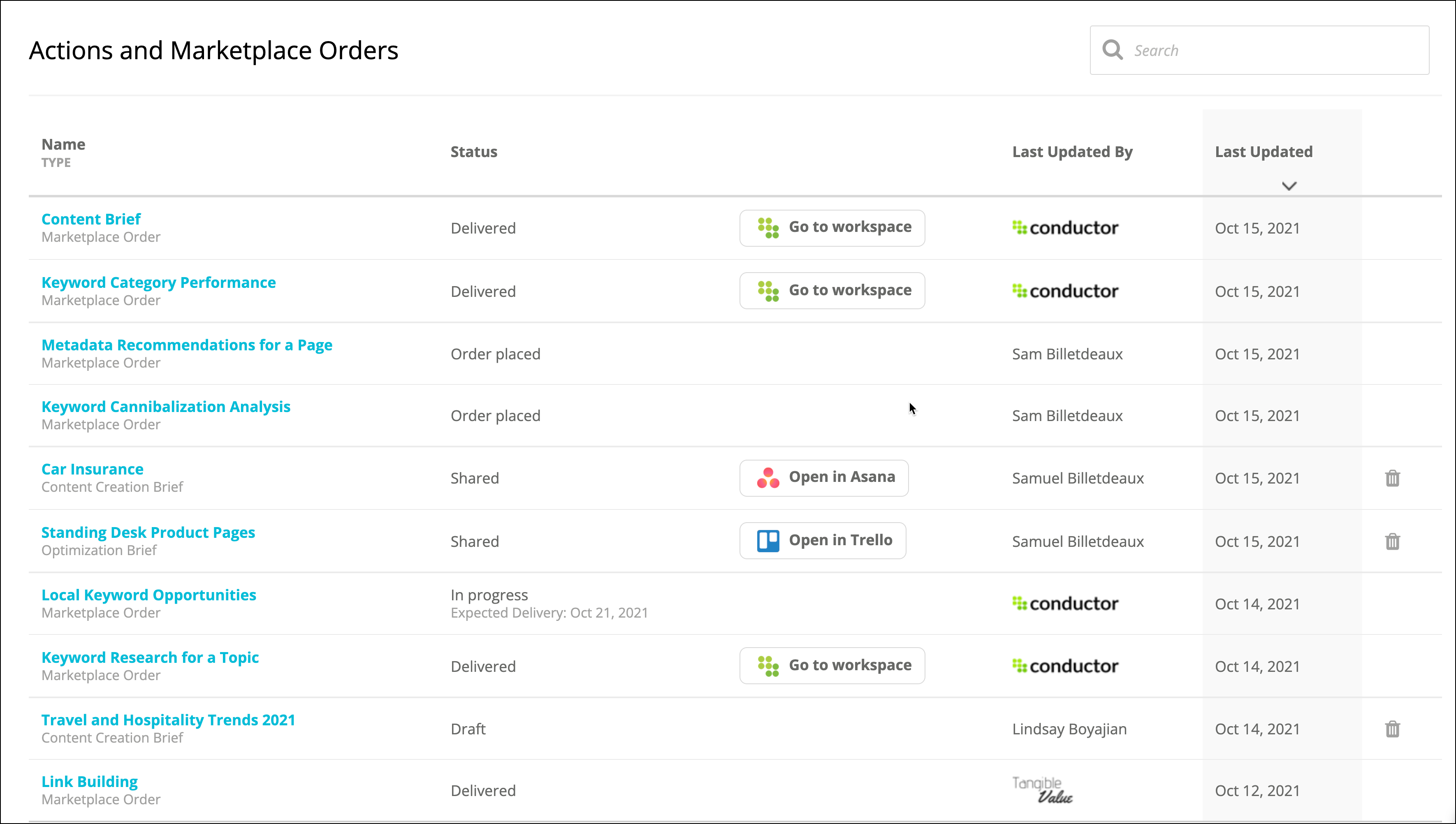
 * The [**Actions activity**](/docs/creator/actions-activity/).\\
 3. When you have completed the Action:
* If you have previously integrated the app you want to use, you can move on to the next step.
* If you have not previously integrated, you can follow the instructions found [in this article](/docs/creator/conductor-actions-setup/).
* If you have previously integrated an app, but wish to use a different supported app, click **Change my integration** and integrate a new app using the instructions found [in this article](/docs/creator/conductor-actions-setup/).
4. Select a destination and details for your Action in your integrated app. The options here will depend on the app you integrated. For example:
* For Asana, you can select a **Project**.
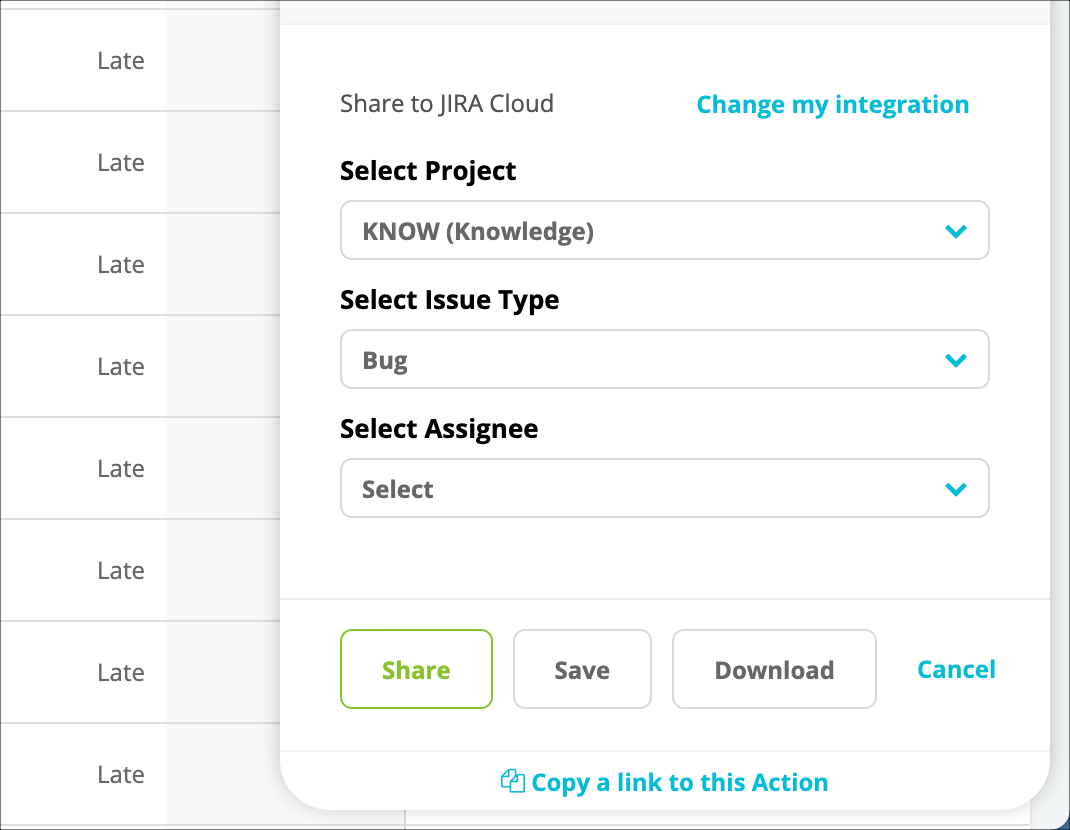
* For Jira Cloud, you can select a **Project**, an **Issue Type**, and an **Assignee**.\\
3. When you have completed the Action:
* If you have previously integrated the app you want to use, you can move on to the next step.
* If you have not previously integrated, you can follow the instructions found [in this article](/docs/creator/conductor-actions-setup/).
* If you have previously integrated an app, but wish to use a different supported app, click **Change my integration** and integrate a new app using the instructions found [in this article](/docs/creator/conductor-actions-setup/).
4. Select a destination and details for your Action in your integrated app. The options here will depend on the app you integrated. For example:
* For Asana, you can select a **Project**.
* For Jira Cloud, you can select a **Project**, an **Issue Type**, and an **Assignee**.\\
 5. Click **Share** to send your Action to your integrated app.
## Access recent Actions
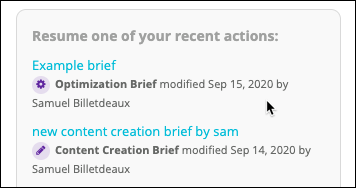
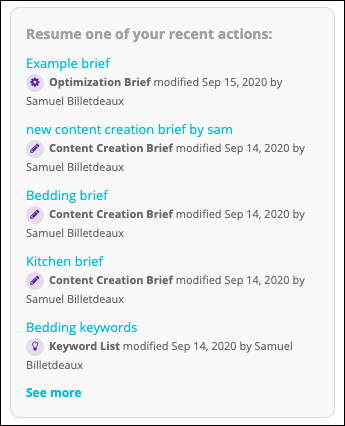
Want to pick up where you left off with an Action you saved recently? Just scroll to the bottom of the Actions panel and click to re-open it.
5. Click **Share** to send your Action to your integrated app.
## Access recent Actions
Want to pick up where you left off with an Action you saved recently? Just scroll to the bottom of the Actions panel and click to re-open it.
 Note that if it has been a while and the Action no longer appears here, you can locate all your actions, saved and completed, in the [**Actions activity**](/docs/creator/actions-activity/).
## Share a Link to an Action in the Panel
There are times you might want to send a link to an Action in Conductor so other Conductor users can see it in context, share their insight, and contribute to your process. To do so, simply click the link that appears at the bottom of the **Actions Panel** for a particular Action.
Note that if it has been a while and the Action no longer appears here, you can locate all your actions, saved and completed, in the [**Actions activity**](/docs/creator/actions-activity/).
## Share a Link to an Action in the Panel
There are times you might want to send a link to an Action in Conductor so other Conductor users can see it in context, share their insight, and contribute to your process. To do so, simply click the link that appears at the bottom of the **Actions Panel** for a particular Action.
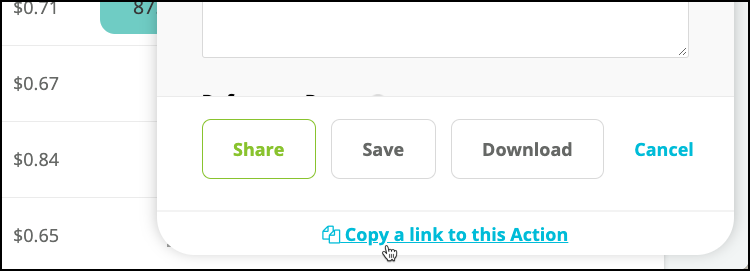 Conductor copies a direct URL to your clipboard so you can send it to your team.
## Review and manage your Actions
You can review and manage your Actions in the [**Actions activity**](/docs/creator/actions-activity/).
## Delete an Action
You can delete Actions from the **Actions activity**.
1. [**Click here**](https://app.conductor.com/u/actions) or follow the path **Content** > **More** > **Actions** in Conductor Creator's navigation.
2. Locate the Action you want to delete in the table.
3. Click the **delete** **icon** in the relevant row.\\
Conductor copies a direct URL to your clipboard so you can send it to your team.
## Review and manage your Actions
You can review and manage your Actions in the [**Actions activity**](/docs/creator/actions-activity/).
## Delete an Action
You can delete Actions from the **Actions activity**.
1. [**Click here**](https://app.conductor.com/u/actions) or follow the path **Content** > **More** > **Actions** in Conductor Creator's navigation.
2. Locate the Action you want to delete in the table.
3. Click the **delete** **icon** in the relevant row.\\
 Note that this removes the Action from Conductor but has no effect on the task in the integrated task management app. Any previously-shared Actions will remain at their destinations unless you choose to delete them there.