> ## Documentation Index
> Fetch the complete documentation index at: https://www.conductor.com/docs/llms.txt
> Use this file to discover all available pages before exploring further.
# Extending Conductor Insights into Your Drupal CMS
> Surface Conductor's Writing Assistant recommendations inside Drupal via Acquia's SEO Content Insights module.
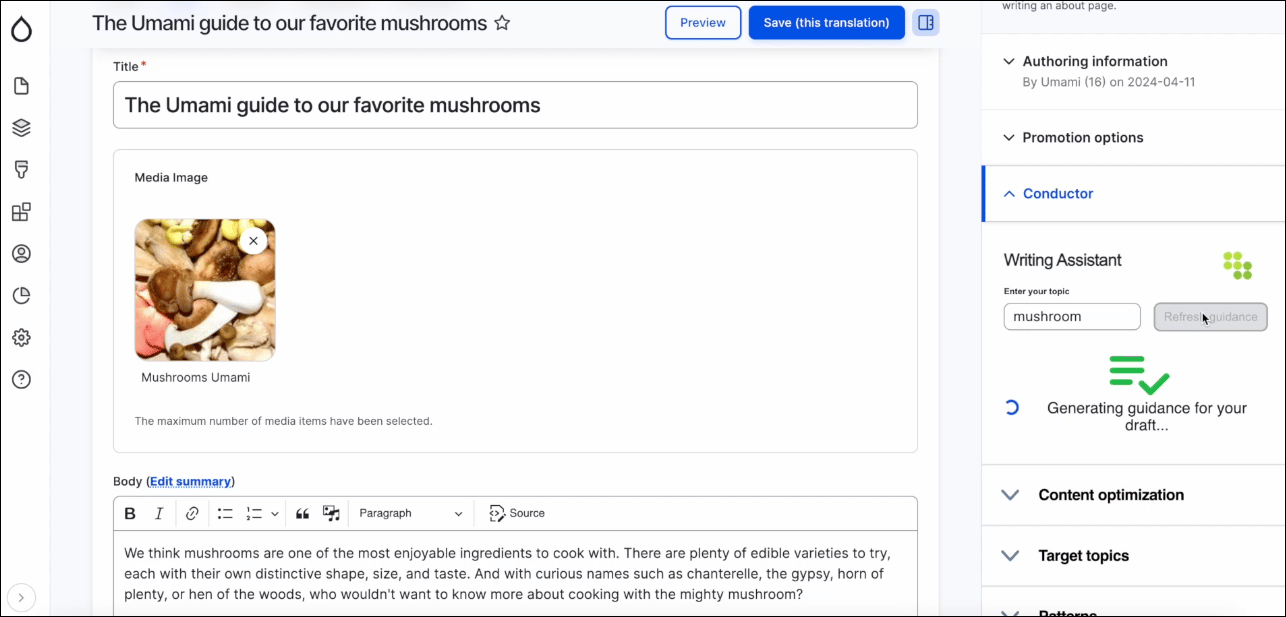
Through [Conductor's partnership with Acquia](https://www.conductor.com/lp/acquia-partnership/), joint Drupal and Conductor users can see the same content insights in Drupal's CMS editor that they see in Conductor's [Writing Assistant](/docs/creator/writing-assistant/) feature.
Acquia's SEO Content Insights module extends Conductor's recommendations and insights into the place where Drupal users are already crafting content for your organization.
Note that only one user needs to perform this configuration for a given Drupal instance. Once added and configured, all Drupal users at your organization will be able to see and use the Conductor module in Drupal.
 ## Add the Conductor module to your Drupal instance
To add the Conductor module, you'll need to follow your organization's processes for adding modules to Drupal. You can find [documentation for adding this module](https://www.drupal.org/project/conductor) on Drupal’s site.
## Get your API Key and Shared Secret
To set up this integration, you'll need an API Key and Shared Secret from your Conductor account.
1. Fill out the [**Activate your integration** form on this page](https://www.conductor.com/lp/content-insights-drupal/) to allow access to configuring the module.
2. In Conductor, go to the **API** activity (**Integrations** > **API**) or [**click here**](https://app.conductor.com/u/api-key).
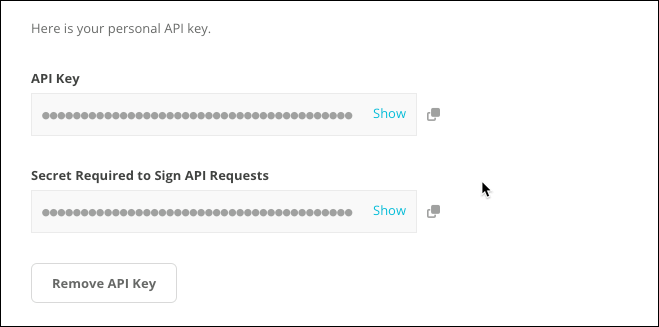
3. Copy your API Key and Shared Secret.
* If you have previously generated an API Key and Shared Secret, you can click to copy them.\\
## Add the Conductor module to your Drupal instance
To add the Conductor module, you'll need to follow your organization's processes for adding modules to Drupal. You can find [documentation for adding this module](https://www.drupal.org/project/conductor) on Drupal’s site.
## Get your API Key and Shared Secret
To set up this integration, you'll need an API Key and Shared Secret from your Conductor account.
1. Fill out the [**Activate your integration** form on this page](https://www.conductor.com/lp/content-insights-drupal/) to allow access to configuring the module.
2. In Conductor, go to the **API** activity (**Integrations** > **API**) or [**click here**](https://app.conductor.com/u/api-key).
3. Copy your API Key and Shared Secret.
* If you have previously generated an API Key and Shared Secret, you can click to copy them.\\
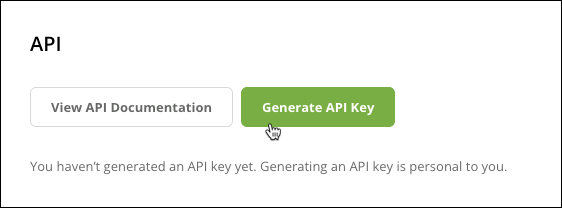
 * If you have not previously generated an API Key and Shared Secret, click **Generate API Key**.\\
 ## Configure the Conductor module in Drupal
After the module is added to your Drupal instance and you have received your API Key and Shared Secret, you'll need to set up the connection between your Conductor account and Drupal.
1. In Drupal, go to **Manage** > **Configuration**.\\
## Configure the Conductor module in Drupal
After the module is added to your Drupal instance and you have received your API Key and Shared Secret, you'll need to set up the connection between your Conductor account and Drupal.
1. In Drupal, go to **Manage** > **Configuration**.\\
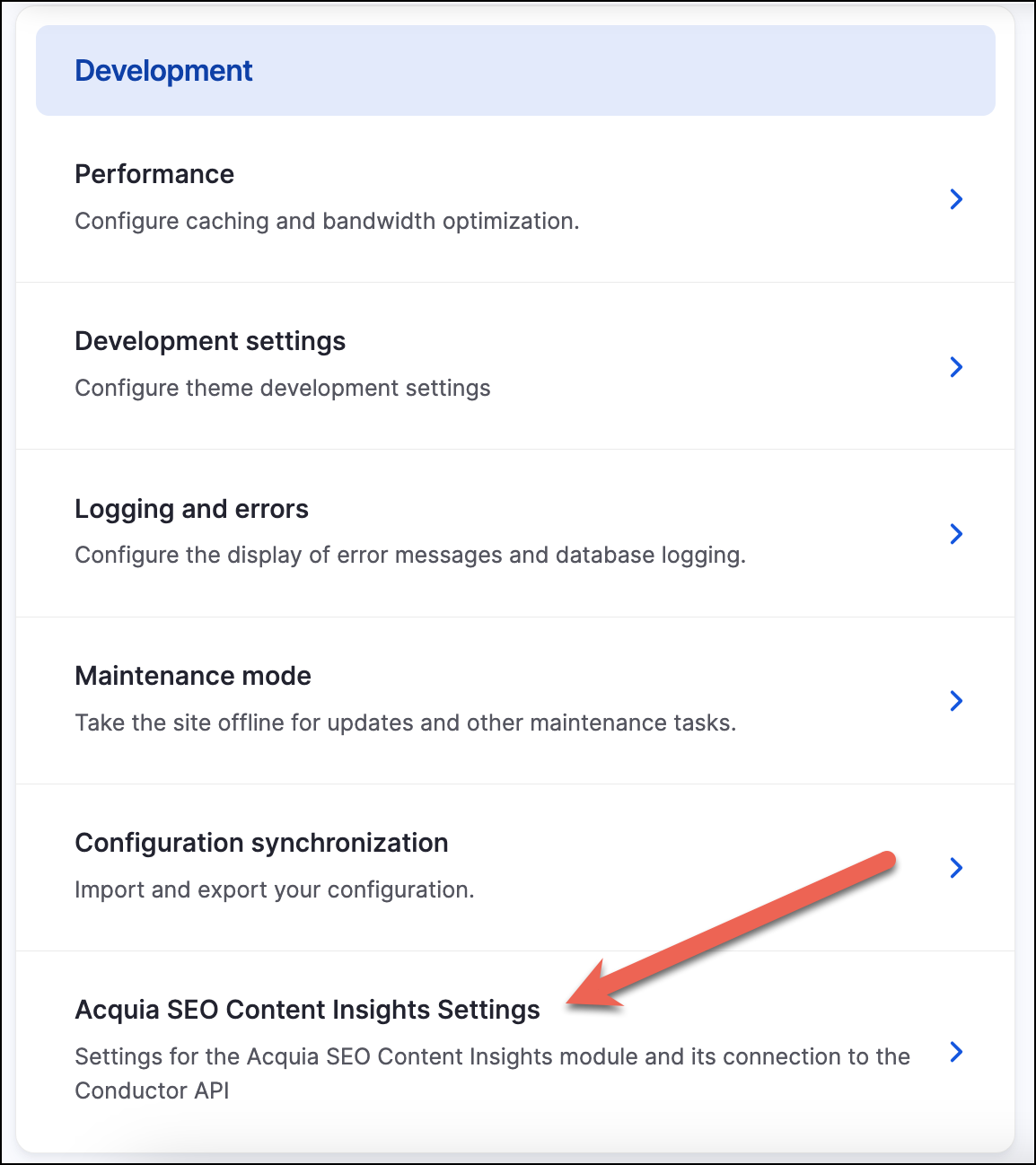
 2. In the **Development** section, click to open **Acquia SEO Content Insights Settings**.\\
 3. In the **Acquia SEO Content Insights Settings** screen, enter your **API Key** and **Shared Secret** in the relevant fields.\\
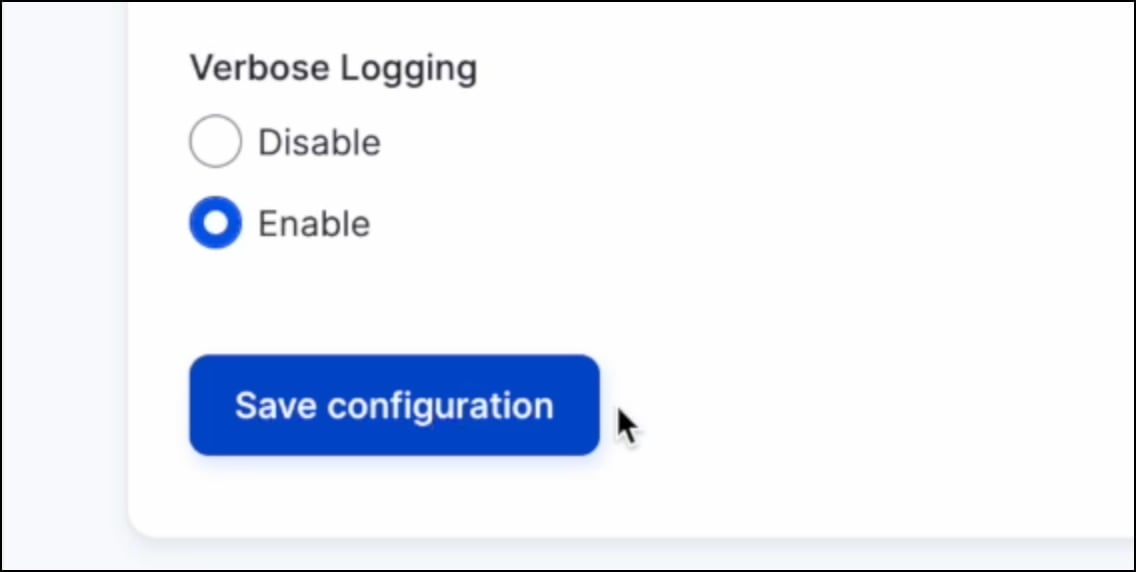
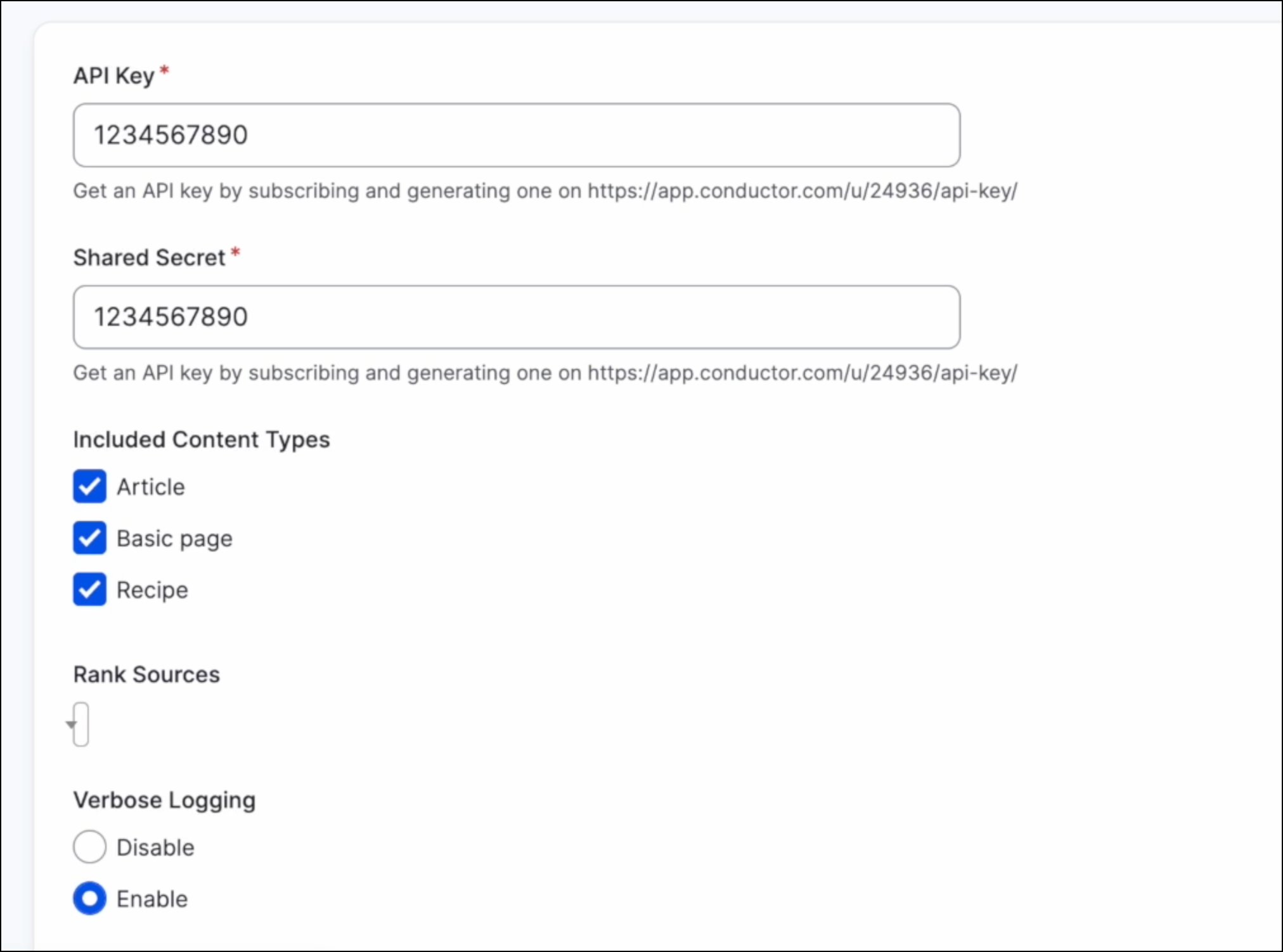 4. Click **Save configuration**. This will create the connection between Conductor and Drupal.\\
 5. Configure other settings:
* **Included Content Types**. Choose the content types in Drupal for which the Conductor module will appear.
* **Rank Sources**. Choose the preferred search engine and language for which the Conductor module will return insights. Note that this menu won't be available until you have entered the API Key and Shared Secret and clicked **Save configuration**.
* **Verbose Logging**. Enable verbose logging to help with troubleshooting (Drupal recommends keeping this enabled).
6. Click **Save configuration**. Users of your Drupal instance can now use the module to review insights and recommendations for enabled content types.
## FAQs
The module works with Drupal ^9.4 and ^10.
### In Drupal
Drupal's permissions are flexible, so depending on your organization's permissions configuration, you may be able to add the Conductor module and configure it. If not, you may have to reach out to the Drupal users or administrators at your organization for assistance.
### In Conductor
To access your API Key and Shared Secret, you'll need to be a Standard or Admin user in Conductor—Read-Only users do not have access to this information in the app.
To configure this module as a Read-Only user, reach out to a Standard or Admin Conductor user at your organization.
5. Configure other settings:
* **Included Content Types**. Choose the content types in Drupal for which the Conductor module will appear.
* **Rank Sources**. Choose the preferred search engine and language for which the Conductor module will return insights. Note that this menu won't be available until you have entered the API Key and Shared Secret and clicked **Save configuration**.
* **Verbose Logging**. Enable verbose logging to help with troubleshooting (Drupal recommends keeping this enabled).
6. Click **Save configuration**. Users of your Drupal instance can now use the module to review insights and recommendations for enabled content types.
## FAQs
The module works with Drupal ^9.4 and ^10.
### In Drupal
Drupal's permissions are flexible, so depending on your organization's permissions configuration, you may be able to add the Conductor module and configure it. If not, you may have to reach out to the Drupal users or administrators at your organization for assistance.
### In Conductor
To access your API Key and Shared Secret, you'll need to be a Standard or Admin user in Conductor—Read-Only users do not have access to this information in the app.
To configure this module as a Read-Only user, reach out to a Standard or Admin Conductor user at your organization.