' + esc(tutorialText) + "
" + '' + esc(tutorialLabel) + "" + "Register for our ' + esc(webinarName) + " live webinar training.
" + '' + esc(webinarLabel) + "" + "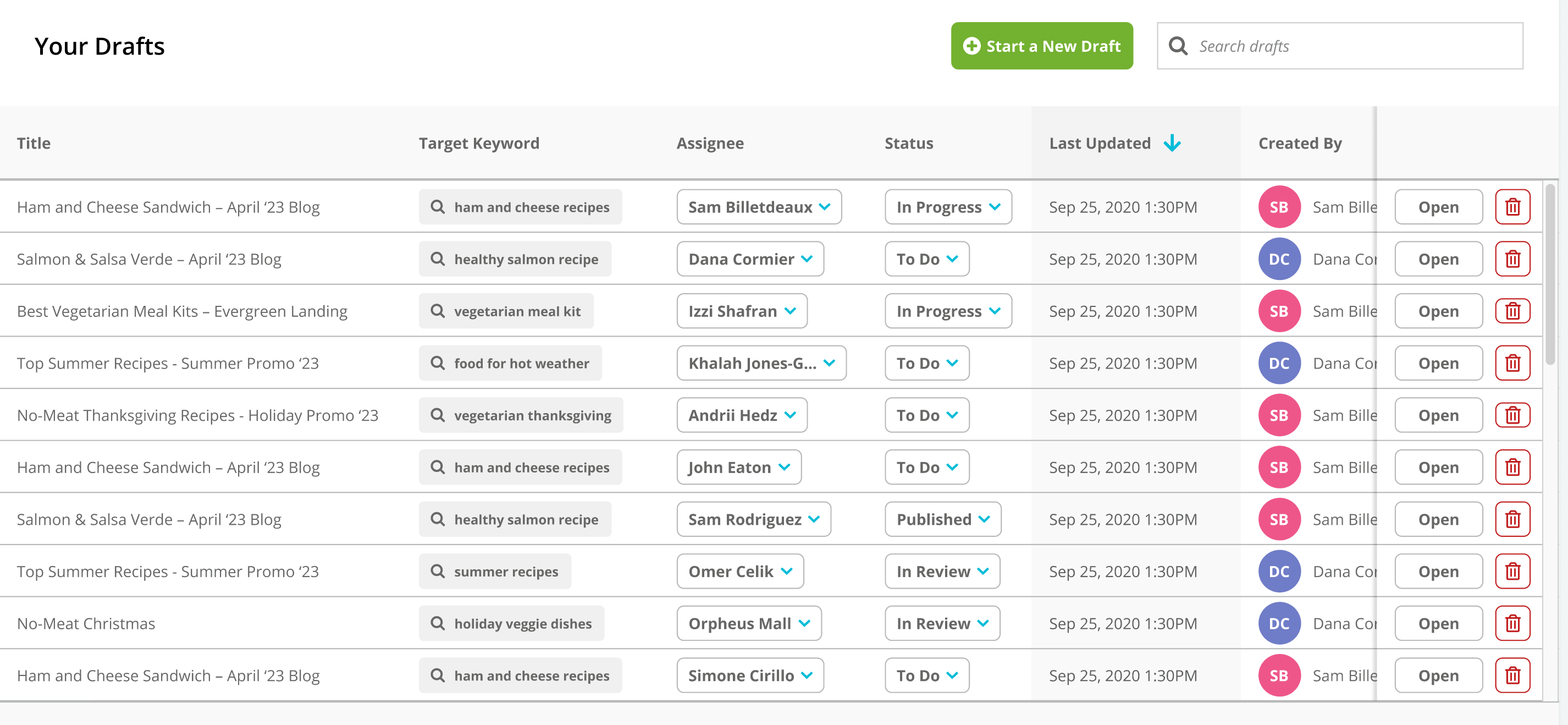 ### Create a Draft
Click **Start a New Draft**. You'll enter up to five keywords that represent a topic you've researched and want to see recommendations for. Then click **Evaluate**. If you have a page you are optimizing for, you can also enter a URL for the page you already have for the topic.
### Create a Draft
Click **Start a New Draft**. You'll enter up to five keywords that represent a topic you've researched and want to see recommendations for. Then click **Evaluate**. If you have a page you are optimizing for, you can also enter a URL for the page you already have for the topic.
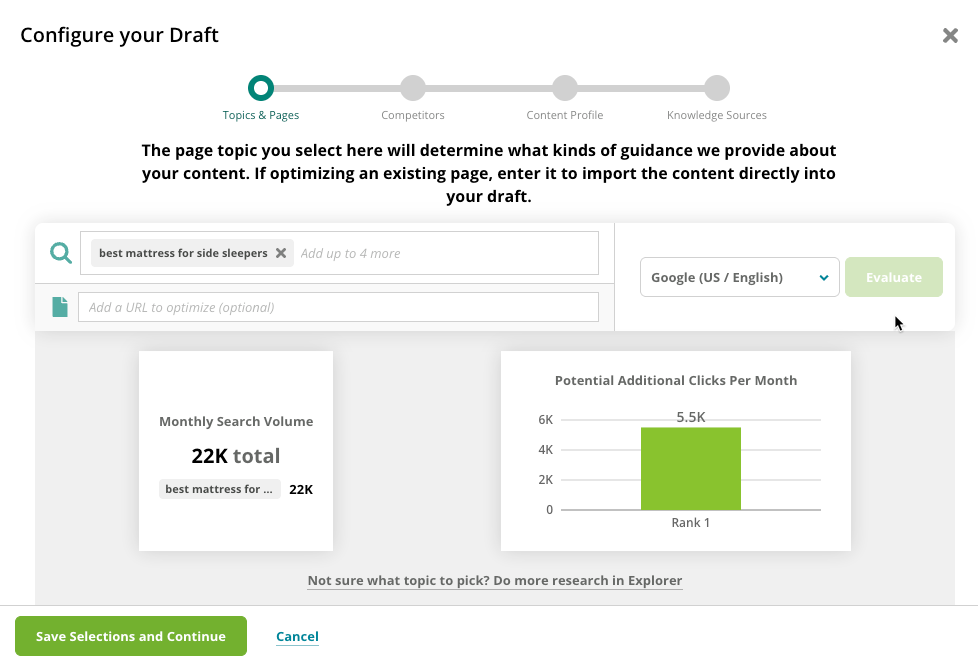 1. In the **Topic** **& Pages** tab, review the monthly search volume and—using data derived from Conductor's modeled traffic metric—potential engagement a top-ranking page might drive. See if there are stronger primary keywords you might want to target. If they don't look encouraging, you can go to [Content Guidance](/docs/creator/content-guidance/) to do more research on the topic.
2. Click **Save Selections and Continue**.
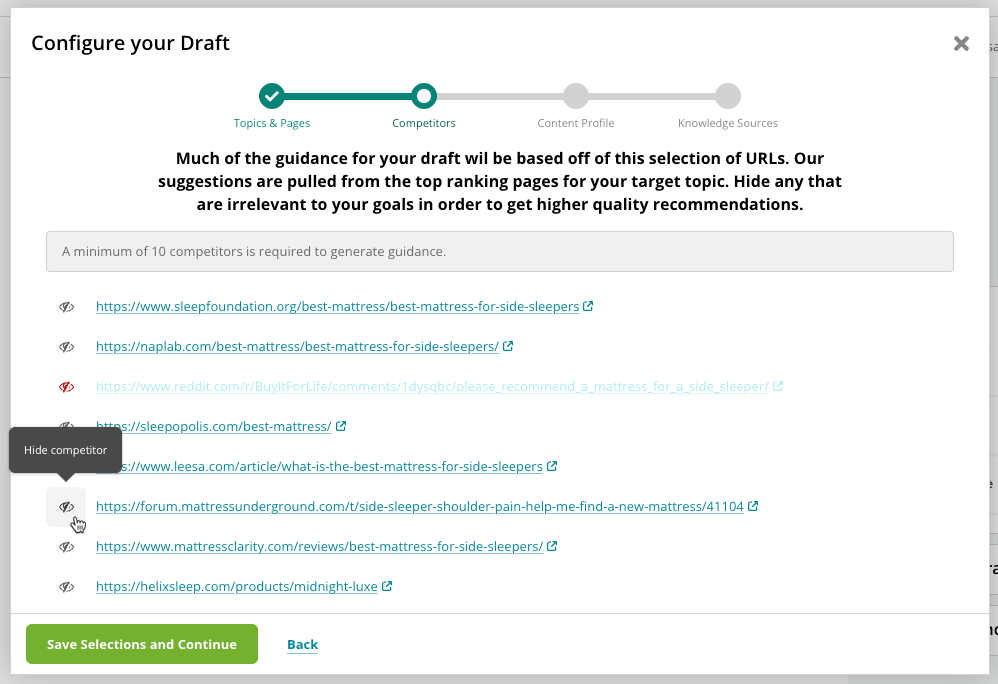
3. In the **Competitors** tab, review the top-ranking competitors from which Conductor should derive insights for your content.\\
1. In the **Topic** **& Pages** tab, review the monthly search volume and—using data derived from Conductor's modeled traffic metric—potential engagement a top-ranking page might drive. See if there are stronger primary keywords you might want to target. If they don't look encouraging, you can go to [Content Guidance](/docs/creator/content-guidance/) to do more research on the topic.
2. Click **Save Selections and Continue**.
3. In the **Competitors** tab, review the top-ranking competitors from which Conductor should derive insights for your content.\\
 4. Click **Save Selections and Continue**.
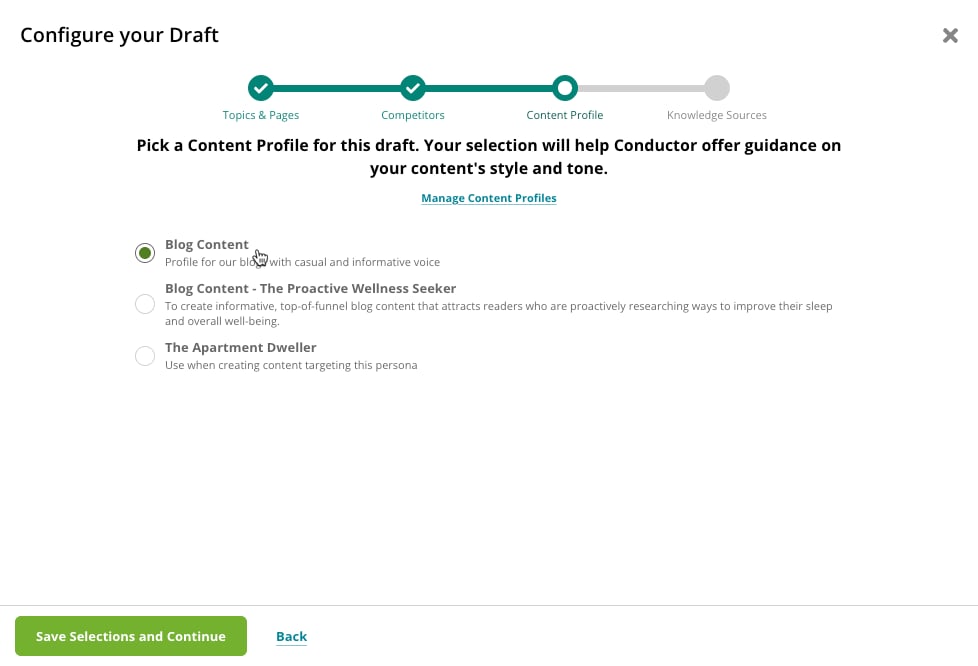
5. In the **Content Profile** tab, if you want, select a [Content Profile](/docs/creator/content-profiles/) for this draft that Conductor should use when generating AI content.\\
4. Click **Save Selections and Continue**.
5. In the **Content Profile** tab, if you want, select a [Content Profile](/docs/creator/content-profiles/) for this draft that Conductor should use when generating AI content.\\
 6. Click **Save Selections and Continue**.
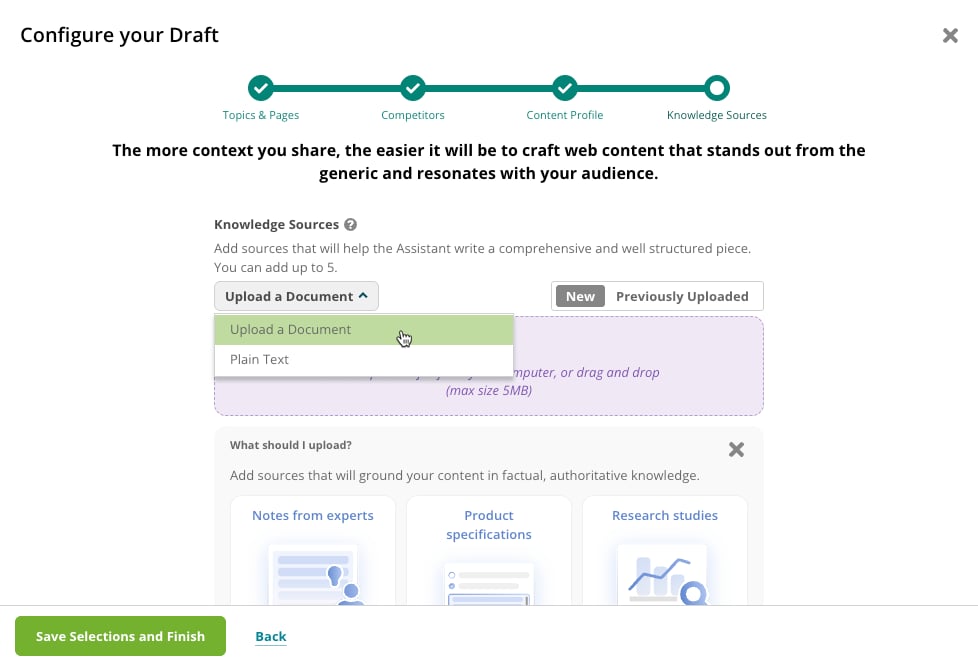
7. In the **Knowledge Sources** tab, add files or plain text as guidance for Conductor's AI engine to use as it generates content for this draft. Note that you can reuse **Previously Uploaded** sources—so you don't have to upload the files again if you want to use them for multiple drafts. [What file types can be uploaded?](/docs/creator/writing-assistant-faqs/#what-file-types-can-i-upload-as-a-knowledge-source-in-a-draft)\
6. Click **Save Selections and Continue**.
7. In the **Knowledge Sources** tab, add files or plain text as guidance for Conductor's AI engine to use as it generates content for this draft. Note that you can reuse **Previously Uploaded** sources—so you don't have to upload the files again if you want to use them for multiple drafts. [What file types can be uploaded?](/docs/creator/writing-assistant-faqs/#what-file-types-can-i-upload-as-a-knowledge-source-in-a-draft)\
 #### Page Title and Meta Description
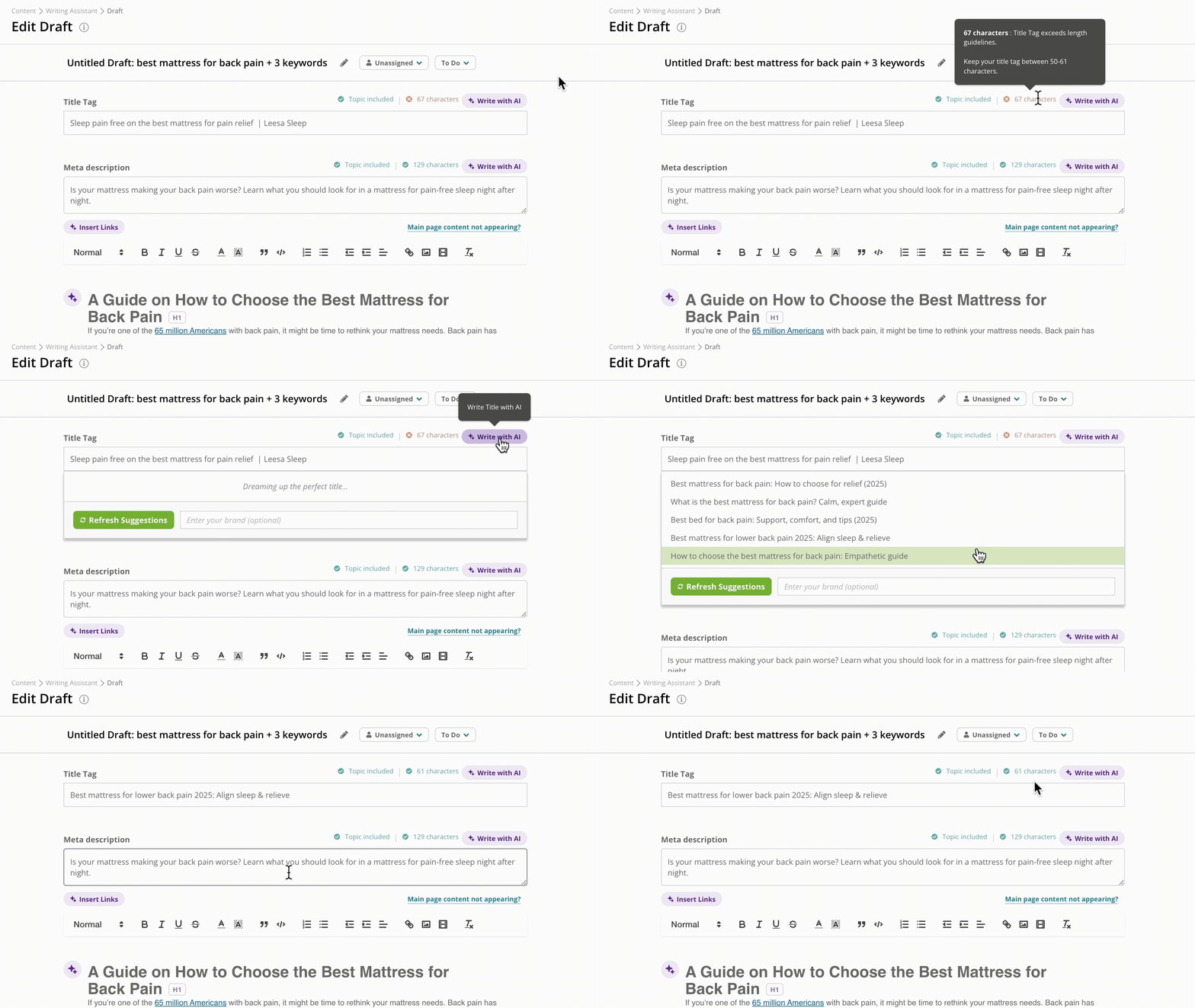
You can enter a **Title tag** and **Meta description** for the page to get assistance for those elements as well. The **Target topic** and **Tag length** indicators on the right show when your entries meet best practices for these elements.
You can also use AI-suggestions for each. Just click the AI menu icon (the green lightbulb) to generate suggestions. A list of up to 5 options appears.
#### Page Title and Meta Description
You can enter a **Title tag** and **Meta description** for the page to get assistance for those elements as well. The **Target topic** and **Tag length** indicators on the right show when your entries meet best practices for these elements.
You can also use AI-suggestions for each. Just click the AI menu icon (the green lightbulb) to generate suggestions. A list of up to 5 options appears.
 #### Text Editor
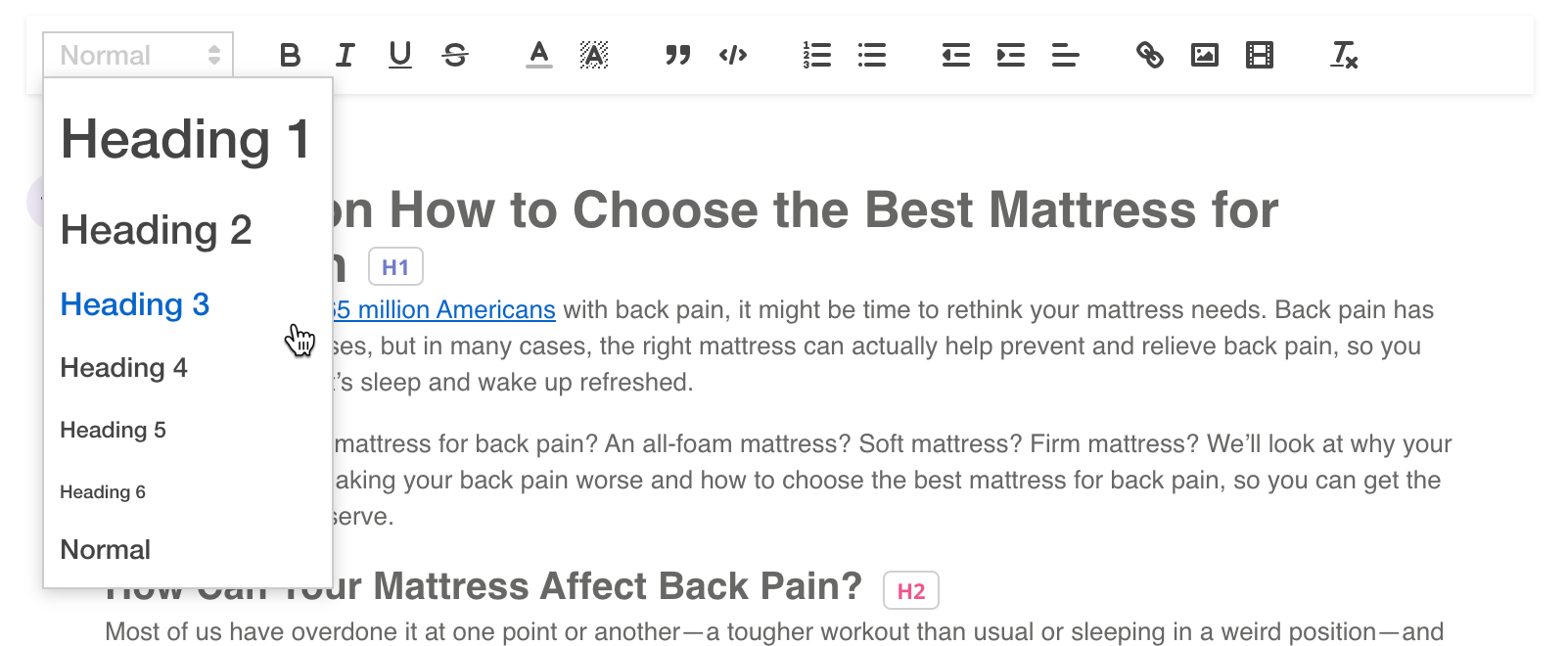
The text editor in Writing Assistant is a standard WYSIWYG editor that lets you craft content the way you would in your CMS of choice. You can also pre-fill the editor by entering the URL for an already-published page in the optional URL field at the top.
#### Text Editor
The text editor in Writing Assistant is a standard WYSIWYG editor that lets you craft content the way you would in your CMS of choice. You can also pre-fill the editor by entering the URL for an already-published page in the optional URL field at the top.
 #### Outlines
Starting from a blank slate and not sure where to start? Use the AI menu icon (the green lightbulb) to generate a content outline. You can enter an **Objective** and **Audience** for the outline to give more context to Conductor's AI engine.
#### Outlines
Starting from a blank slate and not sure where to start? Use the AI menu icon (the green lightbulb) to generate a content outline. You can enter an **Objective** and **Audience** for the outline to give more context to Conductor's AI engine.
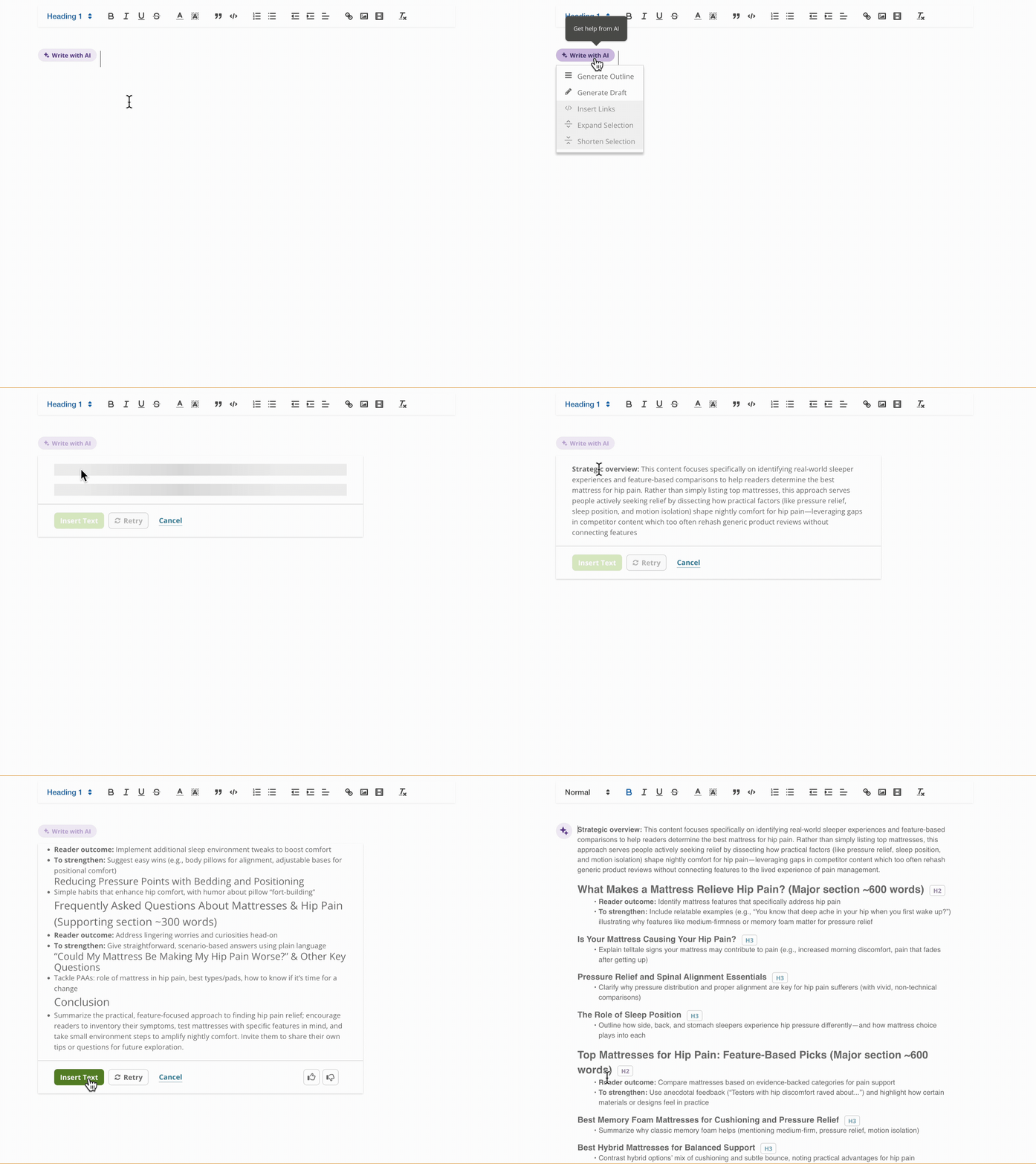 After you confirm your input, Conductor generates a content outline based on these inputs and a selection of insights including body copy suggestions, People Also Ask questions, and h2 tags from top-ranking content for the entered topic.
Once the outline generation is complete, you can:
* **Accept** the outline (keeps the generated text)
* **Reject** the outline (discards the generated text)
* **Retry** generating the outline (sends a new request with the same inputs).
#### Expand or Shorten Content
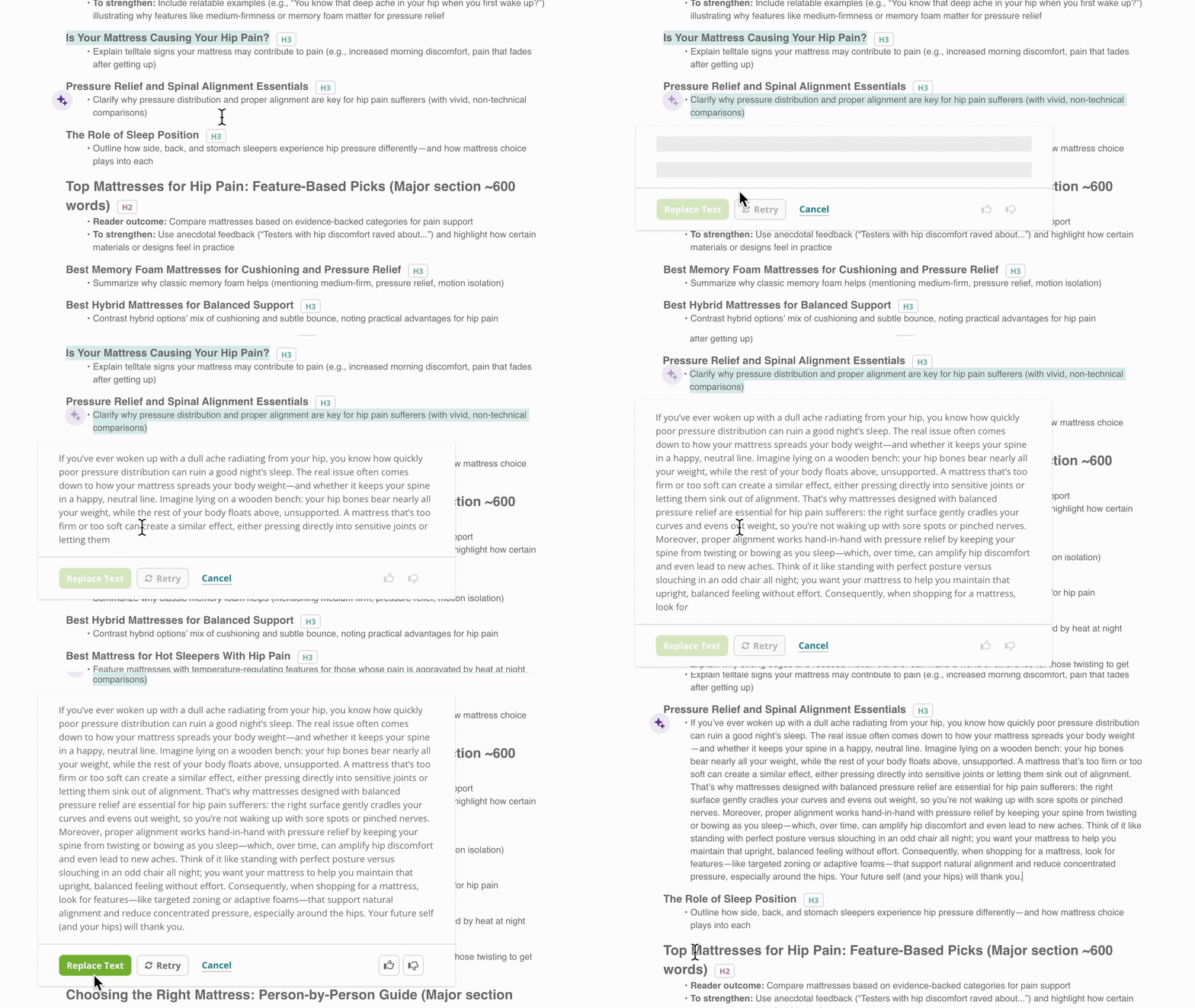
Want a co-pilot to help you build out and finetune your content? When you highlight any text in a draft you're working on, the AI menu (the green lightbulb icon) appears next to the text selection. When you select the **Expand Selection** or **Shorten Selection** option, Writing Assistant expands or shortens the highlighted text based on the context of your full draft and all your insights.
After Writing Assistant expands or shortens the content, you can:
* **Accept** it (keeps the generated text)
* **Retry** generating it (creates new text)
* **Cancel** (discards the generated text)
After you confirm your input, Conductor generates a content outline based on these inputs and a selection of insights including body copy suggestions, People Also Ask questions, and h2 tags from top-ranking content for the entered topic.
Once the outline generation is complete, you can:
* **Accept** the outline (keeps the generated text)
* **Reject** the outline (discards the generated text)
* **Retry** generating the outline (sends a new request with the same inputs).
#### Expand or Shorten Content
Want a co-pilot to help you build out and finetune your content? When you highlight any text in a draft you're working on, the AI menu (the green lightbulb icon) appears next to the text selection. When you select the **Expand Selection** or **Shorten Selection** option, Writing Assistant expands or shortens the highlighted text based on the context of your full draft and all your insights.
After Writing Assistant expands or shortens the content, you can:
* **Accept** it (keeps the generated text)
* **Retry** generating it (creates new text)
* **Cancel** (discards the generated text)
 #### Generate an Entire Draft
Beta
Unlike other AI writing tools that produce generic content, our draft generation uses Conductor's search insights as source material to create content that's both high-quality and strategically aligned with your search performance goals. The result is content that not only reads well but is grounded in what performs well in search.
1. Click the **Write with AI** button and select **Generate Draft**.
2. If you want, select any [Content Profile](/docs/creator/content-profiles/) you've configured to refine the usage and style for your draft.
Add any extra instructions for our AI engine to consider for this piece of content.
#### Generate an Entire Draft
Beta
Unlike other AI writing tools that produce generic content, our draft generation uses Conductor's search insights as source material to create content that's both high-quality and strategically aligned with your search performance goals. The result is content that not only reads well but is grounded in what performs well in search.
1. Click the **Write with AI** button and select **Generate Draft**.
2. If you want, select any [Content Profile](/docs/creator/content-profiles/) you've configured to refine the usage and style for your draft.
Add any extra instructions for our AI engine to consider for this piece of content.
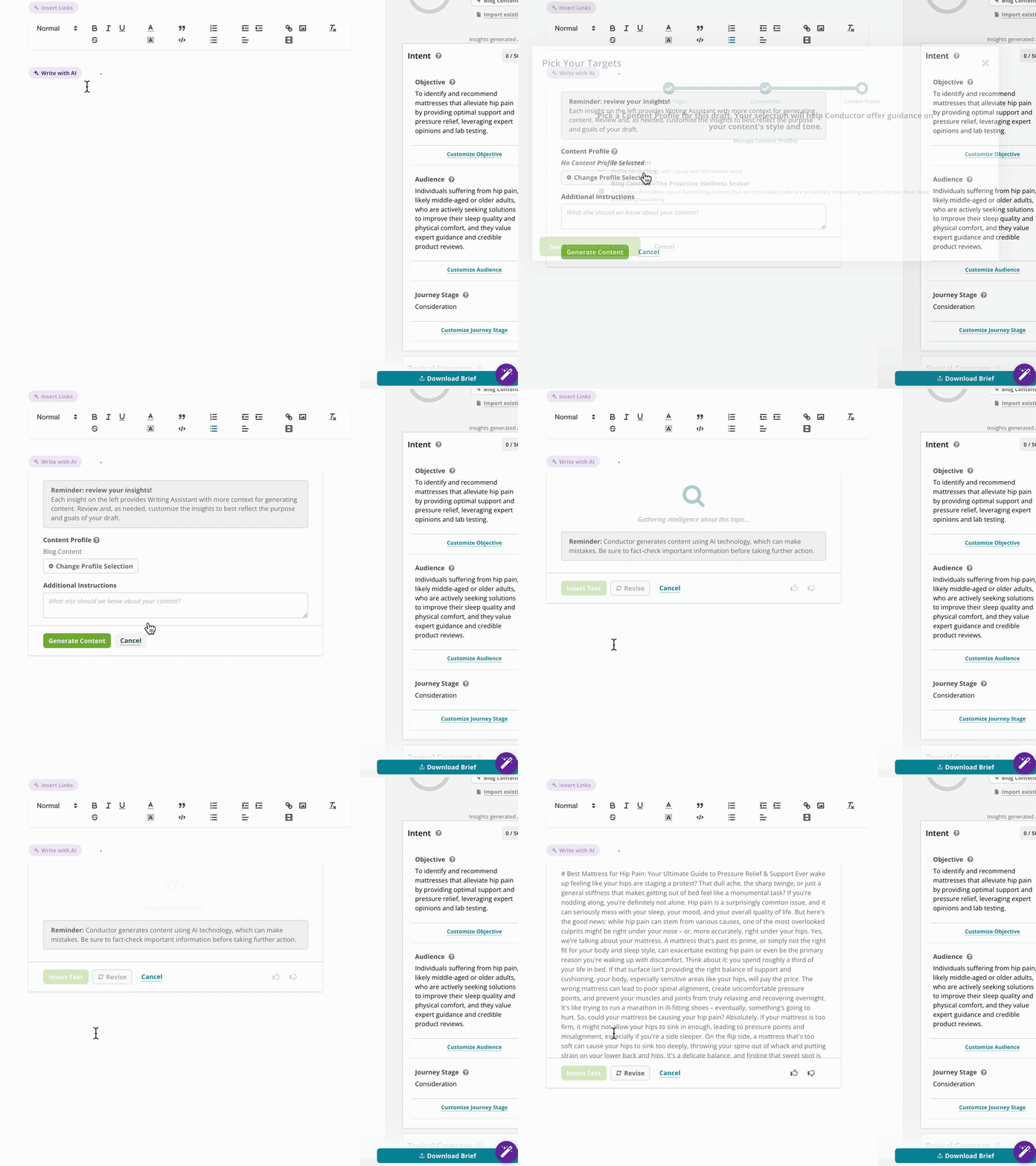 Want to keep working with what was created? Built-in AI revision lets you refine the draft with natural language prompts, so you can iterate quickly and stay in control of the final product.
#### Generate Link Suggestions
Beta
Want to keep working with what was created? Built-in AI revision lets you refine the draft with natural language prompts, so you can iterate quickly and stay in control of the final product.
#### Generate Link Suggestions
Beta
 * **For a selection of your text:**
1. Highlight text in the editor.
2. Click the **Get help from AI** button.
* **For a selection of your text:**
1. Highlight text in the editor.
2. Click the **Get help from AI** button.
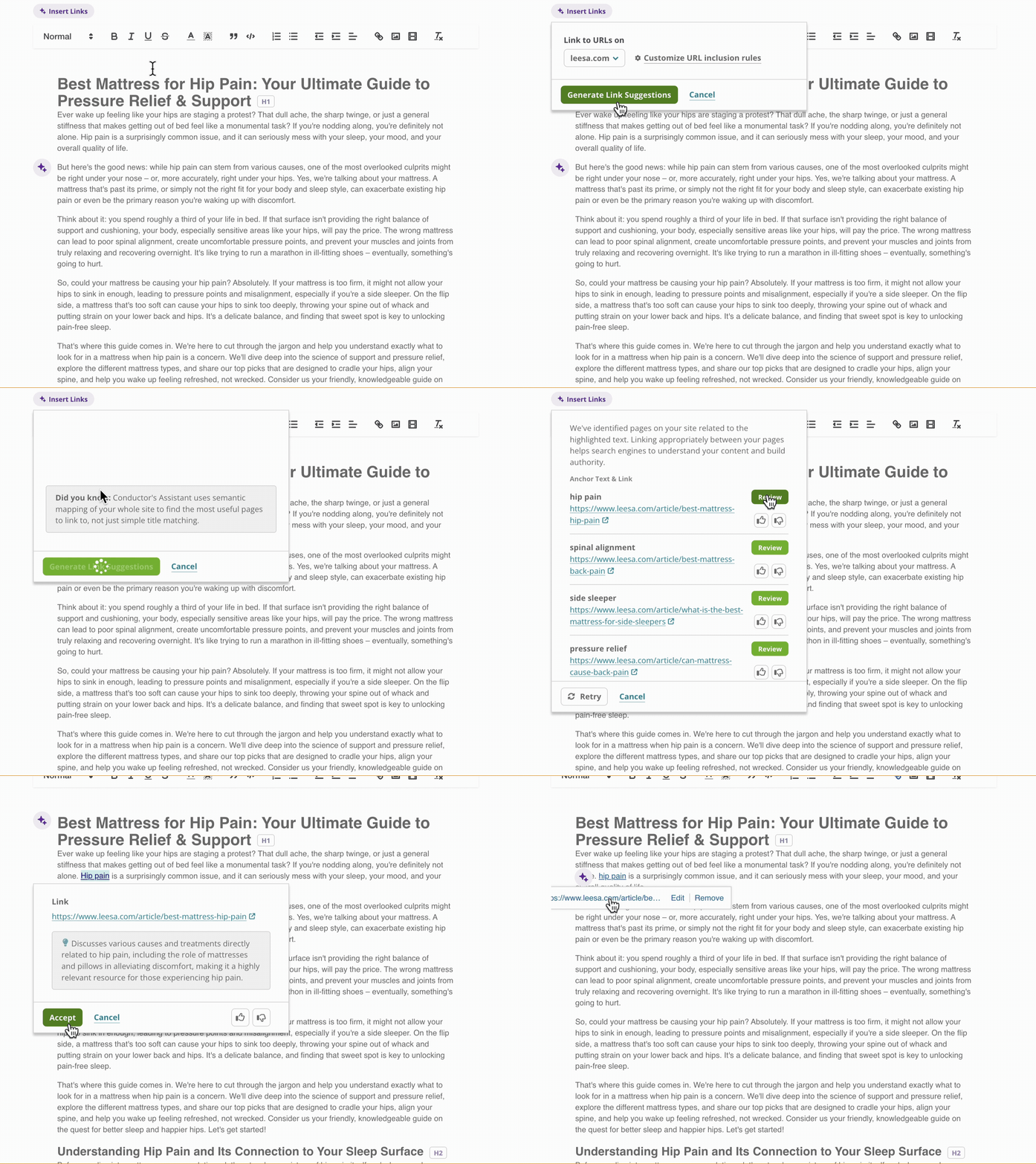
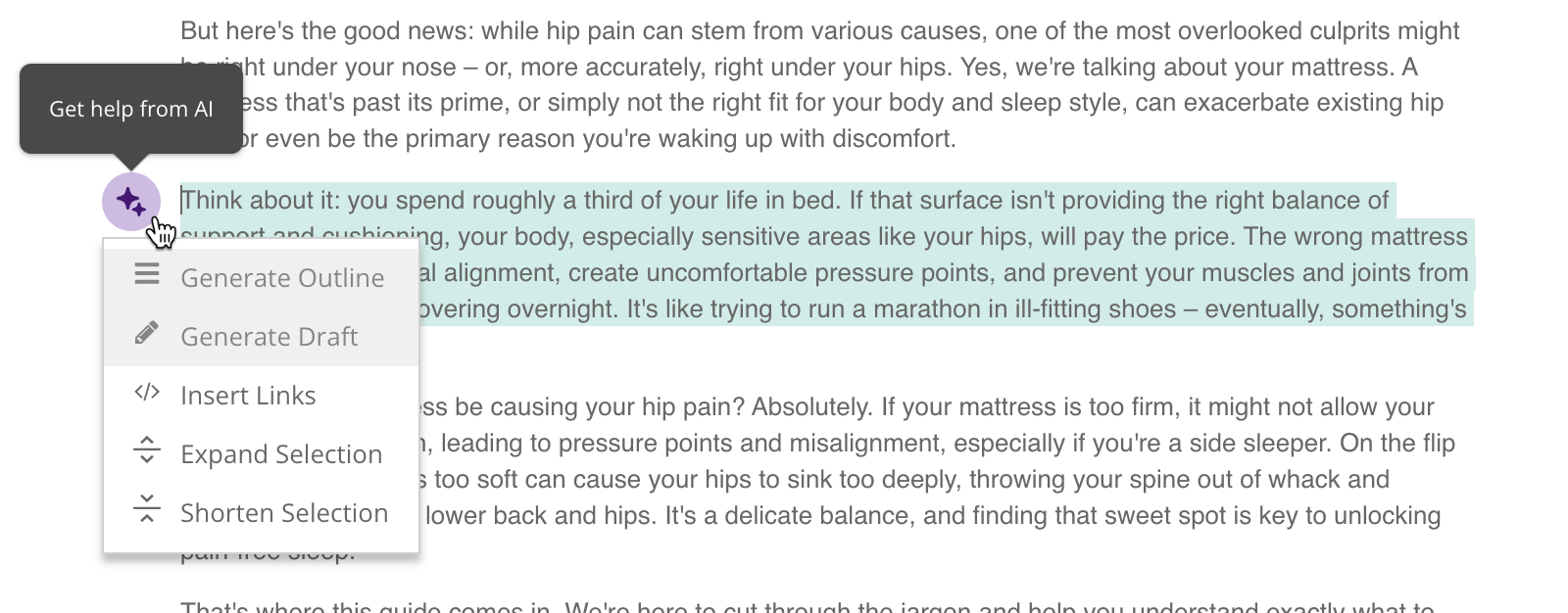 1. Click **Insert Links**.
2. Click **Generate Link Suggestions**.
3. Review the options that appear. You can click to **Review** an option to see how Writing Assistant would update the selection with anchor text and suggested link.
4. When you want to add a link, click **Accept**.
3. Click **Revise Draft**.
4. In the form that appears, enter instructions for how the text should be revised and click **Revise**. You can use natural language instructions and Conductor's AI will update the text accordingly.\\
1. Click **Insert Links**.
2. Click **Generate Link Suggestions**.
3. Review the options that appear. You can click to **Review** an option to see how Writing Assistant would update the selection with anchor text and suggested link.
4. When you want to add a link, click **Accept**.
3. Click **Revise Draft**.
4. In the form that appears, enter instructions for how the text should be revised and click **Revise**. You can use natural language instructions and Conductor's AI will update the text accordingly.\\
 5. When you are satisfied with the revised text, click **Insert Text**.
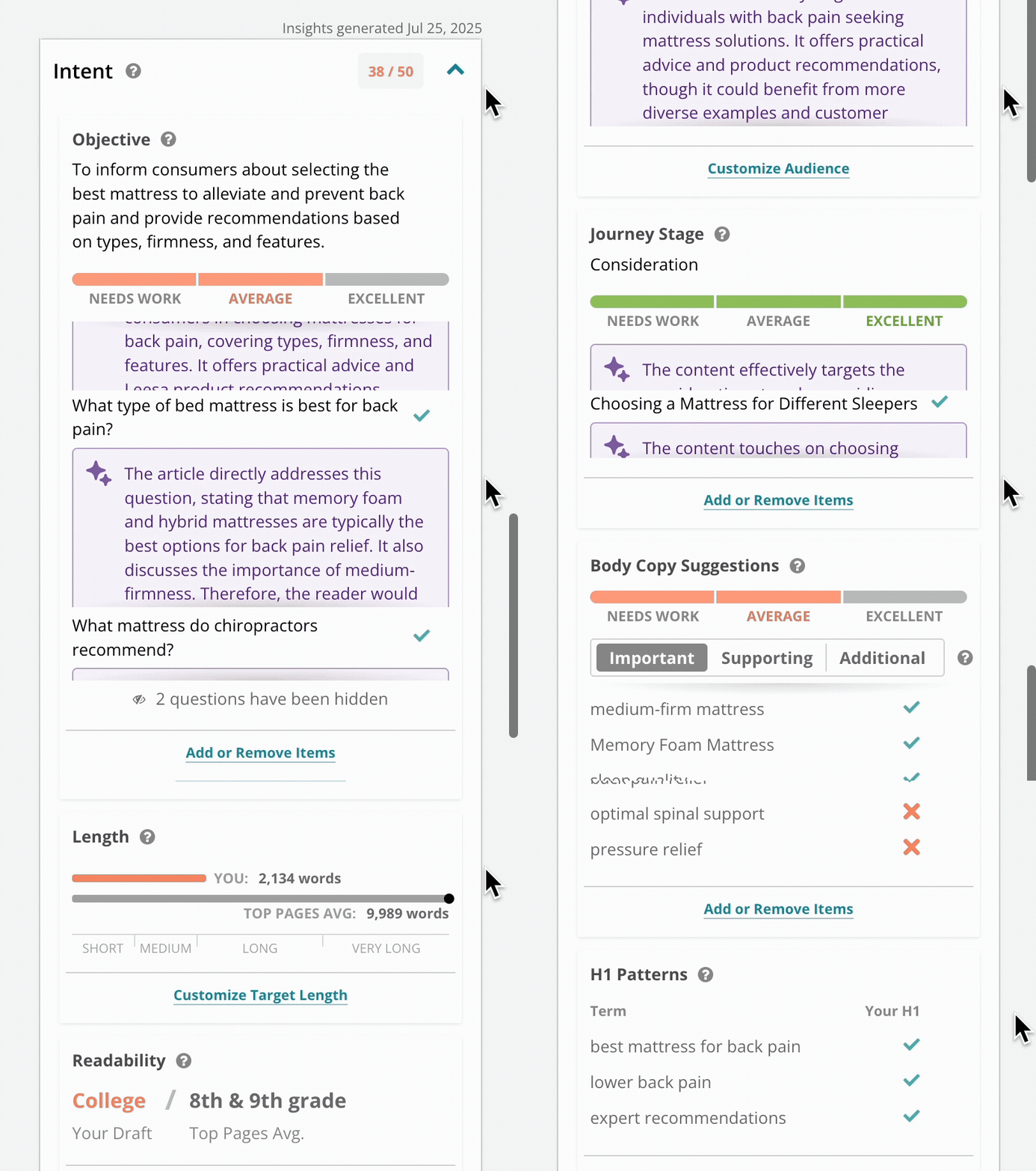
To the left of the text editor, you can review the insights Conductor generates based on the entered topic and content in the editor, including:
* AI-generated guidance about Intent:
* Objective
* Audience
* Journey Stage—possible stages are: Awareness, Consideration, Conversion, and Retention
* Guidance about your topical coverage:
* Questions your audience might have related to your topic, feedback on how well your content answers those questions, and suggestions for how you could improve your content to better answer the questions.
* Subtopics relevant to your topic.
* Body copy suggestions covering important, supporting, and additional terms you might want to write about.
* Other guidance, including:
* [Content Type](/docs/creator/writing-assistant-faqs/#what-types-of-content-does-the-content-types-insight-include)
* Content length
* Readability
* Title tag patterns
* Meta description patterns
* Heading patterns (h1–h3)
5. When you are satisfied with the revised text, click **Insert Text**.
To the left of the text editor, you can review the insights Conductor generates based on the entered topic and content in the editor, including:
* AI-generated guidance about Intent:
* Objective
* Audience
* Journey Stage—possible stages are: Awareness, Consideration, Conversion, and Retention
* Guidance about your topical coverage:
* Questions your audience might have related to your topic, feedback on how well your content answers those questions, and suggestions for how you could improve your content to better answer the questions.
* Subtopics relevant to your topic.
* Body copy suggestions covering important, supporting, and additional terms you might want to write about.
* Other guidance, including:
* [Content Type](/docs/creator/writing-assistant-faqs/#what-types-of-content-does-the-content-types-insight-include)
* Content length
* Readability
* Title tag patterns
* Meta description patterns
* Heading patterns (h1–h3)
 #### Customize Your Insights
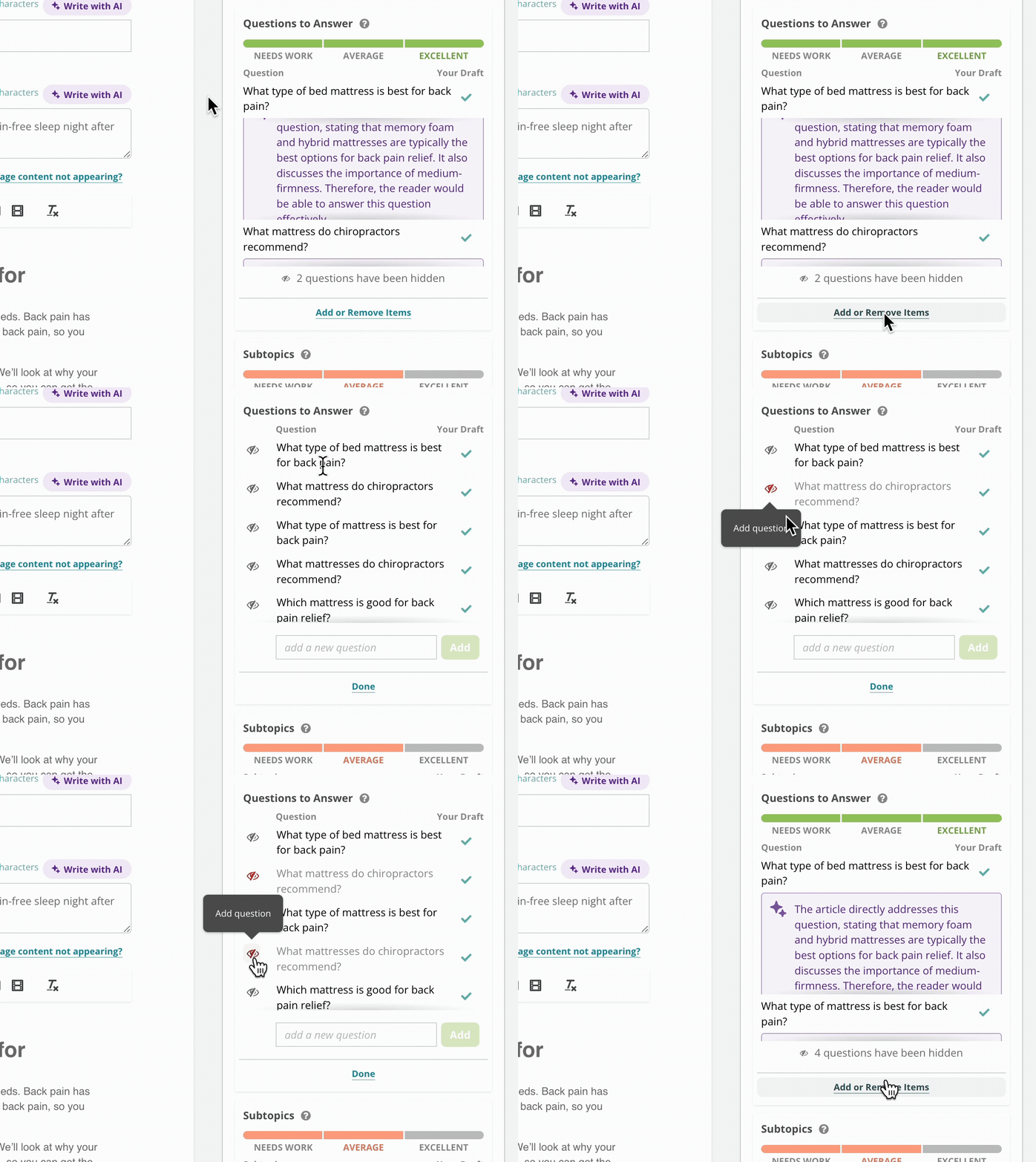
Based on the insights Conductor provides, you might want to:
* Add or remove keyword suggestions.
* Set different goals for length or readability.
* Add or remove questions for the content to answer.
To do so, you can use the links on each editable insight to customize the specific insights to make the experience as relevant to your content creation as possible.
#### Customize Your Insights
Based on the insights Conductor provides, you might want to:
* Add or remove keyword suggestions.
* Set different goals for length or readability.
* Add or remove questions for the content to answer.
To do so, you can use the links on each editable insight to customize the specific insights to make the experience as relevant to your content creation as possible.
 ### Score Your Content
Beta
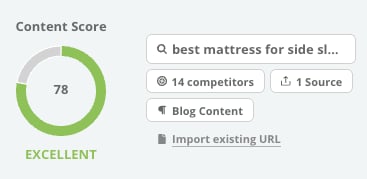
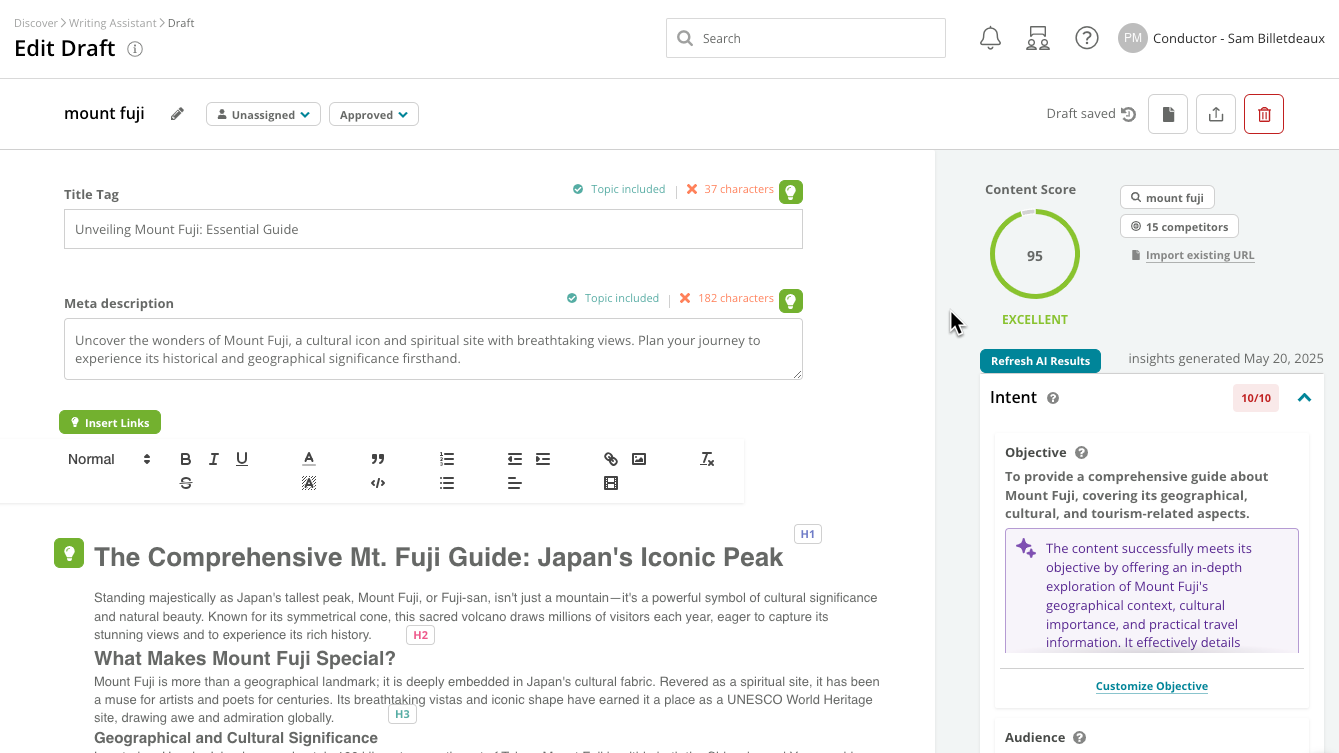
Your **Content Score** provides a simple way to understand how to prioritize your optimization and understand your draft's quality. Conductor's Content Score uses AI to provide actionable insights at both a broad and granular level across two core signals:
* **Topical Coverage:** This dimension assesses whether your content comprehensively addresses the target topic. It evaluates the inclusion of relevant subtopics, the appropriate use of key terminology in the draft's body copy, and the extent to which the content answers relevant questions (such as those found in People Also Ask results or generated by AI).
* **Intent Alignment:** This dimension evaluates how well your content satisfies the specific needs and objectives of the target audience for a given topic. It considers whether the content fulfills the user's intent and is appropriate for their level of understanding and stage in the customer journey.
Your Content Score appears at the top of your draft, and updates as you edit content in Writing Assistant's editor.
### Score Your Content
Beta
Your **Content Score** provides a simple way to understand how to prioritize your optimization and understand your draft's quality. Conductor's Content Score uses AI to provide actionable insights at both a broad and granular level across two core signals:
* **Topical Coverage:** This dimension assesses whether your content comprehensively addresses the target topic. It evaluates the inclusion of relevant subtopics, the appropriate use of key terminology in the draft's body copy, and the extent to which the content answers relevant questions (such as those found in People Also Ask results or generated by AI).
* **Intent Alignment:** This dimension evaluates how well your content satisfies the specific needs and objectives of the target audience for a given topic. It considers whether the content fulfills the user's intent and is appropriate for their level of understanding and stage in the customer journey.
Your Content Score appears at the top of your draft, and updates as you edit content in Writing Assistant's editor.
 ### Manage Your Draft
#### Assign teammates and statuses to your draft
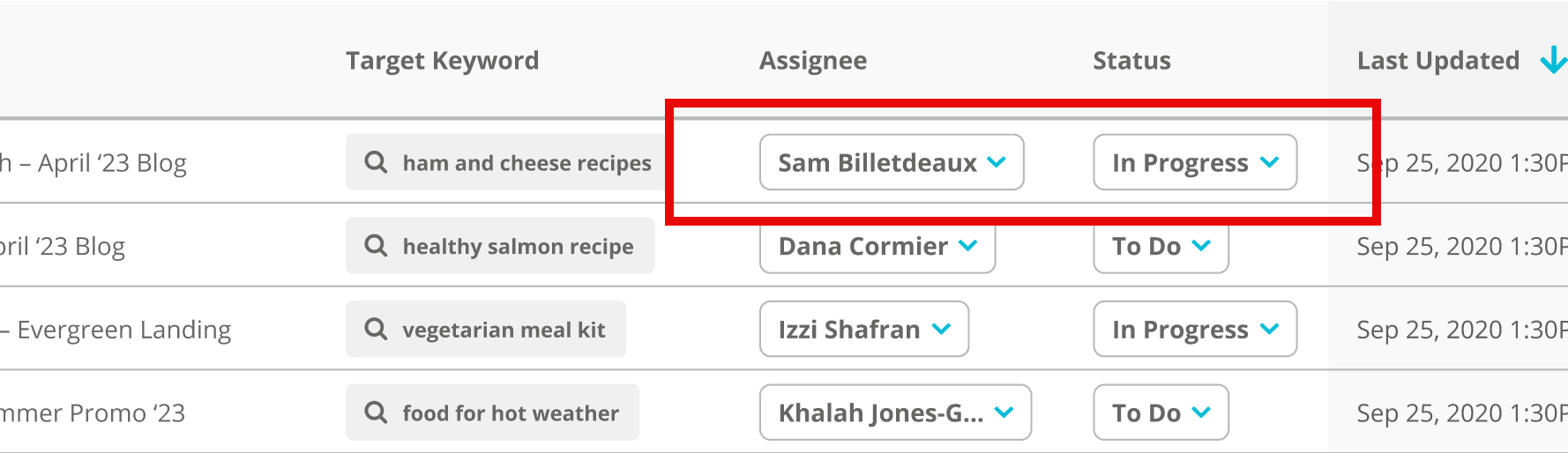
To help you manage your writing efforts, you can set statuses for and assign users to your drafts:
* On the Writing Assistant landing page.\\
### Manage Your Draft
#### Assign teammates and statuses to your draft
To help you manage your writing efforts, you can set statuses for and assign users to your drafts:
* On the Writing Assistant landing page.\\
 * In the draft itself.\\
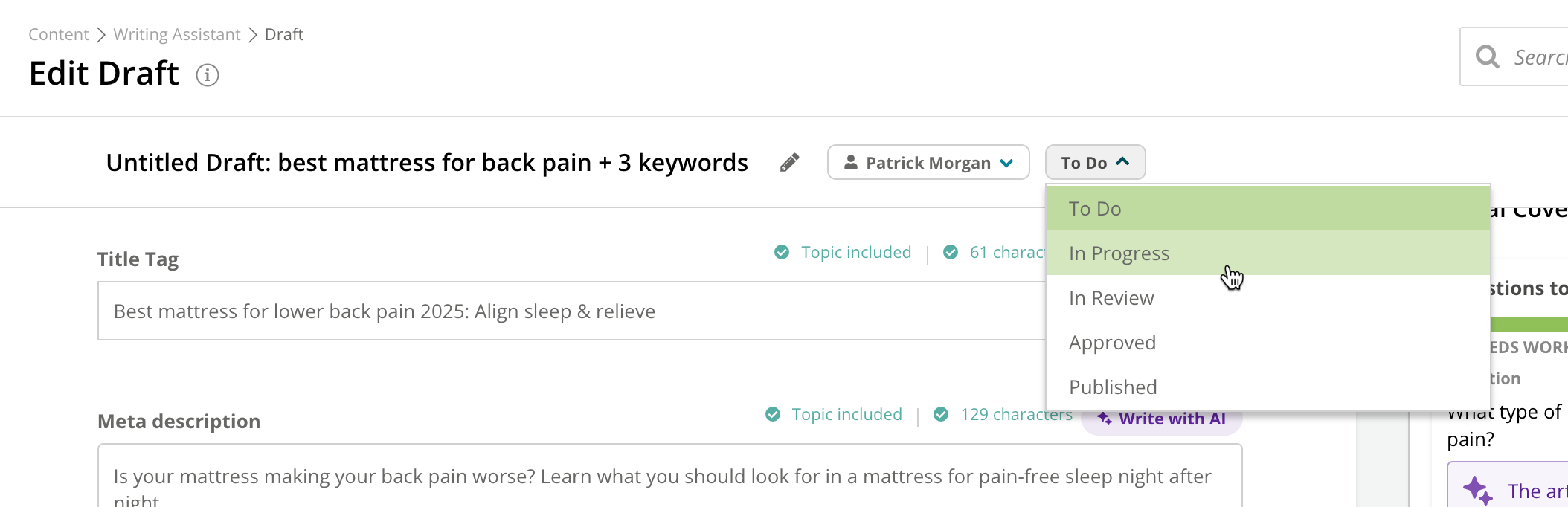 Note that users of any [user type](/docs/platform/user-management-faqs/#what-are-the-differences-between-user-types-in-conductor) may assign or be assigned drafts.
#### Saving and working with your draft
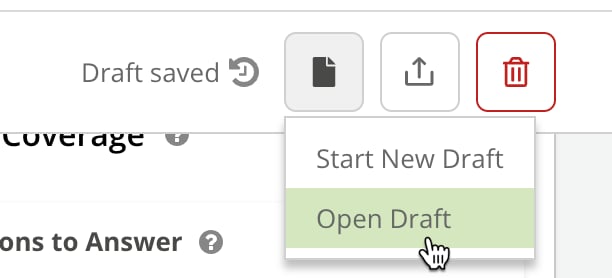
Need more time working on your draft in the text editor? Conductor auto-saves your content if you pause more than 5 seconds. When you want to open a previously saved draft, just click the **Document** icon and select **Open Draft**.
Note that users of any [user type](/docs/platform/user-management-faqs/#what-are-the-differences-between-user-types-in-conductor) may assign or be assigned drafts.
#### Saving and working with your draft
Need more time working on your draft in the text editor? Conductor auto-saves your content if you pause more than 5 seconds. When you want to open a previously saved draft, just click the **Document** icon and select **Open Draft**.
 #### Restore previous versions of your draft
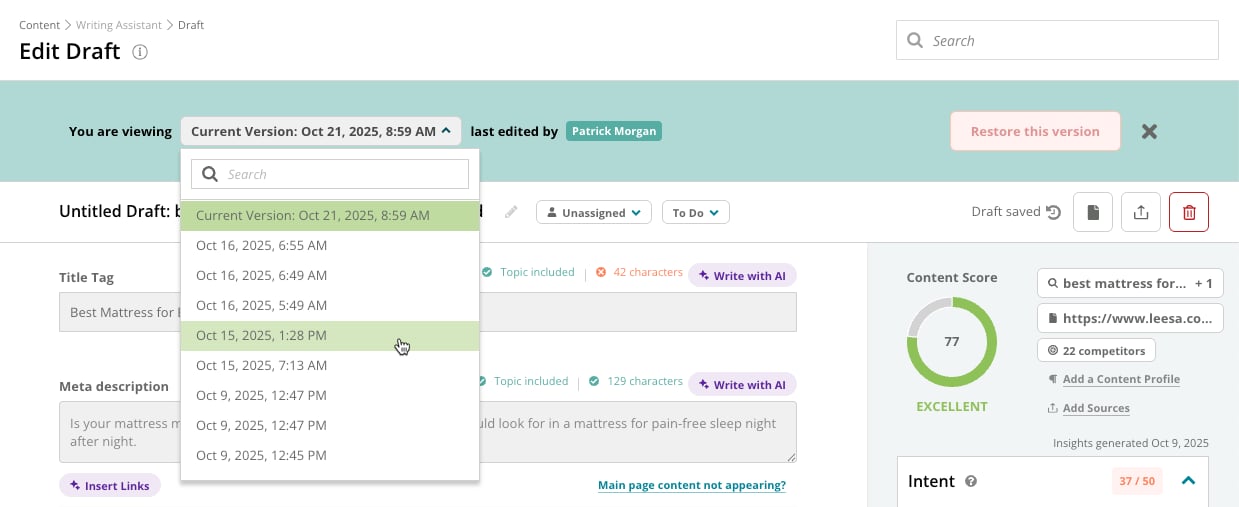
As you edit and save your draft, Creator will store your version history. Just click the **View History** icon to open your version history.
#### Restore previous versions of your draft
As you edit and save your draft, Creator will store your version history. Just click the **View History** icon to open your version history.
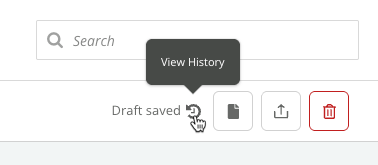 After opening your version history, you'll be able to select from each time-stamped saved version. Click **Restore this version** if you want to revert your draft to that previous version.
 #### Extending your draft and insights
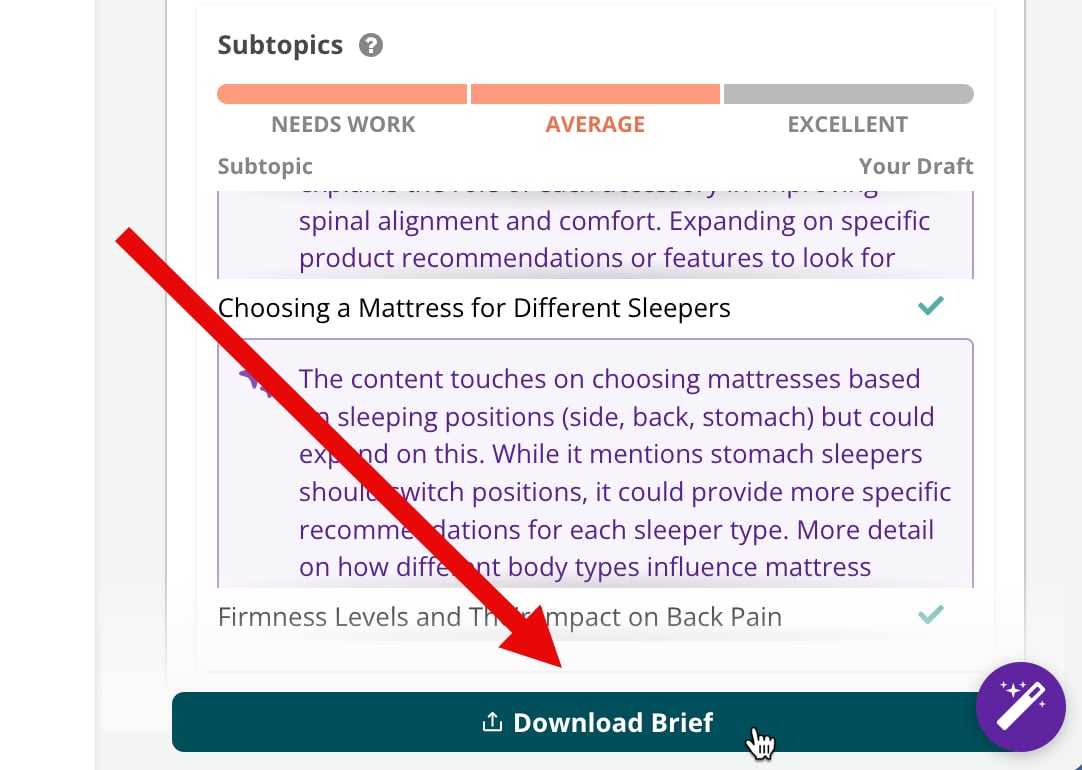
Want to pass what you learn on to your content team? Just click **Download Brief** below your insights to generate a Microsoft .docx file with all your draft's insights. You'll see the draft from the text editor along with all the insights you see in the platform.
#### Extending your draft and insights
Want to pass what you learn on to your content team? Just click **Download Brief** below your insights to generate a Microsoft .docx file with all your draft's insights. You'll see the draft from the text editor along with all the insights you see in the platform.
 #### Delete your draft
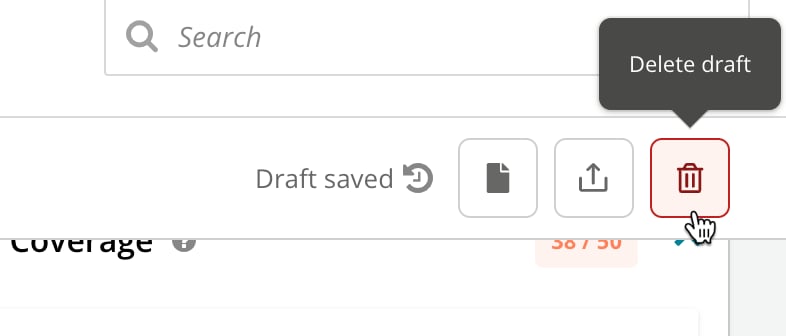
Want to start fresh? Just click the **Delete** button.
#### Delete your draft
Want to start fresh? Just click the **Delete** button.
 ## Using Writing Assistant
* Prepare to create or optimize with Conductor by [Training Your AI Assistant](https://app.conductor.com/u/community?ms_url=%2Fcourses%2F1de16f9e-6bb0-4f3b-8d50-98e2dee0bbd0%2Fstep%2Fb77c164d-6ae6-4ef8-b98f-868c3f0505ff)
* [Drafting New Content with AI](https://app.conductor.com/u/community?ms_url=%2Fcourses%2F1de16f9e-6bb0-4f3b-8d50-98e2dee0bbd0%2Fstep%2Fa8ad640f-b453-4f0c-96c6-4786446144eb)
* [Optimizing Content with AI](https://app.conductor.com/u/community?ms_url=%2Fcourses%2F1de16f9e-6bb0-4f3b-8d50-98e2dee0bbd0%2Fstep%2F36c8809c-92d5-4cdd-9e34-b51317652768)
* [Best Practices for Creating Full Length Drafts in Writing Assistant](https://app.conductor.com/u/community?ms_url=%2Fdocuments%2F88c218ab-f234-4a25-9806-0e5e929809ec)
## FAQs
[Review this feature's frequently asked questions](/docs/creator/writing-assistant-faqs/)
## Using Writing Assistant
* Prepare to create or optimize with Conductor by [Training Your AI Assistant](https://app.conductor.com/u/community?ms_url=%2Fcourses%2F1de16f9e-6bb0-4f3b-8d50-98e2dee0bbd0%2Fstep%2Fb77c164d-6ae6-4ef8-b98f-868c3f0505ff)
* [Drafting New Content with AI](https://app.conductor.com/u/community?ms_url=%2Fcourses%2F1de16f9e-6bb0-4f3b-8d50-98e2dee0bbd0%2Fstep%2Fa8ad640f-b453-4f0c-96c6-4786446144eb)
* [Optimizing Content with AI](https://app.conductor.com/u/community?ms_url=%2Fcourses%2F1de16f9e-6bb0-4f3b-8d50-98e2dee0bbd0%2Fstep%2F36c8809c-92d5-4cdd-9e34-b51317652768)
* [Best Practices for Creating Full Length Drafts in Writing Assistant](https://app.conductor.com/u/community?ms_url=%2Fdocuments%2F88c218ab-f234-4a25-9806-0e5e929809ec)
## FAQs
[Review this feature's frequently asked questions](/docs/creator/writing-assistant-faqs/)