> ## Documentation Index
> Fetch the complete documentation index at: https://www.conductor.com/docs/llms.txt
> Use this file to discover all available pages before exploring further.
# 2025 Adobe Integration Upgrade Guide
> To provide the best insights and experience with data in Conductor, we are making changes to our Adobe integration.
To provide the best insights and experience with data in Conductor, we are making changes to our Adobe integration.
As a result, if you currently use **eu.app.conductor.com** to access our platform, you must update any existing Adobe Analytics integrations to be sent to a different **Host**—`adobe.conductor.com`—as described in the following instructions:
For both files you have configured to send your Adobe data to Conductor—Weekly and Monthly—use the following directions to update your integration:
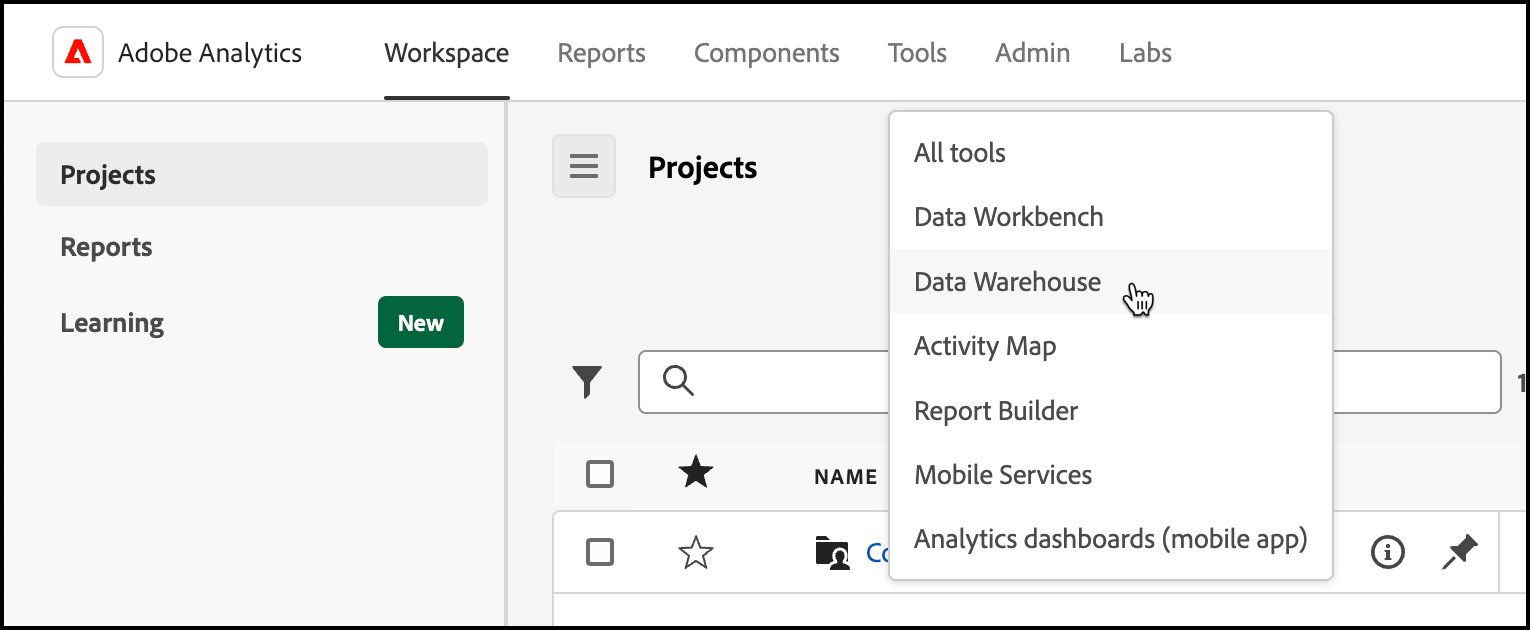
1. In **Adobe Analytics**, follow the path **Tools** > **Data Warehouse**.
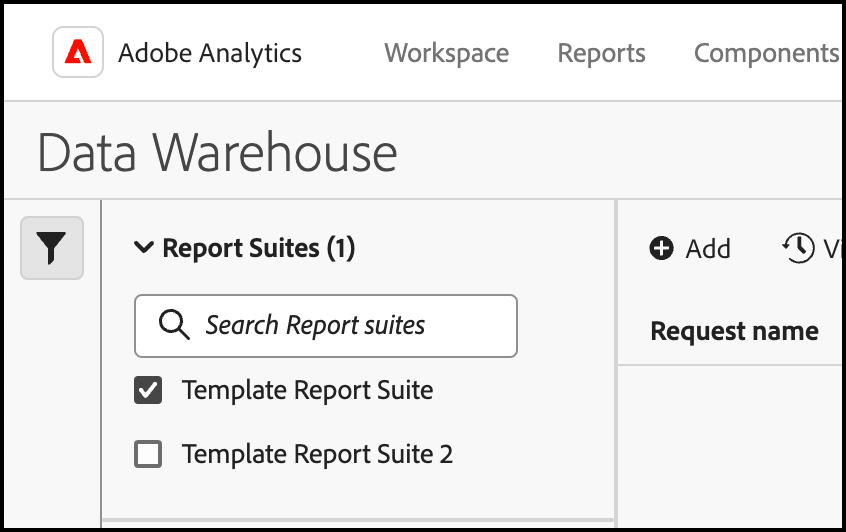
 2. In the upper-left, select and verify the Adobe **Report Suite** you want to use for this integration. Remember, if you have integrations in multiple Report Suites to update, you’ll need to repeat this process for each.
 3. Select your Conductor Weekly Report in the table. From here you can either click **Edit** or **Copy**, depending on your permissions in Adobe Data Warehouse. Consider the difference between the two choices as doing a "Save" or "Save as". If you copy your request, be sure to choose a new, unique name for the request.
4. Go to the **Report destination** tab.
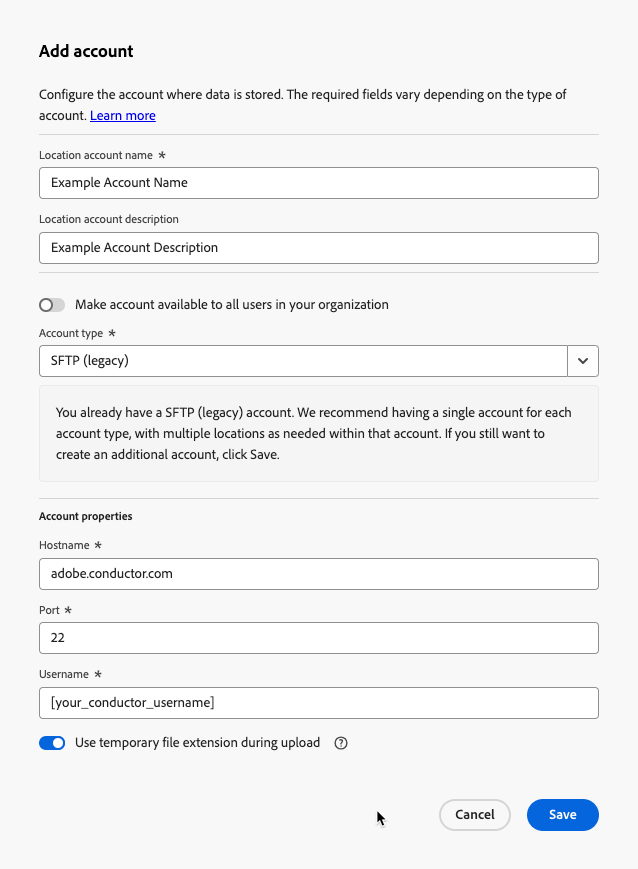
5. From the **Account** menu, choose **Add Account**.
6. Add a name and description in the **name** and **description** fields. These will help you identify the destination in the future.
7. From the **Account Type** menu, choose **SFTP**.
8. In the **Hostname** field, enter the following string (do not include the quotation marks): "*adobe.conductor.com*"
9. In the **Username** field, enter the Username your organization received from Conductor earlier in this guide.
10. Click **Save**.
3. Select your Conductor Weekly Report in the table. From here you can either click **Edit** or **Copy**, depending on your permissions in Adobe Data Warehouse. Consider the difference between the two choices as doing a "Save" or "Save as". If you copy your request, be sure to choose a new, unique name for the request.
4. Go to the **Report destination** tab.
5. From the **Account** menu, choose **Add Account**.
6. Add a name and description in the **name** and **description** fields. These will help you identify the destination in the future.
7. From the **Account Type** menu, choose **SFTP**.
8. In the **Hostname** field, enter the following string (do not include the quotation marks): "*adobe.conductor.com*"
9. In the **Username** field, enter the Username your organization received from Conductor earlier in this guide.
10. Click **Save**.
 11. Click **Save request**.
12. Back on the Data Warehouse home, repeat these same steps for your Conductor Monthly Report request.
11. Click **Save request**.
12. Back on the Data Warehouse home, repeat these same steps for your Conductor Monthly Report request.