> ## Documentation Index
> Fetch the complete documentation index at: https://www.conductor.com/docs/llms.txt
> Use this file to discover all available pages before exploring further.
# Annotations and Content Activity Reporting
> Tie content and SEO changes to performance using Conductor's automatic change detection and custom annotations in Pages, Page Details, and Keywords reports.
Connect changes in the search landscape and the changes you make to your content to the effects those changes have on your pages' performance with annotations in the [**Pages**](/docs/intelligence/pages-conductor-intelligence/) report, the [**Page Details**](/docs/intelligence/page-details/) report—and for some annotation types—the [**Keywords**](/docs/intelligence/keywords/) report. Understanding how changes to your content and other externalities affect your performance can help you prove the value of your organic marketing efforts and find opportunities to iterate on success based on facts rather than guesswork.
Content Activity Reporting—Conductor's change detection technology—automatically detects changes to all of the elements listed below, in addition to when Conductor first discovered the page:
* Title tags
* Meta Descriptions
* h1-h6 tags
You can also create custom annotations to help you monitor and keep track of all your SEO and content activities—not just those that Conductor detects with Content Activity Reporting. For example, you can annotate moments in your pages' performance that reflect algorithm changes, campaign beginnings and endings, or events relevant to your industry.
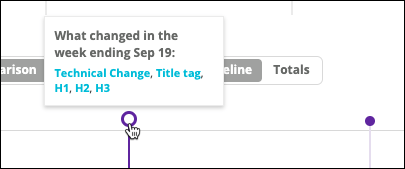
Annotations appear in the [**Pages**](/docs/intelligence/pages-conductor-intelligence/) and [**Page Details**](/docs/intelligence/page-details/) reports for analytics-discovered pages, and on the [**Keywords**](/docs/intelligence/keywords/) report in the **Your Visibility Over Time** chart. Just look for the purple pins:\\
 ## Overview
### Content Activity Reporting
Content Activity Reporting lets you see the connections between the changes you make to your pages and your pages' performance. With this information, you can replicate successes and avoid repeating losses.
With Content Activity Reporting, Conductor automatically detects changes to each of the following elements, in addition to when Conductor first discovered the page:
* Title tags
* Meta Descriptions
* h1-h6 tags
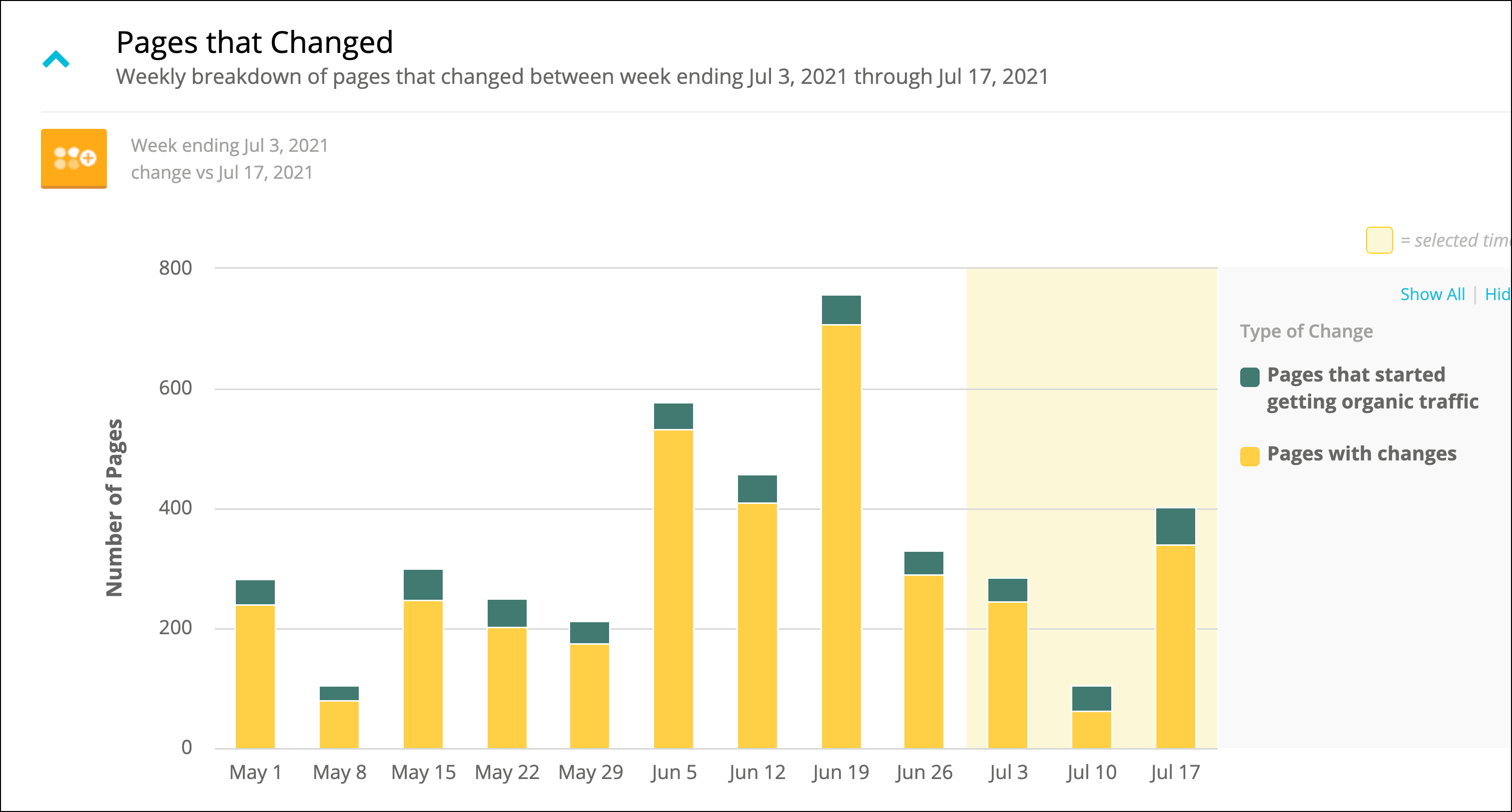
On the **Pages** report, you can open the Pages that Changed graph, which shows you a roll-up view of all the pages with technical changes detected by Content Activity Reporting. The annotations associated with these changes appear in the **Page Details** report for the related pages.\\
## Overview
### Content Activity Reporting
Content Activity Reporting lets you see the connections between the changes you make to your pages and your pages' performance. With this information, you can replicate successes and avoid repeating losses.
With Content Activity Reporting, Conductor automatically detects changes to each of the following elements, in addition to when Conductor first discovered the page:
* Title tags
* Meta Descriptions
* h1-h6 tags
On the **Pages** report, you can open the Pages that Changed graph, which shows you a roll-up view of all the pages with technical changes detected by Content Activity Reporting. The annotations associated with these changes appear in the **Page Details** report for the related pages.\\
 ### Filter to show only New or Updated Pages
You can use the **Select Page Changes** filter to focus the **Pages** report on a set of pages that Content Activity Reporting found to be updated or newly discovered during a specific time period.\\
### Filter to show only New or Updated Pages
You can use the **Select Page Changes** filter to focus the **Pages** report on a set of pages that Content Activity Reporting found to be updated or newly discovered during a specific time period.\\
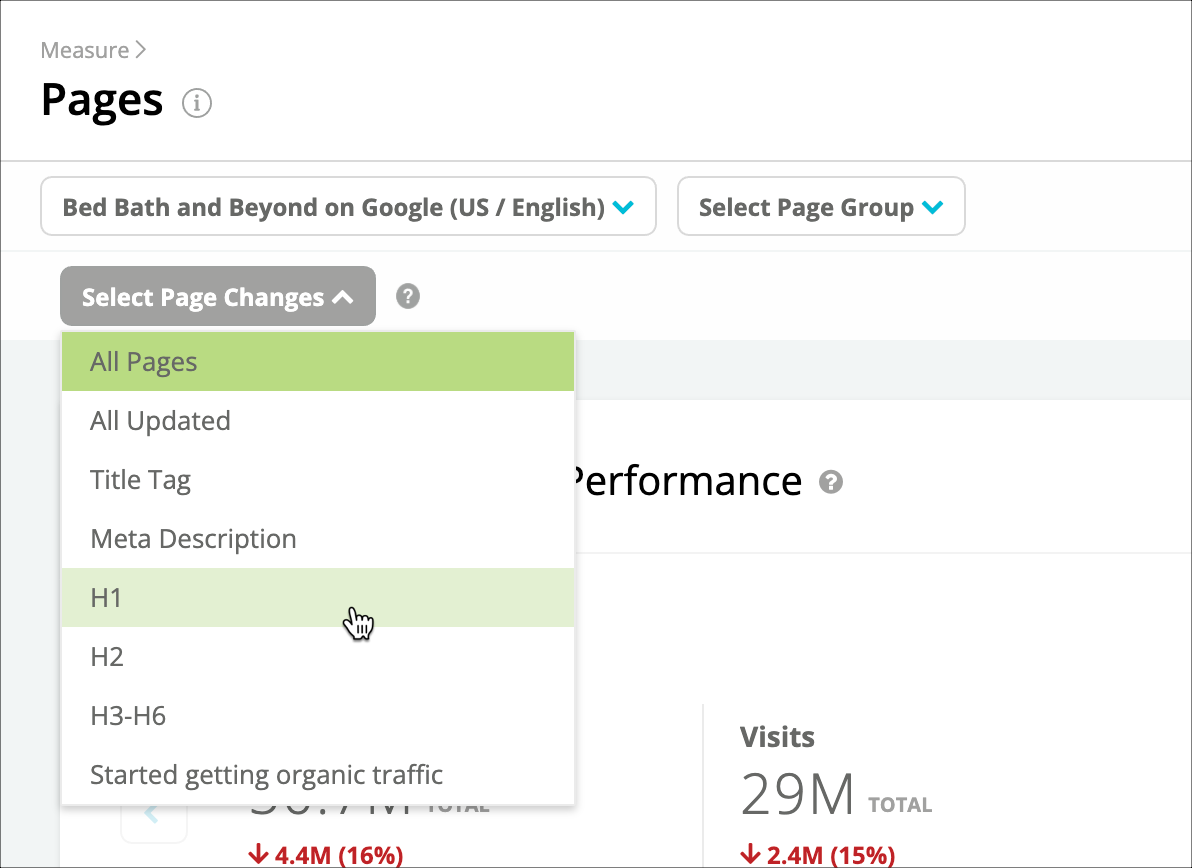 For example, if you wanted to see data for only pages that had been updated during Q1, you could use this filter to show only those pages and limit the date picker to report on Q1. With this information you can see how those pages performed over the time period you are reporting on in the **Pages** report.
### Automated annotations from Content Activity Reporting
In the **Page Details** report, you can review any automated annotations generated by Content Activity Reporting. With Content Activity Reporting, Conductor automatically detects changes to each of the following elements, in addition to when Conductor first discovered the page:
* Title tags
* Meta Descriptions
* h1-h6 tags
To call out where changes might have been made to multiple header tags at the same level (for example, when multiple h3 tags are used in a list), Conductor highlights these changes in red, green, and yellow:
* When Conductor finds a header tag in a former time period but not in the latter time period, the annotation is highlighted in red.
* When Conductor finds a header tag in a latter time period but not in the former time period, the annotation is highlighted in green.
For example, if you wanted to see data for only pages that had been updated during Q1, you could use this filter to show only those pages and limit the date picker to report on Q1. With this information you can see how those pages performed over the time period you are reporting on in the **Pages** report.
### Automated annotations from Content Activity Reporting
In the **Page Details** report, you can review any automated annotations generated by Content Activity Reporting. With Content Activity Reporting, Conductor automatically detects changes to each of the following elements, in addition to when Conductor first discovered the page:
* Title tags
* Meta Descriptions
* h1-h6 tags
To call out where changes might have been made to multiple header tags at the same level (for example, when multiple h3 tags are used in a list), Conductor highlights these changes in red, green, and yellow:
* When Conductor finds a header tag in a former time period but not in the latter time period, the annotation is highlighted in red.
* When Conductor finds a header tag in a latter time period but not in the former time period, the annotation is highlighted in green.
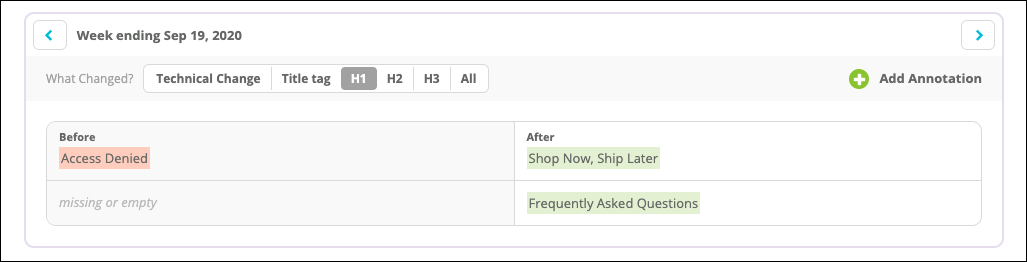 * When Conductor finds extraneous leading, or trailing spaces removed from tags, the annotation is highlighted in yellow. A tooltip also appears to indicate the difference.
### Public Event Annotations
Stay informed about impactful updates, like Google algorithm updates or industry changes, with annotations automatically applied to your reports.
These annotations appear:
* In the [**Pages**](/docs/intelligence/pages-conductor-intelligence/) and [**Page Details**](/docs/intelligence/page-details/) report like other types of annotations.
* In the [**Keywords**](/docs/intelligence/keywords/) report, on the **Your Visibility Over Time** chart.
To curate the events with the most potential impact—and not to overwhelm you with industry-related annotations—an internal council of experts at Conductor determines which events should be included as annotations.
### Custom annotations
Custom annotations help you monitor and keep track of all your SEO and content activities—not just those that Conductor detects with Content Activity Reporting. For example, you can annotate moments in your pages' performance that reflect algorithm changes, campaign beginnings and endings, or events relevant to your industry.
## Using Annotations and Content Activity Reporting
* You can learn how to create, review, and manage annotations in the [Creating and Managing Annotations](/docs/intelligence/creating-and-managing-annotations/) article.
* [Track content changes using annotations](https://app.conductor.com/u/community?ms_url=%2Fcourses%2Fcf5d38ef-6e33-4b47-84bd-1c2817f44b6b%2Fstep%2F1cd66a14-71e6-4830-8415-066997c8cbdd).
* When Conductor finds extraneous leading, or trailing spaces removed from tags, the annotation is highlighted in yellow. A tooltip also appears to indicate the difference.
### Public Event Annotations
Stay informed about impactful updates, like Google algorithm updates or industry changes, with annotations automatically applied to your reports.
These annotations appear:
* In the [**Pages**](/docs/intelligence/pages-conductor-intelligence/) and [**Page Details**](/docs/intelligence/page-details/) report like other types of annotations.
* In the [**Keywords**](/docs/intelligence/keywords/) report, on the **Your Visibility Over Time** chart.
To curate the events with the most potential impact—and not to overwhelm you with industry-related annotations—an internal council of experts at Conductor determines which events should be included as annotations.
### Custom annotations
Custom annotations help you monitor and keep track of all your SEO and content activities—not just those that Conductor detects with Content Activity Reporting. For example, you can annotate moments in your pages' performance that reflect algorithm changes, campaign beginnings and endings, or events relevant to your industry.
## Using Annotations and Content Activity Reporting
* You can learn how to create, review, and manage annotations in the [Creating and Managing Annotations](/docs/intelligence/creating-and-managing-annotations/) article.
* [Track content changes using annotations](https://app.conductor.com/u/community?ms_url=%2Fcourses%2Fcf5d38ef-6e33-4b47-84bd-1c2817f44b6b%2Fstep%2F1cd66a14-71e6-4830-8415-066997c8cbdd).