> ## Documentation Index
> Fetch the complete documentation index at: https://www.conductor.com/docs/llms.txt
> Use this file to discover all available pages before exploring further.
# Integrate Google Analytics with Conductor Intelligence
> Connect your Google Analytics profile to Conductor Intelligence to enable page- and site-level analytics reporting.
The Google Analytics integration is a page- and site-level integration for Conductor with your corresponding Google Analytics profile. With this API-based integration, organizations can use Conductor to:
* Manage and measure the performance of their content for their most important pages.
* Identify and improve poor-performing content.
* Identify and protect existing high-performing content.
* Prove ROI and show the importance of organic search to the rest of the organization.
Review the content below to learn how to set up and modify the integration and to review frequently asked questions about best practices and about how the data appears in the Conductor platform.
### Note!
Conductor also has an integration between Google Analytics and our Conductor Monitoring product. This article is about Conductor's integration with Google Analytics for its Intelligence and Creator products. If you are looking for our Conductor Monitoring integration, you can find it [in this article](/docs/monitoring/google-analytics-in-conductor-monitoring/).
## Integrate Google Analytics with Conductor
This document includes the technical requirements and instructions for integrating content-level analytics with Google Analytics. After completing these instructions, Conductor will begin to collect data from the selected Google profile and show it in Conductor.
### Technical Information
#### Permissions
To configure this integration, users may have any permission level in Google Analytics—as long as they have access to the Google Analytics account and property you want to integrate.
However, any changes in your Google account needed to accommodate this integration must be made by a user with Editor permissions on the account. Conductor recommends identifying an Editor or Administrator in your Google Analytics account to provide any necessary support or guidance.
#### Data Delivery
After completing this integration, Conductor publishes up to 24 months of the most recent data for your chosen metrics. The amount of data published depends on how far back data exists in your integrated Google Analytics account.
Then, Conductor begins making daily requests for your metric data from the Google Analytics profile you specify. Each Monday, Conductor aggregates and publishes data for the previous seven days (Monday-Sunday) to correspond with Conductor's search and rank data publication.
#### Limitation of Google Analytics API
Because of limitations of Google Analytics, authorizing more than ten Conductor integrations with a single Google user profile might cause all ten integrations to fail. To avoid this issue, authorize or create an additional Google user profile for each set of ten integrations you authenticate.
#### Data Sampling
Depending on your Google Analytics account, the Google Analytics API may send Conductor a sample of your data to represent the full activity occurring on your site—rather than the entire data set Google Analytics gathers.
Conductor will always use all the data sent through the Google Analytics API so that we can publish as much data as we can for you.
However, this may mean that the data does not match exactly between what you see in Google Analytics and what you see in Conductor. Even if you can see the entire, un-sampled data set in your Google Analytics account, Google Analytics might still send only sampled data through its API, and Conductor can publish only that data. This is a universal limitation of the Google Analytics API. Any other platform that integrates with it will also have the same limitation.
Read more from Google about data sampling in GA4 [in this article](https://support.google.com/analytics/answer/13331292).
#### **BEFORE YOU START**
*Data Stream Protocol Setting*
For Conductor to crawl the HTML on your site’s pages and for rank data to appear on your domain’s Page Details reports, you must ensure that the protocol set with the property you configured with your GA4 data stream matches the actual protocol your site uses (either http\:// or https\://).
Confirm the protocol your site uses and then make sure this matches the protocol set in your GA4 data stream:
1. Log into your Google Analytics account and go to the Admin section.
2. Under the Property section, click Data Streams.
3. Locate and click the data stream you are using for this integration with Conductor.
In the Stream URL field, review the setting to see if it is set to the same protocol your website uses.
* If it is, no changes are needed, and you can continue with these integration instructions.
* If it is not, click the Edit icon for the Stream details section and choose by clicking the protocol to toggle between http\:// and https\://. Note that, to make changes to this setting, you must have Edit permissions. When you confirm that the selected protocol matches the protocol your site uses, click Save.
*Consider Configuration Options Carefully*
How you configure your integration or integrations should reflect your reporting needs and the way your web analytics profiles are configured. Consult Conductor if you have questions.
### Instructions
Note that you can click Save Progress at the bottom to save your integration until you want to return and finish the process.
Before beginning, ensure your browser is logged out of any Google accounts (such as Gmail, YouTube, etc.). Doing so prevents you from accidentally attempting to integrate a personal or other non-relevant Google Analytics account with Conductor.
1. Go to [**Web Analytics**](https://app.conductor.com/u/web-analytics) in Conductor (**Integrations** > **Web Analytics**).
2. Click **Add a New Integration**. If you have no available integrations, [contact Conductor Support](/docs/platform/getting-help-with-conductor-products/).\\
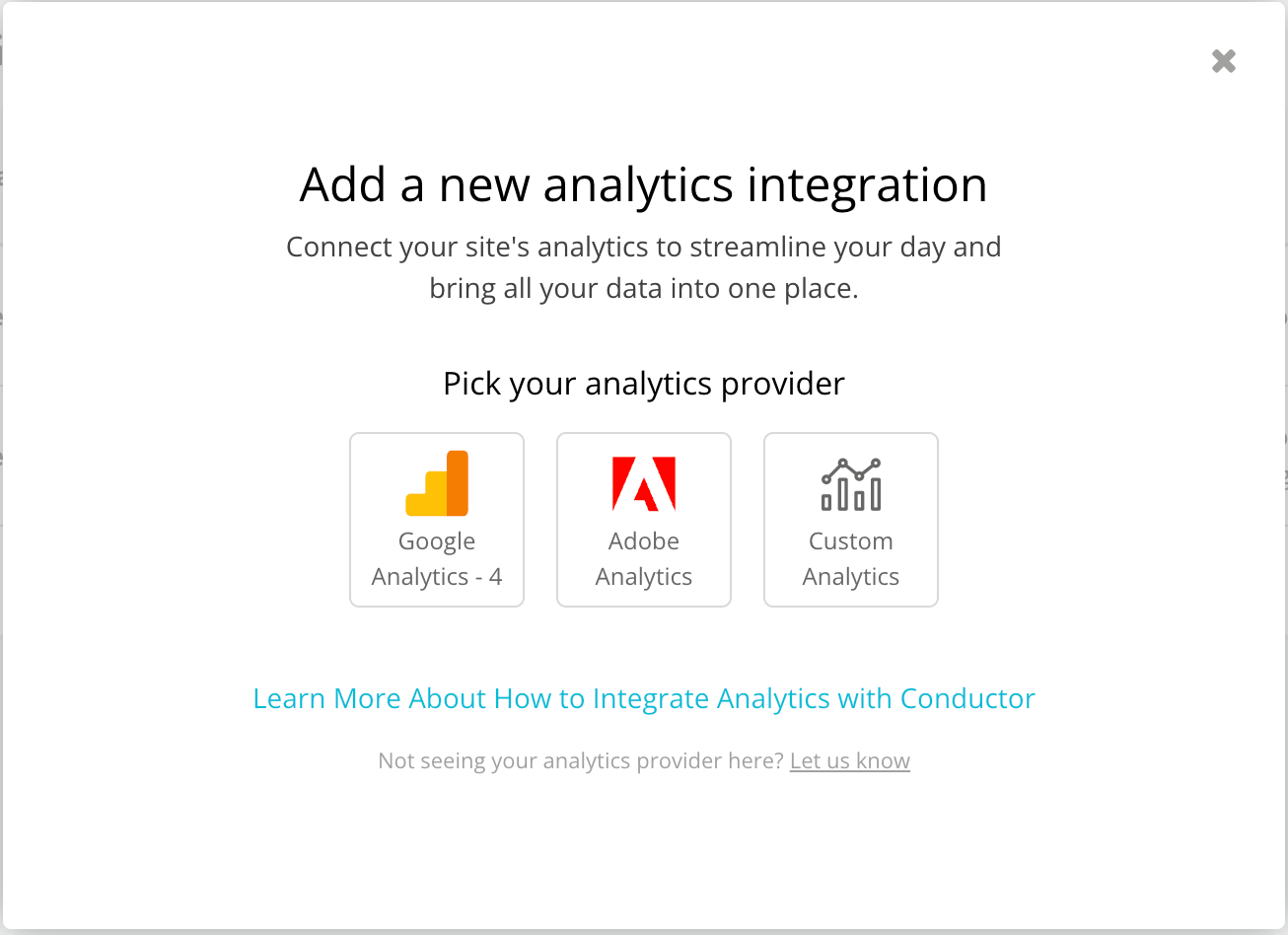 3. From the Analytics Provider menu, select Google Analytics - 4.\\
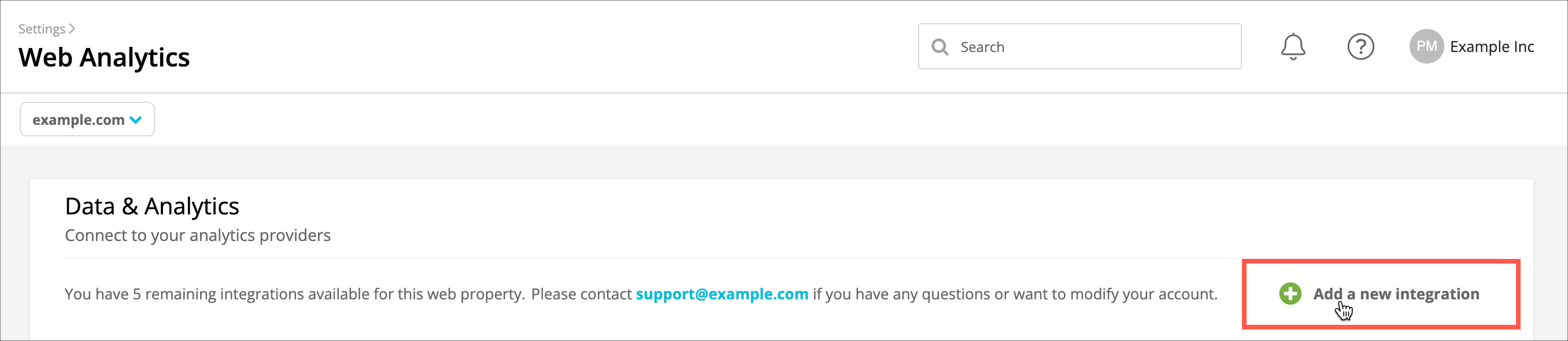 4. Click the **Authorize Access to your Google Analytics** account button. Alternatively, you can select a Google account from an existing integration.\\
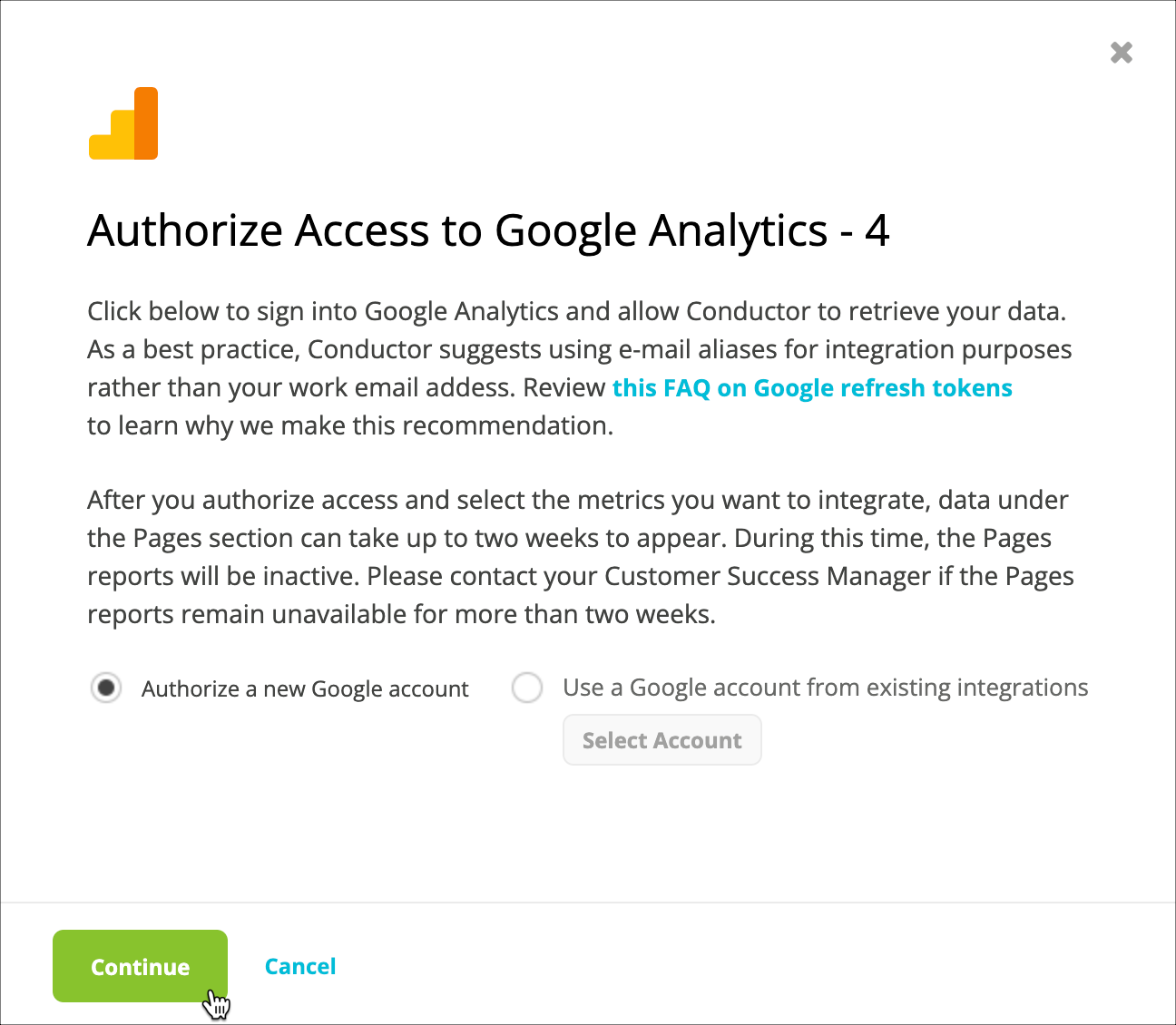 5. Enter the email and password associated with your organization’s Google Analytics account and click **Sign In**. Note that, as a best practice, Conductor suggests using email aliases for integration purposes rather than your work email address. Review [this FAQ on Google refresh tokens](/docs/intelligence/web-analytics-faqs/#what-are-google-refresh-tokens-and-how-do-they-affect-my-integration-strategy) to learn more.
6. Allow access to Conductor. The New Google Analytics Integration screen appears.
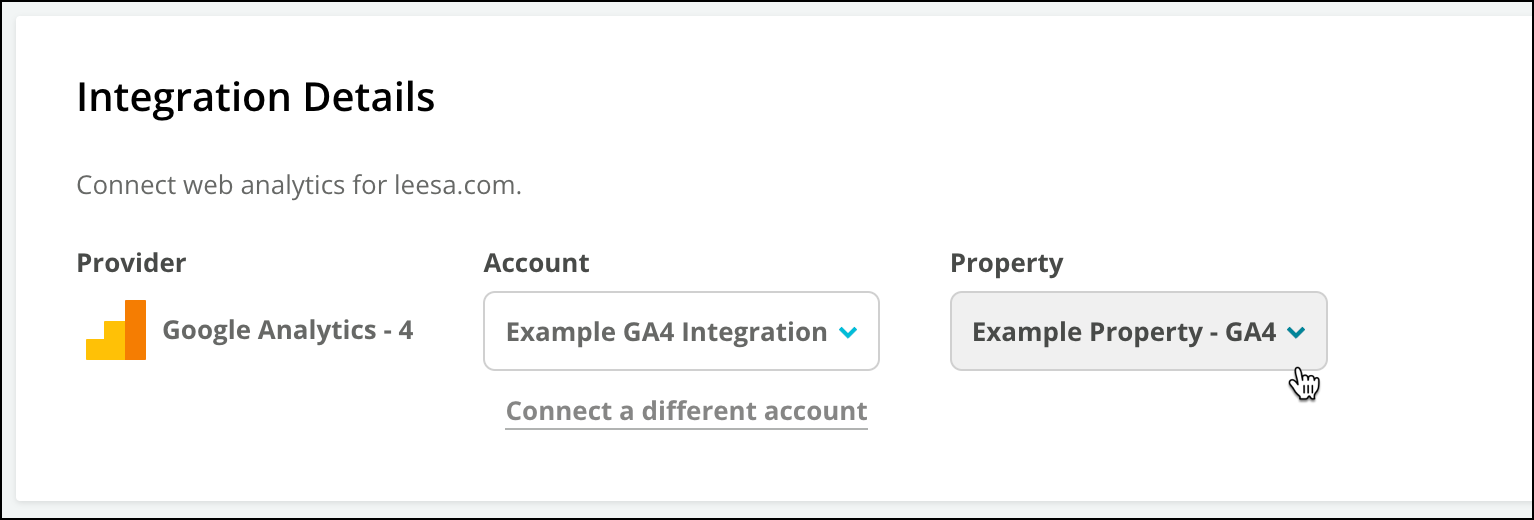
7. In the **Integration Details** section, select the **Account** and **Property** from your Google Analytics account that you want to integrate.\
5. Enter the email and password associated with your organization’s Google Analytics account and click **Sign In**. Note that, as a best practice, Conductor suggests using email aliases for integration purposes rather than your work email address. Review [this FAQ on Google refresh tokens](/docs/intelligence/web-analytics-faqs/#what-are-google-refresh-tokens-and-how-do-they-affect-my-integration-strategy) to learn more.
6. Allow access to Conductor. The New Google Analytics Integration screen appears.
7. In the **Integration Details** section, select the **Account** and **Property** from your Google Analytics account that you want to integrate.\
 Note that:
* You cannot choose a specific data stream from your GA4 property: Conductor will publish organic data from the entire integrated property you select here.
* Users integrating a Google Analytics 360 Account will see any configured subproperties in the Property menu. Because unpaid GA4 Accounts do not have access to subproperties, they can integrate data only for an entire Property.
8. In the **Display Settings** section:
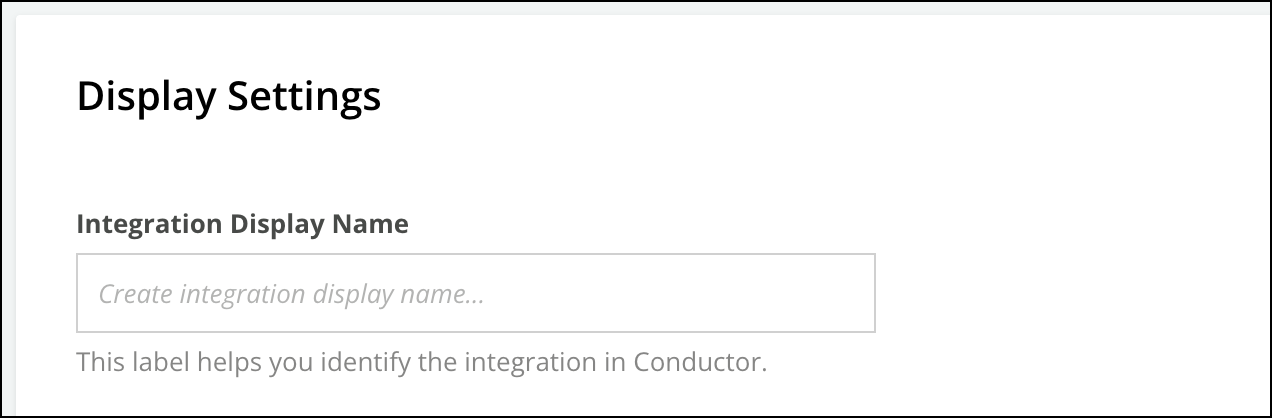
* In the **Integration Display Name** field, enter a name for the integration.\\
Note that:
* You cannot choose a specific data stream from your GA4 property: Conductor will publish organic data from the entire integrated property you select here.
* Users integrating a Google Analytics 360 Account will see any configured subproperties in the Property menu. Because unpaid GA4 Accounts do not have access to subproperties, they can integrate data only for an entire Property.
8. In the **Display Settings** section:
* In the **Integration Display Name** field, enter a name for the integration.\\
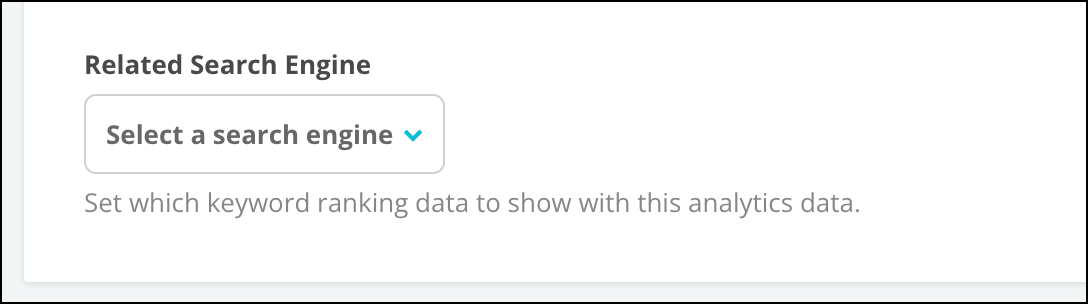
 * From the **Related Search Engine** menu, select the search engine or engines for which Conductor will display data through this integration.\\
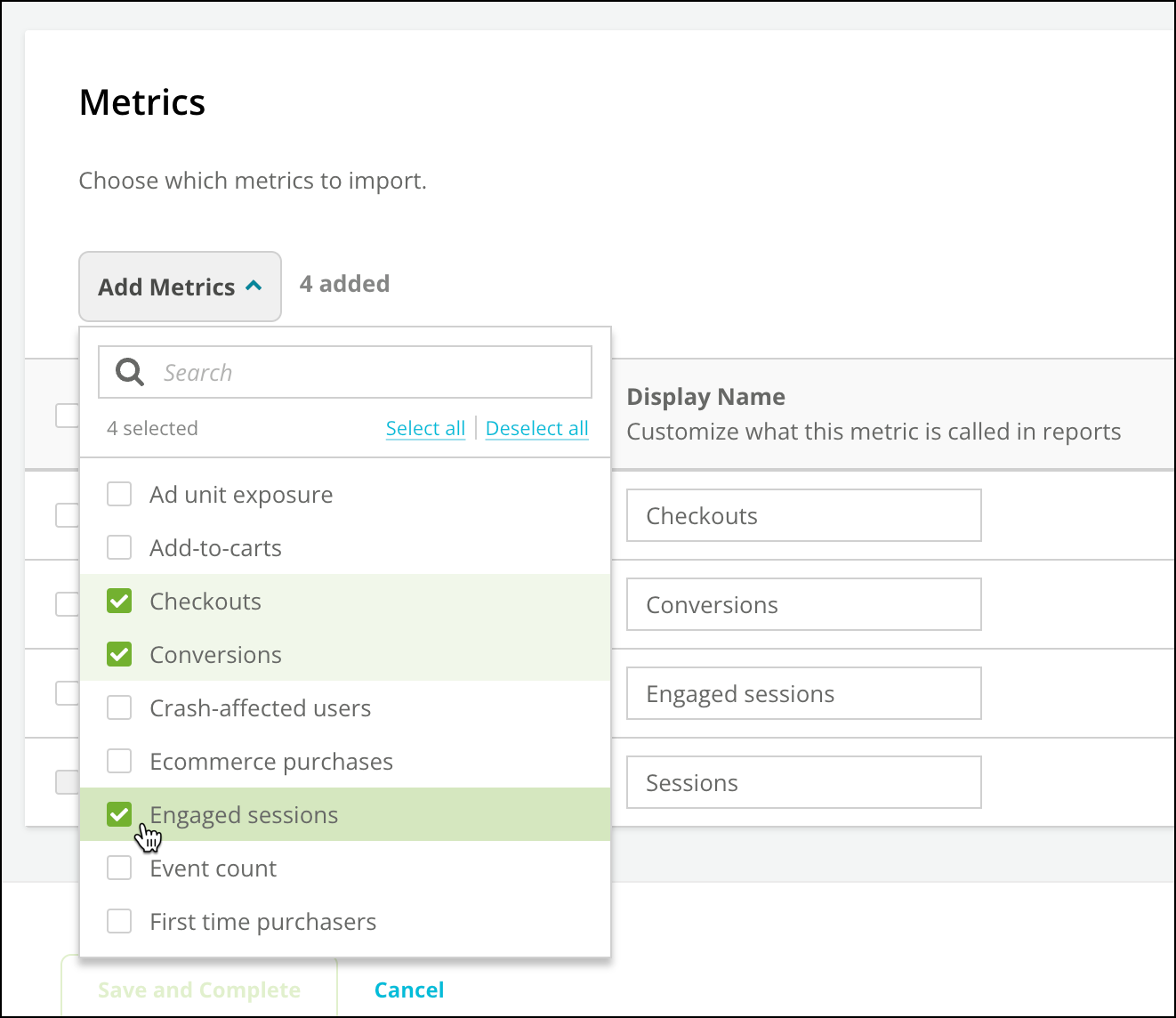
 9. In the **Metrics** section, choose the metrics or key events (formerly "conversion events") from your Google Analytics property to import into Conductor. Note that Sessions is selected by default. You can edit a display name for each metric. The values that appear by default are taken from your Google Account.\\
 10. Before completing the integration—if you have not already—confirm that your protocol setting (either http\:// or https\://) in the GA4 data stream you are integrating is set to report on the protocol that your site uses. Review the “BEFORE YOU START: Data Stream Protocol Setting” section above for instructions.
11. Click **Save and Complete**.\\
10. Before completing the integration—if you have not already—confirm that your protocol setting (either http\:// or https\://) in the GA4 data stream you are integrating is set to report on the protocol that your site uses. Review the “BEFORE YOU START: Data Stream Protocol Setting” section above for instructions.
11. Click **Save and Complete**.\\
 Note that all data from this integration will appear no later than two weeks after integrating.
## Modify Your Google Analytics Integration
You can modify the settings of a Google Analytics integration with Conductor. You might need to do this to:
* Update the integration with different admin credentials after the previous admin user leaves your team.
* Other instances where you want to maintain the historical data retained in the integration, but need to make changes to the integration going forward.
### Permissions
To configure this integration, users may have any permission level in Google Analytics. However, any changes in your Google account needed to accommodate this integration must be made by a user with Edit permissions on the account.
### Instructions
1. From the **Connections** section in the **Settings** menu, select the web property group with the Google Analytics integration you want to modify.
2. Click **Web Analytics**.
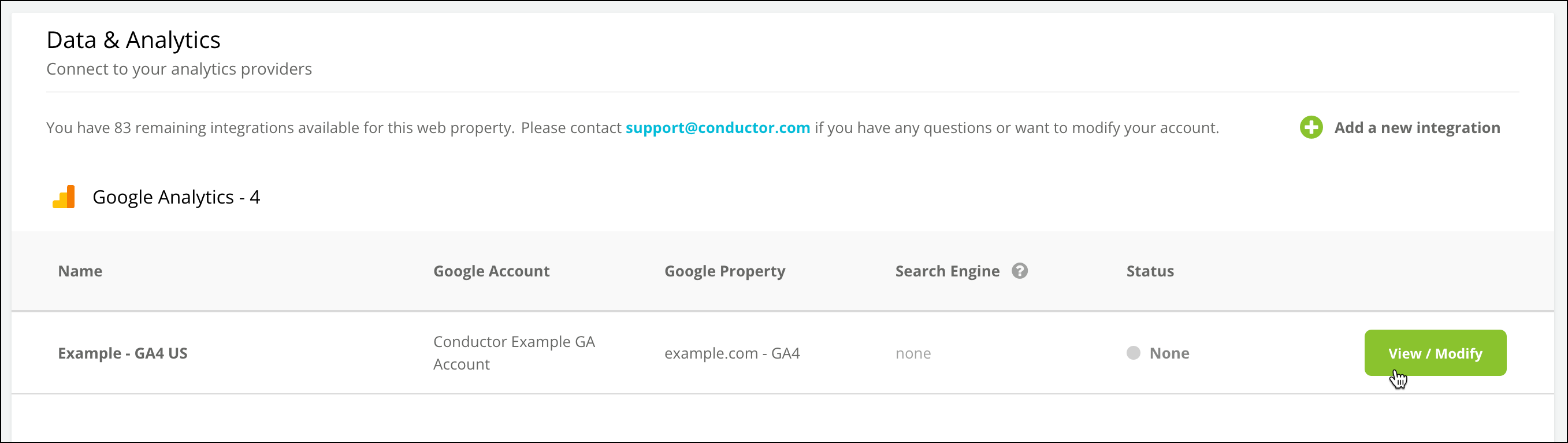
3. From the menu of your integrations, click the **View / Modify** button for the integration you want to modify.\\
Note that all data from this integration will appear no later than two weeks after integrating.
## Modify Your Google Analytics Integration
You can modify the settings of a Google Analytics integration with Conductor. You might need to do this to:
* Update the integration with different admin credentials after the previous admin user leaves your team.
* Other instances where you want to maintain the historical data retained in the integration, but need to make changes to the integration going forward.
### Permissions
To configure this integration, users may have any permission level in Google Analytics. However, any changes in your Google account needed to accommodate this integration must be made by a user with Edit permissions on the account.
### Instructions
1. From the **Connections** section in the **Settings** menu, select the web property group with the Google Analytics integration you want to modify.
2. Click **Web Analytics**.
3. From the menu of your integrations, click the **View / Modify** button for the integration you want to modify.\\
 4. Click the **Modify Integration** link.
At this point, you will need to authorize access to your Google Analytics account. Once authorized, you can modify the setting in this integration.
## FAQs
[Review this feature's frequently asked questions](/docs/intelligence/web-analytics-faqs/#google-analytics-faqs)
4. Click the **Modify Integration** link.
At this point, you will need to authorize access to your Google Analytics account. Once authorized, you can modify the setting in this integration.
## FAQs
[Review this feature's frequently asked questions](/docs/intelligence/web-analytics-faqs/#google-analytics-faqs)