> ## Documentation Index
> Fetch the complete documentation index at: https://www.conductor.com/docs/llms.txt
> Use this file to discover all available pages before exploring further.
# Keyword Details
> Drill into a single keyword's ranking pages, seasonality, search volume, and related metrics to identify optimization opportunities.
The Keyword Details report provides a holistic view of a keyword's world, so you can identify weaknesses in your strategy to improve and strengths to optimize. In this report, you can see the ranking results for an individual keyword—including the ranking pages that appear in the top 100 positions. Review monthly search volume seasonality for the keyword, rank changes and trends, and insight into rank volatility. You can also use this report to gain greater insight into image results, AI Overview results, or other universal results that appear for the keyword in search.
**Performance** > **Traditional Search** > [**Keywords**](https://app.conductor.com/u/keywords/) > Click a keyword in the table on the **Keywords** tab
## Overview
### Determine the Scope of Your Report
To focus on the most relevant and useful data to better address your specific goals, you can choose the context from which you want to see data.
Configure the following controls at the top of the report to determine the data the Keywords report shows:
* Use the **Website** menu to determine the site or sites for which you want to include rank data.
* Use the **Keywords** menu to set the search context for the data in the report—that is, the search engines and languages, the devices, and the locations you want to see rank data for.
* Use the **Rank** menu to select whether you want to see keywords sorted by True Rank or Standard Rank.
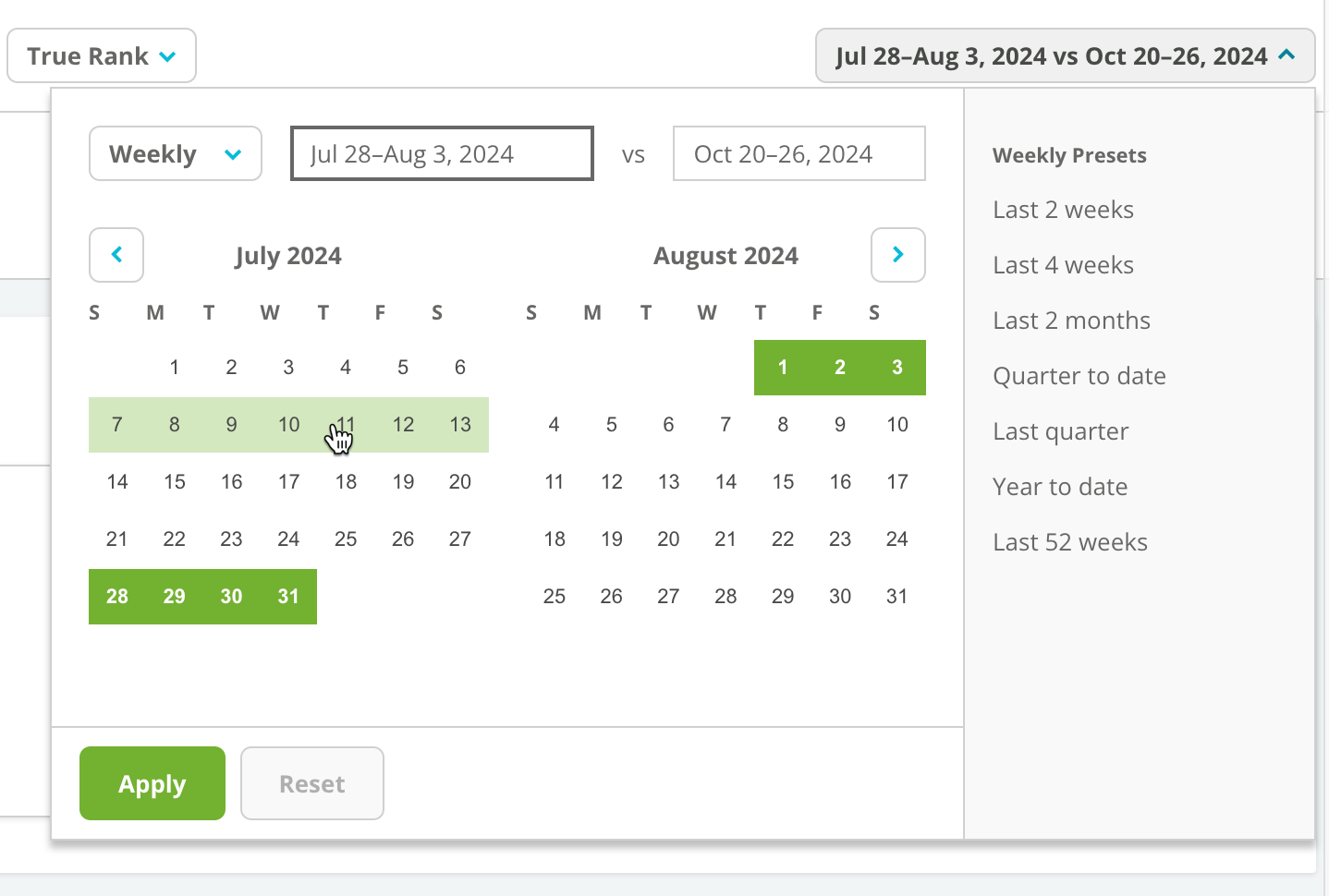
 * Use the **Date Picker** to select the date range and frequency you want to report on.
 ### Review the Summary Bar
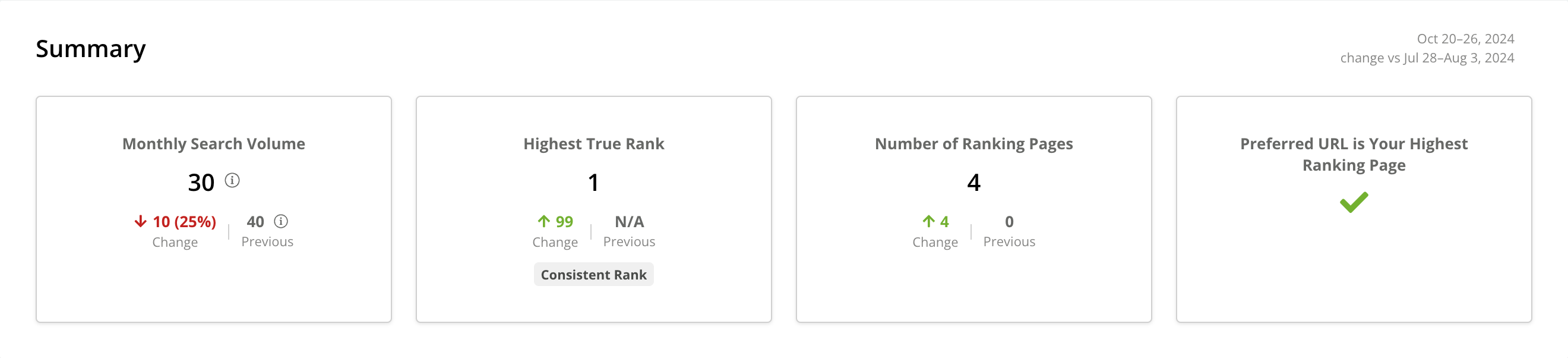
The **summary bar** shows high-level data about this keyword and its performance, including:
* The keyword's monthly search volume, and the change since the previous date you are reporting on.
* Your content's highest rank for this keyword during your reporting time period. **Did not rank** refers to a page that did not appear in the top 100 positions, and the change since the previous date you are reporting on.
* Beneath your highest rank, you'll see a diagnosis of your rank volatility. The volatility metric looks at all of the rankings during the reported time period. Conductor then calculates a "line of best fit", and depending on the slope, will report whether your visibility is **Consistent**, **Downward**, **Upward**, or **Volatile**.
* The **Number of Ranking Pages** on your site for which the keyword ranks, and the change since the previous date you are reporting on.
### Review the Summary Bar
The **summary bar** shows high-level data about this keyword and its performance, including:
* The keyword's monthly search volume, and the change since the previous date you are reporting on.
* Your content's highest rank for this keyword during your reporting time period. **Did not rank** refers to a page that did not appear in the top 100 positions, and the change since the previous date you are reporting on.
* Beneath your highest rank, you'll see a diagnosis of your rank volatility. The volatility metric looks at all of the rankings during the reported time period. Conductor then calculates a "line of best fit", and depending on the slope, will report whether your visibility is **Consistent**, **Downward**, **Upward**, or **Volatile**.
* The **Number of Ranking Pages** on your site for which the keyword ranks, and the change since the previous date you are reporting on.
 ### Review the Rank Over Time Chart
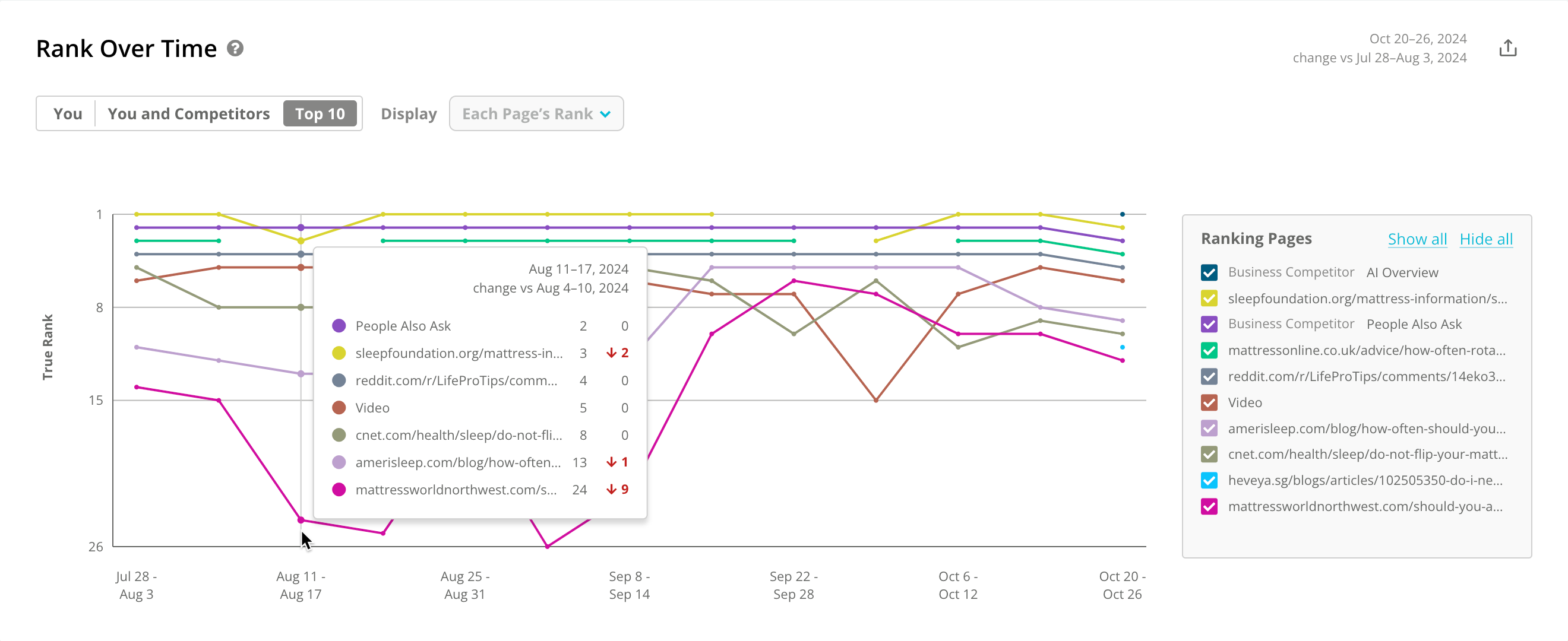
The **Rank Over Time** chart helps you understand how your ranking pages and your competitors’ ranking pages have performed over time in search results for this keyword.
* Use the **You** option to see what content you have ranking for the keyword and identify any instances of cannibalization cases where you have two or more pages ranking for the same keyword.
* Use the **You and Competitors** and **Top 10** options to understand who else is competing for the keyword.
* For the **You** and **You and Competitors** options, you can use the **Display** menu to show either **Each Page's Rank** or just the **Highest Ranked** pages.
* You can choose the specific pages you want to compare from the menu on the right.
### Review the Rank Over Time Chart
The **Rank Over Time** chart helps you understand how your ranking pages and your competitors’ ranking pages have performed over time in search results for this keyword.
* Use the **You** option to see what content you have ranking for the keyword and identify any instances of cannibalization cases where you have two or more pages ranking for the same keyword.
* Use the **You and Competitors** and **Top 10** options to understand who else is competing for the keyword.
* For the **You** and **You and Competitors** options, you can use the **Display** menu to show either **Each Page's Rank** or just the **Highest Ranked** pages.
* You can choose the specific pages you want to compare from the menu on the right.
 ### Review the Seasonality Chart
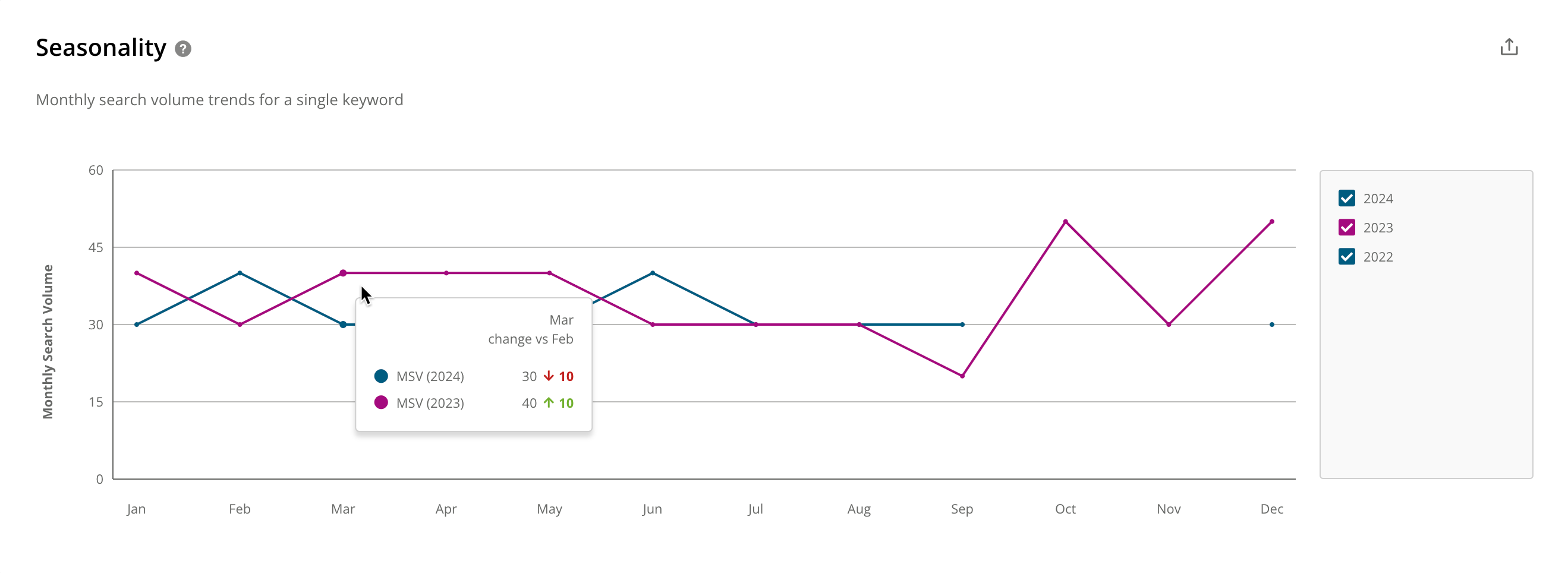
Seasonality helps in understanding changes in search demand and responding to fluctuations in search behavior that occur throughout the year. It shows monthly search volume totals trended month-by-month for each year.
### Review the Seasonality Chart
Seasonality helps in understanding changes in search demand and responding to fluctuations in search behavior that occur throughout the year. It shows monthly search volume totals trended month-by-month for each year.
 ### Note
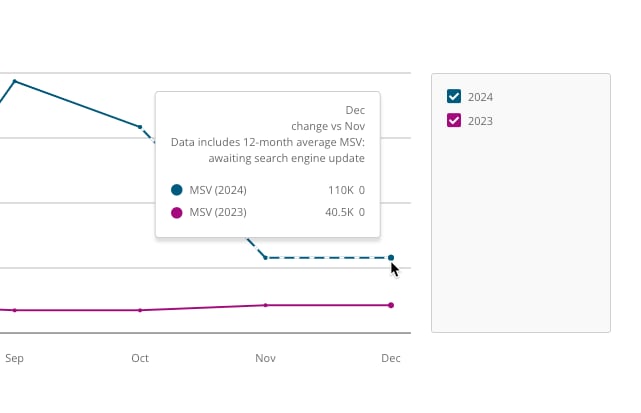
In **Keyword** **Details**, Conductor publishes approximate monthly search volumes for a keyword as soon as it has the data collected for the month in question. Until that point, the monthly search volume reflects an average of the previous 12 months. You'll see this indicated by a dashed line and the following tooltip for any affected time periods in the chart:\
"Data includes 12-month average MSV: awaiting search engine update"
### Note
In **Keyword** **Details**, Conductor publishes approximate monthly search volumes for a keyword as soon as it has the data collected for the month in question. Until that point, the monthly search volume reflects an average of the previous 12 months. You'll see this indicated by a dashed line and the following tooltip for any affected time periods in the chart:\
"Data includes 12-month average MSV: awaiting search engine update"
 ### Review the Search Results Table
#### Choose the Columns to Display
Use the **Columns** menu to select the columns you want to see.
### Review the Search Results Table
#### Choose the Columns to Display
Use the **Columns** menu to select the columns you want to see.
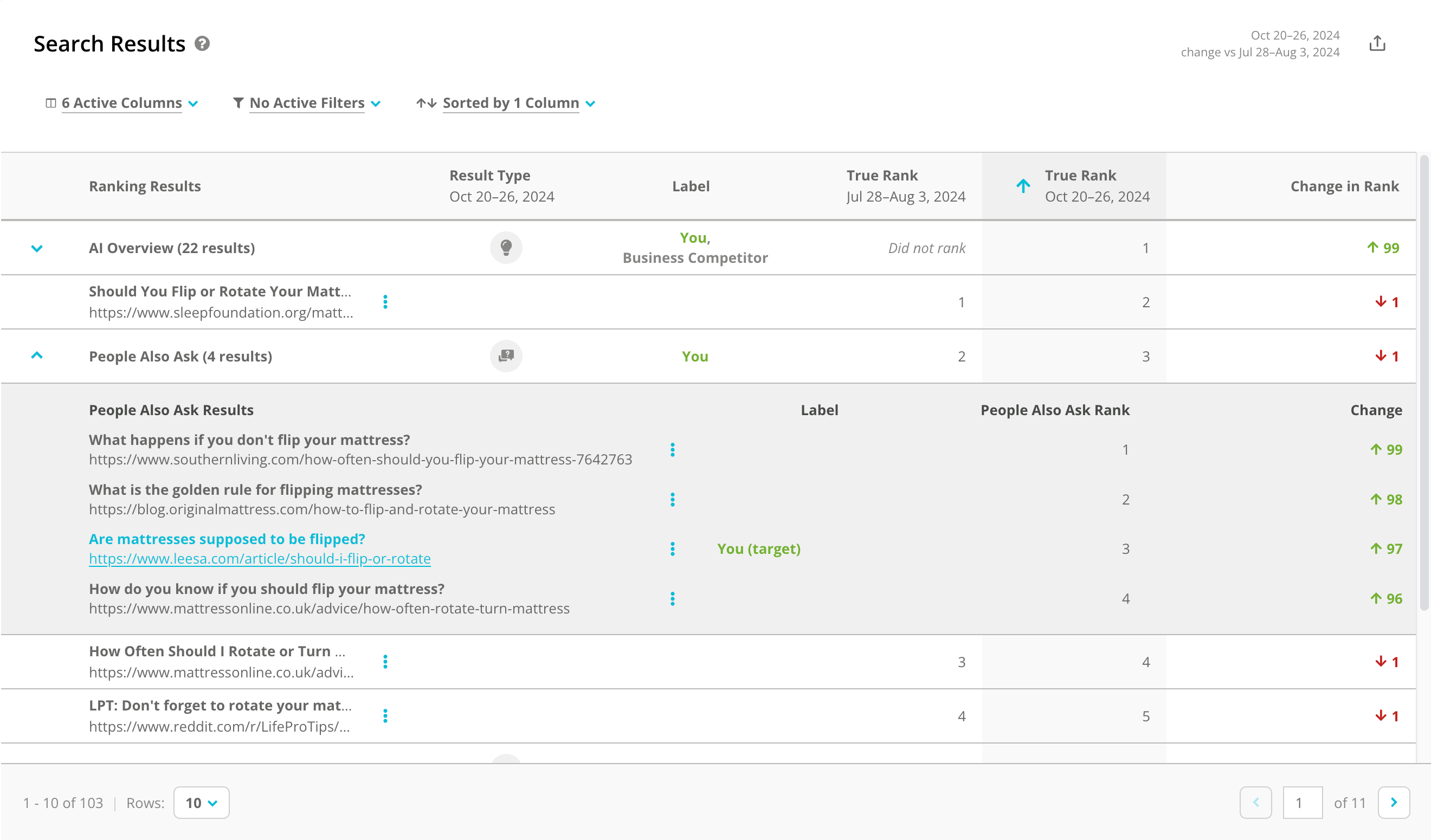
 * **Ranking Results**\
The page ranking for the keyword.
* Each position includes the title and URL associated with the page.
* Where a universal result type appears in the search results with links to multiple pages, this column will include the result type.
* **Result Type**\
Indicates the universal result type for the result during the second time period reported on.
* **Label**\
Indicates whether this website is a comparison web property or has another label configured for it.
* **Rank (***\[first time period]***)**\
Indicates the keyword's rank during the first time period reported on.
* **Rank (***\[second time period]***)**\
Indicates the keyword's rank during the second time period reported on.
* **Change in Rank**\
Indicates the difference between the rank reported on in the first and second time periods.
* **Ranking Results**\
The page ranking for the keyword.
* Each position includes the title and URL associated with the page.
* Where a universal result type appears in the search results with links to multiple pages, this column will include the result type.
* **Result Type**\
Indicates the universal result type for the result during the second time period reported on.
* **Label**\
Indicates whether this website is a comparison web property or has another label configured for it.
* **Rank (***\[first time period]***)**\
Indicates the keyword's rank during the first time period reported on.
* **Rank (***\[second time period]***)**\
Indicates the keyword's rank during the second time period reported on.
* **Change in Rank**\
Indicates the difference between the rank reported on in the first and second time periods.
 #### Filter Columns in the Table
You can use column filters to report on areas of focus.
1. Hover over a column header to find the **filter** icon shown here. \\
#### Filter Columns in the Table
You can use column filters to report on areas of focus.
1. Hover over a column header to find the **filter** icon shown here. \\
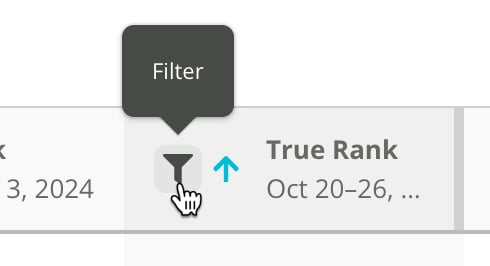 2. Use the filter to configure the criteria that determine what data should appear in the column.
3. Click **Apply**.
#### Review the Data in the Table
The **Search Results** table provides a snapshot of the top 100 search results for this keyword during your selected time period.
You can see:
* Where your site ranks for this keyword.
* Who else is appearing in search results.
* If you or competitors are appearing for particular result types.
* How your rank has changed compared to the previous time period you have selected.
### Review a visualization of this keyword's SERP
Understanding SERP changes over time is challenging, as rankings alone don't reveal shifts in ads, changes in the way result types are displayed, or overall layout. Go to the **SERP Visualization** tab in Keyword Details to compare results pages across time periods, so you can see how your tracked keyword appeared in real search results, capturing crucial context that rankings miss.
Visualizations include a complete view of the SERP layout, result types, and ranking content. You can scroll and see additional content and zoom in for details.
2. Use the filter to configure the criteria that determine what data should appear in the column.
3. Click **Apply**.
#### Review the Data in the Table
The **Search Results** table provides a snapshot of the top 100 search results for this keyword during your selected time period.
You can see:
* Where your site ranks for this keyword.
* Who else is appearing in search results.
* If you or competitors are appearing for particular result types.
* How your rank has changed compared to the previous time period you have selected.
### Review a visualization of this keyword's SERP
Understanding SERP changes over time is challenging, as rankings alone don't reveal shifts in ads, changes in the way result types are displayed, or overall layout. Go to the **SERP Visualization** tab in Keyword Details to compare results pages across time periods, so you can see how your tracked keyword appeared in real search results, capturing crucial context that rankings miss.
Visualizations include a complete view of the SERP layout, result types, and ranking content. You can scroll and see additional content and zoom in for details.
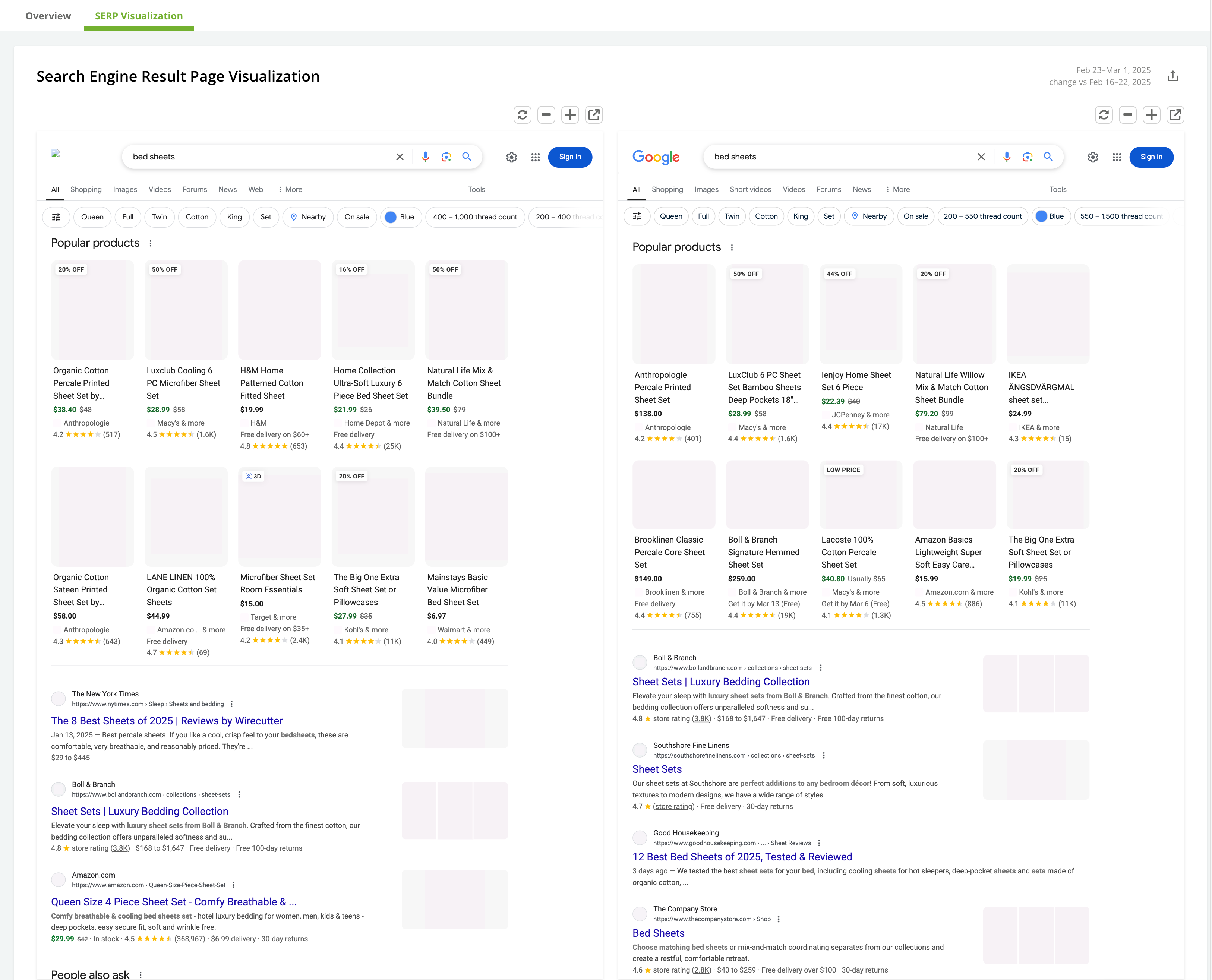 Note that:
* SERP visualizations appear for only the first page of results
* Usually, images will not be loaded from SERPs, though some small images may appear in visualizations.
* Because this is a visualization and not a live search environment you may not be able to interact with certain search features like People Also Ask the way you do on actual SERPs.
* Visualizations are not available for SERPs collected before November 22, 2024.
### Take Action from Keyword Details
#### Update the Preferred URL for the Keyword
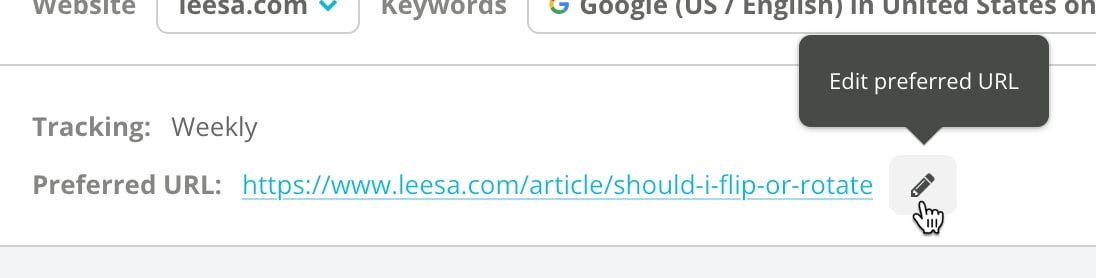
You can update the preferred URL for the keyword you are reviewing by using the **edit** icon next to the **Preferred URL** field above the report:
Note that:
* SERP visualizations appear for only the first page of results
* Usually, images will not be loaded from SERPs, though some small images may appear in visualizations.
* Because this is a visualization and not a live search environment you may not be able to interact with certain search features like People Also Ask the way you do on actual SERPs.
* Visualizations are not available for SERPs collected before November 22, 2024.
### Take Action from Keyword Details
#### Update the Preferred URL for the Keyword
You can update the preferred URL for the keyword you are reviewing by using the **edit** icon next to the **Preferred URL** field above the report:
 #### Take Action on Results
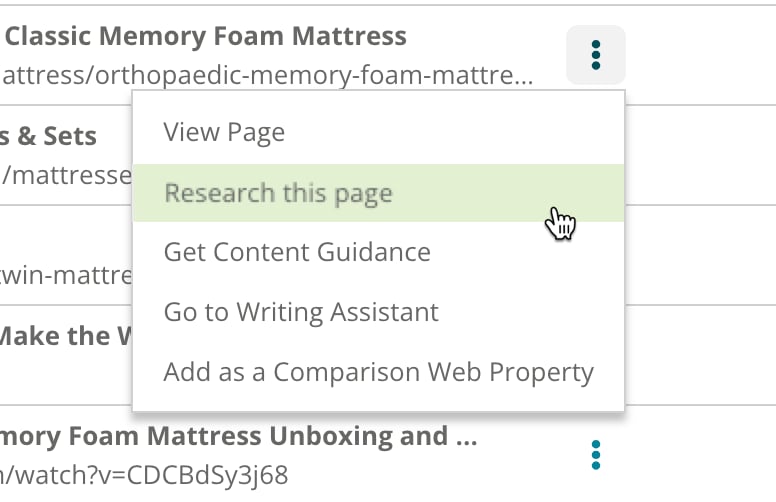
You can use the **three-dot** menu next to each entry in the **Search Results** table to take your next steps:
* **View Page** opens the page in a new tab.
* **Research this page** takes you to the page's [**Research**](/docs/creator/research/) report.
* **Get Content Guidance** shows you [**Content Guidance**](/docs/creator/content-guidance/) for the keyword you are reporting on and the page you are viewing.
* If the page is not on your website, **Add as a** **Comparison Web Property** lets you add the website that owns the result to your tracked comparison web properties.
* If the page is on your website, **Set as** **Preferred URL** or **Remove as Preferred URL** let you quickly update whether the page in the result is the preferred URL for this keyword.
#### Take Action on Results
You can use the **three-dot** menu next to each entry in the **Search Results** table to take your next steps:
* **View Page** opens the page in a new tab.
* **Research this page** takes you to the page's [**Research**](/docs/creator/research/) report.
* **Get Content Guidance** shows you [**Content Guidance**](/docs/creator/content-guidance/) for the keyword you are reporting on and the page you are viewing.
* If the page is not on your website, **Add as a** **Comparison Web Property** lets you add the website that owns the result to your tracked comparison web properties.
* If the page is on your website, **Set as** **Preferred URL** or **Remove as Preferred URL** let you quickly update whether the page in the result is the preferred URL for this keyword.
 ## Using Keyword Details
* [Monitor your content's search performance](https://app.conductor.com/u/community?ms_url=%2Fcourses%2Fcf5d38ef-6e33-4b47-84bd-1c2817f44b6b%2Fstep%2F1f88fd41-9df4-49f4-891e-4a03103fcb23)
## Using Keyword Details
* [Monitor your content's search performance](https://app.conductor.com/u/community?ms_url=%2Fcourses%2Fcf5d38ef-6e33-4b47-84bd-1c2817f44b6b%2Fstep%2F1f88fd41-9df4-49f4-891e-4a03103fcb23)