> ## Documentation Index
> Fetch the complete documentation index at: https://www.conductor.com/docs/llms.txt
> Use this file to discover all available pages before exploring further.
# Keywords
> The Keywords report provides you with holistic, aggregated keyword reporting.
The Keywords report provides you with holistic, aggregated keyword reporting. You can find high-level information for your keywords and sort along a number of different dimensions to help you learn how your tracked keywords perform.
The Keywords report includes two tabs:
* **Keywords** provides you with direct access to your tracked keyword data and information about your top-ranking pages for each.
* **Overview** includes the **Visibility Over Time** and **Seasonality** charts for a trended view of your websites' search performance and your keywords' search demand.
**Performance** > **Traditional Search** > [**Keywords**](https://app.conductor.com/u/keywords/)
## Determine the Scope of Your Report
To focus on the most relevant and useful data to better address your specific goals, you can choose the context from which you want to see data.
Configure the following controls at the top of the report to determine the data the Keywords report shows:
* Use the **Website** menu to determine the site or sites for which you want to include rank data.
* Use the **Keywords** menu to set the search context for the data in the report—that is, the search engines and languages, the devices, and the locations you want to see rank data for.
* Use the **Page Groups** menu to select the page groups to limit the report to include only those pages on your website for which you want to see keyword ranks. Only keywords that rank for the pages that belong to these groups will appear in your report; any other keywords for which other pages on your website rank will not be included. You can apply up to 10 page groups. *Currently, this filter supports only custom page groups and smart page groups that use title tag or URL rules to determine the pages that belong to the group. Smart page groups using meta description and header tag rules will not appear in this menu.*
* Use the **Keyword Groups** menu to set the keyword group or groups you want to see data for.
### Get logical!
If you want more flexibility to create report segmentation, stack filters, or analyze overlapping keyword sets without creating separate keyword groups for every combination, you can choose whether selected groups should show keywords that match AND or OR logic:
* **OR** – any selected group. For example: choosing the `Branded` **OR** `Unbranded` keyword groups includes keywords from either group.
* **AND** – all selected groups. For example: choosing the `Insurance` **AND** `English` keyword groups includes only the keywords belonging to *both* groups.
* Use the **Rank** menu to select whether you want to see keywords sorted by True Rank or Standard Rank.
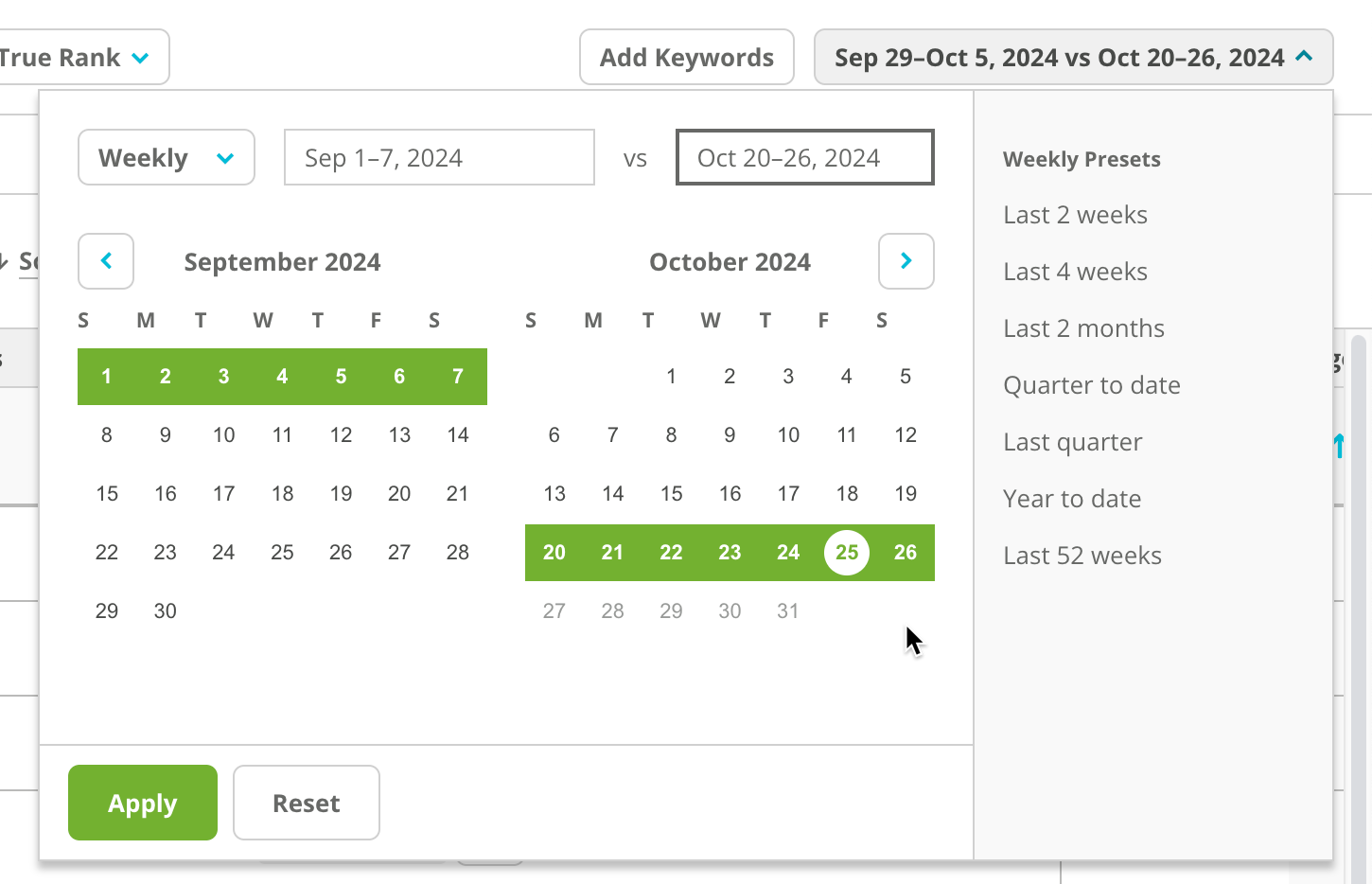
 * Use the **Date Picker** to select the date range and frequency you want to report on.
 ## Refine Data and Reveal Insights with a View
After determining the context at the top of the report, you can further filter the results in the table with preset or custom views. You can then save these views to use again and share them with your team.
### Preset Views
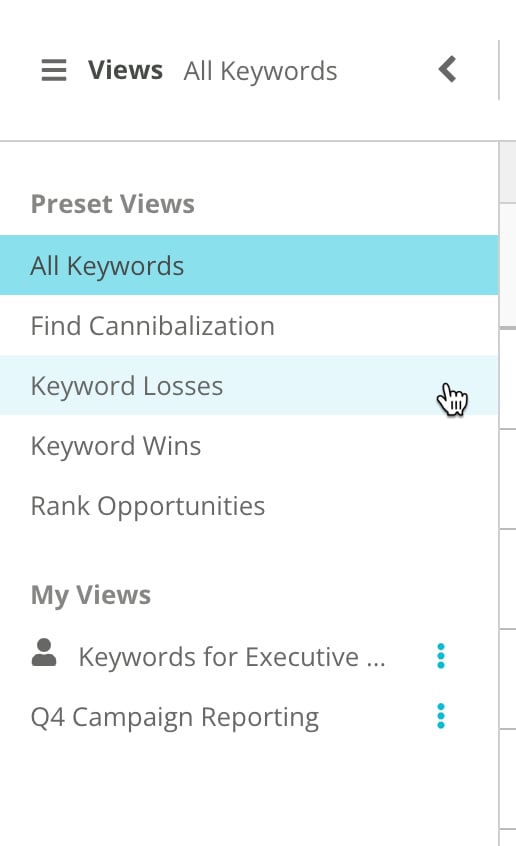
By default, your report will include the following views:
* **All Keywords**
* **Find Cannibalization**
* **Keyword Losses**
* **Keyword Wins**
* **Rank Opportunities**
## Refine Data and Reveal Insights with a View
After determining the context at the top of the report, you can further filter the results in the table with preset or custom views. You can then save these views to use again and share them with your team.
### Preset Views
By default, your report will include the following views:
* **All Keywords**
* **Find Cannibalization**
* **Keyword Losses**
* **Keyword Wins**
* **Rank Opportunities**
 ### Custom Views
Filter your report in a way you want to save to use again? You can create a custom view. After choosing your filters and columns (learn more about filters and columns below):
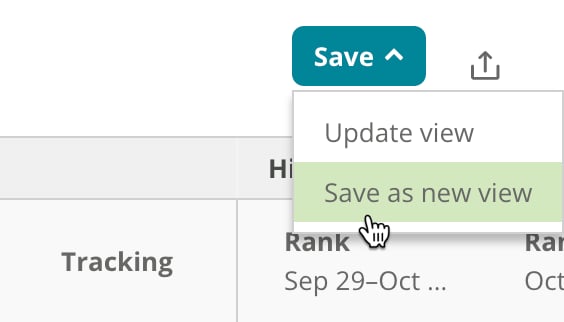
1. Click **Save** > **Save as new view**.
### Custom Views
Filter your report in a way you want to save to use again? You can create a custom view. After choosing your filters and columns (learn more about filters and columns below):
1. Click **Save** > **Save as new view**.
 2. Enter a name for the view and decide if you want to share it with other users on your account. By default, the view will be visible to you only.
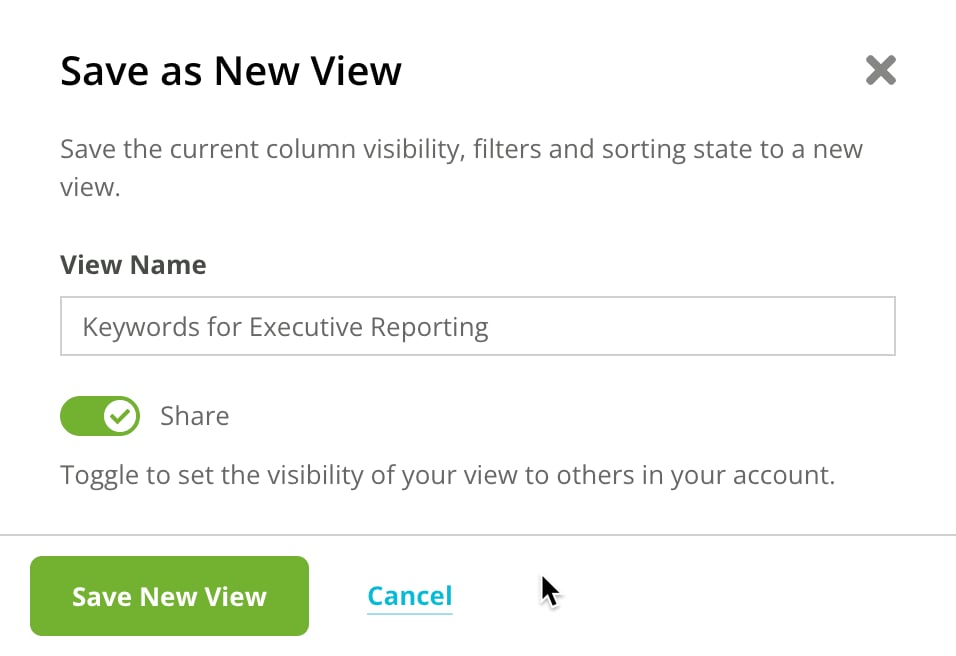 3. Click **Save New View**. The custom view now appears in the **My Views** section.
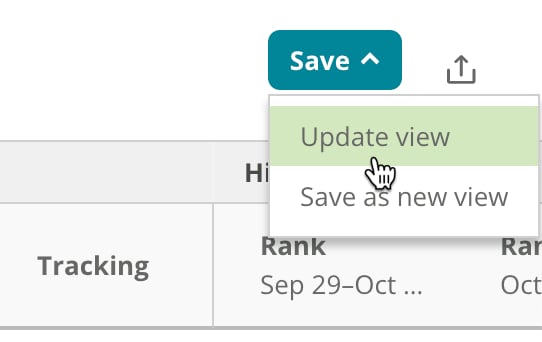
Want to update the filters and columns in an existing custom view? Just select **Save** > **Update View** after choosing new filters or columns.
3. Click **Save New View**. The custom view now appears in the **My Views** section.
Want to update the filters and columns in an existing custom view? Just select **Save** > **Update View** after choosing new filters or columns.
 ### Manage or Delete a View
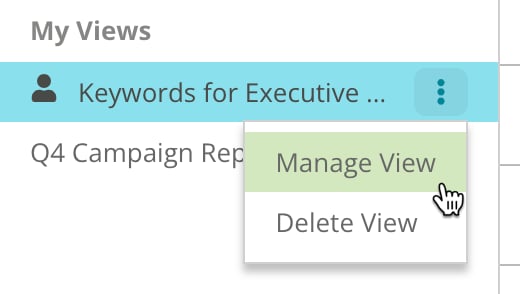
Want to change the name or shared status of a custom view? Or, maybe you no longer need a custom view you created? Just click the **three-dot** menu to reveal options for managing or deleting your custom views.
### Manage or Delete a View
Want to change the name or shared status of a custom view? Or, maybe you no longer need a custom view you created? Just click the **three-dot** menu to reveal options for managing or deleting your custom views.
 Note that preset views cannot be edited or deleted.
## Review Trended Data in the Overview tab
### Keyword Performance
This chart shows you a trended view of your:
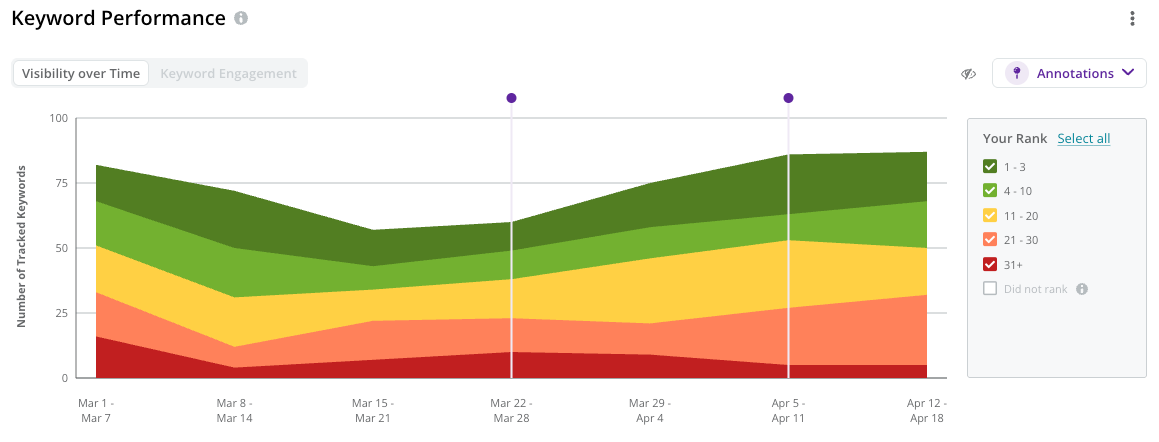
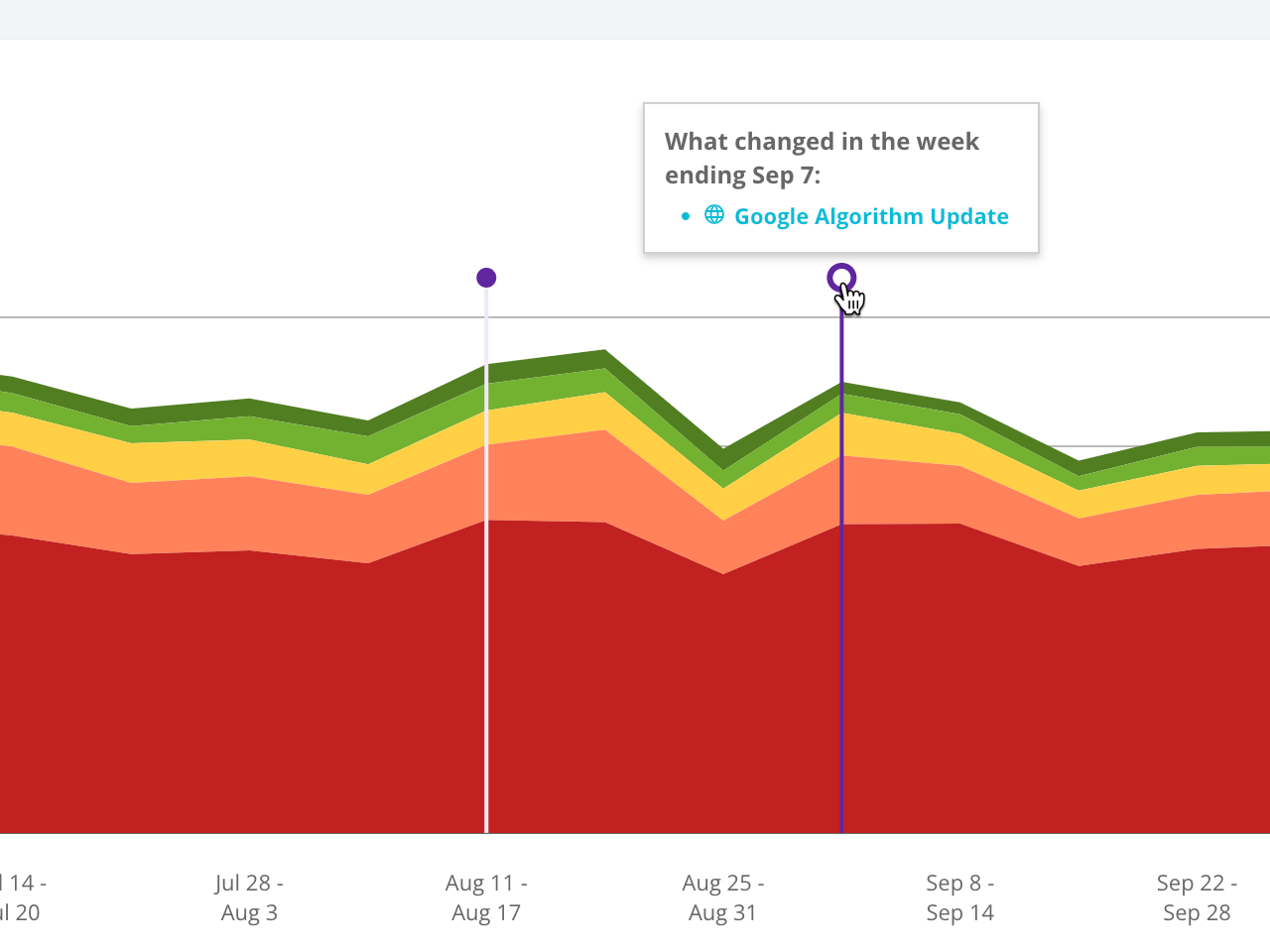
* **Visibility Over Time**—your keyword ranks, grouped across visibility zones. This view offers an at-a-glance view of your overall keyword performance.
Note that preset views cannot be edited or deleted.
## Review Trended Data in the Overview tab
### Keyword Performance
This chart shows you a trended view of your:
* **Visibility Over Time**—your keyword ranks, grouped across visibility zones. This view offers an at-a-glance view of your overall keyword performance.
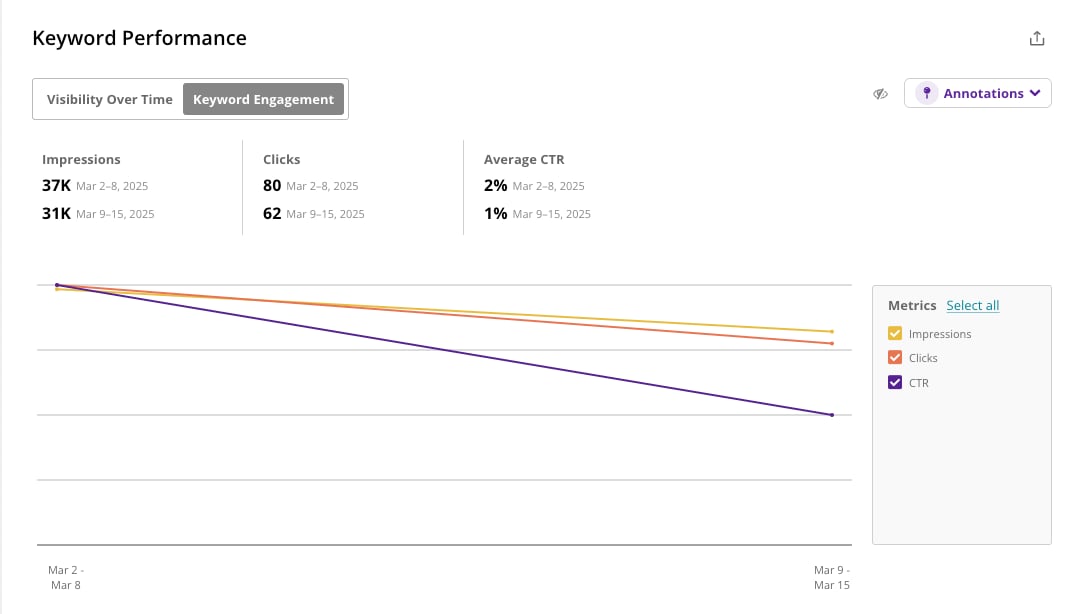
 * **Keyword Engagement**—your Impressions, Total Clicks, and Average CTR for your tracked keywords, integrated from Google Search Console. This view offers search engagement reporting to see how users are interacting with results from your website.
 You can also see [annotations](/docs/intelligence/annotations-and-content-activity-reporting/) in this chart—both public event and custom—to identify any potential industry events that might have affected your performance.
 ### How do I create a custom annotation?
You can add custom annotations to track your progress and keep tabs on the work you've done. Learn how to [create custom annotations](/docs/intelligence/creating-and-managing-annotations/#create-a-custom-annotation).
### Result Types
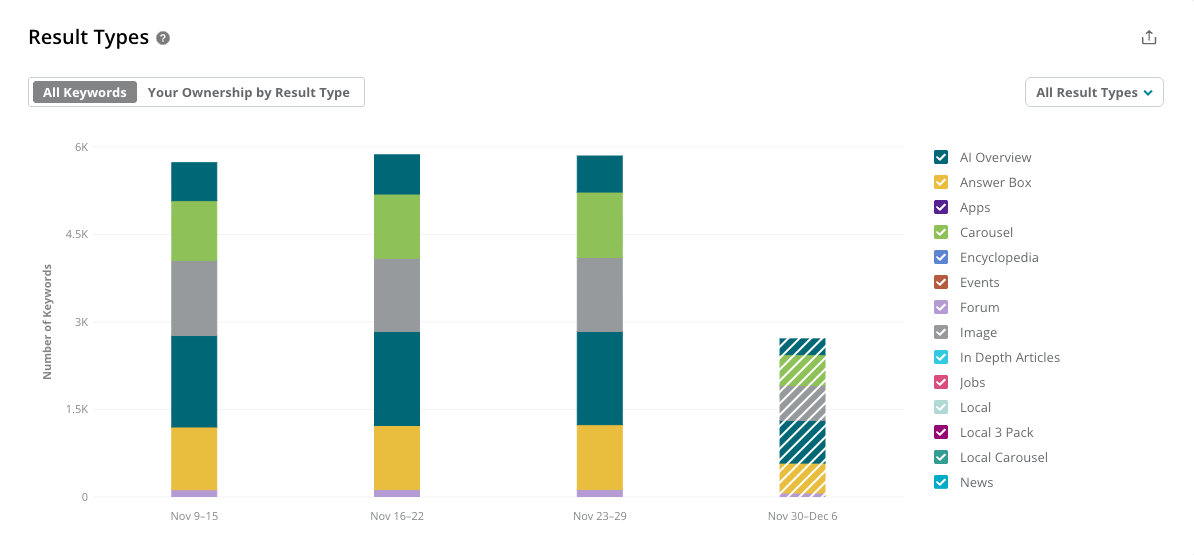
* See all the [universal result types](/docs/platform/universal-result-type-faqs/) your results appear in across **All Keywords**, and track how your visibility changes over time.
### How do I create a custom annotation?
You can add custom annotations to track your progress and keep tabs on the work you've done. Learn how to [create custom annotations](/docs/intelligence/creating-and-managing-annotations/#create-a-custom-annotation).
### Result Types
* See all the [universal result types](/docs/platform/universal-result-type-faqs/) your results appear in across **All Keywords**, and track how your visibility changes over time.
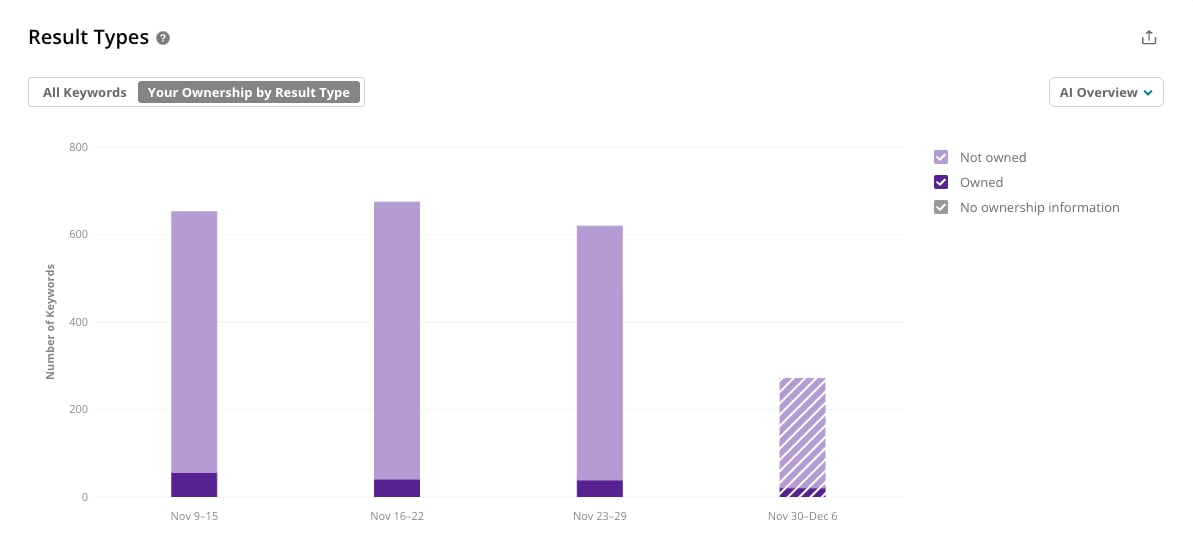
 * View the **Ownership by Result Type** chart to understand your ownership for each result type and how it evolves over time.
 ### Seasonality
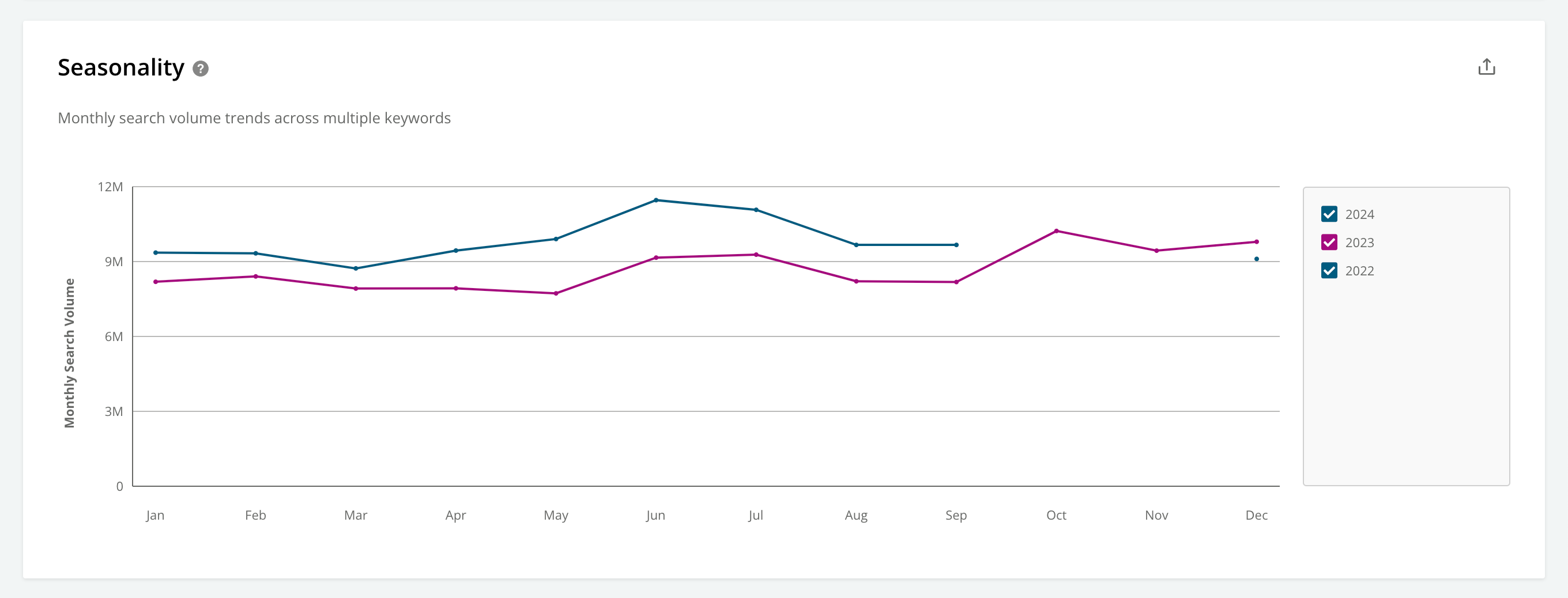
The **Seasonality** chart helps you understand and respond to fluctuations in search behavior that occur throughout the year. The chart shows search demand—using monthly search volumes for the keywords you are reporting on—trended year-by-year.
### Seasonality
The **Seasonality** chart helps you understand and respond to fluctuations in search behavior that occur throughout the year. The chart shows search demand—using monthly search volumes for the keywords you are reporting on—trended year-by-year.
 ### Note
In Keywords, Conductor publishes approximate monthly search volumes for keywords as soon as it has the data collected for the time periods in question. Until that point, the monthly search volume for a keyword reflects an average of the previous 12 months.
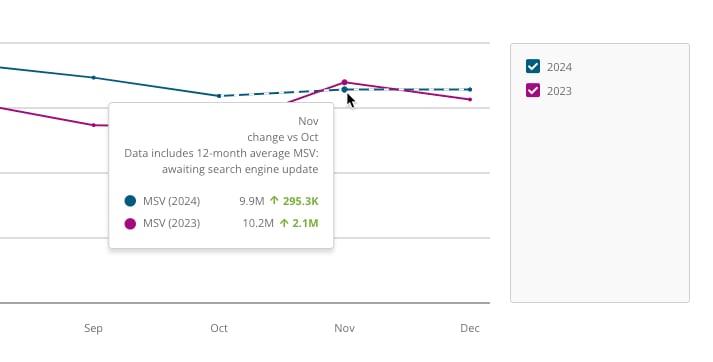
When at least 10% of the keywords you are reporting on are using averaged search volumes, you'll see this indicated by a dashed line and the following tooltip for any affected time periods in the chart:
"Data includes 12-month average MSV: awaiting search engine update"
### Note
In Keywords, Conductor publishes approximate monthly search volumes for keywords as soon as it has the data collected for the time periods in question. Until that point, the monthly search volume for a keyword reflects an average of the previous 12 months.
When at least 10% of the keywords you are reporting on are using averaged search volumes, you'll see this indicated by a dashed line and the following tooltip for any affected time periods in the chart:
"Data includes 12-month average MSV: awaiting search engine update"
 ## Review the Keywords table
### Choose the Columns to Display
Use the **Columns** menu to select the columns you want to see.
## Review the Keywords table
### Choose the Columns to Display
Use the **Columns** menu to select the columns you want to see.
 **Keyword Details**
* **MSV (All Devices)**
Indicates the monthly search volume for this keyword.
* **Result Types Appearing (***\[Most-recent time period]***)**
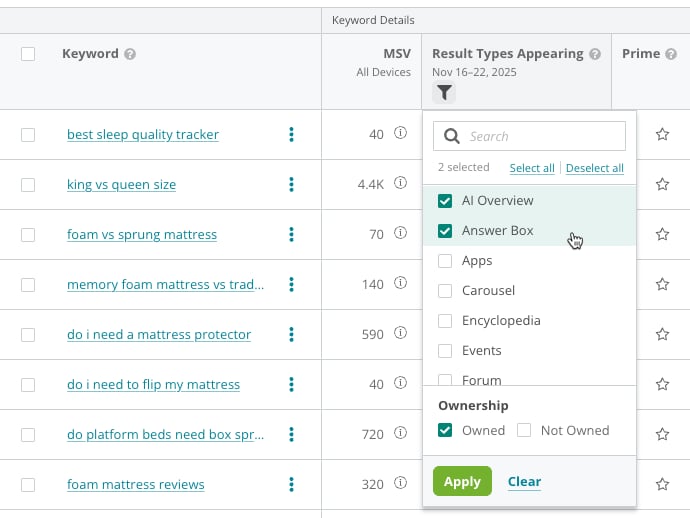
Result types refer to any non-standard results that appear on the search engine results page, such as answer boxes, products, and images. Owned results are highlighted in green. In addition to choosing the result types you want to view, you can use the column filter to choose to see only **Owned**, only **Not Owned**, or both.
**Keyword Details**
* **MSV (All Devices)**
Indicates the monthly search volume for this keyword.
* **Result Types Appearing (***\[Most-recent time period]***)**
Result types refer to any non-standard results that appear on the search engine results page, such as answer boxes, products, and images. Owned results are highlighted in green. In addition to choosing the result types you want to view, you can use the column filter to choose to see only **Owned**, only **Not Owned**, or both.
 * **Prime**
Indicates which keywords have been marked Prime.
* **KW Groups**
Indicates the keyword group or groups the keyword belongs to.
* **Tracking**
Indicates whether Conductor is tracking the keyword weekly (the default frequency) or [daily](/docs/intelligence/keyword-data-faqs/#what-is-daily-keyword-tracking).
**Highest Ranking Page**
This data applies to the highest-ranking page on your site that appears in search results for each tracked keyword.
* **Rank (***\[first time period]***)**
Indicates the keyword's rank during the first time period reported on.
* **Rank (***\[second time period]***)**
Indicates the keyword's rank during the second time period reported on.
* **Rank Change**
Indicates the difference between the rank reported on in the first and second time periods.
* **Result Type (***\[first time period]***)**
Indicates the universal result types for the highest ranked result from your website during the first time period reported on.
* **Result Type (***\[second time period]***)**
Indicates the universal result types for the highest ranked result from your website during the second time period reported on.
* **URL Change**
Indicates whether your web property's highest-ranked result for the keyword has changed between the first and second time period you are reporting on.
* **Highest Ranking Page**
Indicates the URL associated with your website's highest-ranked result for the keyword.
**Rankings & Performance**
* **No. of Results**
Indicates the number of pages from your website that rank for the keyword. You can use this to find keywords you own lots of results for and issues where your pages may be cannibalizing each other.
**Google Search Console**
This column group shows engagement data from Google Search Console, including clicks, impressions, click-through rates (CTR), and average position. The report aggregates data for the selected date range, providing a comprehensive view of your site performance during the period.
Keyword-level data from your integrated Google Search Console profiles applies to all your pages that appear for your tracked keywords, not only the highest-ranking page.
* **Impressions** *(first time period)* and **Impressions** *(second time period)*
This value is the total number of times results for pages on your website appeared to a user on a search engine results page for the tracked keyword.
* **Change in Impressions**
The difference in Impressions between the two time periods you are reporting on.
* **Clicks** *(first time period)* and **Clicks** *(second time period)*
This value is the total number of times users clicked results for pages on your website when it appeared on a search engine results page.
* **Change in Clicks**
The difference in clicks between the two time periods you are reporting on.
* **CTR** *(first time period)* and **CTR** *(second time period)*
CTR is click-through rate. This value is a ratio derived from the Clicks metric divided by the Impressions metric.
* **Change in CTR**
The difference in click-through rate between the two time periods you are reporting on.
**Preferred URL**
* **Preferred URL**
Indicates the preferred URL configured for the keyword.
* **Is Highest Ranking**
This indicates whether the preferred URL is also your website's top ranking URL for this keyword.
### Filter Columns in the Table
You can use column filters to report on areas of focus. You can also save your filters with a [custom view](/docs/intelligence/keywords/#refine-data-and-reveal-insights-with-a-view) for use later.
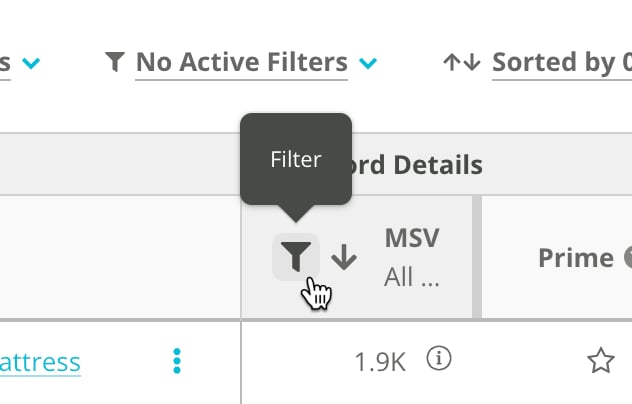
1. Hover over a column header to find **filter** icon shown here.
* **Prime**
Indicates which keywords have been marked Prime.
* **KW Groups**
Indicates the keyword group or groups the keyword belongs to.
* **Tracking**
Indicates whether Conductor is tracking the keyword weekly (the default frequency) or [daily](/docs/intelligence/keyword-data-faqs/#what-is-daily-keyword-tracking).
**Highest Ranking Page**
This data applies to the highest-ranking page on your site that appears in search results for each tracked keyword.
* **Rank (***\[first time period]***)**
Indicates the keyword's rank during the first time period reported on.
* **Rank (***\[second time period]***)**
Indicates the keyword's rank during the second time period reported on.
* **Rank Change**
Indicates the difference between the rank reported on in the first and second time periods.
* **Result Type (***\[first time period]***)**
Indicates the universal result types for the highest ranked result from your website during the first time period reported on.
* **Result Type (***\[second time period]***)**
Indicates the universal result types for the highest ranked result from your website during the second time period reported on.
* **URL Change**
Indicates whether your web property's highest-ranked result for the keyword has changed between the first and second time period you are reporting on.
* **Highest Ranking Page**
Indicates the URL associated with your website's highest-ranked result for the keyword.
**Rankings & Performance**
* **No. of Results**
Indicates the number of pages from your website that rank for the keyword. You can use this to find keywords you own lots of results for and issues where your pages may be cannibalizing each other.
**Google Search Console**
This column group shows engagement data from Google Search Console, including clicks, impressions, click-through rates (CTR), and average position. The report aggregates data for the selected date range, providing a comprehensive view of your site performance during the period.
Keyword-level data from your integrated Google Search Console profiles applies to all your pages that appear for your tracked keywords, not only the highest-ranking page.
* **Impressions** *(first time period)* and **Impressions** *(second time period)*
This value is the total number of times results for pages on your website appeared to a user on a search engine results page for the tracked keyword.
* **Change in Impressions**
The difference in Impressions between the two time periods you are reporting on.
* **Clicks** *(first time period)* and **Clicks** *(second time period)*
This value is the total number of times users clicked results for pages on your website when it appeared on a search engine results page.
* **Change in Clicks**
The difference in clicks between the two time periods you are reporting on.
* **CTR** *(first time period)* and **CTR** *(second time period)*
CTR is click-through rate. This value is a ratio derived from the Clicks metric divided by the Impressions metric.
* **Change in CTR**
The difference in click-through rate between the two time periods you are reporting on.
**Preferred URL**
* **Preferred URL**
Indicates the preferred URL configured for the keyword.
* **Is Highest Ranking**
This indicates whether the preferred URL is also your website's top ranking URL for this keyword.
### Filter Columns in the Table
You can use column filters to report on areas of focus. You can also save your filters with a [custom view](/docs/intelligence/keywords/#refine-data-and-reveal-insights-with-a-view) for use later.
1. Hover over a column header to find **filter** icon shown here.
 The following columns cannot be filtered:
* KW Groups (this can be filtered using **Keyword Groups** menu in the report header)
* Tracking
* Preferred URL
1. Use the filter to configure the criteria that determine what data should appear in the column.
2. Click **Apply**.
### Review the Data in the Table
The following columns cannot be filtered:
* KW Groups (this can be filtered using **Keyword Groups** menu in the report header)
* Tracking
* Preferred URL
1. Use the filter to configure the criteria that determine what data should appear in the column.
2. Click **Apply**.
### Review the Data in the Table
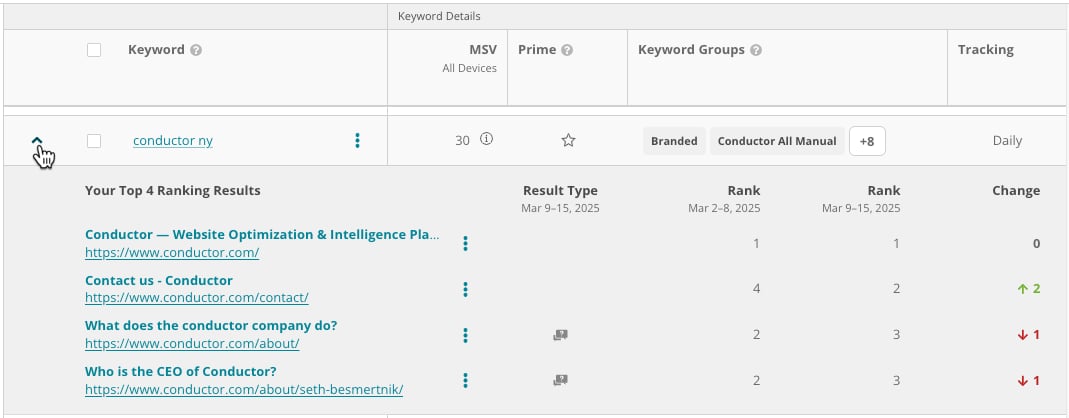
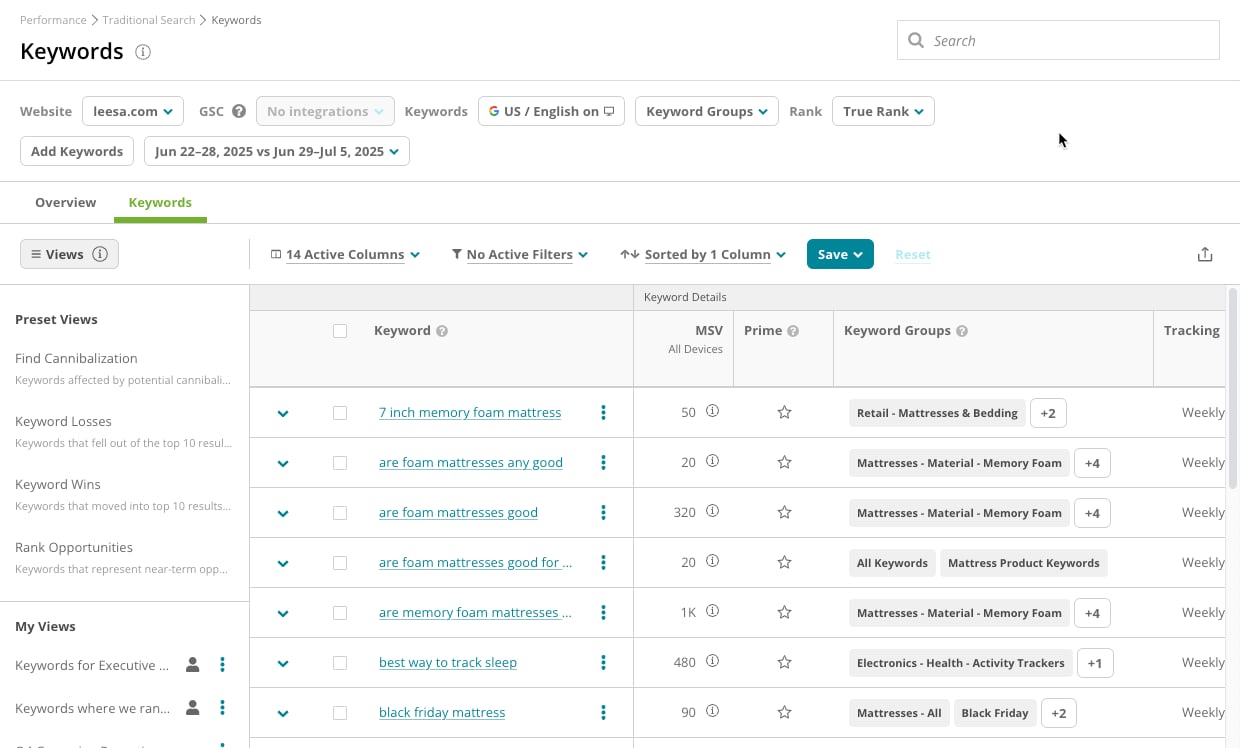 * To review up to five of your pages ranking for a tracked keyword, click the caret to open a fly-out menu for each keyword:
 * To investigate a particular keyword, click its name in the **Keyword** column to go to its [**Keyword Details**](/docs/intelligence/keyword-details/) report.
* To report on the data you are reviewing with other data from across Conductor Intelligence, [add it as a widget to a workspace](/docs/platform/creating-and-maintaining-workspaces/#add-data-from-conductor-to-a-workspace) (**Share** > **Add to Workspace**).
* To investigate a particular keyword, click its name in the **Keyword** column to go to its [**Keyword Details**](/docs/intelligence/keyword-details/) report.
* To report on the data you are reviewing with other data from across Conductor Intelligence, [add it as a widget to a workspace](/docs/platform/creating-and-maintaining-workspaces/#add-data-from-conductor-to-a-workspace) (**Share** > **Add to Workspace**).
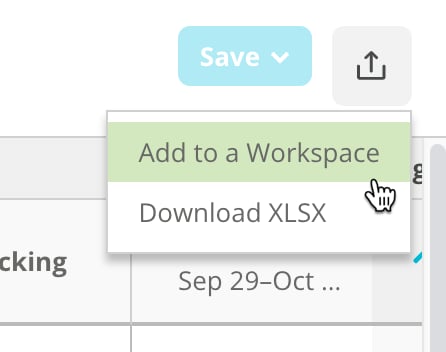 Note that this table shows only up to 100 keywords at once. To see all your keyword data, you can export your data, as described below.
### Export Your Keywords
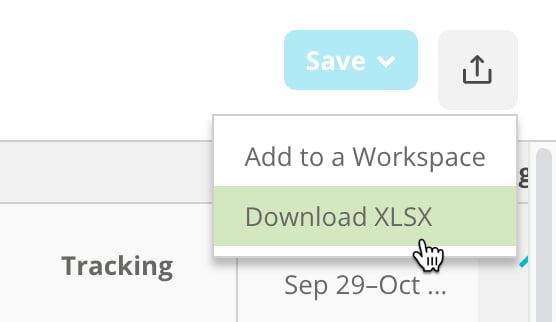
The export feature on this report is one of the most commonly-used exports in Conductor. You can export a list of all your tracked keywords to a native Microsoft Excel file. With this data in Excel, you can filter, sort, and manipulate your keywords to gain greater clarity, as well as merge other sources of data with your keyword list.
Note that this table shows only up to 100 keywords at once. To see all your keyword data, you can export your data, as described below.
### Export Your Keywords
The export feature on this report is one of the most commonly-used exports in Conductor. You can export a list of all your tracked keywords to a native Microsoft Excel file. With this data in Excel, you can filter, sort, and manipulate your keywords to gain greater clarity, as well as merge other sources of data with your keyword list.
 ## Manage Your Keywords
### For Individual Keywords
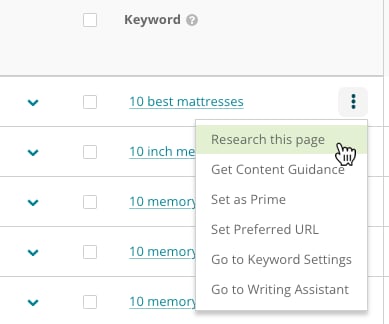
You can use the **three-dot menu** next to each keyword in the **Keywords** table to perform a number of keyword management actions, including:
* [Research](/docs/creator/research/) the keyword
* Get [Content Guidance](/docs/creator/content-guidance/)
* Add or Remove Prime
* Set Preferred URL
* Go to [Keyword Settings](/docs/intelligence/tracked-keyword-setup/)
* Go to [Writing Assistant](/docs/creator/writing-assistant/)
## Manage Your Keywords
### For Individual Keywords
You can use the **three-dot menu** next to each keyword in the **Keywords** table to perform a number of keyword management actions, including:
* [Research](/docs/creator/research/) the keyword
* Get [Content Guidance](/docs/creator/content-guidance/)
* Add or Remove Prime
* Set Preferred URL
* Go to [Keyword Settings](/docs/intelligence/tracked-keyword-setup/)
* Go to [Writing Assistant](/docs/creator/writing-assistant/)
 ### For Multiple Keywords
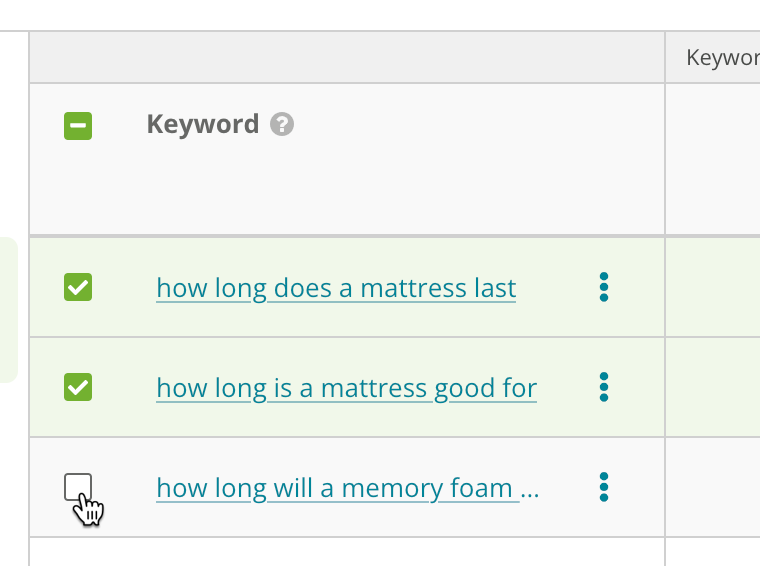
You can update multiple tracked keywords in bulk using the **Actions** menu above the Keywords table.
1. Select two or more keywords in the table.
### For Multiple Keywords
You can update multiple tracked keywords in bulk using the **Actions** menu above the Keywords table.
1. Select two or more keywords in the table.
 2. Use the Actions menu to select how you want to manage the keywords you selected above.
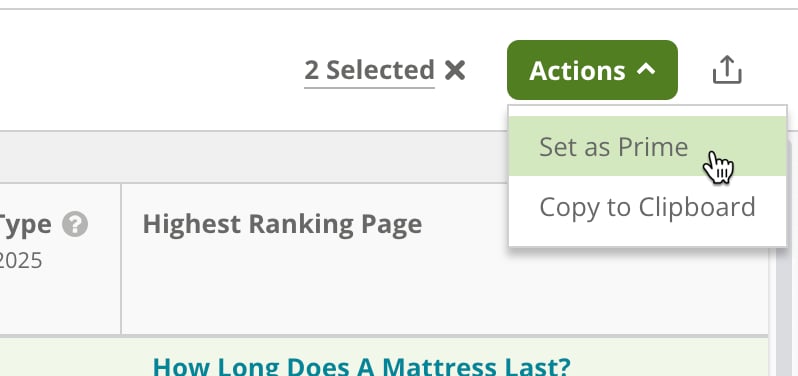 You can manage the following settings for your keyword in bulk:
* Prime status.
* Copy to Clipboard.
* [Research](/docs/creator/research/) the keywords.
* Get [Content Guidance](/docs/creator/content-guidance/).
* Add to [Writing Assistant](/docs/creator/writing-assistant/).
### Note
If you want to manage the settings for *many* keywords at once, consider using the [keyword bulk update](/docs/intelligence/update-keywords-in-bulk/) tool.
## Using Keywords
* [Use keywords rank to identify opportunities](https://app.conductor.com/u/community?ms_url=%2Fcourses%2Fa02cd5ee-d82e-41e8-b6f5-8bbd04830723%2Fstep%2F60973ca2-5d8e-49d8-8be9-65dbe21468bd)
* [Identify the topics that you might be losing ranks for—and causing lost traffic](https://app.conductor.com/u/community?ms_url=%2Fcourses%2Fa02cd5ee-d82e-41e8-b6f5-8bbd04830723%2Fstep%2F56bb5260-0d65-49cc-bbf9-57e1f39e903e)
* [Determine whether you were affected by a Google algorithm update](https://app.conductor.com/u/community?ms_url=%2Fdocuments%2Ffcef8ee5-fad1-460a-bd66-1829764ba48a)
* [Monitor your content's search performance](https://app.conductor.com/u/community?ms_url=%2Fcourses%2Fcf5d38ef-6e33-4b47-84bd-1c2817f44b6b%2Fstep%2F1f88fd41-9df4-49f4-891e-4a03103fcb23)
* [Find content gaps across the customer journey with keyword groups](https://app.conductor.com/u/community?ms_url=%2Fcourses%2Fe658b180-d397-4557-9150-94300a99c78e%2Fstep%2F8d9fd815-0e71-49df-9a0a-498bd8f555de)
* [Building an executive report](https://app.conductor.com/u/community?ms_url=%2Fcourses%2Fcf5d38ef-6e33-4b47-84bd-1c2817f44b6b%2Fstep%2F248a95f8-49a9-4c6a-ac10-3d8be1aef9b1)
* [Create a standard workspace to use across departments](https://app.conductor.com/u/community?ms_url=%2Fdocuments%2F15dfcaf0-e275-4133-8093-efa6959fe47b)
* [Track and monitor search performance of offsite content like guest posts](https://app.conductor.com/u/community?ms_url=%2Fdocuments%2F15dfcaf0-e275-4133-8093-efa6959fe47b)
## FAQs
[Review this feature's frequently asked questions](/docs/intelligence/keyword-ranks-and-reports-faqs/#the-keywords-report)
You can manage the following settings for your keyword in bulk:
* Prime status.
* Copy to Clipboard.
* [Research](/docs/creator/research/) the keywords.
* Get [Content Guidance](/docs/creator/content-guidance/).
* Add to [Writing Assistant](/docs/creator/writing-assistant/).
### Note
If you want to manage the settings for *many* keywords at once, consider using the [keyword bulk update](/docs/intelligence/update-keywords-in-bulk/) tool.
## Using Keywords
* [Use keywords rank to identify opportunities](https://app.conductor.com/u/community?ms_url=%2Fcourses%2Fa02cd5ee-d82e-41e8-b6f5-8bbd04830723%2Fstep%2F60973ca2-5d8e-49d8-8be9-65dbe21468bd)
* [Identify the topics that you might be losing ranks for—and causing lost traffic](https://app.conductor.com/u/community?ms_url=%2Fcourses%2Fa02cd5ee-d82e-41e8-b6f5-8bbd04830723%2Fstep%2F56bb5260-0d65-49cc-bbf9-57e1f39e903e)
* [Determine whether you were affected by a Google algorithm update](https://app.conductor.com/u/community?ms_url=%2Fdocuments%2Ffcef8ee5-fad1-460a-bd66-1829764ba48a)
* [Monitor your content's search performance](https://app.conductor.com/u/community?ms_url=%2Fcourses%2Fcf5d38ef-6e33-4b47-84bd-1c2817f44b6b%2Fstep%2F1f88fd41-9df4-49f4-891e-4a03103fcb23)
* [Find content gaps across the customer journey with keyword groups](https://app.conductor.com/u/community?ms_url=%2Fcourses%2Fe658b180-d397-4557-9150-94300a99c78e%2Fstep%2F8d9fd815-0e71-49df-9a0a-498bd8f555de)
* [Building an executive report](https://app.conductor.com/u/community?ms_url=%2Fcourses%2Fcf5d38ef-6e33-4b47-84bd-1c2817f44b6b%2Fstep%2F248a95f8-49a9-4c6a-ac10-3d8be1aef9b1)
* [Create a standard workspace to use across departments](https://app.conductor.com/u/community?ms_url=%2Fdocuments%2F15dfcaf0-e275-4133-8093-efa6959fe47b)
* [Track and monitor search performance of offsite content like guest posts](https://app.conductor.com/u/community?ms_url=%2Fdocuments%2F15dfcaf0-e275-4133-8093-efa6959fe47b)
## FAQs
[Review this feature's frequently asked questions](/docs/intelligence/keyword-ranks-and-reports-faqs/#the-keywords-report)