> ## Documentation Index
> Fetch the complete documentation index at: https://www.conductor.com/docs/llms.txt
> Use this file to discover all available pages before exploring further.
# Prompt Group Setup
> You can use the Prompt Groups activity in the Settings menu to create, edit, and delete a prompt group.
You can use the **Prompt Groups** activity in the Settings menu to create, edit, and delete a prompt group. Prompt groups let you organize your tracked prompts by whatever you care about—a campaign, an audience, a product line—so your AI search reporting stays focused on what matters most.
[How do prompt groups differ from topics?](/docs/intelligence/ai-search-faqs/#how-prompt-groups-differ-from-topics-38)
**Settings** > [**Prompt Groups**](https://app.conductor.com/u/ai-search/prompt-groups/)
## Create a prompt group
Prompt groups combine rule-based criteria with prompts you hand-pick, so a single group can capture both a pattern and the one-off prompts the rules miss.
1. Go to [prompt group settings](https://app.conductor.com/u/ai-search/prompt-groups/) in Conductor or follow the path **Settings** > **Prompt Groups**.
2. Click **Create Prompt Group**.
3. Enter a clear **name** and, optionally, a **description** so others on your team know what the group contains.
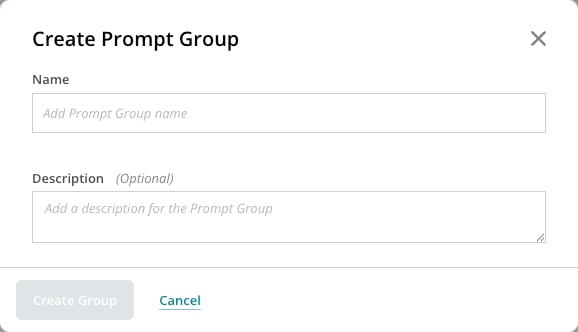 4. Define the group with rules, hand-pick prompts, or both (see below for instructions).
5. Click **Save and Close** to create the prompt group.
### Add prompts matching rules
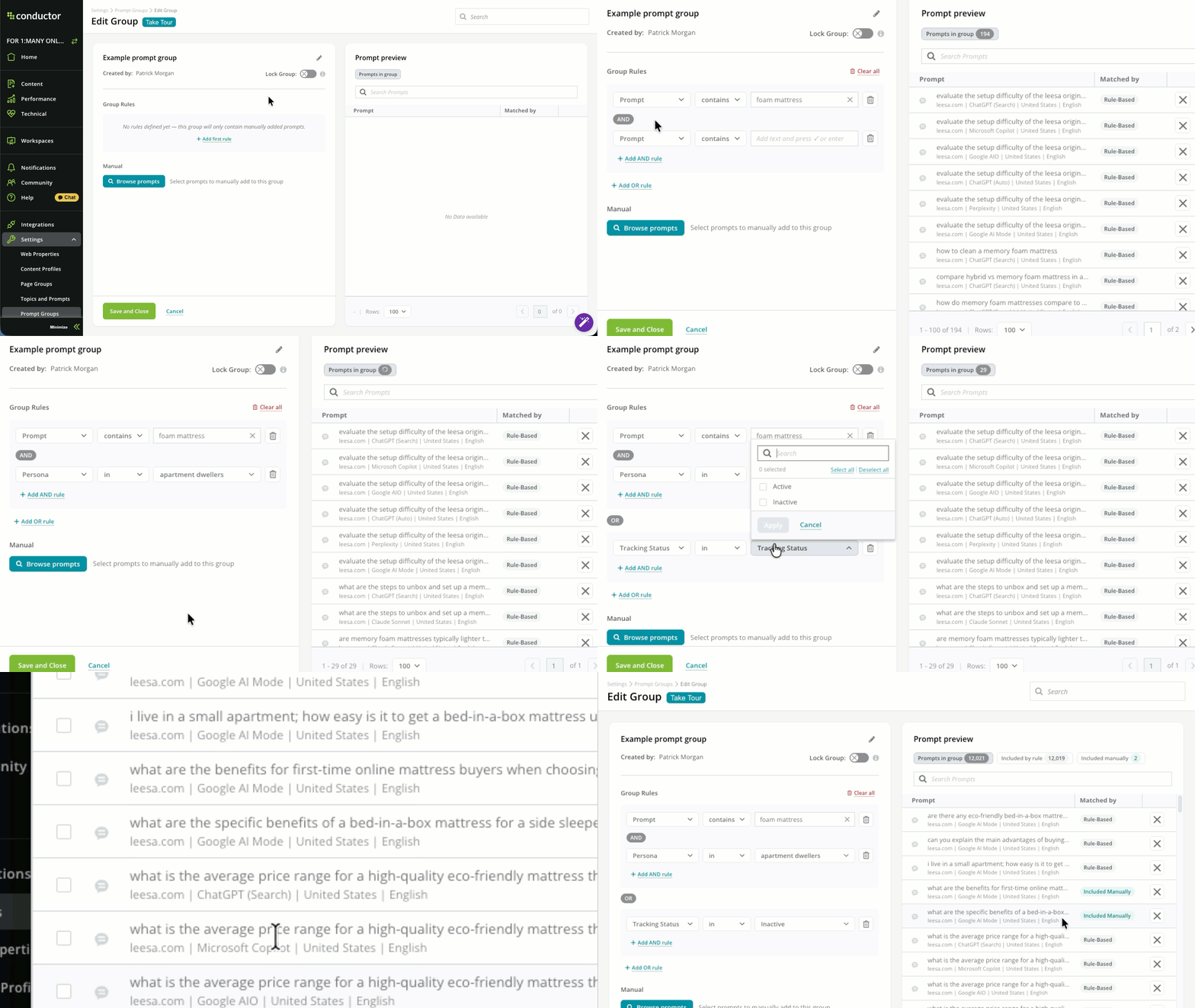
Groups can be rule-based. Each rule you stack tightens the group. To add a rule,
1. Click **+ Add first rule**.
2. Choose a **field**, such as **prompt** name or one of your prompts' associated **persona**, **location**, **search engine**, **intent**, **prompt type**, and who created the prompt.
3. Choose an **operator**. The specific options for operators depend on your chosen field. When choosing **Prompt** name, you can use the **matches regex** operator to capture every phrasing of a theme with a single rule.
4. Set a **value**.
5. Add any **AND** rules to narrow the group—for example, only prompts with comparison and purchase intent.
6. Add **OR** rules to require that any of the criteria you create are true.
7. Review the **preview**, which updates as you build, so you can confirm your rules are catching the right prompts. Modify the rules if needed.
### Add prompts manually
Need something the rules don't catch? You can hand-pick prompts to add to the group. Rules and manual selections work together in the same group.
1. Click **Browse prompts**.
2. Filter to the prompts you want.
3. Select the prompts you want to add to the group.
4. Define the group with rules, hand-pick prompts, or both (see below for instructions).
5. Click **Save and Close** to create the prompt group.
### Add prompts matching rules
Groups can be rule-based. Each rule you stack tightens the group. To add a rule,
1. Click **+ Add first rule**.
2. Choose a **field**, such as **prompt** name or one of your prompts' associated **persona**, **location**, **search engine**, **intent**, **prompt type**, and who created the prompt.
3. Choose an **operator**. The specific options for operators depend on your chosen field. When choosing **Prompt** name, you can use the **matches regex** operator to capture every phrasing of a theme with a single rule.
4. Set a **value**.
5. Add any **AND** rules to narrow the group—for example, only prompts with comparison and purchase intent.
6. Add **OR** rules to require that any of the criteria you create are true.
7. Review the **preview**, which updates as you build, so you can confirm your rules are catching the right prompts. Modify the rules if needed.
### Add prompts manually
Need something the rules don't catch? You can hand-pick prompts to add to the group. Rules and manual selections work together in the same group.
1. Click **Browse prompts**.
2. Filter to the prompts you want.
3. Select the prompts you want to add to the group.
 ### Exclude prompts manually
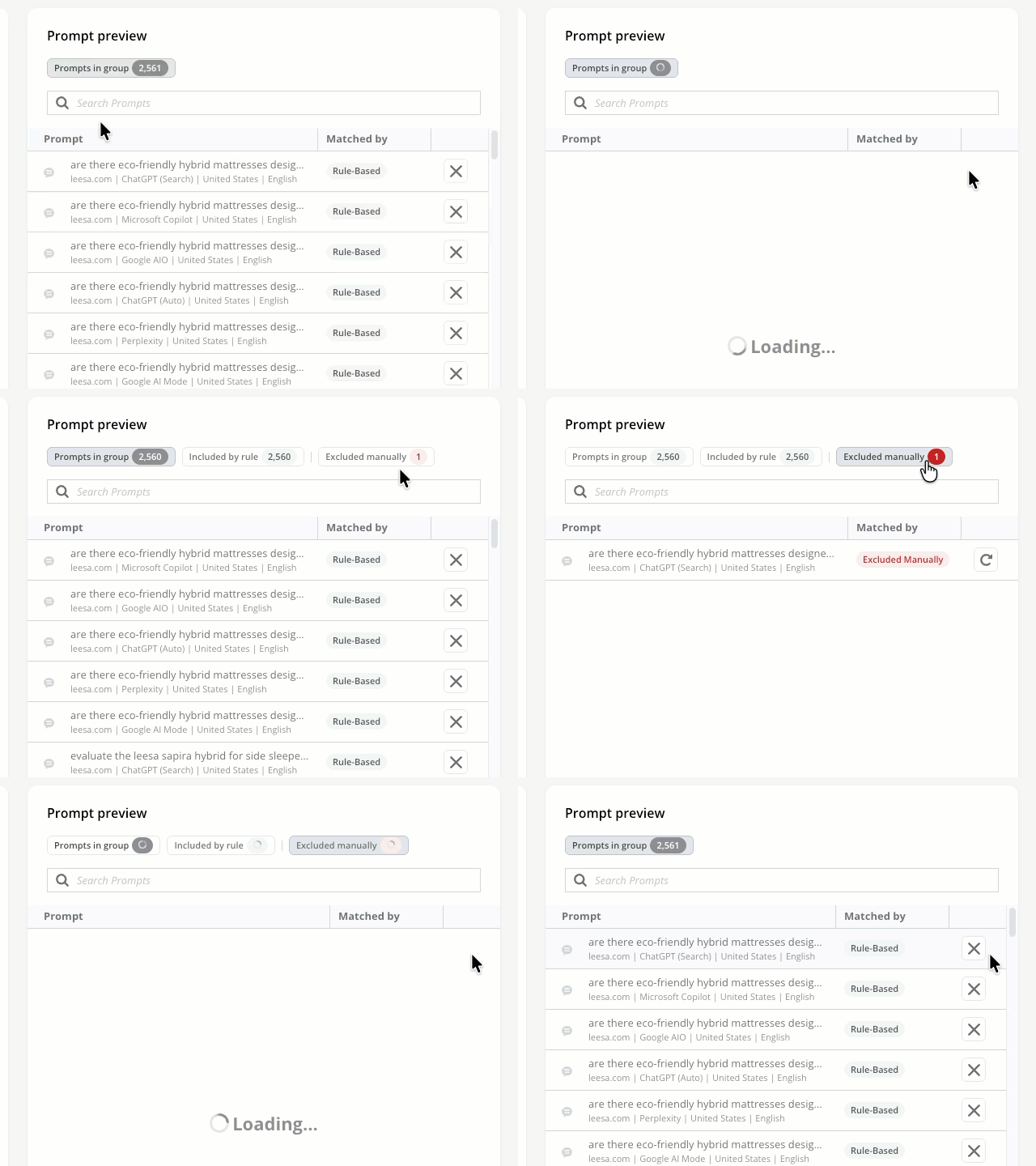
You can also exclude specific prompts from groups—even those matching your rules.
Just find the prompt you want to exclude in **Prompt preview** and click the **X**. You can see the prompts you've excluded above the table.
### Exclude prompts manually
You can also exclude specific prompts from groups—even those matching your rules.
Just find the prompt you want to exclude in **Prompt preview** and click the **X**. You can see the prompts you've excluded above the table.
 ## Edit a prompt group
You can make changes to a prompt group after you create it.
1. Go to [prompt group settings](https://app.conductor.com/u/prompt-groups-settings) in Conductor or follow the path **Settings** > **Prompt Groups**.
2. Select the prompt group you want to edit from the list, or click the **Edit** button next to it.
3. Modify the **name** or **description**, edit the **rules** that define the group, or use **Browse prompts** to add or remove individual prompts.
4. If you changed a rule, review the **preview** to confirm the group includes the right prompts.
5. Click **Save** to save your changes.
You can also [add or remove individual prompts](/docs/intelligence/ai-search-setup/#add-a-prompt-to-or-remove-a-prompt-from-a-prompt-group) from groups in the Prompts tab of Topics and Prompts settings.
## Delete a prompt group
1. Go to [prompt group settings](https://app.conductor.com/u/prompt-groups-settings) in Conductor or follow the path **Settings** > **Prompt Groups**.
2. Find the prompt group you want to delete in the list.
3. Click the **Delete** button next to the prompt group, then confirm.
## Edit a prompt group
You can make changes to a prompt group after you create it.
1. Go to [prompt group settings](https://app.conductor.com/u/prompt-groups-settings) in Conductor or follow the path **Settings** > **Prompt Groups**.
2. Select the prompt group you want to edit from the list, or click the **Edit** button next to it.
3. Modify the **name** or **description**, edit the **rules** that define the group, or use **Browse prompts** to add or remove individual prompts.
4. If you changed a rule, review the **preview** to confirm the group includes the right prompts.
5. Click **Save** to save your changes.
You can also [add or remove individual prompts](/docs/intelligence/ai-search-setup/#add-a-prompt-to-or-remove-a-prompt-from-a-prompt-group) from groups in the Prompts tab of Topics and Prompts settings.
## Delete a prompt group
1. Go to [prompt group settings](https://app.conductor.com/u/prompt-groups-settings) in Conductor or follow the path **Settings** > **Prompt Groups**.
2. Find the prompt group you want to delete in the list.
3. Click the **Delete** button next to the prompt group, then confirm.