> ## Documentation Index
> Fetch the complete documentation index at: https://www.conductor.com/docs/llms.txt
> Use this file to discover all available pages before exploring further.
# Result Types
> Visualize the universal result types appearing for your tracked keywords so you can target the content formats Google favors.
You can find opportunities for content creation with the Result Types report in Conductor, which shows you visualizations of the different universal result types that appear for your tracked keywords.
This report shows you what kinds of content Google values for particular keywords. With that information you can identify opportunities to create content to compete with those universal result types.
Images showing up on the results page? Create and optimize some new infographics. Videos appearing over your traditional links? Get your video team back behind the camera.
**Performance** > **Traditional Search** > **More** > [**Result Types**](https://app.conductor.com/u/result-types)
## Overview
### Choose the data you want the page to show
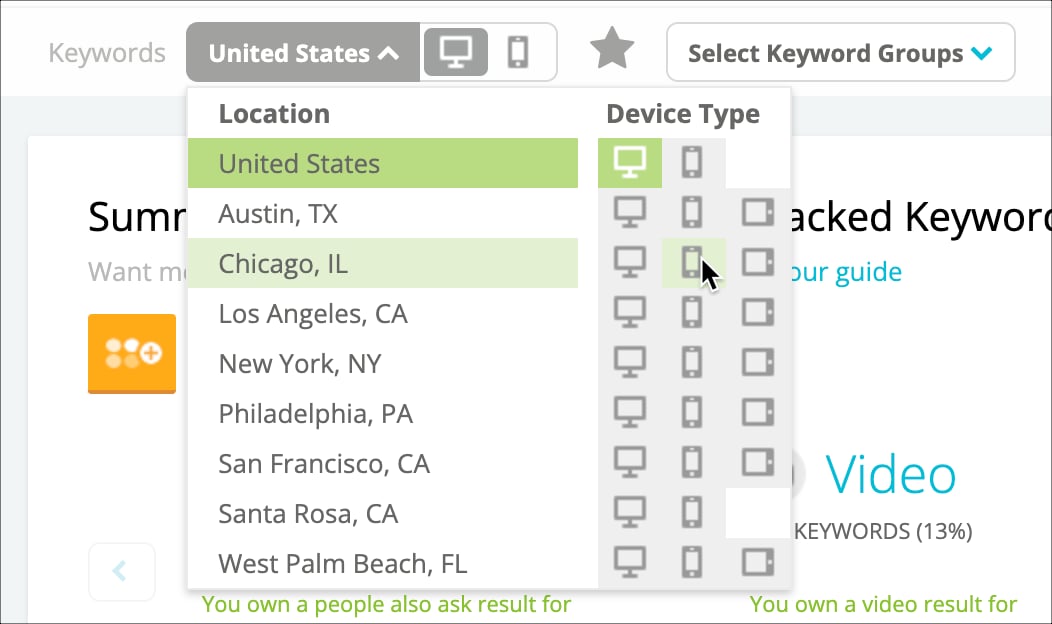
Select a **location** and **device** to filter for keywords tracked in a specific location and on a specific device.\\
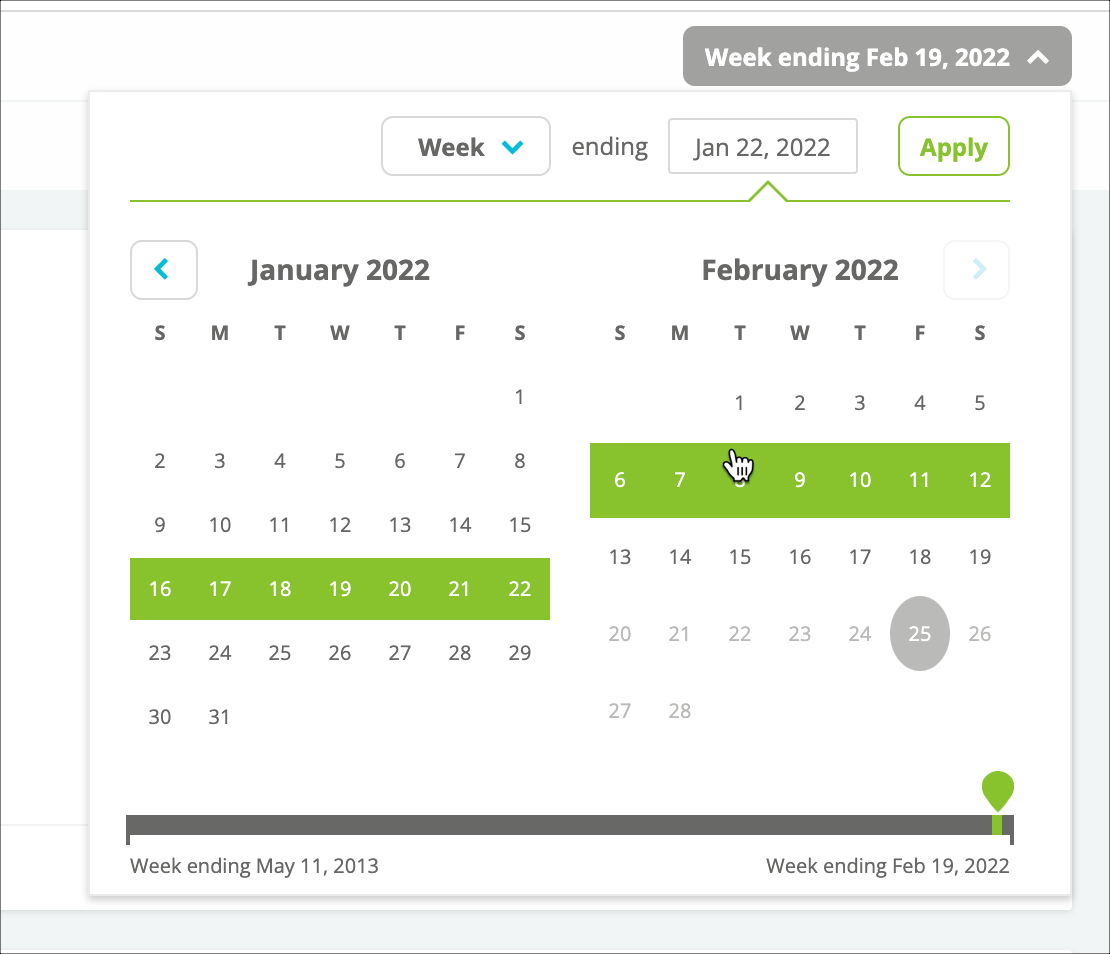
 Select the **date** for which to review result types. This date represents the snapshot Conductor takes when it collects search data weekly.\\
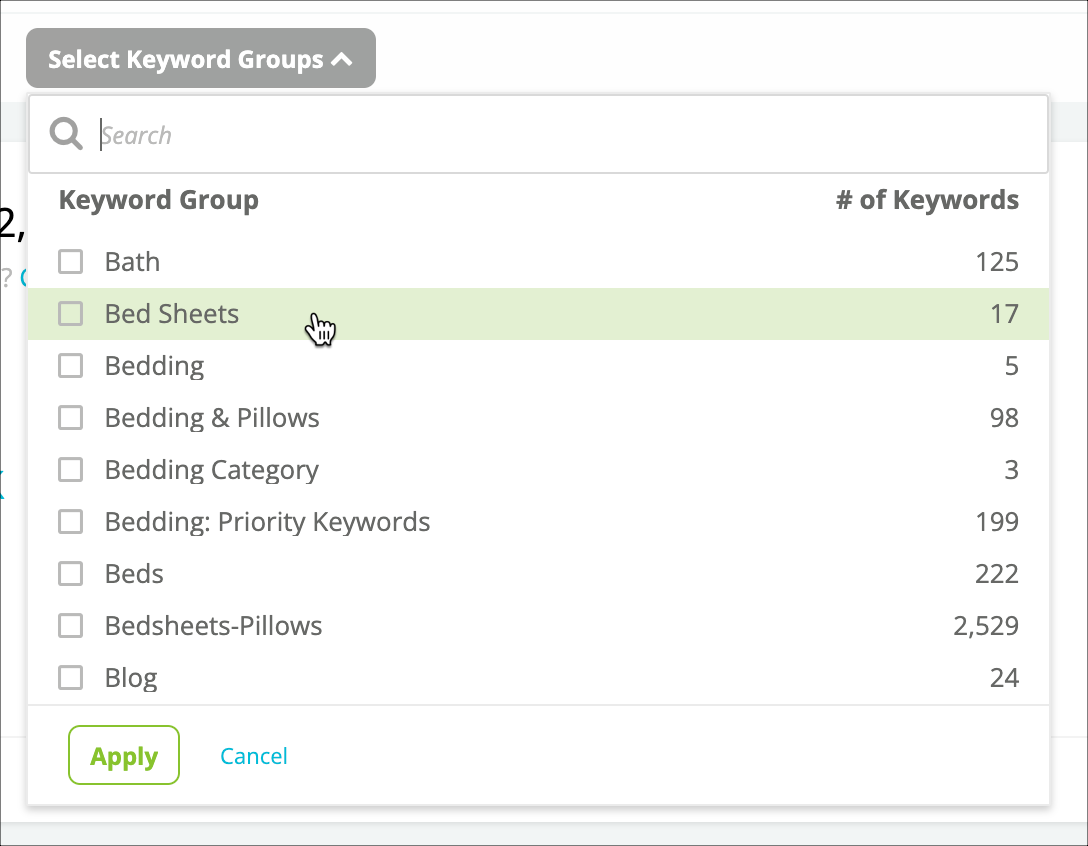
 If you want, choose **keyword** **groups** to focus on particular kinds of keywords.\\
 ### Review the data in the report
In the **summary bar**, you can see:
* The number of keywords appearing in the table for each result type, given the location and device, date, and keyword groups you have selected.
* The number of results you own for the keywords you are reporting on.
### Review the data in the report
In the **summary bar**, you can see:
* The number of keywords appearing in the table for each result type, given the location and device, date, and keyword groups you have selected.
* The number of results you own for the keywords you are reporting on.
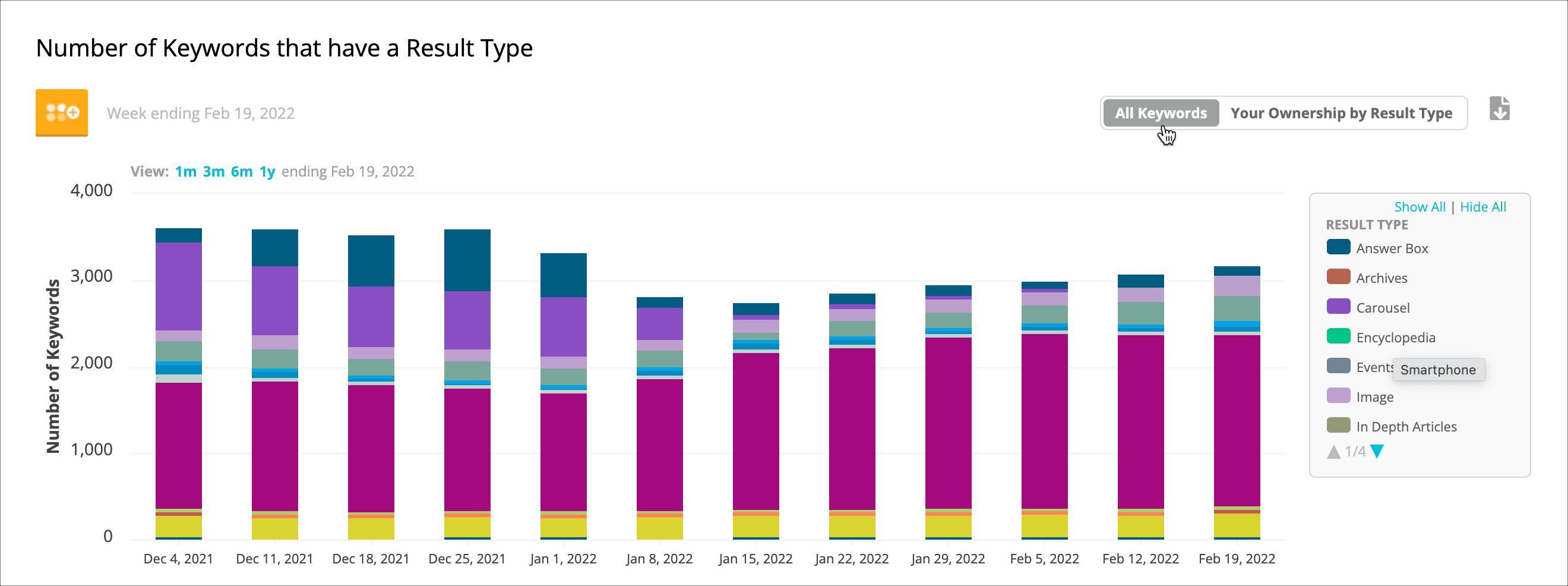
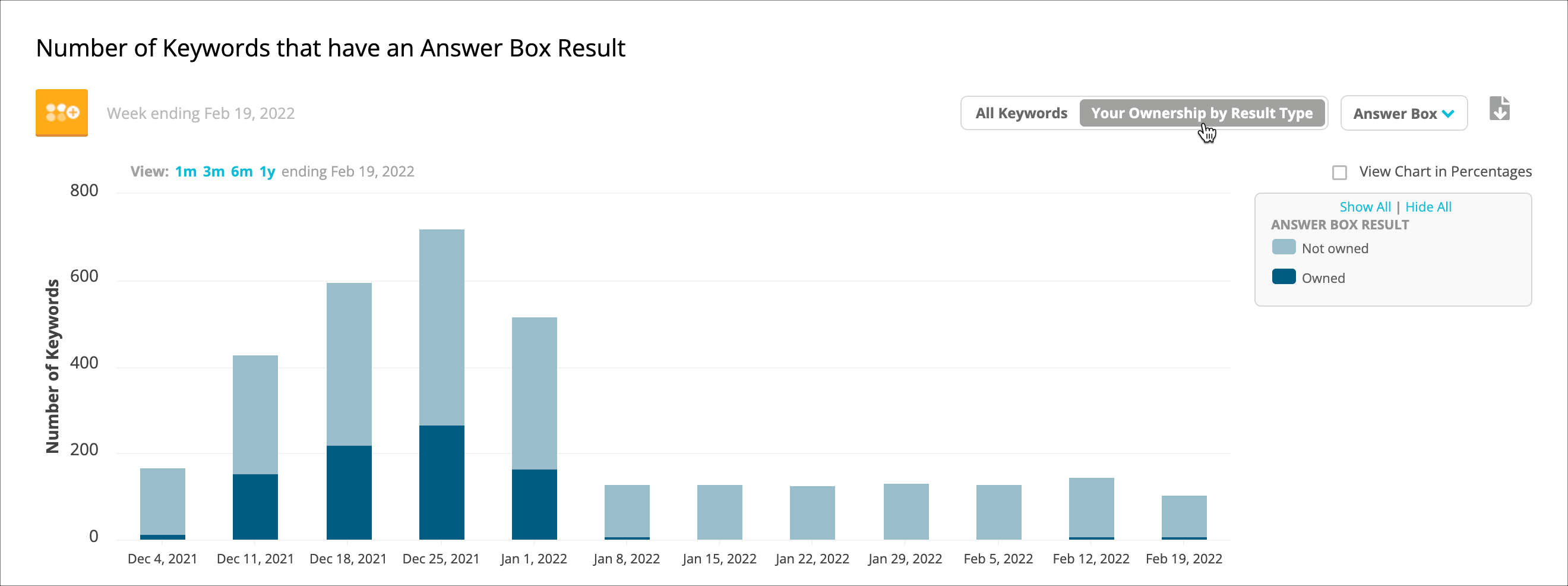
 See a trended view of the result types that appear for your tracked keywords in the **Number of Keywords that have a Result Type** bar chart. Use the toggle on the right to choose to see result type data for all keywords or to see your ownership of a particular result type.
* **All Keywords**\\
See a trended view of the result types that appear for your tracked keywords in the **Number of Keywords that have a Result Type** bar chart. Use the toggle on the right to choose to see result type data for all keywords or to see your ownership of a particular result type.
* **All Keywords**\\
 * **Your Ownership by Result Type**\\
 In the **Result Types by** **Keyword** table, you can:
* See what result types appear in the top 10 results for a keyword. If the check mark is **green** (
In the **Result Types by** **Keyword** table, you can:
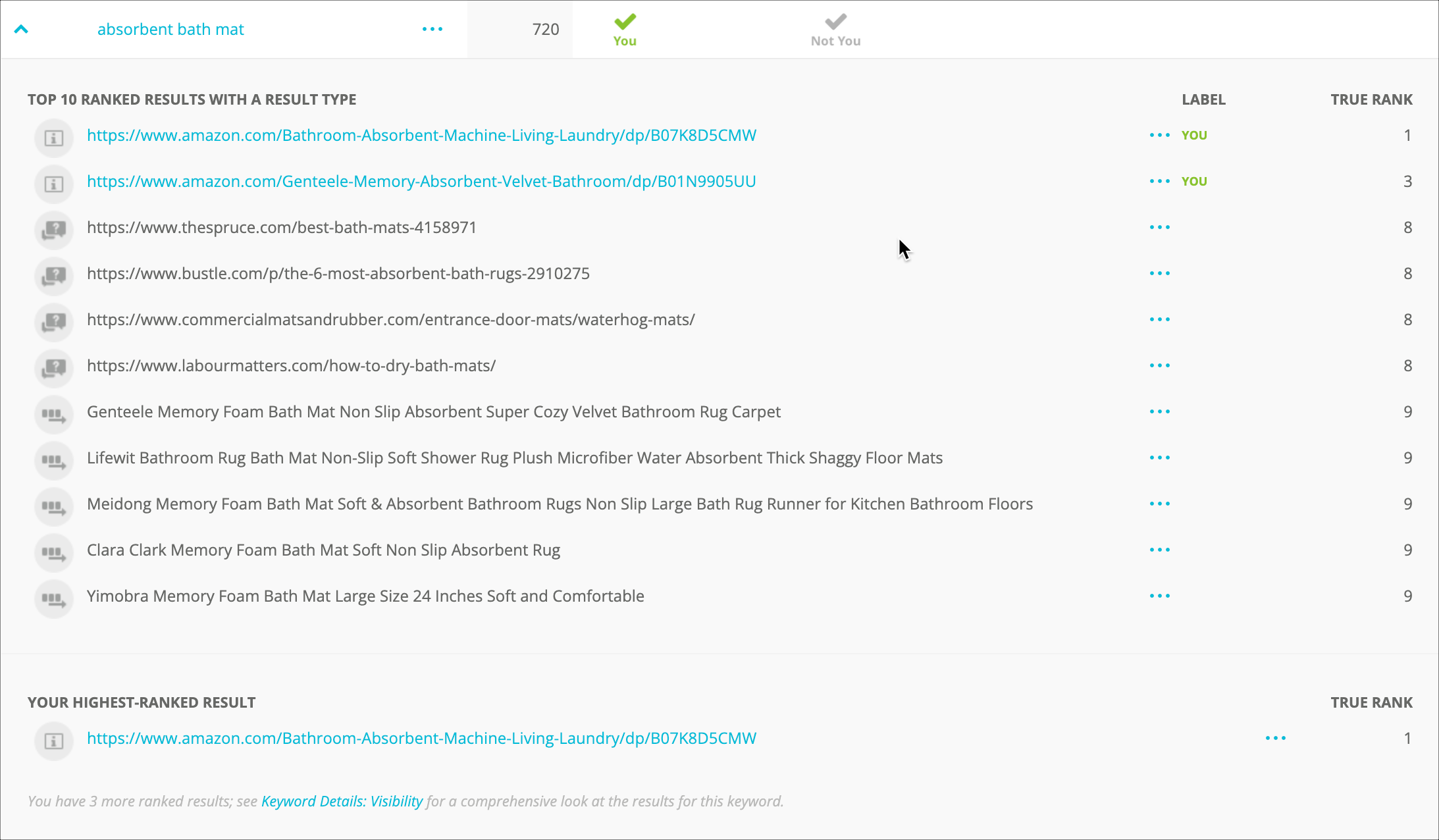
* See what result types appear in the top 10 results for a keyword. If the check mark is **green** ( ) it means you own one of those result types. **Gray** (
 ) means you don't.
* **Gray** check marks without labels indicate result types that appear on the SERP but are not owned by an identifiable domain (Twitter results, for example).
* Click the **down** **arrow** (
) means you don't.
* **Gray** check marks without labels indicate result types that appear on the SERP but are not owned by an identifiable domain (Twitter results, for example).
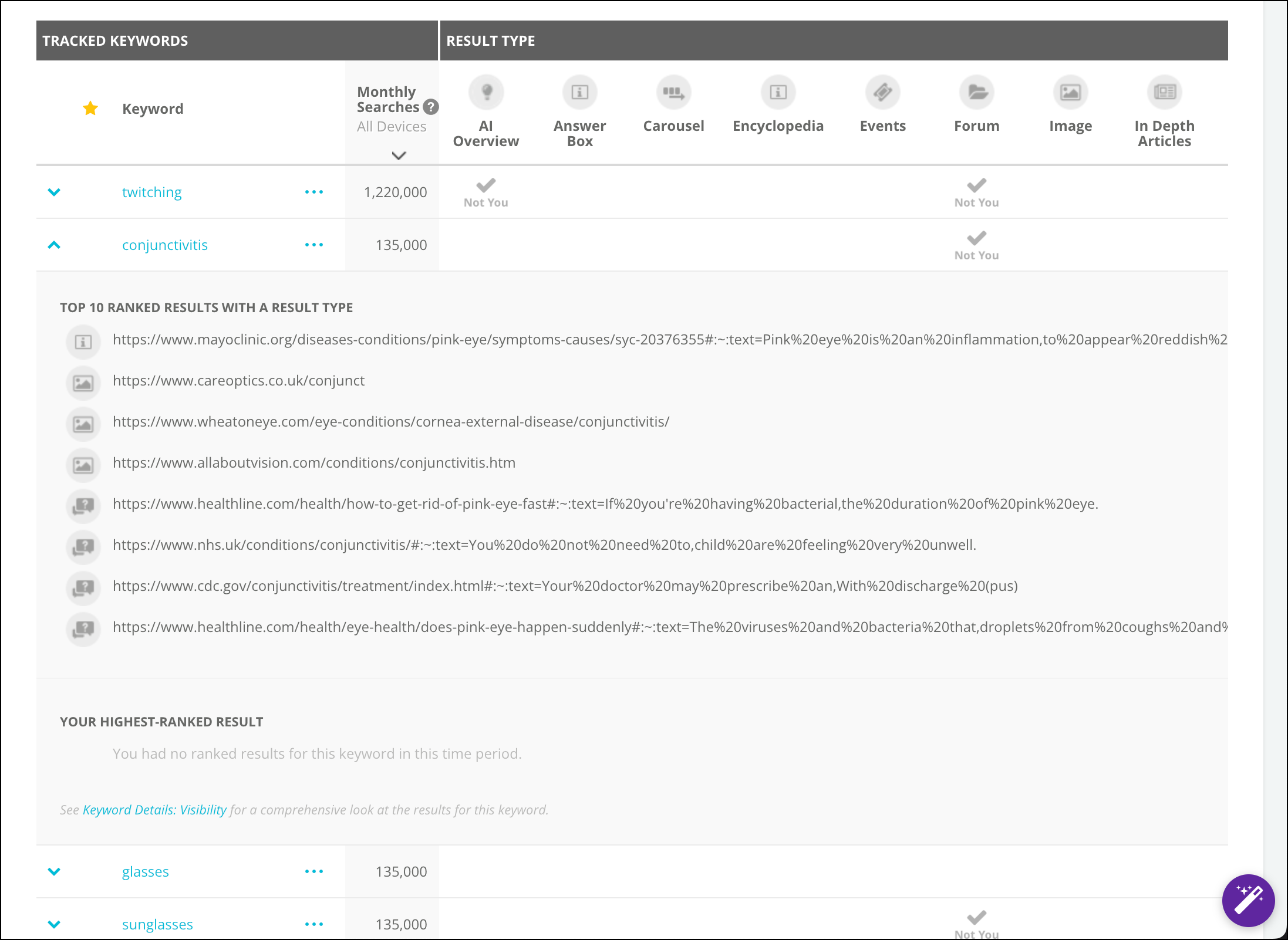
* Click the **down** **arrow** ( ) at the front of the row to see an expanded report for that keyword, which shows all the result types, the ranking page, and your highest-ranked result:\\
 * See the **monthly search volume** for the keyword.
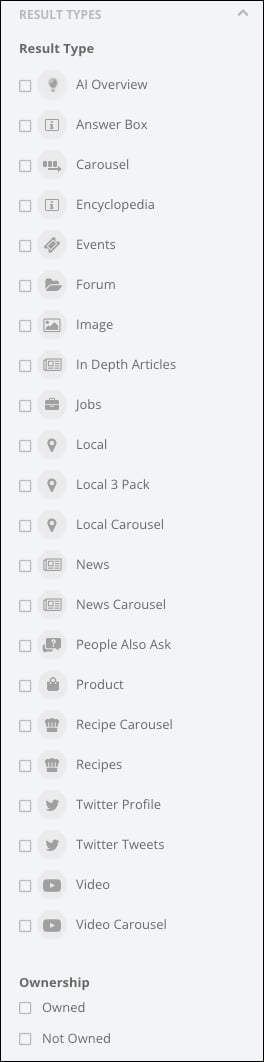
* Filter by result type to focus on a specific kind of content.\\
* See the **monthly search volume** for the keyword.
* Filter by result type to focus on a specific kind of content.\\
 * Click a keyword to jump to the [**Keyword** **Details**](/docs/intelligence/keyword-details/ "Keyword Details: Visibility") report for that keyword.\\
 * You can use the **three-dot menu** next to each keyword in the table to perform a number of keyword management actions as well.
## Using Result Types
* [Determine whether you were affected by a Google algorithm update](https://app.conductor.com/u/community?ms_url=%2Fdocuments%2Ffcef8ee5-fad1-460a-bd66-1829764ba48a%3Ffrom%3D0f91b626-c9a3-4469-94ee-be19e7f86e51)
* [Discover the questions your customers are asking](https://app.conductor.com/u/community?ms_url=%2Fcourses%2Fe658b180-d397-4557-9150-94300a99c78e%2Fstep%2F8d9fd815-0e71-49df-9a0a-498bd8f555de)
* You can use the **three-dot menu** next to each keyword in the table to perform a number of keyword management actions as well.
## Using Result Types
* [Determine whether you were affected by a Google algorithm update](https://app.conductor.com/u/community?ms_url=%2Fdocuments%2Ffcef8ee5-fad1-460a-bd66-1829764ba48a%3Ffrom%3D0f91b626-c9a3-4469-94ee-be19e7f86e51)
* [Discover the questions your customers are asking](https://app.conductor.com/u/community?ms_url=%2Fcourses%2Fe658b180-d397-4557-9150-94300a99c78e%2Fstep%2F8d9fd815-0e71-49df-9a0a-498bd8f555de)