> ## Documentation Index
> Fetch the complete documentation index at: https://www.conductor.com/docs/llms.txt
> Use this file to discover all available pages before exploring further.
# Tracked Keyword FAQs
> Answers to common questions about how Conductor tracks the keywords you've added to your account.
Tracking a keyword monitors whether your website appears anywhere in the top 30 search results for that keyword each week. You can enable daily tracking if that is included in your account.
Here are some frequently asked questions about the keywords you track with Conductor.
You can find other FAQs about keywords in:
* [Keyword Data FAQs](/docs/intelligence/keyword-data-faqs/), which includes questions relevant to tracked and discovered keyword data.
* [Keyword Ranks and Reports FAQs](/docs/intelligence/keyword-ranks-and-reports-faqs/), which includes questions about reviewing rank data in keyword measurement reports.
## Tracked Keyword Basics
In the context of tracked keywords in Conductor, the search engine you select for a keyword is the source for your keyword data. When you select an engine such as "Google (US / English)", you are telling Conductor to collect data for that keyword as it appears for that search engine.
Keywords are the topics your audience types into search engines. People want to find content that matches their [search intent](/docs/platform/search-intent-in-the-conductor-platform/). If they search for “most comfortable running shoes”, they want informational content and not a product page.
In Conductor, a tracked keyword represents the keyword a person enters into a search engine in a particular place and on a particular type of device. When you track a keyword in Conductor, you will select this combination of keyword, search engine, location, and device.\*
Keywords alone can only teach you so much about the results that appear to users. Viewing this data with the added context and not simply the keyword gives you a more holistic view of your audience's search experiences.
With the Keywords activity in the Settings menu, you can monitor how you are using keywords and where you are tracking them, so you can configure your keywords across your web properties and search engines in one place.
Your tracked keywords make up the base for much of the data in Conductor. This data provides a wealth of information about your organic marketing.
Note that there are other areas in Conductor where you may see untracked or discovered keywords. You can choose to track these keywords with the platform, and add the added context of search engine, location, and device to get the whole story behind the search.
*\*If you see "keyword search" mentioned in your contract or in the Knowledge Base, we are referring to the whole context of a search. Remember, you can't track a keyword in Conductor without selecting the context (location, device, and so on). Accordingly, whenever you see "tracked keyword" in Conductor or the Knowledge Base or elsewhere, we are referring to a keyword and its associated search context.*
Monitoring target keywords in an SEO platform:
* Allows you to track the performance of your keywords and understand how well your site is ranking in search engine results. This information can help you determine which keywords are most effective for your content and which may need to be optimized further.
* Helps you identify new opportunities for content creation and optimization. By analyzing the search volume and competition for different keywords, you can identify areas where your content can fill a gap or where it may be lacking.
This can help you create more targeted, relevant, and valuable content for your audience, which can in turn improve your search engine rankings and drive more traffic to your website.
Ideally, you should begin monitoring new target keywords in the platform before you even write related content so you can see how they perform over time to either share your wins or take action and find new target keywords.
You might want to deactivate some keywords from the platform that are no longer relevant to your organization. Use the following instructions to remove keywords from Conductor reports based on considerations about a keyword's search volume or your rank:
1. In Conductor, follow the path **Performance** > **Traditional Search** > **Keywords** (or [click here](https://app.conductor.com/u/keywords)).
2. On the **Keywords** tab, sort the table of keywords by search volume or by your rank for the keyword. You can do this by clicking the column header for the relevant metric.
3. Review the list of keywords and identify any that have particularly poor performance. Keywords with 0 search volume or keywords that you have not ranked for in the last 6-12 months can be a good place to start for deactivating keywords.
4. [Deactivate the keywords](/docs/intelligence/tracked-keyword-setup/#deactivate-and-activate-tracked-keywords) you identify above.
A keyword group consists of keywords. You can add those keywords to a keyword group individually or with the [Keyword Bulk Update](/docs/intelligence/update-keywords-in-bulk/) tool.
* Add-on Required
Premium keywords allow you to track keywords on premium search engines, such as:
* 360
* Baidu
* Daum
* Naver
* Seznam
* Shenma
* Sogou
Note that, with the exception of Baidu, Conductor does not support keyword discovery on premium search engines—only keyword tracking and measurement. [Read more about the distinction and our support here](/docs/platform/supported-search-engines-in-conductor-faqs/#which-search-engines-and-languages-does-conductor-support).
## Tracked Keyword Settings
In the context of tracked keywords in Conductor, the search engine you select for a keyword is the source for your keyword data. When you select an engine such as "Google (US / English)", you are telling Conductor to collect data for that keyword as it appears for that search engine.
You can learn which locations Conductor supports in the FAQ below.
The locations and devices listed below reflect all those across which Conductor can collect search data from the supported search engines listed above during its proprietary data collection process.
### Supported Locations in the US
Conductor supports all US locations available to target with Google Ads (with two exceptions for "target types"). You can download which geotarget locations Google Ads supports from [their API documentation site](https://developers.google.com/adwords/api/docs/appendix/geotargeting).
If there are specific locations you can target with Google Search Ads but cannot track with Conductor, [contact Conductor support](/docs/platform/getting-help-with-conductor-products/).
### Supported Locations outside the US
Conductor supports over 2,700 non-US locations: [download the current list](/docs/images/intelligence/tracked-keyword-faqs--Conductor-Supported-Non-US-Locations_08_22-6.xlsx).
### Supported Devices
Generally speaking, Conductor supports tracking keywords in all search engines on Desktop, Smartphone, and Mobile. However, keywords on certain search engines can be tracked only on Desktop. The following are Desktop-only search engines:
* 360 (China / Chinese (Simplified))
* Amazon (Australia / English)
* Amazon (Brazil / Portuguese)
* Amazon (Canada / English)
* Amazon (France / French)
* Amazon (Germany / German)
* Amazon (India / English)
* Amazon (Italy / Italian)
* Amazon (Japan / Japanese)
* Amazon (Mexico / Spanish)
* Amazon (Netherlands / Dutch)
* Amazon (Singapore / English)
* Amazon (Spain / Spanish)
* Amazon (Sweden / Swedish)
* Amazon (Turkey / Turkish)
* Amazon (United Arab Emirates / English)
* Amazon (United Kingdom / English)
* Daum (South Korea / Korean)
* Naver (South Korea / Korean)
* Seznam (Czech Republic / Czech)
* Shenma (China / Chinese (Simplified))
* Sogou (China / Chinese (Simplified))
* Yahoo (Hong Kong / Han (Traditional))
* Yahoo (Japan / Japanese)
* Yahoo (Taiwan / Han (Traditional))
* Yandex (Russia / Russian)
### Didn't find the location you are looking for?
We are working on expanding our reach all the time, so check back in periodically to see if locations have been added. If there is a specific location you think we should report on that doesn't appear, talk to Support. You can download the attached spreadsheet to filter or search for the countries you are interested in.
The web property group you choose for a keyword determines:
* Where data for the keyword you are tracking will appear across the Conductor platform. When you report on a specific web property group with a feature in Conductor, you see the tracked keywords associated with that web property group.
* The search result ownership for your web properties for the given keyword.
The location determines the geographical area from which you want to track keyword data. You can learn which locations Conductor supports in the FAQ above.
The device determines the type of device—Desktop, Smartphone, or Tablet—for which you want to track keyword data. You can learn which devices Conductor supports across different locations in the FAQ above.
Keywords can belong to keyword groups—which are collections of keywords for which you can see data in aggregate. Learn more in the [Keyword Groups FAQs](/docs/intelligence/keyword-group-faqs/) article.
A preferred URL for a keyword is the landing page you want to rank for that particular keyword. Each tracked keyword can have one preferred URL.
The concept of managing a preferred URL is common in paid search campaigns, but there are also good reasons for managing preferred URLs for SEO. Enterprise organizations that consistently succeed in SEO and who significantly increase revenue, apply preferred URL management to focus on getting the right URL to rank while increasing their overall share of search.
Optimizing preferred URLs can help direct traffic to other pages on your site. Doing this is also an opportunity to provide an enhanced user experience. For example, rather than leading most traffic to the home page where it may be unclear where to find what a user is looking for, direct users to internal pages more relevant to their query.
Best Practices for Configuring Preferred URLs\
You can set a preferred URL for each keyword you track in Conductor. Not sure what URL to use for a given keyword? Learn more about best practices for preferred URLs in our [Community Learning Library](https://app.conductor.com/u/community?ms_url=%2Fdocuments%2F0b74fa52-5a59-4b39-afb3-3cb6af9a3b53).
Represented by a star icon, you can use the prime designation to mark it as a favorite, important, or any other designation that you want to track.
You can set a keyword as prime when you [create or edit a keyword](/docs/intelligence/tracked-keyword-setup/). You can also set multiple keywords as prime with our [bulk update tool](/docs/intelligence/update-keywords-in-bulk/) or directly from reports in Conductor.
Changes to a keyword's Prime status will take effect immediately.
### Best Practices for Prime Keywords
There is no limit to the number of keywords you can mark as Prime. However, you'll want to mark only those keywords that are most important for you to track closely.
A good rule of thumb is to choose one or two prime keywords for a given page you want to optimize. These pages might be those you determine as preferred URLs in Conductor.
Remember, you probably track several variations of a keyword, but you don't optimize a page for each of those keywords. Choose the keyword that is most important for that page.
By assigning those keywords as prime, you'll ensure that all of your pages are optimized for their prime keywords.
Conductor tracks keyword ranks weekly, by default. You can also choose to track daily. Learn more about [daily keyword tracking in the Data in Conductor FAQs](/docs/intelligence/keyword-data-faqs/#daily-keyword-data) article.
## Tracking Keywords
Conductor supports all of [Google's US geotarget target types](https://developers.google.com/adwords/api/docs/appendix/geotargeting), except Congressional District and Postal Code. If you use one of these target types, we recommend using the largest nearby city or region to represent that area as a whole.
Conductor does not allow certain characters to be tracked because of how search engines use them as operators in some queries.
These are the characters **not** allowed:
* ,
* ;
* :
* "
* \*
* \[
* ]
The following characters are not allowed as part of tracked keywords specifically for yandex.ru in Conductor:
* `<<`
* `!!`
* \~
Additionally, for any Google search engine, "-" is an invalid character if it is the first character in a keyword or if it is preceded by a space. For example, "stand-up comedy" is a valid keyword, but "comedy -stand-up" is not.
No. Conductor does not recognize a difference between lowercase and uppercase iterations of the same keyword string. For example, attempting to track "example", "Example", and "examPLE" will yield only "example" as a tracked keyword. Conductor will consider the other two as duplicates and not tracked.
Conductor uses this method based on Google's decision not to recognize or consider capitalization as a factor in their search results.
Note that—because Conductor does not recognize a difference between case—you may track only one iteration of a keyword with the platform. The case you choose when you first add a keyword cannot be changed, so consider the case you use carefully if consistency in case matters to your organization.
Tracking a keyword daily and at the usual weekly cadence counts as two, separate tracked keywords. When you choose to track a keyword daily, Conductor will also automatically track that keyword at the usual weekly cadence. Keep this in mind when considering your account's keyword limits.
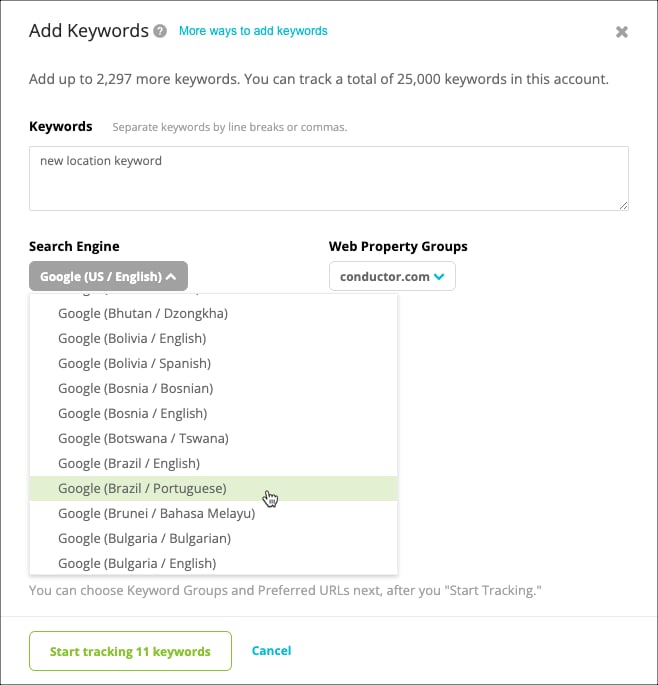
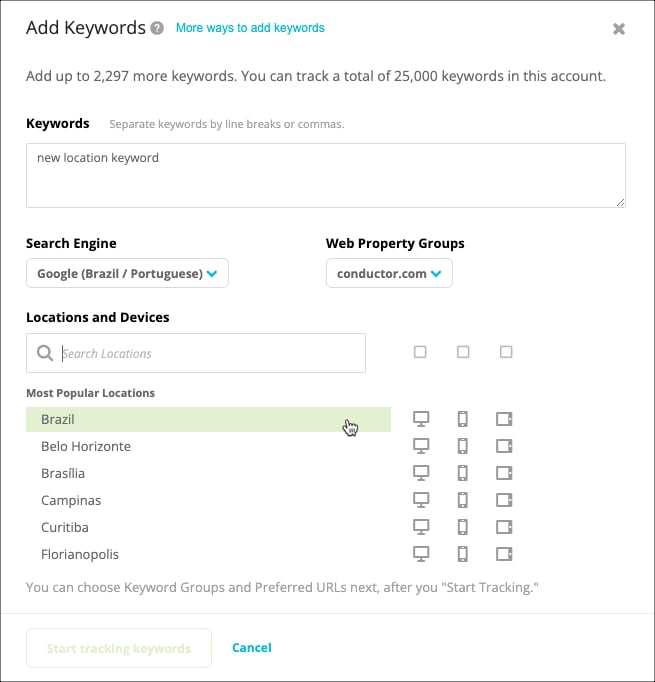
You can track keywords on new search engines and in new locations by simply selecting them in the **Add Keywords** form as you [track new keywords](/docs/intelligence/tracked-keyword-setup/#add-tracked-keywords).
Select a new search engine from the Search Engines menu:\\
 Then choose from the available locations supported on the new search engine:\\
 For a given web property, you can track a single keyword only once, for each location, device, and search engine. Note that each combination of keyword–location–device–search engine counts as a separate keyword towards your account's allotment.
Yes, both Google and Conductor recognize accents in keywords. Note that this means a keyword with an accent and the same keyword without an accent count as two separate keywords if you track both.
## Managing Tracked Keywords
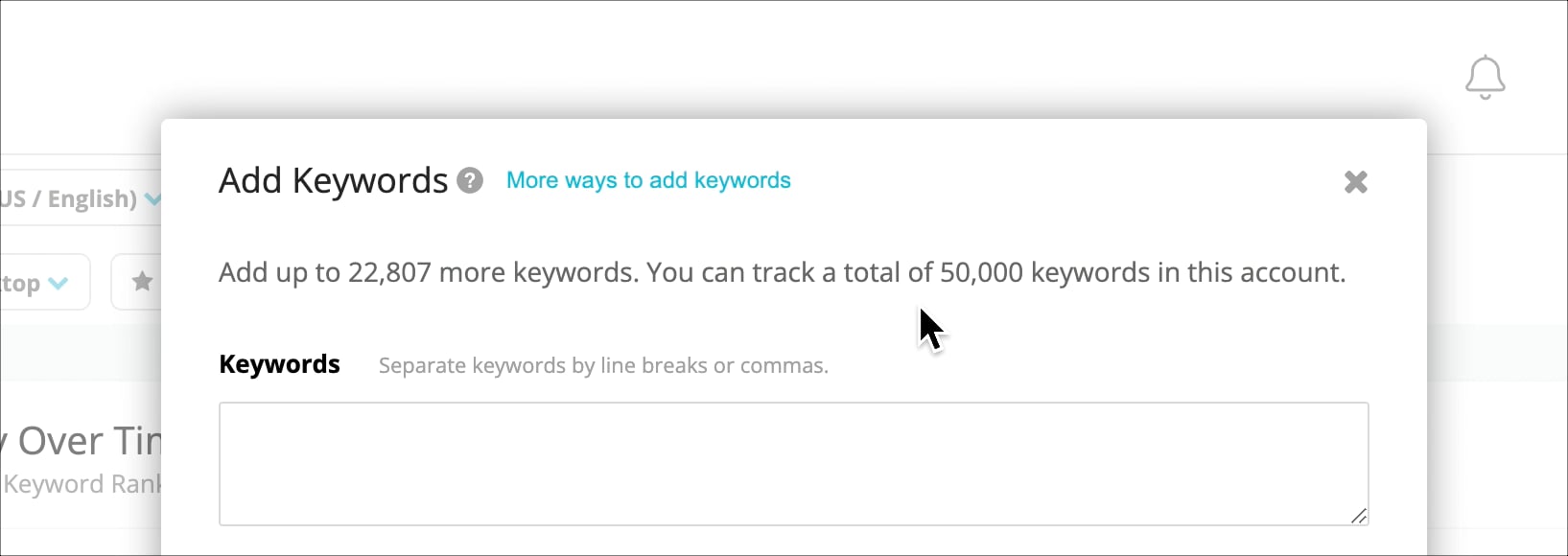
You can quickly find how many keywords you have tracked—and your account's tracked keyword limit—in the **Add Keywords** form.\\
For a given web property, you can track a single keyword only once, for each location, device, and search engine. Note that each combination of keyword–location–device–search engine counts as a separate keyword towards your account's allotment.
Yes, both Google and Conductor recognize accents in keywords. Note that this means a keyword with an accent and the same keyword without an accent count as two separate keywords if you track both.
## Managing Tracked Keywords
You can quickly find how many keywords you have tracked—and your account's tracked keyword limit—in the **Add Keywords** form.\\
 Yes, you can use the [Keyword Bulk Update](/docs/intelligence/update-keywords-in-bulk/) tool to download a list of all your keywords in Conductor.
1. Follow the path **Settings** > **Keyword** **Tracking**
2. Click the **Bulk Update** link in the top-right.
3. Choose to download either:
* Only your active keywords.
* All your keywords (active and inactive).
Yes, you can use the [Keyword Bulk Update](/docs/intelligence/update-keywords-in-bulk/) tool to download a list of all your keywords in Conductor.
1. Follow the path **Settings** > **Keyword** **Tracking**
2. Click the **Bulk Update** link in the top-right.
3. Choose to download either:
* Only your active keywords.
* All your keywords (active and inactive).
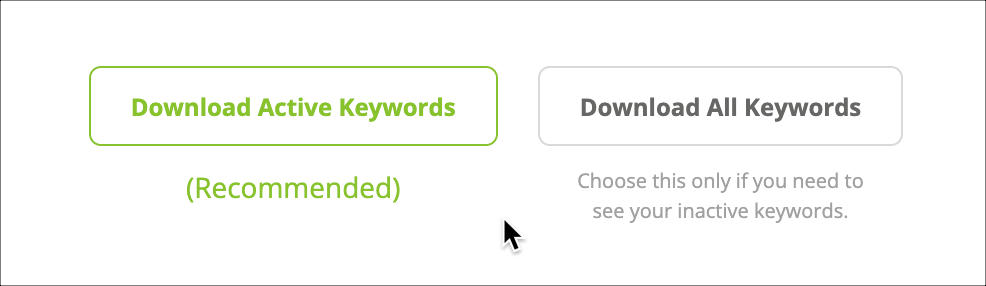 At this point, a Microsoft Excel file with these keywords is downloaded to your computer.
You can edit a keyword's preferred URL in either of the following ways:
* If you want to edit several keywords' preferred URLs at one time, you can use the [bulk update](/docs/intelligence/update-keywords-in-bulk/) tool.
* If you want to edit one or a few keywords' preferred URLs, you can do either of the following:
* From the Keywords activity:
1. Follow the path **Settings** > **Keyword** **Tracking**.
2. In the table, find the keyword you want to edit.
3. In the **Preferred URL** column, click the **edit** icon and enter a new preferred URL.
4. Click the **green check mark** button to save your preferred URL.
* From the [Keywords](/docs/intelligence/keywords/) report:
1. Follow the path **Performance** > **Traditional Search** > **Keywords**.
2. Locate the keyword for which you want to set a preferred URL.
3. Click the **ellipsis** icon and select **Set** **Preferred URL** from the menu.
4. Enter a preferred URL and click **Save**.
Download the keyword file again in step 1 of the [Keyword Bulk Update](/docs/intelligence/update-keywords-in-bulk/) process and mark the necessary keywords active and upload the Excel file again. It's important to do this as soon as possible so that there is no disruption in data collection for your keywords.
You'll see changes to tracked keyword data take effect after the next time Conductor publishes data.
For tracked keyword data in legacy reports, it is possible that if you add a keyword late in the week, Conductor will not publish data until the following week. Try to add keywords before 5:00 P.M. Eastern on Thursdays to avoid any delays.
You can learn more in the [When does new tracked keyword data appear in Conductor?](/docs/intelligence/keyword-data-faqs/#when-does-new-tracked-keyword-data-appear-in-conductor) FAQ.
At this point, a Microsoft Excel file with these keywords is downloaded to your computer.
You can edit a keyword's preferred URL in either of the following ways:
* If you want to edit several keywords' preferred URLs at one time, you can use the [bulk update](/docs/intelligence/update-keywords-in-bulk/) tool.
* If you want to edit one or a few keywords' preferred URLs, you can do either of the following:
* From the Keywords activity:
1. Follow the path **Settings** > **Keyword** **Tracking**.
2. In the table, find the keyword you want to edit.
3. In the **Preferred URL** column, click the **edit** icon and enter a new preferred URL.
4. Click the **green check mark** button to save your preferred URL.
* From the [Keywords](/docs/intelligence/keywords/) report:
1. Follow the path **Performance** > **Traditional Search** > **Keywords**.
2. Locate the keyword for which you want to set a preferred URL.
3. Click the **ellipsis** icon and select **Set** **Preferred URL** from the menu.
4. Enter a preferred URL and click **Save**.
Download the keyword file again in step 1 of the [Keyword Bulk Update](/docs/intelligence/update-keywords-in-bulk/) process and mark the necessary keywords active and upload the Excel file again. It's important to do this as soon as possible so that there is no disruption in data collection for your keywords.
You'll see changes to tracked keyword data take effect after the next time Conductor publishes data.
For tracked keyword data in legacy reports, it is possible that if you add a keyword late in the week, Conductor will not publish data until the following week. Try to add keywords before 5:00 P.M. Eastern on Thursdays to avoid any delays.
You can learn more in the [When does new tracked keyword data appear in Conductor?](/docs/intelligence/keyword-data-faqs/#when-does-new-tracked-keyword-data-appear-in-conductor) FAQ.