> ## Documentation Index
> Fetch the complete documentation index at: https://www.conductor.com/docs/llms.txt
> Use this file to discover all available pages before exploring further.
# Tracked Keyword Setup
> Add and manage the tracked keywords that power Conductor's reporting and visibility insights.
Tracking keywords enables several reports and resources throughout Conductor. Review this article to learn how to maintain the keywords tracked in your account.
## Add Tracked Keywords
As you identify new topics of interest to target and track, you can add new tracked keywords to Conductor. There are a few methods for adding keywords in Conductor. Depending on how many you are adding and where you are in the platform, you might want to use one method over another:
* Add keywords with the Add Keywords form
* Add keywords directly from reports in Conductor
* Upload keywords in bulk
Note the following:
* Conductor does not allow certain characters and symbols in keyword names. Refer to [this article](/docs/intelligence/tracked-keyword-faqs/#what-characters-and-symbols-can-i-use-in-keywords) to learn more.
* To see keyword data appear for a web property in Conductor, you must track at least one keyword on each search engine you want data from.
**Settings** > [**Keyword** **Tracking**](https://app.conductor.com/u/keywords-settings/) > **Add Keywords**
### Add keywords with the Add Keywords form
You can access the **Add Keywords** form from numerous locations in Conductor:
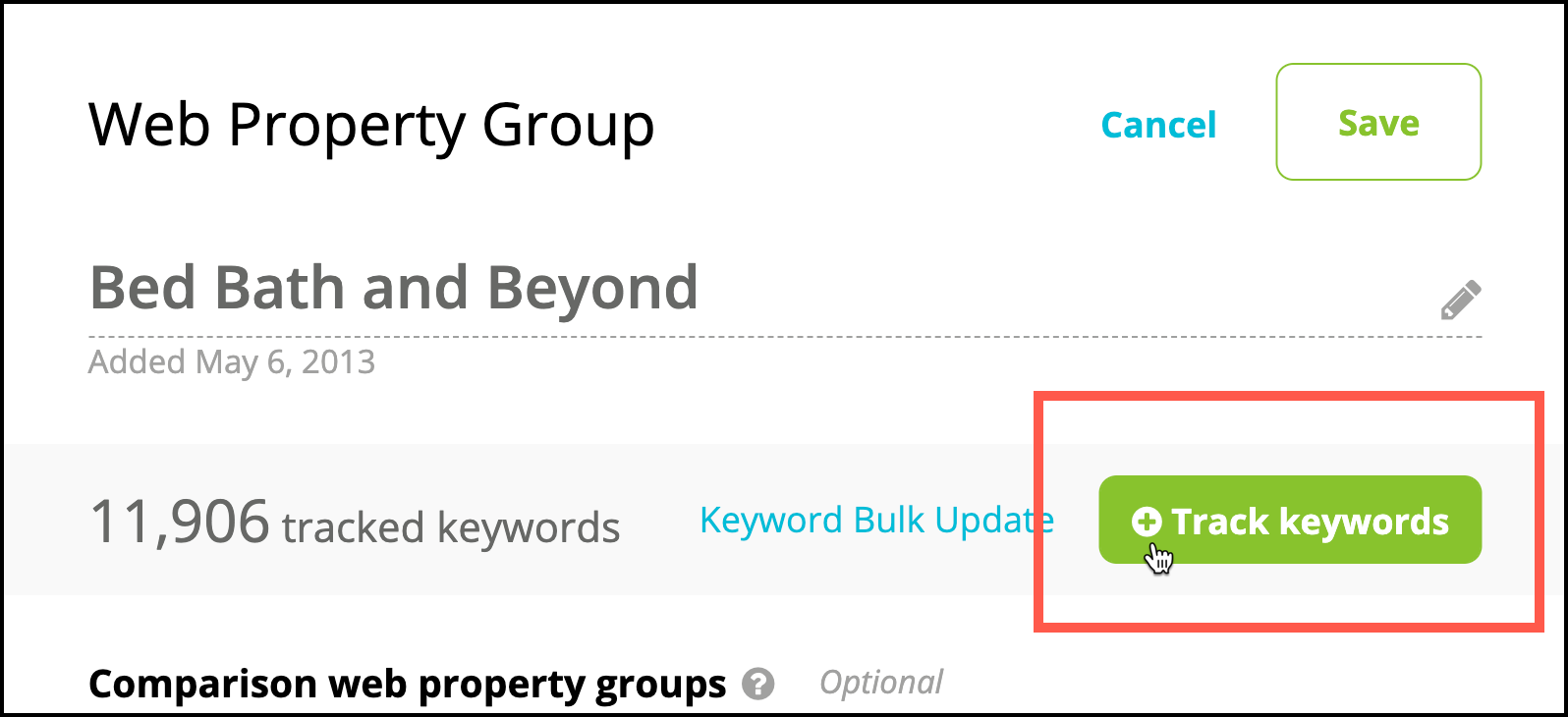
* The **Track Keywords** button in the Web Properties page.\\
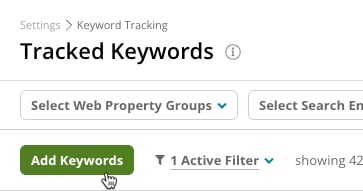
 * From the **Tracked Keywords** activity (**Settings** > **Tracked** **Keywords**).\\
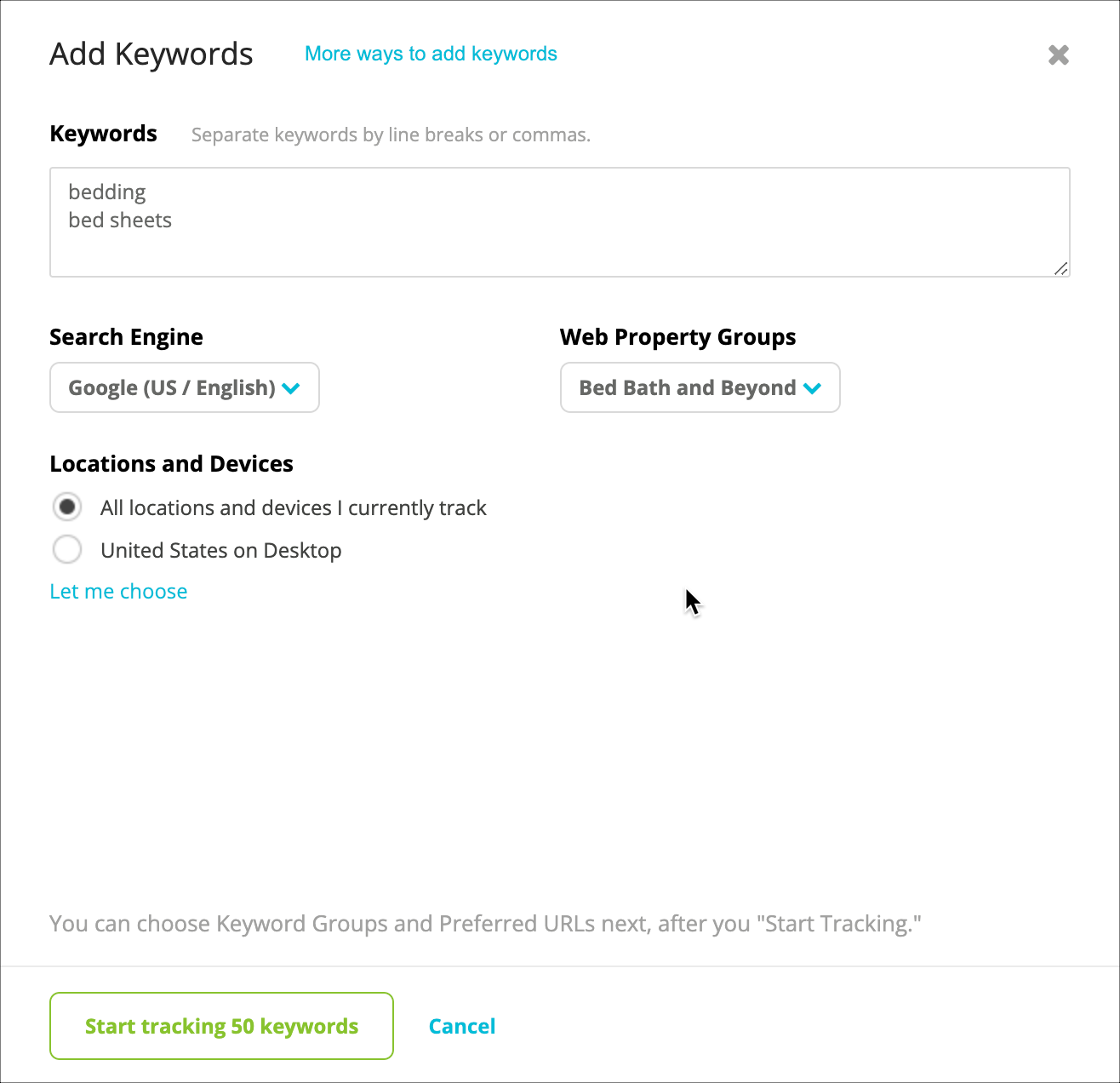
 From the **Add Keywords** form, you can quickly:
* Add keywords to all the locations, devices, and web properties you track all at once—or just the ones you want.
* Add keywords to [new search engines and locations](/docs/intelligence/tracked-keyword-faqs/#how-do-i-track-keywords-in-other-locations-or-on-new-search-engines).
From the **Add Keywords** form, you can quickly:
* Add keywords to all the locations, devices, and web properties you track all at once—or just the ones you want.
* Add keywords to [new search engines and locations](/docs/intelligence/tracked-keyword-faqs/#how-do-i-track-keywords-in-other-locations-or-on-new-search-engines).
 \
You can also add additional keyword settings:\\
\
You can also add additional keyword settings:\\
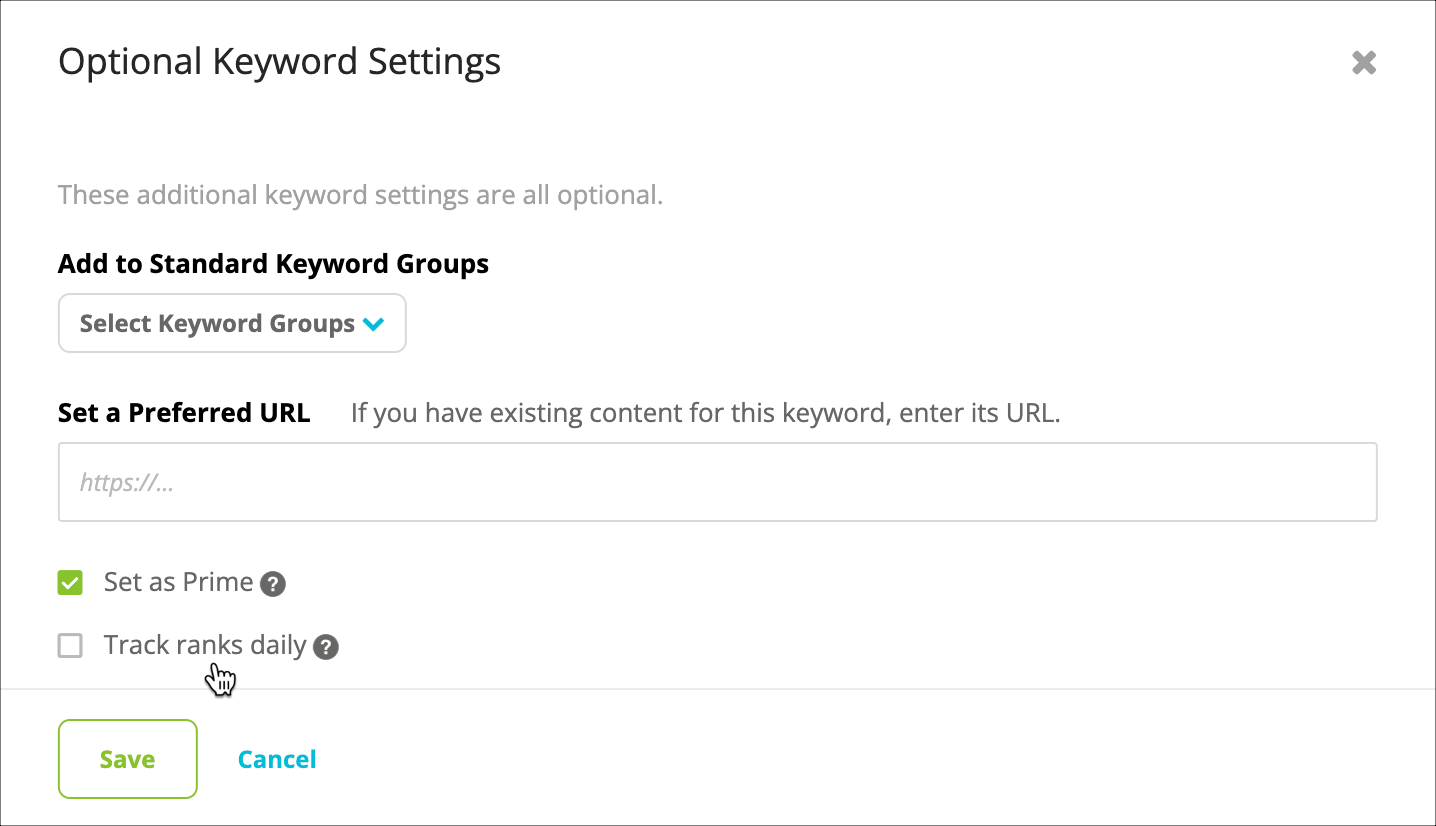 Refer to the [Tracked Keyword Settings](/docs/intelligence/tracked-keyword-faqs/) section in the Tracked Keyword FAQs article to learn about each option.
### Add keywords directly from reports in Conductor
Additionally, some reports in Conductor let you add untracked keywords directly from the data tables. Look for:
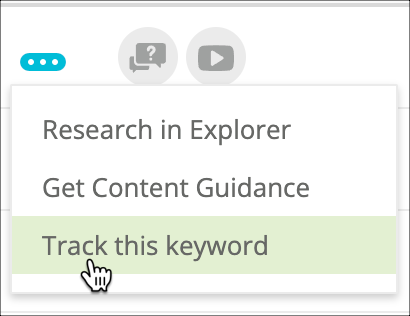
* The **three-dot menu** in certain reports. This option lets you select a single keyword, which then automatically appears in the **Add Keywords** form described above.\\
Refer to the [Tracked Keyword Settings](/docs/intelligence/tracked-keyword-faqs/) section in the Tracked Keyword FAQs article to learn about each option.
### Add keywords directly from reports in Conductor
Additionally, some reports in Conductor let you add untracked keywords directly from the data tables. Look for:
* The **three-dot menu** in certain reports. This option lets you select a single keyword, which then automatically appears in the **Add Keywords** form described above.\\
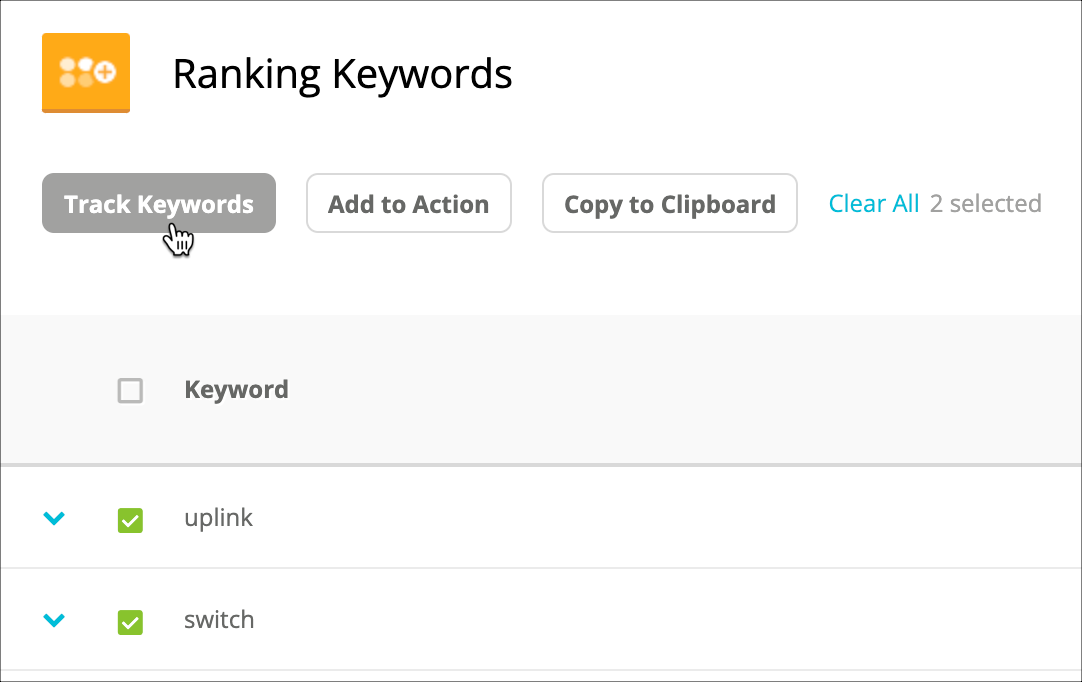
 * The **Track Keywords** button in [Research](/docs/creator/research/) reports. This option lets you select multiple keywords and then click **Track Keywords** to see those keywords automatically appear in the **Add Keywords** form described above.\\
 ### Upload keywords in bulk
You can use Conductor's **Keyword Bulk Update** tool to upload changes and additions in mass. You can learn more about how to use this tool in the [Update Keywords in Bulk](/docs/intelligence/update-keywords-in-bulk/) article.
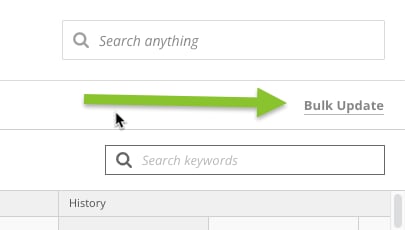
You can access Keyword Bulk Update from a link in the upper-right of the **Tracked Keyword** activity.
### Upload keywords in bulk
You can use Conductor's **Keyword Bulk Update** tool to upload changes and additions in mass. You can learn more about how to use this tool in the [Update Keywords in Bulk](/docs/intelligence/update-keywords-in-bulk/) article.
You can access Keyword Bulk Update from a link in the upper-right of the **Tracked Keyword** activity.
 ## Edit and Review Tracked Keywords
### Edit your tracked keywords
You can edit your tracked keywords. If you want to edit several keywords at one time, you should use the [bulk update](/docs/intelligence/update-keywords-in-bulk/) tool.
1. Go to the [**Tracked** **Keyword**](https://app.conductor.com/u/keywords-settings) activity in Conductor Intelligence or follow the path **Settings** > **Keyword Tracking**.
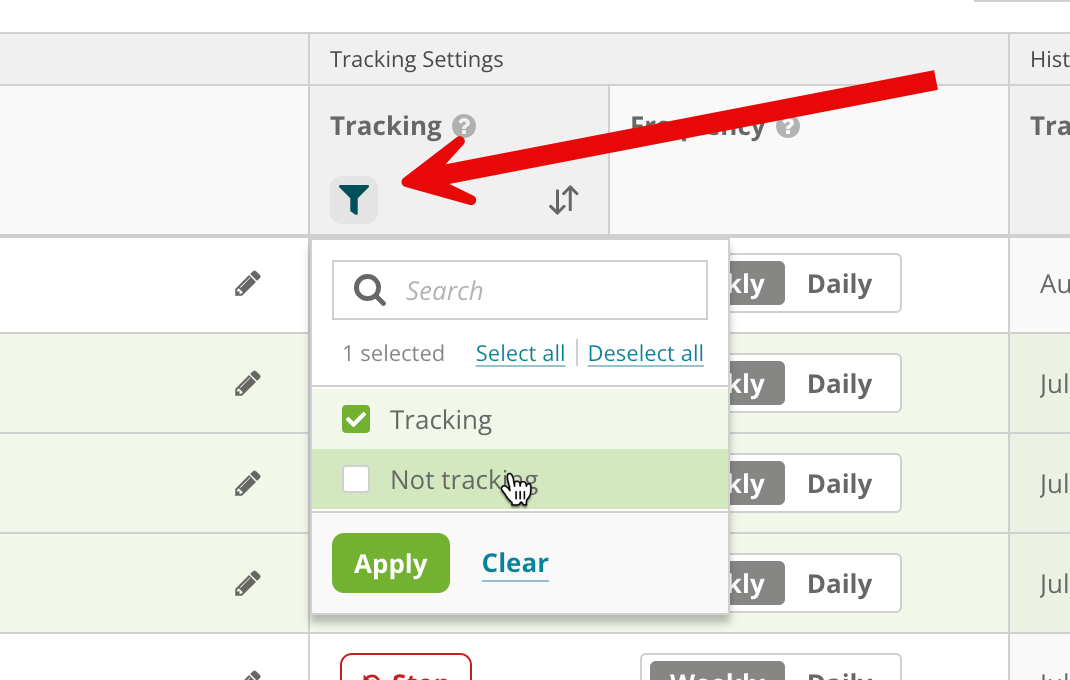
2. In the table, find the keyword you want to edit. Note that you can filter the table to be sure you are editing the keyword's properties for the correct web property, search engine, location, or device-type. You can also filter by individual columns to find precisely the keywords you want to edit. Just hover over the column header to find the **Filter** icon. \\
## Edit and Review Tracked Keywords
### Edit your tracked keywords
You can edit your tracked keywords. If you want to edit several keywords at one time, you should use the [bulk update](/docs/intelligence/update-keywords-in-bulk/) tool.
1. Go to the [**Tracked** **Keyword**](https://app.conductor.com/u/keywords-settings) activity in Conductor Intelligence or follow the path **Settings** > **Keyword Tracking**.
2. In the table, find the keyword you want to edit. Note that you can filter the table to be sure you are editing the keyword's properties for the correct web property, search engine, location, or device-type. You can also filter by individual columns to find precisely the keywords you want to edit. Just hover over the column header to find the **Filter** icon. \\
 3. Edit individual keywords directly from the table or select multiple keywords to edit to have the same properties and use the options above the table to make your edits.\\
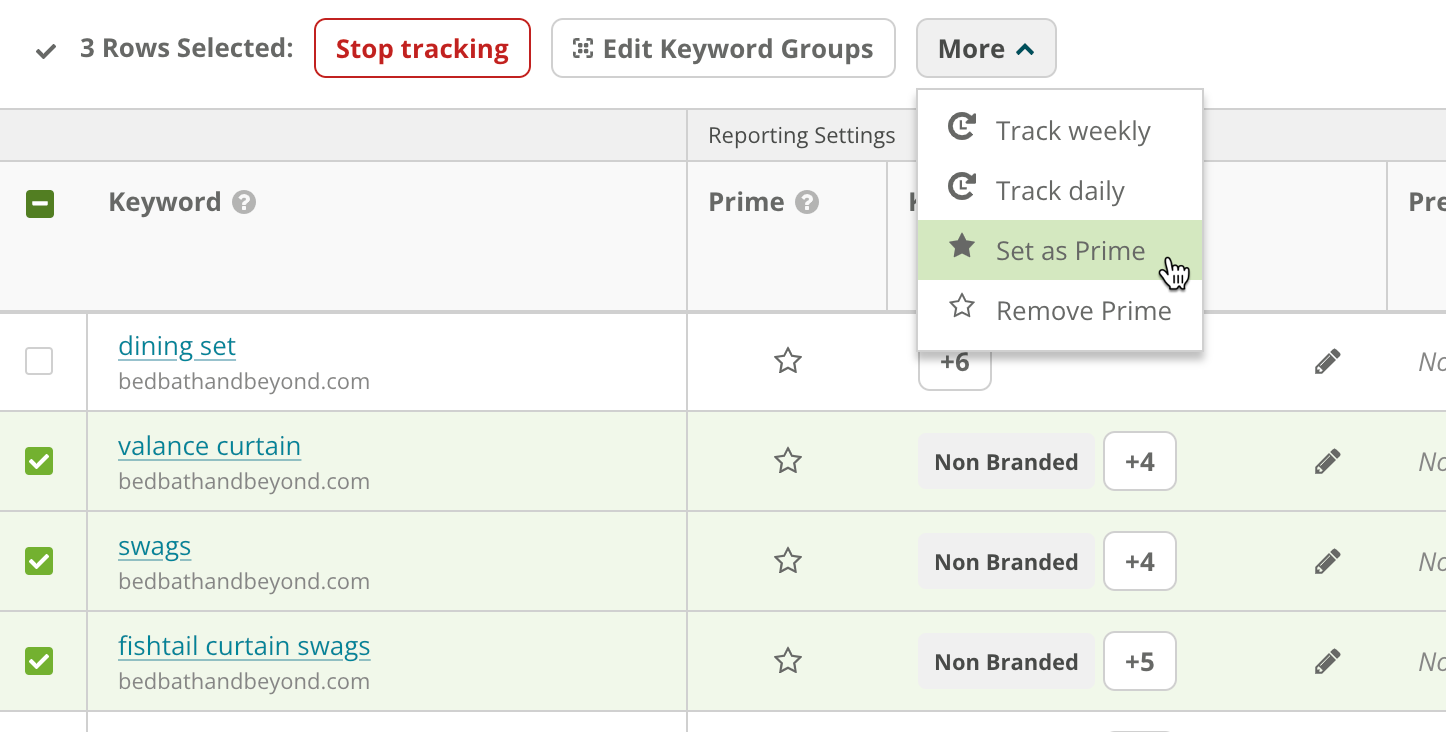 Note that, for a keyword's preferred URL to be included in platform reports for a weekly data publication, changes must be made before the weekly publication cut-off on Thursdays at 5:00 P.M. Eastern.
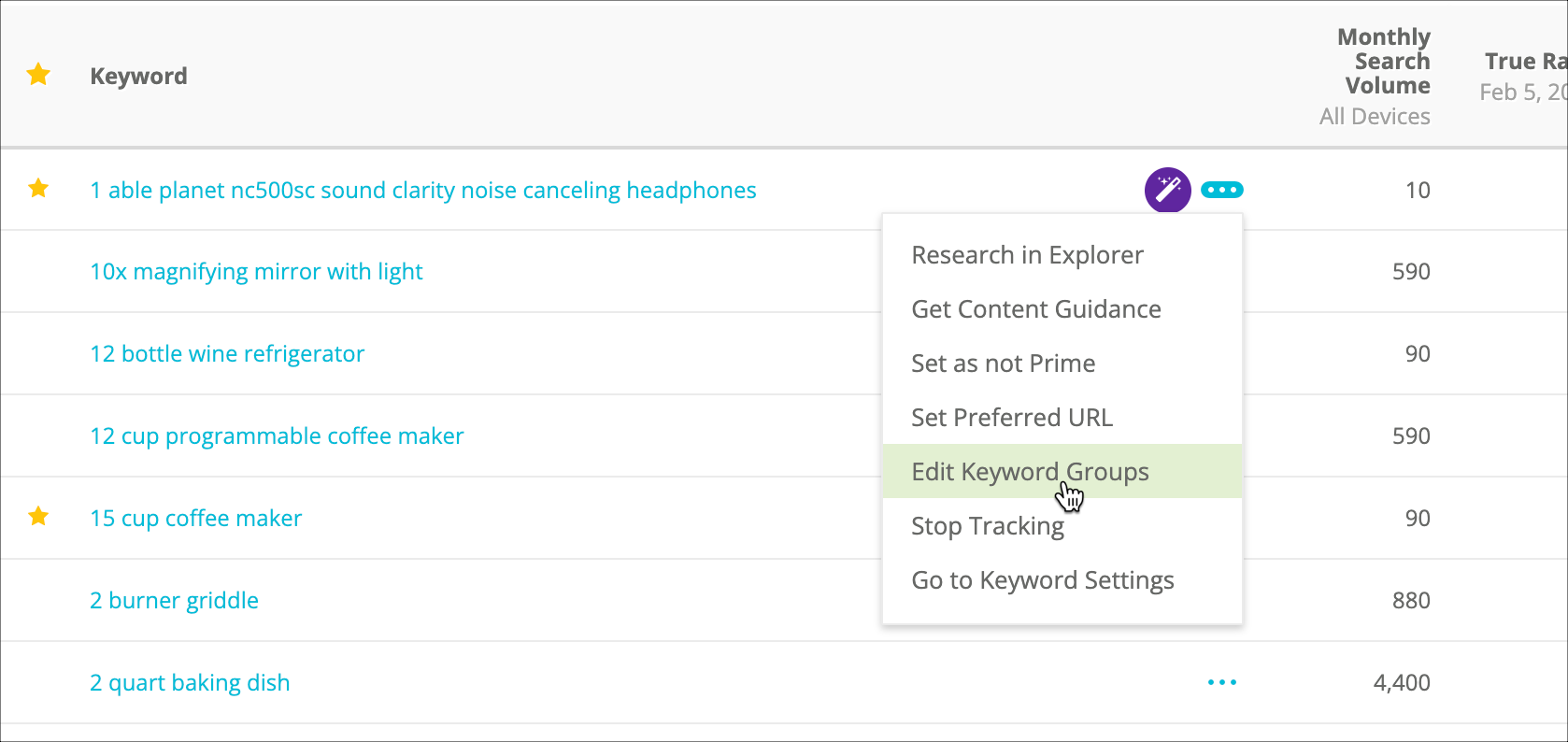
Note that you can also edit several details about a tracked keyword search directly from reports like the [Keywords](/docs/intelligence/keywords/) report or the [Result Types](/docs/intelligence/result-types/) report by clicking the **three-dot menu**:\\
Note that, for a keyword's preferred URL to be included in platform reports for a weekly data publication, changes must be made before the weekly publication cut-off on Thursdays at 5:00 P.M. Eastern.
Note that you can also edit several details about a tracked keyword search directly from reports like the [Keywords](/docs/intelligence/keywords/) report or the [Result Types](/docs/intelligence/result-types/) report by clicking the **three-dot menu**:\\
 ### Review your tracked keywords
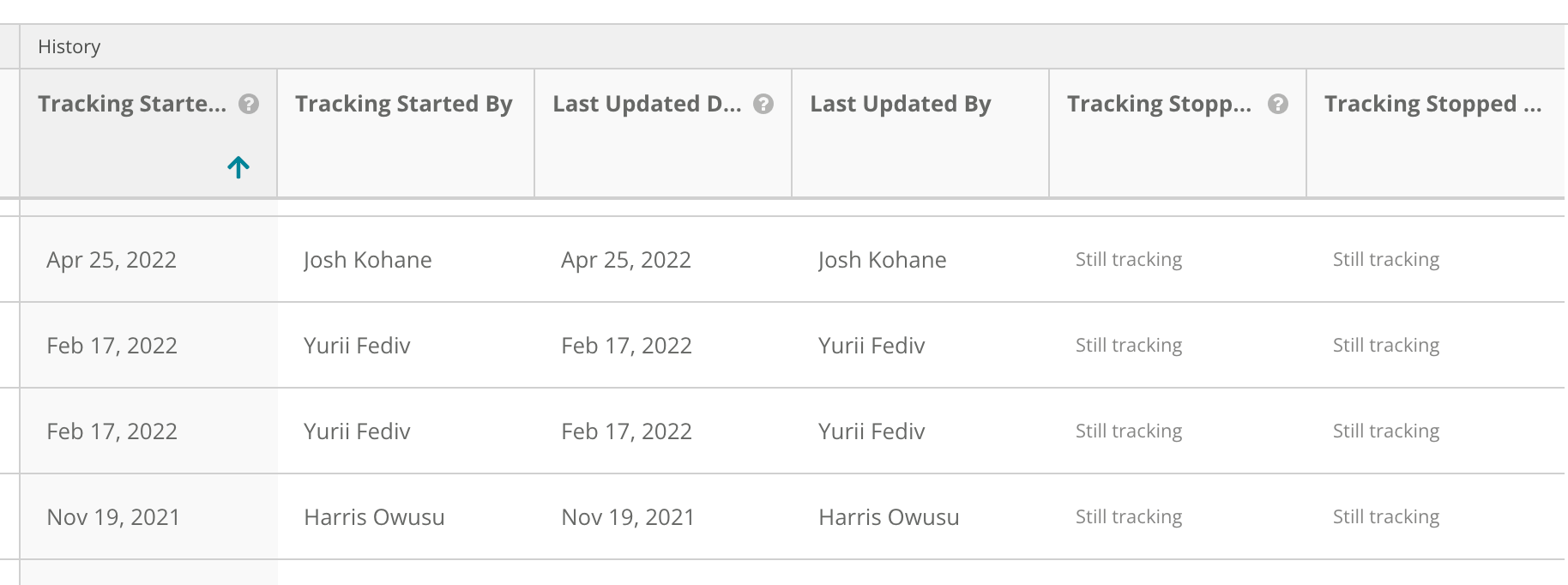
The **Tracked Keywords** settings activity includes details about your tracked keywords that you might want to review as you set up and maintain your keyword tracking strategy. You can review:
* The date that tracking was started for this keyword. If tracking was stopped and restarted, this will continue to show the most recent date tracking had been started.
* The user who tracked the keyword.
* The most recent date that a reporting setting or tracking setting for the keyword was changed.
* The user who most recently updated the keyword.
* The date that tracking was stopped for this keyword. If tracking was stopped and restarted, this will continue to show the most recent date tracking had been stopped.
* The user who most recently stopped tracking the keyword.
### Review your tracked keywords
The **Tracked Keywords** settings activity includes details about your tracked keywords that you might want to review as you set up and maintain your keyword tracking strategy. You can review:
* The date that tracking was started for this keyword. If tracking was stopped and restarted, this will continue to show the most recent date tracking had been started.
* The user who tracked the keyword.
* The most recent date that a reporting setting or tracking setting for the keyword was changed.
* The user who most recently updated the keyword.
* The date that tracking was stopped for this keyword. If tracking was stopped and restarted, this will continue to show the most recent date tracking had been stopped.
* The user who most recently stopped tracking the keyword.
 ## Deactivate and Activate Tracked Keywords
Keywords are never deleted; only deactivated. Inactive keywords can be reactivated at any time. When you deactivate a keyword, Conductor collects no data for it. Note that:
* Conductor does not delete historical data for deactivated keywords.
* Inactive keywords remain in any keyword groups they belong to. If you want keyword groups to reflect only active keywords, you'll need to edit those keyword groups either through the [Keyword Groups activity](/docs/intelligence/keyword-group-setup/) or through the [Bulk Update](/docs/intelligence/update-keywords-in-bulk/) tool.
If you reactivate a keyword, Conductor starts collecting data for it and the historical data appears with the newly collected data after it is published. This means that historical data does not immediately reappear upon reactivation of a keyword.
You can deactivate and reactivate keywords using the methods described below. You can also do this with the [Keyword Bulk Update](/docs/intelligence/update-keywords-in-bulk/) tool. You should use Keyword Bulk Update if you want to make changes to a significant number of keywords.
### Deactivate Keywords
1. Go to [keyword settings](https://app.conductor.com/u/keywords-settings) in Conductor or follow the path **Settings** > **Keyword** **Tracking**.
2. Click the check box on the left for each keyword you want to deactivate.
3. From the **Actions** menu, select **Deactivate**.
### Reactivate Keywords
1. Go to [keyword settings](https://app.conductor.com/u/keywords-settings) in Conductor or follow the path **Settings** > **Keyword** **Tracking**.
2. Click the check box on the right for each keyword you want to reactivate.
3. From the **Actions** menu, select **Activate**.
## Keywords not showing up after you add them?
When you add new keywords anywhere in Conductor, you will not see those keywords listed in Conductor until data has been collected and published.
## Deactivate and Activate Tracked Keywords
Keywords are never deleted; only deactivated. Inactive keywords can be reactivated at any time. When you deactivate a keyword, Conductor collects no data for it. Note that:
* Conductor does not delete historical data for deactivated keywords.
* Inactive keywords remain in any keyword groups they belong to. If you want keyword groups to reflect only active keywords, you'll need to edit those keyword groups either through the [Keyword Groups activity](/docs/intelligence/keyword-group-setup/) or through the [Bulk Update](/docs/intelligence/update-keywords-in-bulk/) tool.
If you reactivate a keyword, Conductor starts collecting data for it and the historical data appears with the newly collected data after it is published. This means that historical data does not immediately reappear upon reactivation of a keyword.
You can deactivate and reactivate keywords using the methods described below. You can also do this with the [Keyword Bulk Update](/docs/intelligence/update-keywords-in-bulk/) tool. You should use Keyword Bulk Update if you want to make changes to a significant number of keywords.
### Deactivate Keywords
1. Go to [keyword settings](https://app.conductor.com/u/keywords-settings) in Conductor or follow the path **Settings** > **Keyword** **Tracking**.
2. Click the check box on the left for each keyword you want to deactivate.
3. From the **Actions** menu, select **Deactivate**.
### Reactivate Keywords
1. Go to [keyword settings](https://app.conductor.com/u/keywords-settings) in Conductor or follow the path **Settings** > **Keyword** **Tracking**.
2. Click the check box on the right for each keyword you want to reactivate.
3. From the **Actions** menu, select **Activate**.
## Keywords not showing up after you add them?
When you add new keywords anywhere in Conductor, you will not see those keywords listed in Conductor until data has been collected and published.