> ## Documentation Index
> Fetch the complete documentation index at: https://www.conductor.com/docs/llms.txt
> Use this file to discover all available pages before exploring further.
# Upgrade Your Adobe Integration to Include AI Traffic Data
> Upgrade steps for Adobe Data Warehouse customers to include AI traffic data in the new Pages report.
The [new Pages report](/docs/intelligence/legacy-pages-and-page-details/) (currently in an Alpha program) now includes AI traffic data!
To include this data in Conductor, customers with existing Data Warehouse integrations in Adobe Analytics will need to upgrade their integrations.
### Note
If you have an existing integration, you won't have to create a new integration in Conductor—you'll only be updating [your existing configuration](https://app.conductor.com/u/web-analytics/) in Adobe Analytics.
If you don't already have an integration with Adobe Analytics, follow our [Adobe Integration guide](/docs/intelligence/integrate-adobe-analytics-with-conductor-intelligence/), which includes instructions for integrating both your organic and AI traffic.
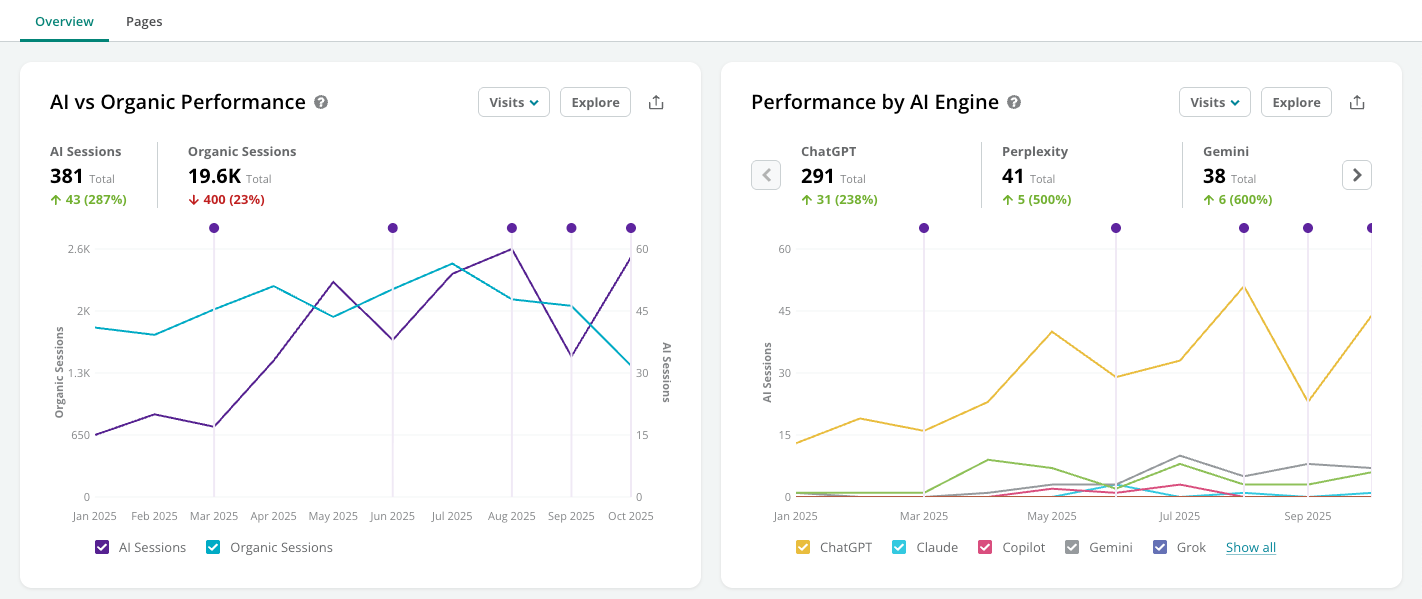 This guide will see you through the process for upgrading your existing integrations to include this data.
## Process
At a high-level, upgrading will require you to do the following:
* Create a new Adobe segment for AI traffic
* Duplicate your existing Adobe reports in Data Warehouse
* Configure your duplicate reports
To accomplish this, you or someone on your team will need access to your Adobe Analytics Data Warehouse instance.
## Create Your New AI Segment
You'll first create a new segment in Adobe to capture only the AI traffic we want to send to Conductor.
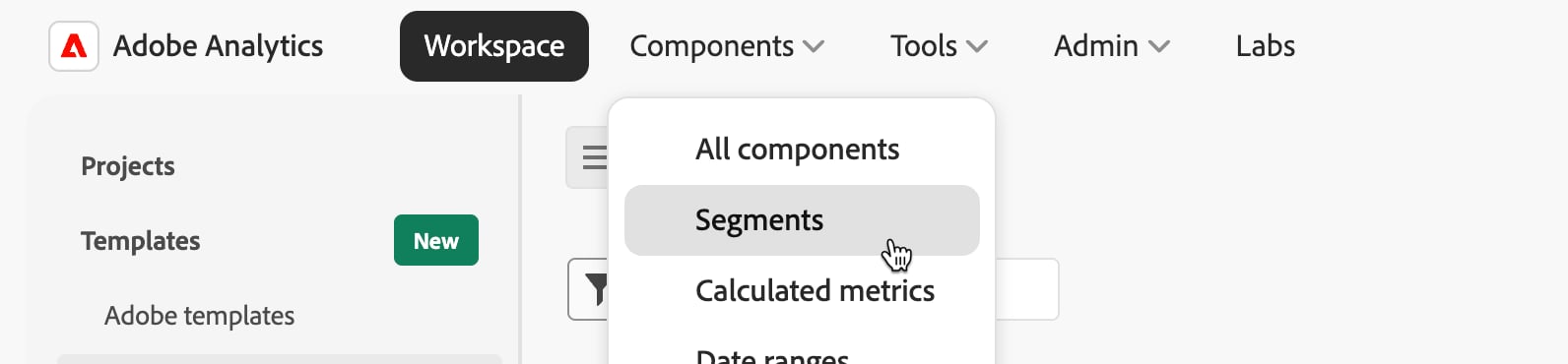
1. In Adobe Analytics, follow the path **Components** > **Segments**.\\
This guide will see you through the process for upgrading your existing integrations to include this data.
## Process
At a high-level, upgrading will require you to do the following:
* Create a new Adobe segment for AI traffic
* Duplicate your existing Adobe reports in Data Warehouse
* Configure your duplicate reports
To accomplish this, you or someone on your team will need access to your Adobe Analytics Data Warehouse instance.
## Create Your New AI Segment
You'll first create a new segment in Adobe to capture only the AI traffic we want to send to Conductor.
1. In Adobe Analytics, follow the path **Components** > **Segments**.\\
 2. In the Segments activity, your next step will depend on whether you already apply a segment to your Adobe Analytics integration:
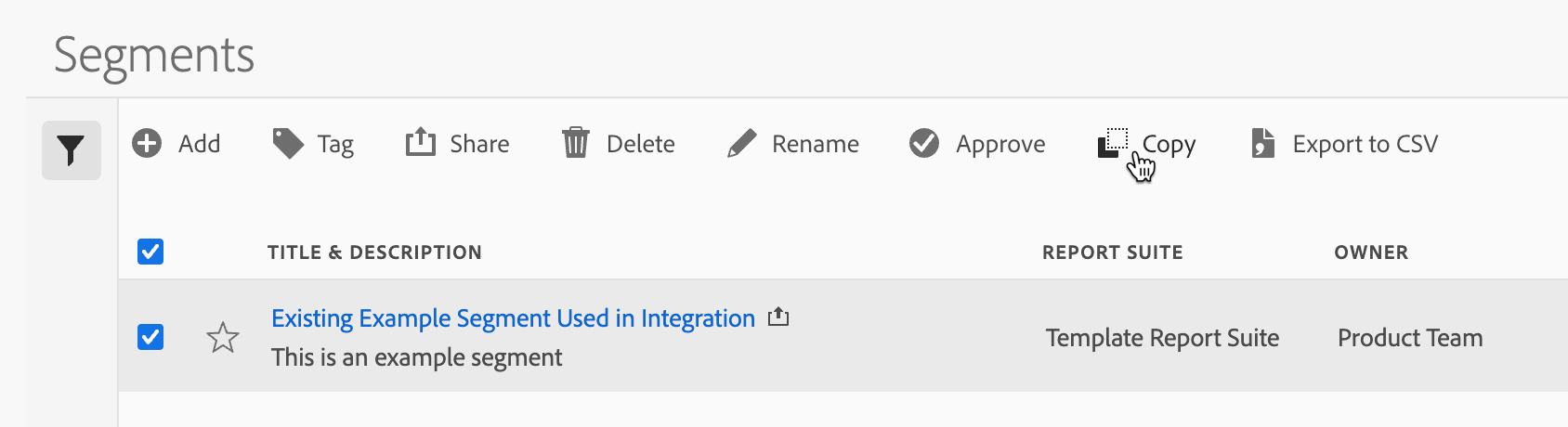
* If you **already** use a segment in your existing integration, select it in the table, click **Copy**. Then, click to open the segment.\\
2. In the Segments activity, your next step will depend on whether you already apply a segment to your Adobe Analytics integration:
* If you **already** use a segment in your existing integration, select it in the table, click **Copy**. Then, click to open the segment.\\
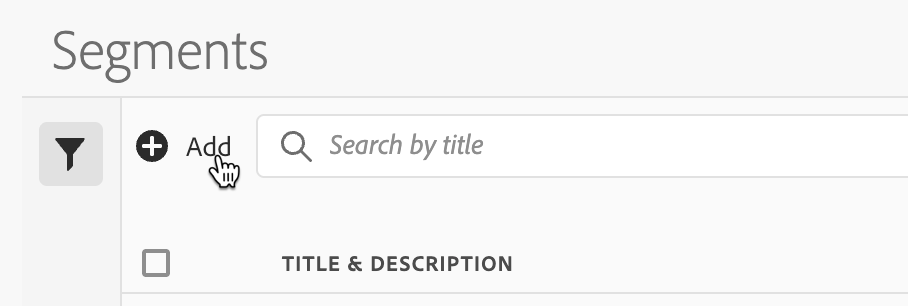
 * If you **do not already** use a segment in your existing integration, click **+ Add**.\\
 3. In your open segment:
* If you are **updating** a copied existing segment:\\
3. In your open segment:
* If you are **updating** a copied existing segment:\\
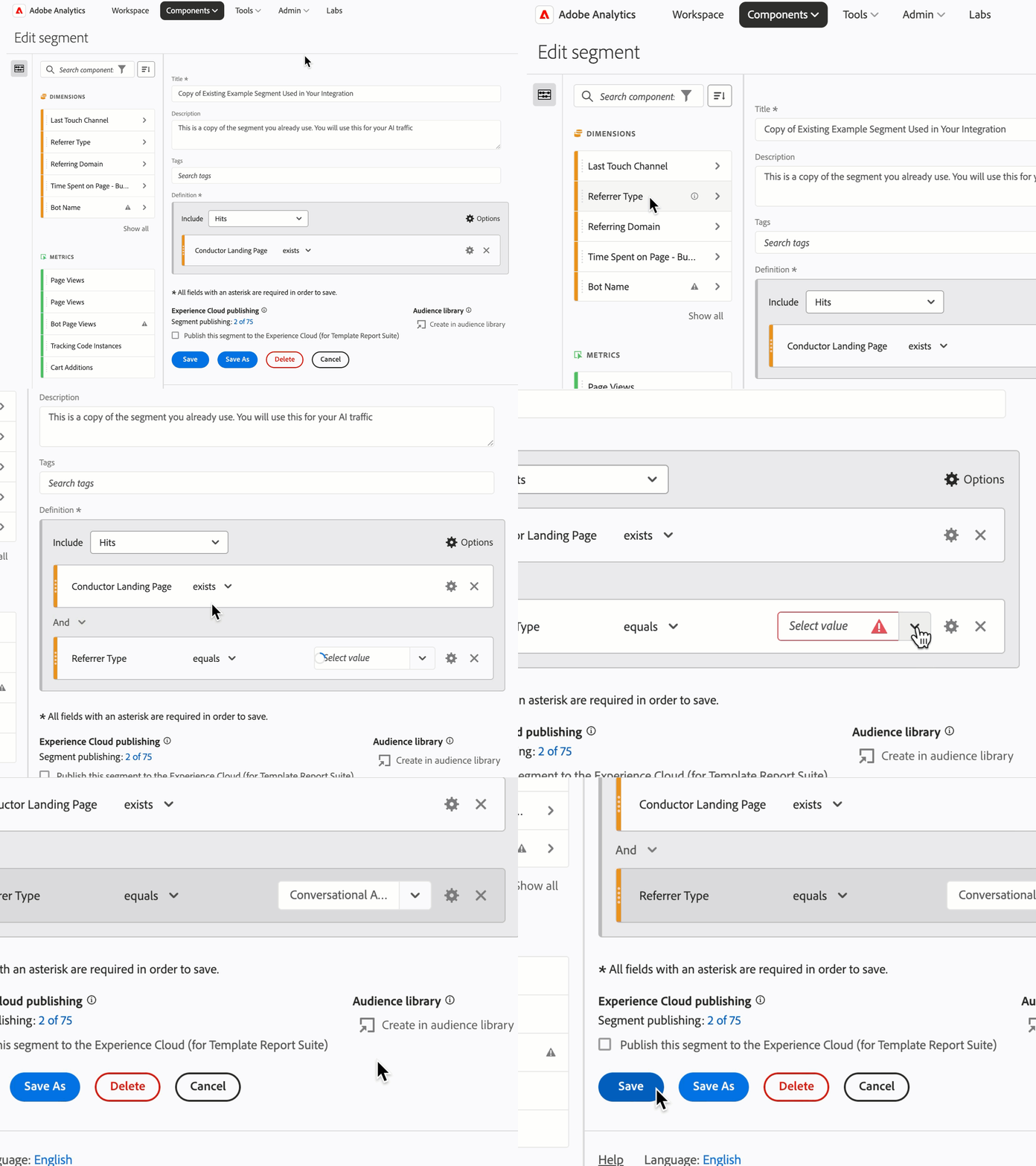 1. Drag and drop the **Referral Type** dimension into your segment below any other existing rules.
2. From the **Select value** menu, select **Conversational AI tools**.
3. Click **Save**.
* If you are **adding** a new segment:\\
1. Drag and drop the **Referral Type** dimension into your segment below any other existing rules.
2. From the **Select value** menu, select **Conversational AI tools**.
3. Click **Save**.
* If you are **adding** a new segment:\\
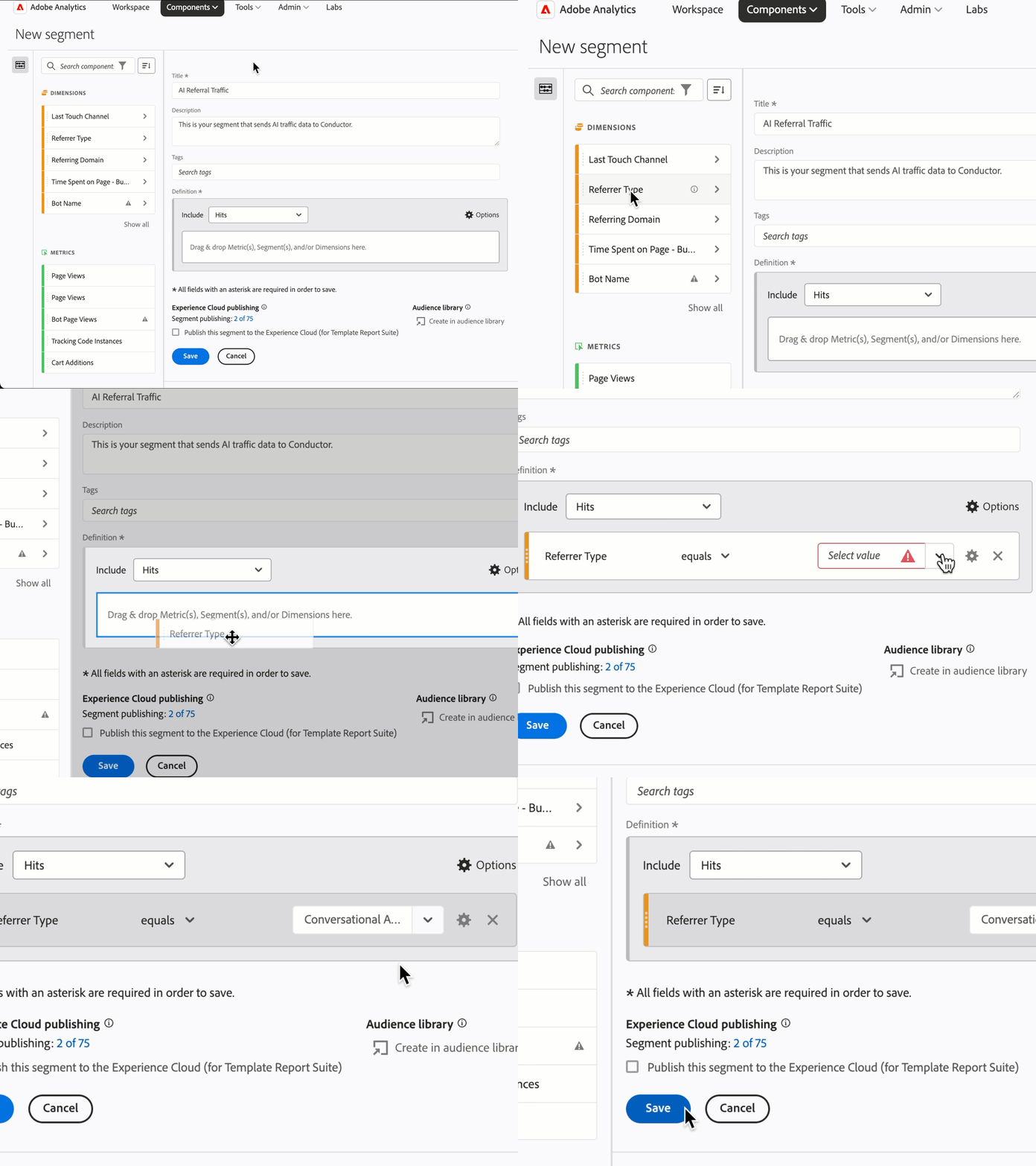 1. Enter a **Title** and **Description** for the new segment.
2. Drag and drop the **Referral Type** dimension into your segment.
3. From the **Select value** menu, select **Conversational AI tools**.
4. Click **Save**.
You now have the segment you'll need in the next section to configure your reports.
## Duplicate Your Existing Weekly Report and Configure for AI Traffic
Next you'll need to duplicate your existing reports.
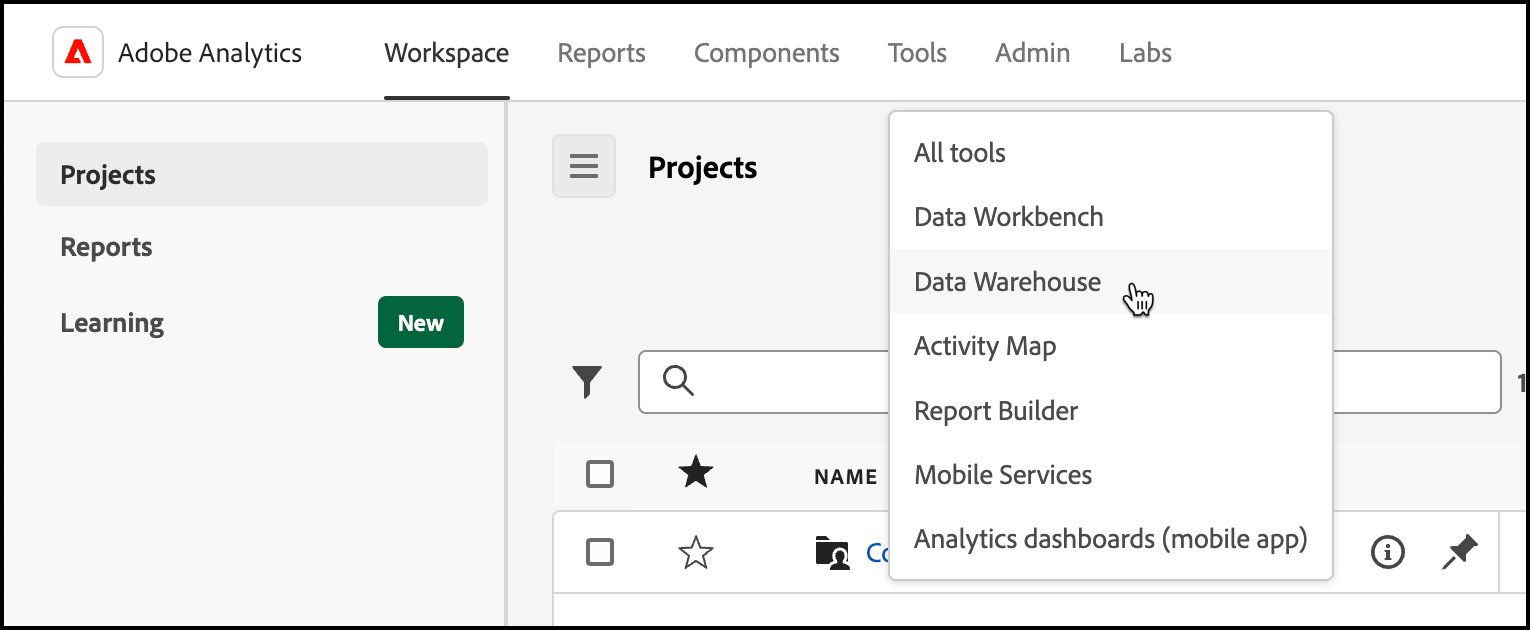
1. In **Adobe Analytics**, follow the path **Tools** > **Data Warehouse**.\\
1. Enter a **Title** and **Description** for the new segment.
2. Drag and drop the **Referral Type** dimension into your segment.
3. From the **Select value** menu, select **Conversational AI tools**.
4. Click **Save**.
You now have the segment you'll need in the next section to configure your reports.
## Duplicate Your Existing Weekly Report and Configure for AI Traffic
Next you'll need to duplicate your existing reports.
1. In **Adobe Analytics**, follow the path **Tools** > **Data Warehouse**.\\
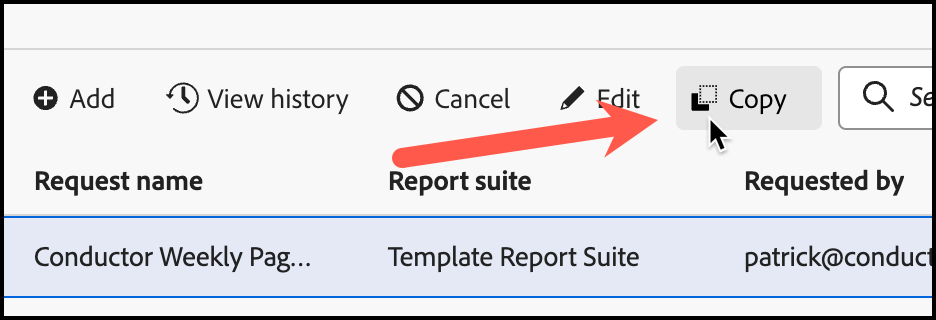
 2. Select your Conductor Weekly Report in the table and click **Copy**.\\
 3. Update the **Request name** to reflect that this is your weekly AI report, for example adding “AI” to the current request name.
4. Go to the **Build your report** tab:\\
3. Update the **Request name** to reflect that this is your weekly AI report, for example adding “AI” to the current request name.
4. Go to the **Build your report** tab:\\
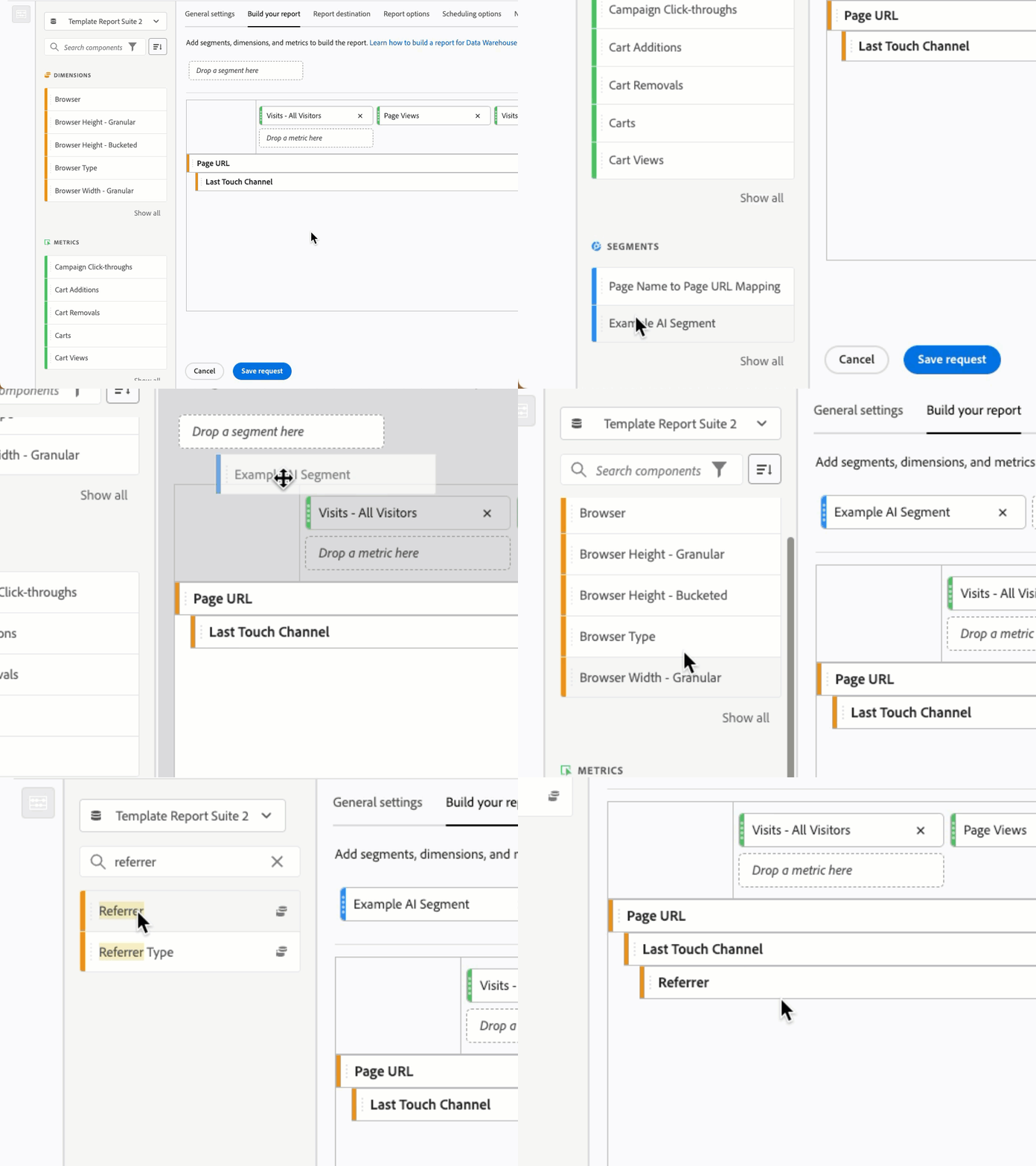 1. From the **Segments** section on the left, drag and drop your new AI segment into the segment section on the right where it says **Drop a segment here**.
2. From the **Dimensions** section on the left, drag and drop **Referrer** into the dimensions section below the other dimensions on the right.
5. Go to the **Report destination** tab.\\
1. From the **Segments** section on the left, drag and drop your new AI segment into the segment section on the right where it says **Drop a segment here**.
2. From the **Dimensions** section on the left, drag and drop **Referrer** into the dimensions section below the other dimensions on the right.
5. Go to the **Report destination** tab.\\
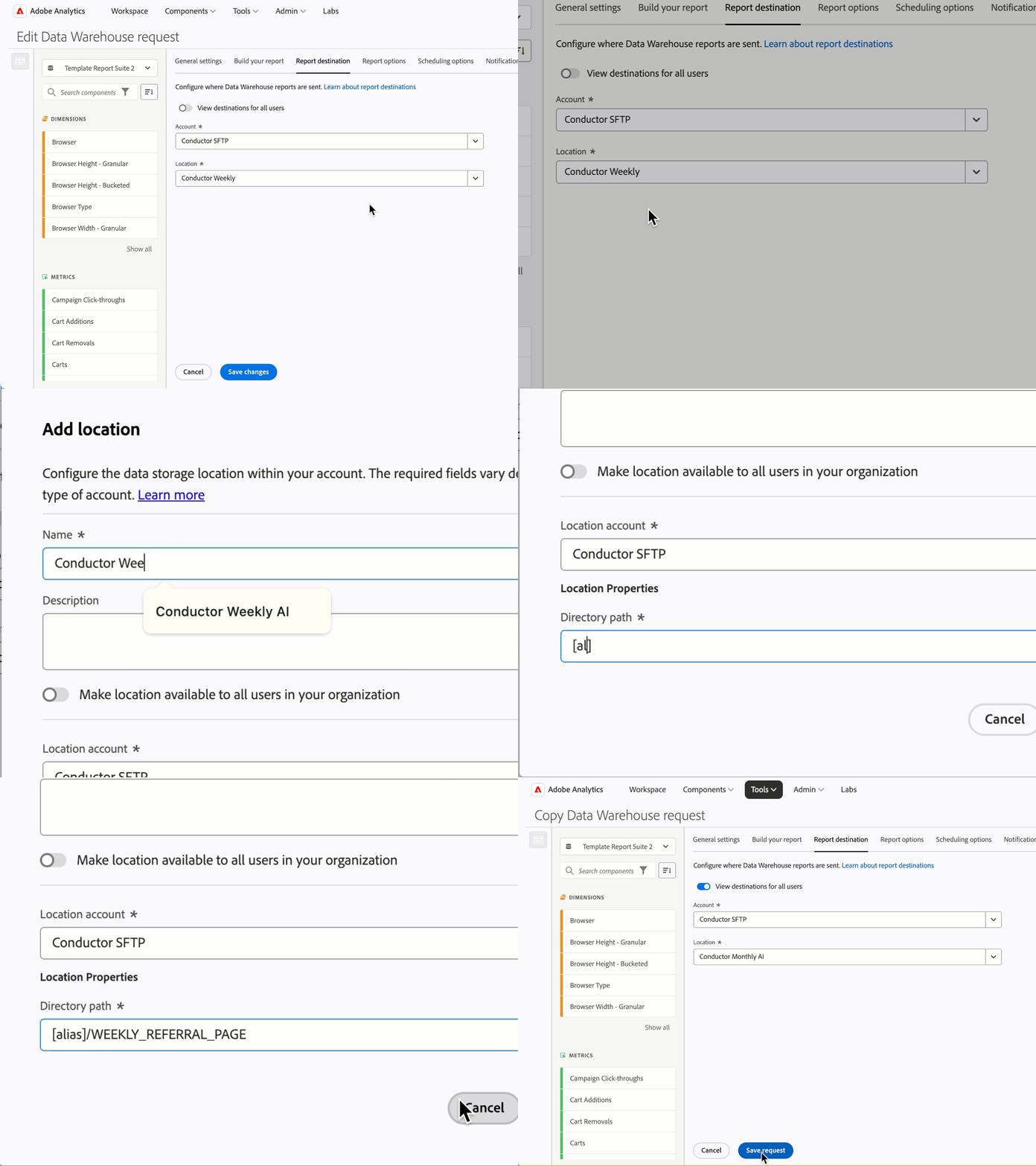 1. In the **Location** menu, select **+ Add Location**.
2. Add a **Name** and **Description**. These will help you identify the destination in the future. *Note that this is especially important if your organization has multiple integrations with Conductor. Each location you add is tied to the specific web property and search engine you are integrating (represented by your Alias). A distinct location name that includes the web property and search engine will help you tell these multiple integrations apart.*
3. In the **Directory path** field:
* Delete the forward slash in the field, if one appeared by default.
* Enter the path using the Alias your organization received from Conductor. The format should be:\
*\[Alias for integration]/WEEKLY\_REFERRAL\_PAGE/*
4. Click **Save**.
6. Click **Save Request**.
At this point, you are done with your weekly AI traffic data request and can move on to your monthly request.
## Duplicate Your Existing Monthly Report and Configure for AI Traffic
1. Follow the path **Tools** > **Data Warehouse**.\\
2. Select your Conductor Monthly Report in the table and click **Copy**.\\
1. In the **Location** menu, select **+ Add Location**.
2. Add a **Name** and **Description**. These will help you identify the destination in the future. *Note that this is especially important if your organization has multiple integrations with Conductor. Each location you add is tied to the specific web property and search engine you are integrating (represented by your Alias). A distinct location name that includes the web property and search engine will help you tell these multiple integrations apart.*
3. In the **Directory path** field:
* Delete the forward slash in the field, if one appeared by default.
* Enter the path using the Alias your organization received from Conductor. The format should be:\
*\[Alias for integration]/WEEKLY\_REFERRAL\_PAGE/*
4. Click **Save**.
6. Click **Save Request**.
At this point, you are done with your weekly AI traffic data request and can move on to your monthly request.
## Duplicate Your Existing Monthly Report and Configure for AI Traffic
1. Follow the path **Tools** > **Data Warehouse**.\\
2. Select your Conductor Monthly Report in the table and click **Copy**.\\
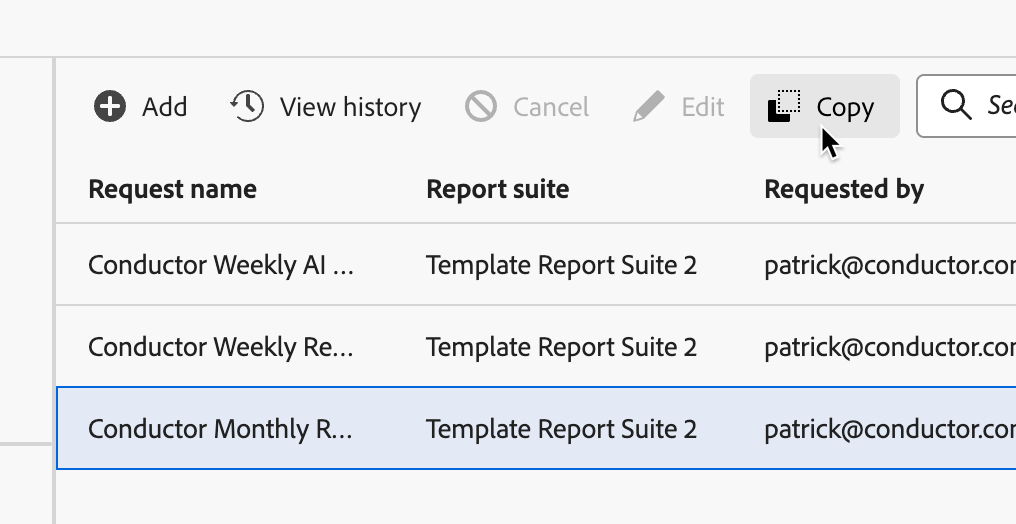 3. Update the **Request name** to reflect that this is your monthly AI report, for example adding “AI” to the current request name.
4. Go to the **Build your report** tab:\\
1. From the **Segments** section on the left, drag and drop your new AI segment into the segment section on the right where it says **Drop a segment here**.
2. From the **Dimensions** section on the left, drag and drop **Referrer** into the dimensions section below the other dimensions on the right.
5. Go to the **Report destination** tab.\\
3. Update the **Request name** to reflect that this is your monthly AI report, for example adding “AI” to the current request name.
4. Go to the **Build your report** tab:\\
1. From the **Segments** section on the left, drag and drop your new AI segment into the segment section on the right where it says **Drop a segment here**.
2. From the **Dimensions** section on the left, drag and drop **Referrer** into the dimensions section below the other dimensions on the right.
5. Go to the **Report destination** tab.\\
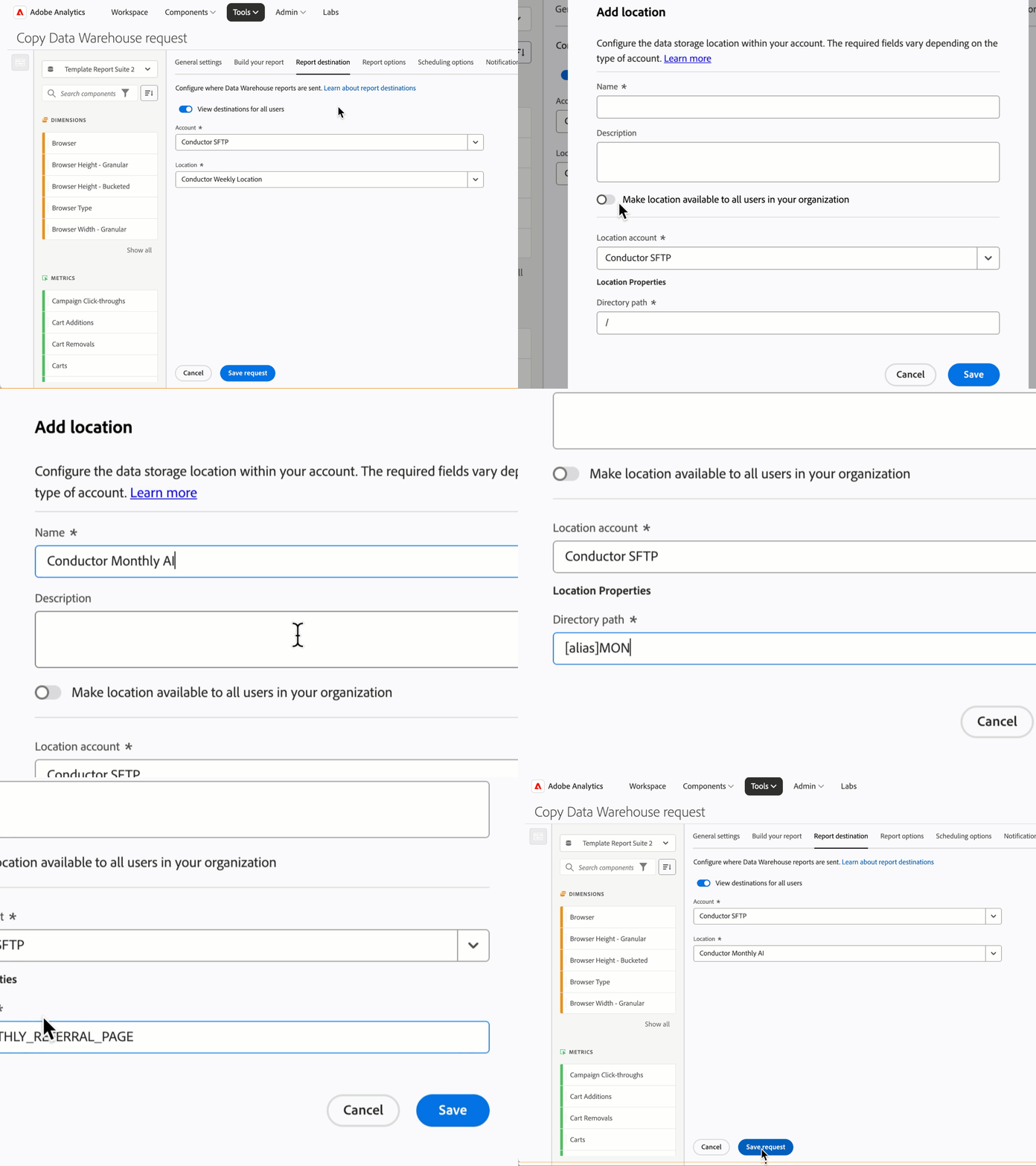 1. In the **Location** menu, select **+ Add Location**.
2. Add a **Name** and **Description**. These will help you identify the destination in the future. *Note that this is especially important if your organization has multiple integrations with Conductor. Each location you add is tied to the specific web property and search engine you are integrating (represented by your Alias). A distinct location name that includes the web property and search engine will help you tell these multiple integrations apart.*
3. In the **Directory path** field:
* Delete the forward slash in the field, if one appeared by default.
* Enter the path using the Alias your organization received from Conductor. The format should be:\
*\[Alias for integration]/MONTHLY\_REFERRAL\_PAGE/*
4. Click **Save**.
6. Click **Save Request**.
## What Next?
Once you have finished the required configuration described above, your Adobe Analytics Data Warehouse instance will start sending your two additional weekly and monthly files to Conductor. Depending on when this configuration is performed, this new data may take up to two weeks to appear in Conductor Intelligence.
1. In the **Location** menu, select **+ Add Location**.
2. Add a **Name** and **Description**. These will help you identify the destination in the future. *Note that this is especially important if your organization has multiple integrations with Conductor. Each location you add is tied to the specific web property and search engine you are integrating (represented by your Alias). A distinct location name that includes the web property and search engine will help you tell these multiple integrations apart.*
3. In the **Directory path** field:
* Delete the forward slash in the field, if one appeared by default.
* Enter the path using the Alias your organization received from Conductor. The format should be:\
*\[Alias for integration]/MONTHLY\_REFERRAL\_PAGE/*
4. Click **Save**.
6. Click **Save Request**.
## What Next?
Once you have finished the required configuration described above, your Adobe Analytics Data Warehouse instance will start sending your two additional weekly and monthly files to Conductor. Depending on when this configuration is performed, this new data may take up to two weeks to appear in Conductor Intelligence.