> ## Documentation Index
> Fetch the complete documentation index at: https://www.conductor.com/docs/llms.txt
> Use this file to discover all available pages before exploring further.
# ChatGPT & Codex
> Set up Conductor's MCP for OpenAI's ChatGPT and Codex.
OpenAI's ChatGPT and Codex products can both use Conductor's MCP plugin. That means a single Conductor setup covers ChatGPT and Codex—you do not need to configure each one separately.
**We recommend installing Conductor in the cloud**—from your OpenAI account settings—rather than in a local configuration file. A cloud install follows your account, so Conductor is available across every OpenAI surface you sign into: ChatGPT on the web or desktop app, and Codex in the cloud, in your CLI, or in IDE extensions. A local install only applies to Codex on the machine where you configured it.
## Available tools
Conductor's plugin and custom connections both include the current set of tools:
* `tracked_configs`
* `ai_brand_insights`
* `ai_citation_insights`
* `keyword_insights`
Traditional search data—keyword rankings, seasonality, SERP result types, and competitive rankings—is available through `keyword_insights`. You no longer need a custom connector to reach it.
[Learn more about the data you can access through these tools](/docs/mcp/what-data-is-available-in-conductors-mcp/).
## Configure Conductor for ChatGPT and Codex
Configuring a custom connection currently requires you to:
* Create an API token in the Conductor platform. Learn how: [Authenticating Custom Connections](/docs/mcp/custom-connectors/#bearer-token-auth)
* Add the custom MCP connection in your OpenAI account settings.
Please reach out to your Conductor contact if you have questions about this process.
### Verify your ChatGPT plan and permissions
To set up this connection, you will need to have the ability to create plugins. Doing so requires:
* Any of ChatGPT's paid plans: **Pro**, **Plus**, **Business**, **Enterprise**, and **Education**.
* Admin access.
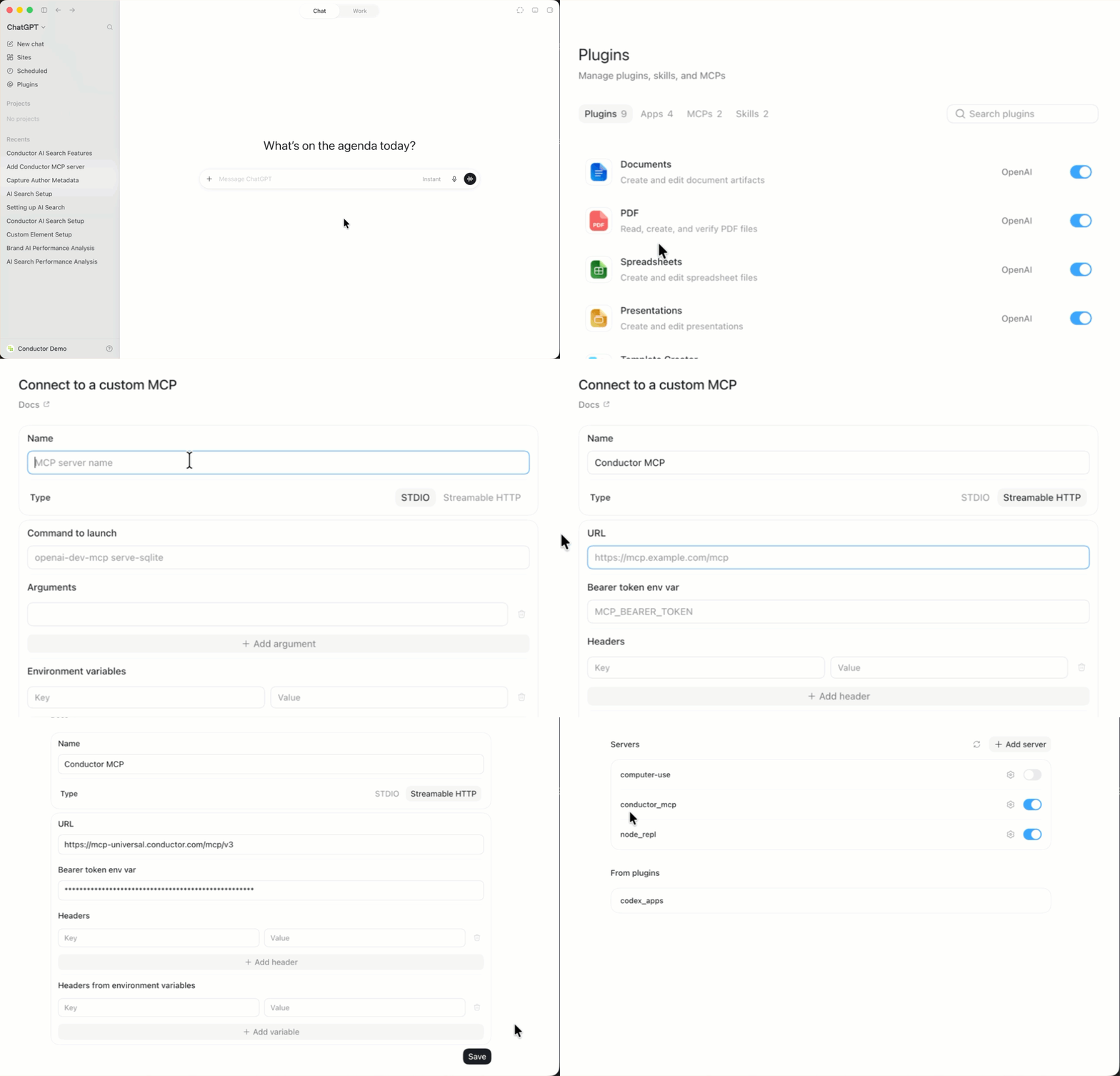
### Configure your custom connection
Before members of **Business**, **Enterprise**, and **Education** plans can use a custom plugin, an Admin user needs to perform the following steps to add the plugin to your organization's Workspace. (If your organization uses multiple ChatGPT Workspaces, this configuration would have to be done in each.)
1. Go to [**ChatGPT**](https://chatgpt.com).
2. If you are not already, sign into the paid account you want to use to configure this integration. Be sure to use the correct account (likely an account belonging to your organization and not your personal ChatGPT account).
3. From the navigation on the left, click your profile and select **Settings**.
4. On the left, click **Security and login**.
5. Scroll to the **Developer mode** section and enable **Developer mode** if not already enabled.
6. On the left, click **Plugins**, then click **Browse plugins**.
7. In the top-right, click the **Plus (+)** icon.
8. In the **New Plugin** form, complete the following:
* **Name**: `Conductor`
* **Connection**:
* Toggle above field: `Streamable HTTP`
* Field: `https://mcp-universal.conductor.com/mcp/v3`
* **Authentication**: `Access token / API key`
* **Header scheme**: `Bearer`
9. Select the **I understand and want to continue** checkbox.
10. Click **Create**. OpenAI will process your information.
11. In the authentication form that appears, enter the API token you generated above and click **Connect**.
Your connection to Conductor's MCP server is complete, in both ChatGPT and Codex.
 This is the fastest path and requires no API token. Once installed, the plugin is available in ChatGPT and Codex.
OpenAI allows organizations to choose whether non-Admin users may add specific Plugins and Apps to their accounts or whether they need to request access.
To add Conductor's plugin, your organization's ChatGPT Admins might need to allow the plugin to be installed on your account.
For more information about provisioning and permissioning plugins, refer to [OpenAI's documentation](https://help.openai.com/en/articles/20001256-plugins-in-chatgpt-and-codex).
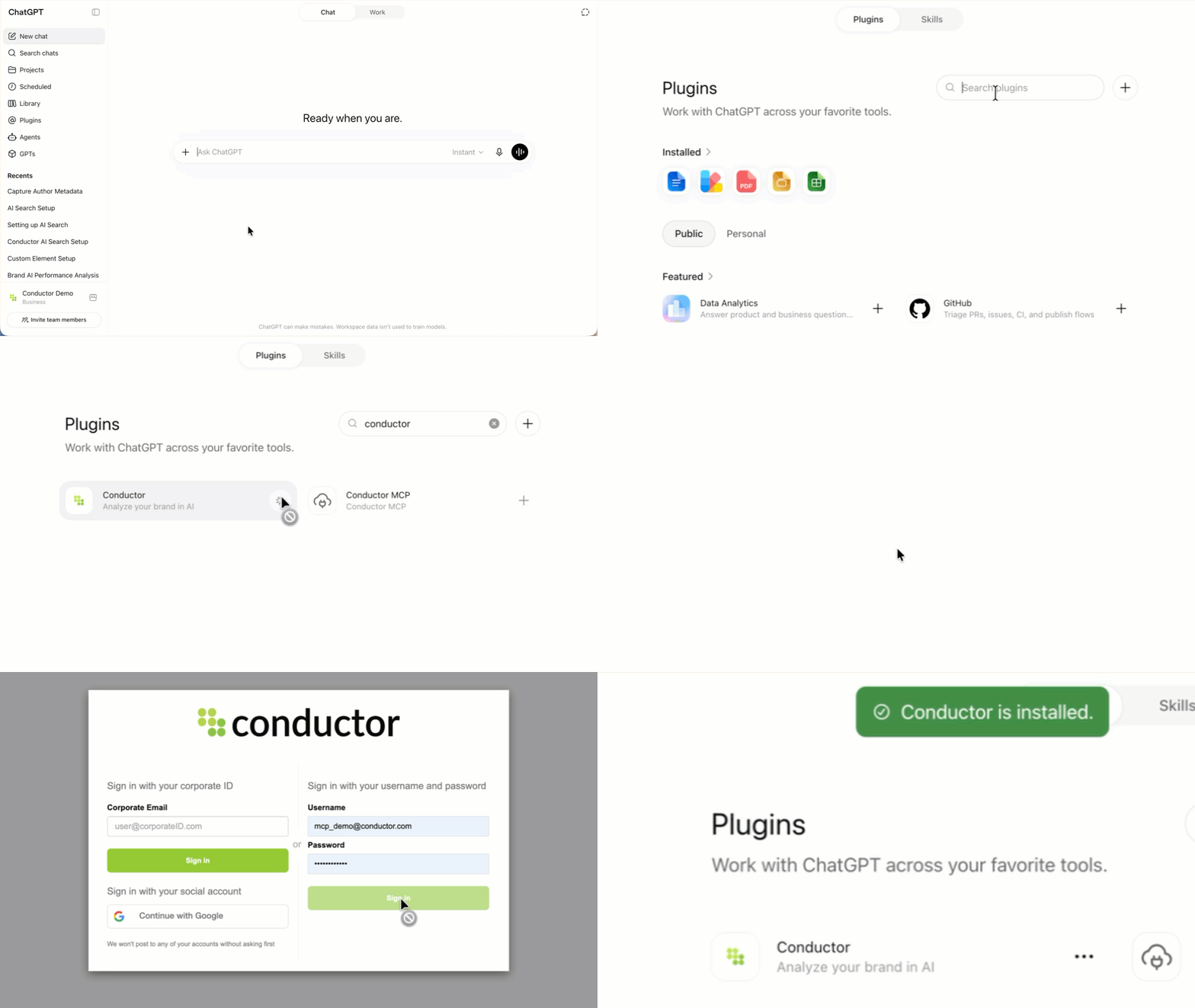
1. Go to [**ChatGPT**](https://chatgpt.com).
2. If you are not already, sign into the paid account you want to use to configure this integration. Be sure to use the correct account (likely an account belonging to your organization and not your personal ChatGPT account).
3. In the navigation menu on the left, click **Plugins**.
4. Search for and select the **Conductor** app in the **Plugins** marketplace.
**See more than one Conductor plugin?** Choose the plugin with the latest version. You can find this in the **Information** section after you click the plugin in the marketplace.
5. Click **Install plugin**.
If you see **Disabled by admin** instead of the **Install plugin** button, contact your Workspace admin to enable the plugin for your organization as described above.
6. Authenticate using your Conductor credentials.
Your connection to Conductor's MCP server is complete, in both ChatGPT and Codex.
This is the fastest path and requires no API token. Once installed, the plugin is available in ChatGPT and Codex.
OpenAI allows organizations to choose whether non-Admin users may add specific Plugins and Apps to their accounts or whether they need to request access.
To add Conductor's plugin, your organization's ChatGPT Admins might need to allow the plugin to be installed on your account.
For more information about provisioning and permissioning plugins, refer to [OpenAI's documentation](https://help.openai.com/en/articles/20001256-plugins-in-chatgpt-and-codex).
1. Go to [**ChatGPT**](https://chatgpt.com).
2. If you are not already, sign into the paid account you want to use to configure this integration. Be sure to use the correct account (likely an account belonging to your organization and not your personal ChatGPT account).
3. In the navigation menu on the left, click **Plugins**.
4. Search for and select the **Conductor** app in the **Plugins** marketplace.
**See more than one Conductor plugin?** Choose the plugin with the latest version. You can find this in the **Information** section after you click the plugin in the marketplace.
5. Click **Install plugin**.
If you see **Disabled by admin** instead of the **Install plugin** button, contact your Workspace admin to enable the plugin for your organization as described above.
6. Authenticate using your Conductor credentials.
Your connection to Conductor's MCP server is complete, in both ChatGPT and Codex.
 ## Query your data
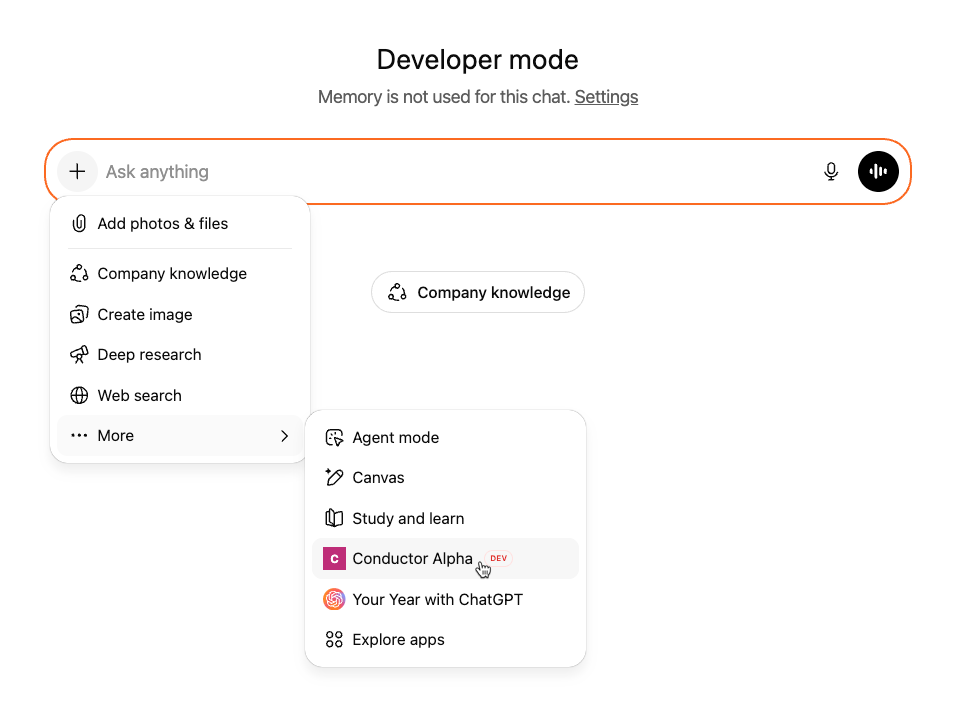
**In ChatGPT**, click the **+** icon, and in the **More** menu, select your **Conductor** plugin.
## Query your data
**In ChatGPT**, click the **+** icon, and in the **More** menu, select your **Conductor** plugin.
 **In Codex**, Conductor's tools are available directly in your session. Ask Codex about your tracked configurations, AI brand and citation insights, or keyword insights, and it will call the Conductor MCP tools to answer.
## FAQs
[Review this feature's frequently asked questions](/docs/mcp/mcp-faqs/)
## Change Log
* **2026-07-30 · Added** — Conductor's plugin for ChatGPT and Codex now includes the `keyword_insights` tool. Traditional search data—rankings, seasonality, SERP result types, and competitive rankings—no longer requires a custom connector.
* **2026-07-08 · Added** — Setup guide for connecting Conductor's MCP to OpenAI's Codex through a custom connector.
* **2026-07-08 · Changed** — Setup now uses bearer-token authentication. Generate an API token in Conductor and supply it when adding the connector.
**In Codex**, Conductor's tools are available directly in your session. Ask Codex about your tracked configurations, AI brand and citation insights, or keyword insights, and it will call the Conductor MCP tools to answer.
## FAQs
[Review this feature's frequently asked questions](/docs/mcp/mcp-faqs/)
## Change Log
* **2026-07-30 · Added** — Conductor's plugin for ChatGPT and Codex now includes the `keyword_insights` tool. Traditional search data—rankings, seasonality, SERP result types, and competitive rankings—no longer requires a custom connector.
* **2026-07-08 · Added** — Setup guide for connecting Conductor's MCP to OpenAI's Codex through a custom connector.
* **2026-07-08 · Changed** — Setup now uses bearer-token authentication. Generate an API token in Conductor and supply it when adding the connector.