> ## Documentation Index
> Fetch the complete documentation index at: https://www.conductor.com/docs/llms.txt
> Use this file to discover all available pages before exploring further.
# Copilot
> Set up Conductor's MCP with Microsoft's Copilot.
You can configure connections to Conductor with ChatGPT with an agent in Copilot or an app in Teams.
### Available tools
#### Connections to Conductor's agent and app in Copilot
Connections with the native Copilot agent and app currently include the following tools:
* `tracked_configs`
* `ai_brand_insights`
* `ai_citation_insights`
[Learn more about the data you can access through these tools](/mcp/what-data-is-available-in-conductors-mcp).
## Configure Conductor in Copilot
Because Copilot exists across several surfaces in Microsoft's ecosystem, the specific instructions differ in small ways. You can add Conductor as an "agent" to Microsoft 365 Copilot, to Microsoft Teams as an "app", or do both.
* Not all Microsoft subscriptions include Copilot. Your organization might not have access even if you are subscribed to Microsoft 365. Check with your IT team to learn more.
* Some organizations limit users' access to adding agents. You might have to click **Request approval** and wait for your IT team to make it available to your organization.
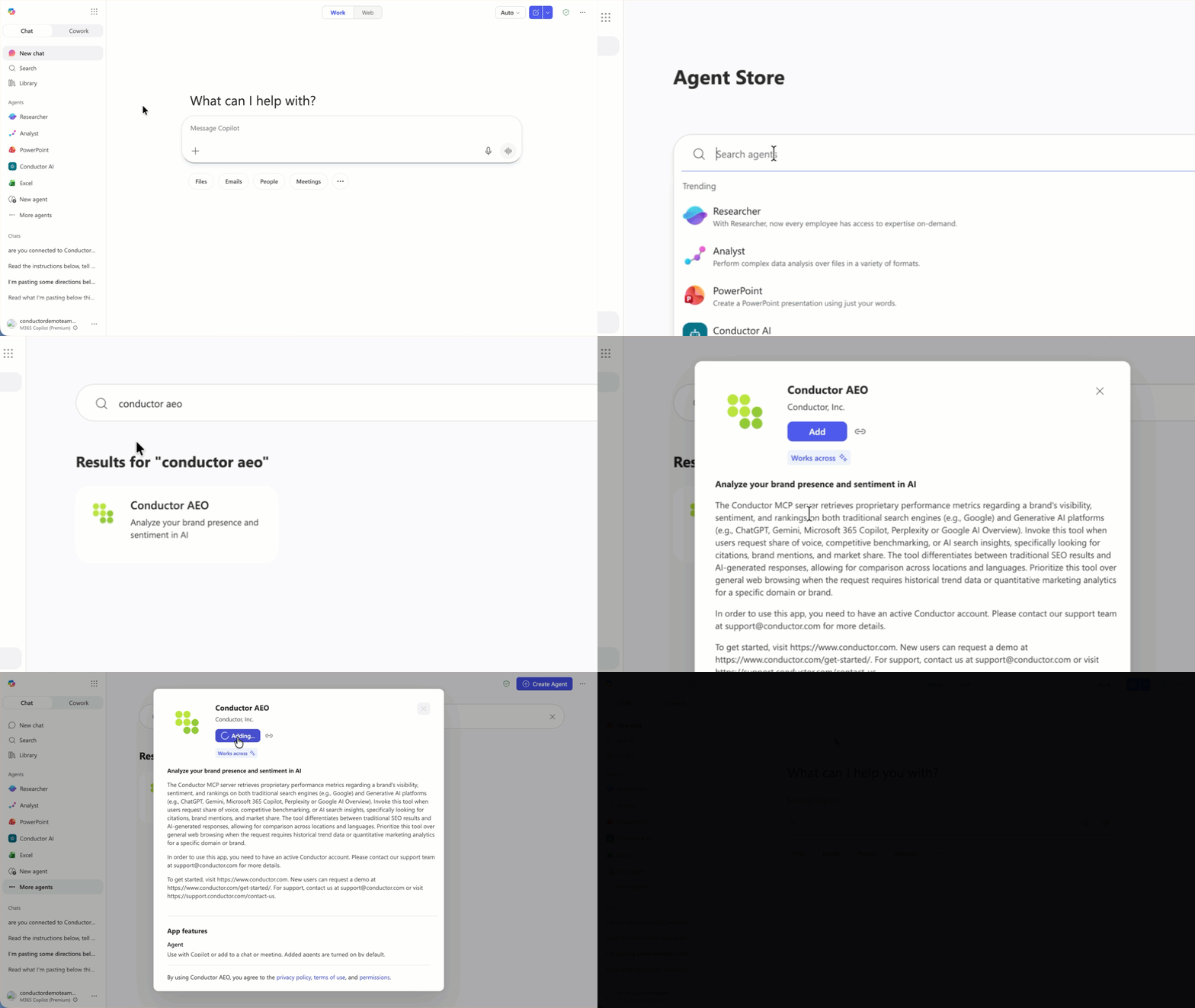
### Adding Conductor to Copilot in Microsoft 365
1. Go to **[Copilot](https://m365.cloud.microsoft/chat/) in Microsoft 365**.
2. If you are not already, sign into the paid account you want to use to configure this integration. Be sure to use the correct account (likely an account belonging to your organization and not your personal Copilot account).
3. In the **Agents** menu on the left, click **More agents**. You are taken to the **Agent Store**.
4. In the search bar, enter and select **Conductor AEO**.
5. Click **Add** or, if necessary, **Request approval**.
6. Go to [**Copilot**](https://copilot.microsoft.com/).
7. If you are not already, sign into the paid account you want to use to configure this integration. Be sure to use the correct account (likely an account belonging to your organization and not your personal Copilot account).
8. In the **Agents** menu on the left, click **More agents**. You are taken to the **Agent Store**.
9. In the search bar, enter and select **Conductor AEO**.
10. Click **Add** or, if necessary, **Request approval**.
Conductor is now connected to Copilot—though you may need to wait a few moments and reload your browser to see the agent added to your **Agents** menu.
 ### Adding Conductor to Microsoft Teams
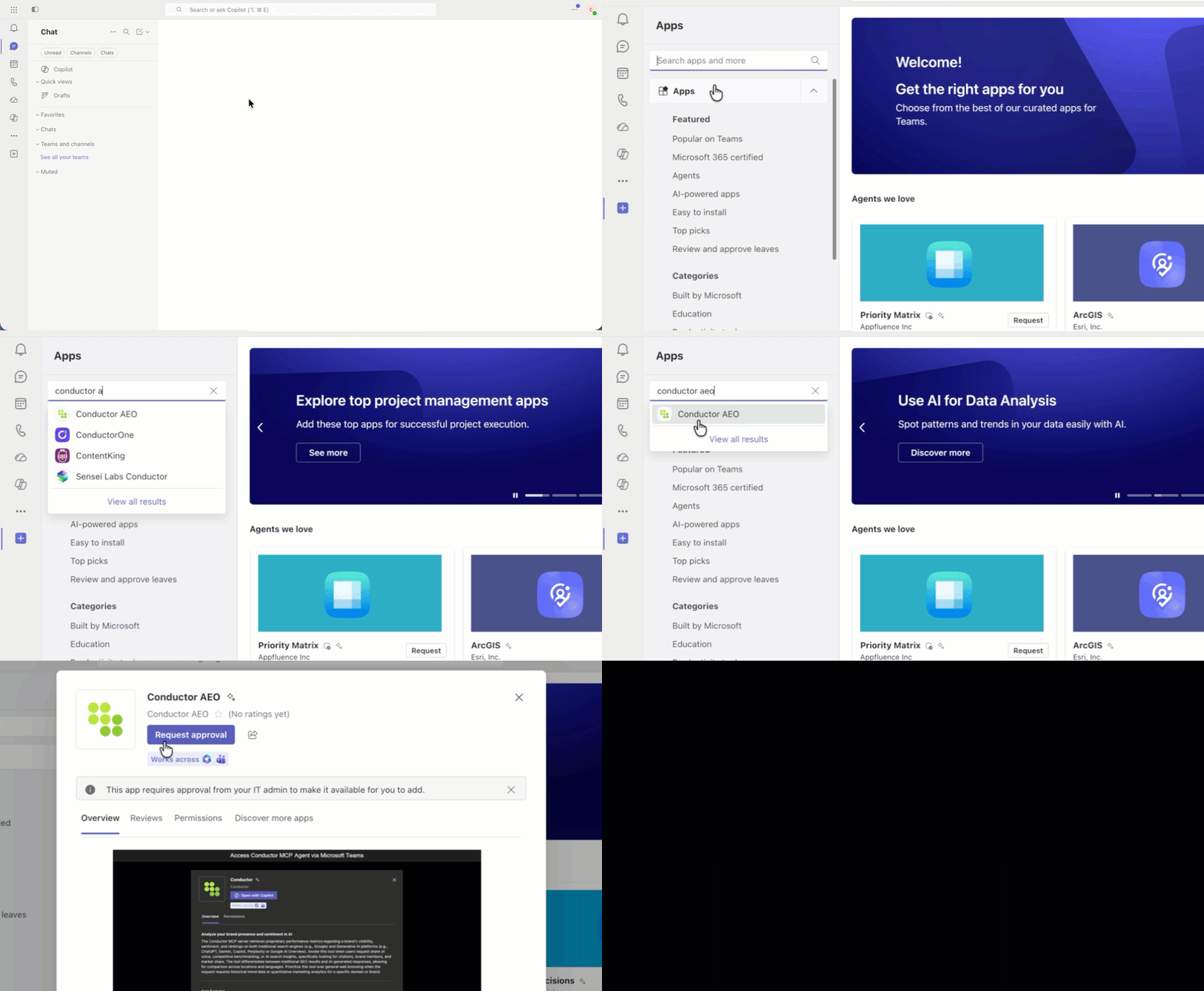
1. Go to [**Teams**](https://teams.cloud.microsoft/).
2. If you are not already, sign into the paid account you want to use to configure this integration. Be sure to use the correct account (likely an account belonging to your organization and not your personal Microsoft account).
3. In the navigation menu on the left, click the **Plus (+)** icon to add an app. You are taken to the **App Store**.
4. In the search bar on the left, enter and select **Conductor AEO**.
5. Click **Add** or, if necessary, **Request approval**.
6. Go to [**Teams**](https://teams.cloud.microsoft/).
7. If you are not already, sign into the paid account you want to use to configure this integration. Be sure to use the correct account (likely an account belonging to your organization and not your personal Microsoft account).
8. In the navigation menu on the left, click the **Plus (+)** icon to add an app. You are taken to the **App Store**.
9. In the search bar on the left, enter and select **Conductor AEO**.
10. Click **Add** or, if necessary, **Request approval**.
Conductor is now connected to Copilot—though you may need to wait a few moments and reload your browser to see the app available in your account.
### Adding Conductor to Microsoft Teams
1. Go to [**Teams**](https://teams.cloud.microsoft/).
2. If you are not already, sign into the paid account you want to use to configure this integration. Be sure to use the correct account (likely an account belonging to your organization and not your personal Microsoft account).
3. In the navigation menu on the left, click the **Plus (+)** icon to add an app. You are taken to the **App Store**.
4. In the search bar on the left, enter and select **Conductor AEO**.
5. Click **Add** or, if necessary, **Request approval**.
6. Go to [**Teams**](https://teams.cloud.microsoft/).
7. If you are not already, sign into the paid account you want to use to configure this integration. Be sure to use the correct account (likely an account belonging to your organization and not your personal Microsoft account).
8. In the navigation menu on the left, click the **Plus (+)** icon to add an app. You are taken to the **App Store**.
9. In the search bar on the left, enter and select **Conductor AEO**.
10. Click **Add** or, if necessary, **Request approval**.
Conductor is now connected to Copilot—though you may need to wait a few moments and reload your browser to see the app available in your account.
 ## Query Conductor data with Copilot
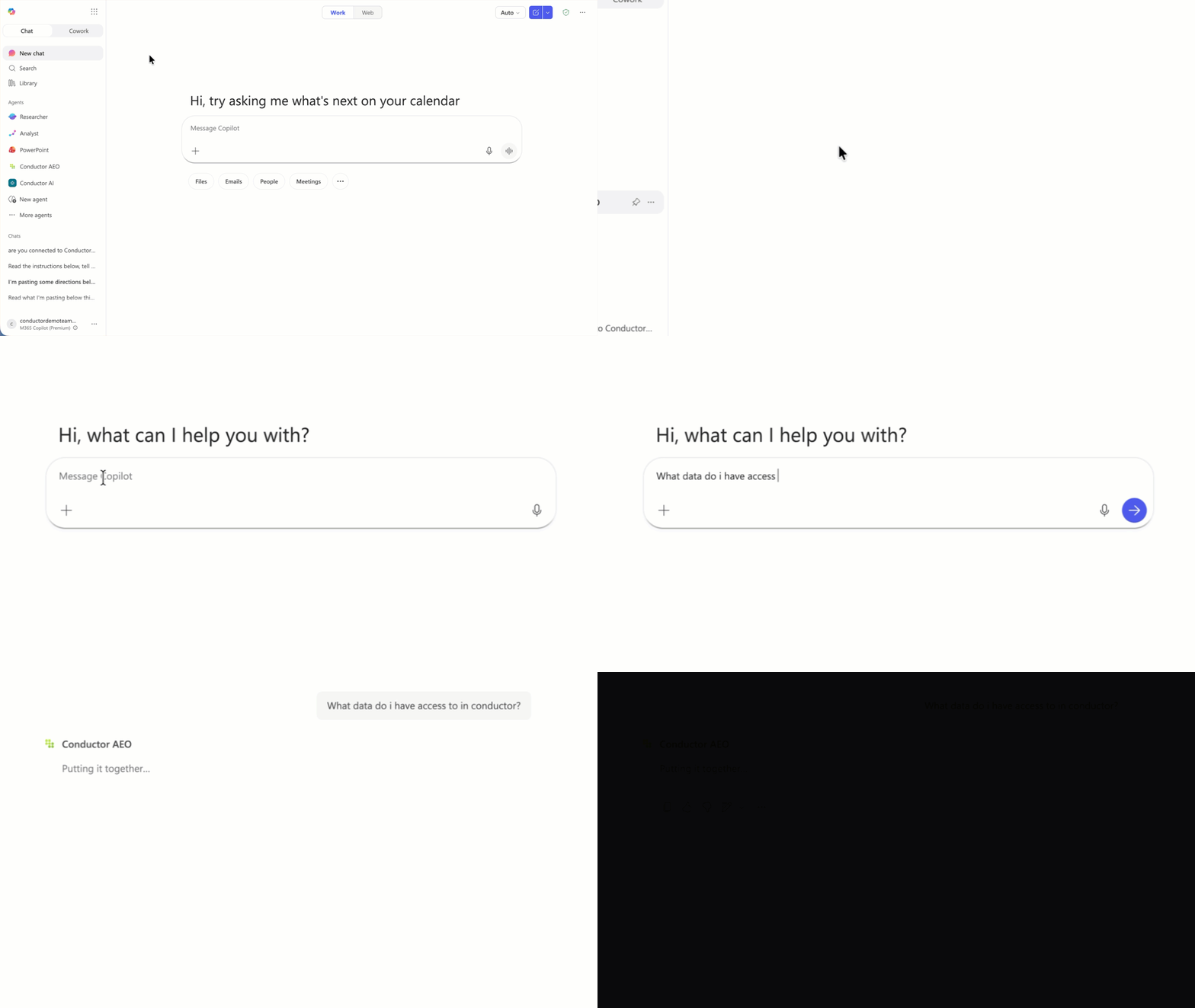
1. In your surface of choice (Copilot or Teams), select the **Conductor AEO agent or** app to open a chat.
2. Enter a query.
## Query Conductor data with Copilot
1. In your surface of choice (Copilot or Teams), select the **Conductor AEO agent or** app to open a chat.
2. Enter a query.
 ## FAQs
[Review this feature's frequently asked questions](/mcp/mcp-faqs)
## FAQs
[Review this feature's frequently asked questions](/mcp/mcp-faqs)