> ## Documentation Index
> Fetch the complete documentation index at: https://www.conductor.com/docs/llms.txt
> Use this file to discover all available pages before exploring further.
# Adobe Analytics in Conductor Monitoring
> Connect Adobe Analytics so Conductor Monitoring can show your traffic data alongside technical SEO reporting.
With the Adobe Analytics integration in Conductor Monitoring, you can pull in your website's data from Adobe Analytics to work with it directly inside the platform.
### Note!
Conductor also has an integration between Adobe Analytics and our Conductor Intelligence product. This article is about Conductor Monitoring's integration with Adobe Analytics. If you are looking for our Conductor Intelligence integration, you can find it [in this article](/docs/intelligence/integrate-adobe-analytics-with-conductor-intelligence/).
## Metrics
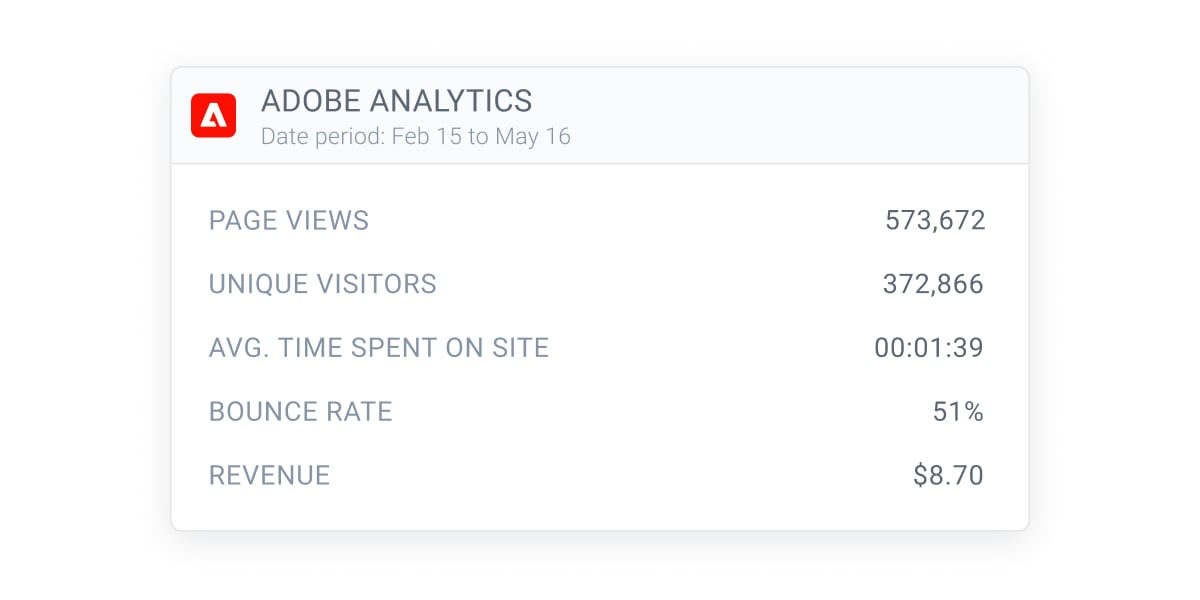
Conductor Monitoring displays only the following metrics from Adobe Analytics:
* Page Views
* Unique Visitors
* Average time spent on site
* Bounce rate
* Revenue
You can integrate any number of these metrics. Any metrics not included will appear as null in Conductor Monitoring results.
## Using the Adobe Analytics data
The Adobe Analytics data is available in the **Pages** screen:
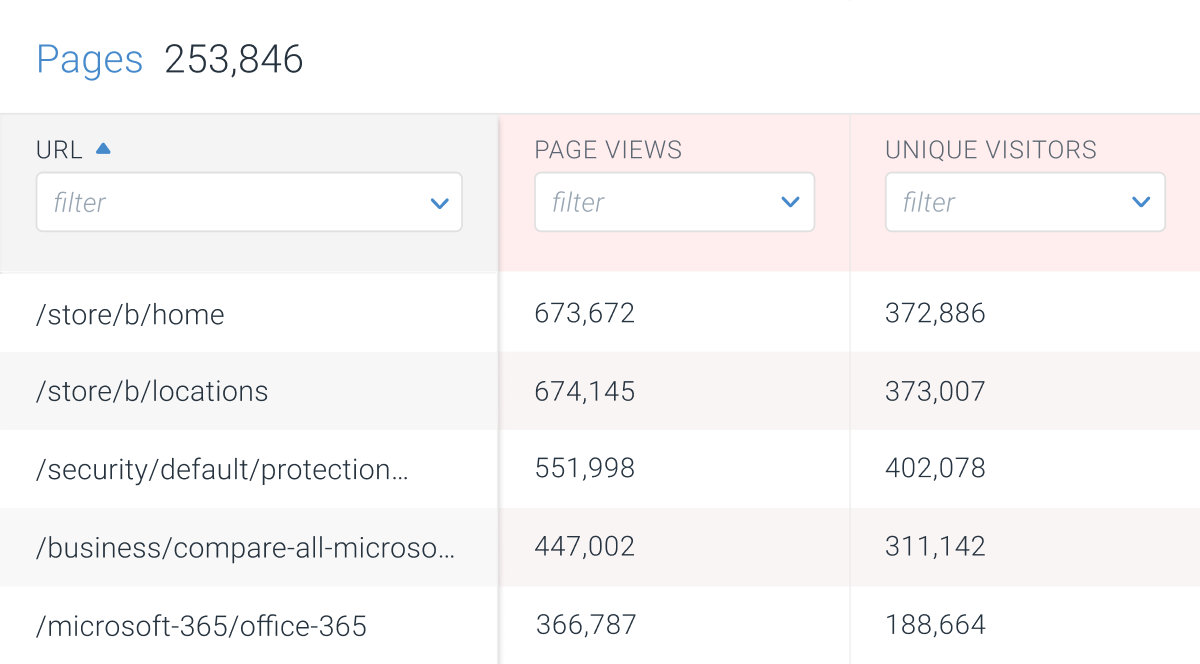 The Adobe Analytics data is always aggregated for a lookback period of the past 90 days. You can see the exact date range for which the data is displayed on the **Page detail** screen:
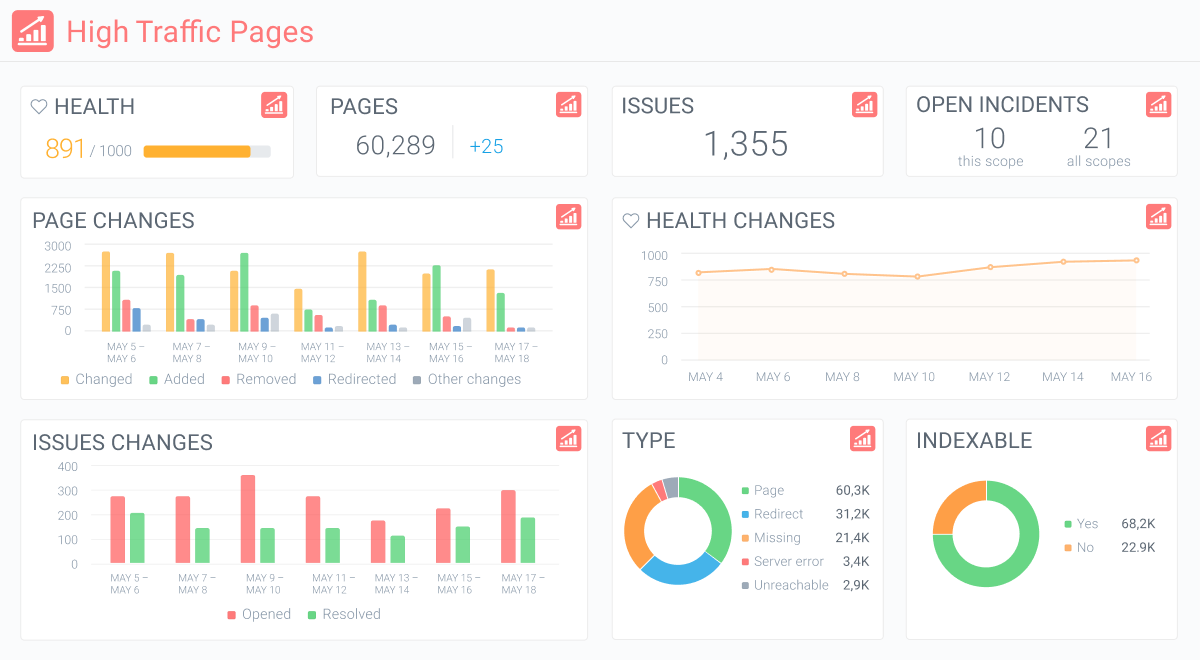
 You can also [create segments](/docs/monitoring/segments/) based on Adobe Analytics data, which can be very useful when targeting your highest performing pages.
 ## Setting up the Adobe Analytics integration in Conductor Monitoring
To connect Conductor Monitoring to Adobe Analytics, you will need to set up a Service Account integration.
A Service Account is a special type of Adobe integration which provides applications like Conductor Monitoring limited access to a specific Adobe product – in this case Adobe Analytics. You can manage and monitor the access from your [Adobe Admin Console](https://adminconsole.adobe.com/).
The process of configuring the Adobe Analytics integration consists of two phases:
* Setting up the Service Account integration in your Adobe Analytics
* Setting up the connection to the Service Account in Conductor Monitoring
### Setting up the Service Account integration in your Adobe Analytics
#### Create a new profile in your Adobe Admin Console
Please follow the steps below to configure the Service Account integration in your Adobe Analytics.
1. Go to the Adobe [Admin Console](https://adminconsole.adobe.com/) and select the Adobe Analytics product:\\
## Setting up the Adobe Analytics integration in Conductor Monitoring
To connect Conductor Monitoring to Adobe Analytics, you will need to set up a Service Account integration.
A Service Account is a special type of Adobe integration which provides applications like Conductor Monitoring limited access to a specific Adobe product – in this case Adobe Analytics. You can manage and monitor the access from your [Adobe Admin Console](https://adminconsole.adobe.com/).
The process of configuring the Adobe Analytics integration consists of two phases:
* Setting up the Service Account integration in your Adobe Analytics
* Setting up the connection to the Service Account in Conductor Monitoring
### Setting up the Service Account integration in your Adobe Analytics
#### Create a new profile in your Adobe Admin Console
Please follow the steps below to configure the Service Account integration in your Adobe Analytics.
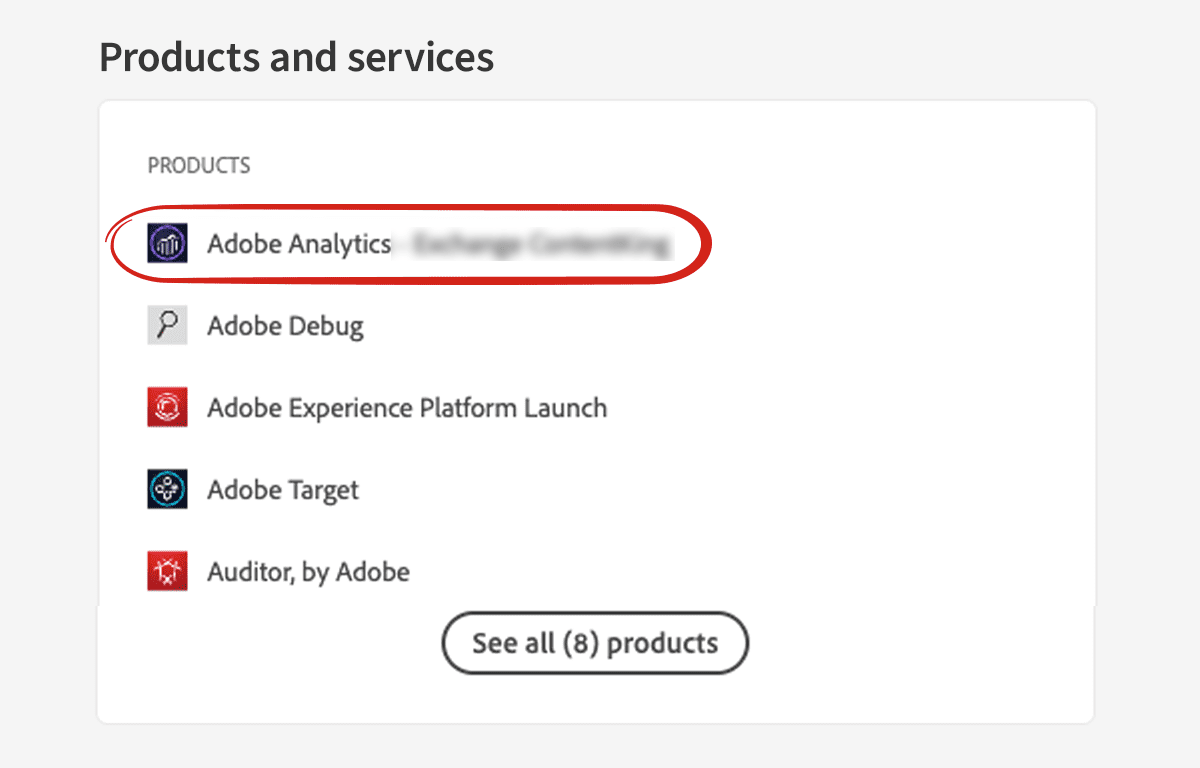
1. Go to the Adobe [Admin Console](https://adminconsole.adobe.com/) and select the Adobe Analytics product:\\
 2. In the **Product Profiles** section, create a new profile for Conductor Monitoring using the **New Profile** button. You'll give it a name and, optionally, a description and click **Save**.\\
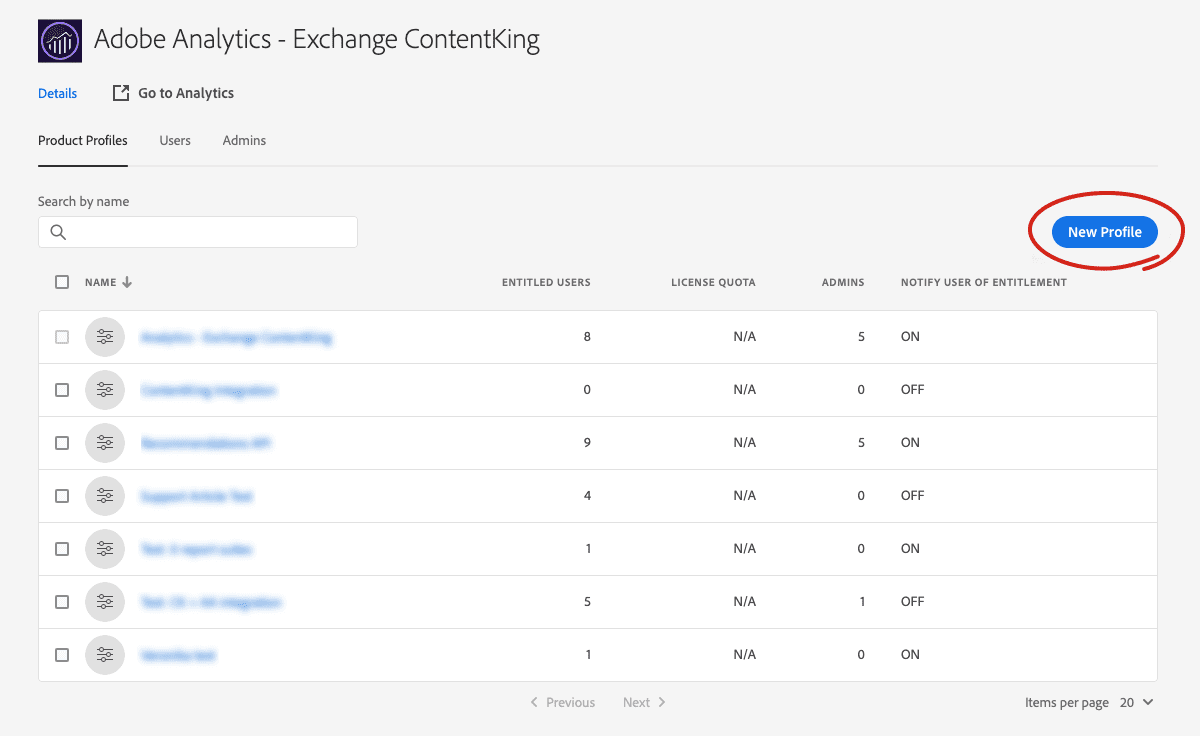 3. In the profile list, click the new profile.
4. Go to the **Permissions** tab:\\
3. In the profile list, click the new profile.
4. Go to the **Permissions** tab:\\
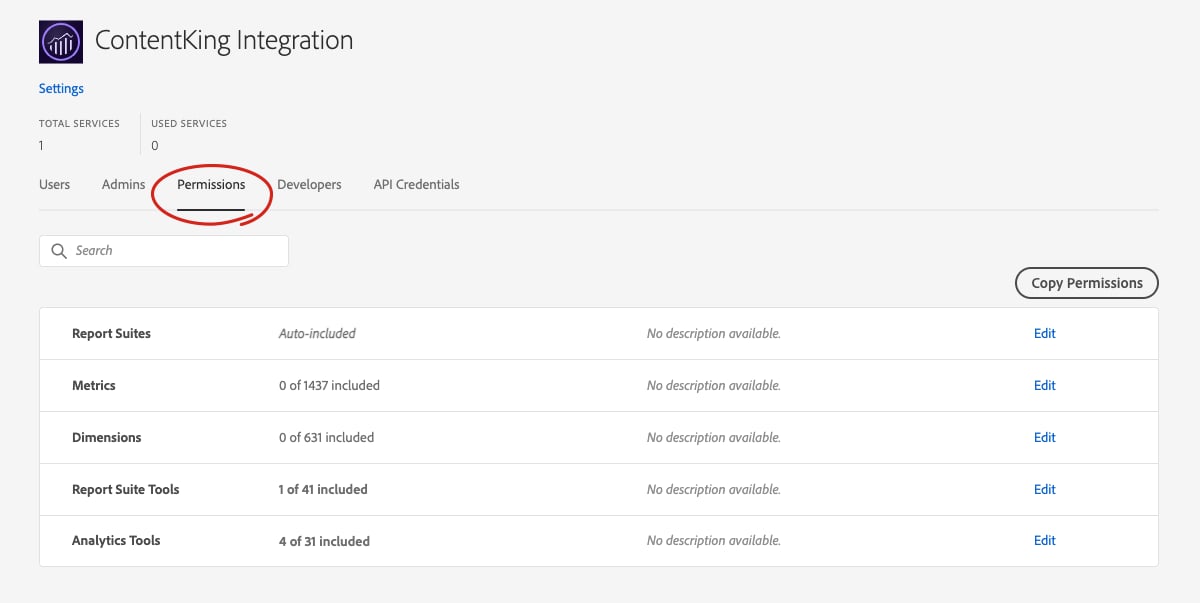 5. Click the **Edit** icon on one of the lines, and select **Auto-include: On** for Report suites, Metrics, and Dimensions.\\
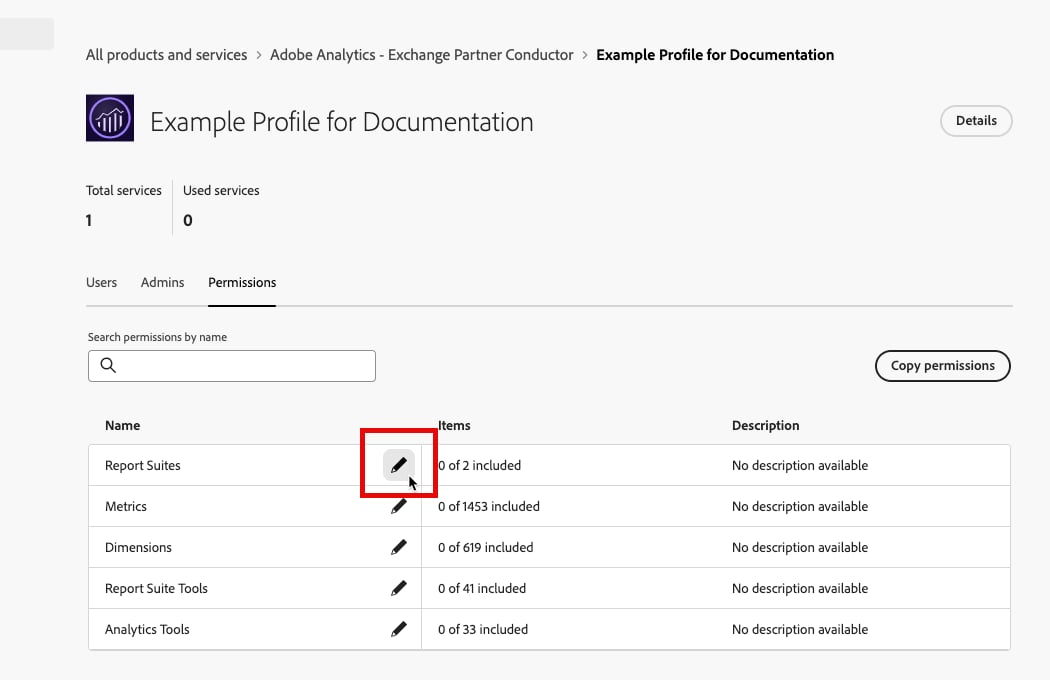 6. In the **Report Suite Tools** tab, add **Report Suite Mgmt** among the included permissions:\\
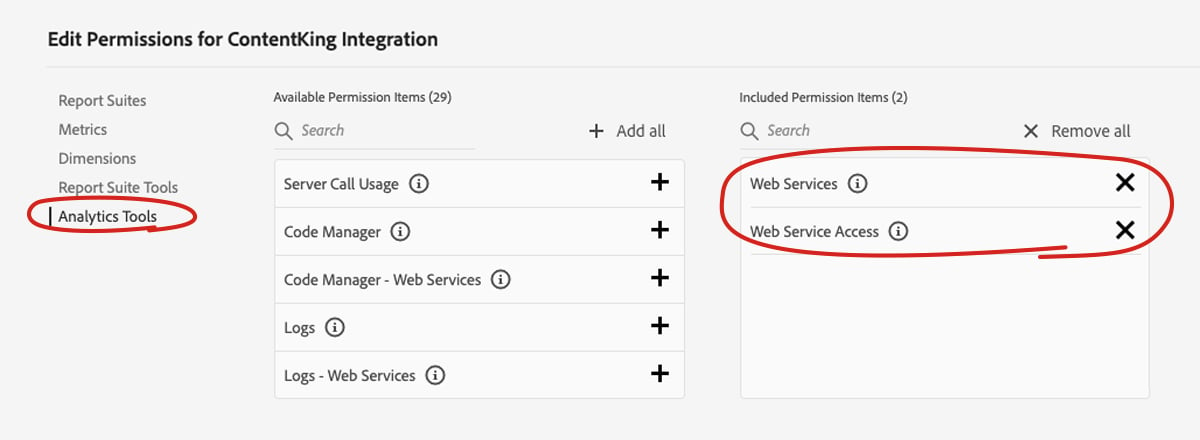
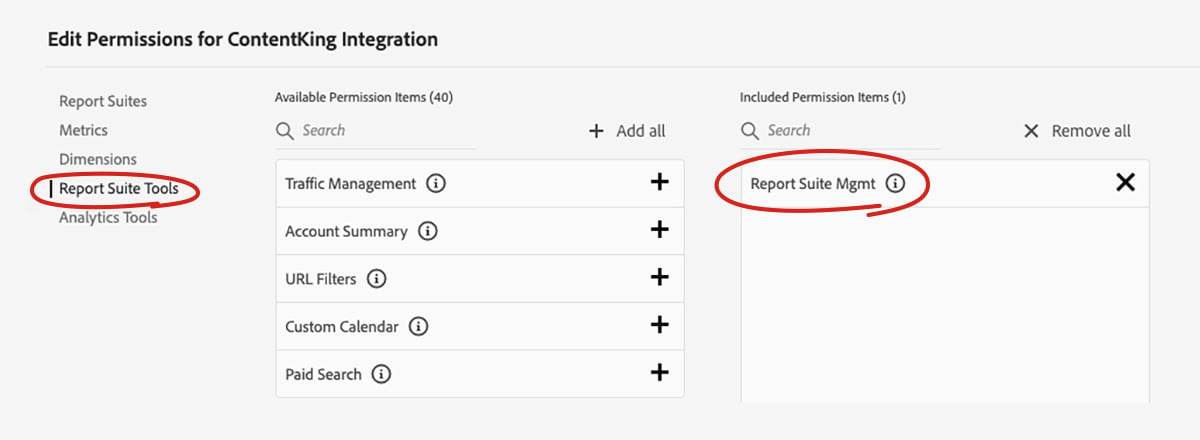 7. In the **Analytics Tools** tab, add **Web Services** and **Web Service Access** among the included permissions:\\
 8. Click **Save**.
#### Create a Project with access to Adobe Analytics
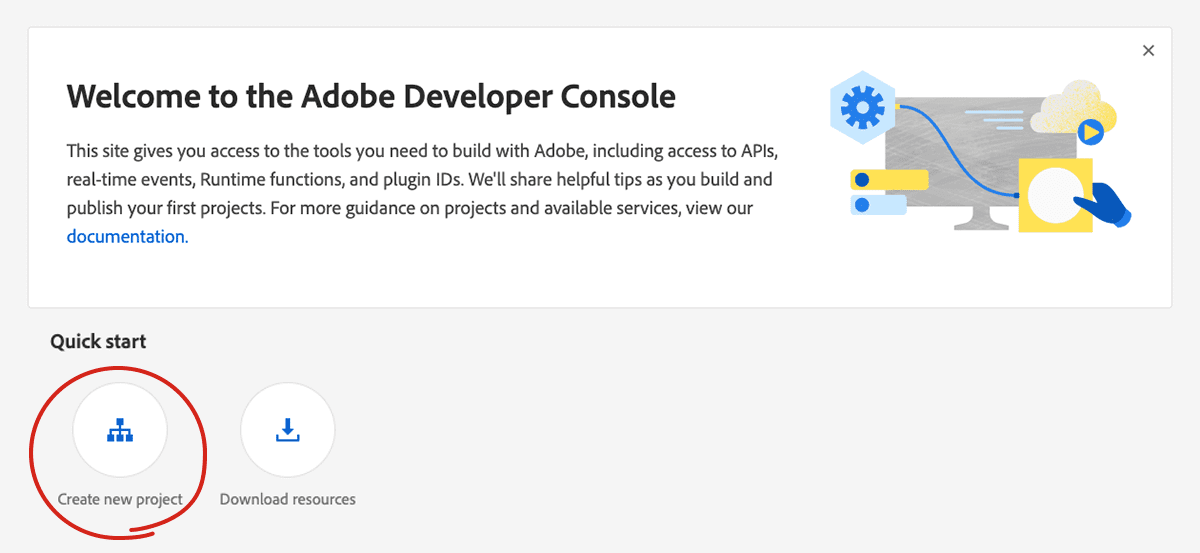
1. Go to the [Adobe Developer console](https://console.adobe.io/) and click **Create new project**. **Important:** Make sure that the same organization is chosen as the one the profile was created for.\\
8. Click **Save**.
#### Create a Project with access to Adobe Analytics
1. Go to the [Adobe Developer console](https://console.adobe.io/) and click **Create new project**. **Important:** Make sure that the same organization is chosen as the one the profile was created for.\\
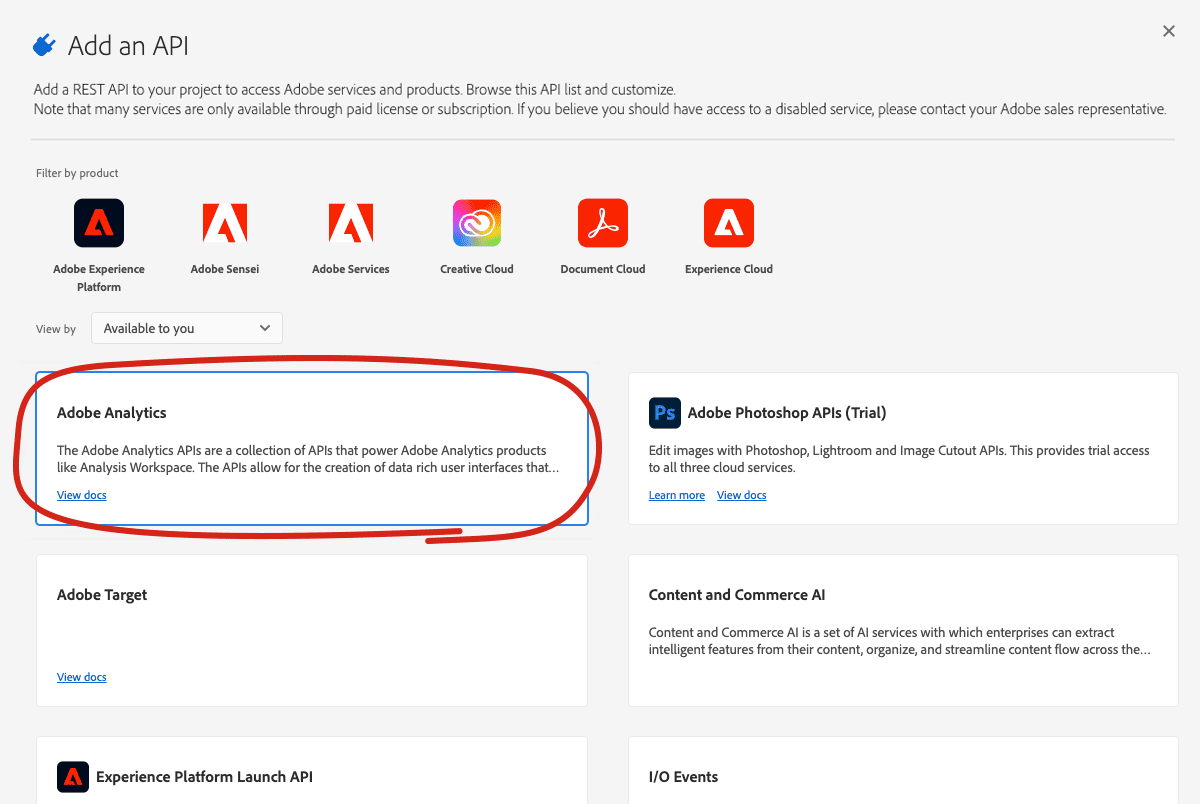
 2. Click **Add API** and select **Adobe Analytics** as the API:\\
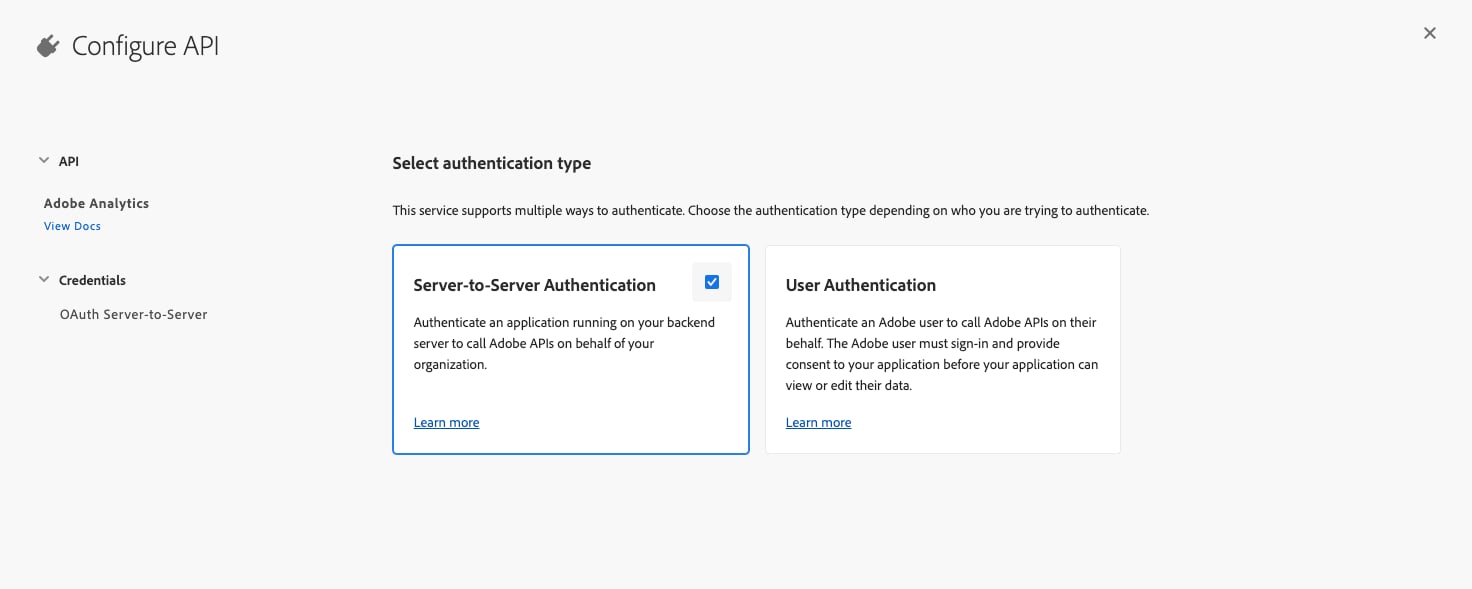
 3. In the next step, select **Server-to-Server Authentication** as the type of authentication:\\
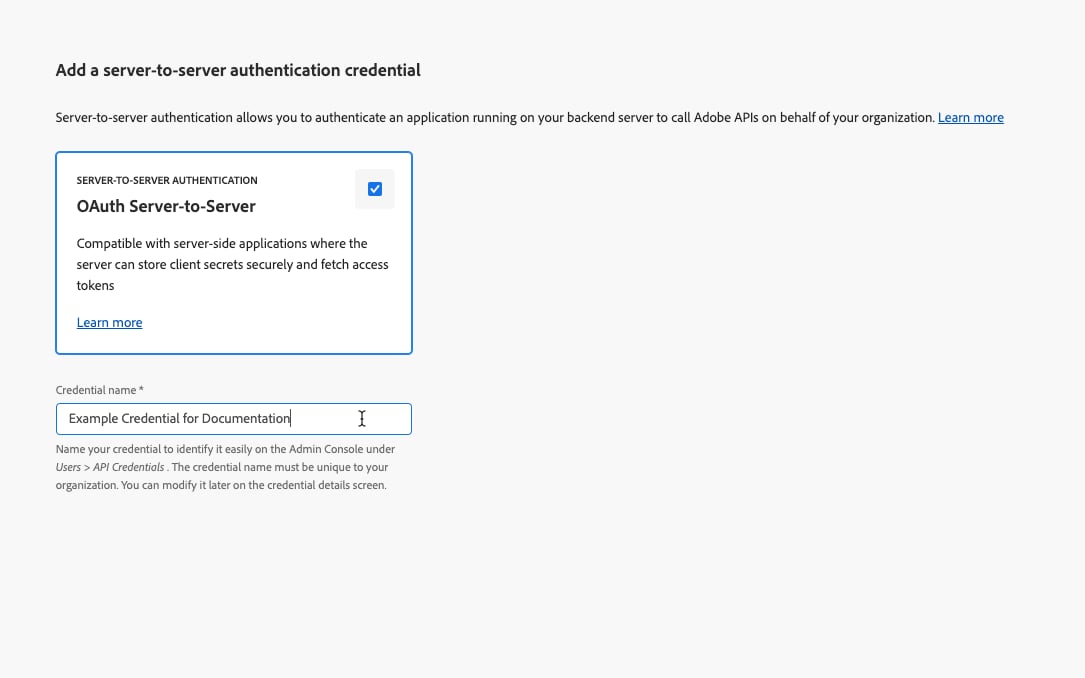
 4. In the next step, add a **Credential name** for your project (**OAuth Server-to-Server** should be selected by default).\\
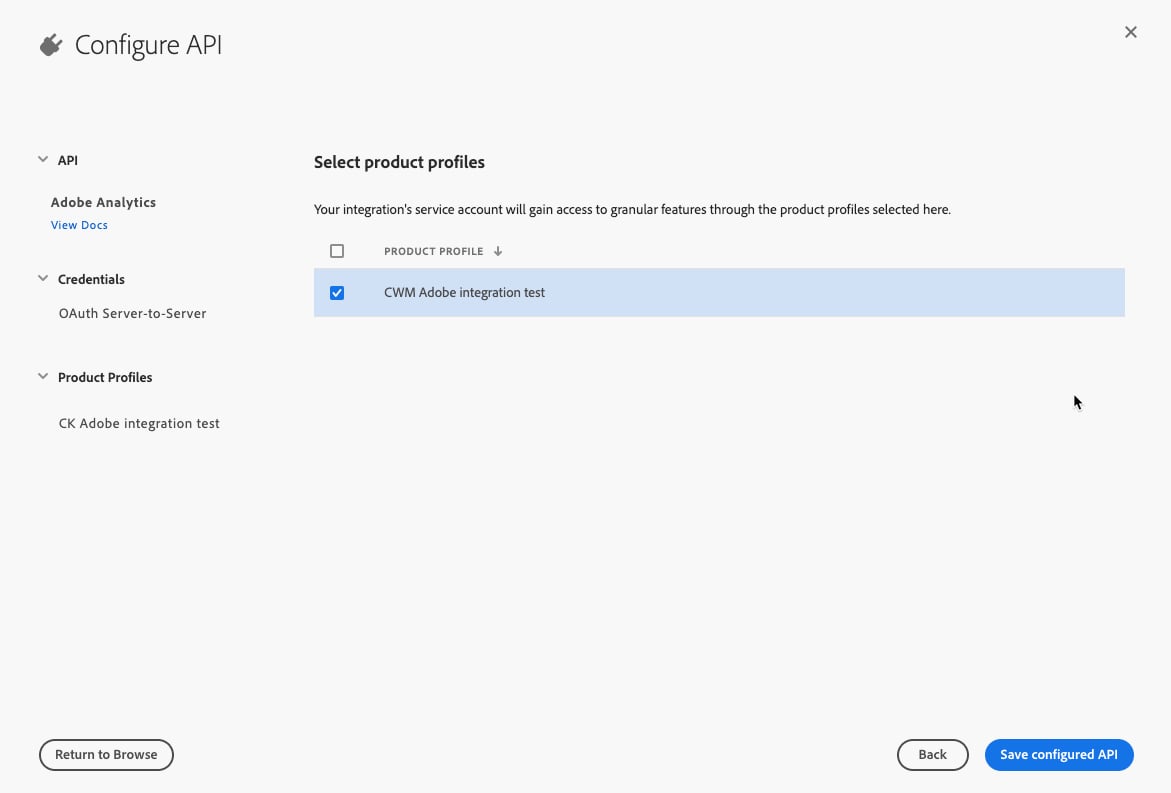
 5. In the final step, select the profile which you created in the first step and click **Save configured API**:\\
 #### Retrieve your credentials
On the left, under the **Credentials** section, click **OAuth Server-to-Server**. Here you will find the credentials which you will need to connect Conductor Monitoring to this Service Account. Just click the **Copy** icon on the right to copy the credentials for your use in the next section:
#### Retrieve your credentials
On the left, under the **Credentials** section, click **OAuth Server-to-Server**. Here you will find the credentials which you will need to connect Conductor Monitoring to this Service Account. Just click the **Copy** icon on the right to copy the credentials for your use in the next section:
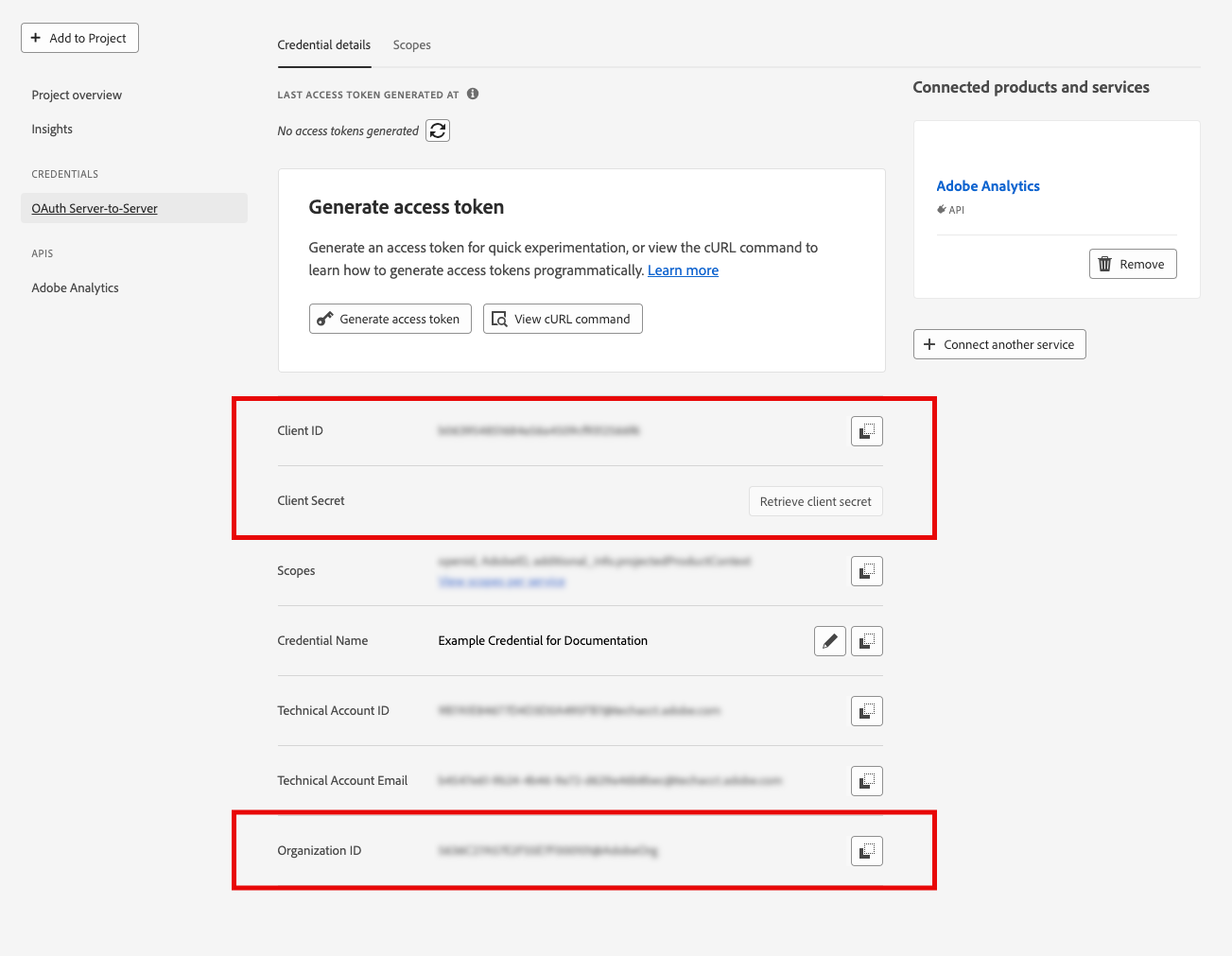 You will need the following credentials:
* **Client ID**
* **Client Secret**
* **Organization ID**
### Setting up the connection to the Service Account in Conductor Monitoring
To connect Conductor Monitoring to the Service Account in your Adobe Analytics which you created in the previous phase, follow the steps below.
1. Go to the **Integrations** tab of the **Settings** section.
2. In the **Adobe Analytics** box, click **Edit**, and then **connect**:\\
You will need the following credentials:
* **Client ID**
* **Client Secret**
* **Organization ID**
### Setting up the connection to the Service Account in Conductor Monitoring
To connect Conductor Monitoring to the Service Account in your Adobe Analytics which you created in the previous phase, follow the steps below.
1. Go to the **Integrations** tab of the **Settings** section.
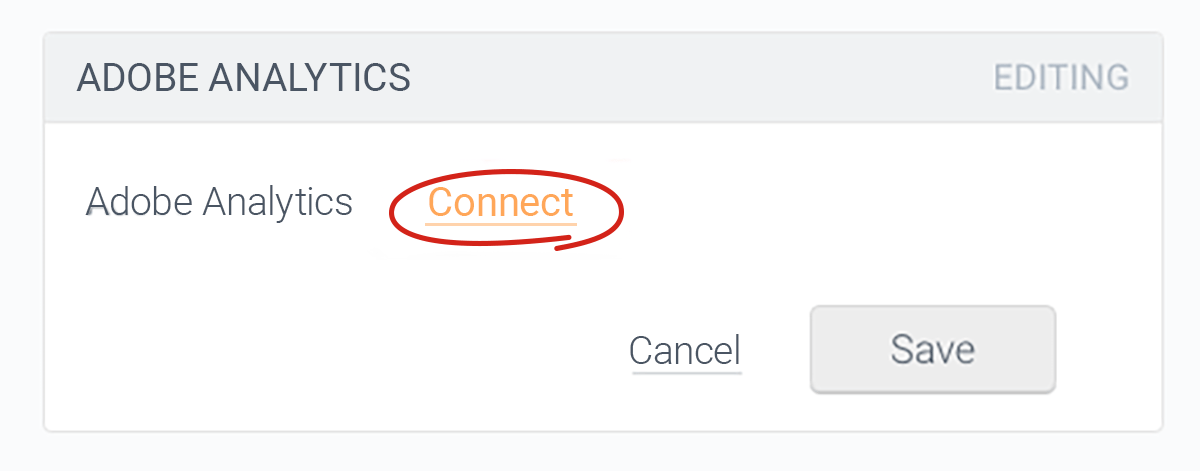
2. In the **Adobe Analytics** box, click **Edit**, and then **connect**:\\
 3. Fill in the credentials listed [in the Retrieve your credentials section](#retrieve-your-credentials) above, and click **Connect**.\\
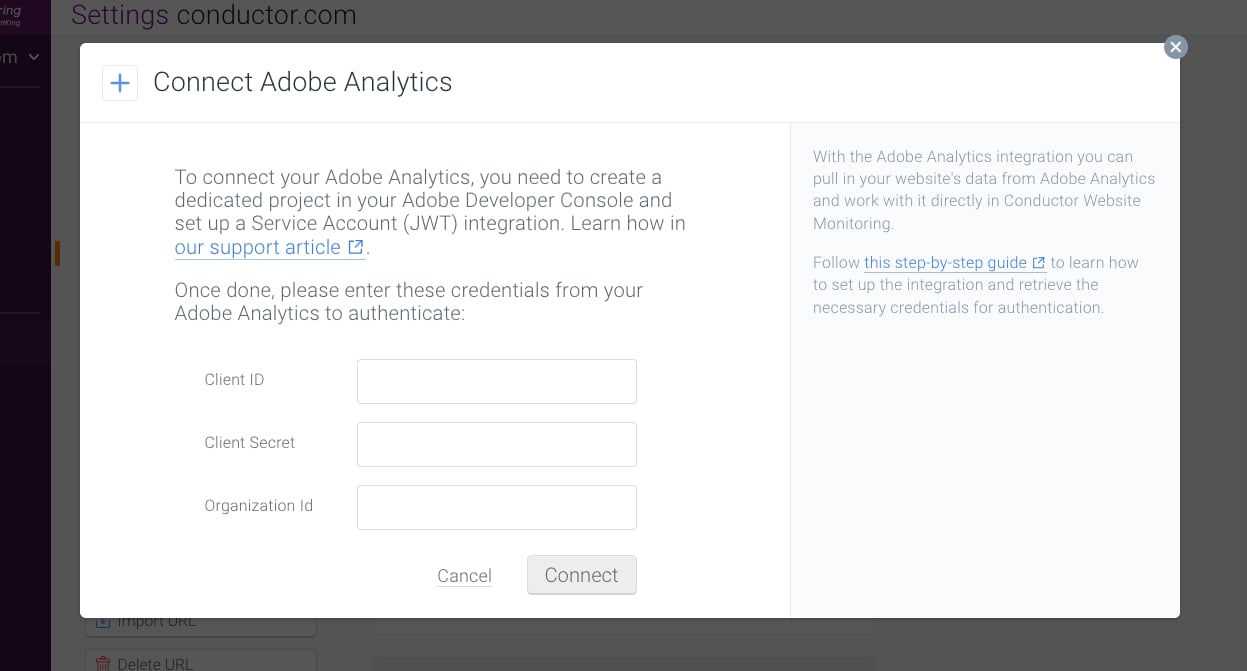 Once the credentials are filled in and Conductor Monitoring is connected to your Adobe Analytics account, the integration is activated.
#### Choose the Adobe data to use in Conductor Monitoring
As the final step to enable the integration, set the following values:
Once the credentials are filled in and Conductor Monitoring is connected to your Adobe Analytics account, the integration is activated.
#### Choose the Adobe data to use in Conductor Monitoring
As the final step to enable the integration, set the following values:
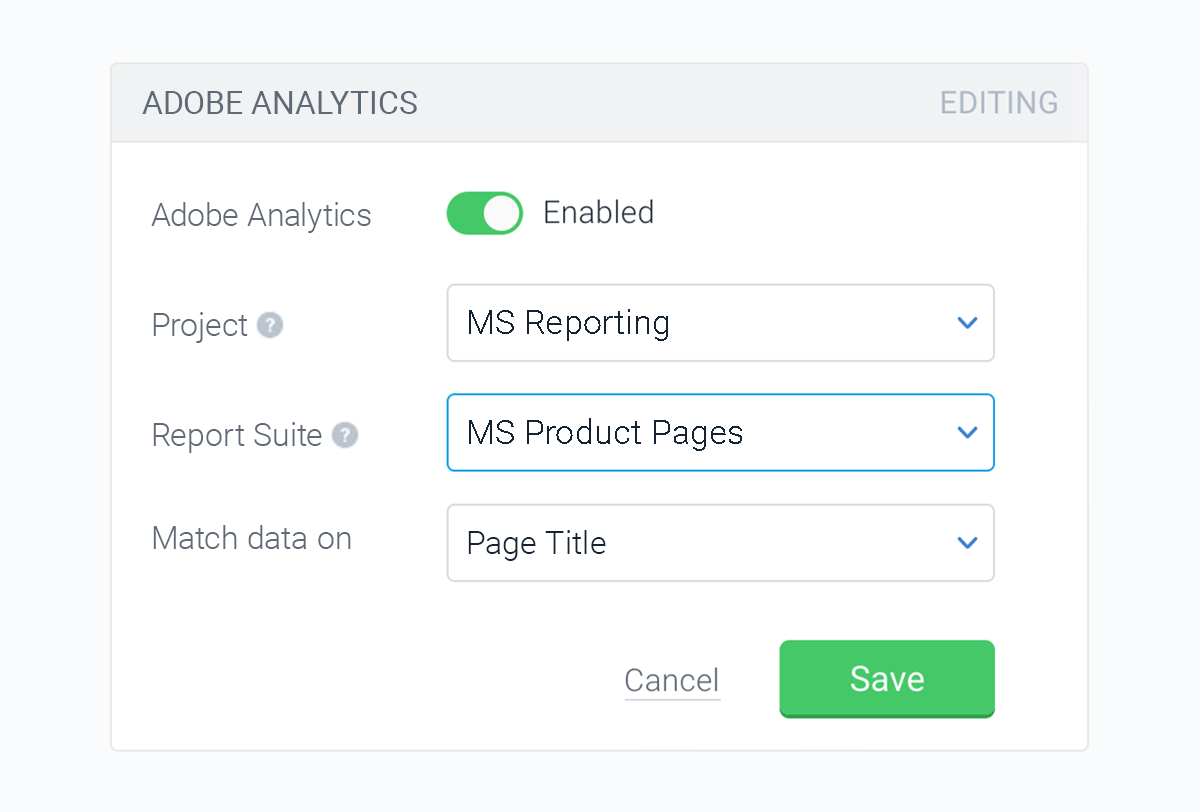 * **Project**. Choose the name of the project in the Adobe Developer Console, through which you provided Conductor Monitoring access to the Report Suites in your Adobe Analytics.
* **Report Suite**. This is usually the website you want to connect to the integration. Make sure to choose the Report Suite with the entire website so that Conductor Monitoring can display the analytics data for all pages.
* **Match data on**. This setting determines how the analytics data will be matched to your pages. There are two options which you can select: **Page Title** or **Full URL**.
* By default, Adobe Analytics matches data based on Page Titles. This is therefore also the default setting in Conductor Monitoring. This means that if there are two pages with the same page title, their analytics data will be aggregated and Conductor Monitoring will be showing the same values for these pages.
* You can also match the data based on the full URL. However, this option is not supported by Adobe out of the box and *must be configured with a custom variable (eVar)* which contains the full URL. You can read more about this in [Adobe’s documentation](https://experienceleague.adobe.com/docs/analytics/admin/admin-tools/conversion-variables/conversion-var-admin.html?lang=en).
Once you select the correct Project, Report Suite, and the way of matching the data, click **Save**.
Your analytics data will soon become available in your Conductor Monitoring, and you will be able to use the Adobe Analytics columns to filter and create segments, as seen [above](#using-the-adobe-analytics-data).
* **Project**. Choose the name of the project in the Adobe Developer Console, through which you provided Conductor Monitoring access to the Report Suites in your Adobe Analytics.
* **Report Suite**. This is usually the website you want to connect to the integration. Make sure to choose the Report Suite with the entire website so that Conductor Monitoring can display the analytics data for all pages.
* **Match data on**. This setting determines how the analytics data will be matched to your pages. There are two options which you can select: **Page Title** or **Full URL**.
* By default, Adobe Analytics matches data based on Page Titles. This is therefore also the default setting in Conductor Monitoring. This means that if there are two pages with the same page title, their analytics data will be aggregated and Conductor Monitoring will be showing the same values for these pages.
* You can also match the data based on the full URL. However, this option is not supported by Adobe out of the box and *must be configured with a custom variable (eVar)* which contains the full URL. You can read more about this in [Adobe’s documentation](https://experienceleague.adobe.com/docs/analytics/admin/admin-tools/conversion-variables/conversion-var-admin.html?lang=en).
Once you select the correct Project, Report Suite, and the way of matching the data, click **Save**.
Your analytics data will soon become available in your Conductor Monitoring, and you will be able to use the Adobe Analytics columns to filter and create segments, as seen [above](#using-the-adobe-analytics-data).