> ## Documentation Index
> Fetch the complete documentation index at: https://www.conductor.com/docs/llms.txt
> Use this file to discover all available pages before exploring further.
# Change Tracking on Pages
> Track newly added, removed, and modified pages on your site as Conductor Monitoring audits them 24/7.
Conductor Monitoring is monitoring your websites 24/7 and keeps track of all important changes, both technical and content-related. Whether you want to view newly added pages, removed pages or check what has changed within your pages, Conductor Monitoring has you covered.
Apart from providing you with real-time data about the pages and their SEO properties, Conductor Monitoring also tracks changes to these pages and properties historically, enabling you to see how the pages within the website changed for any date range you select.
In Conductor Monitoring you can view the tracked changes on two levels:
* On a single page
* Across the whole website
## Viewing tracked changes on a single page
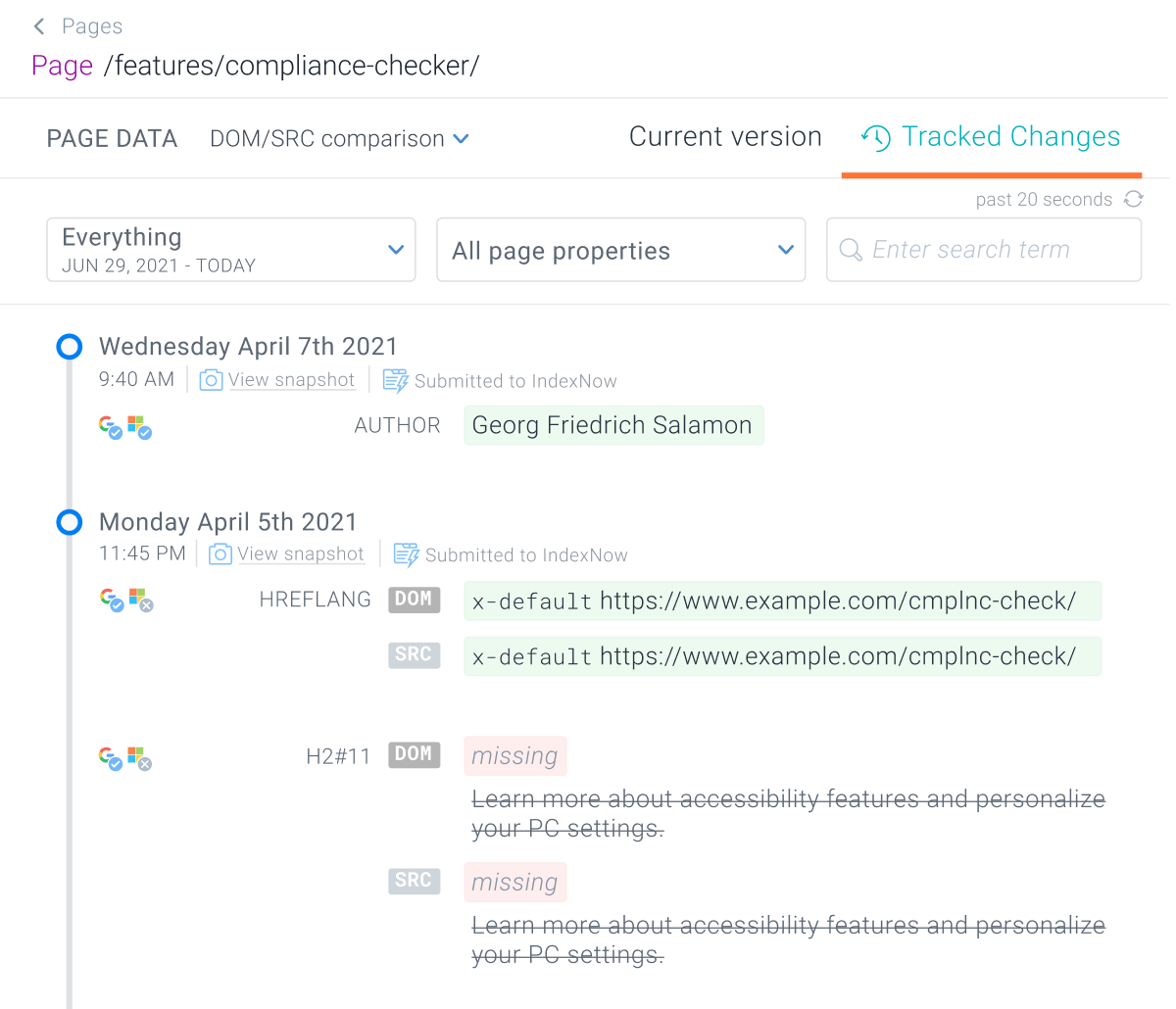
When you want to check all changes that have been tracked on a specific page within the website, you can click on the page on the **Pages** screen. You will get to the page detail screen where you can navigate to the **Tracked Changes** tab.
In the **Tracked Changes** tab, you will see a timeline with a full history of the tracked changes up to 60 months back (depending on your Data Retention) together with the exact timestamps of when each change was tracked:
 ## View Snapshots of the Information Monitoring Sends and Receives
Furthermore, for each change that Conductor Monitoring tracks, you can also view a snapshot of the request headers that we sent to the server and the response headers that we received from the server at that point.
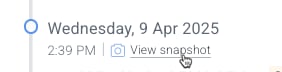
Just click the **View snapshot** link next to the change you want to review:
## View Snapshots of the Information Monitoring Sends and Receives
Furthermore, for each change that Conductor Monitoring tracks, you can also view a snapshot of the request headers that we sent to the server and the response headers that we received from the server at that point.
Just click the **View snapshot** link next to the change you want to review:
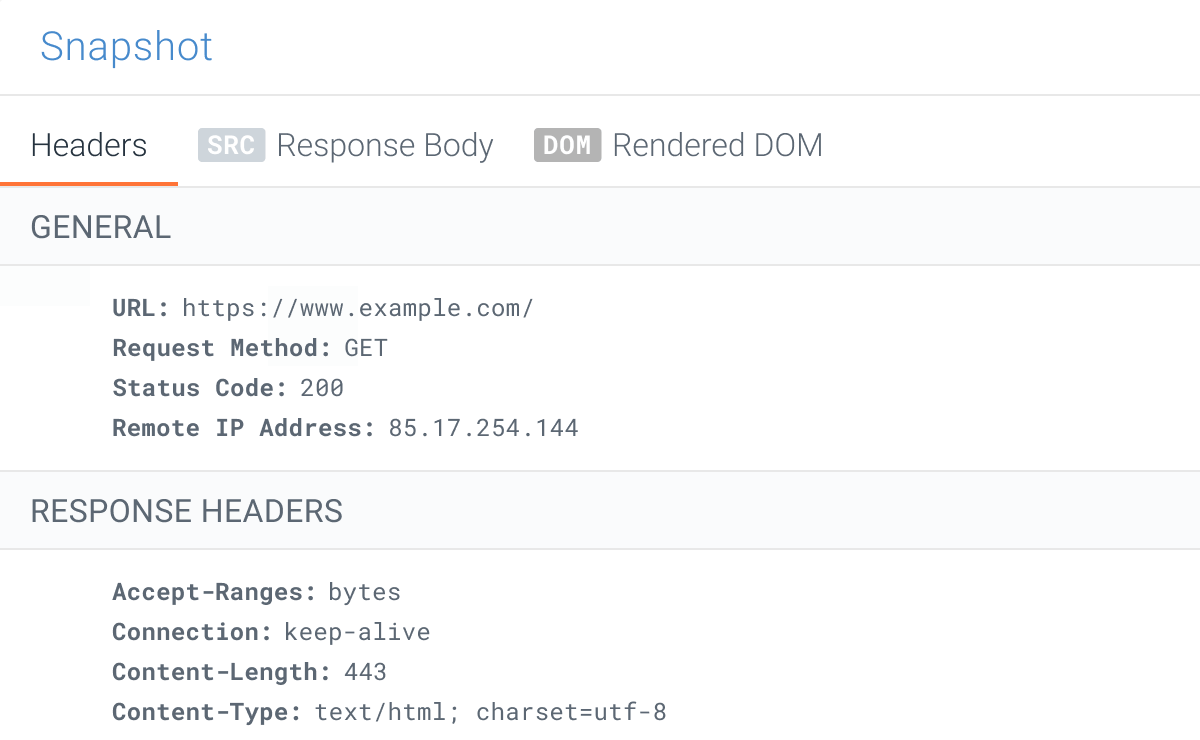
 * In the **Headers** tab of the **Snapshot**, review the HTTP Header Snapshot. *Note that you must have the Growth or Enterprise plan to see this data*.
* In the **Response Body** tab of the **Snapshot**, review the HTTP Body Snapshot. *Note that you must have the Enterprise plan to see this data*.
* In the **Rendered DOM** tab of the **Snapshot**, review a snapshot of the page body. *Note that you must have the Enterprise plan and Javascript Rendering enabled to see this data*.
* In the **Headers** tab of the **Snapshot**, review the HTTP Header Snapshot. *Note that you must have the Growth or Enterprise plan to see this data*.
* In the **Response Body** tab of the **Snapshot**, review the HTTP Body Snapshot. *Note that you must have the Enterprise plan to see this data*.
* In the **Rendered DOM** tab of the **Snapshot**, review a snapshot of the page body. *Note that you must have the Enterprise plan and Javascript Rendering enabled to see this data*.
 ## Viewing tracked changes across the whole website
You can also track page changes across the whole website. These tracked changes can be accessed from multiple entry points in Conductor Monitoring:
* The **Pages** screen
* The **Dashboard** screen
### Access from the Pages screen
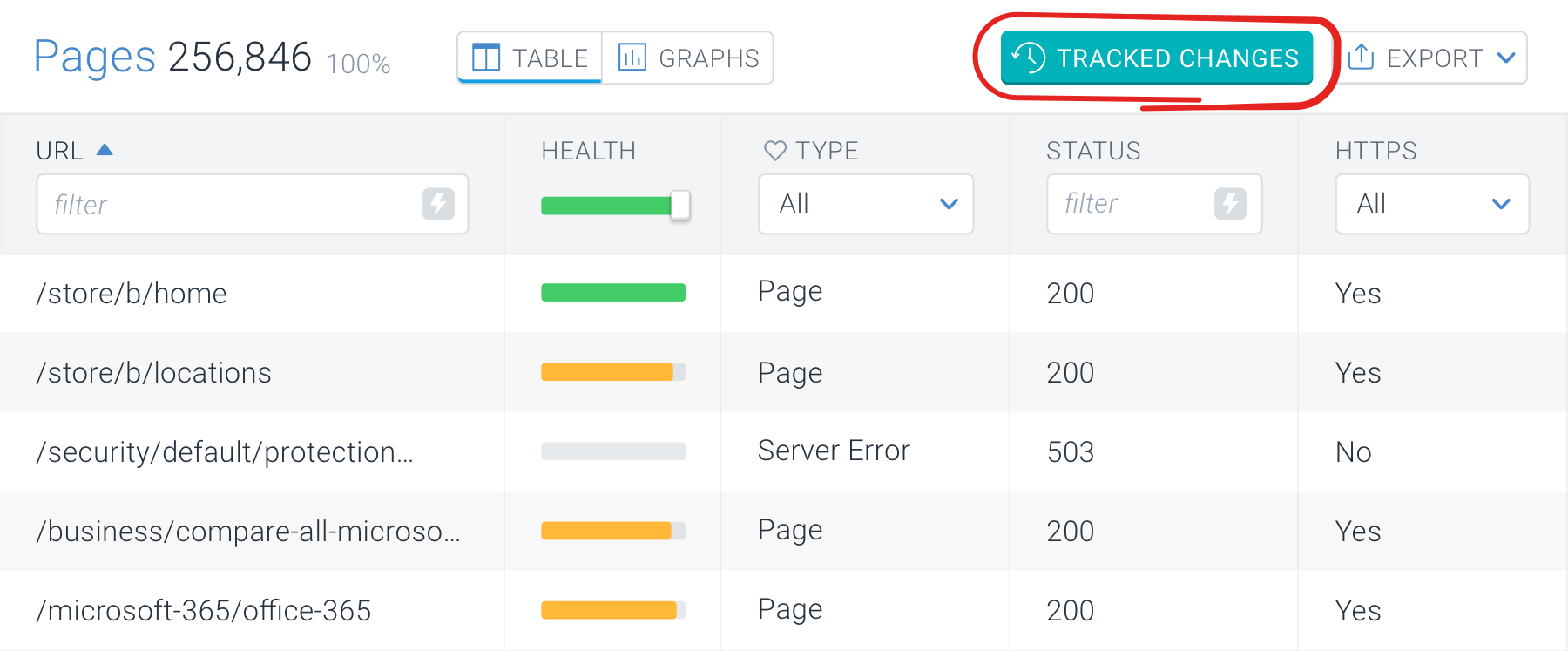
When you are on the **Pages** screen, you can access the tracked changes by clicking the **Tracked Changes** button in the top-right corner.
## Viewing tracked changes across the whole website
You can also track page changes across the whole website. These tracked changes can be accessed from multiple entry points in Conductor Monitoring:
* The **Pages** screen
* The **Dashboard** screen
### Access from the Pages screen
When you are on the **Pages** screen, you can access the tracked changes by clicking the **Tracked Changes** button in the top-right corner.
 ### Access from the Dashboard screen
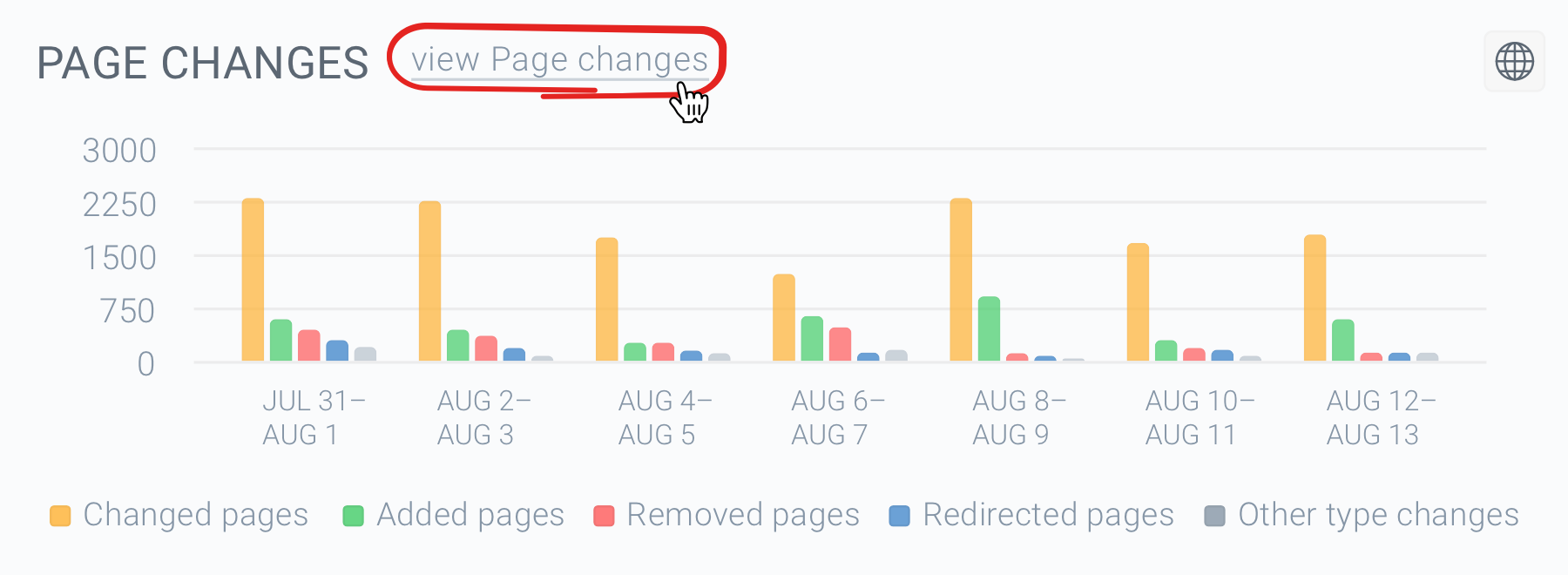
The **Page Changes** chart on the dashboard in Conductor Monitoring shows you the changes that were tracked on the website within the selected date range. You can change the date range in the top-right corner of the dashboard.
By clicking the **View page changes** button or the individual bars within the chart, you will get to the **Change Tracking** screen in **Pages** where you’ll see the actual changes reported in the chart.
### Access from the Dashboard screen
The **Page Changes** chart on the dashboard in Conductor Monitoring shows you the changes that were tracked on the website within the selected date range. You can change the date range in the top-right corner of the dashboard.
By clicking the **View page changes** button or the individual bars within the chart, you will get to the **Change Tracking** screen in **Pages** where you’ll see the actual changes reported in the chart.
 ## Types of tracked changes
There are 5 main types of page changes that Conductor Monitoring tracks on your website:
* *Changed pages*
* *Added pages*
* *Removed pages*
* *Redirected pages*
* *Other type changes*
### Changed pages
This change type includes changes in all of the page properties that Conductor Monitoring tracks (as represented by the individual columns on the **Pages** screen).
This change type is related to pages whose Type didn’t change within the selected date range. They were a *Page* (2xx) at the start date as well as on the end date, but at least one property (column) changed on them. Such a page is marked as *Changed*.
Conductor Monitoring tracks changes in all properties that are represented by a column including Custom Elements, except for the following:
* Incoming internal links
* Incoming canonicals
* Incoming redirects
* Outgoing internal links
* Outgoing external links
* Page Speed
Data in the columns listed above is not being tracked historically at the moment, which means that they are disabled for Change Tracking and only show the current (real-time) values.
You can read more about all the columns and properties tracked by Conductor Monitoring here: [Columns](/docs/monitoring/pages-conductor-monitoring/)
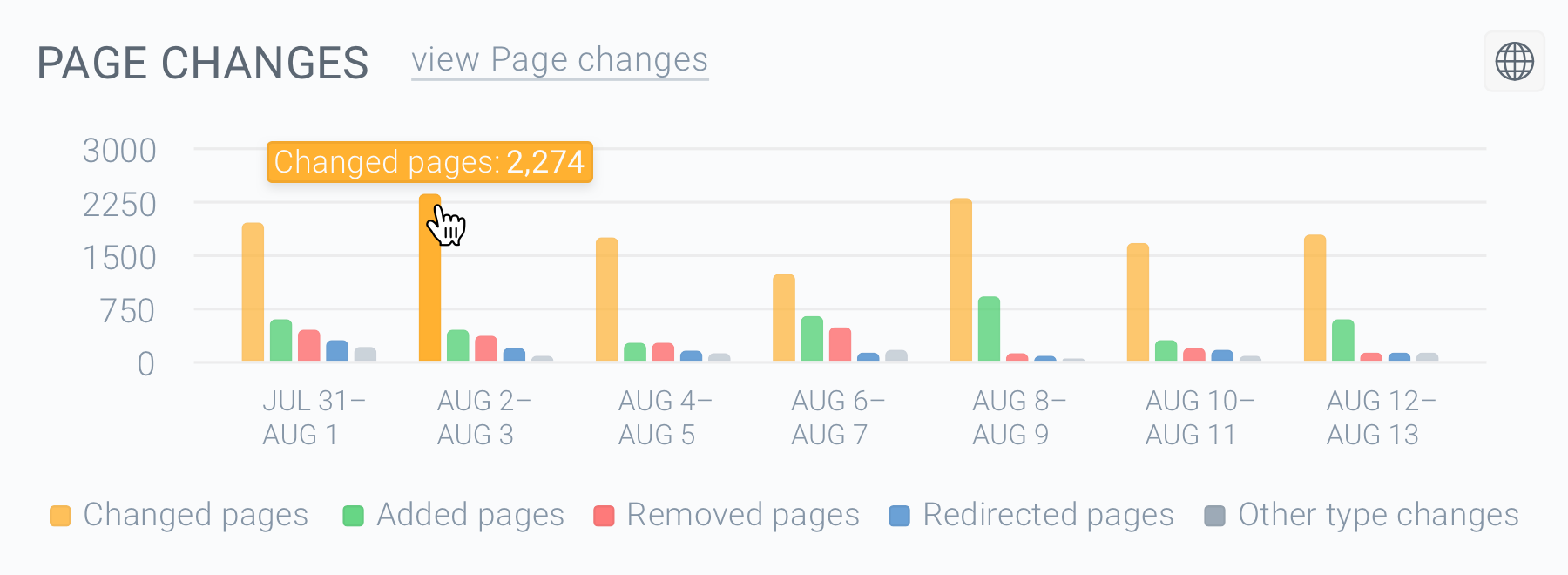
The *Changed* pages are marked orange on the charts in Conductor Monitoring.
## Types of tracked changes
There are 5 main types of page changes that Conductor Monitoring tracks on your website:
* *Changed pages*
* *Added pages*
* *Removed pages*
* *Redirected pages*
* *Other type changes*
### Changed pages
This change type includes changes in all of the page properties that Conductor Monitoring tracks (as represented by the individual columns on the **Pages** screen).
This change type is related to pages whose Type didn’t change within the selected date range. They were a *Page* (2xx) at the start date as well as on the end date, but at least one property (column) changed on them. Such a page is marked as *Changed*.
Conductor Monitoring tracks changes in all properties that are represented by a column including Custom Elements, except for the following:
* Incoming internal links
* Incoming canonicals
* Incoming redirects
* Outgoing internal links
* Outgoing external links
* Page Speed
Data in the columns listed above is not being tracked historically at the moment, which means that they are disabled for Change Tracking and only show the current (real-time) values.
You can read more about all the columns and properties tracked by Conductor Monitoring here: [Columns](/docs/monitoring/pages-conductor-monitoring/)
The *Changed* pages are marked orange on the charts in Conductor Monitoring.
 ### Added pages
This change type represents all pages that were either newly discovered by Conductor Monitoring in the selected date range or their Type changed to *Page* after being a non-page—such as a *Redirect* or *Missing* (more about this [here](/docs/monitoring/pages-conductor-monitoring/#fundamentals)).
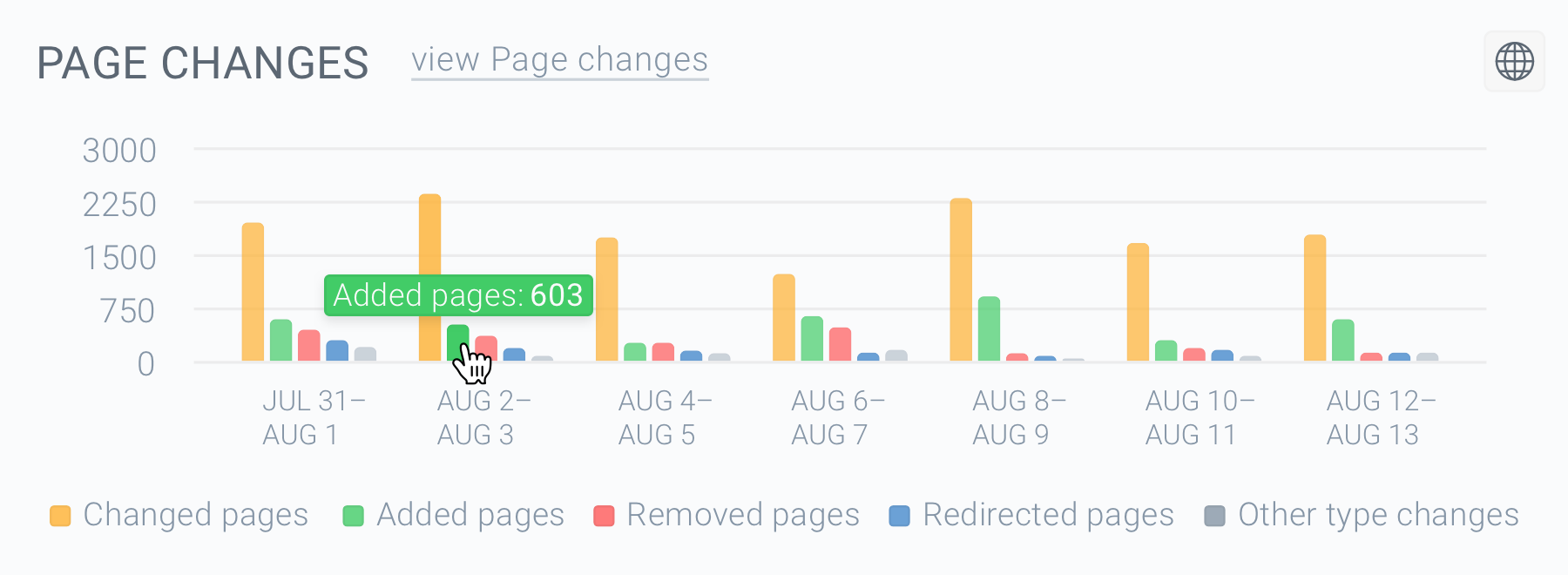
The *Added* pages are marked green on the **Page Changes** chart in Conductor Monitoring.
### Added pages
This change type represents all pages that were either newly discovered by Conductor Monitoring in the selected date range or their Type changed to *Page* after being a non-page—such as a *Redirect* or *Missing* (more about this [here](/docs/monitoring/pages-conductor-monitoring/#fundamentals)).
The *Added* pages are marked green on the **Page Changes** chart in Conductor Monitoring.
 ### Removed pages
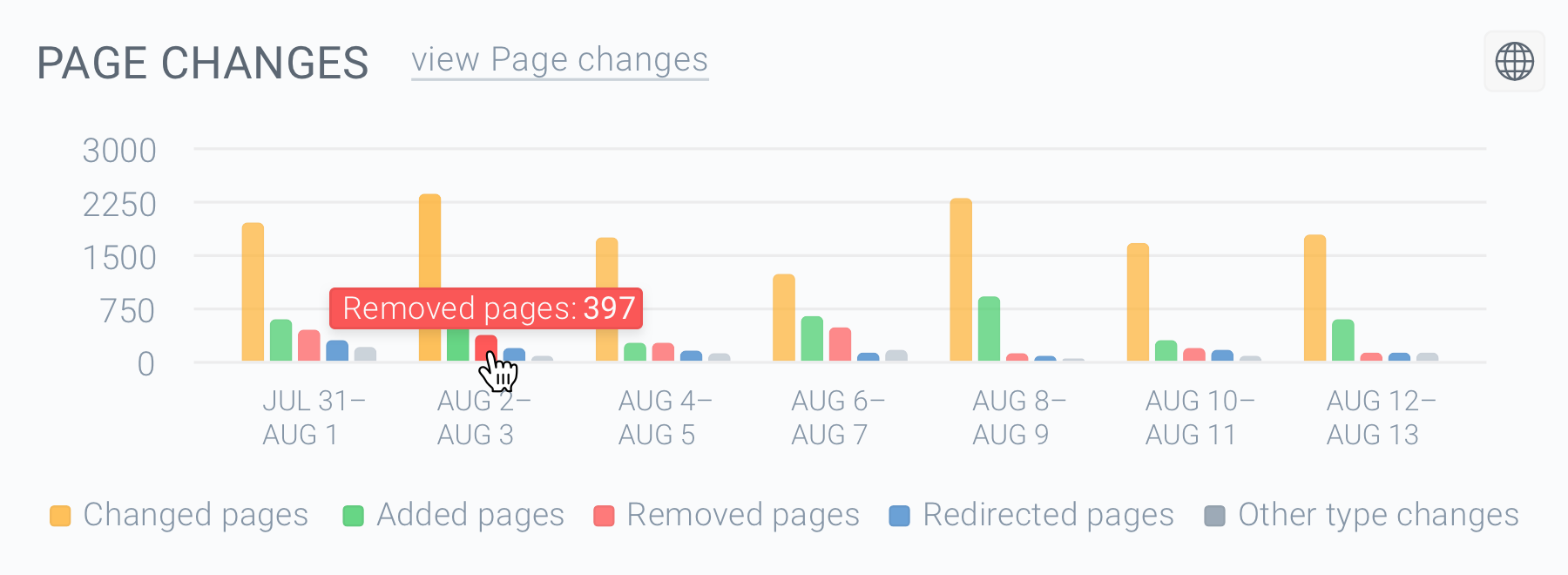
This change type represents all pages that became *Missing* in the selected date range, meaning that their Type changed from *Page* to *Missing* (4xx).
The *Removed* pages are marked red on the **Page Changes** chart in Conductor Monitoring.
### Removed pages
This change type represents all pages that became *Missing* in the selected date range, meaning that their Type changed from *Page* to *Missing* (4xx).
The *Removed* pages are marked red on the **Page Changes** chart in Conductor Monitoring.
 ### Redirected pages
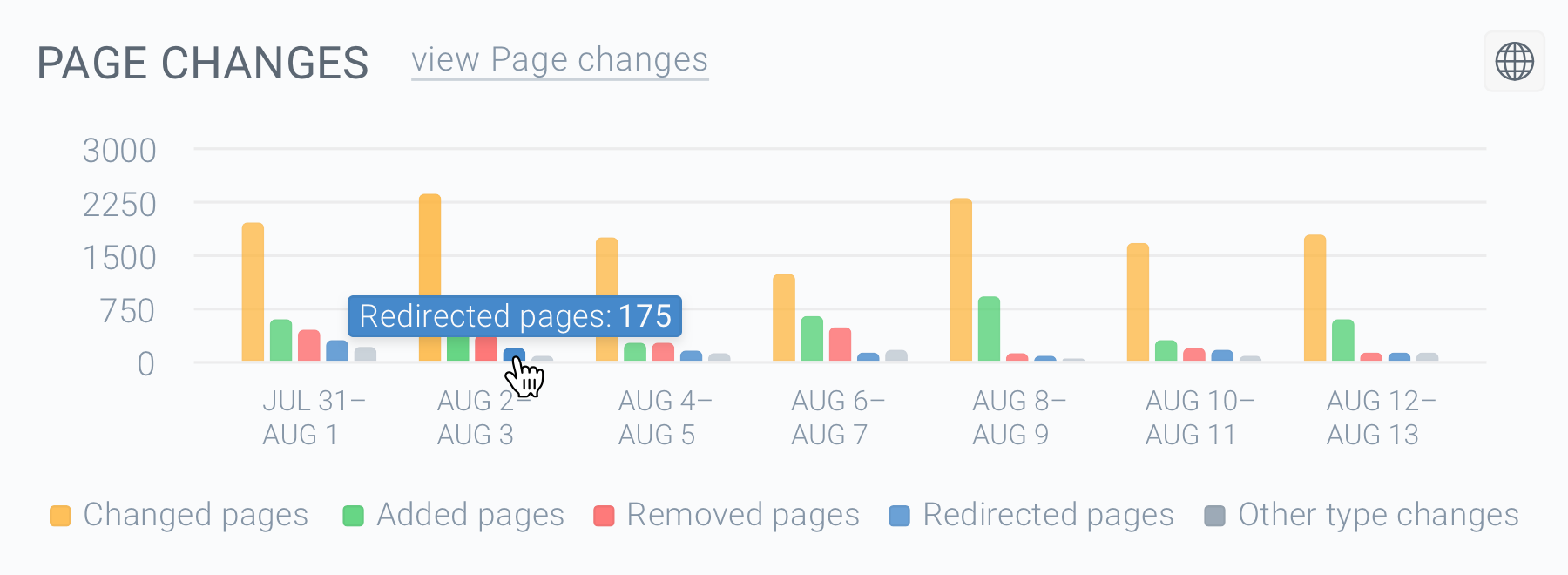
This change type represents all pages that became a *Redirect* in the selected date range, meaning that their Type changed from *Page* to *Redirect* (3xx).
The *Redirected* pages are marked blue on the **Page Changes** chart in Conductor Monitoring.
### Redirected pages
This change type represents all pages that became a *Redirect* in the selected date range, meaning that their Type changed from *Page* to *Redirect* (3xx).
The *Redirected* pages are marked blue on the **Page Changes** chart in Conductor Monitoring.
 ### Other type changes
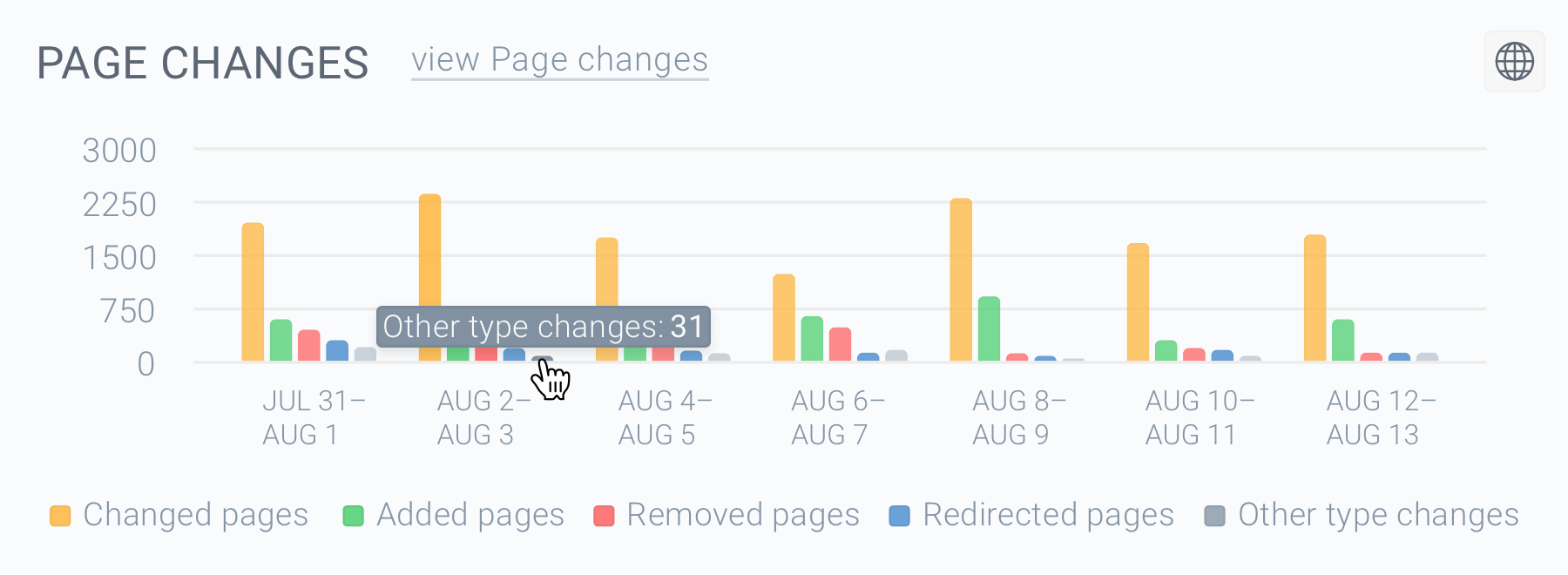
This change type represents all pages that became a *Server Error* (5xx) or *Unreachable* in the selected date range, as well as all the other non-page changes (*Redirect*, *Missing*, *Server Error*, *Unreachable*).
The *Other type* changes are marked grey on the **Page Changes** chart in Conductor Monitoring.
### Other type changes
This change type represents all pages that became a *Server Error* (5xx) or *Unreachable* in the selected date range, as well as all the other non-page changes (*Redirect*, *Missing*, *Server Error*, *Unreachable*).
The *Other type* changes are marked grey on the **Page Changes** chart in Conductor Monitoring.
 ## Working with Tracked Changes
When viewing the Tracked Changes on the **Pages** screen, there are three different controls at your disposal to narrow down the result set and get the tracked changes you are looking for:
* Setting a date range
* Using the **Change Type** filter
* Using the **Segments** and other filters
### Setting a date range
After you access the **Page Change Tracking** screen, you can select the date range for which you want to view the changes.
The start date and the end date of the date range determine the two versions of a page that are being compared. If the version of the page on the start date differs from the version of the page on the end date, the difference between these two versions of the page is displayed as a tracked change.
In case of accessing this feature from the dashboard, the date range is already pre-set based on the data you clicked in the chart. However, you can also set a custom date range according to your needs.
To set or change the date range, click the **Change Date Range** button in the top-right corner of the screen. You will see the following panel with a calendar:
## Working with Tracked Changes
When viewing the Tracked Changes on the **Pages** screen, there are three different controls at your disposal to narrow down the result set and get the tracked changes you are looking for:
* Setting a date range
* Using the **Change Type** filter
* Using the **Segments** and other filters
### Setting a date range
After you access the **Page Change Tracking** screen, you can select the date range for which you want to view the changes.
The start date and the end date of the date range determine the two versions of a page that are being compared. If the version of the page on the start date differs from the version of the page on the end date, the difference between these two versions of the page is displayed as a tracked change.
In case of accessing this feature from the dashboard, the date range is already pre-set based on the data you clicked in the chart. However, you can also set a custom date range according to your needs.
To set or change the date range, click the **Change Date Range** button in the top-right corner of the screen. You will see the following panel with a calendar:
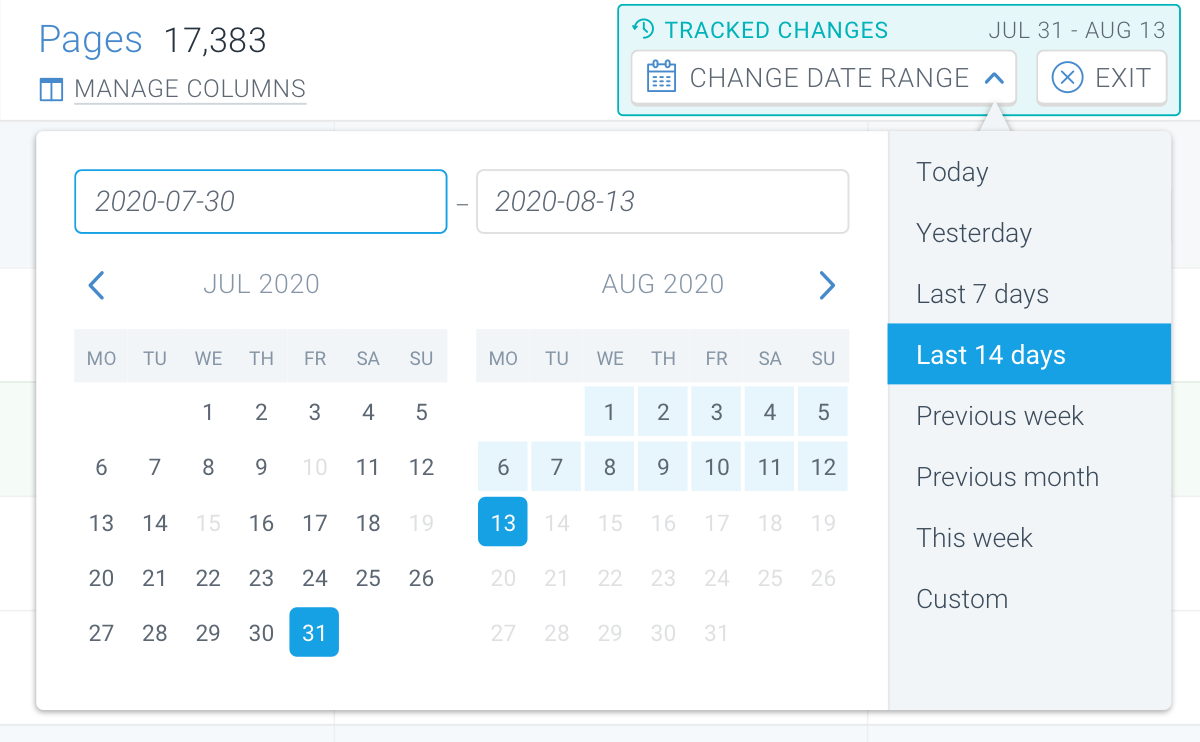 On the right side of the panel, you can select a predefined date range. You can choose:
* Today
* Yesterday
* Last 7 days
* Last 14 days
* Last 4 weeks
* Previous week
* This week
* Custom
To set a custom date range, just select the start date and the end date in the calendar. For the past 14 days, you can always select daily intervals. If you want to go further back than the past 14 days, you can only track changes in weekly intervals.
### Using the Change Type filter
To filter by change type, use the **Change Type** column on the left side of the screen to filter on the different change types as described above:
On the right side of the panel, you can select a predefined date range. You can choose:
* Today
* Yesterday
* Last 7 days
* Last 14 days
* Last 4 weeks
* Previous week
* This week
* Custom
To set a custom date range, just select the start date and the end date in the calendar. For the past 14 days, you can always select daily intervals. If you want to go further back than the past 14 days, you can only track changes in weekly intervals.
### Using the Change Type filter
To filter by change type, use the **Change Type** column on the left side of the screen to filter on the different change types as described above:
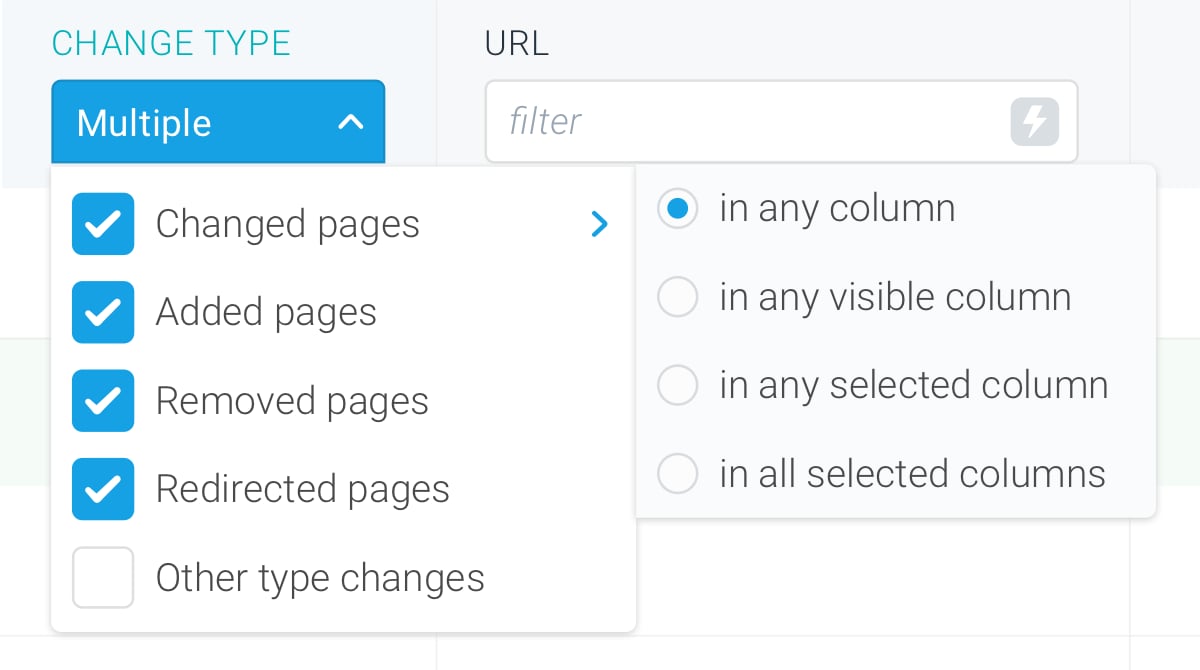 The **Change Type** filter has the following values:
* *Changed pages*
* *Added pages*
* *Removed pages*
* *Redirected pages*
* *Other type changes*
For the *Changed pages* value, there are also advanced operators available:
* *in any column*
* *in any visible column*
* *in any selected column*
* *in all selected columns*
These operators allow you to filter out the specific property changes that you are looking for.
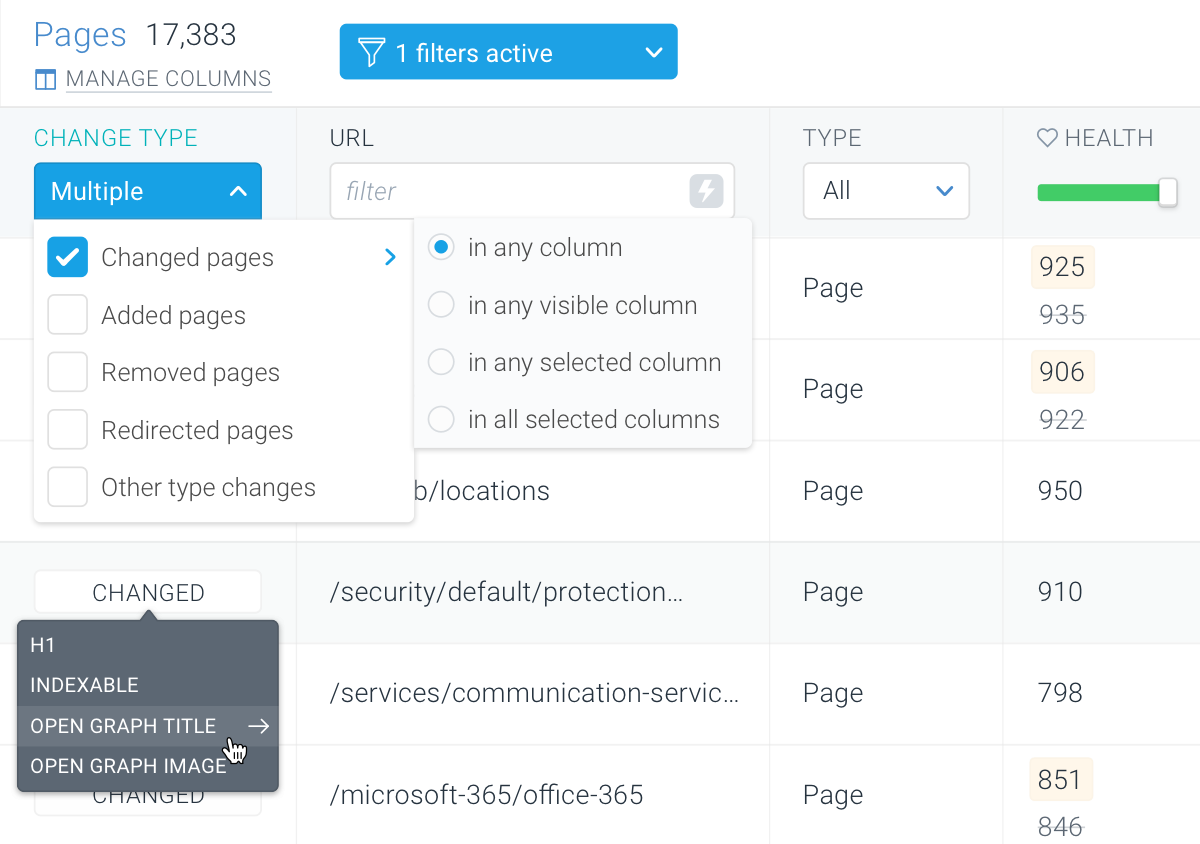
#### Changed in any column
When you select this operator, you will see all pages that changed in any of the columns.
You can see in which columns a page changed by hovering over the *Changed* label in the **Change Type** column.
The **Change Type** filter has the following values:
* *Changed pages*
* *Added pages*
* *Removed pages*
* *Redirected pages*
* *Other type changes*
For the *Changed pages* value, there are also advanced operators available:
* *in any column*
* *in any visible column*
* *in any selected column*
* *in all selected columns*
These operators allow you to filter out the specific property changes that you are looking for.
#### Changed in any column
When you select this operator, you will see all pages that changed in any of the columns.
You can see in which columns a page changed by hovering over the *Changed* label in the **Change Type** column.
 #### Changed in any visible column
When you select this operator, you will see all pages that changed in any visible column.
For a column to be visible, it needs to be included in the current column set and enabled in the **Manage Columns** section. You can read more about this [here](/docs/monitoring/pages-conductor-monitoring/#managing-columns-on-the-pages-report).
#### Changed in any selected column
With this operator you see pages that changed in any column that you have selected.
After selecting this operator in the filter, a box will appear at the top of each column which you can tick and thus select the columns:
* When you select one column, you will see all pages that changed in that column.
* When you select multiple columns, you will see all pages that changed in any of the selected columns.
#### Changed in any visible column
When you select this operator, you will see all pages that changed in any visible column.
For a column to be visible, it needs to be included in the current column set and enabled in the **Manage Columns** section. You can read more about this [here](/docs/monitoring/pages-conductor-monitoring/#managing-columns-on-the-pages-report).
#### Changed in any selected column
With this operator you see pages that changed in any column that you have selected.
After selecting this operator in the filter, a box will appear at the top of each column which you can tick and thus select the columns:
* When you select one column, you will see all pages that changed in that column.
* When you select multiple columns, you will see all pages that changed in any of the selected columns.
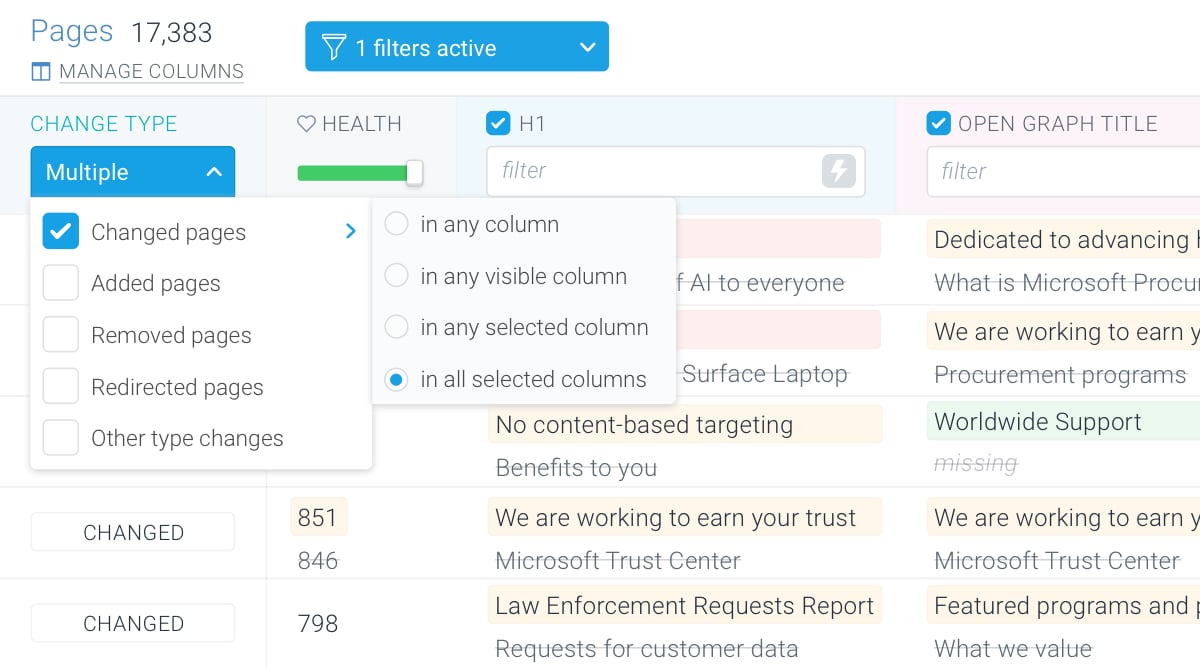
 #### Changed in all selected columns
With this operator you see pages that changed in all columns that you have selected.
After selecting this operator in the filter, a box will appear at the top of each column which you can tick and thus select the columns:
* When you select one column, you will see all pages that changed in that column.
* When you select multiple columns, you will see all pages that changed in all of the selected columns at the same time.
#### Changed in all selected columns
With this operator you see pages that changed in all columns that you have selected.
After selecting this operator in the filter, a box will appear at the top of each column which you can tick and thus select the columns:
* When you select one column, you will see all pages that changed in that column.
* When you select multiple columns, you will see all pages that changed in all of the selected columns at the same time.
 ### Using the Segments and other filters
You can also use the other columns on the **Page Change Tracking** screen to narrow down the result set.
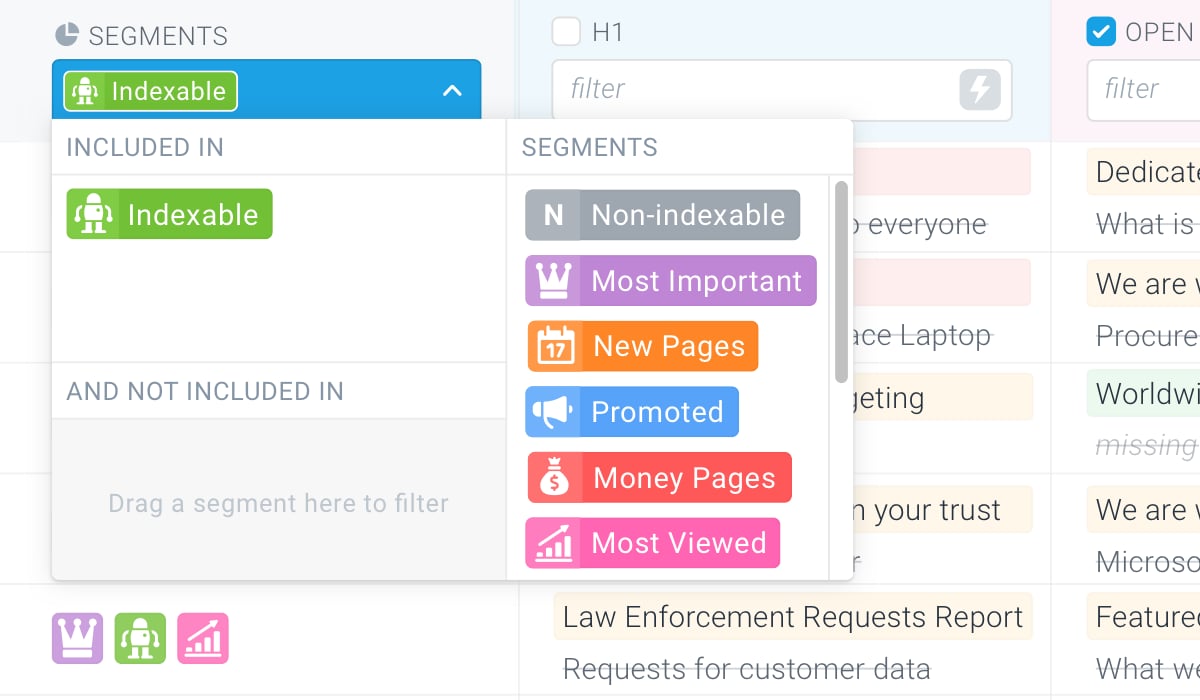
For example, if you are only looking for changes in a certain segment, you can use the **Segments** filter to get this data:
### Using the Segments and other filters
You can also use the other columns on the **Page Change Tracking** screen to narrow down the result set.
For example, if you are only looking for changes in a certain segment, you can use the **Segments** filter to get this data: