> ## Documentation Index
> Fetch the complete documentation index at: https://www.conductor.com/docs/llms.txt
> Use this file to discover all available pages before exploring further.
# Connected Accounts
> Link separate Conductor Monitoring accounts together so agencies and clients can collaborate without duplicating data.
Connected Accounts is used to connect two (or more) separate Conductor Monitoring accounts and is typically used by agencies to collaborate with clients having their own Conductor Monitoring account.
There are two ways in which you can collaborate with your clients in Conductor Monitoring:
* Collaboration within one account by inviting new users
* Cross-account collaboration using the Connected Accounts feature
The Connected Accounts feature is primarily designed for collaboration between agencies and clients, each of whom have their own, independent Conductor Monitoring account.
You can read more about the differences between these two collaboration methods in this dedicated article: [How agencies can collaborate with their clients in Conductor Monitoring](/docs/monitoring/collaboration-between-agencies-and-clients/).
## Using Connected Accounts
The sections below describe the aspects of the Connected Accounts feature and include instructions on how to set up the connection between two accounts.
## Connection rights
The connection between two accounts can be initiated by both the agency and the client.
However, the connection is only one-directional: users in the agency account can access the connected account, but the users in the connected account cannot access the agency account.
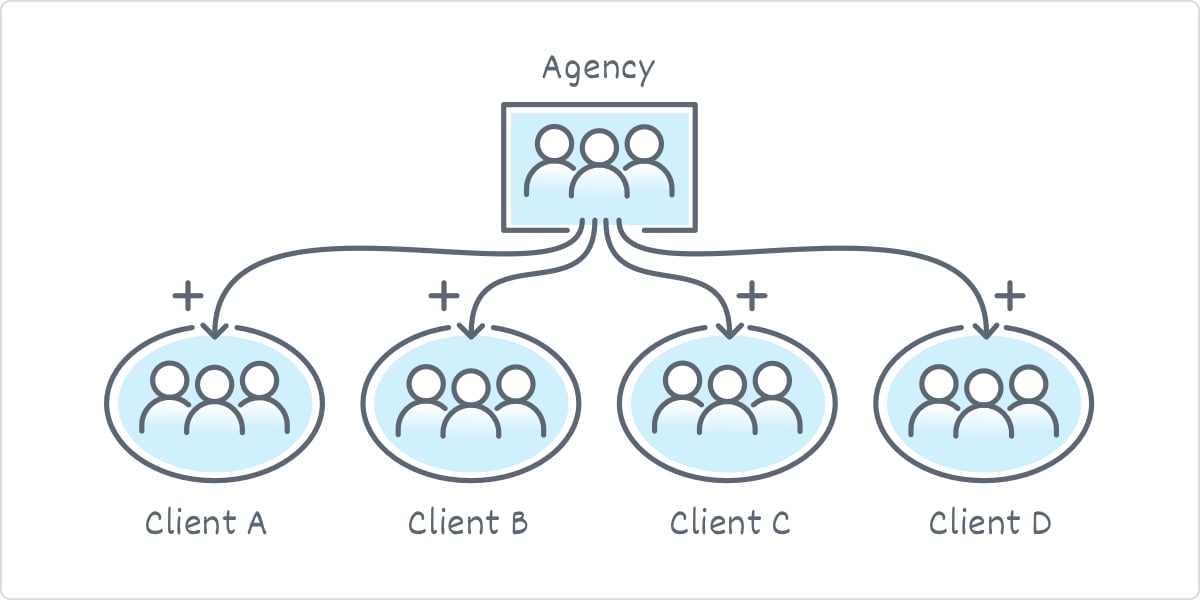 After connecting two Conductor Monitoring accounts, the agency gains access to the client account with the following rights:
* Access all website data in the client account
* Manage websites and settings in the client account
* Invite new team members to the client account
### Connection direction
As described in the previous section, the connection between two accounts is only one-directional.
However, you can change the connection direction in your account and determine whether you will be able to connect to (multiple) client accounts or whether you will be able to provide your agency with access to your account.
To change this setting, follow these steps:
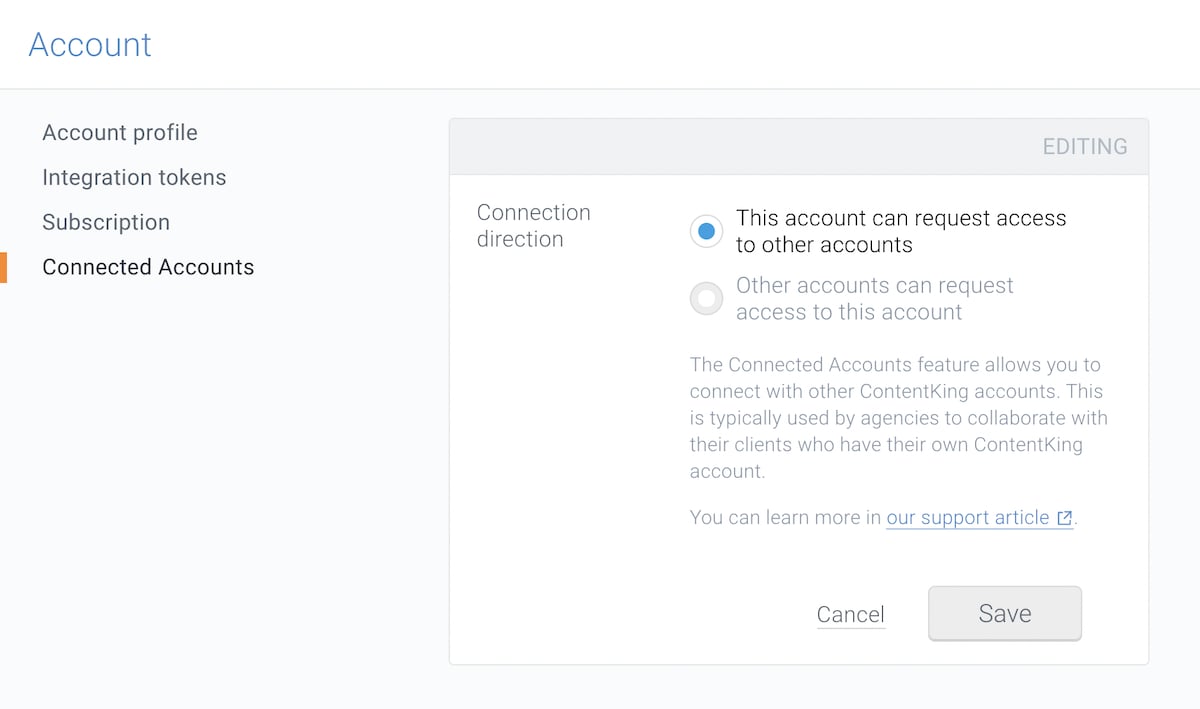
1. Go to the **Connected Accounts** setting in the **Account** tab.
2. You will see a box where you can set the **Connection direction**.
* If you want to be able to manage your clients’ accounts, set **This account can request access to other accounts**.
* If you want to provide your agency with access to your account, set **Other accounts can request access to this account**.\\
After connecting two Conductor Monitoring accounts, the agency gains access to the client account with the following rights:
* Access all website data in the client account
* Manage websites and settings in the client account
* Invite new team members to the client account
### Connection direction
As described in the previous section, the connection between two accounts is only one-directional.
However, you can change the connection direction in your account and determine whether you will be able to connect to (multiple) client accounts or whether you will be able to provide your agency with access to your account.
To change this setting, follow these steps:
1. Go to the **Connected Accounts** setting in the **Account** tab.
2. You will see a box where you can set the **Connection direction**.
* If you want to be able to manage your clients’ accounts, set **This account can request access to other accounts**.
* If you want to provide your agency with access to your account, set **Other accounts can request access to this account**.\\
 ### Setting up the connection
The connection can be initiated by both the agency and the client.
#### Connection request by the client
Follow these steps:
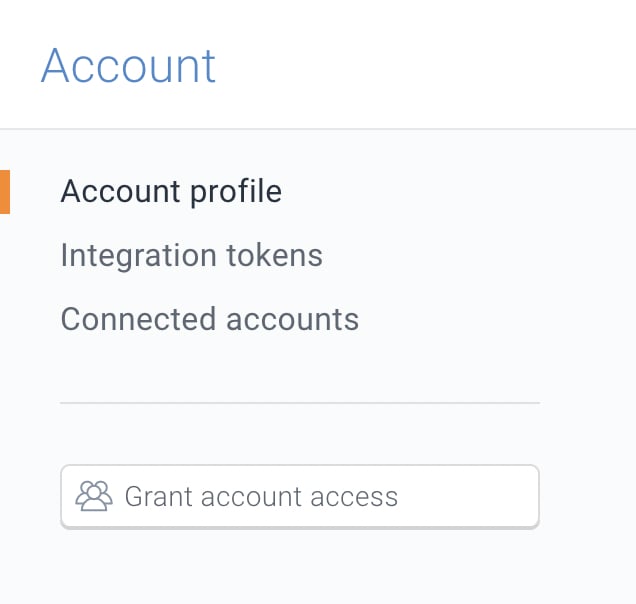
1. Go to the **Account** section and navigate to the **Account** tab.
2. Click the **Grant account access** button.
3. Enter the email address of a user with the Manager rights in the agency account.
4. Click the **Grant access** button.
The agency will now receive an email which they need to accept to establish the connection.
### Setting up the connection
The connection can be initiated by both the agency and the client.
#### Connection request by the client
Follow these steps:
1. Go to the **Account** section and navigate to the **Account** tab.
2. Click the **Grant account access** button.
3. Enter the email address of a user with the Manager rights in the agency account.
4. Click the **Grant access** button.
The agency will now receive an email which they need to accept to establish the connection.
 #### Connection request by the agency
When you—as an agency—want to connect to your client’s account, you can choose between two options:
* Connect to an existing Conductor Monitoring account (in case your client is already using Conductor Monitoring)
* Create a new trial account for your client (in case they don’t have an account yet)
#### Connection request by the agency
When you—as an agency—want to connect to your client’s account, you can choose between two options:
* Connect to an existing Conductor Monitoring account (in case your client is already using Conductor Monitoring)
* Create a new trial account for your client (in case they don’t have an account yet)
 To connect to your client’s existing Conductor Monitoring account, follow these steps:
1. Go to the **Account** section.
2. Navigate to the **Connected Accounts** tab in the top-right corner of the screen.
3. Click the **Add account** button.
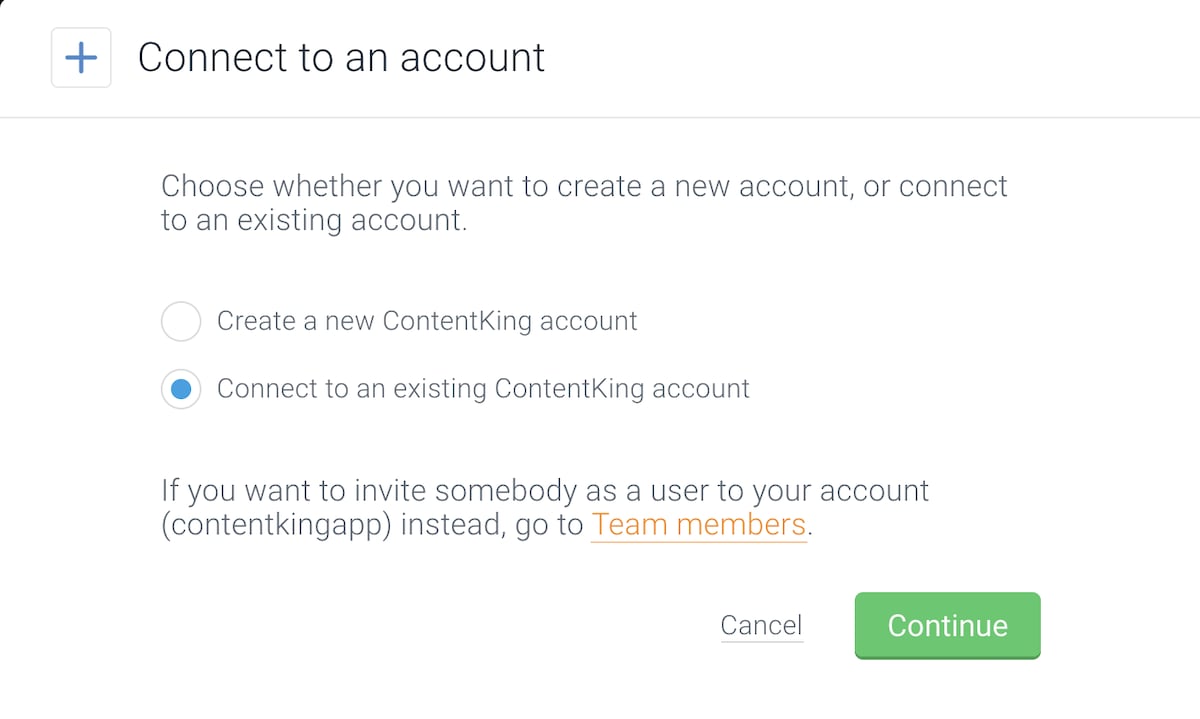
4. In the window that appears, choose **Connect to an existing Conductor Monitoring account**.
5. Enter the email address of a Manager in the account you want to connect to and click **Continue**.\\
To connect to your client’s existing Conductor Monitoring account, follow these steps:
1. Go to the **Account** section.
2. Navigate to the **Connected Accounts** tab in the top-right corner of the screen.
3. Click the **Add account** button.
4. In the window that appears, choose **Connect to an existing Conductor Monitoring account**.
5. Enter the email address of a Manager in the account you want to connect to and click **Continue**.\\
 The client will now receive an email which they need to accept to establish the connection.
If your client doesn’t have an account yet, you can create a new trial for them:
1. Click the **Add account** button in the **Connected Accounts** section.
2. In the window that appears, choose **Create a new Conductor Monitoring account**.
3. Enter your client’s website and the email address.
4. Click **Continue**.\\
The client will now receive an email which they need to accept to establish the connection.
If your client doesn’t have an account yet, you can create a new trial for them:
1. Click the **Add account** button in the **Connected Accounts** section.
2. In the window that appears, choose **Create a new Conductor Monitoring account**.
3. Enter your client’s website and the email address.
4. Click **Continue**.\\
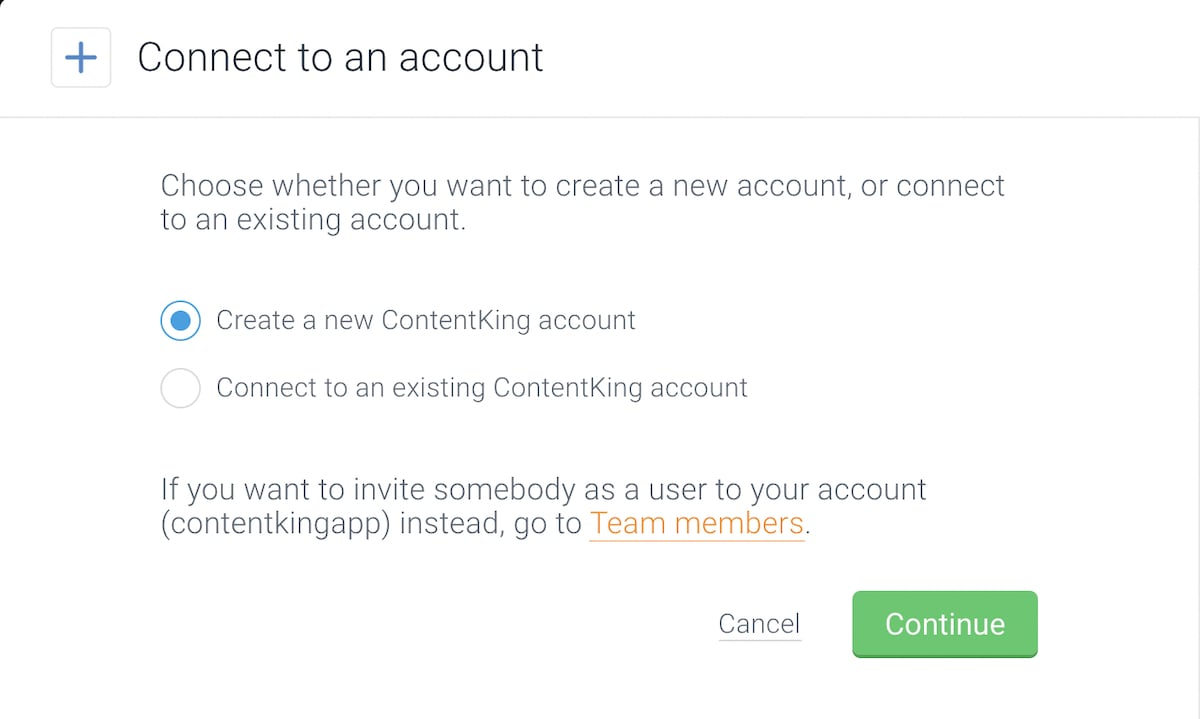 This will create a new Conductor Monitoring trial account with the website that you enter.
The email address you entered will be added as a user and receive an invitation to access the account. They will be able to manage the account, add websites and invite other users.
You will also immediately get access to the account, and be able to manage it in the same way as your own account.
### Managing connected accounts from the agency account
Once you have connected at least one client account, an account switcher will appear for you next to the **Websites** tab in the **Account** section:
This will create a new Conductor Monitoring trial account with the website that you enter.
The email address you entered will be added as a user and receive an invitation to access the account. They will be able to manage the account, add websites and invite other users.
You will also immediately get access to the account, and be able to manage it in the same way as your own account.
### Managing connected accounts from the agency account
Once you have connected at least one client account, an account switcher will appear for you next to the **Websites** tab in the **Account** section:
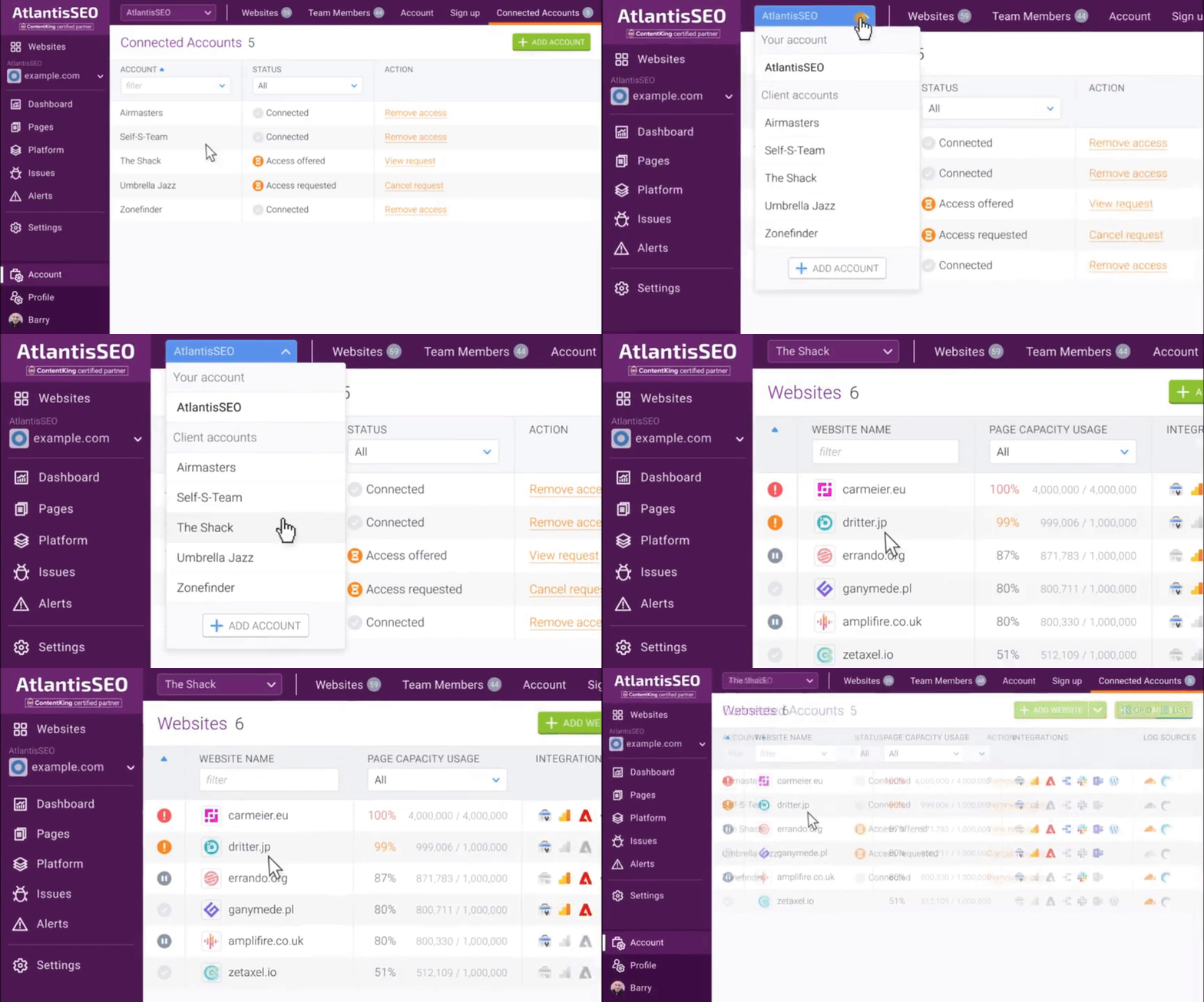 You can use this button to switch between all your connected accounts as well as to create new accounts.
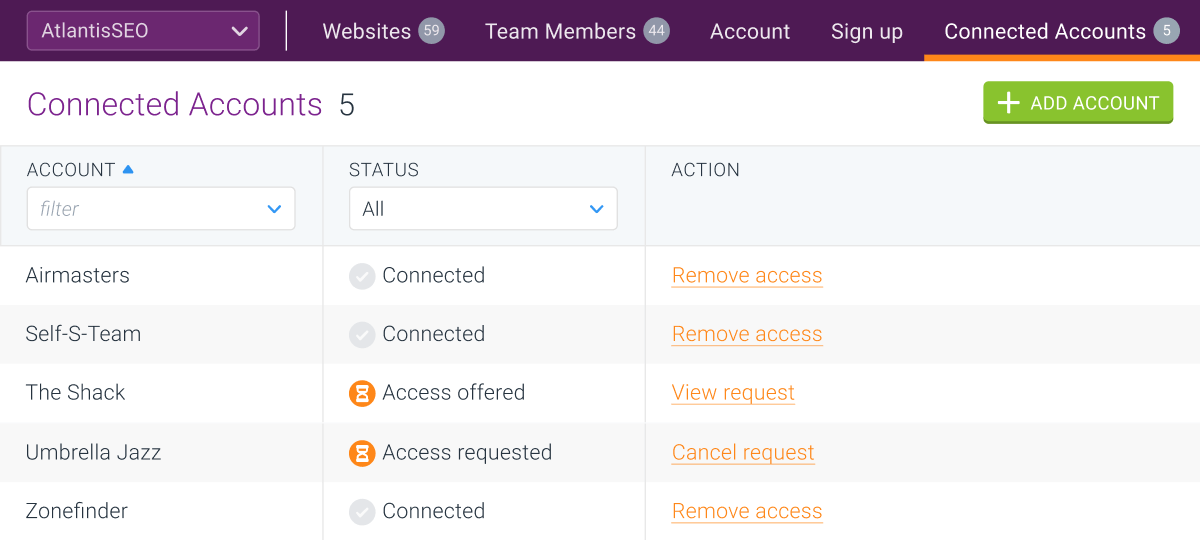
In the **Connected Accounts** tab you can find an overview of all connected clients together with their connection status:
You can use this button to switch between all your connected accounts as well as to create new accounts.
In the **Connected Accounts** tab you can find an overview of all connected clients together with their connection status:
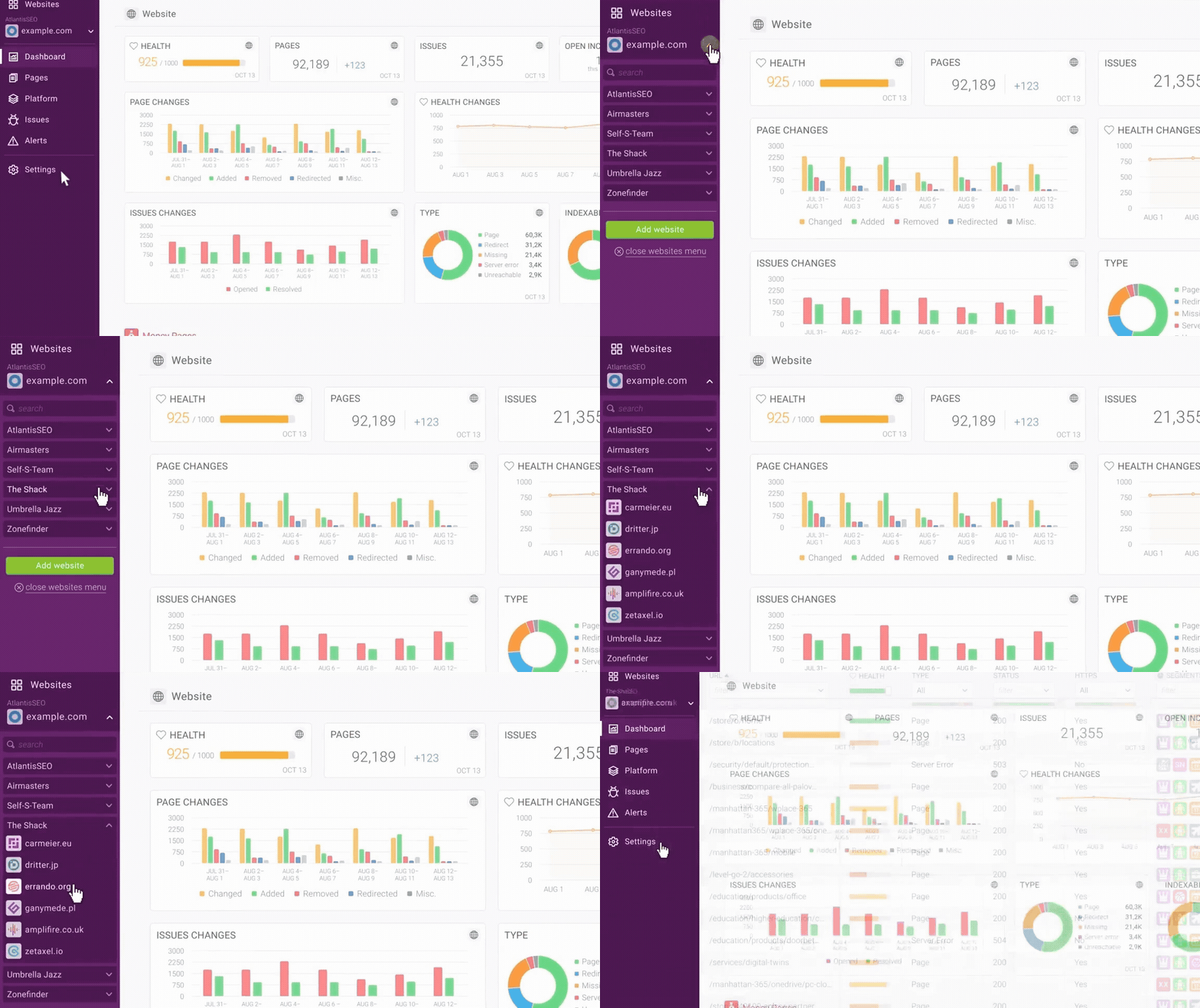
 Also, the client’s websites will appear in your website switcher on the left-side of the screen, where you can easily switch between the websites in your agency account and the websites in your client’s accounts:
 ### Revoking access
Same as with initiating the connection between two accounts, it can also be revoked by either side.
#### Revoking access by the client
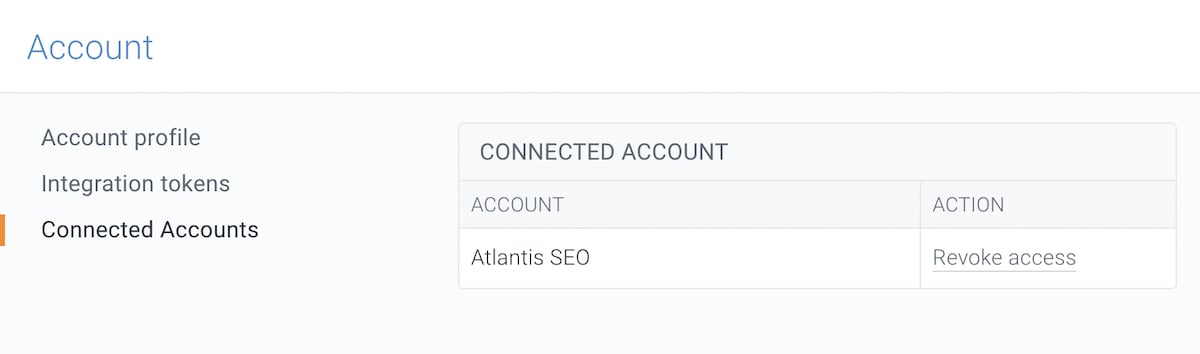
To revoke your agency’s access to your account, follow these steps:
1. Go to the **Account** section and navigate to the **Connected Accounts** tab.
2. Click the **Revoke access** button in the connections table.\\
### Revoking access
Same as with initiating the connection between two accounts, it can also be revoked by either side.
#### Revoking access by the client
To revoke your agency’s access to your account, follow these steps:
1. Go to the **Account** section and navigate to the **Connected Accounts** tab.
2. Click the **Revoke access** button in the connections table.\\
 #### Removing access by the agency
To remove the connection with your client’s account follow these steps:
1. Go to the **Connected Accounts** tab.
2. Click the **Remove access** button next to the account you want to disconnect.\\
#### Removing access by the agency
To remove the connection with your client’s account follow these steps:
1. Go to the **Connected Accounts** tab.
2. Click the **Remove access** button next to the account you want to disconnect.\\