> ## Documentation Index
> Fetch the complete documentation index at: https://www.conductor.com/docs/llms.txt
> Use this file to discover all available pages before exploring further.
# Google Analytics in Conductor Monitoring
> Connect Google Analytics GA4 so your traffic data appears alongside technical SEO reporting in Conductor Monitoring.
With the Google Analytics GA4 integration in Conductor Monitoring, you can pull in your website's data from Google Analytics to work with it directly inside the platform.
### Note!
Conductor also has an integration between Google Analytics and our Conductor Intelligence product. This article is about Conductor Monitoring's integration with Google Analytics. If you are looking for our Conductor Intelligence integration, you can find it [in this article](/docs/intelligence/integrate-google-analytics-with-conductor-intelligence/).
## Metrics
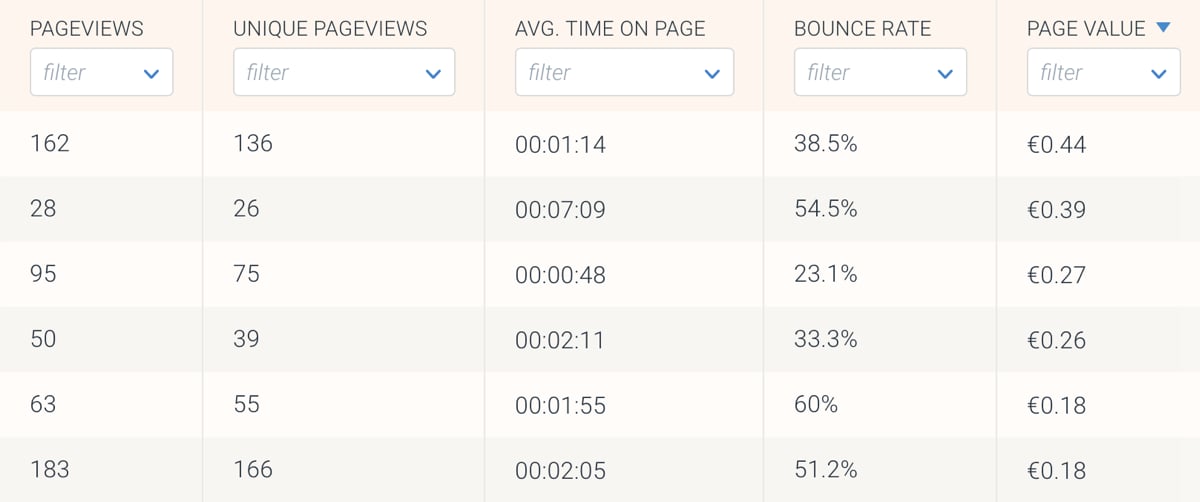
Conductor Monitoring displays the following metrics from Google Analytics 4:
* Screen Pageviews
* Active Users
* User Engagement
* Engagement Rate
## Using the Google Analytics data
The Google Analytics data is available in the **Pages** screen:
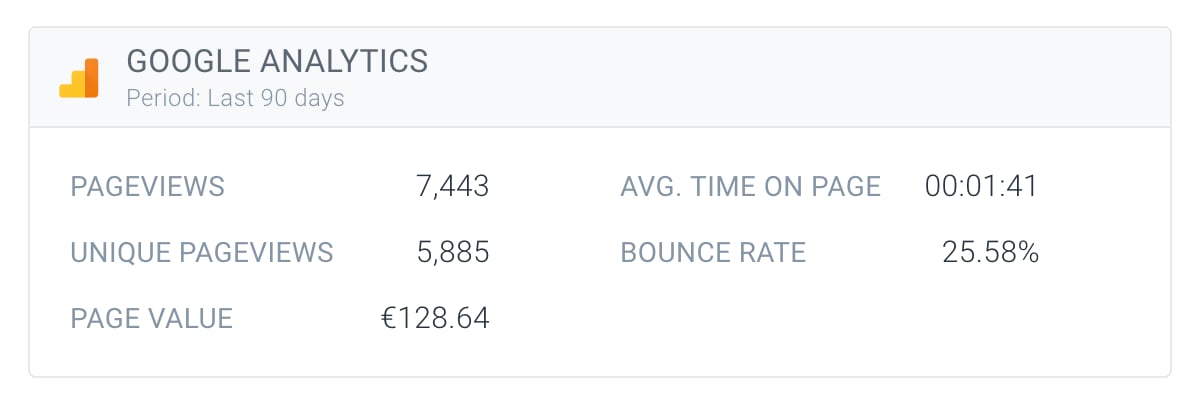
 Google Analytics data is always aggregated for a lookback period of the past 90 days. You can see the exact date range for which the data is displayed on the **Page detail** screen:
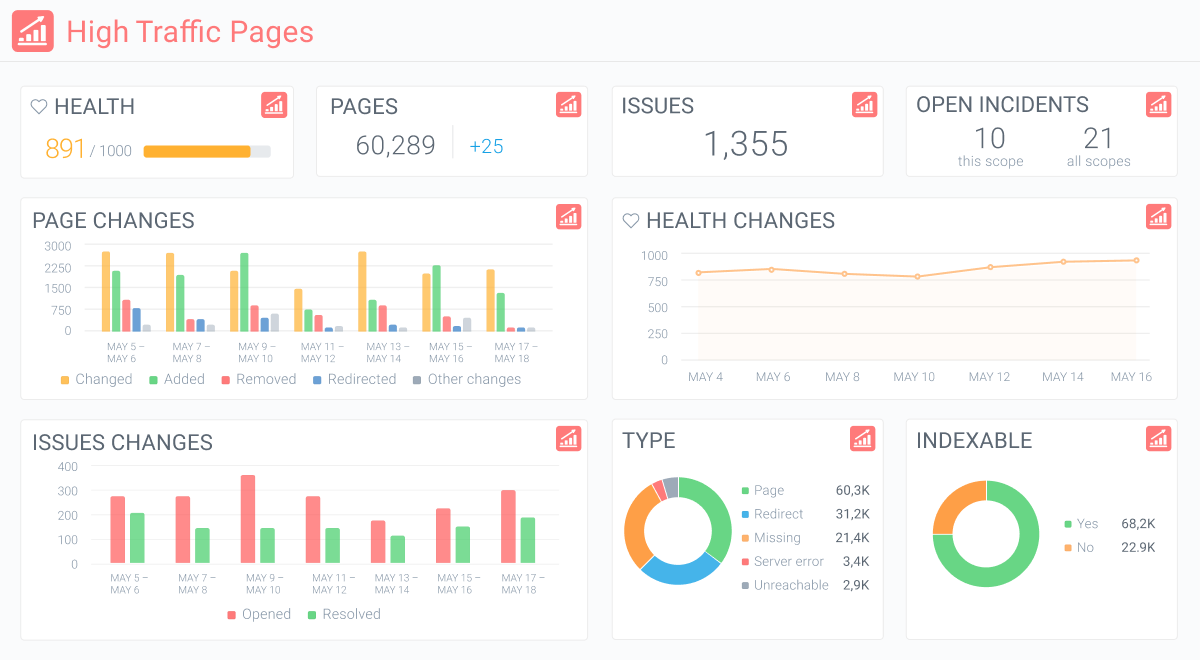
 You can also [create segments](/docs/monitoring/segments/) based on Google Analytics data, which can be very useful when targeting your highest-performing pages.
 ## Setting up the Google Analytics integration with Conductor Monitoring
Setting up the Google Analytics integration with Conductor Monitoring is a breeze. Just follow these five simple steps:
1. Click **Account** in the sidebar to get to the overview of your websites.
2. Click the website you want to connect.
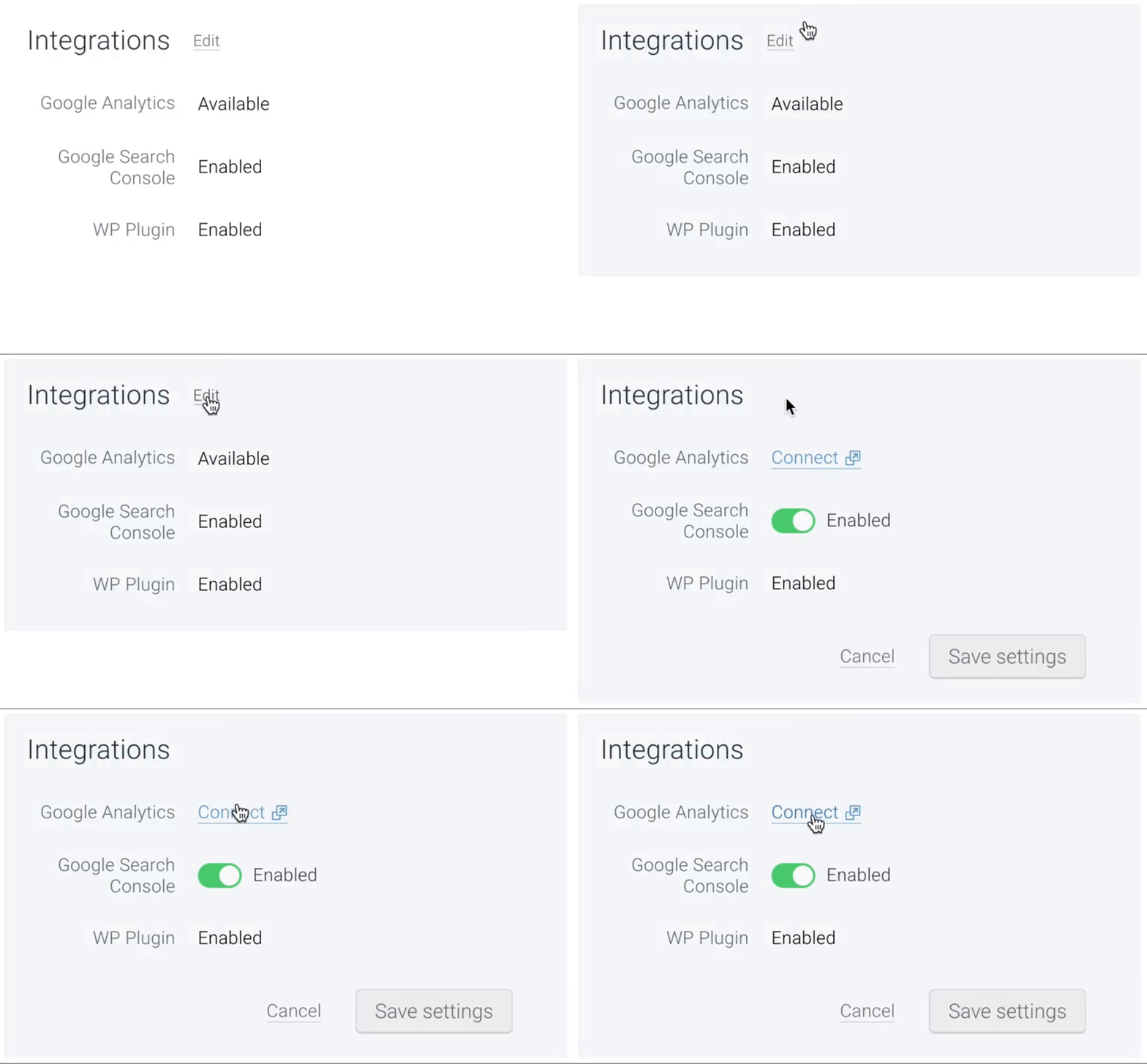
3. In the **Integrations** section, click **Edit**.
4. Click **Connect**, and authenticate with Google Analytics.
5. Select the relevant Google Analytics Account and Property.
6. Click **Save**.
## Setting up the Google Analytics integration with Conductor Monitoring
Setting up the Google Analytics integration with Conductor Monitoring is a breeze. Just follow these five simple steps:
1. Click **Account** in the sidebar to get to the overview of your websites.
2. Click the website you want to connect.
3. In the **Integrations** section, click **Edit**.
4. Click **Connect**, and authenticate with Google Analytics.
5. Select the relevant Google Analytics Account and Property.
6. Click **Save**.
 ## Error: website not found in Google Analytics account
You might run into an error while trying to connect your Conductor Monitoring account to Google Analytics:
## Error: website not found in Google Analytics account
You might run into an error while trying to connect your Conductor Monitoring account to Google Analytics:
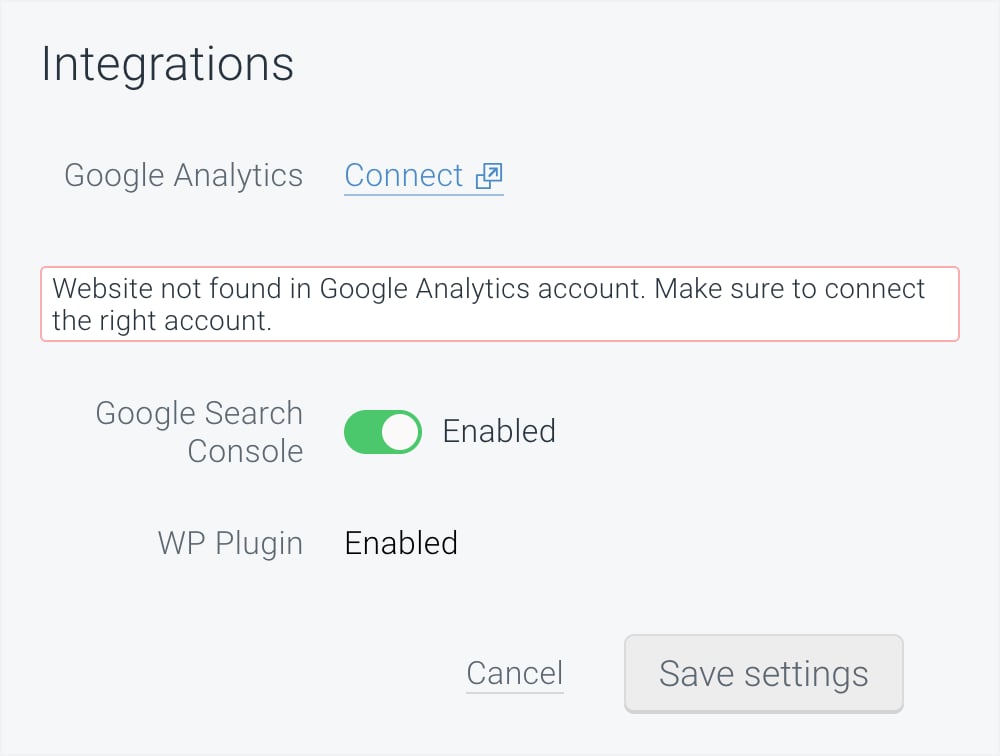 This might occur because you are connecting the wrong Google Analytics account. In that case, simply click **Connect** again and authenticate the correct account.
## Connecting a different version of Google Analytics with Conductor Monitoring
If you've connected Google's legacy Universal Analytics with Conductor Monitoring, you can change the connection to Google Analytics 4. However, there are several caveats to doing this.
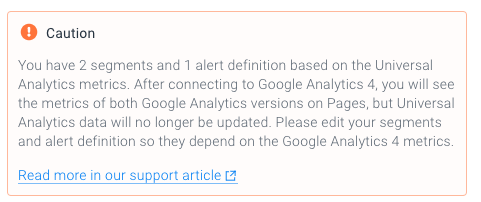
After changing the connection, the previous version will **stop being updated** in Conductor Monitoring and if you have no dependencies on the old version (such as [segments](/docs/monitoring/segments/), [alerts](/docs/monitoring/alerts/), or [issue ignoring](/docs/monitoring/issues/)), the columns will be removed from the Pages screen.
If you have dependencies on the previous version, you should update them to the new columns that correspond to the columns in the version that you connected previously (eg. Pageviews to Screen Pageviews).
Until the dependencies have been updated, columns from both versions will be shown on the Pages screen, however, as mentioned, only the columns from the newly connected version will be updated with the fresh data.
This might occur because you are connecting the wrong Google Analytics account. In that case, simply click **Connect** again and authenticate the correct account.
## Connecting a different version of Google Analytics with Conductor Monitoring
If you've connected Google's legacy Universal Analytics with Conductor Monitoring, you can change the connection to Google Analytics 4. However, there are several caveats to doing this.
After changing the connection, the previous version will **stop being updated** in Conductor Monitoring and if you have no dependencies on the old version (such as [segments](/docs/monitoring/segments/), [alerts](/docs/monitoring/alerts/), or [issue ignoring](/docs/monitoring/issues/)), the columns will be removed from the Pages screen.
If you have dependencies on the previous version, you should update them to the new columns that correspond to the columns in the version that you connected previously (eg. Pageviews to Screen Pageviews).
Until the dependencies have been updated, columns from both versions will be shown on the Pages screen, however, as mentioned, only the columns from the newly connected version will be updated with the fresh data.