> ## Documentation Index
> Fetch the complete documentation index at: https://www.conductor.com/docs/llms.txt
> Use this file to discover all available pages before exploring further.
# Google Search Console in Conductor Monitoring
> Connect Google Search Console so impressions and clicks data can be reviewed inside Conductor Monitoring.
The Google Search Console integration pulls in your website's data from Google Search Console to work with it directly inside the platform.
### Note!
Conductor also has an integration between Google Search Console and our Conductor Intelligence product. This article is about Conductor Monitoring's integration with Google Search Console. If you are looking for our Conductor Intelligence integration, you can find it [in this article.](/docs/intelligence/integrate-google-search-console-with-conductor-intelligence/)
## Metrics
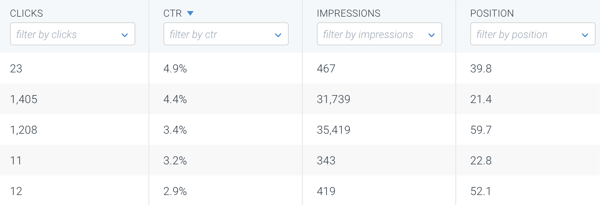
Conductor Monitoring displays the following metrics from Google Search Console:
* Clicks
* Impressions
* CTR
* Position
## Using the Google Search Console data in Conductor Monitoring
The Google Search Console data is available in the **Pages** screen:
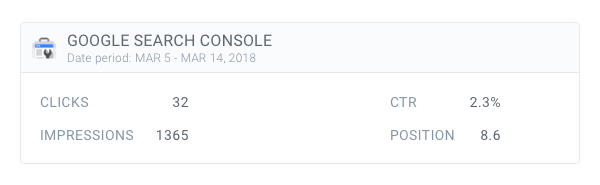
 As well as in the **Page** screen:
 You can [create segments](/docs/monitoring/segments/) based on Google Search Console data, but it's currently not possible to view historical data or to use segments containing Google Search Console data in Change Tracking.
The Google Search Console data is always aggregated for a lookback period of the **past 90 days**.
## Setting up the Google Search Console integration in Conductor Monitoring
Setting up the Google Search Console integration is simple:
1. Click **Account** in the sidebar to get to the overview of your websites.
2. Click the website you want to connect.
3. In the **Integrations** section, click **Edit**.
4. Click **Connect** and authenticate with Google Search Console.\\
You can [create segments](/docs/monitoring/segments/) based on Google Search Console data, but it's currently not possible to view historical data or to use segments containing Google Search Console data in Change Tracking.
The Google Search Console data is always aggregated for a lookback period of the **past 90 days**.
## Setting up the Google Search Console integration in Conductor Monitoring
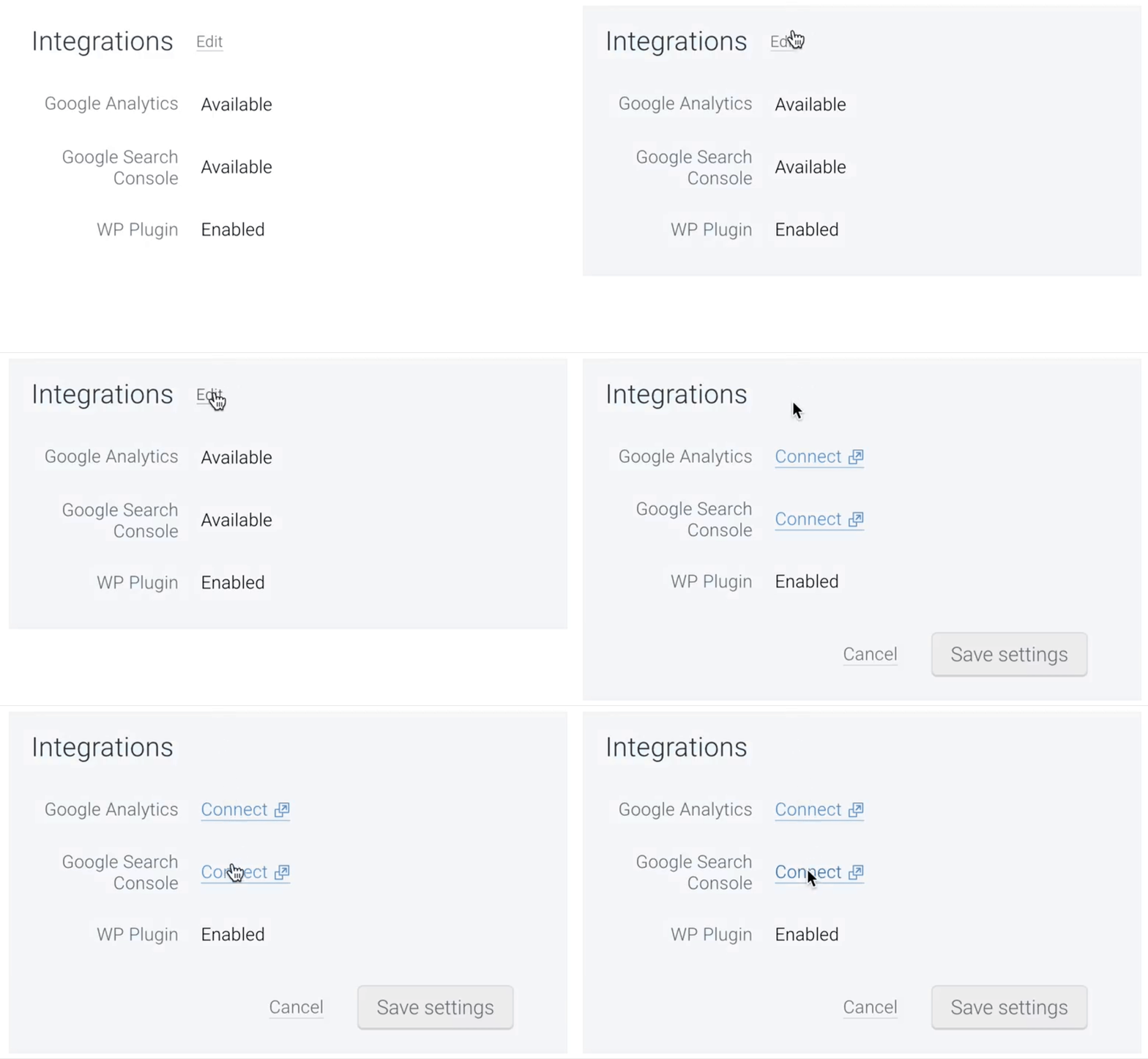
Setting up the Google Search Console integration is simple:
1. Click **Account** in the sidebar to get to the overview of your websites.
2. Click the website you want to connect.
3. In the **Integrations** section, click **Edit**.
4. Click **Connect** and authenticate with Google Search Console.\\
 ## Error: website not found in Google Search Console account
It might happen that you run into an error while trying to connect your Conductor Monitoring account to Google Search Console:
## Error: website not found in Google Search Console account
It might happen that you run into an error while trying to connect your Conductor Monitoring account to Google Search Console:
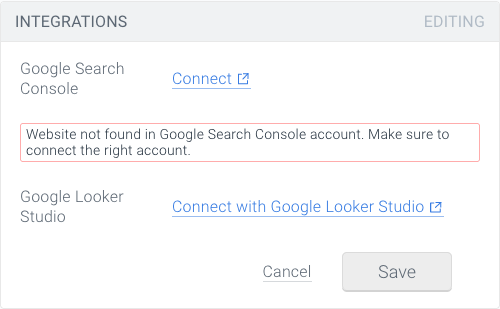 There are two things that can cause this:
* You're connecting the wrong Google Search Console account. In that case, simply click **Connect** again and authenticate the correct account.
* The Google account connecting the integration doesn't have sufficient permissions to integrate the data to Conductor Monitoring. The user should have either **Full user** or **Owner** permissions for the properties in question to integrate them (more about the permissions can be found in the following [Google support article](https://support.google.com/webmasters/answer/7687615?hl=en#zippy=%2Cdetermine-a-users-permission-level)).
There are two things that can cause this:
* You're connecting the wrong Google Search Console account. In that case, simply click **Connect** again and authenticate the correct account.
* The Google account connecting the integration doesn't have sufficient permissions to integrate the data to Conductor Monitoring. The user should have either **Full user** or **Owner** permissions for the properties in question to integrate them (more about the permissions can be found in the following [Google support article](https://support.google.com/webmasters/answer/7687615?hl=en#zippy=%2Cdetermine-a-users-permission-level)).