> ## Documentation Index
> Fetch the complete documentation index at: https://www.conductor.com/docs/llms.txt
> Use this file to discover all available pages before exploring further.
# Managing Websites in Conductor Monitoring
> Add, configure, and review the websites you monitor with Conductor Monitoring.
You can add as many websites to Conductor Monitoring as you want in increments of 1,000 pages, as long as they fit in your [Page Bundle](/docs/monitoring/page-bundle-and-page-capacity/#page-bundle).
## Websites overview
The **Websites overview** section in Conductor Monitoring provides you with the list of all websites in your account, along with useful information about each website.
This overview can be very helpful to spot check which of your websites might be hitting the [Page Capacity](/docs/monitoring/page-bundle-and-page-capacity/#page-capacity) limit, if the monitoring is paused, or how many Custom Elements you are utilizing on each website.
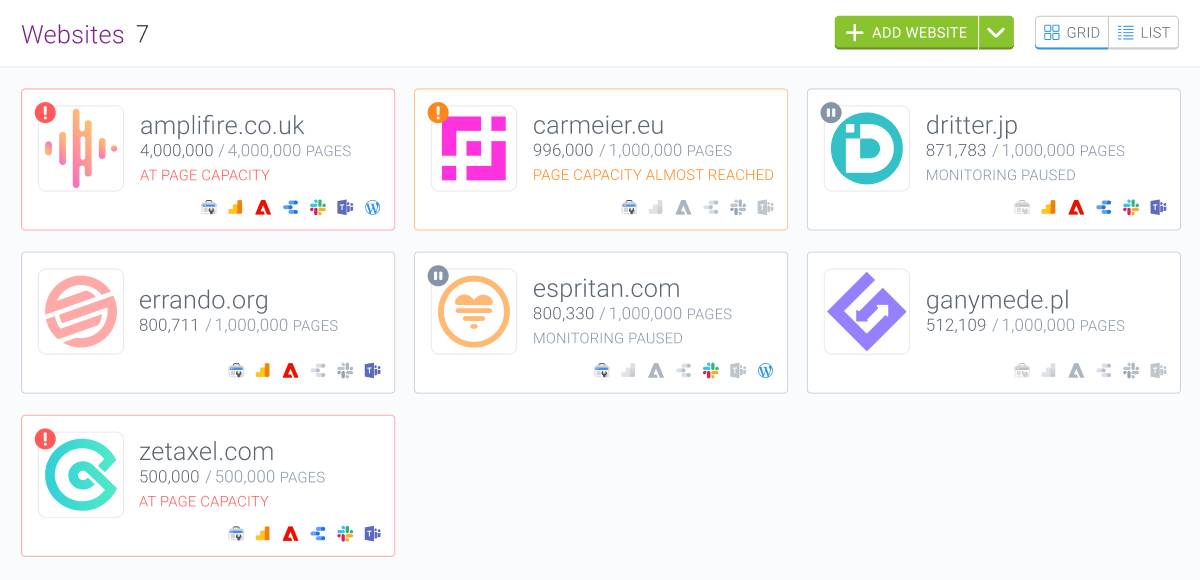
The Websites overview is available in a [Grid view](https://app.contentkingapp.com/account/websites?view=grid):
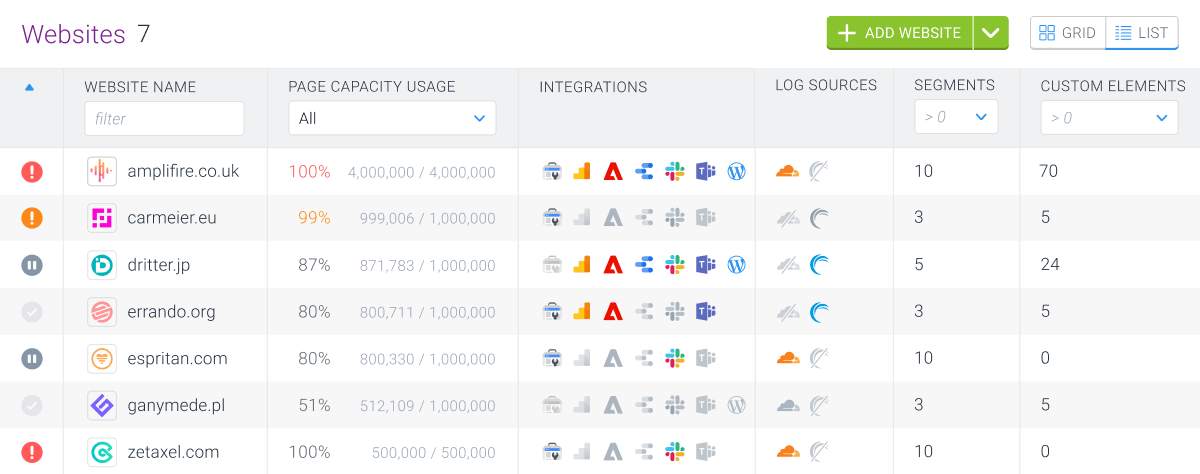
 And a [List view](https://app.contentkingapp.com/account/websites?view=list):
 ### Grid view
If you are using the grid view in the websites overview, you can find the following information in the columns:
* **Website name**: This is the website name that you specify in Conductor Monitoring, not the domain name.
* **Page Capacity usage**: The percentage and the number of used pages from the Page Capacity per website.
* **Integrations**: Which integrations are available on the website and which are enabled.
### List view
If you are using the list view in the websites overview, you can find the following information in the columns:
* **Website name**: This is the website name that you specify in Conductor Monitoring, not the domain name.
* **Page Capacity usage**: The percentage and the number of used pages from the Page Capacity per website.
* **Integrations**: Which integrations are available on the website and which are enabled.
* **Log sources**: Which log source the website has and if it’s eligible for Conductor Monitoring's [Log File Analysis feature](/docs/monitoring/log-file-analysis/).
* **Segments**: The number of segments created on the website.
* **Custom Elements**: The number of Custom Element Extractions defined on the website.
## Adding or removing websites
To add or remove a website you need to have [Manager or Admin permissions](/docs/monitoring/users-roles/).
### Sub-domains
Just like Google and most other search engines, Conductor Monitoring distinguishes websites based on domain name, including sub-domains. This means that *example.com* and *subdomain.example.com* are considered to be separate websites, and if you want to track them both you need to add them separately in Conductor Monitoring.
The only exception regarding sub-domains is the www-variant: *example.com* and *[www.example.com](http://www.example.com)* are considered to be the same website.
### Adding a single website
Follow the steps below to add a single website to your account.
1. Go to **Account**.
2. In the navigation bar, click **Websites**.
3. Click **Add website**.
4. Enter the domain that you want to add to Conductor Monitoring.
5. Set the [Page Capacity](/docs/monitoring/page-bundle-and-page-capacity/#page-capacity) to the number of pages that you want to monitor on the website.
6. Select a messaging app if you’d like to receive [Alerts](/docs/monitoring/alerts/) from Conductor Monitoring on it ([Slack](/docs/monitoring/slack/) or [Microsoft Teams](/docs/monitoring/microsoft-teams/)).
7. Connect [Google Search Console](/docs/monitoring/google-search-console-in-conductor-monitoring/) and [Google Analytics](/docs/monitoring/google-analytics-in-conductor-monitoring/) with Conductor Monitoring if you’d like to pull in your website’s data to Conductor Monitoring.
8. Select which team members should receive [Reports](/docs/monitoring/weekly-reports/) and [Alerts](/docs/monitoring/alerts/) for the website.
9. Click **Save**.
### Grid view
If you are using the grid view in the websites overview, you can find the following information in the columns:
* **Website name**: This is the website name that you specify in Conductor Monitoring, not the domain name.
* **Page Capacity usage**: The percentage and the number of used pages from the Page Capacity per website.
* **Integrations**: Which integrations are available on the website and which are enabled.
### List view
If you are using the list view in the websites overview, you can find the following information in the columns:
* **Website name**: This is the website name that you specify in Conductor Monitoring, not the domain name.
* **Page Capacity usage**: The percentage and the number of used pages from the Page Capacity per website.
* **Integrations**: Which integrations are available on the website and which are enabled.
* **Log sources**: Which log source the website has and if it’s eligible for Conductor Monitoring's [Log File Analysis feature](/docs/monitoring/log-file-analysis/).
* **Segments**: The number of segments created on the website.
* **Custom Elements**: The number of Custom Element Extractions defined on the website.
## Adding or removing websites
To add or remove a website you need to have [Manager or Admin permissions](/docs/monitoring/users-roles/).
### Sub-domains
Just like Google and most other search engines, Conductor Monitoring distinguishes websites based on domain name, including sub-domains. This means that *example.com* and *subdomain.example.com* are considered to be separate websites, and if you want to track them both you need to add them separately in Conductor Monitoring.
The only exception regarding sub-domains is the www-variant: *example.com* and *[www.example.com](http://www.example.com)* are considered to be the same website.
### Adding a single website
Follow the steps below to add a single website to your account.
1. Go to **Account**.
2. In the navigation bar, click **Websites**.
3. Click **Add website**.
4. Enter the domain that you want to add to Conductor Monitoring.
5. Set the [Page Capacity](/docs/monitoring/page-bundle-and-page-capacity/#page-capacity) to the number of pages that you want to monitor on the website.
6. Select a messaging app if you’d like to receive [Alerts](/docs/monitoring/alerts/) from Conductor Monitoring on it ([Slack](/docs/monitoring/slack/) or [Microsoft Teams](/docs/monitoring/microsoft-teams/)).
7. Connect [Google Search Console](/docs/monitoring/google-search-console-in-conductor-monitoring/) and [Google Analytics](/docs/monitoring/google-analytics-in-conductor-monitoring/) with Conductor Monitoring if you’d like to pull in your website’s data to Conductor Monitoring.
8. Select which team members should receive [Reports](/docs/monitoring/weekly-reports/) and [Alerts](/docs/monitoring/alerts/) for the website.
9. Click **Save**.
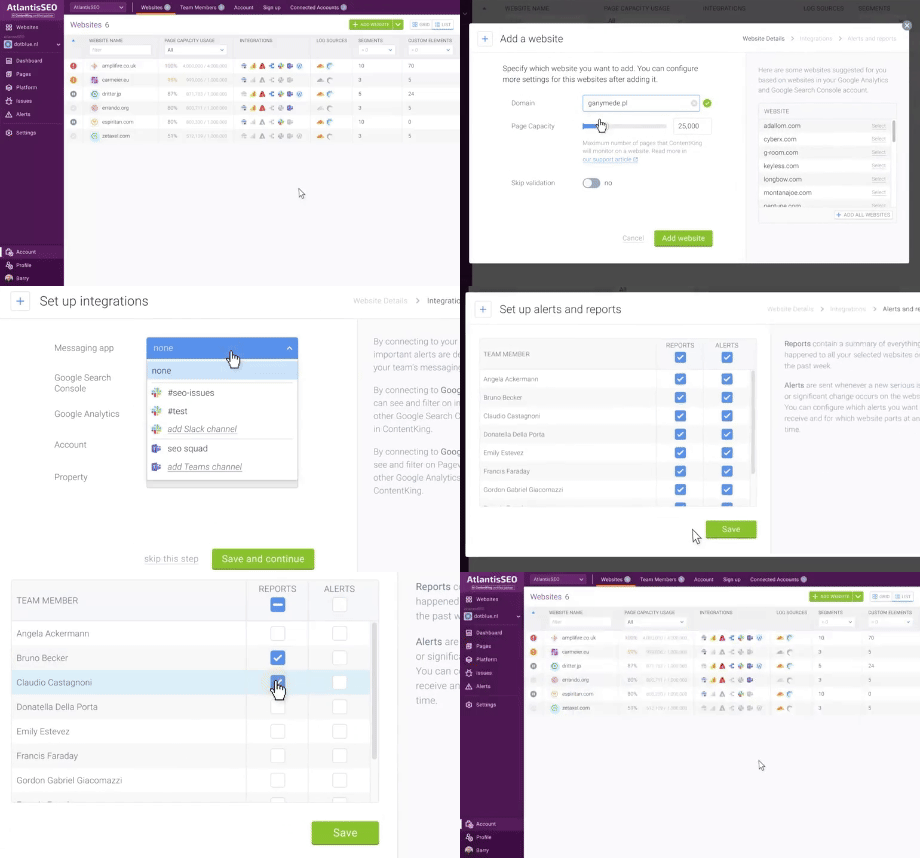 After completing the above steps, the website is added to Conductor Monitoring.
If you encounter any issues with adding a website to Conductor Monitoring, make sure to [contact us](/docs/platform/getting-help-with-conductor-products/)!
### Adding websites in bulk
Follow these steps to add websites in bulk to your account:
1. Go to **Account**.
2. In the navigation bar, click **Websites**.
3. Click on the "**down arrow**" next to the **Add website** button.
4. Choose the option to **Add multiple websites**.
5. Choose the **Free text input** option and enter the domains separated by a new row.
6. Click on the **Add these websites** button.
7. Choose their [Page Capacity](/docs/monitoring/page-bundle-and-page-capacity/#page-capacity) (you can apply the same Page Capacity to all new websites by clicking **Apply to all**).
8. Select which team members should receive [Reports](/docs/monitoring/weekly-reports/) and [Alerts](/docs/monitoring/alerts/) for the website.
9. When you click **Save**, the websites are added to your Conductor Monitoring account.
After completing the above steps, the website is added to Conductor Monitoring.
If you encounter any issues with adding a website to Conductor Monitoring, make sure to [contact us](/docs/platform/getting-help-with-conductor-products/)!
### Adding websites in bulk
Follow these steps to add websites in bulk to your account:
1. Go to **Account**.
2. In the navigation bar, click **Websites**.
3. Click on the "**down arrow**" next to the **Add website** button.
4. Choose the option to **Add multiple websites**.
5. Choose the **Free text input** option and enter the domains separated by a new row.
6. Click on the **Add these websites** button.
7. Choose their [Page Capacity](/docs/monitoring/page-bundle-and-page-capacity/#page-capacity) (you can apply the same Page Capacity to all new websites by clicking **Apply to all**).
8. Select which team members should receive [Reports](/docs/monitoring/weekly-reports/) and [Alerts](/docs/monitoring/alerts/) for the website.
9. When you click **Save**, the websites are added to your Conductor Monitoring account.
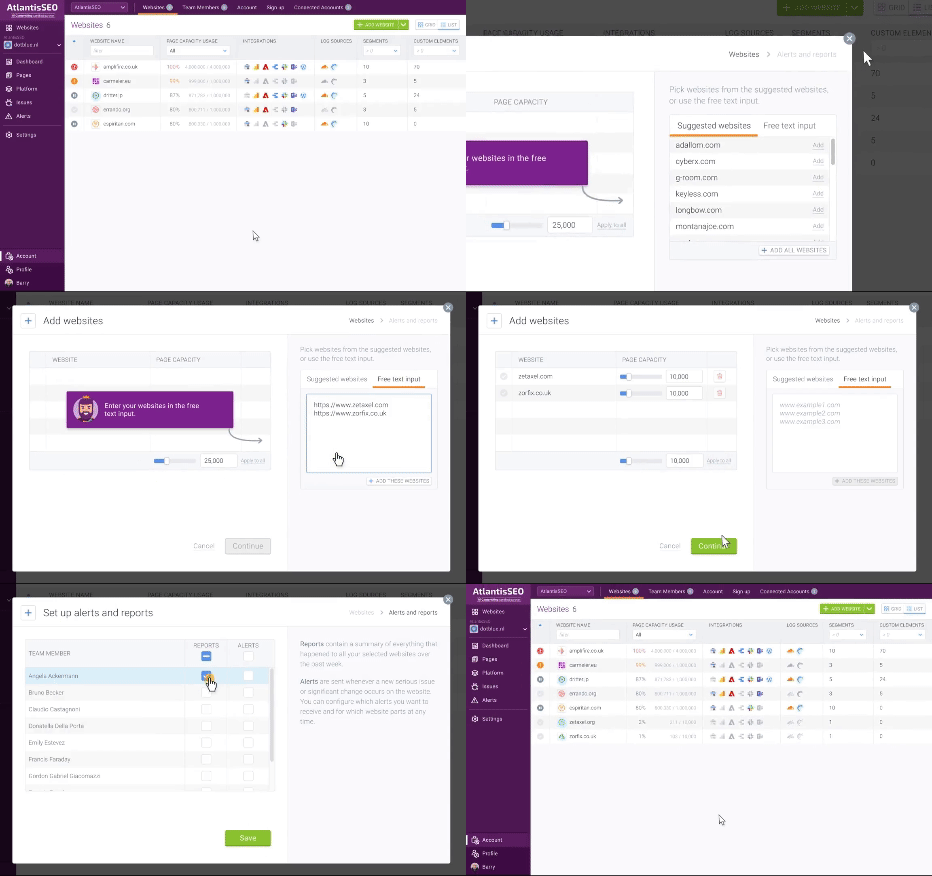 If you encounter any issues with adding the websites to Conductor Monitoring, make sure to [contact us](/docs/platform/getting-help-with-conductor-products/)!
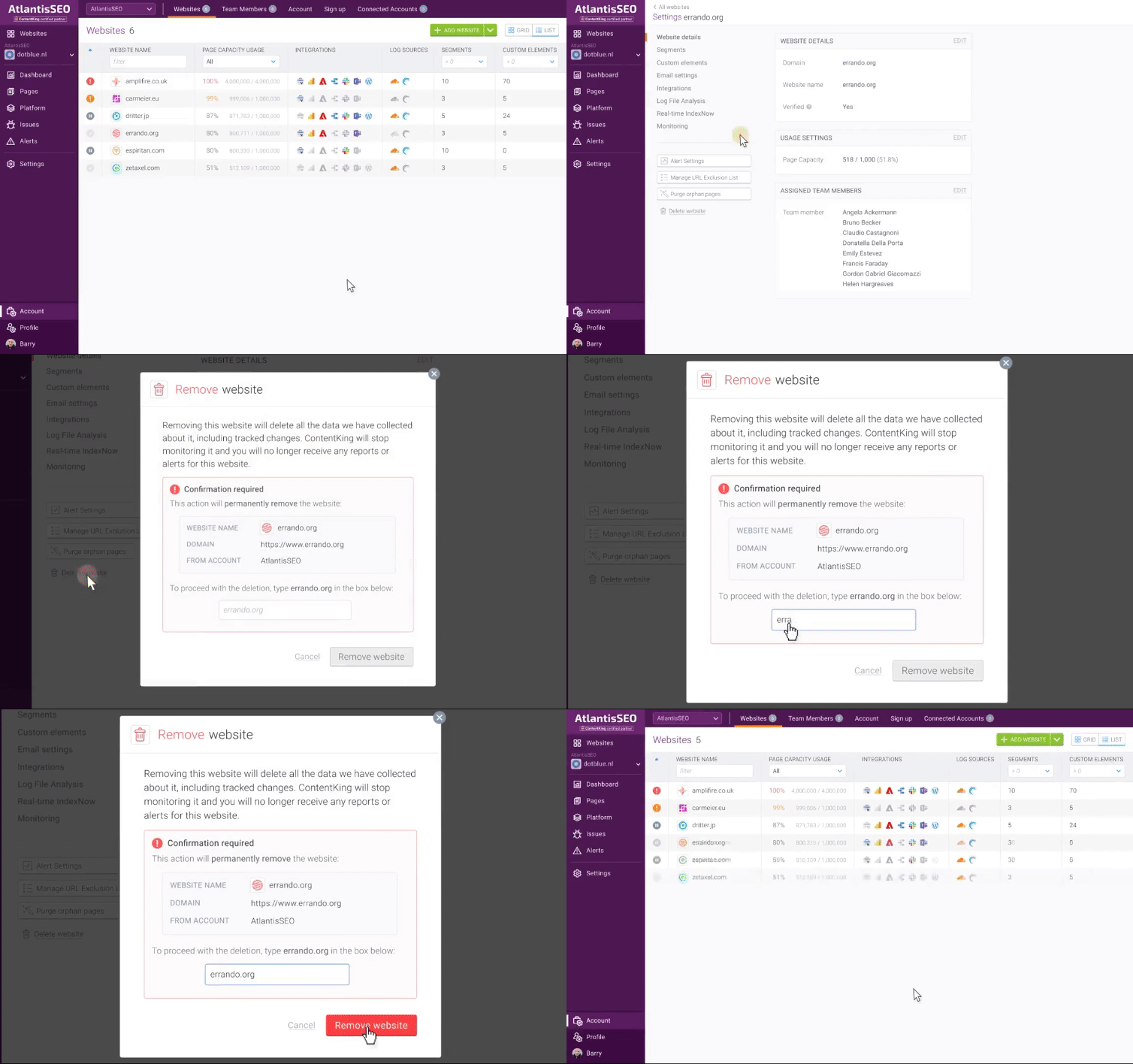
### Removing a website
Follow these steps to remove a website from your account:
1. Go to **Account**.
2. In the navigation bar, click **Websites**.
3. Select the website that you want to remove from Conductor Monitoring.
4. Click **Delete website**.
5. Type the name of the website and click **Remove website.**
If you encounter any issues with adding the websites to Conductor Monitoring, make sure to [contact us](/docs/platform/getting-help-with-conductor-products/)!
### Removing a website
Follow these steps to remove a website from your account:
1. Go to **Account**.
2. In the navigation bar, click **Websites**.
3. Select the website that you want to remove from Conductor Monitoring.
4. Click **Delete website**.
5. Type the name of the website and click **Remove website.**
 ## FAQs
[Review this feature's frequently asked questions](/docs/monitoring/monitoring-faqs/)
## FAQs
[Review this feature's frequently asked questions](/docs/monitoring/monitoring-faqs/)