> ## Documentation Index
> Fetch the complete documentation index at: https://www.conductor.com/docs/llms.txt
> Use this file to discover all available pages before exploring further.
# Microsoft Teams
> Send Conductor Monitoring alerts directly into Microsoft Teams channels alongside or in place of email and Slack.
With the Microsoft Teams integration in Conductor Monitoring you can get alerts right into any of your Microsoft Teams channels.
You can configure alerts to be sent via email as well as via a messaging app: Slack or Microsoft Teams.
If you have both [Slack integration](/docs/monitoring/slack/) and Microsoft Teams connected you can select either Slack or Microsoft Teams channels for the same alert definition.
## Alerts in Microsoft Teams
Alerts in Conductor Monitoring are sent when important issues and changes occur on your website. You can read more about the Alerts in a dedicated article about [Alerts](/docs/monitoring/alerts/).
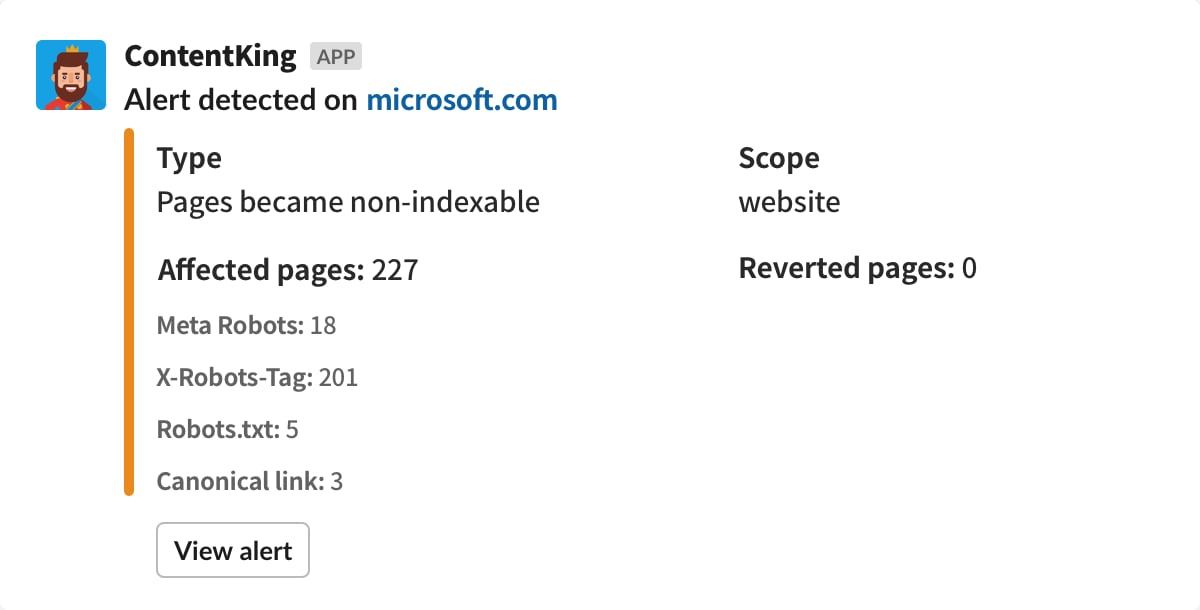
When an alert opens, it will be delivered to Microsoft Teams right away, bringing your entire team up-to-speed at once and facilitating discussions:
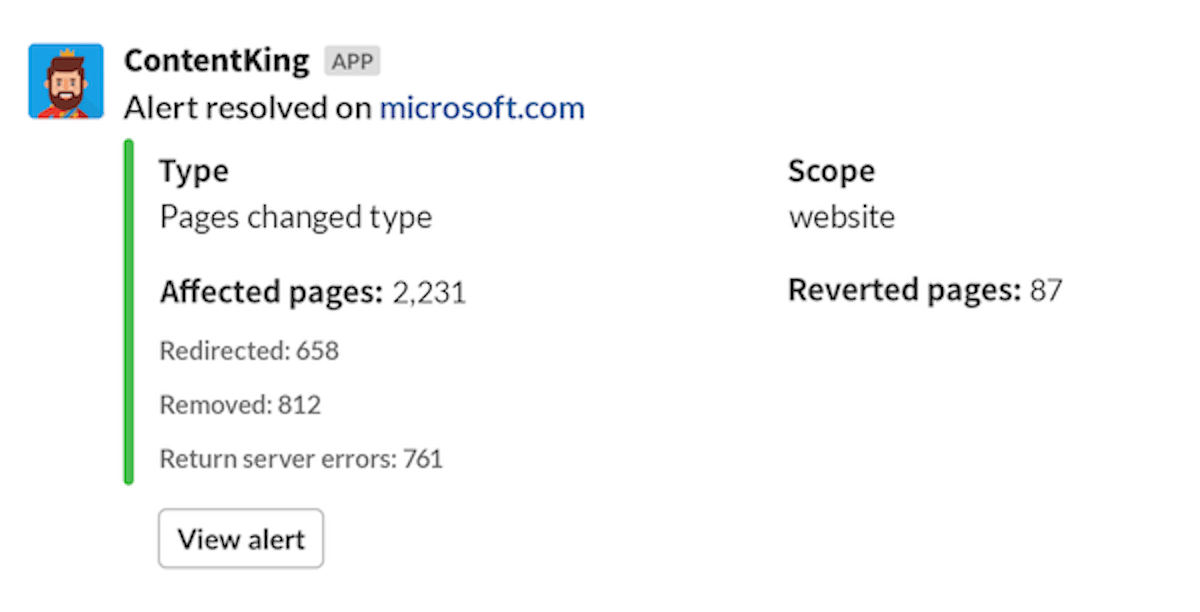
 Conductor Monitoring will also send a notification to Microsoft Teams once the alert incident has been resolved, keeping your whole team in the loop:
 ## Connecting the Microsoft Teams integration
The process of configuring the Microsoft Teams integration consists of two steps:
* Setting up a webhook workflow in Microsoft Teams
* Passing the webhook workflow to Conductor Monitoring
### Setting up a webhook in Microsoft Teams
To set up a Microsoft Teams channel webhook:
1. In **Teams**, click the **More options** button on the channel and select **Workflows.**\
**
## Connecting the Microsoft Teams integration
The process of configuring the Microsoft Teams integration consists of two steps:
* Setting up a webhook workflow in Microsoft Teams
* Passing the webhook workflow to Conductor Monitoring
### Setting up a webhook in Microsoft Teams
To set up a Microsoft Teams channel webhook:
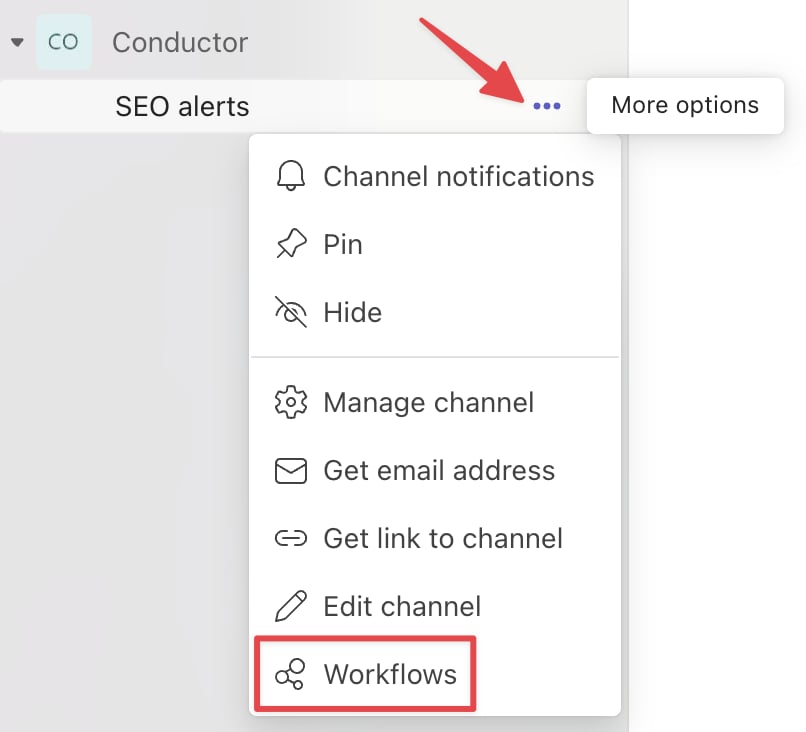
1. In **Teams**, click the **More options** button on the channel and select **Workflows.**\
** **
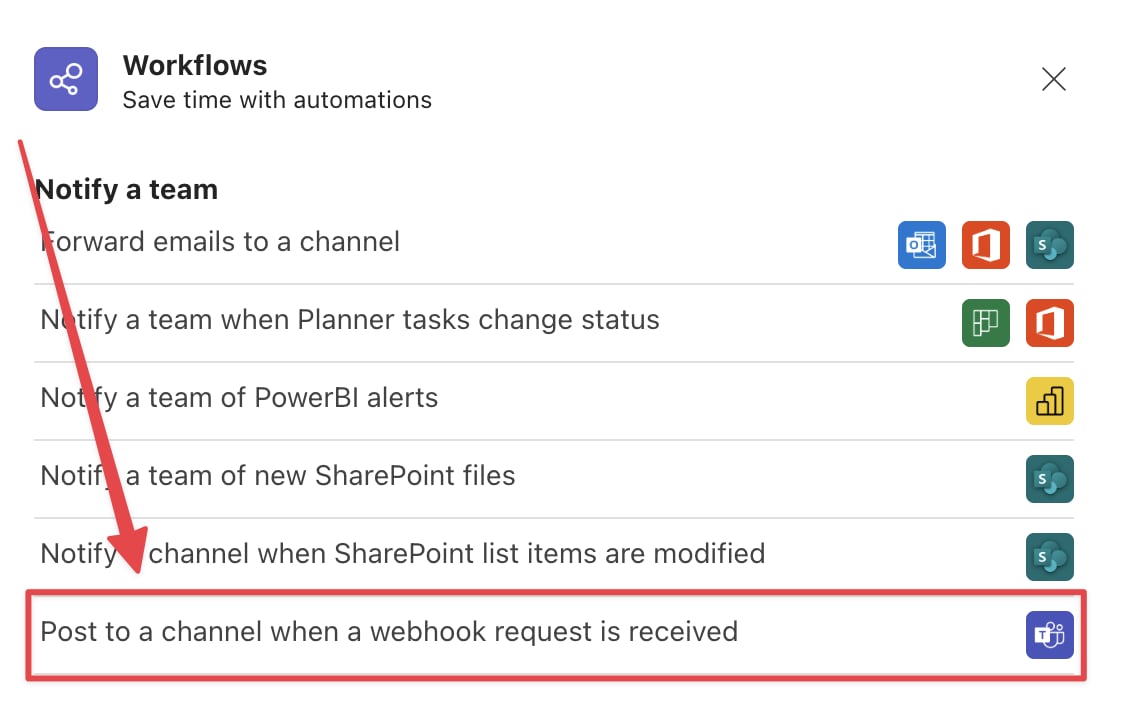
2. Select **Post to a channel when a webhook request is received**:\\
**
2. Select **Post to a channel when a webhook request is received**:\\
 3. Click **Next**.
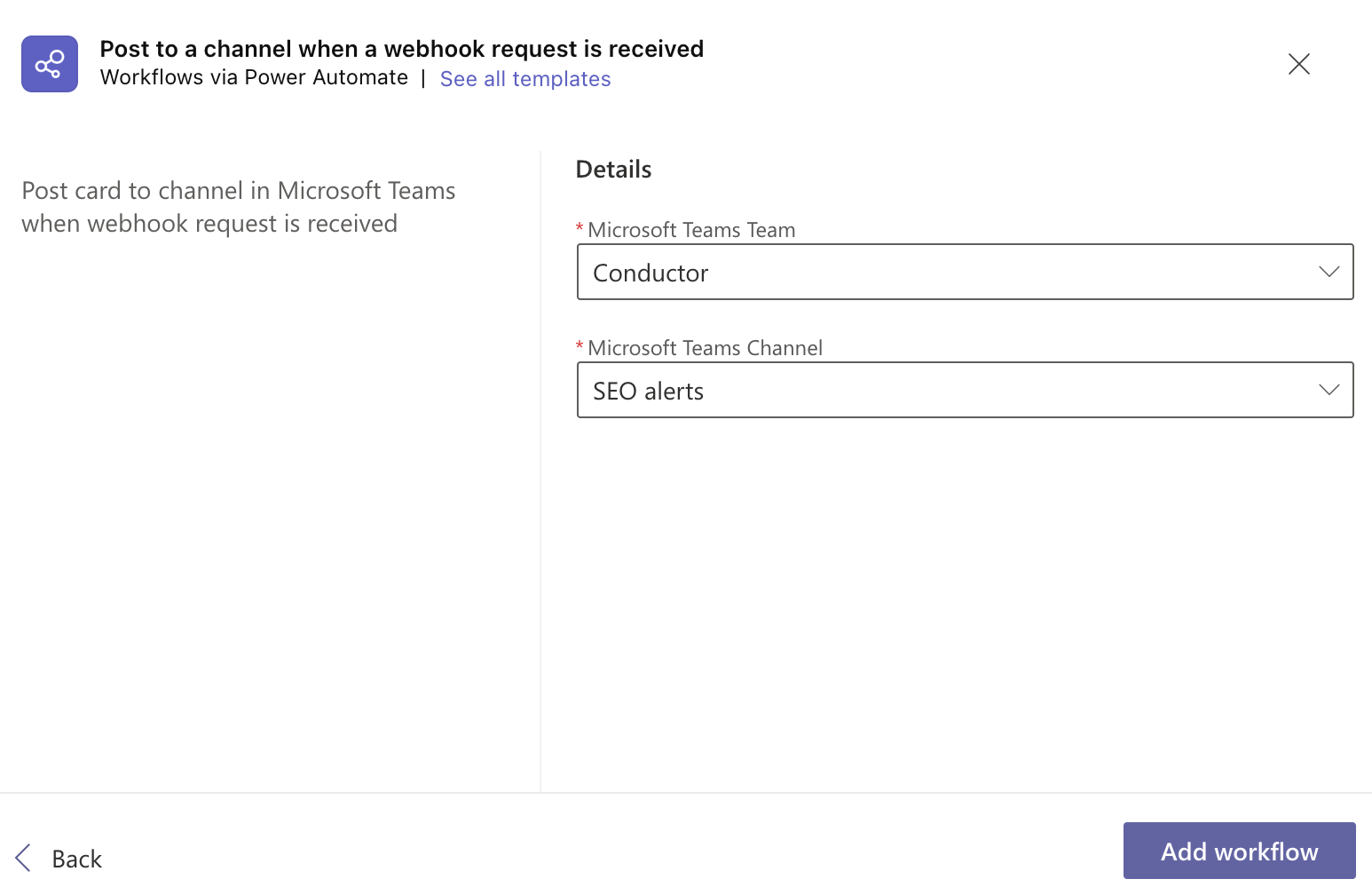
4. Add a workflow to the specified Team and Teams Channel:\
3. Click **Next**.
4. Add a workflow to the specified Team and Teams Channel:\
 \
The Workflow is added.
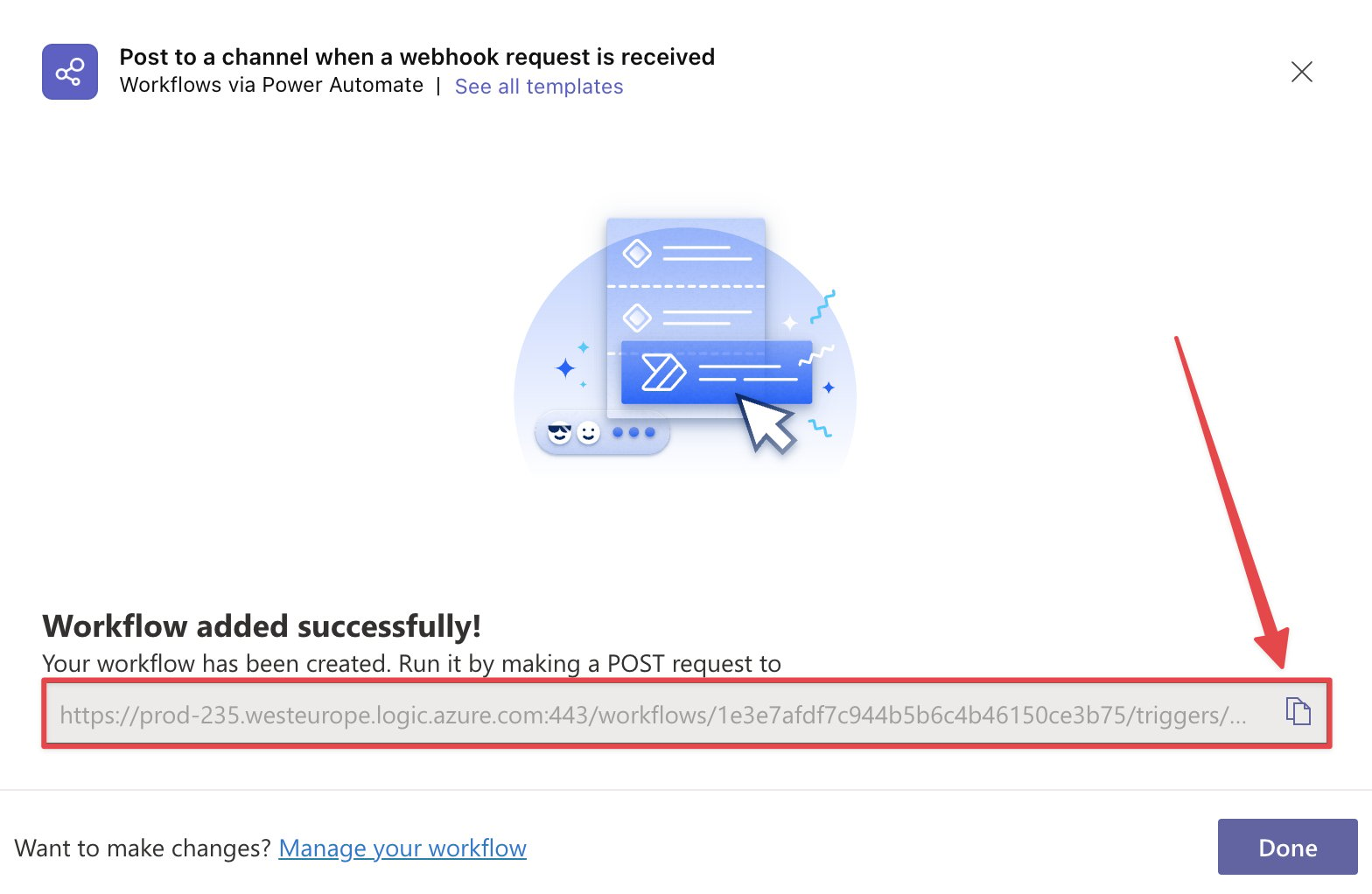
5. Copy the webhook link:\\
\
The Workflow is added.
5. Copy the webhook link:\\
 ### Passing the webhook to Conductor Monitoring
1. Go to the **Alerts** screen and click the **Alert settings** button in the top-right corner.
2. Select an alert.
3. On the **Alerts definitions** screen select the alert(s) you want to send to Microsoft Teams.
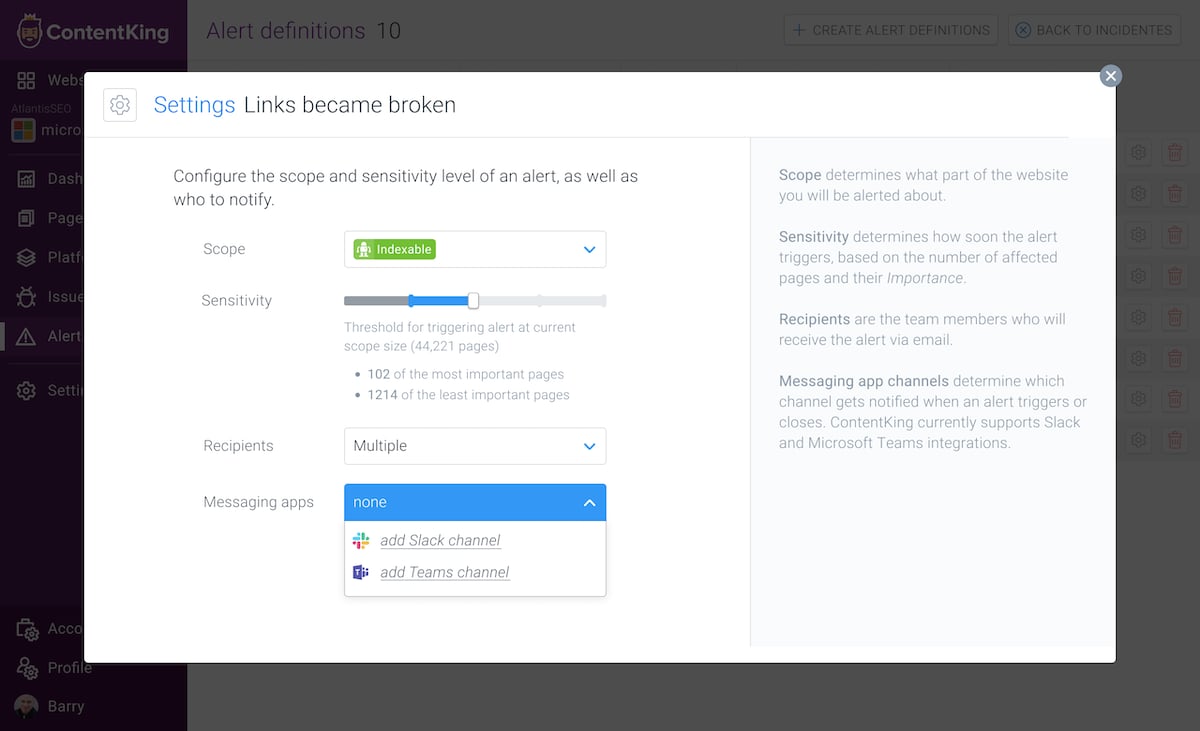
4. In the **Messaging apps** section select **add Teams channel**.\\
### Passing the webhook to Conductor Monitoring
1. Go to the **Alerts** screen and click the **Alert settings** button in the top-right corner.
2. Select an alert.
3. On the **Alerts definitions** screen select the alert(s) you want to send to Microsoft Teams.
4. In the **Messaging apps** section select **add Teams channel**.\\
 5. Name how you want the channel to be displayed in Conductor Monitoring and enter the Webhook URL you generated in Microsoft Teams [in the steps above](#setting-up-a-webhook-in-microsoft-teams).\\
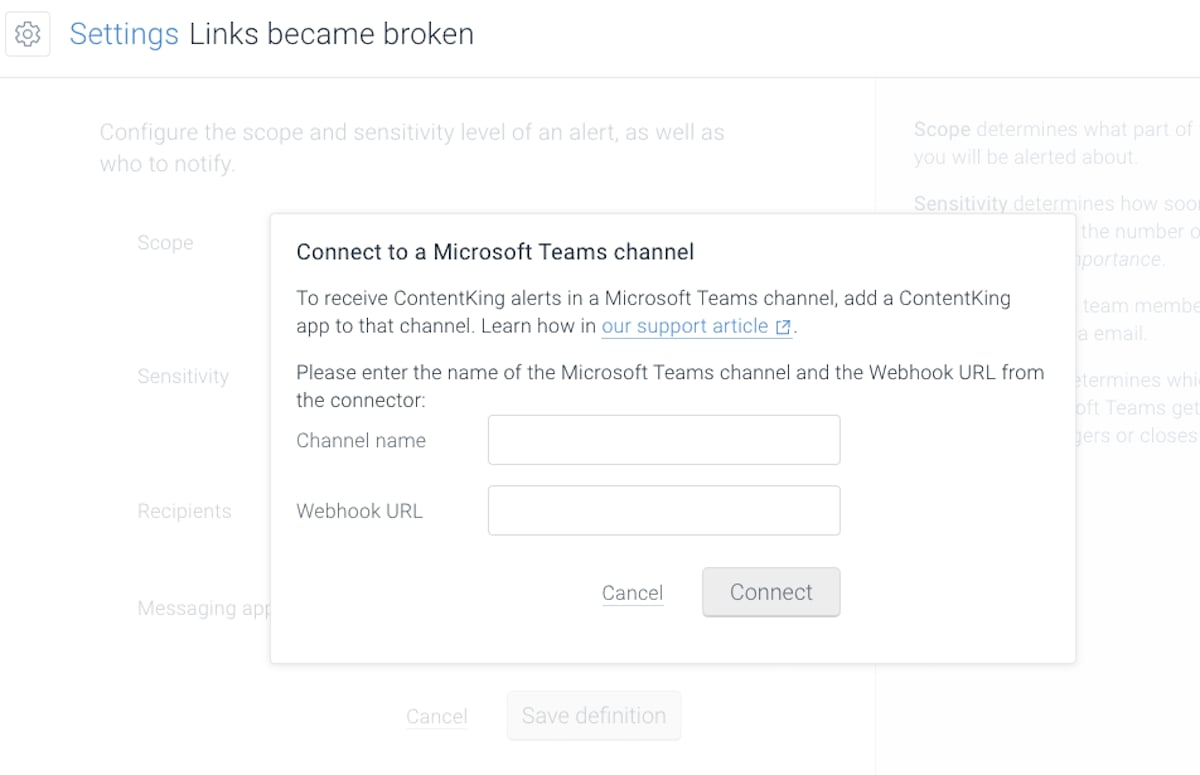 6. Connect the Microsoft Teams channel to Conductor Monitoring by clicking **Connect**.
## Adding Microsoft Teams channel to a new alert definition
To create new alerts that will be sent directly to the Microsoft Teams channel follow the steps below:
1. Go to the **Alerts** screen and click the **Alert settings** button in the top-right corner.
2. On the **Alerts definitions** screen, click **Create alert definitions**.
3. Select the alert type you want to create.
4. Depending on the alert type you selected in the previous step, set the trigger(s).
5. Set the scope, sensitivity level, and the recipients.
6. Select **Messaging app** and choose the relevant Microsoft Teams channel.
7. Click **Save definition**.
## Adding Microsoft Teams channel to multiple alerts at once
In just a few clicks you can connect the Microsoft Teams channel to multiple alert definitions.
1. Go to the **Alert Definitions** screen.
2. Select all the Alerts you want to send to Microsoft Teams.
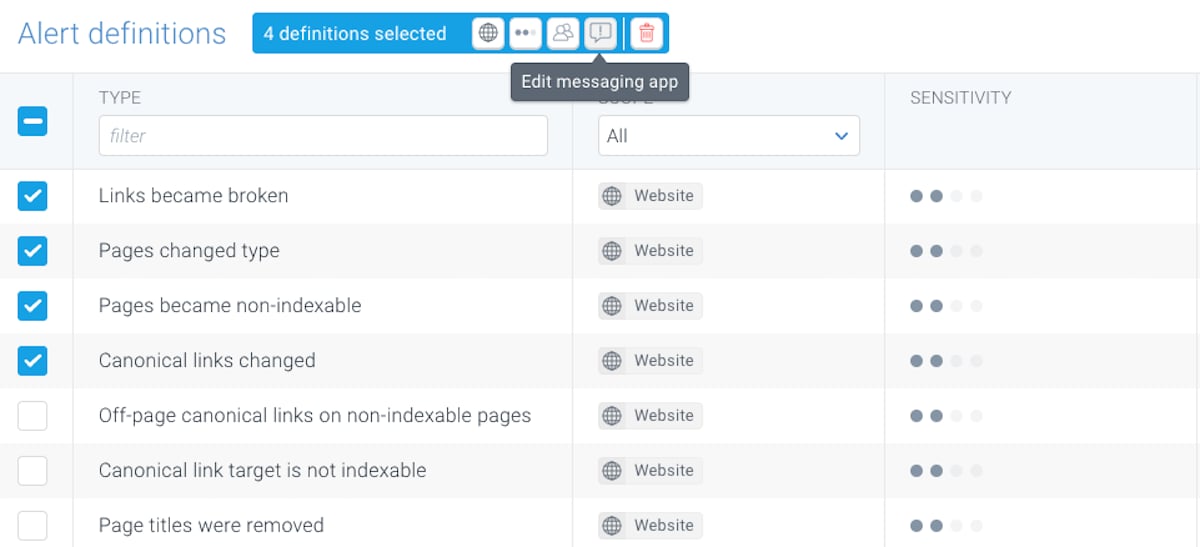
3. Click the **Messaging app** icon in the toolbar at the top.
4. In the window that appears select the Microsoft Teams channel you need.\\
6. Connect the Microsoft Teams channel to Conductor Monitoring by clicking **Connect**.
## Adding Microsoft Teams channel to a new alert definition
To create new alerts that will be sent directly to the Microsoft Teams channel follow the steps below:
1. Go to the **Alerts** screen and click the **Alert settings** button in the top-right corner.
2. On the **Alerts definitions** screen, click **Create alert definitions**.
3. Select the alert type you want to create.
4. Depending on the alert type you selected in the previous step, set the trigger(s).
5. Set the scope, sensitivity level, and the recipients.
6. Select **Messaging app** and choose the relevant Microsoft Teams channel.
7. Click **Save definition**.
## Adding Microsoft Teams channel to multiple alerts at once
In just a few clicks you can connect the Microsoft Teams channel to multiple alert definitions.
1. Go to the **Alert Definitions** screen.
2. Select all the Alerts you want to send to Microsoft Teams.
3. Click the **Messaging app** icon in the toolbar at the top.
4. In the window that appears select the Microsoft Teams channel you need.\\