> ## Documentation Index
> Fetch the complete documentation index at: https://www.conductor.com/docs/llms.txt
> Use this file to discover all available pages before exploring further.
# Monitoring Settings in Conductor Monitoring
> Tune the monitoring configuration—crawl frequency, JS rendering, and more—for each website in your account.
Conductor Monitoring allows you to adjust the monitoring settings for each website in your account to ensure your websites have the optimal monitoring setup that is tailored to your specific needs.
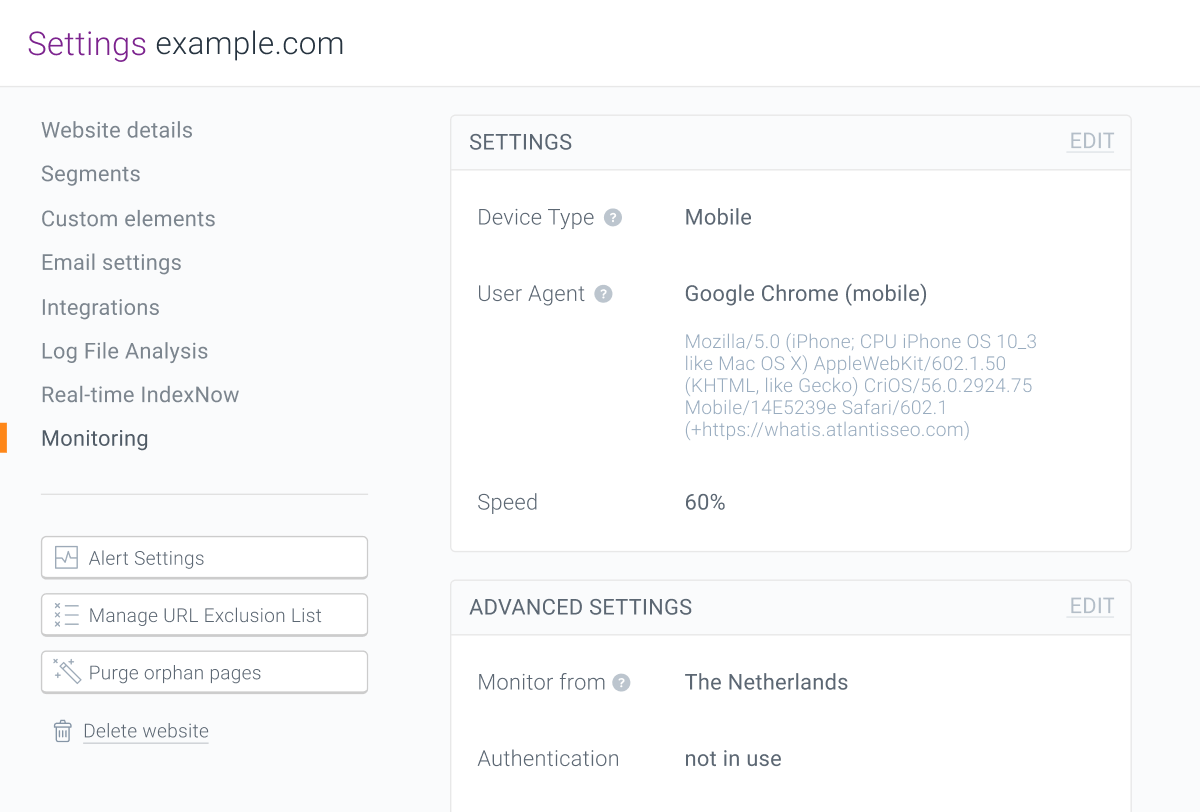
To access the monitoring settings in Conductor Monitoring, go to the **Website settings** and click on the **Monitoring** tab on the left side of the screen.
 ### Note!
These settings are also used to configure any of the websites you also track with the Conductor Intelligence product. Keep in mind as you modify these settings that changes to your website's monitoring settings in Conductor Monitoring will update the monitoring settings for those websites in Conductor Intelligence.
## Monitoring Settings
The **Settings** section in Conductor Monitoring's **Monitoring** activity allows you to configure basic aspects of your site crawl.
### Note!
These settings are also used to configure any of the websites you also track with the Conductor Intelligence product. Keep in mind as you modify these settings that changes to your website's monitoring settings in Conductor Monitoring will update the monitoring settings for those websites in Conductor Intelligence.
## Monitoring Settings
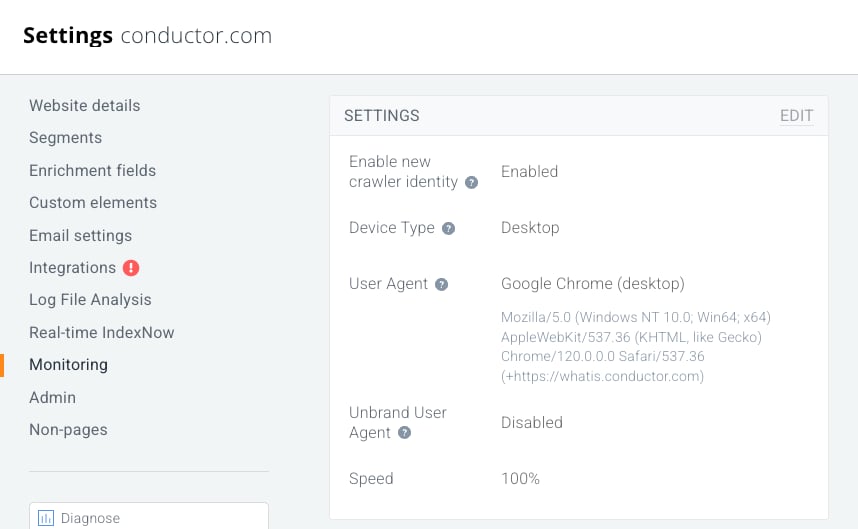
The **Settings** section in Conductor Monitoring's **Monitoring** activity allows you to configure basic aspects of your site crawl.
 ### Device Type
You can choose the device type for which you want Conductor to use as it crawls your website. You can choose either:
* **Mobile**, which uses a 360px width by 640px height viewport.
* **Desktop**, which uses 1,350px width by 940px height viewport
#### Changing the Device Type
You can configure which Device Type Conductor Monitoring should use when monitoring your website in the Monitoring section of the Website settings.
You can pick from **Desktop** or **Mobile**.
### User-Agent String
#### What is a user agent string?
Browsers and web crawlers send a special identification, called the user agent string, to the website they're accessing. This user agent can be used to tailor the reply, for example: when the user agent string makes it clear that the website is being accessed on a phone the mobile variant of the website may be returned. If the web server software keeps [logs of all visitors to the website](https://www.conductor.com/academy/log-file-analysis/#what-is-log-file) it usually also stores the user agent string to allow identification of the different traffic.
#### Default user agent string
By default, Conductor sends this user agent string when making requests:
`Mozilla/5.0 (compatible; Conductor Monitoring; +https://whatis.conductor.com)`
#### Changing the User-Agent
You can configure which user agent string Conductor Monitoring should use when monitoring your website in the Monitoring section of the Website settings.
You can pick a predefined user agent string from the list or set a fully custom user agent string if you have validated ownership of the website. You can validate ownership of the website by connecting [Google Search Console](/docs/monitoring/google-search-console-in-conductor-monitoring/) or installing the [Cloudflare Worker](/docs/monitoring/setting-up-the-cloudflare-worker-integration/). More about website verification [here](/docs/monitoring/website-verification/)
Predefined user agents:
* Google Chrome (desktop)
* Google Chrome (mobile)
* Googlebot (desktop)
* Googlebot (mobile)
* BingBot (desktop)
* BingBot (mobile)
* Slurp
* YandexBot
* Baiduspider
* Screaming Frog
* DuckDuckGo
* SeznamBot
* ContentKing (To be deprecated)
* Conductor (Default)
#### Unbrand User Agent
When enabled, this option removes the identifier ("[https://whatis.conductor.com](https://whatis.conductor.com)") from the user agent string. The feature is only available for verified websites.
### Monitoring speed and frequency
### A Note about Crawl Frequency
As an auditing product, Conductor Monitoring differs from other SEO auditing tools in that it monitors websites 24/7. Search engines check your website 24/7, so it’s essential that your auditing solution does the same. Our monitoring is driven by smart algorithms that take a vast array of signals into account to determine when to crawl a specific page.
As a product that reports technical SEO data, Conductor Intelligence provides regularly collected data from crawls of your websites, no less often than once a week.
The speed with which Conductor monitors and the overhead (or impact) on your website depends on your website’s size, your webserver’s capacity and the monitoring speed setting.
#### The relation between web server capacity and monitoring speed
In order to avoid performance issues on your website and to align with your business needs, before using Conductor it is essential that you verify what crawl speed your infrastructure can support and adjust your settings accordingly.
Although it is important to assess webserver capacity before using the application, Conductor helps predict server overload by continuously assessing your website’s performance. It does this through its throttling algorithm, which looks at the time it takes to get a response from the webserver and at the response itself. If the algorithm detects an issue (for example, slower speeds, increased errors, etc.), it may slow down crawling automatically until the impact on the webserver has been remedied.
#### The relation between website size and monitoring speed
Once you have verified webserver capacity, for larger websites you may decide to crawl at a faster speed in order to keep up to date on your website's changes as well as possible. For example, if your website has 200,000 pages, you may wish to configure Conductor to request a page every second.
For smaller websites, you may decide to crawl at a slower speed. So, if your website is only a couple of thousand pages, the optimal crawl frequency may be very low. For example, if your website has 2,000 pages, you may only need Conductor to request a page once every 10 seconds.
#### Setting a different monitoring speed in Conductor Monitoring
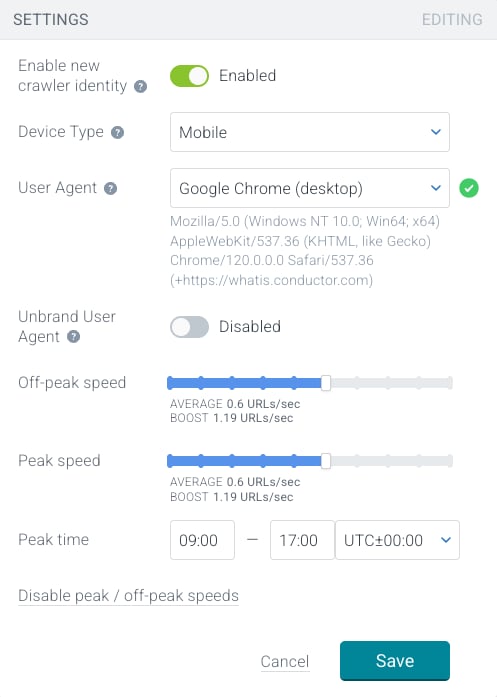
You can speed up or slow down Conductor Monitoring's crawling by setting a different monitoring speed in the website settings in Conductor Monitoring.
To crawl faster than the default monitoring speed you also need to verify domain ownership by connecting with [Google Search Console](/docs/monitoring/google-search-console-in-conductor-monitoring/) or installing the [Cloudflare Worker](/docs/monitoring/setting-up-the-cloudflare-worker-integration/). You can read more about this here: [Website verification](/docs/monitoring/website-verification/).
Note that "Lightspeed monitoring"—setting your speed to the top speed of 1,000%—is available only to customers with the Enterprise plan.
#### Setting different monitoring speeds in Conductor Monitoring for different times of the day
If your website sees or may see significantly higher loads due to traffic at peak times, you should configure Conductor Monitoring to slow down, or even pause, monitoring during these times by using the Peak / Off-peak monitoring speed feature:
### Device Type
You can choose the device type for which you want Conductor to use as it crawls your website. You can choose either:
* **Mobile**, which uses a 360px width by 640px height viewport.
* **Desktop**, which uses 1,350px width by 940px height viewport
#### Changing the Device Type
You can configure which Device Type Conductor Monitoring should use when monitoring your website in the Monitoring section of the Website settings.
You can pick from **Desktop** or **Mobile**.
### User-Agent String
#### What is a user agent string?
Browsers and web crawlers send a special identification, called the user agent string, to the website they're accessing. This user agent can be used to tailor the reply, for example: when the user agent string makes it clear that the website is being accessed on a phone the mobile variant of the website may be returned. If the web server software keeps [logs of all visitors to the website](https://www.conductor.com/academy/log-file-analysis/#what-is-log-file) it usually also stores the user agent string to allow identification of the different traffic.
#### Default user agent string
By default, Conductor sends this user agent string when making requests:
`Mozilla/5.0 (compatible; Conductor Monitoring; +https://whatis.conductor.com)`
#### Changing the User-Agent
You can configure which user agent string Conductor Monitoring should use when monitoring your website in the Monitoring section of the Website settings.
You can pick a predefined user agent string from the list or set a fully custom user agent string if you have validated ownership of the website. You can validate ownership of the website by connecting [Google Search Console](/docs/monitoring/google-search-console-in-conductor-monitoring/) or installing the [Cloudflare Worker](/docs/monitoring/setting-up-the-cloudflare-worker-integration/). More about website verification [here](/docs/monitoring/website-verification/)
Predefined user agents:
* Google Chrome (desktop)
* Google Chrome (mobile)
* Googlebot (desktop)
* Googlebot (mobile)
* BingBot (desktop)
* BingBot (mobile)
* Slurp
* YandexBot
* Baiduspider
* Screaming Frog
* DuckDuckGo
* SeznamBot
* ContentKing (To be deprecated)
* Conductor (Default)
#### Unbrand User Agent
When enabled, this option removes the identifier ("[https://whatis.conductor.com](https://whatis.conductor.com)") from the user agent string. The feature is only available for verified websites.
### Monitoring speed and frequency
### A Note about Crawl Frequency
As an auditing product, Conductor Monitoring differs from other SEO auditing tools in that it monitors websites 24/7. Search engines check your website 24/7, so it’s essential that your auditing solution does the same. Our monitoring is driven by smart algorithms that take a vast array of signals into account to determine when to crawl a specific page.
As a product that reports technical SEO data, Conductor Intelligence provides regularly collected data from crawls of your websites, no less often than once a week.
The speed with which Conductor monitors and the overhead (or impact) on your website depends on your website’s size, your webserver’s capacity and the monitoring speed setting.
#### The relation between web server capacity and monitoring speed
In order to avoid performance issues on your website and to align with your business needs, before using Conductor it is essential that you verify what crawl speed your infrastructure can support and adjust your settings accordingly.
Although it is important to assess webserver capacity before using the application, Conductor helps predict server overload by continuously assessing your website’s performance. It does this through its throttling algorithm, which looks at the time it takes to get a response from the webserver and at the response itself. If the algorithm detects an issue (for example, slower speeds, increased errors, etc.), it may slow down crawling automatically until the impact on the webserver has been remedied.
#### The relation between website size and monitoring speed
Once you have verified webserver capacity, for larger websites you may decide to crawl at a faster speed in order to keep up to date on your website's changes as well as possible. For example, if your website has 200,000 pages, you may wish to configure Conductor to request a page every second.
For smaller websites, you may decide to crawl at a slower speed. So, if your website is only a couple of thousand pages, the optimal crawl frequency may be very low. For example, if your website has 2,000 pages, you may only need Conductor to request a page once every 10 seconds.
#### Setting a different monitoring speed in Conductor Monitoring
You can speed up or slow down Conductor Monitoring's crawling by setting a different monitoring speed in the website settings in Conductor Monitoring.
To crawl faster than the default monitoring speed you also need to verify domain ownership by connecting with [Google Search Console](/docs/monitoring/google-search-console-in-conductor-monitoring/) or installing the [Cloudflare Worker](/docs/monitoring/setting-up-the-cloudflare-worker-integration/). You can read more about this here: [Website verification](/docs/monitoring/website-verification/).
Note that "Lightspeed monitoring"—setting your speed to the top speed of 1,000%—is available only to customers with the Enterprise plan.
#### Setting different monitoring speeds in Conductor Monitoring for different times of the day
If your website sees or may see significantly higher loads due to traffic at peak times, you should configure Conductor Monitoring to slow down, or even pause, monitoring during these times by using the Peak / Off-peak monitoring speed feature:
 ## JavaScript Rendering & Lighthouse
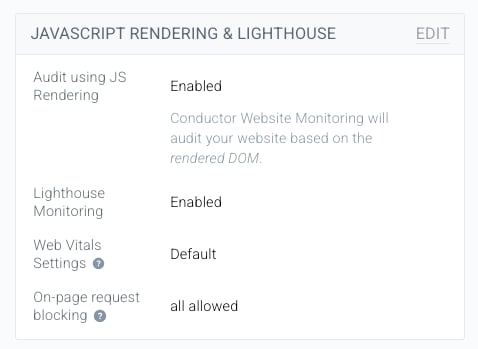
You can enable and disable whether Conductor Monitoring renders JavaScript during its crawl of your website and whether Conductor Monitoring tracks the Web Vitals metrics for every page on your website and work with them in the same way as with all the other properties and metrics Conductor monitors.
You can enable JavaScript Rendering and Lighthouse monitoring here in **Monitoring** settings.
## JavaScript Rendering & Lighthouse
You can enable and disable whether Conductor Monitoring renders JavaScript during its crawl of your website and whether Conductor Monitoring tracks the Web Vitals metrics for every page on your website and work with them in the same way as with all the other properties and metrics Conductor monitors.
You can enable JavaScript Rendering and Lighthouse monitoring here in **Monitoring** settings.
 To learn more, refer to the [JavaScript Rendering](/docs/monitoring/javascript-rendering-in-conductor-monitoring/) and [Core Web Vitals Lighthouse Monitoring](/docs/monitoring/core-web-vitals-lighthouse-monitoring/) articles.
## Advanced Settings
### Monitoring location
Out of the box, Conductor monitors websites from the EU, the UK, or the US:
* If you create your account from the US or from Canada, your websites will be monitored from the US by default.
* If you create your account from the UK, your websites will be monitored from the UK by default.
* In all other cases, your websites will be monitored from the EU by default.
#### When does the monitoring location matter?
**Geo redirects**
When you operate globally or in multiple countries, you might have multiple domains with different language versions of your website (*example.com*, *example.co.uk*, *example.de,* etc.) and a geo redirect setup in place that redirects visitors to the relevant domain version based on their location.
So when you want to monitor *example.com* but the default monitoring location is set to the UK, Conductor will get redirected to *example.co.uk* and it will not be able to monitor *example.com*.
If this is the case, you can change the default monitoring location to the US to ensure that Conductor doesn’t get redirected to a different domain and will be able to monitor *example.com*.
**GeoIP blocking**
Some websites are only available for visitors located in a certain region, and visitors outside of this region are not able to access the website.
So for example, when your website is only available in the US, but your default monitoring location is set to the EU, Conductor will not be able to access and monitor the website.
If this is the case, you can change the monitoring location for the website to the US, which will allow Conductor to access the website and monitor it properly.
#### Change the monitoring location in Conductor Monitoring
In Conductor Monitoring, you can change the monitoring location on the website level as well as on the account level.
* **Changing the monitoring location for a website**\
To change the monitoring location for a specific website, go to the **Monitoring** tab of the [Website settings](https://app.contentkingapp.com/account/websites/%7Bid%7D) and adjust the **Monitor from** setting.
* **Changing the default monitoring location for an account**\
You can also set the default monitoring location for the whole account. To do this, go to the [Account settings](https://app.contentkingapp.com/account/settings) and adjust the **Monitor from** setting. Note that changing this setting doesn’t have a retroactive effect and the newly selected default monitoring location will only apply to websites that are added to your Conductor Monitoring account after the change is made.
**Custom monitoring location**
On the Essentials and Growth packages, you can monitor your websites from one of the three monitoring locations as described above.
If you want to monitor your websites from a custom location, you can go with the Enterprise plan where it is possible for us to set up a monitoring location anywhere in the world. If you are interested in the Enterprise plan, don’t hesitate to [contact us](/docs/platform/getting-help-with-conductor-products/).
### HTTP Auth
#### Staging and testing environments
Conductor provides great solutions for monitoring your staging and testing environments, allowing you to do comparisons with the production environment before green lighting a release or migration.
Staging and testing environments are usually protected from all outside visitors as well as search engines.
If you’re wondering why you should be protecting your staging environment or you want to learn about different protection methods, be sure to read our [Academy article](https://www.conductor.com/academy/protect-staging-environment/) on this topic.
#### Allowing Conductor access to the staging environment
There are several ways in which you can give Conductor Monitoring access to your staging environment based on what protection method you are using.
HTTP Auth is the best way to protect your staging environment and you can read more about it [here](https://www.conductor.com/academy/protect-staging-environment/#method-1-http-auth).
Conductor allows you to set up HTTP Auth directly in its apps, which means that you can easily enable us to monitor your staging environment.
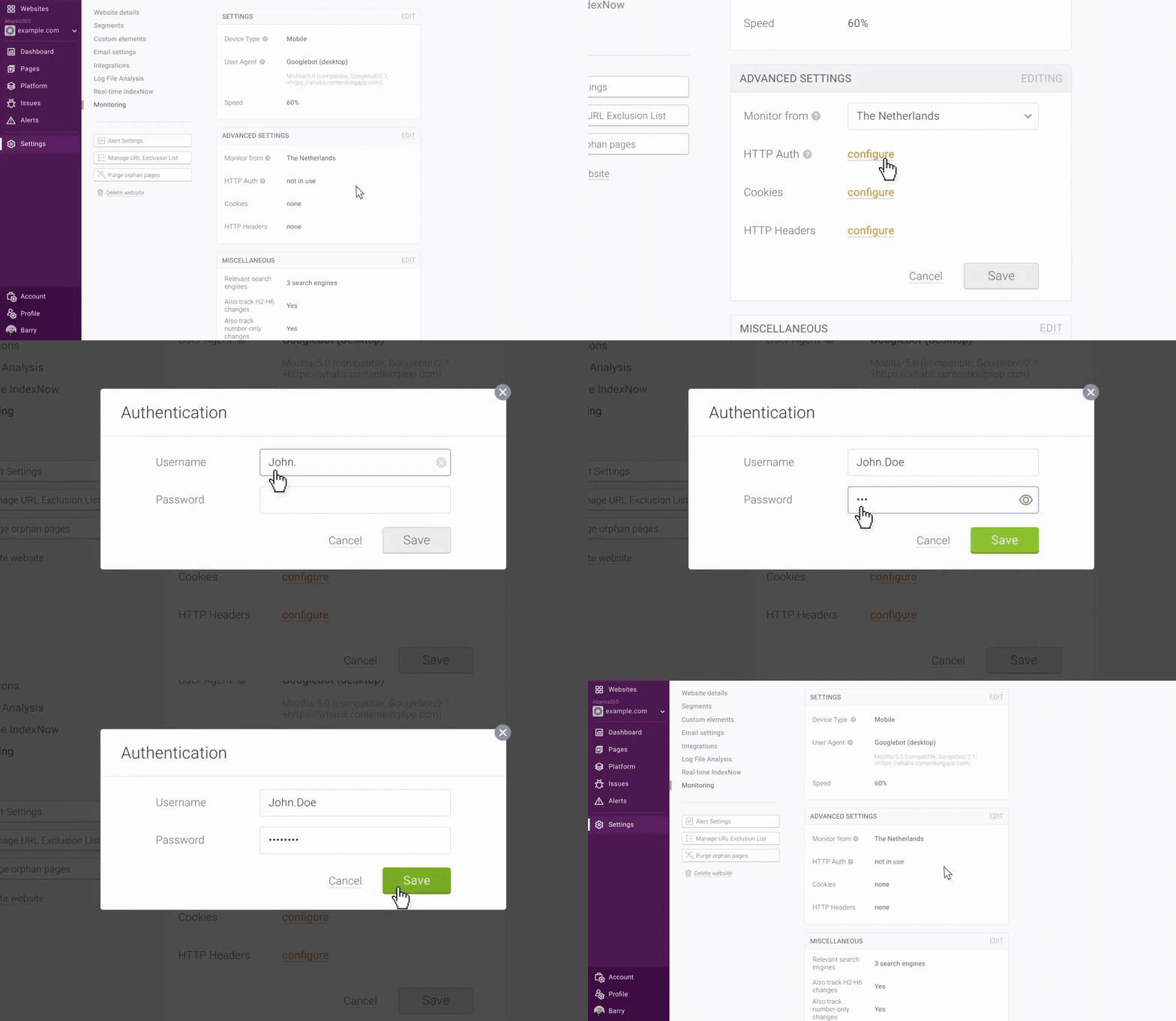
#### Setting up HTTP Auth for Conductor Monitoring
To set up HTTP Auth for a website in Conductor Monitoring, follow these steps:
1. Go to the **Monitoring** tab of the **Website settings**
2. In the top-right corner of the **Advanced monitoring** section click **Edit** and then click **configure** next to the **Auth** setting.
3. In the window that appears, set the **Username** and **Password** that Conductor Monitoring will use to access the website.
4. Click **Save**.
To learn more, refer to the [JavaScript Rendering](/docs/monitoring/javascript-rendering-in-conductor-monitoring/) and [Core Web Vitals Lighthouse Monitoring](/docs/monitoring/core-web-vitals-lighthouse-monitoring/) articles.
## Advanced Settings
### Monitoring location
Out of the box, Conductor monitors websites from the EU, the UK, or the US:
* If you create your account from the US or from Canada, your websites will be monitored from the US by default.
* If you create your account from the UK, your websites will be monitored from the UK by default.
* In all other cases, your websites will be monitored from the EU by default.
#### When does the monitoring location matter?
**Geo redirects**
When you operate globally or in multiple countries, you might have multiple domains with different language versions of your website (*example.com*, *example.co.uk*, *example.de,* etc.) and a geo redirect setup in place that redirects visitors to the relevant domain version based on their location.
So when you want to monitor *example.com* but the default monitoring location is set to the UK, Conductor will get redirected to *example.co.uk* and it will not be able to monitor *example.com*.
If this is the case, you can change the default monitoring location to the US to ensure that Conductor doesn’t get redirected to a different domain and will be able to monitor *example.com*.
**GeoIP blocking**
Some websites are only available for visitors located in a certain region, and visitors outside of this region are not able to access the website.
So for example, when your website is only available in the US, but your default monitoring location is set to the EU, Conductor will not be able to access and monitor the website.
If this is the case, you can change the monitoring location for the website to the US, which will allow Conductor to access the website and monitor it properly.
#### Change the monitoring location in Conductor Monitoring
In Conductor Monitoring, you can change the monitoring location on the website level as well as on the account level.
* **Changing the monitoring location for a website**\
To change the monitoring location for a specific website, go to the **Monitoring** tab of the [Website settings](https://app.contentkingapp.com/account/websites/%7Bid%7D) and adjust the **Monitor from** setting.
* **Changing the default monitoring location for an account**\
You can also set the default monitoring location for the whole account. To do this, go to the [Account settings](https://app.contentkingapp.com/account/settings) and adjust the **Monitor from** setting. Note that changing this setting doesn’t have a retroactive effect and the newly selected default monitoring location will only apply to websites that are added to your Conductor Monitoring account after the change is made.
**Custom monitoring location**
On the Essentials and Growth packages, you can monitor your websites from one of the three monitoring locations as described above.
If you want to monitor your websites from a custom location, you can go with the Enterprise plan where it is possible for us to set up a monitoring location anywhere in the world. If you are interested in the Enterprise plan, don’t hesitate to [contact us](/docs/platform/getting-help-with-conductor-products/).
### HTTP Auth
#### Staging and testing environments
Conductor provides great solutions for monitoring your staging and testing environments, allowing you to do comparisons with the production environment before green lighting a release or migration.
Staging and testing environments are usually protected from all outside visitors as well as search engines.
If you’re wondering why you should be protecting your staging environment or you want to learn about different protection methods, be sure to read our [Academy article](https://www.conductor.com/academy/protect-staging-environment/) on this topic.
#### Allowing Conductor access to the staging environment
There are several ways in which you can give Conductor Monitoring access to your staging environment based on what protection method you are using.
HTTP Auth is the best way to protect your staging environment and you can read more about it [here](https://www.conductor.com/academy/protect-staging-environment/#method-1-http-auth).
Conductor allows you to set up HTTP Auth directly in its apps, which means that you can easily enable us to monitor your staging environment.
#### Setting up HTTP Auth for Conductor Monitoring
To set up HTTP Auth for a website in Conductor Monitoring, follow these steps:
1. Go to the **Monitoring** tab of the **Website settings**
2. In the top-right corner of the **Advanced monitoring** section click **Edit** and then click **configure** next to the **Auth** setting.
3. In the window that appears, set the **Username** and **Password** that Conductor Monitoring will use to access the website.
4. Click **Save**.
 #### Other ways to whitelist Conductor's monitoring
You can also give Conductor access to your staging environment based on a unique identifier of our crawler.
You can whitelist Conductor based on:
* [Monitoring IP addresses](/docs/monitoring/monitoring-faqs/#what-ip-addresses-does-conductor-use-when-monitoring-websites)
* [User-agent string](#user-agent-string)
* [Custom HTTP header](#http-headers)
### Cookies
By default Conductor doesn’t accept or transmit cookies when requesting URLs on websites.
However, some websites can require cookies to load certain elements which Conductor needs to monitor the website properly and report accurate data.
For example, some websites have a cookie consent which is used to load analytics tracking. In such cases Conductor wouldn’t be able to discover the analytics tracking, as it doesn’t transmit cookies.
This is why you can set custom cookies in Conductor.
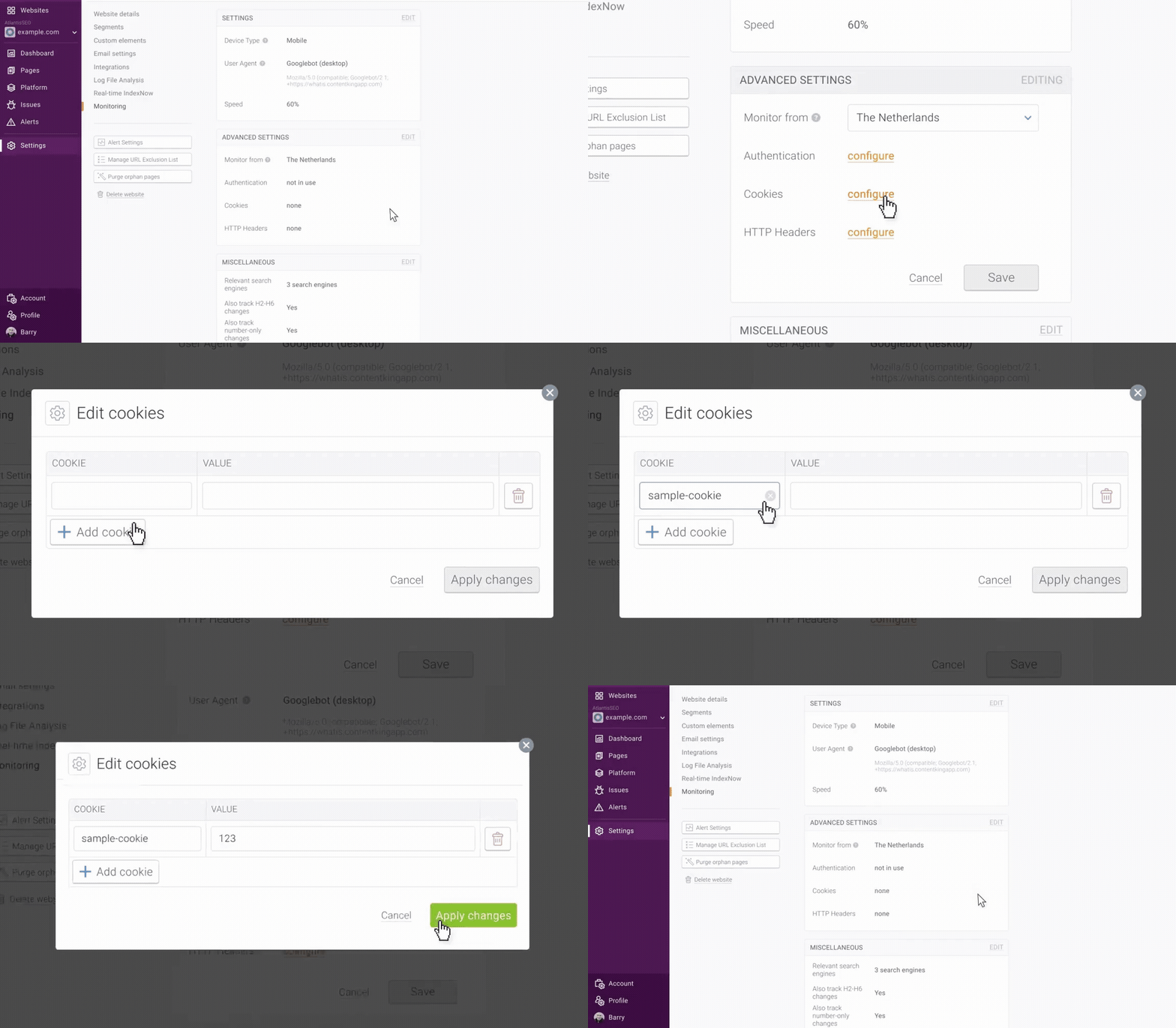
#### Setting up custom cookies for Conductor Monitoring
To set custom cookies for a website, follow these steps:
1. Go to the **Monitoring** tab of the **Website settings**
2. In the top-right corner of the **Advanced monitoring** section click **Edit** and then click **configure** next to the **Cookies** setting.
3. In the window that appears, set the custom cookies and their values.
4. Click **Apply changes**.
#### Other ways to whitelist Conductor's monitoring
You can also give Conductor access to your staging environment based on a unique identifier of our crawler.
You can whitelist Conductor based on:
* [Monitoring IP addresses](/docs/monitoring/monitoring-faqs/#what-ip-addresses-does-conductor-use-when-monitoring-websites)
* [User-agent string](#user-agent-string)
* [Custom HTTP header](#http-headers)
### Cookies
By default Conductor doesn’t accept or transmit cookies when requesting URLs on websites.
However, some websites can require cookies to load certain elements which Conductor needs to monitor the website properly and report accurate data.
For example, some websites have a cookie consent which is used to load analytics tracking. In such cases Conductor wouldn’t be able to discover the analytics tracking, as it doesn’t transmit cookies.
This is why you can set custom cookies in Conductor.
#### Setting up custom cookies for Conductor Monitoring
To set custom cookies for a website, follow these steps:
1. Go to the **Monitoring** tab of the **Website settings**
2. In the top-right corner of the **Advanced monitoring** section click **Edit** and then click **configure** next to the **Cookies** setting.
3. In the window that appears, set the custom cookies and their values.
4. Click **Apply changes**.
 ### HTTP Headers
HTTP headers serve for transferring additional (not displayed) information between Conductor and your website’s server.
Based on HTTP headers you can identify our monitoring as well as whitelist Conductor in case our crawler is being blocked by your web server.
#### Default HTTP headers
By default, Conductor sends the following HTTP headers with the monitoring requests:
* `Accept: /`
* `Accept-Encoding: gzip,deflate`
#### Setting custom HTTP headers
On top of the default HTTP headers, you can also set custom HTTP headers that will be part of Conductor’s monitoring requests.
Out of the box, Conductor supports the following custom HTTP headers:
* `Accept`
* `Accept-Language`
* `Authorization`
* `Cache-control`
* `Forwarded`
* `Proxy-Authorization`
* `Referer`
* `X-*`
If you want to set a different custom header, don’t hesitate to [contact us](/docs/platform/getting-help-with-conductor-products/) and we will be happy to set it up for you.
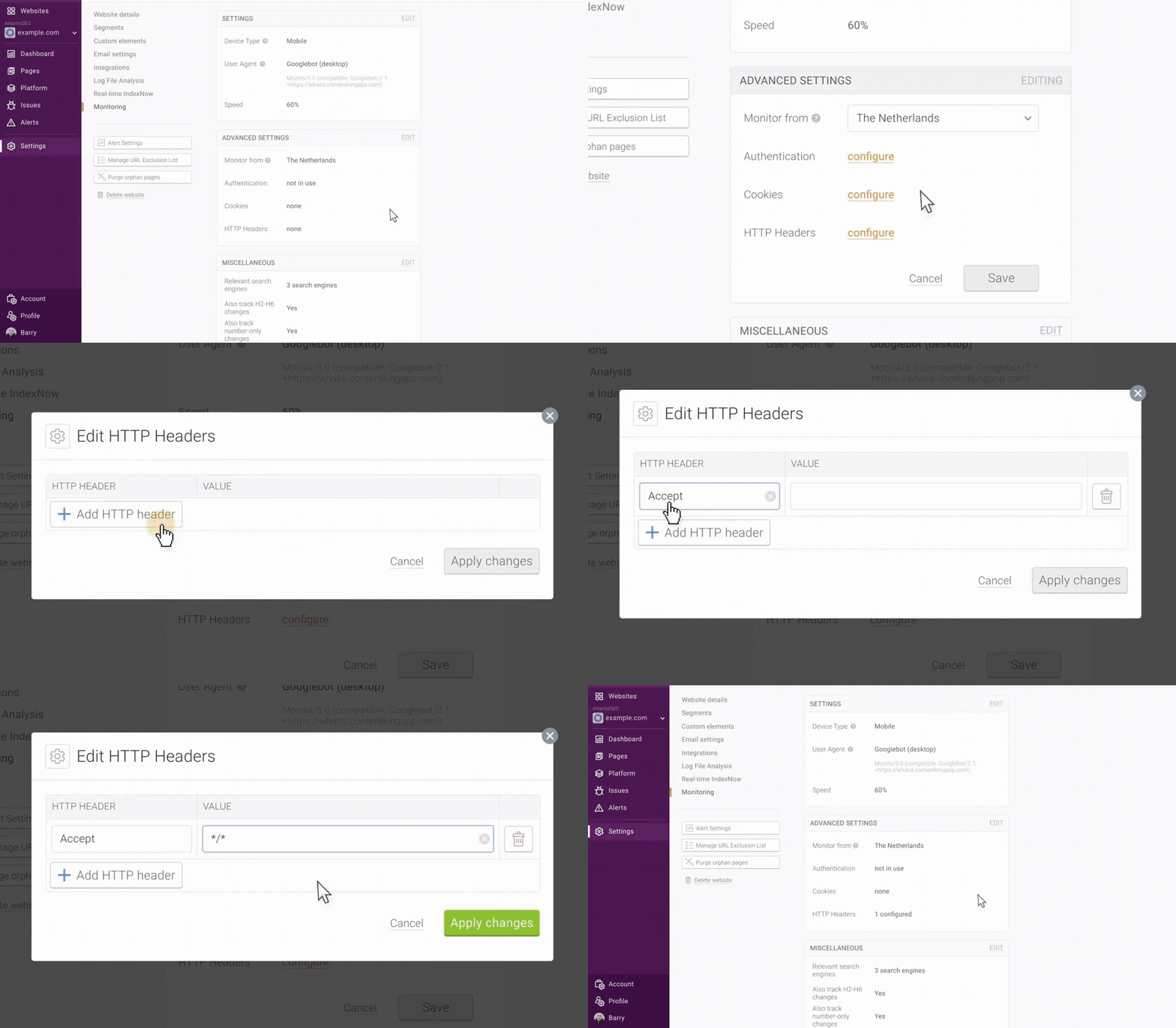
#### Setting up HTTP headers for Conductor Monitoring
To set custom HTTP headers for a website, follow these steps:
1. Go to the **Monitoring** tab of the **Website settings**
2. In the top-right corner of the **Advanced monitoring** section click **Edit** and then click **configure** next to the **HTTP headers** setting.
3. In the window that appears, set the custom HTTP headers and their values.
4. Click **Apply changes**.
### HTTP Headers
HTTP headers serve for transferring additional (not displayed) information between Conductor and your website’s server.
Based on HTTP headers you can identify our monitoring as well as whitelist Conductor in case our crawler is being blocked by your web server.
#### Default HTTP headers
By default, Conductor sends the following HTTP headers with the monitoring requests:
* `Accept: /`
* `Accept-Encoding: gzip,deflate`
#### Setting custom HTTP headers
On top of the default HTTP headers, you can also set custom HTTP headers that will be part of Conductor’s monitoring requests.
Out of the box, Conductor supports the following custom HTTP headers:
* `Accept`
* `Accept-Language`
* `Authorization`
* `Cache-control`
* `Forwarded`
* `Proxy-Authorization`
* `Referer`
* `X-*`
If you want to set a different custom header, don’t hesitate to [contact us](/docs/platform/getting-help-with-conductor-products/) and we will be happy to set it up for you.
#### Setting up HTTP headers for Conductor Monitoring
To set custom HTTP headers for a website, follow these steps:
1. Go to the **Monitoring** tab of the **Website settings**
2. In the top-right corner of the **Advanced monitoring** section click **Edit** and then click **configure** next to the **HTTP headers** setting.
3. In the window that appears, set the custom HTTP headers and their values.
4. Click **Apply changes**.
 ## More Miscellaneous Settings
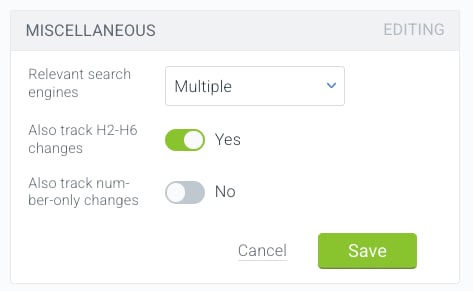
Conductor also allows you to configure the following aspects of its crawl.
## More Miscellaneous Settings
Conductor also allows you to configure the following aspects of its crawl.
 ### Relevant Search Engine
This setting affects how Conductor reviews the robots.txt and meta robots rules on your website. Because search engines have different rules and regulations for how they crawl websites, you can specify whether Conductor should look at directives for certain search engines.
### Also track H2-H6 changes
Conductor can include or exclude tracked changes to H2–H6 tags on your website. Keep in mind that setting this toggle to **Yes** may greatly increase the total number of tracked changes for each URL—and Conductor does limit the total number of tracked changes to 70,000.
### Also track number-only changes
Conductor can include or exclude tracked changes to tags where only a number value has changed. This might be helpful for your site if you want to ignore changes to numbers that frequently change, such as quantities, prices, or dates. Turning this setting off can decrease the overall number of tracked changes on your website.
## FAQs
[Review this feature's frequently asked questions](/docs/monitoring/monitoring-faqs/)
### Relevant Search Engine
This setting affects how Conductor reviews the robots.txt and meta robots rules on your website. Because search engines have different rules and regulations for how they crawl websites, you can specify whether Conductor should look at directives for certain search engines.
### Also track H2-H6 changes
Conductor can include or exclude tracked changes to H2–H6 tags on your website. Keep in mind that setting this toggle to **Yes** may greatly increase the total number of tracked changes for each URL—and Conductor does limit the total number of tracked changes to 70,000.
### Also track number-only changes
Conductor can include or exclude tracked changes to tags where only a number value has changed. This might be helpful for your site if you want to ignore changes to numbers that frequently change, such as quantities, prices, or dates. Turning this setting off can decrease the overall number of tracked changes on your website.
## FAQs
[Review this feature's frequently asked questions](/docs/monitoring/monitoring-faqs/)