> ## Documentation Index
> Fetch the complete documentation index at: https://www.conductor.com/docs/llms.txt
> Use this file to discover all available pages before exploring further.
# Real-time IndexNow
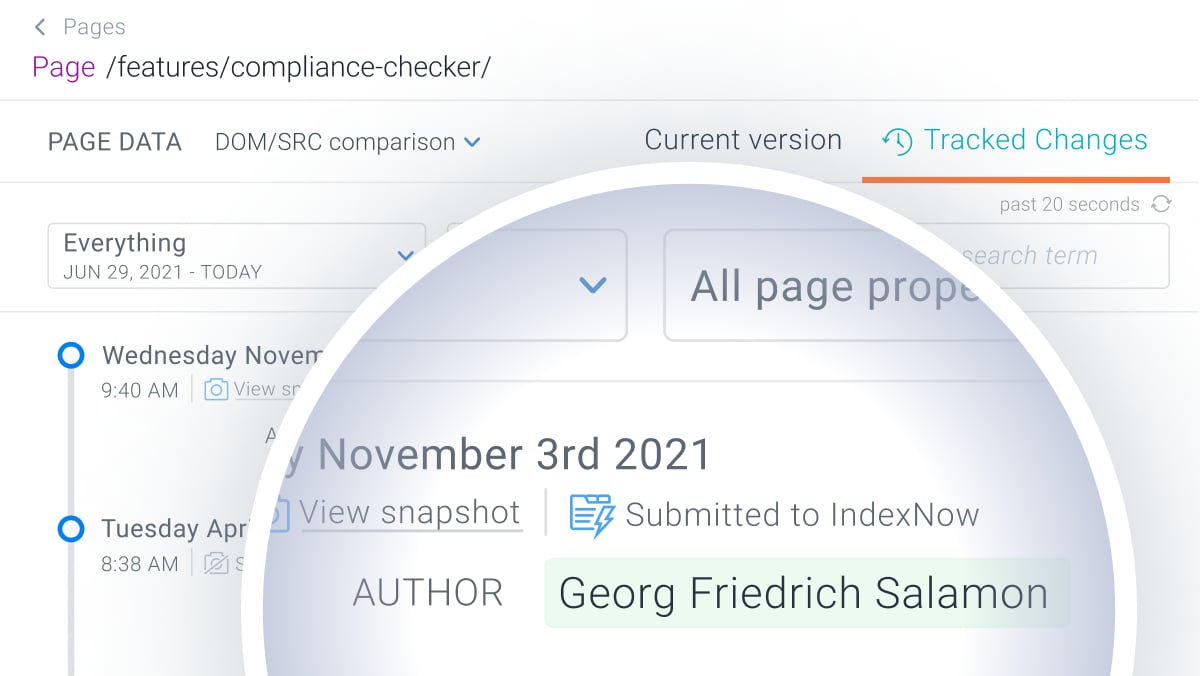
> Conductor Monitoring automatically submits your important page changes to IndexNow so search engines learn about them immediately.
With Conductor Monitoring’s unique **Real-time IndexNow** feature, you don’t have to worry about submitting your important page changes to IndexNow—Conductor Monitoring will do that for you!
Using real-time monitoring, Conductor Monitoring tracks every change happening on your website. Each change is then instantly assessed, and if selected criteria are met, will be automatically submitted to IndexNow.
## What is IndexNow?
Websites can now get content changes easily discovered and indexed with IndexNow, a new protocol from [Microsoft Bing](https://www.bing.com/indexnow) and Yandex that notifies search engines when content is added, updated or removed on a website.
## Setting up Real-time IndexNow
The process of configuring Real-time IndexNow consists of two phases:
1. Generating an IndexNow API key and verifying the ownership of the website
2. Setting up Real-time IndexNow in Conductor Monitoring
### Generating an IndexNow API key
Please follow the steps below to configure the API key and verify the ownership of the website.
#### 1. Generate API key
An API key is needed to match the ownership of the domain along with submitted URLs. The API key should be a minimum of 8 and a maximum of 128 hexadecimal characters.
The key can contain only the following characters: lowercase characters (a-f), uppercase characters (A-F), and numbers (0-9).
You can generate the API key [here](https://www.bing.com/indexnow#implementation).
#### 2. Verify the ownership of the website
You must host a UTF-8 encoded text key file "{your-key}.txt" listing the key in the file at the root directory of your website.
For instance, you will need to host your UTF-8 key file at *[https://www.example.org/7ae1f6c10bc648c1bf556d1e51496722.txt](https://www.example.org/7ae1f6c10bc648c1bf556d1e51496722.txt)* and this file must contain the key "*7ae1f6c10bc648c1bf556d1e51496722*".
For more information about the IndexNow API key, you can refer to the [IndexNow protocol](https://www.indexnow.org/documentation).
### Enabling Real-time IndexNow in Conductor Monitoring
To enable the Real-time IndexNow in Conductor Monitoring follow these steps:
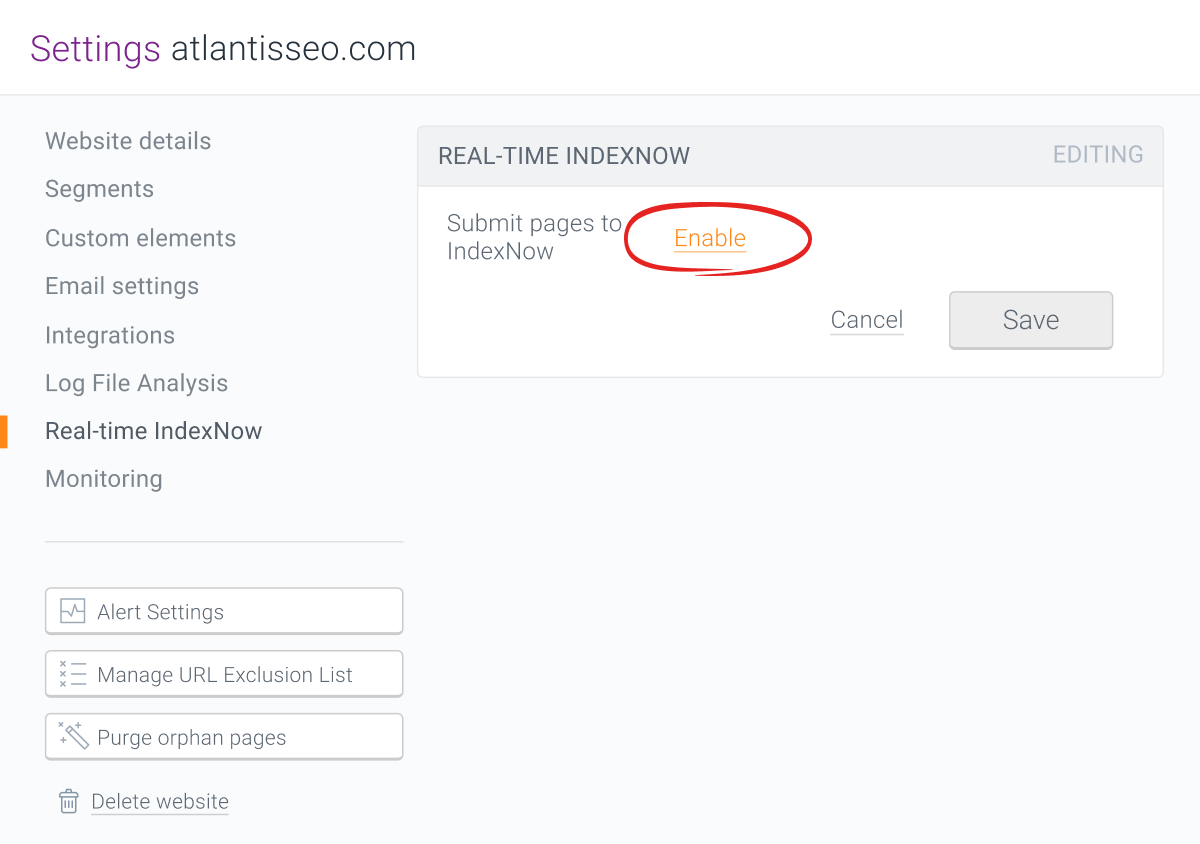
#### 1. Enable Submit pages to IndexNow toggle
Open **Website settings** and open the **Real-time IndexNow** box. This will open the **Real-time IndexNow settings** screen where you can enable the **Submit pages to IndexNow** toggle.
 #### 2. Enter the IndexNow API key
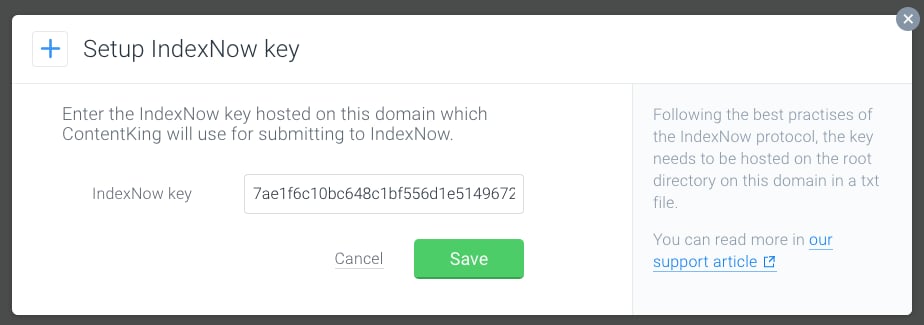
Once you enable the **Submit pages to IndexNow** toggle a screen where you can enter your IndexNow API key will open. Add the API key which you have generated in the [previous steps](#setting-up-real-time-indexnow) and tap on the **Save** button.
#### 2. Enter the IndexNow API key
Once you enable the **Submit pages to IndexNow** toggle a screen where you can enter your IndexNow API key will open. Add the API key which you have generated in the [previous steps](#setting-up-real-time-indexnow) and tap on the **Save** button.
 ## Defining what should be submitted to IndexNow
As you don’t want to waste your precious [crawl budget](https://www.conductor.com/academy/crawl-budget/) on irrelevant changes or changes that have a negative impact on your SEO, Conductor Monitoring allows you to customize the criteria on what changes should be submitted to IndexNow with **Triggers** and **Conditions**.
For both triggers and conditions, Conductor Monitoring has smart defaults in place, however, you can customize them to fit your needs.
### Triggers
With triggers, you can define which changes will trigger Conductor Monitoring to submit a URL to IndexNow. In Conductor Monitoring we have the following triggers:
#### Page status changes
* ***Indexable page was added***
* ***Indexable page became redirected*** (URL returning a 2xx started returning a 3xx status code)
* ***Indexable page became missing*** (URL returning a 2xx started returning a 4xx status code)
* ***Indexable page was restored*** (URLs returning a 3xx, 4xx, or 5xx started returning a 2xx status code)
* ***Pages became indexable***
* ***Pages became non-indexable***
All **Page status changes** are selected by default, except **Pages became non-indexable**.
More about how Conductor Monitoring determines indexability [here](/docs/monitoring/indexable-and-non-indexable-pages/).
#### Content changes
* ***Page title changes***
* ***Meta description changes***
* ***H1 heading changes***
* ***H2 - H6 headings changes***
All **Content changes** are selected by default.
#### Custom Element changes
Conductor Monitoring lets you combine two powerful features, [Custom Element Extraction](/docs/monitoring/custom-element-extraction/) and IndexNow. If you have Custom Elements set up, you can choose which Custom Element changes will trigger Conductor Monitoring to submit a URL to IndexNow.
Conductor Monitoring will not select them as triggers by default, but you can add them manually.
#### Customizing the triggers
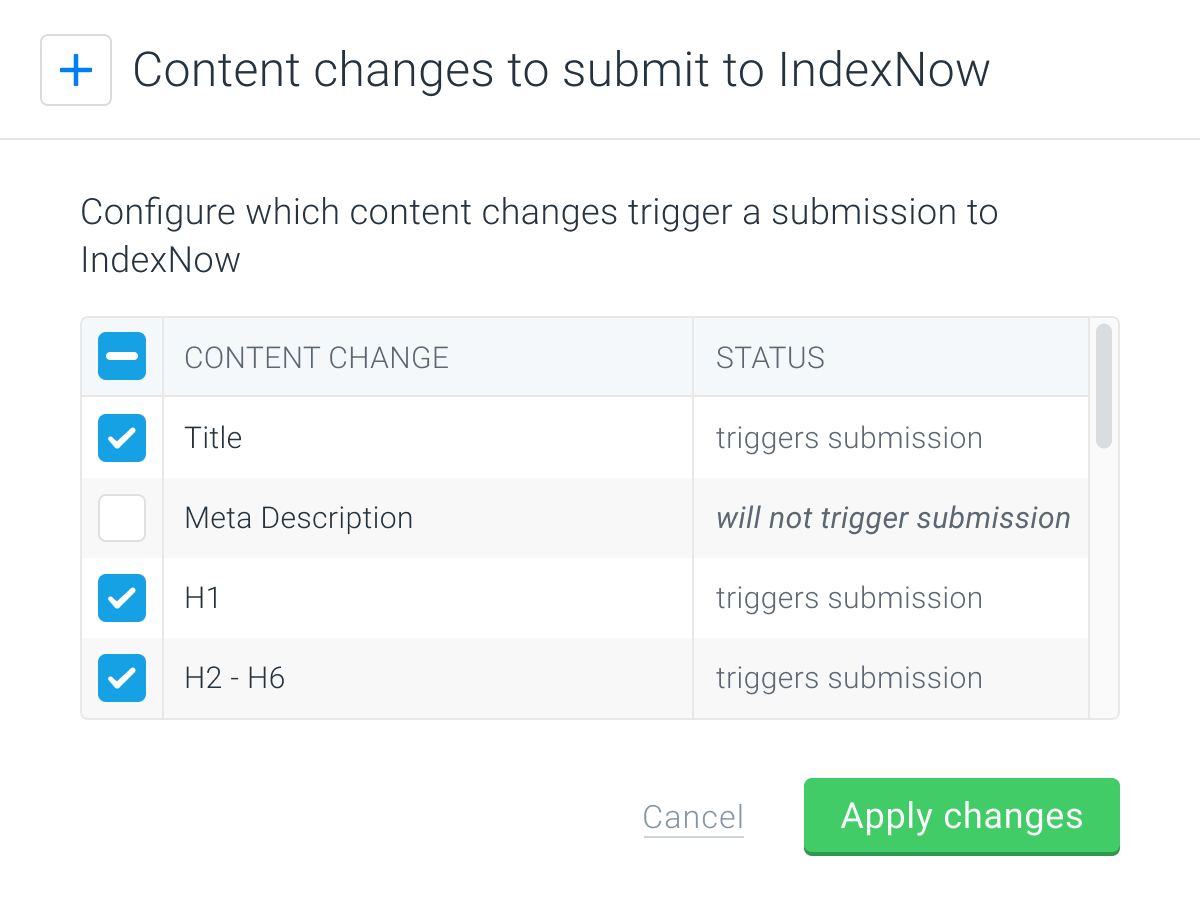
If you want to customize the IndexNow triggers, just follow these steps:
1. Go to **Settings** and select **Real-time IndexNow** in the sidebar.
2. Tap on the **change** button next to the trigger that you want to customize, for example **Content changes**.
3. Select all changes that you would like to trigger a submission.
4. Click **Apply changes**.\\
## Defining what should be submitted to IndexNow
As you don’t want to waste your precious [crawl budget](https://www.conductor.com/academy/crawl-budget/) on irrelevant changes or changes that have a negative impact on your SEO, Conductor Monitoring allows you to customize the criteria on what changes should be submitted to IndexNow with **Triggers** and **Conditions**.
For both triggers and conditions, Conductor Monitoring has smart defaults in place, however, you can customize them to fit your needs.
### Triggers
With triggers, you can define which changes will trigger Conductor Monitoring to submit a URL to IndexNow. In Conductor Monitoring we have the following triggers:
#### Page status changes
* ***Indexable page was added***
* ***Indexable page became redirected*** (URL returning a 2xx started returning a 3xx status code)
* ***Indexable page became missing*** (URL returning a 2xx started returning a 4xx status code)
* ***Indexable page was restored*** (URLs returning a 3xx, 4xx, or 5xx started returning a 2xx status code)
* ***Pages became indexable***
* ***Pages became non-indexable***
All **Page status changes** are selected by default, except **Pages became non-indexable**.
More about how Conductor Monitoring determines indexability [here](/docs/monitoring/indexable-and-non-indexable-pages/).
#### Content changes
* ***Page title changes***
* ***Meta description changes***
* ***H1 heading changes***
* ***H2 - H6 headings changes***
All **Content changes** are selected by default.
#### Custom Element changes
Conductor Monitoring lets you combine two powerful features, [Custom Element Extraction](/docs/monitoring/custom-element-extraction/) and IndexNow. If you have Custom Elements set up, you can choose which Custom Element changes will trigger Conductor Monitoring to submit a URL to IndexNow.
Conductor Monitoring will not select them as triggers by default, but you can add them manually.
#### Customizing the triggers
If you want to customize the IndexNow triggers, just follow these steps:
1. Go to **Settings** and select **Real-time IndexNow** in the sidebar.
2. Tap on the **change** button next to the trigger that you want to customize, for example **Content changes**.
3. Select all changes that you would like to trigger a submission.
4. Click **Apply changes**.\\
 ### Conditions
Having customizable triggers in place is not enough to ensure that only positive changes are submitted to IndexNow. What if a page becomes indexable but the page title is missing? That is where conditions come into play!
After a change triggers the page for submission to IndexNow it needs to pass certain conditions before that happens. Same as with triggers, you can also customize the conditions to your needs.
### Note
The one condition that always needs to be passed—*the page must be* [*indexable*](/docs/monitoring/indexable-and-non-indexable-pages/).
#### Issues blocking submission
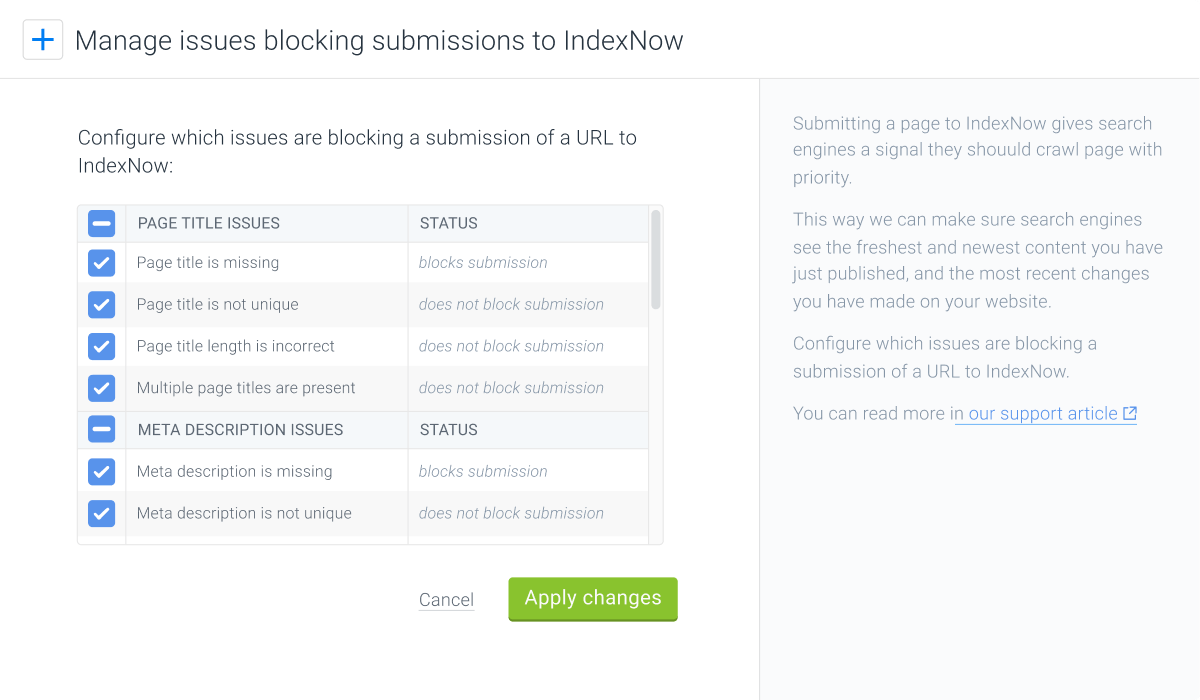
If a page has certain [issues](/docs/monitoring/issues/) open in Conductor Monitoring, you probably want to fix those issues before the page is submitted to IndexNow.
You can specify which open issues will be preventing the page from being submitted to IndexNow. The issue categories that you can select are the following:
* **Page title** - issues selected by default:
* Page title is missing
* Page title is not unique
* Multiple page titles are present
* **Meta description** - issues selected by default:
* Meta description is missing
* Meta description is not unique
* Multiple meta descriptions are present
* **H1 heading** - issue selected by default:
* H1 heading is missing
* **Canonical link** - issues selected by default:
* Canonical link is missing
* Multiple canonical links are present
* **Hreflang** - no issues are selected by default
* **Robot directives** - issue selected by default:
* Invalid robot directives present
* **Schema.org** - issue selected by default:
* Schema element with invalid JSON-LD object present
To customize which issues will be preventing the page from being submitted to IndexNow, follow these steps:
1. Go to **Settings** and select **Real-time IndexNow** in the sidebar.
2. In the **IndexNow Triggers** section, click **change** next to **Issues blocking submission**.
3. In the following window, choose which issues will be blocking submission to IndexNow.
4. Click **Apply changes**.\\
### Conditions
Having customizable triggers in place is not enough to ensure that only positive changes are submitted to IndexNow. What if a page becomes indexable but the page title is missing? That is where conditions come into play!
After a change triggers the page for submission to IndexNow it needs to pass certain conditions before that happens. Same as with triggers, you can also customize the conditions to your needs.
### Note
The one condition that always needs to be passed—*the page must be* [*indexable*](/docs/monitoring/indexable-and-non-indexable-pages/).
#### Issues blocking submission
If a page has certain [issues](/docs/monitoring/issues/) open in Conductor Monitoring, you probably want to fix those issues before the page is submitted to IndexNow.
You can specify which open issues will be preventing the page from being submitted to IndexNow. The issue categories that you can select are the following:
* **Page title** - issues selected by default:
* Page title is missing
* Page title is not unique
* Multiple page titles are present
* **Meta description** - issues selected by default:
* Meta description is missing
* Meta description is not unique
* Multiple meta descriptions are present
* **H1 heading** - issue selected by default:
* H1 heading is missing
* **Canonical link** - issues selected by default:
* Canonical link is missing
* Multiple canonical links are present
* **Hreflang** - no issues are selected by default
* **Robot directives** - issue selected by default:
* Invalid robot directives present
* **Schema.org** - issue selected by default:
* Schema element with invalid JSON-LD object present
To customize which issues will be preventing the page from being submitted to IndexNow, follow these steps:
1. Go to **Settings** and select **Real-time IndexNow** in the sidebar.
2. In the **IndexNow Triggers** section, click **change** next to **Issues blocking submission**.
3. In the following window, choose which issues will be blocking submission to IndexNow.
4. Click **Apply changes**.\\
 #### Segments allowlist and blocklist
You can utilize the power of [Segments](/docs/monitoring/segments/) to define which pages should be either allowed or blocked from being submitted to IndexNow. Segments allow you to create logical groupings of your pages based on your needs.
You can choose whether you want to use a deny-list (**Allow all except**) or an allow-list (**Deny all except**) to configure whether pages from the chosen segments will be blocked from being submitted to IndexNow.
### Tip
In case pages are present in segments that are both allowed and blocked, *your selection has priority*.
For example, you chose the **Allow all except** pages in the "Least visited" segment. If a page from that segment is present in another segment, Conductor Monitoring will not submit it to IndexNow as you specifically chose to block pages from the "Least visited" segment.
To configure segments allowlist or blocklist follow these steps:
1. Go to **Settings** and select **Real-time IndexNow** in the sidebar.
2. In the **IndexNow Conditions** section, click **change** next to the **Segments allowlist and blocklist**.
3. In the following window, select if you want to use **Allow all except** or **Deny all except** rule.
4. Choose the segments which will be allowed or blocked.
5. Click **Apply changes**.
#### URL allowlist and blocklist
Along with using segments, you can also specify which URLs you want to be submitted to IndexNow by configuring the URL allowlist or blocklist for IndexNow.
This way you can easily allow or deny certain parts of the website from being submitted to IndexNow based on the URL patterns.
To configure URL allowlist or blocklist follow these steps:
1. Go to **Settings** and select **Real-time IndexNow** in the sidebar.
2. At the bottom of the **Real-time IndexNow** section in the **IndexNow Conditions** section, select **URL allowlist and blocklist**.
3. In the window that appears, choose whether you want to use a deny-list (**Allow all except**) or an allow-list (**Deny all except**) to configure allowlist or blocklist.
4. Define which URLs will be allowed or denied to be submitted to IndexNow using the **Operator** (more about the operators [here](/docs/monitoring/advanced-filter-operators/)) and the **URL Pattern**.
5. Click **Apply changes**.
## Checking if a URL was submitted to IndexNow
If you want to check if a certain change triggered Conductor Monitoring to submit a URL to IndexNow, just follow these steps:
1. Navigate to the **Page Detail** screen of a page that you want to check.
2. Tap on the **Tracked Changes** button.
3. Next to the **HTTP header snapshot** icon, you will see the **IndexNow** icon specifying if a change was submitted. If not, just hover over the icon and you will see a tooltip with the reason why the change was not submitted.
#### Segments allowlist and blocklist
You can utilize the power of [Segments](/docs/monitoring/segments/) to define which pages should be either allowed or blocked from being submitted to IndexNow. Segments allow you to create logical groupings of your pages based on your needs.
You can choose whether you want to use a deny-list (**Allow all except**) or an allow-list (**Deny all except**) to configure whether pages from the chosen segments will be blocked from being submitted to IndexNow.
### Tip
In case pages are present in segments that are both allowed and blocked, *your selection has priority*.
For example, you chose the **Allow all except** pages in the "Least visited" segment. If a page from that segment is present in another segment, Conductor Monitoring will not submit it to IndexNow as you specifically chose to block pages from the "Least visited" segment.
To configure segments allowlist or blocklist follow these steps:
1. Go to **Settings** and select **Real-time IndexNow** in the sidebar.
2. In the **IndexNow Conditions** section, click **change** next to the **Segments allowlist and blocklist**.
3. In the following window, select if you want to use **Allow all except** or **Deny all except** rule.
4. Choose the segments which will be allowed or blocked.
5. Click **Apply changes**.
#### URL allowlist and blocklist
Along with using segments, you can also specify which URLs you want to be submitted to IndexNow by configuring the URL allowlist or blocklist for IndexNow.
This way you can easily allow or deny certain parts of the website from being submitted to IndexNow based on the URL patterns.
To configure URL allowlist or blocklist follow these steps:
1. Go to **Settings** and select **Real-time IndexNow** in the sidebar.
2. At the bottom of the **Real-time IndexNow** section in the **IndexNow Conditions** section, select **URL allowlist and blocklist**.
3. In the window that appears, choose whether you want to use a deny-list (**Allow all except**) or an allow-list (**Deny all except**) to configure allowlist or blocklist.
4. Define which URLs will be allowed or denied to be submitted to IndexNow using the **Operator** (more about the operators [here](/docs/monitoring/advanced-filter-operators/)) and the **URL Pattern**.
5. Click **Apply changes**.
## Checking if a URL was submitted to IndexNow
If you want to check if a certain change triggered Conductor Monitoring to submit a URL to IndexNow, just follow these steps:
1. Navigate to the **Page Detail** screen of a page that you want to check.
2. Tap on the **Tracked Changes** button.
3. Next to the **HTTP header snapshot** icon, you will see the **IndexNow** icon specifying if a change was submitted. If not, just hover over the icon and you will see a tooltip with the reason why the change was not submitted.