> ## Documentation Index
> Fetch the complete documentation index at: https://www.conductor.com/docs/llms.txt
> Use this file to discover all available pages before exploring further.
# Setting Up the CloudFront Integration
> Configure the CloudFront Standard logging integration to stream log data into Conductor Monitoring for Log File Analysis.
Setting up Log File Analysis with the [CloudFront Standard logging](https://docs.aws.amazon.com/AmazonCloudFront/latest/DeveloperGuide/AccessLogs.html) in Conductor Monitoring is a breeze! Follow the steps outlined below to enable Log File Analysis in Conductor Monitoring, and set up the CloudFront integration.
## Setting up the Log File Analysis
The process of configuring the Log File Analysis consists of two phases:
* Enabling the Log File Analysis feature in Conductor Monitoring
* Configuring CloudFront Standard logging
### 1. Enabling the Log File Analysis feature in Conductor Monitoring
If you navigate to the **Account** and then **Websites** section in Conductor Monitoring, you can easily filter and see which of the websites you are monitoring in Conductor Monitoring are hosted on CloudFront:
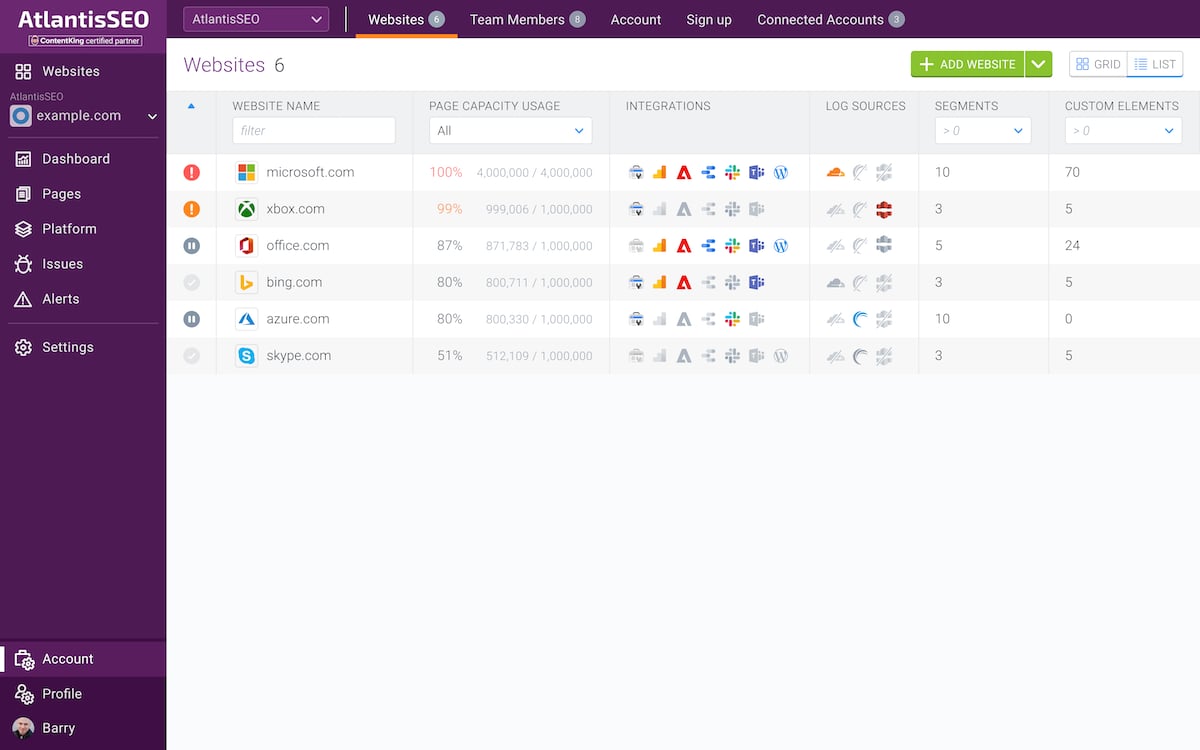 #### Stream log file data to Conductor Monitoring S3 bucket
To stream CloudFront Standard logging data to Conductor Monitoring S3 bucket you can follow these steps:
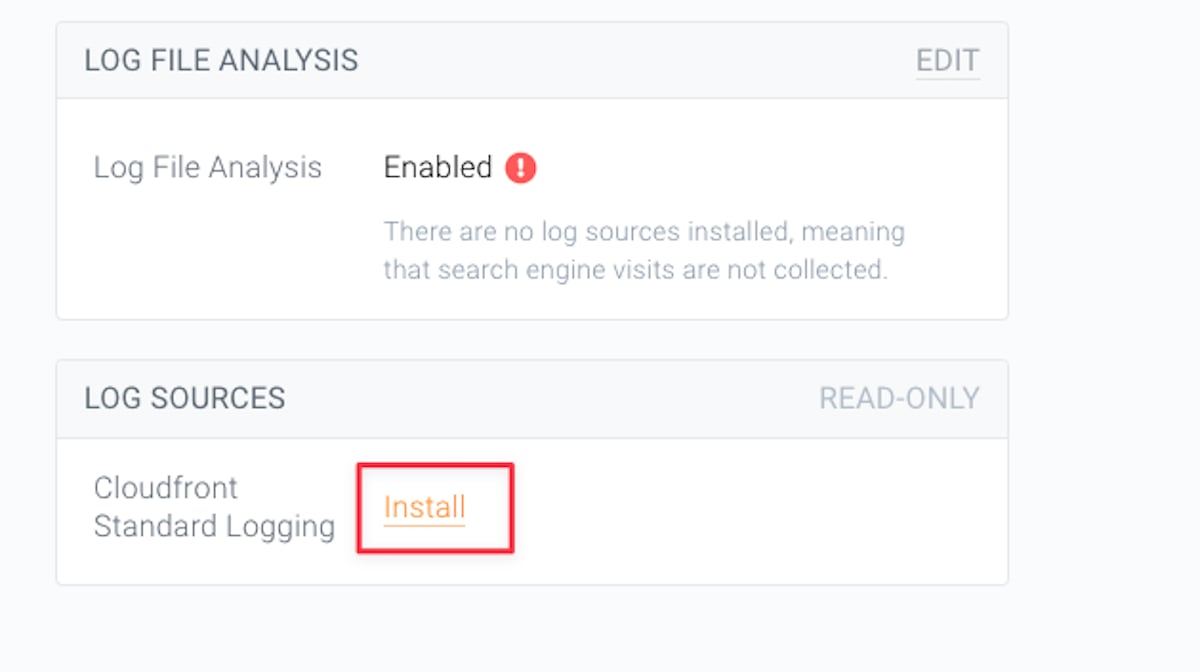
1. In the **Log File Analysis** section, click the **Install** link under **Log Sources**.\\
#### Stream log file data to Conductor Monitoring S3 bucket
To stream CloudFront Standard logging data to Conductor Monitoring S3 bucket you can follow these steps:
1. In the **Log File Analysis** section, click the **Install** link under **Log Sources**.\\
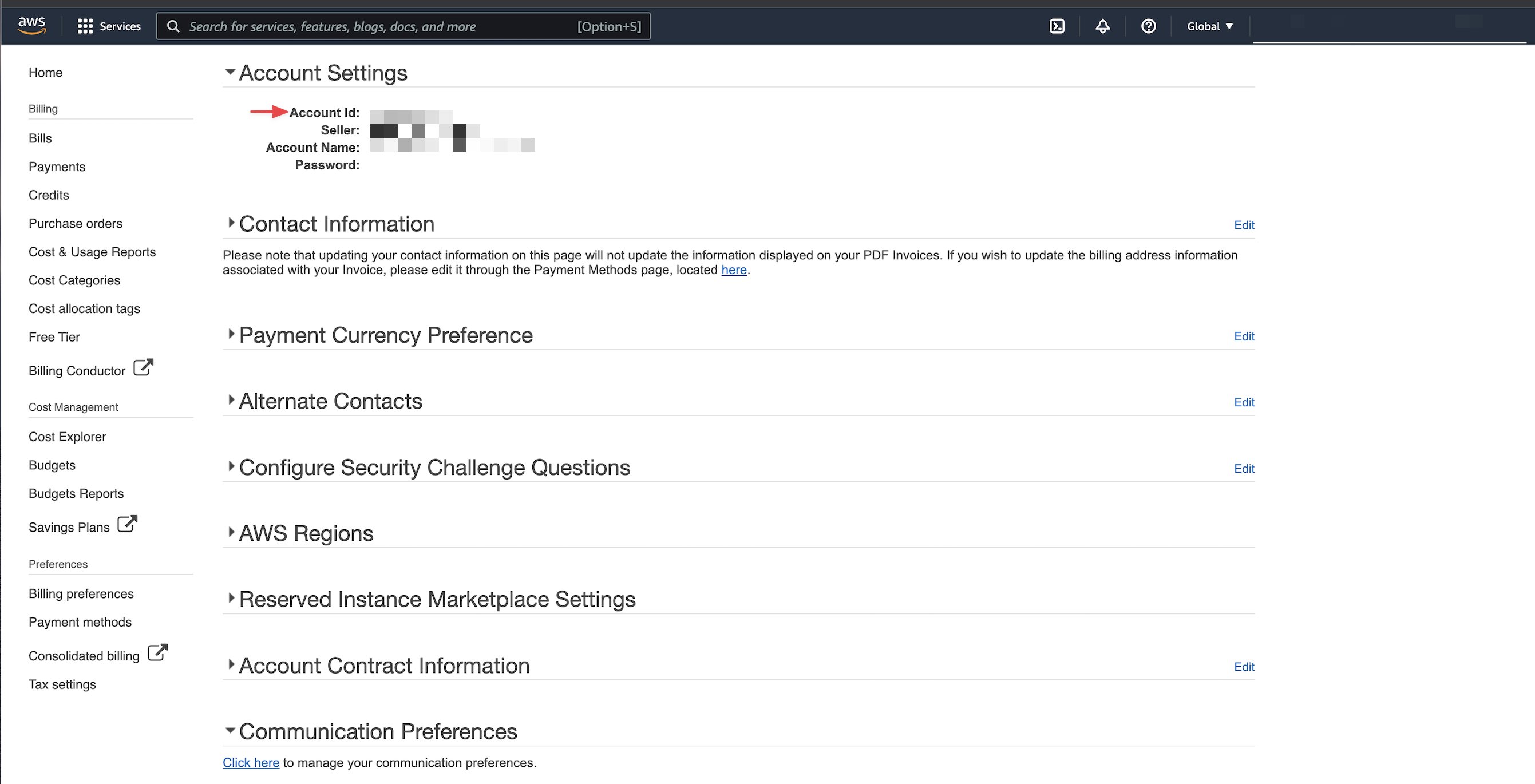
 2. Find the AWS account ID in your AWS account by following the steps outlined here: [Finding your AWS account ID](https://docs.aws.amazon.com/IAM/latest/UserGuide/console_account-alias.html#FindingYourAWSId).\\
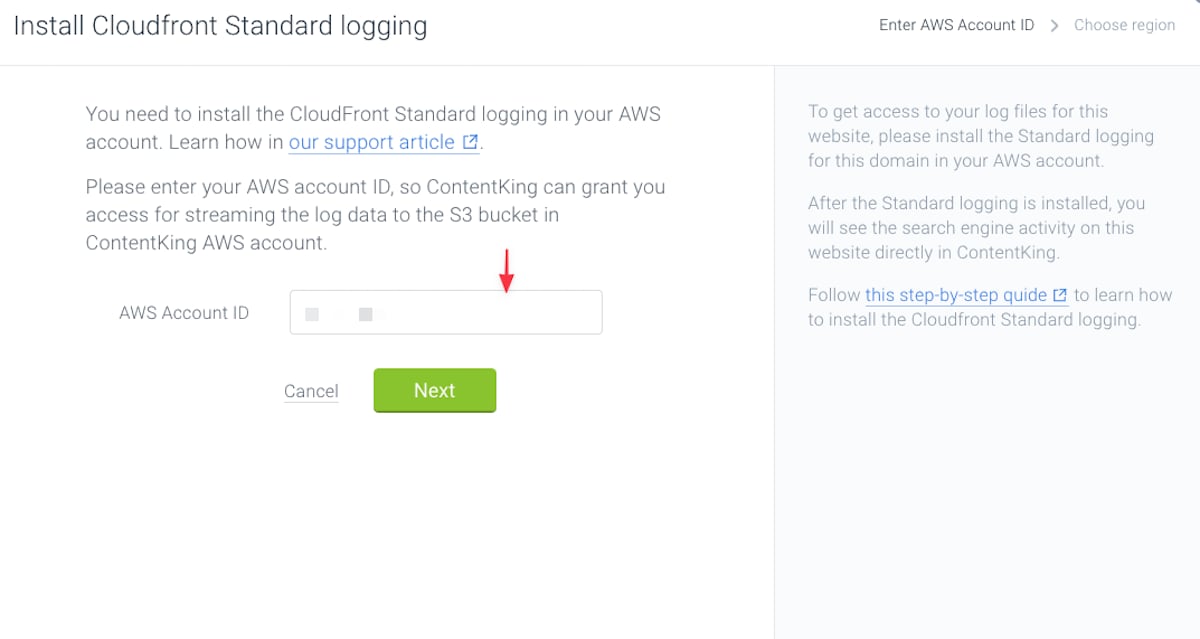
 3. Enter the AWS account ID in Conductor Monitoring **Install Cloudfront Standard logging** modal:\\
 4. Specify the region in which the Conductor Monitoring AWS S3 bucket should be created (EU or US) and save the bucket name as you will need it when enabling the Standard logging.\\
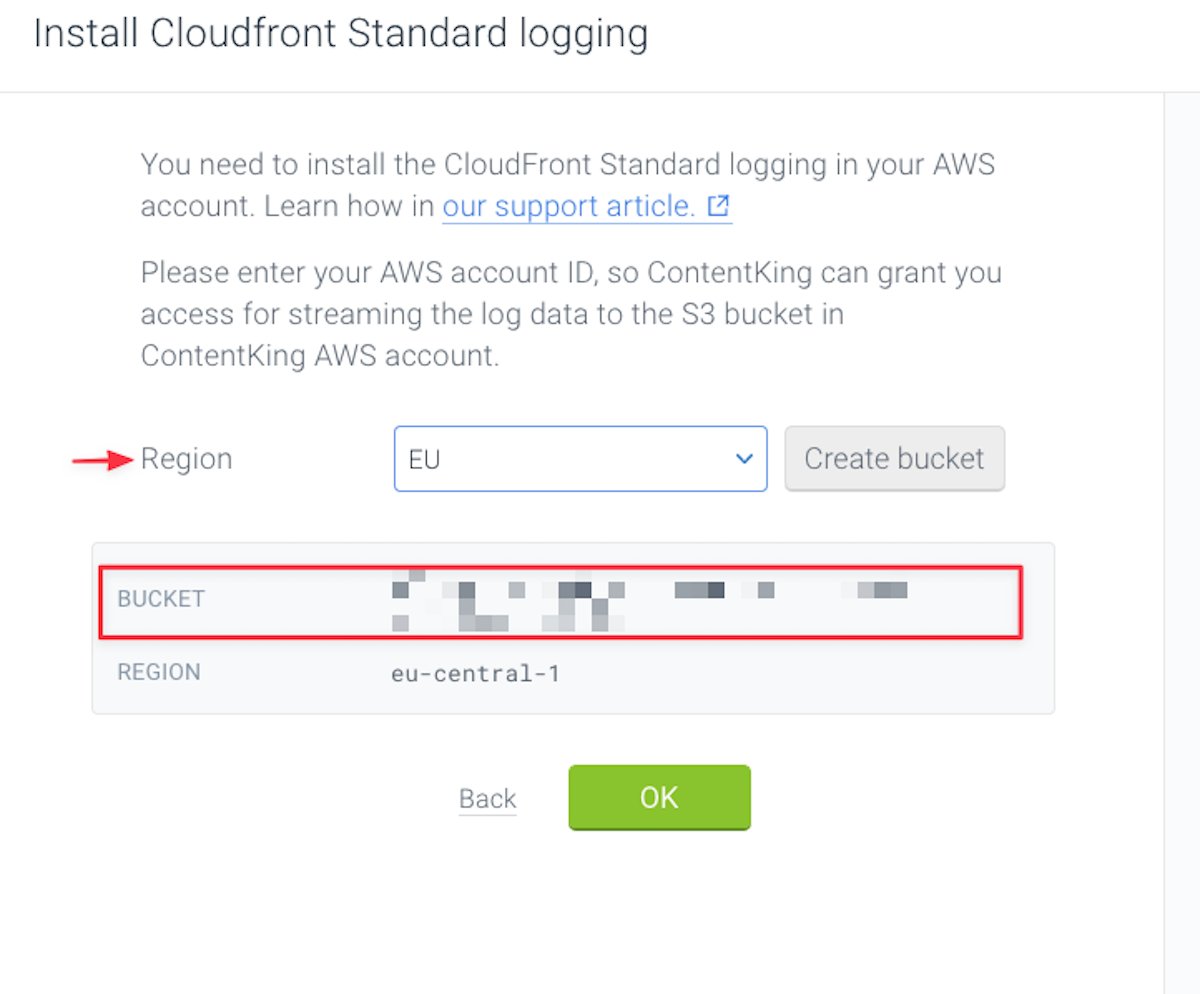 5. Click **Create bucket.**
### 2. Configuring CloudFront Standard logging
To configure Standard logging you need to install the Standard logging in your AWS account and stream log file data to Conductor Monitoring S3 bucket.
Follow these steps to enable [Standard logging](https://docs.aws.amazon.com/AmazonCloudFront/latest/DeveloperGuide/AccessLogs.html):
1. Search for CloudFront in your AWS account and select the **CloudFront** service:
2. Open **Distributions** on the left hand side.
3. Click the relevant website property **ID** in the table.\\
5. Click **Create bucket.**
### 2. Configuring CloudFront Standard logging
To configure Standard logging you need to install the Standard logging in your AWS account and stream log file data to Conductor Monitoring S3 bucket.
Follow these steps to enable [Standard logging](https://docs.aws.amazon.com/AmazonCloudFront/latest/DeveloperGuide/AccessLogs.html):
1. Search for CloudFront in your AWS account and select the **CloudFront** service:
2. Open **Distributions** on the left hand side.
3. Click the relevant website property **ID** in the table.\\
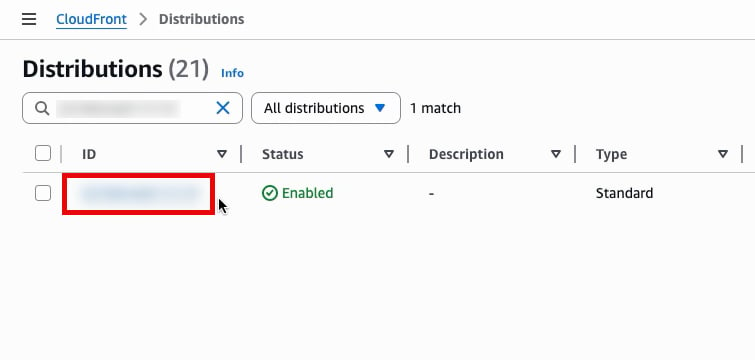 4. Once the **Distribution** screen opens, click the **Logging** tab.
5. In the **Standard log destinations** section, click **Add** to create a new destination.
6. Select **Amazon S3 (Legacy)**.\\
4. Once the **Distribution** screen opens, click the **Logging** tab.
5. In the **Standard log destinations** section, click **Add** to create a new destination.
6. Select **Amazon S3 (Legacy)**.\\
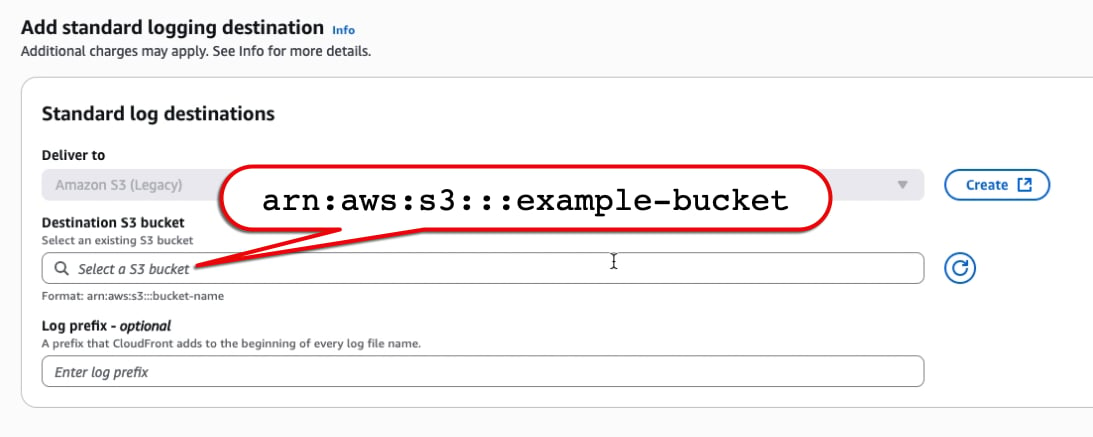
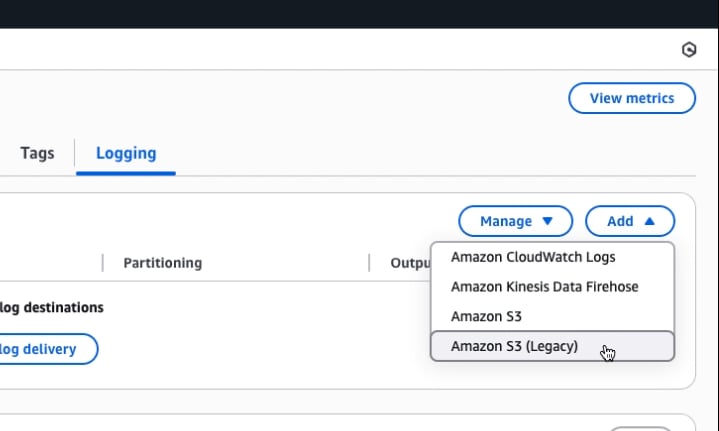 7. In the **Destination S3 Bucket** field:
1. Enter the bucket name you received from Conductor Monitoring in Step 4 of the [Stream log file data to Conductor Monitoring S3 bucket](#stream-log-file-data-to-conductor-monitoring-s3-bucket) section above.
2. Prepend the following string to the bucket name: `arn:aws:s3:::`\
Thus, if your bucket name is `example-bucket`, the format for the value entered in this field should be:\\
7. In the **Destination S3 Bucket** field:
1. Enter the bucket name you received from Conductor Monitoring in Step 4 of the [Stream log file data to Conductor Monitoring S3 bucket](#stream-log-file-data-to-conductor-monitoring-s3-bucket) section above.
2. Prepend the following string to the bucket name: `arn:aws:s3:::`\
Thus, if your bucket name is `example-bucket`, the format for the value entered in this field should be:\\
 8. Click **Submit**.
9. Click **Save changes**. The data should be streamed to Conductor Monitoring S3 bucket immediately.
### Filter away non-search engine traffic
To ensure you capture visits from all of the bots for which Conductor supports detection, you might need to create filters for your log files. Be sure you allow all of the following user agents:
* bingbot
* Googlebot
* OAI-SearchBot
* ChatGPT-User
* GPTBot
* PerplexityBot
* Perplexity-User
Note that these strings are case sensitive, so be sure you are using the correct lower- and upper-case letters as shown above.
### Allowing user agents in CloudFront
Because this configuration is performed in CloudFront, and the way your organization configures your CloudFront instance will depend on a variety of factors, we recommend reviewing [CloudFront's documentation for configuring its “Bot Control” feature](https://docs.aws.amazon.com/waf/latest/developerguide/waf-bot-control-examples.html).
### Disabling Log File Analysis
1. Click on the website on which you want to disable Log File Analysis in the [Websites section](https://app.contentkingapp.com/account/websites?view=list) of Conductor Monitoring.
2. Click **Log File Analysis** in the **Settings** section.
3. Disable the **Log File Analysis** toggle.
Once this is done, Conductor Monitoring will automatically disable Standard logging access to the AWS S3 bucket where the data was streamed.
### Disabling Standard logging
If you have disabled the Log File Analysis feature, you still need to disable the Standard logging in the AWS UI.
This needs to be done manually, as Conductor Monitoring doesn't have access to your AWS account.
## FAQs
### I have questions about security concerns related to Log File Analysis
For the most common security-related questions about Conductor Monitoring's Log File Analysis, refer to the [Log File Analysis FAQ](/docs/monitoring/log-file-analysis-faqs/) article.
### How do I resolve errors?
Here are some common places to look to resolve potential errors:
* For AWS IAM permission errors, ensure your AWS user has the following permissions:
* `s3:GetBucketAcl`
* `s3:PutBucketAcl`
* Be sure your AWS account has access to the AWS region where the target bucket is located. You can find your bucket's region in Conductor Monitoring, as outlined in the [Stream log file data to Conductor Monitoring S3 bucket](#stream-log-file-data-to-conductor-monitoring-s3-bucket) section.
8. Click **Submit**.
9. Click **Save changes**. The data should be streamed to Conductor Monitoring S3 bucket immediately.
### Filter away non-search engine traffic
To ensure you capture visits from all of the bots for which Conductor supports detection, you might need to create filters for your log files. Be sure you allow all of the following user agents:
* bingbot
* Googlebot
* OAI-SearchBot
* ChatGPT-User
* GPTBot
* PerplexityBot
* Perplexity-User
Note that these strings are case sensitive, so be sure you are using the correct lower- and upper-case letters as shown above.
### Allowing user agents in CloudFront
Because this configuration is performed in CloudFront, and the way your organization configures your CloudFront instance will depend on a variety of factors, we recommend reviewing [CloudFront's documentation for configuring its “Bot Control” feature](https://docs.aws.amazon.com/waf/latest/developerguide/waf-bot-control-examples.html).
### Disabling Log File Analysis
1. Click on the website on which you want to disable Log File Analysis in the [Websites section](https://app.contentkingapp.com/account/websites?view=list) of Conductor Monitoring.
2. Click **Log File Analysis** in the **Settings** section.
3. Disable the **Log File Analysis** toggle.
Once this is done, Conductor Monitoring will automatically disable Standard logging access to the AWS S3 bucket where the data was streamed.
### Disabling Standard logging
If you have disabled the Log File Analysis feature, you still need to disable the Standard logging in the AWS UI.
This needs to be done manually, as Conductor Monitoring doesn't have access to your AWS account.
## FAQs
### I have questions about security concerns related to Log File Analysis
For the most common security-related questions about Conductor Monitoring's Log File Analysis, refer to the [Log File Analysis FAQ](/docs/monitoring/log-file-analysis-faqs/) article.
### How do I resolve errors?
Here are some common places to look to resolve potential errors:
* For AWS IAM permission errors, ensure your AWS user has the following permissions:
* `s3:GetBucketAcl`
* `s3:PutBucketAcl`
* Be sure your AWS account has access to the AWS region where the target bucket is located. You can find your bucket's region in Conductor Monitoring, as outlined in the [Stream log file data to Conductor Monitoring S3 bucket](#stream-log-file-data-to-conductor-monitoring-s3-bucket) section.