> ## Documentation Index
> Fetch the complete documentation index at: https://www.conductor.com/docs/llms.txt
> Use this file to discover all available pages before exploring further.
# Two-Factor Authentication
> Enable two-factor authentication on your Conductor Monitoring account for an added layer of login security.
Two-factor authentication (2FA) is an extra layer of protection which significantly increases the security of your account.
When you activate 2FA in your Conductor Website Monitoring account, you will be required to enter a one-time code from your mobile device every time you log in.
### Note!
This article describes two-factor authentication in our Conductor Website Monitoring product. You can also configure two-factor authentication in our Conductor Intelligence product. Learn how [in this article](/docs/platform/user-setup-in-conductor-creator-and-conductor-intelligence/#enable-two-factor-authentication-2fa).
## Setting up 2FA
### Authenticator app
We recommend using the Google Authenticator app for the 2FA in Conductor Website Monitoring, although other authenticator apps are also supported.
Google Authenticator is available [for iOS](https://apps.apple.com/us/app/google-authenticator/id388497605) as well as [for Android](https://play.google.com/store/apps/details?id=com.google.android.apps.authenticator2).
Download Google Authenticator to your mobile device to get started.
### Setting up 2FA in Conductor Website Monitoring
1. Go to the account you want to enable for 2FA and click **Profile**, and in the **Two-factor authentication** section click **Set up 2FA**.
2. Scan the QR code in the pop-up window with the Authenticator app on your mobile device.
3. Enter the 6-digit code generated by the Authenticator app into the field below.
2FA is now active and your account is secure.
#### Having trouble scanning the QR code?
If you are not able to scan the QR code with your mobile device, you can generate the 6-digit code manually. Here is how to do it:
1. In the window with the QR code, click **Having trouble scanning the QR code?**.
2. You will see a screen with the following information: **Account** and **Key**.
3. In the Authenticator app, select the **Manual entry** option and enter the **Account** and the **Key** from the Conductor Website Monitoring screen.
4. Enter the 6-digit code generated by the Authenticator app into the field on the Conductor Website Monitoring screen.
## Logging in with 2FA
After you activate 2FA in your account, you will be required to enter a one-time code generated by the Authenticator app every time you log in.
After entering your email address and password, you will see this screen:
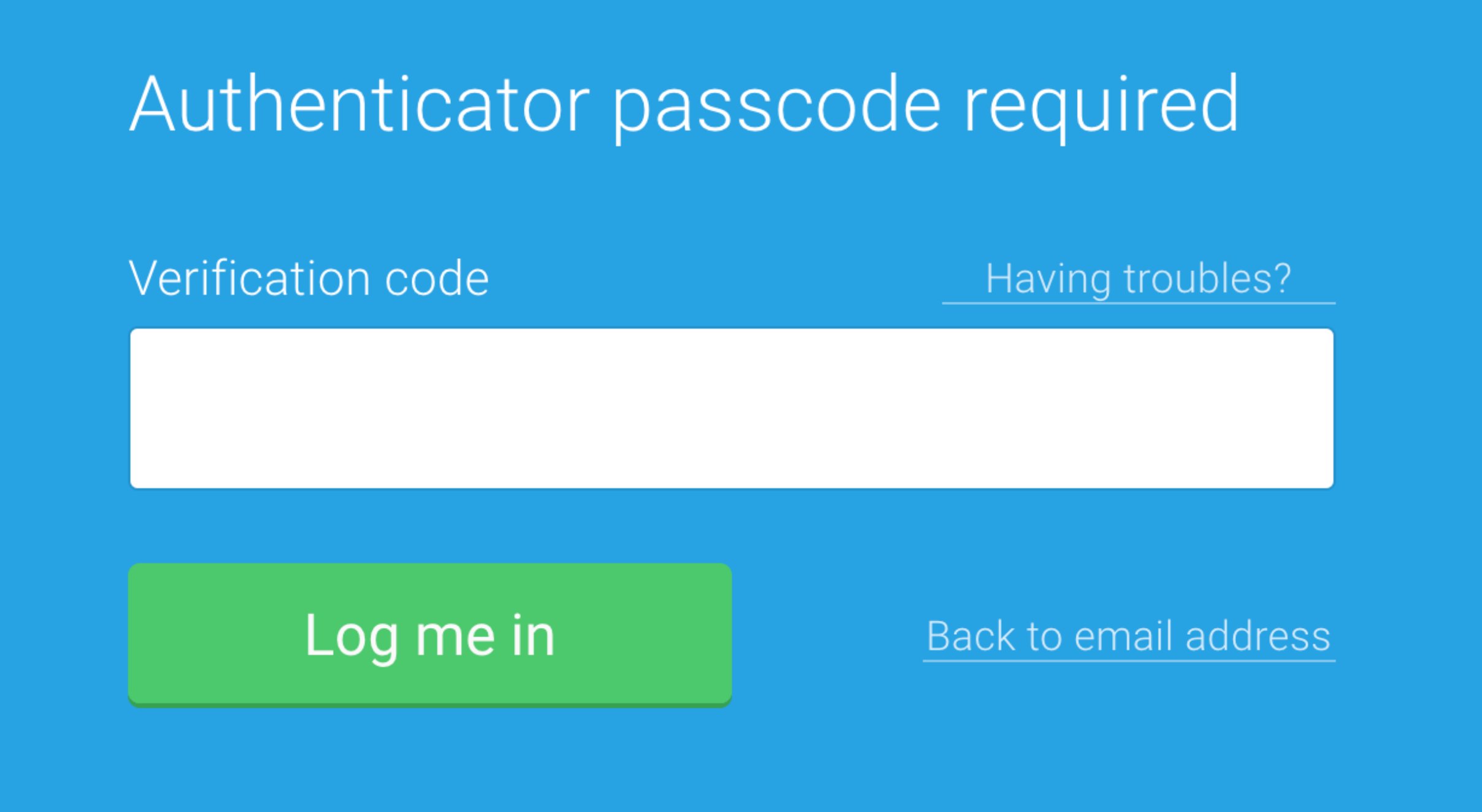 Open the Authenticator app on your mobile device and enter the code generated by the app to access your Conductor Website Monitoring account.
### Having trouble logging in?
Please note that the codes generated by the Authenticator app are only valid for a short period of time. Therefore make sure you are entering a valid code.
If you’re entering a valid verification code and you are still not able to log in to your Conductor Website Monitoring account, please [contact our Support team](/docs/platform/getting-help-with-conductor-products/) and we will be happy to help.
Open the Authenticator app on your mobile device and enter the code generated by the app to access your Conductor Website Monitoring account.
### Having trouble logging in?
Please note that the codes generated by the Authenticator app are only valid for a short period of time. Therefore make sure you are entering a valid code.
If you’re entering a valid verification code and you are still not able to log in to your Conductor Website Monitoring account, please [contact our Support team](/docs/platform/getting-help-with-conductor-products/) and we will be happy to help.