> ## Documentation Index
> Fetch the complete documentation index at: https://www.conductor.com/docs/llms.txt
> Use this file to discover all available pages before exploring further.
# Weekly Reports
> Receive a Monday-morning email summarizing the most important changes Conductor Monitoring detected on your sites last week.
Every Monday morning Conductor Monitoring sends you an email report with a quick overview of the most important changes on your websites.
## Metrics in the Weekly Report explained
The Conductor Monitoring Weekly Report looks like this:
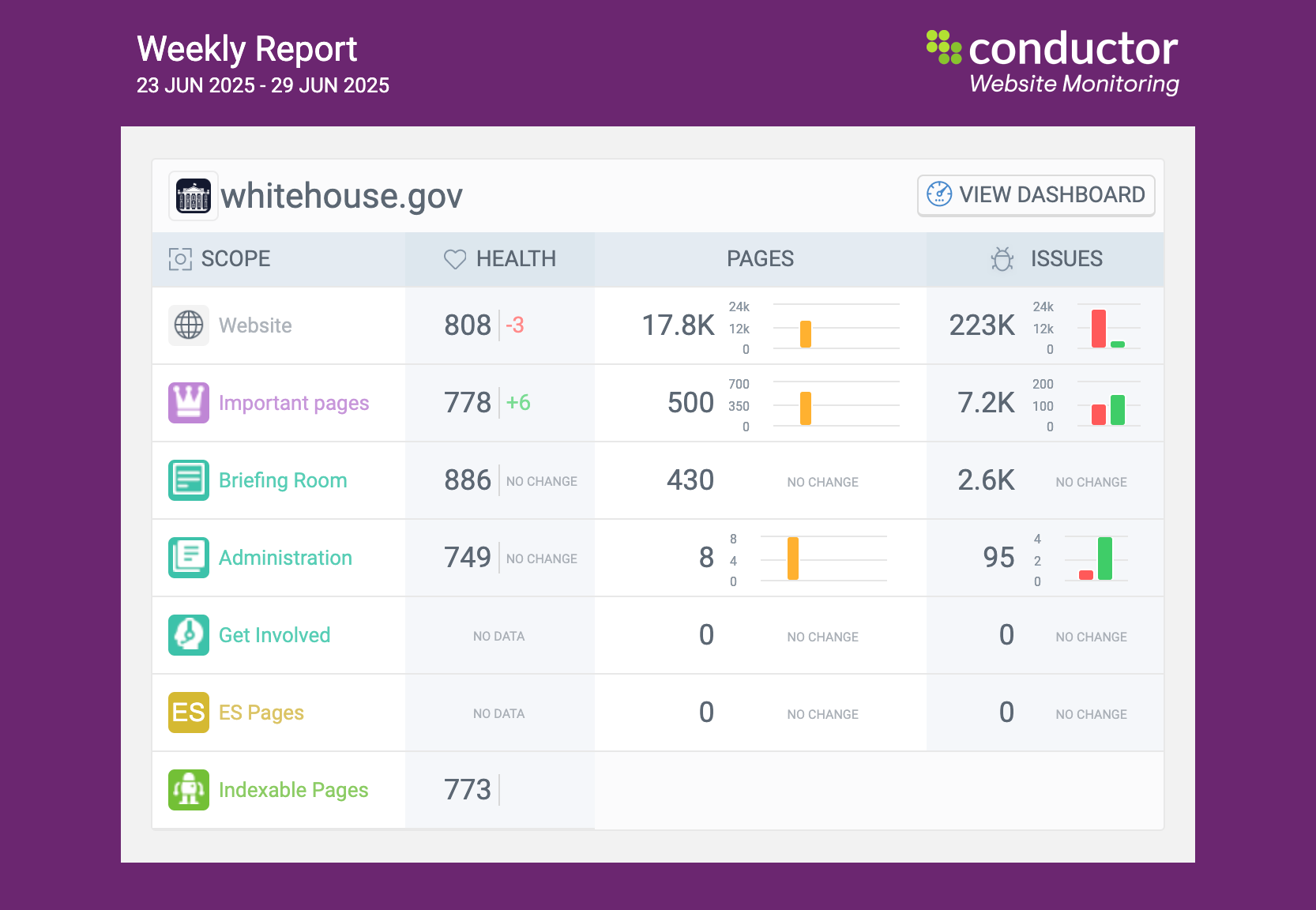 There are four metrics (columns) in the report:
* **Scope**
* **Health**
* **Pages**
* **Issues**
#### Scope
The **Scope** column shows the scope to which the data in the row applies. The scope can be the whole website or a specific segment that you create in Conductor Monitoring (more about Segments [here](/docs/monitoring/segments/)).
#### Health
The **Health** column shows the development of the Health score for the past week.
The number on the left side of the column represents the current value of the Health score. The number on the right side of the column shows how the Health score changed compared to last week’s report.
#### Pages
The **Pages** column shows all page changes that were detected during the past week.
The number on the left side of the column shows the total number of [Pages](/docs/monitoring/pages-conductor-monitoring/) in the given scope. The chart on the right side shows the page changes that were detected in the scope during the past week.
The colors in the chart represent the different types of changes same as on the dashboard:
* Orange: **Changed pages**
* Green: **Added pages**
* Red: **Removed pages**
* Blue: **Redirected pages**
* Grey: **Other change types**
#### Issues
The **Issues** column shows the development of the Issues for the past week.
The number on the left side of the column shows how many issues are currently open in the given scope. The chart on the right shows a comparison of the issues that were opened (red) and the issues that were resolved (green) during the past week.
## Customizing the Weekly Reports
You can tailor the content of the Conductor Monitoring Weekly Report to your specific needs. For your personal emails, you can configure:
* The websites that will be included in the report.
* The scopes that will be included in the report for each website.
### Selecting the websites to be included in the Weekly Report
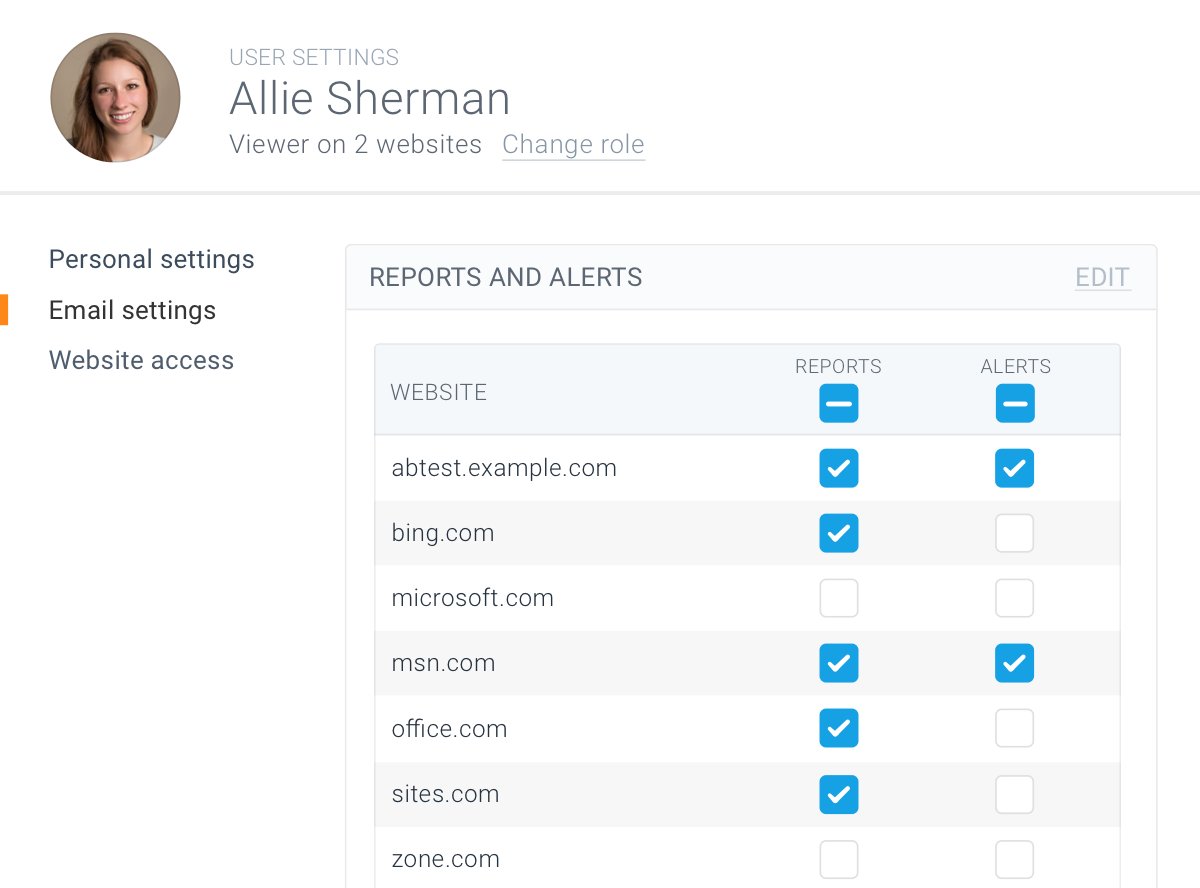
If you’re monitoring multiple websites in your Conductor Monitoring account, you can select which websites will be included in your Weekly Report by following these steps:
1. Go to the **Email settings** tab of **Your profile**.
2. Click **Edit** in the top right corner of the **Reports and Alerts** section.
3. In the **Reports** column, select which websites will be included in the Weekly Report.
4. Click **Save**.\\
There are four metrics (columns) in the report:
* **Scope**
* **Health**
* **Pages**
* **Issues**
#### Scope
The **Scope** column shows the scope to which the data in the row applies. The scope can be the whole website or a specific segment that you create in Conductor Monitoring (more about Segments [here](/docs/monitoring/segments/)).
#### Health
The **Health** column shows the development of the Health score for the past week.
The number on the left side of the column represents the current value of the Health score. The number on the right side of the column shows how the Health score changed compared to last week’s report.
#### Pages
The **Pages** column shows all page changes that were detected during the past week.
The number on the left side of the column shows the total number of [Pages](/docs/monitoring/pages-conductor-monitoring/) in the given scope. The chart on the right side shows the page changes that were detected in the scope during the past week.
The colors in the chart represent the different types of changes same as on the dashboard:
* Orange: **Changed pages**
* Green: **Added pages**
* Red: **Removed pages**
* Blue: **Redirected pages**
* Grey: **Other change types**
#### Issues
The **Issues** column shows the development of the Issues for the past week.
The number on the left side of the column shows how many issues are currently open in the given scope. The chart on the right shows a comparison of the issues that were opened (red) and the issues that were resolved (green) during the past week.
## Customizing the Weekly Reports
You can tailor the content of the Conductor Monitoring Weekly Report to your specific needs. For your personal emails, you can configure:
* The websites that will be included in the report.
* The scopes that will be included in the report for each website.
### Selecting the websites to be included in the Weekly Report
If you’re monitoring multiple websites in your Conductor Monitoring account, you can select which websites will be included in your Weekly Report by following these steps:
1. Go to the **Email settings** tab of **Your profile**.
2. Click **Edit** in the top right corner of the **Reports and Alerts** section.
3. In the **Reports** column, select which websites will be included in the Weekly Report.
4. Click **Save**.\\
 ### Selecting the scopes to be included in the Weekly Report
You can also configure which scopes will be included in the Weekly Report for each website. To configure the scopes, follow these steps:
1. Go to the dashboard of the website you want to configure.
2. In the **Scope** menu in the top-right corner of the screen, select which scopes you are interested in.
3. The scopes that you unselected will not be displayed on the dashboard and will not be part of the Weekly Report.\\
### Selecting the scopes to be included in the Weekly Report
You can also configure which scopes will be included in the Weekly Report for each website. To configure the scopes, follow these steps:
1. Go to the dashboard of the website you want to configure.
2. In the **Scope** menu in the top-right corner of the screen, select which scopes you are interested in.
3. The scopes that you unselected will not be displayed on the dashboard and will not be part of the Weekly Report.\\
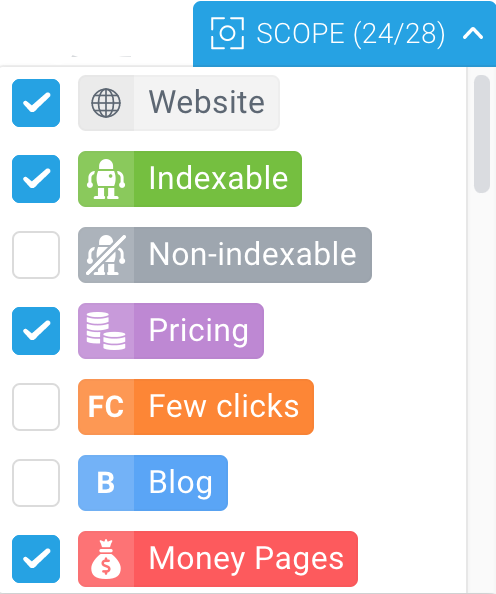 The scopes are matched across all websites in your account, so if you unselect a scope on one website, the scope will get automatically unselected on the rest of the websites as well and will not be part of the Weekly Report for any website.