> ## Documentation Index
> Fetch the complete documentation index at: https://www.conductor.com/docs/llms.txt
> Use this file to discover all available pages before exploring further.
# Integrate Domo with the Conductor API
> Connect Conductor data into Domo via API so you can build BI dashboards and visualize SEO performance alongside other data.
Bringing Conductor data into business intelligence tools like Domo can help you find patterns, visualize information in easy to understand ways, and build customized reports that meet the needs of your organization.
## Prerequisites
### Get Your API Credentials
To connect data from Conductor with Domo through the Conductor API, you’ll need to:
* [Generate an API Key and Secret](/docs/api/authentication/) (as described in step 1 of the Authentication section in the Data API guide), which you’ll use to authenticate your connection.
* Follow the steps outlined below.
### Review Conductor API Information
Be sure to familiarize yourself with the [Conductor Intelligence's Legacy Reporting API](/docs/other-apis/conductor-intelligences-legacy-reporting-api/).
## How to set it up
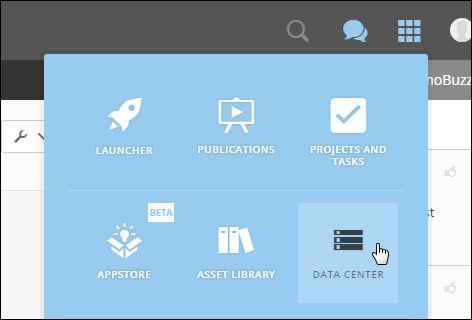
1. Under the **Tools** menu, select **Data Center**. The **Data Center** page appears.\\
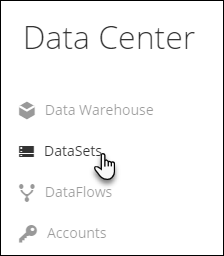
 2. On the **Data Center** page, navigate to the **DataSets** screen.\\
 3. Click **New** and select **Cloud App**. The **Data Connectors** page appears.\\
 4. On the **Data Connectors** Page, scroll down and select the Conductor connector. The **Create Conductor DataSet** page appears.\\
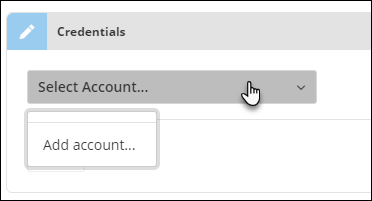
 5. In the **Select Account** menu, select **Add Account**.\\
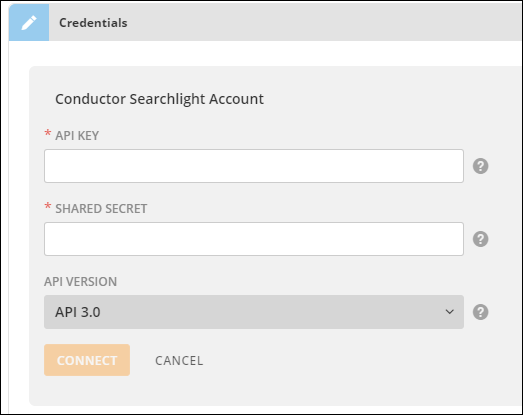
 6. Enter the **API key** and **Shared Secret** you received when you signed up with the Conductor API.\\
 7. Select the most recent API version and click **Connect**.
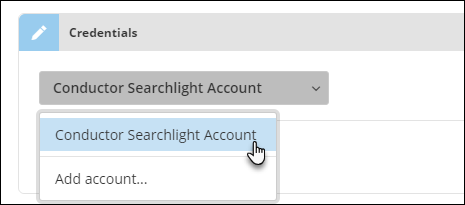
8. In the **Select Account** menu, select the account you want to use for this integration. If you have only one account in Conductor, only that account appears in the menu.\\
7. Select the most recent API version and click **Connect**.
8. In the **Select Account** menu, select the account you want to use for this integration. If you have only one account in Conductor, only that account appears in the menu.\\
 9. Click **Next** to proceed to the **Details** section.
10. Select values for your report in the **Details** section:
* In the **Report** menu, select the report you want to generate for the **DataSet**.
* In the following menus, select other information for the dimensions you are reporting on. The specific menus that appear depend on the report you chose in step 10. For example, if you select the **Global** **Keyword** **Ranks** report in step 10, you must select an **Account**, **Rank Source** (search engine), and **Web Property**.
* In the **Period** menu, select **Current**.
11. Click **Next** to proceed to the **Scheduling** section.
12. Configure when your report data is updated:
* Select **Every Week** on **Monday at 12 P.M. UTC** as the frequency at which the data is updated.
* Note that if you have several accounts and lots of connectors, you should schedule different times to avoid call rate issues.
13. Click **Change retry settings**.
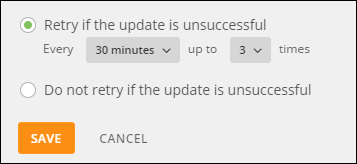
14. Select **Retry** if the update is unsuccessful and set the frequency to every 30 minutes up to 3 times.\\
9. Click **Next** to proceed to the **Details** section.
10. Select values for your report in the **Details** section:
* In the **Report** menu, select the report you want to generate for the **DataSet**.
* In the following menus, select other information for the dimensions you are reporting on. The specific menus that appear depend on the report you chose in step 10. For example, if you select the **Global** **Keyword** **Ranks** report in step 10, you must select an **Account**, **Rank Source** (search engine), and **Web Property**.
* In the **Period** menu, select **Current**.
11. Click **Next** to proceed to the **Scheduling** section.
12. Configure when your report data is updated:
* Select **Every Week** on **Monday at 12 P.M. UTC** as the frequency at which the data is updated.
* Note that if you have several accounts and lots of connectors, you should schedule different times to avoid call rate issues.
13. Click **Change retry settings**.
14. Select **Retry** if the update is unsuccessful and set the frequency to every 30 minutes up to 3 times.\\
 15. Click **Save.**
16. Click **Change update settings**.
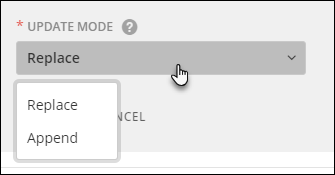
17. Select either **Replace** or **Append**. Replacing data overwrites your existing data. Appending adds to your existing data.\\
15. Click **Save.**
16. Click **Change update settings**.
17. Select either **Replace** or **Append**. Replacing data overwrites your existing data. Appending adds to your existing data.\\
 18. Click **Save**.
19. Click **Next** to proceed to the **Name & Describe Your DataSet** section.
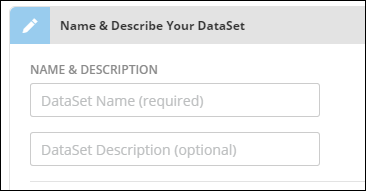
20. Enter a **Name** and **Description** for your DataSet.\\
18. Click **Save**.
19. Click **Next** to proceed to the **Name & Describe Your DataSet** section.
20. Enter a **Name** and **Description** for your DataSet.\\
 21. Click **Save**.
Your DataSet is now ready to be run and updated on the schedule you configured above. Connect this DataSet to a DataFlow or other Domo tool.
21. Click **Save**.
Your DataSet is now ready to be run and updated on the schedule you configured above. Connect this DataSet to a DataFlow or other Domo tool.