
BetaThis feature is in a Beta program. Aspects of it are subject to change with
little or no notice.
The Adobe Analytics API integration pulls your Adobe Analytics data into Conductor Intelligence through Adobe’s Reporting API. Your organic and AI-referred traffic then appears in your Conductor pages reporting.
This integration replaces the Data Warehouse export and SFTP transfer used by the file-based Adobe Analytics integration. Instead of scheduling reports in Adobe, you give Conductor an API credential, and Conductor reads the data directly.
Who needs to be involved in this setup?
- Someone with Adobe admin rights, to create the API credential and set its permissions.
- Someone who can edit segments in Adobe’s Analysis Workspace.
- Someone with Standard or Admin access to Conductor.
Conductor also has an integration between Adobe Analytics and Conductor Monitoring. This article covers the integration for Conductor Intelligence. For Monitoring, see Adobe Analytics in Conductor Monitoring.
Before you start
Gather the following details first. We’ll describe them, and then provide instructions for finding them in Adobe.Once for your Adobe organization
Your organization needs to create an API credential once. You can reuse it for every website you connect.For each website
Repeat these for every website you connect to Conductor.Create the Adobe API credential
Where: Adobe Developer Console Conductor authenticates with an OAuth Server-to-Server credential. This is a machine credential, so it doesn’t depend on any one person’s Adobe login.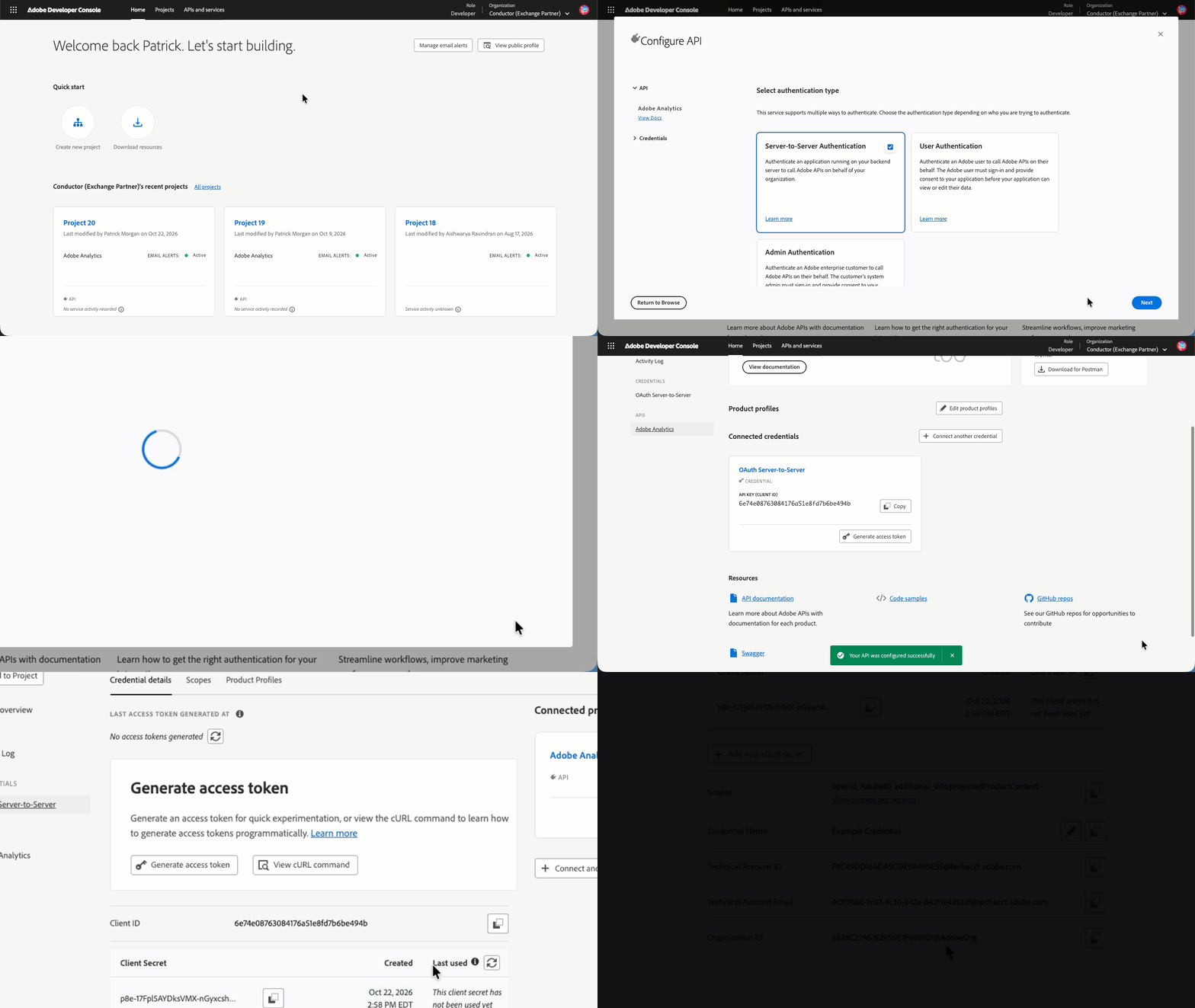
- Confirm the organization selector at the top right shows the organization that owns your Analytics data.
- Create a new project, or open an existing project you use for integrations.
- Click Add API.
- Select Adobe Analytics and click Next.
- Choose Server-to-Server Authentication as the authentication type and click Next.
- In the Credential name field, give the credential you are creating a name and click Next.
- Choose the Product profile to assign the credential to. The next section covers what that profile must contain. If you’re not sure which profile to use, pick any profile now and fix it in the next section.
- Click Save configured API.
- In the Connected credentials section, click the OAuth Server-to-Server header.
- Find and copy down the Client ID.
- Click the Retrieve client secret button and copy down the value.
@AdobeOrg. You need it only if your Adobe account belongs to more than one organization.
Give the credential the right access
Where: Adobe Admin Console The product profile you chose above grants your credential access to three things:- Report suites. The profile must include the suite you want Conductor to read. A suite that’s missing here won’t appear in Conductor’s report suite menu.
- Dimensions. Adobe lets administrators restrict individual dimensions per profile. The profile must include the dimension that holds your page URL. A dimension that’s missing here won’t appear in Conductor’s Page URL menu.
- Metrics. The same restriction applies to metrics such as Visits and Page Views. A metric that’s missing here won’t appear in Conductor’s metric menu.
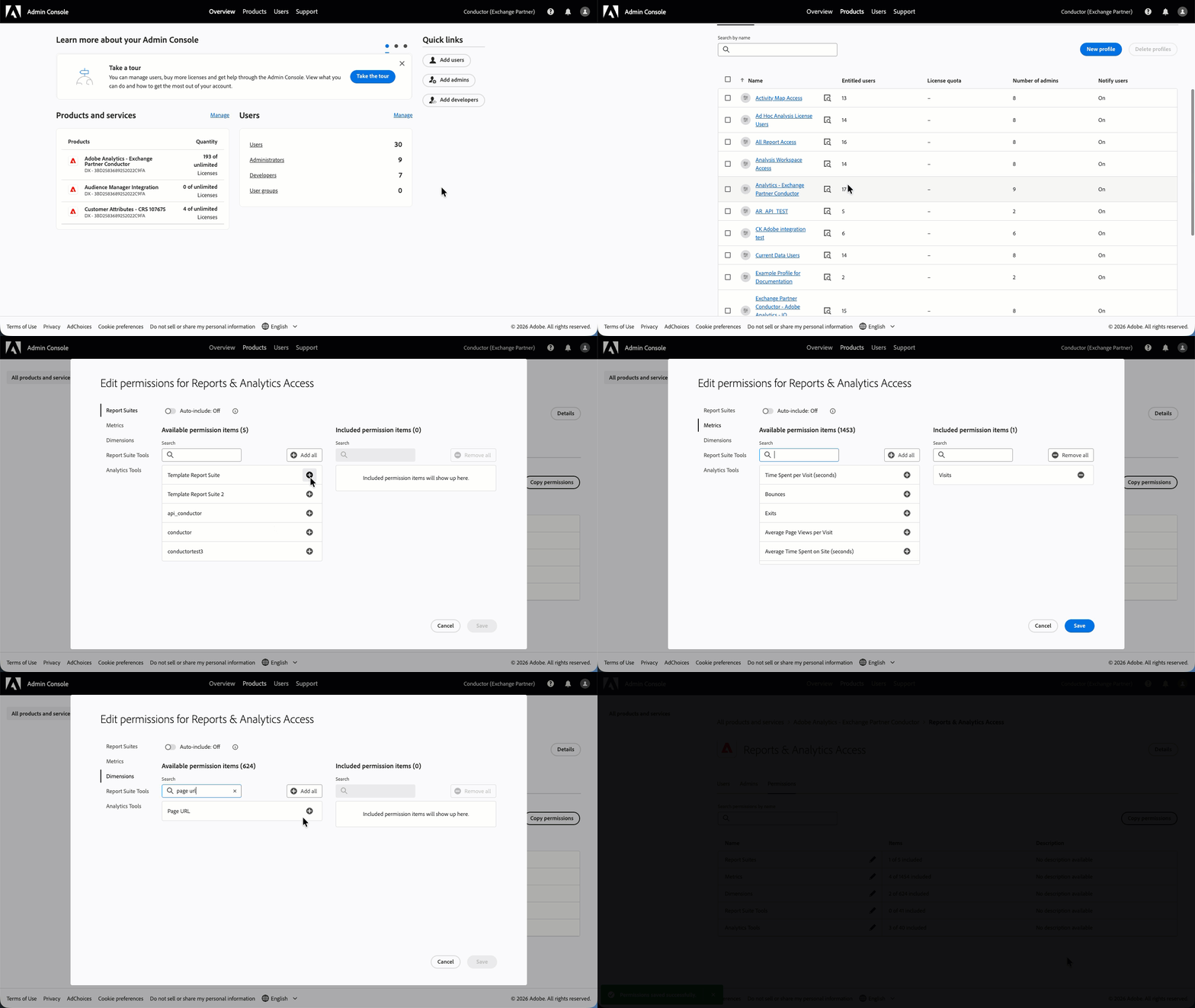
- Go to Products > Adobe Analytics.
- If you have multiple products available, choose the product you are integrating with.
- Choose your product profile from the list.
- Under Permissions > Report Suites, add the suite you’re connecting.
- Under Permissions > Metrics, include every metric you plan to import. You must include Visits. Then, you can add Page Views, Orders, Revenue, or any custom events you want to see in Conductor.
- Under Permissions > Dimensions, include the dimension that holds your page URL and the Referrer dimension.
Create the Organic and AI segments
Where: Adobe Analysis Workspace Conductor reports only on the traffic you define here, not on everything in the report suite you choose. You define this traffic with two saved Adobe segments:- One for organic search traffic
- One for AI-referred traffic.
- Keep each segment to one job. Don’t combine an organic condition and an AI condition in the same segment. Conductor applies the segments separately, and a combined segment silently narrows both.
- Share the segment, or own it with the account the credential uses. A segment that’s private to another user may not appear in Conductor’s segment menu.
The Organic segment
If your team already has an organic segment it trusts and reports from, use that one. If several websites share the report suite, make a copy of that segment and add the URL condition to the copy. Don’t edit the original. Otherwise, build a new segment with the approach that fits your implementation:The AI segment
Choose an option based on how current your report suite is.-
Option A: Adobe’s built-in AI classification (preferred). Newer report suites classify AI assistants automatically. Build the segment as Referrer Type equals
Conversational AI tools. Adobe maintains the list of AI engines, so new assistants are picked up without any edits from you. -
Option B: A list of referring domains. If
Conversational AI toolsdoesn’t exist in your report suite, list the domains yourself, joined withOR:If several websites share the report suite, put the wholeORlist inside its own container, and join that container to the URL condition withAND. If you add the URL condition directly after the last line,ANDapplies only to that line, and the segment returns the wrong traffic.Keep two things in mind with Option B:- Adobe’s Referring Domain dimension collapses subdomains to the registered domain, so
gemini.google.commay be recorded asgoogle.com. Test the segment before relying on it, and consider also matchingutm_source=parameters on Entry URL. - A hand-maintained list goes stale as the industry evolves. Set a reminder to review it quarterly.
- Adobe’s Referring Domain dimension collapses subdomains to the registered domain, so
If several websites share the report suite
Each Conductor integration covers one website. If your report suite collects data for more than one website, the segment is the only place to tell them apart. Build one Organic segment and one AI segment for each website. In each segment, add a condition that limits the traffic to that website, and join it to the traffic condition withAND:
<organic or AI condition> with the condition you chose in The Organic segment or The AI segment. The page URL dimension is the one described in Choose the dimension that holds your page URL.
If a single website is in your report suite, you don’t need the URL condition.
Choose the dimension that holds your page URL
Where: Adobe Analysis Workspace Conductor matches Adobe data to your pages by URL, so this choice determines how much of your traffic lands on the right page. Adobe’s built-in page dimensions usually hold a page name (such as/index.html or prodgroup:[400]), not a URL. Most implementations need a custom eVar with a name like “Page URL” or “Canonical URL.”
Check your page URL dimension
In Analysis Workspace, build a freeform table with:- Your candidate dimension as the row.
- Visits as the metric.
- Your Organic segment applied.
- One week as the date range.
Connect the integration in Conductor
Where: Conductor Intelligence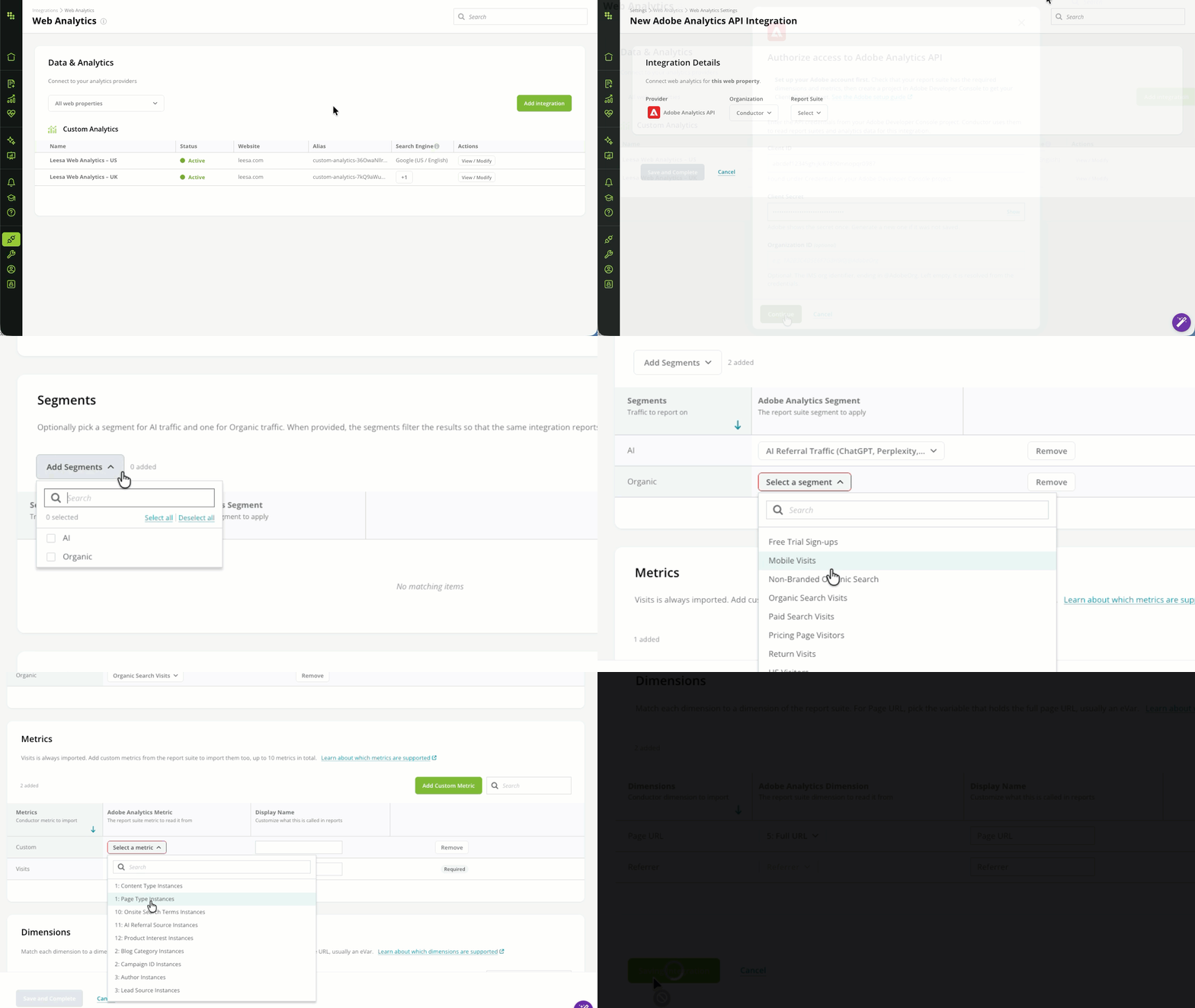
Choose the web property and provider
- Select the web property the Adobe data belongs to.
- Choose Adobe Analytics API.
Enter your credentials
- Paste the Client ID and Client Secret you generated above.
- Leave Organization ID blank, unless your Adobe account belongs to more than one organization. In that case, paste the identifier ending in
@AdobeOrg. - Click Continue.
Choose the organization and report suite
Conductor reads both from Adobe. Select your organization, then the report suite.Name the integration
The Integration Display Name is how the integration appears in your list of web analytics integrations. Conductor suggests a name based on the organization and report suite, which you can change.Add the segments
- Under Segments, click Add Segments.
- Select Organic, AI, or both. Each one you select adds a row.
- For each row, open Select a segment and search for the Adobe segment you built above. The search matches on segment name, so searching for
SEOorAIusually narrows it quickly.
Add the metrics
Visits is required and can’t be removed. To add more metrics, click Add Custom Metric. You can add up to 10 metrics in total, including Visits. For each metric:- Select the Adobe metric.
- Enter a Display Name. This is the name that appears in Conductor reports.
Map the dimensions
Two dimensions are required:
The Display Name column controls the label in Conductor reports. The defaults work for most setups.
Save the integration
Click Save and Complete. The integration appears in your web analytics list with a Processing status until Conductor completes its first weekly run after setup.Check the data
Where: Adobe Analysis Workspace and Conductor Intelligence Check the data once the integration’s status changes from Processing and the backfill is complete:- In Analysis Workspace, apply the same segment and metric you mapped in the integration.
- Set a historical date range.
- Compare the visit total against what Conductor shows for the same date range.
Conductor doesn’t import rows where the page URL is (Low Traffic) or Unspecified. Adobe records (Low Traffic) when the dimension collects more unique values than its monthly limit allows, and Unspecified when the dimension wasn’t set on the page view. Neither is a real URL, so neither can be matched to a page. Expect your Conductor totals to be lower than an unfiltered Adobe report by roughly the share of traffic in those two buckets. The checks in Check your page URL dimension show you how large that share is.
Processing and backfilling historical data takes around 30 minutes. New data is then added weekly.
Change the integration
Where: Conductor Intelligence Go to Integrations > Web Analytics and click View / Modify for the integration. You can change segments, metrics, and display names at any time.Keep the integration running
Where: Adobe Developer Console and Adobe Analysis Workspace The credential stops working if someone:- Deletes the Adobe Developer Console project.
- Removes the credential from its product profile.
- Rotates the client secret.