
Cloudflare Logpush is available exclusively on Cloudflare’s Enterprise plan.
- Enabling log files and creating an AWS S3 bucket in Conductor Intelligence.
- Configuring Cloudflare Logpush in the Cloudflare UI.
Enabling log files and creating an AWS S3 bucket in Conductor Intelligence
In Conductor Intelligence:- Go to the Pages & Crawling settings activity (Settings > Pages & Crawling).
- From the list of configured subdomains, identify the subdomain with the pages for which you want to see log file data.
- In the Log Source column for that subdomain, click Connect.
- In the Cloudflare Logpush section, from the Connect a log source window, click Connect.
- In the Connect Cloudflare Logpush window:
- If you have configured Cloudflare Logpush for your root domain, select whether you want to apply this integration to all relevant subdomains. This allows you to integrate Cloudflare once for all applicable subdomains rather than for each subdomain individually. If Cloudflare is configured at the subdomain level, leave this check box clear and configure individual log file integrations for each subdomain.
- Click Create Bucket.
Conductor Intelligence will generate the following details you will need to complete this integration in Cloudflare in the next section: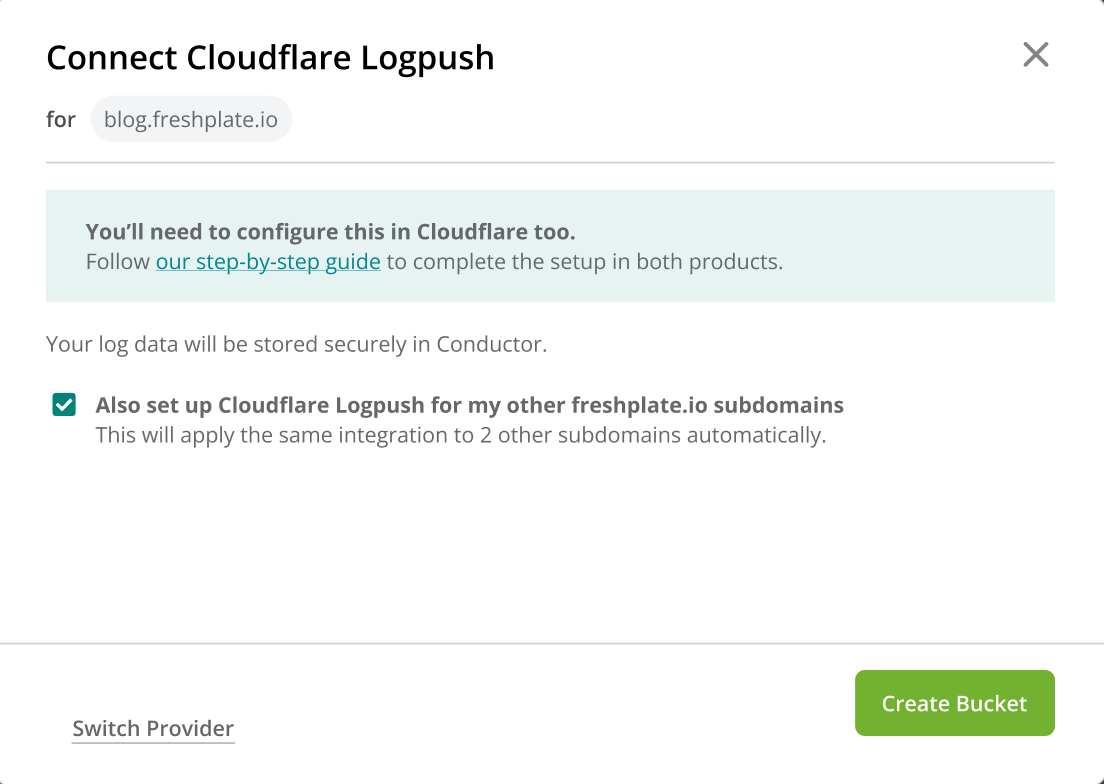
- Bucket
- Region
You’ll also see a placeholder for Ownership token. You’ll need to save a configuration in Cloudflare before this Ownership token is generated. We’ll come back to this.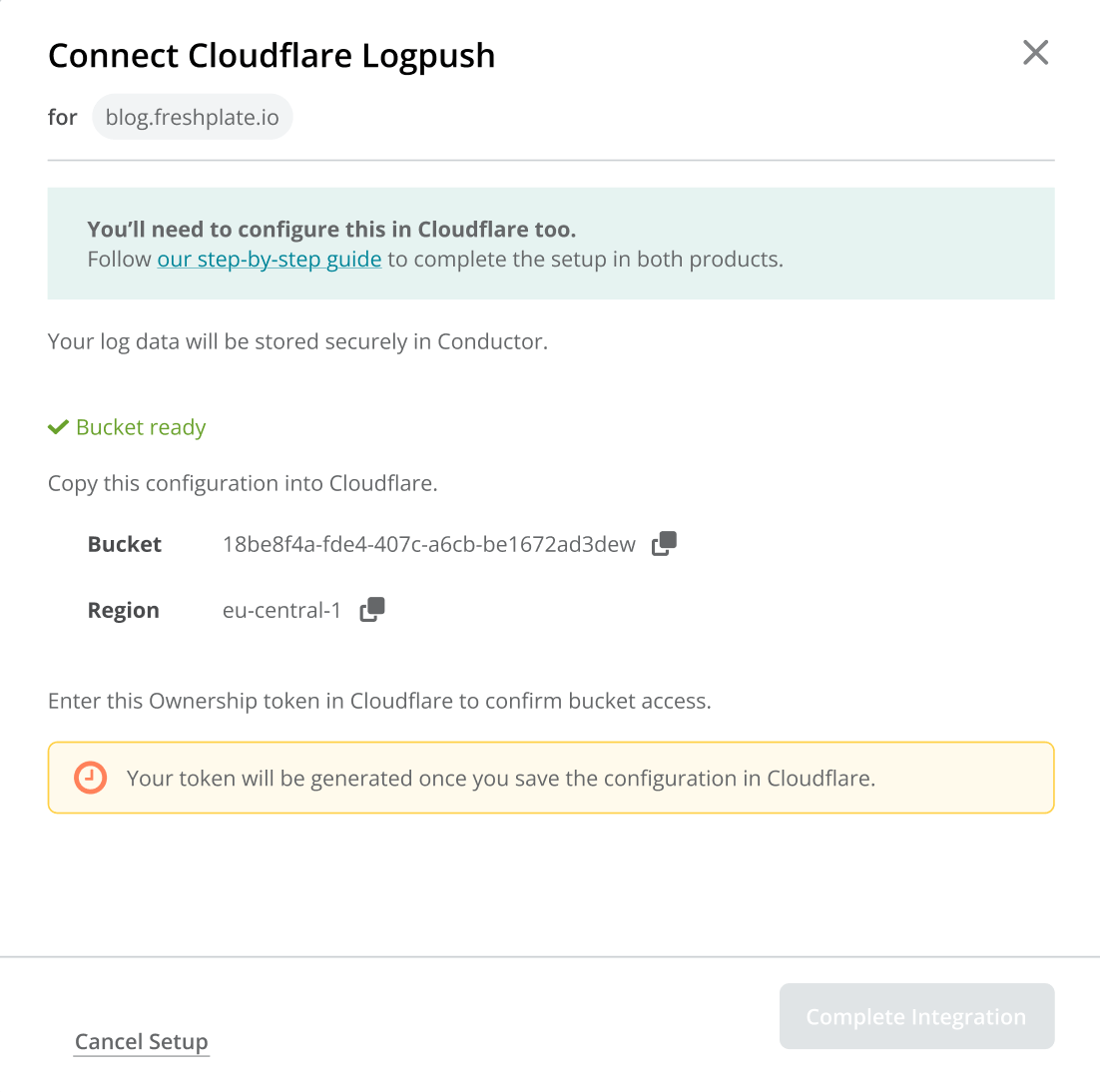
Configuring Cloudflare Logpush
Cloudflare Logpush needs to be manually configured in the Cloudflare UI.- Go to the Logs section in the Cloudflare UI: log in to your Cloudflare account, choose the website for which you want to send log file data to Conductor Intelligence, and click Analytics > Logs.
- In the Logpush section, click Connect a service.
- In the Select Data Set step, select HTTP requests as the data set.
- Select the following Data Fields that need to be provided in the HTTP request log. All required Data Fields are preselected by default, apart from the following two that need to be specified manually:
- ClientRequestScheme (in the ClientRequest category)
- ClientRequestUserAgent (in the ClientRequest category)
- Client IP
- ClientRequestHost
- ClientRequestMethod
- ClientRequestURI
- EdgeEndTimestamp
- After ensuring that the required Data Fields are selected, click Next.
- Select Amazon S3 as the destination and click Next.
- Enter the Bucket and Path and the Bucket region from the credentials generated in Conductor Intelligence to the corresponding fields in the Enter destination information step. The default selection should be kept for all other options:
- Enter the entire Conductor Intelligence “Bucket” value in the Bucket field in Cloudflare. Leave the Path field blank.
- Enter the “Region” value from Conductor Intelligence in the Bucket region field in Cloudflare.
- Once done, click Validate access.
- After initiating access validation, Cloudflare sends a file to the Conductor Intelligence S3 bucket that contains the Ownership token. Validate access to the S3 bucket by copy-pasting the Ownership token from Conductor Intelligence to Cloudflare:
- Back in Conductor Intelligence’s Pages & Crawling activity, click Connect to open the Cloudflare integration you started above. The Ownership token should now be visible. Copy this to your clipboard.
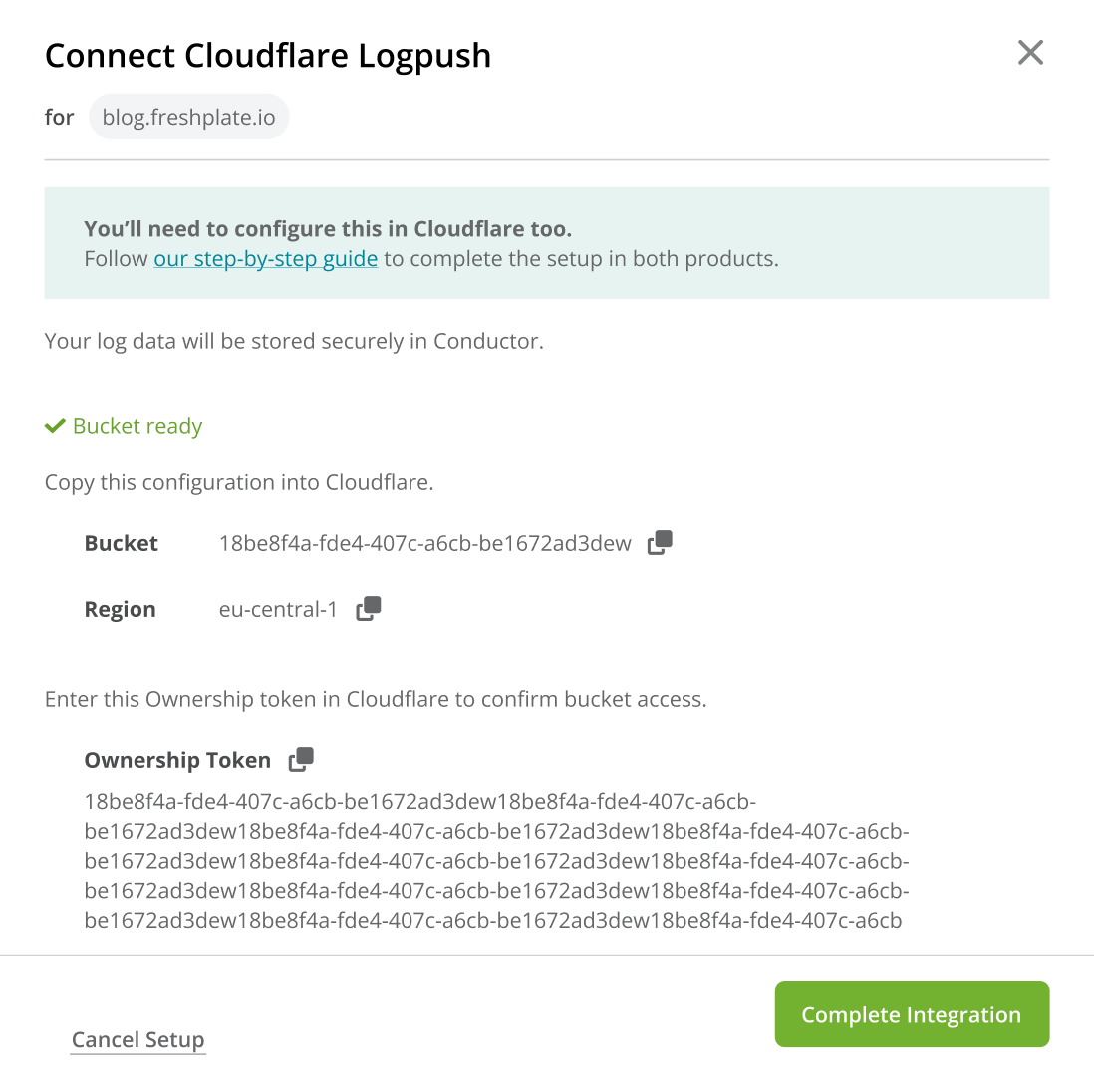
- Navigate back to the Cloudflare UI and paste the Ownership token to the corresponding field.
- Click Push. After that, you should see the Logpush service that you have just created in the overview.
- Back in Conductor Intelligence’s Pages & Crawling activity, click Connect to open the Cloudflare integration you started above. The Ownership token should now be visible. Copy this to your clipboard.
Filter away non-search engine traffic
To ensure you capture visits from all of the bots for which Conductor supports detection, you might need to create filters for your log files. Be sure you allow all of the following user agents:- bingbot
- Googlebot
- OAI-SearchBot
- ChatGPT-User
- GPTBot
- PerplexityBot
- Perplexity-User
- ClaudeBot
- Claude-SearchBot
- Claude-User
- GoogleOther
- Google-Agent
- OAI-AdsBot
- GrokBot
Filtering Logpush jobs in CloudflareBecause this configuration is performed in Cloudflare, and the way your organization configures Logpush will depend on a variety of factors, we recommend reviewing Cloudflare’s documentation for Logpush filters.
Disabling Log File Data in Conductor Intelligence’s Pages Reports
- In Pages & Crawling, hover over the subdomain for which you want to remove Cloudflare Logpush and click Edit in the Log Source column.
- In the bottom-right of the Connect Cloudflare Logpush form, click Remove.
- Click Remove Log Source to confirm.