
- Install the AWS Command Line Interface (CLI)
- Find your AWS account ID and CloudFront distribution ID
- Enable log files and creating an AWS S3 bucket in Conductor Intelligence.
- Configure CloudFront Standard logging with the AWS CLI.
Install the AWS Command Line Interface (CLI)
You’ll need to use the AWS CLI to configure the v2 connection with CloudFront below. You can also use the CLI to find your account ID and distribution ID. To download and install this CLI, refer to Amazon’s documentation: Getting started with the AWS CLIFinding your AWS account and CloudFront distribution ID
Once the AWS CLI is installed on your machine, you can perform the following commands to find your AWS account ID and the distribution IDs associated with the subdomains you want to configure to show log file data in Conductor Intelligence.Find your account ID
From your terminal, enter the following:Find your distribution ID
You’ll integrate CloudFront to a specific subdomain in Conductor Intelligence. If different distributions host different subdomains in CloudFront, you’ll need to find multiple distribution IDs. However, if you use the same distribution ID for all your subdomains in Conductor Intelligence, you’ll only need to find one. From your terminal, enter the following:Enabling log files and creating an AWS S3 bucket in Conductor Intelligence
In Conductor Intelligence:- Go to the Pages & Crawling settings activity (Settings > Pages & Crawling).
- From the list of configured subdomains, identify the subdomain with the pages for which you want to see log file data.
- In the Log Source column for that subdomain, click Connect.
- In the CloudFront section, from the Connect a log source window, click Connect.
- In the Connect Amazon CloudFront window:
- Enter your AWS Account ID and the CloudFront Distribution ID for this subdomain.
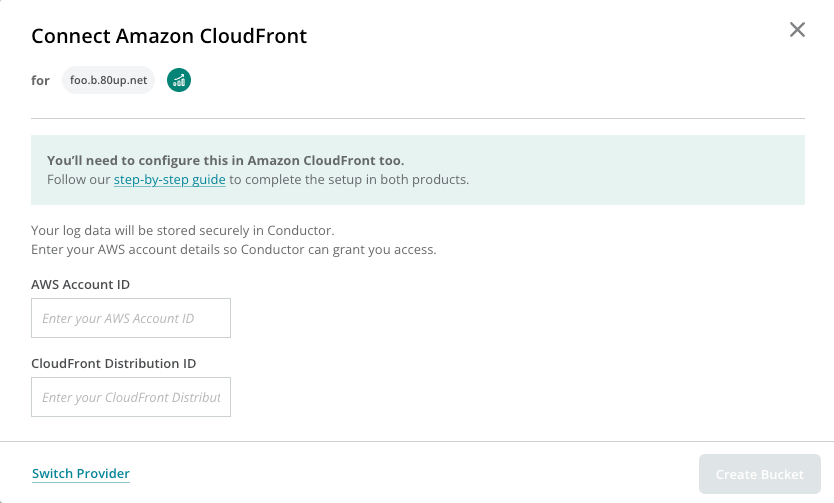
- Click Create Bucket. Conductor Intelligence will generate the AWS S3 bucket and provide you with the commands you’ll need to run to complete this integration.
- Enter your AWS Account ID and the CloudFront Distribution ID for this subdomain.
Configuring CloudFront Standard logging
In the AWS CLI, complete the integration using the commands found in the Connect Amazon CloudFront window: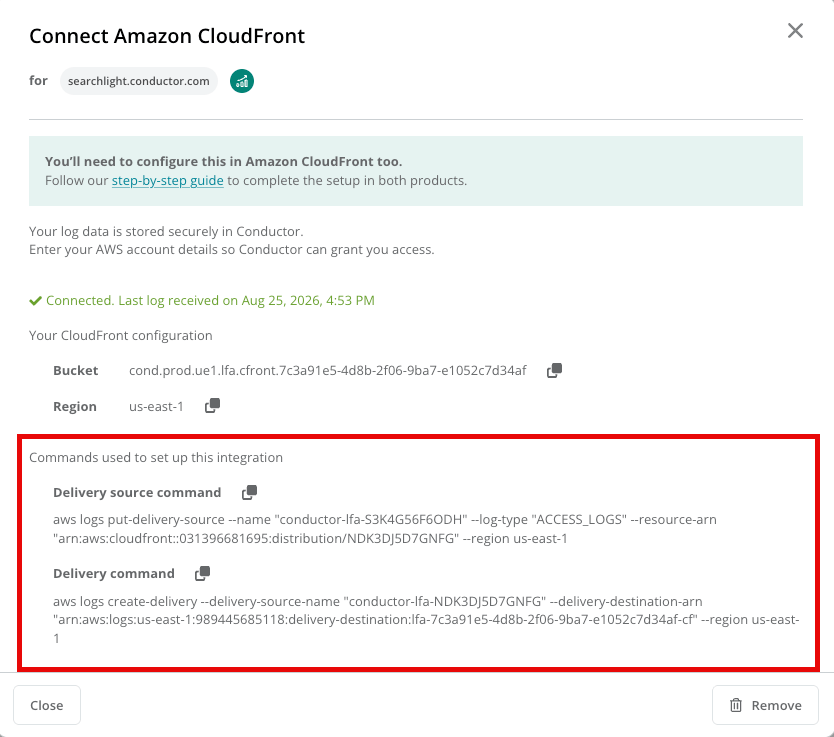
Filter away non-search engine traffic
To ensure you capture visits from all of the bots for which Conductor supports detection, you might need to create filters for your log files. Be sure you allow all of the following user agents:- bingbot
- Googlebot
- OAI-SearchBot
- ChatGPT-User
- GPTBot
- PerplexityBot
- Perplexity-User
- ClaudeBot
- Claude-SearchBot
- Claude-User
- GoogleOther
- Google-Agent
- OAI-AdsBot
- GrokBot
Allowing user agents in CloudFrontBecause this configuration is performed in CloudFront, and the way your organization configures your CloudFront instance will depend on a variety of factors, we recommend reviewing CloudFront’s documentation for configuring its “Bot Control” feature.
Disabling Log File Data in Conductor Intelligence’s Pages Reports
- In Pages & Crawling, hover over the subdomain for which you want to remove CloudFront and click Edit in the Log Source column.
- In the bottom-right of the Connect CloudFront form, click Remove.
- Click Remove Log Source to confirm.