
- Enabling log files and creating an AWS S3 bucket in Conductor Intelligence.
- Configuring Fastly Real-Time Log Streaming in the Fastly UI.
Enabling log files and creating an AWS S3 bucket in Conductor Intelligence
In Conductor Intelligence:- Go to the Pages & Crawling settings activity (Settings > Pages & Crawling).
- From the list of configured subdomains, identify the subdomain with the pages for which you want to see log file data.
- In the Log Source column for that subdomain, click Connect.
- In the Fastly section, from the Connect a log source window, click Connect.
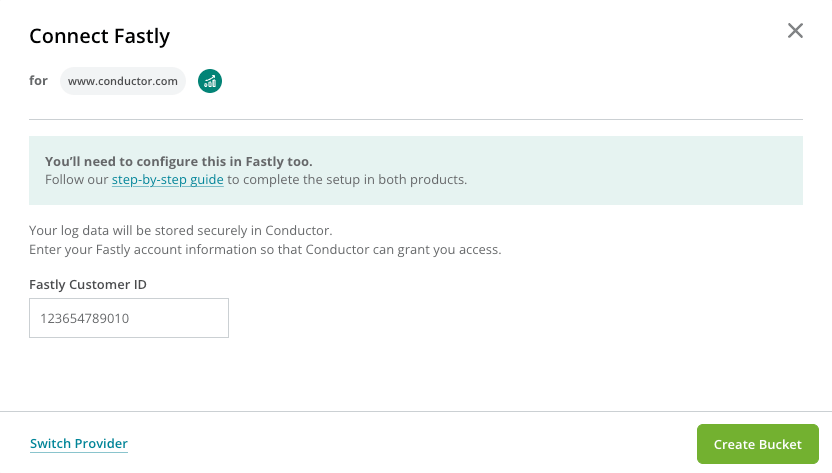
- Enter your Fastly Customer ID. You can find this in your Fastly Control Panel or with a
GETrequest to Fastly’s API/current_customerendpoint. - In the Connect Fastly window, click Create Bucket.
Conductor Intelligence will generate the following AWS credentials and the AWS S3 bucket you will need below to associate the AWS S3 bucket with Fastly Real-Time Log Streaming in the next section:
- Bucket
- Region
- IAM role
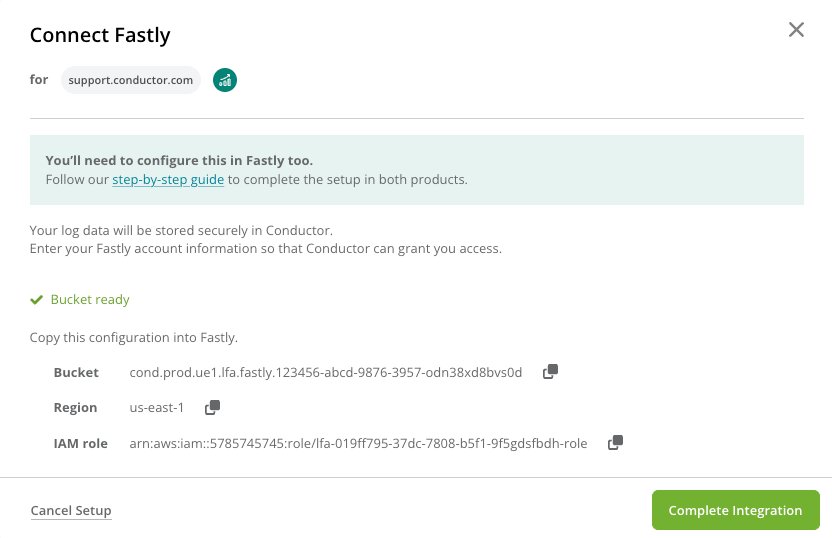
- Click Complete Integration.
Configuring Fastly Real-Time Log Streaming
Fastly Real-Time Log Streaming needs to be manually configured in the Fastly UI for every website. The configuration of Fastly Real-Time Log Streaming consists of these steps:- Log in to your Fastly account and click on the website (service) for which you want to send log file data to Conductor Intelligence.
- In the service summary screen, click Edit configuration.
- In the left-hand navigation bar, click Logging, and then click Create endpoint.
- In the Amazon S3 section click Create endpoint.
-
In the S3 endpoint details screen add the following settings:
- Name: enter any name that would help easily identify the endpoint, e.g, “Conductor Intelligence S3”
- Placement: Format Version Default (this is the default, no change needed)
- Log format: Paste the following format
- Timestamp format:
%Y-%m-%dT%H:%M:%S.000(this is the default one, no change needed) - Bucket name: enter the bucket name from the credentials you saved from Conductor Intelligence that was generated in the steps above.
- Access Method: User Credentials
- Access key: enter the Access key from the credentials in Conductor Intelligence generated in the steps above.
- Secret key: enter the Secret key from the credentials in Conductor Intelligence generated in the steps above.
- Period: 60 seconds.
-
Click Advanced options and edit more properties:
- Path: / (this is default, no need to change this)
- Domain: enter the Domain from the credentials in Conductor Intelligence generated in the steps above.
- PGP public key: keep this empty (this is default, no need to change this)
- Select a log line format: Blank (this is default, no need to change this)
- Compression: Gzip
- The rest of the settings: keep the default ones
- Click Update.
Filter away non-search engine traffic
Setting up the response condition
To configure a response condition, so only search engine traffic is sent to the S3 bucket, follow the steps below.Although Conductor Intelligence filters out all non-search engine traffic, Conductor also requires setting up the condition to filter out all non-search engine traffic directly in your Fastly account so no other data is streamed to the S3 bucket.For background on how conditions work, see Fastly’s documentation about conditions.
- In the left-hand navigation bar, select Conditions.
- In the Condition screen, click Create condition.
- In the Condition details screen, fill in the following condition:
- Type: Response
- Name: any name, e.g. “Is Crawler”
- Apply if… Paste the exact condition below:
- The
(?i)prefix makes the match case-insensitive, so you do not need to reproduce the user agents’ capitalization exactly.
- Click Save.
Attaching the condition to the needed endpoint
To attach the condition to the created endpoint follow these steps:- Open the Logging endpoints screen by clicking on Logging in the left-hand navigation bar, and clicking Attach condition for the endpoint you’ve just created.
- In the Add a condition screen, select the condition you’ve just set up.
- To save all changes, just click Activate.
Disabling Log File Data in Conductor Intelligence’s Pages Reports
- In Pages & Crawling, hover over the subdomain for which you want to remove Fastly and click Edit in the Log Source column.
- In the bottom-right of the Connect Fastly form, click Remove.
- Click Remove Log Source to confirm.