
- Clarity about the next-steps with the highest impact.
- Context-aware guidance surfaced from the specific data you are viewing.
- Alignment and velocity from expertly curated, simply communicated suggestions for action.
Where to find it
Clicking Recommendations opens a side panel in the Overview tab of the AI Search Performance.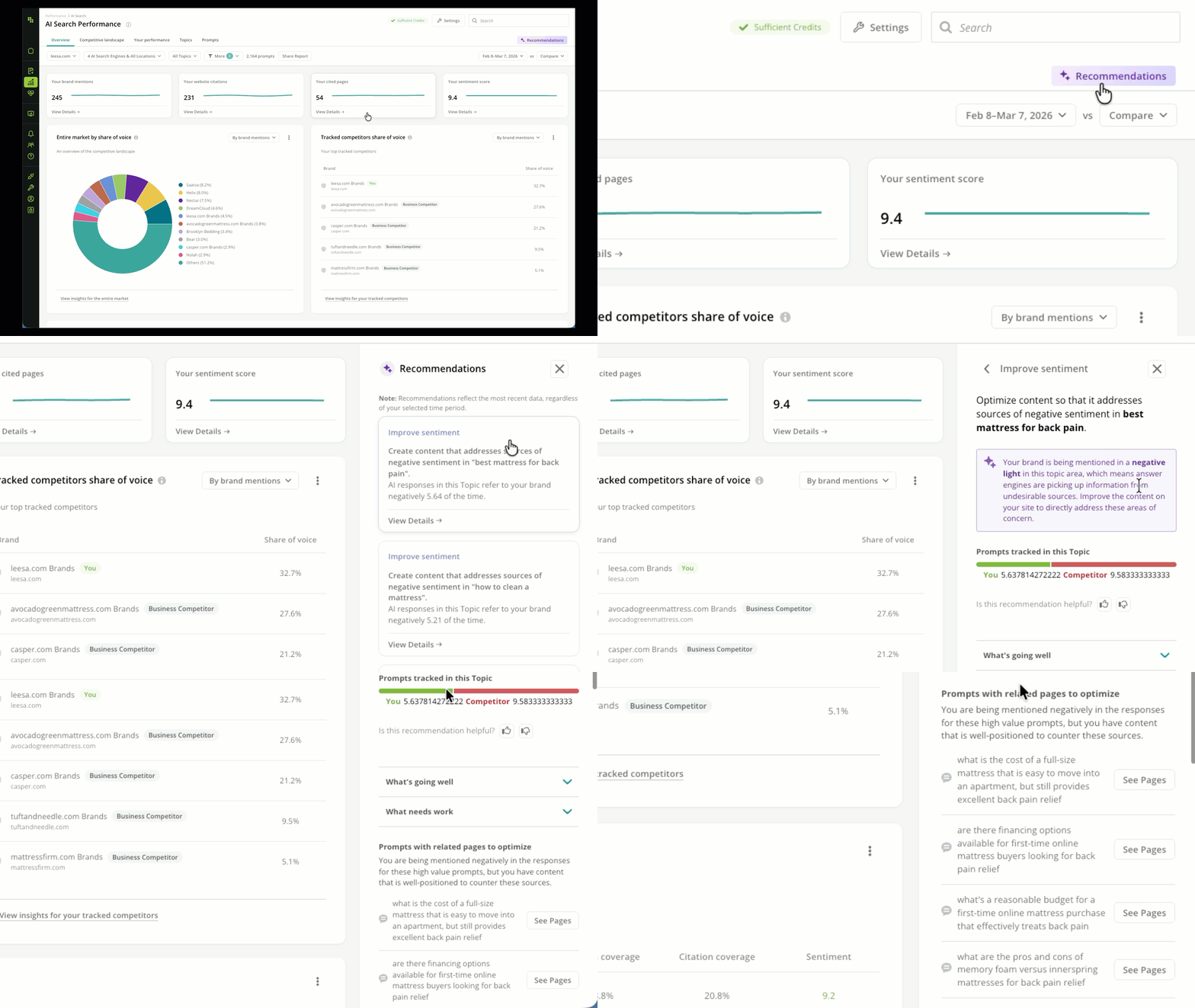
Review your recommendations
Scope your recommendations
Conductor generates recommendations in the panel based on the controls and filters you have configured in the report. So, if you have configured the report to show data for one particular website, about responses from one particular AI engine and topic, your recommendations will be scoped to that website, AI engine, and topic.Group your recommendations
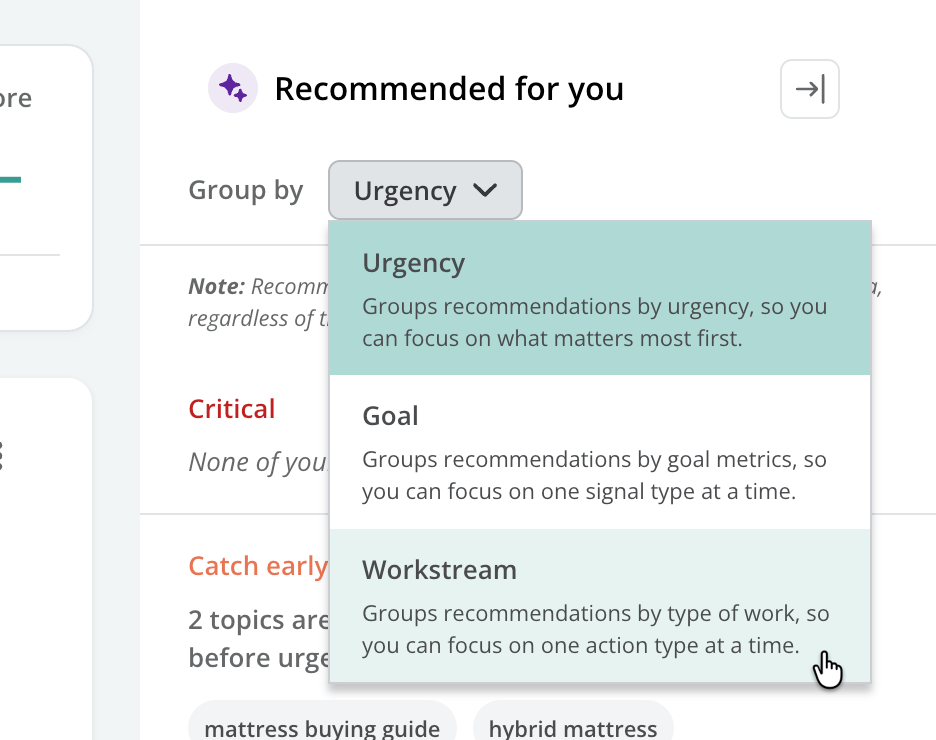
When you first open the Recommendations panel, you’ll need to decide where to start. To help, recommendations can be grouped across three different dimensions:- Urgency (the default grouping). Groups recommendations by urgency, so you can focus on what matters most first.
- Goal. Groups recommendations by goal metrics, so you can focus on one signal type at a time.
- Workstream. Groups recommendations by type of work, so you can focus on one action type at a time.
Review your list of recommendations
Choosing a grouped set of recommendations shows you a summary of each recommendation that belongs to the group, and indicates a priority for each. Click View Details to see details about the recommendations.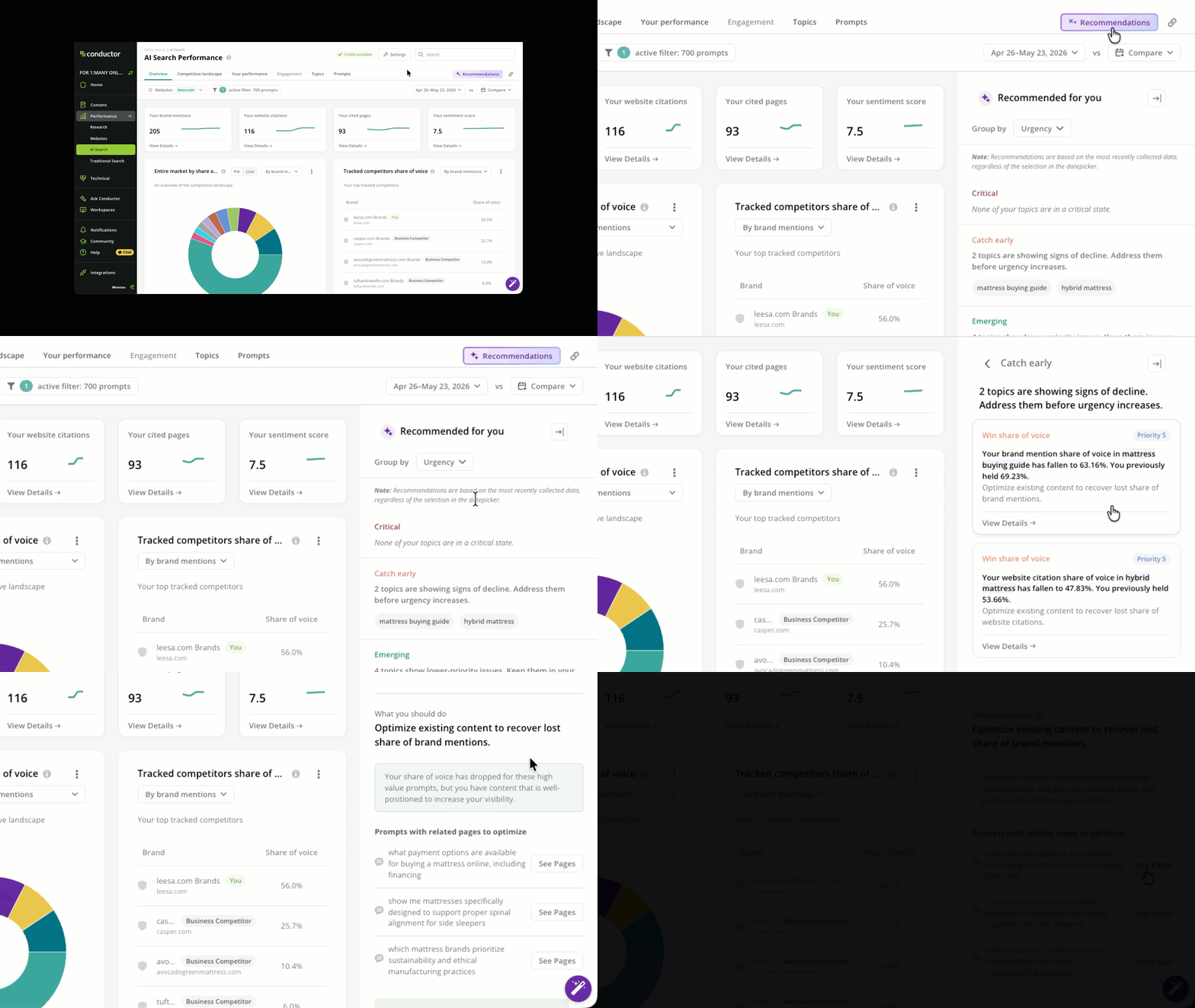
Review a recommendation
Each recommendation suggests what you can do, with specific follow-ups and details about why Conductor recommends action. In AI Search Performance, this workflow follows the following path:- Open the Recommendations panel to generate recommendations based on your report.
- Review the recommendations in the panel.
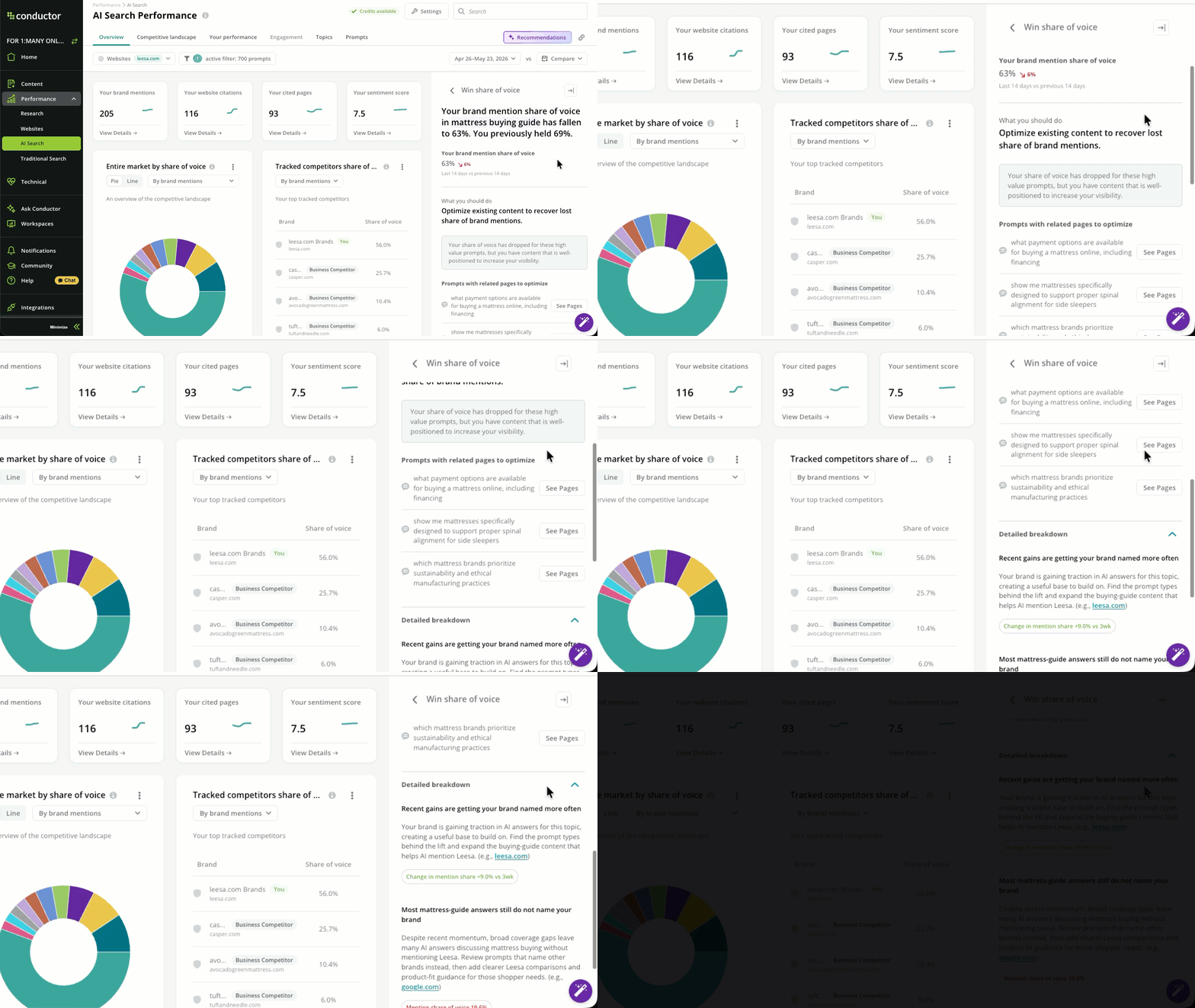
- When you find one you want to address, click it.
- In the recommendation you clicked, click See pages to review the pages Conductor suggests to optimize.
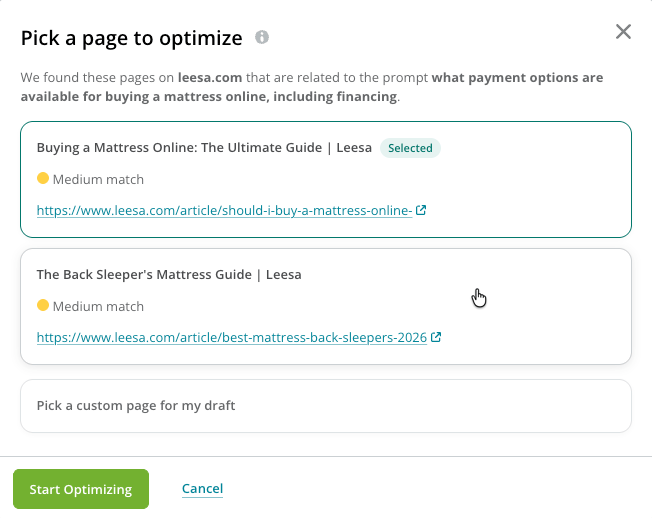
- Choose a page and click Start Optimizing to jump to Writing Assistant.
- Use Writing Assistant to optimize your page.
How recommendations work
Conductor’s Recommendations engine constantly evaluates data signals to identify gaps or threats indicated by your data.Source data
Conductor uses data from the most-recent, complete time period to evaluate for recommendations. This means:- If you track prompts weekly, you’ll see recommendations based on responses gathered during your most-recent—but fully completed—week of data.
- If you track prompts monthly, you’ll see recommendations based on responses gathered during your most-recent—but fully completed—month of data.
Prioritization
Each recommendation is assigned a priority score based on how many “priority boosters” are present within the topic for that trigger. Priority boosters are additional data signals that indicate increased severity—for example, your mentions being at 0%, a competitor’s mentions exceeding 50%, or multiple competitors ranking ahead of you. The more boosters present, the higher the priority score. These scores are then translated to a 1–10 scale, with 1 being the highest priority.What makes up a Recommendation?
Each recommendation features:- A Signal: The specific data point that triggered the rule.
- An Interpretation: What this means for your performance.
- Why it Matters: The business impact of the signal.
- Suggested Actions: One to three clear pathways into relevant workflows to address the signal.
Share your Recommendations
Want to share Recommendations from Conductor with your teams or other stakeholders? Just click Download Recommendation at the bottom of each individual recommendation to generate a Microsoft Word .docx file.