
Conductor customers: Review this lesson in our Community
 Everything starts in the AI Search Performance report. Setting the right filters here ensures every widget you create is perfectly configured from the start.
- Navigate to Performance > AI Search in the Conductor platform.
- Click on the Topics tab.
- Set the primary filters at the top of the report. This will be the foundation for your entire workspace:
- Date Range: Select the Last 2 weeks. This will power the week-over-week comparisons.
- AI Search Engines: Choose the engines you want to monitor (e.g., ChatGPT (Auto), Perplexity) and Locations.
- Topics: Select the topic groups relevant to this report (recommendation: All Topics for the broadest view).

 Now, you will filter your report and add each data view to your workspace one by one. You’ll even create the workspace itself as part of adding your very first widget.
Widget 1: Topics Gaining Mentions Week over Week
Value: This widget instantly highlights your successes, showing which topics are gaining visibility in AI conversations. Use it weekly to understand what’s working so you can replicate that success elsewhere.
- In the Topics report table, apply this filter and sort:
- Filter the Change in Prompts with Mentions column to show values that Moved up.
- Sort the % Prompts with Mentions column from high to low.
- Click the Add to Workspace icon at the top right of the report.
- Click Select a workspace and create a new workspace called “AI Search Performance: Weekly Action Board”.
- Title the widget “Topics Gaining Mentions Week over Week” and click Add.
Widget 2: Topics Losing Mentions Week over Week
Value: This is your early-warning system. It flags topics where your brand’s visibility is declining, allowing you to investigate and act before you lose more ground.
- Adjust your filter and sort:
- Filter Change in Prompts with Mentions to Moved down.
- Sort % Prompts with Mentions from low to high.
- Click Add to Workspace, select your existing “AI Search Performance: Weekly Action Board”, title the widget “Topics Losing Mentions Week over Week”, and click Add.
Widget 3: Unbranded Prompts with Lowest Percentage of Brand Mentions
Value: This widget pinpoints high-potential gaps where your audience is searching for solutions but isn’t finding you. Use this to fuel your content calendar with topics guaranteed to meet user needs.
- Adjust the global filters at the top of the page: set Prompt Type to Unbranded.
- In the report table, clear any column filters and sort % Prompts with Mentions from low to high.
- Click Add to Workspace, select your board, and title the widget “Unbranded Prompts with Lowest Percentage of Brand Mentions”.
- In the Description field, add: “We are not visible when our audience is asking general questions. Consider creating new content or optimizing existing content around prompts related to these topics.” Click Add.
Widget 4 & 5: Reputation Management with Sentiment Score
First, reset the global Prompt Type filter at the top to Branded and Unbranded to see the full picture. Widget 4: Topics by Highest Sentiment Score Value: Understand which narratives are resonating positively so you can amplify that messaging.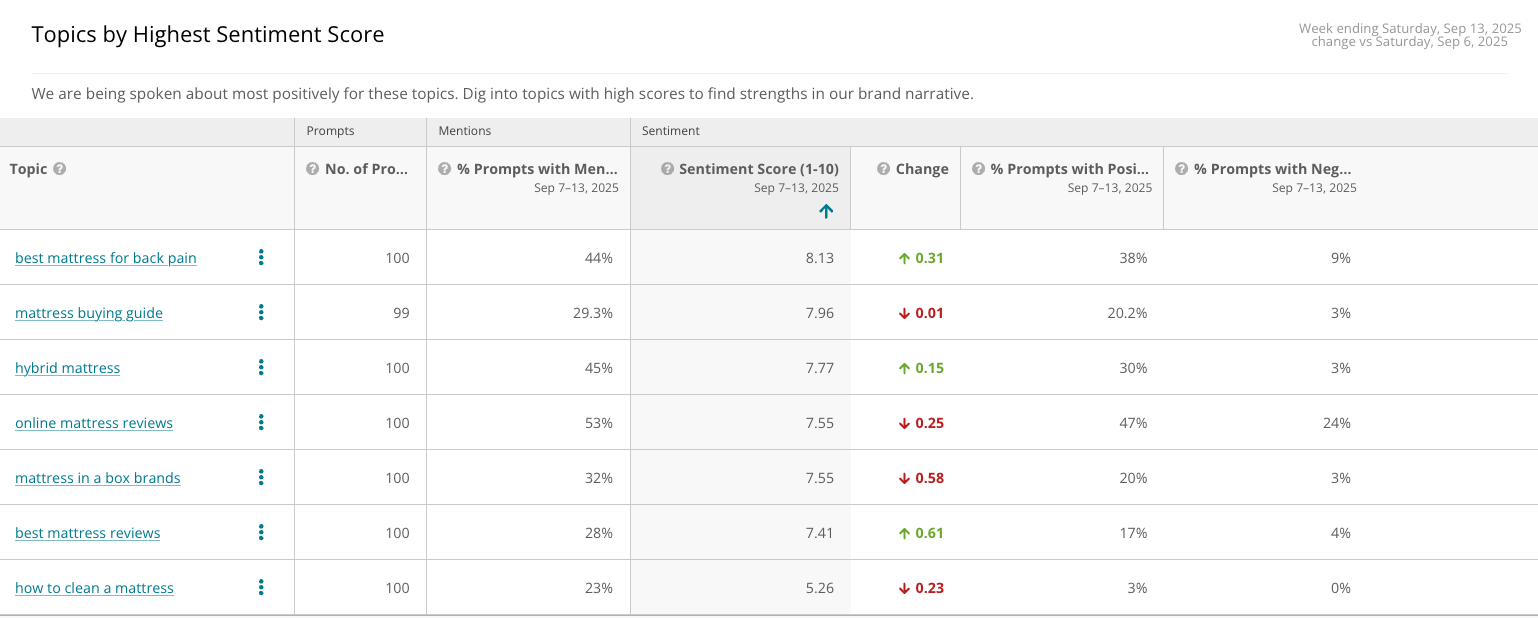
- Sort the Sentiment Score column from high to low.
- Click Add to Workspace, select your board, and title the widget “Topics by Highest Sentiment Score”.
- Add the description: “We are being spoken about most positively for these topics. Dig into topics with high scores to find strengths in our brand narrative.” Click Add.

- Reverse the sort on the Sentiment Score column to be low to high.
- Click Add to Workspace, select your board, and title the widget “Topics by Lowest Sentiment Score”.
- Add the description: “We are being spoken about most negatively for these topics. Dig into topics with particularly low scores to find specific prompts where our brand isn’t well reflected.” Click Add.
Widget 6: Topics Where We Are Cited the Least Across Branded Prompts
Value: See where you are losing control of your own brand’s story. A low citation rate on branded prompts signals a potential need to create content that directly answers questions about your brand.
- Set the global Prompt Type filter at the top to Branded.
- Sort the % Prompts with Citations column from low to high.
- Click Add to Workspace, select your board, and title the widget “Topics Where We Are Cited the Least Across Branded Prompts”.
- Add the description: “We are not controlling our brand’s narrative for these topics. Consider creating content to address prompts for these topics to reinforce our positioning.” Click Add.
 All your data is now in the workspace. The final step is to organize it for clarity and put it on a delivery schedule.
- Navigate to Workspaces and open your “AI Search Performance: Weekly Action Board”.
- Now, add your headers. Click Add > Header. Title it “Week over Week Wins & Losses”.
- Repeat this process to create headers for “New Content Opportunities” and “Reputation Management”.
- Drag and drop your headers and data widgets into the correct order as outlined below.
- Finally, make this report a repeatable habit. Click the arrow to set up a weekly delivery to yourself and key stakeholders to drive alignment and action across your teams.
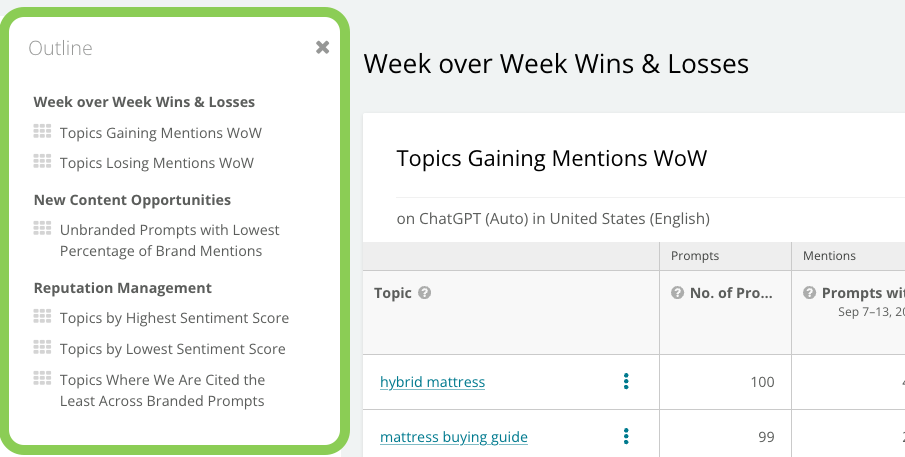 Your automated, action-oriented AI Search report is now complete and ready to deliver insights every week!
Interested in adding AI Search Performance tracking to your subscription? Reach out to your Conductor team or email [email protected].
Your automated, action-oriented AI Search report is now complete and ready to deliver insights every week!
Interested in adding AI Search Performance tracking to your subscription? Reach out to your Conductor team or email [email protected].