
- Manage and measure the performance of their content for their most important pages.
- Identify and improve poor-performing content.
- Identify and protect existing high-performing content.
- Prove ROI and show the importance of organic search to the rest of the organization.
- Two domain-level reports at weekly and monthly frequencies.
- Two page-level reports at weekly and monthly frequencies.
Technical Information
Requirements
- Your team is responsible for creating the .csv files containing your analytics data and for ensuring they are sent to Conductor at the specified weekly and monthly times.
- Your team must be able to retrieve domain-level analytics data segmented by marketing channel (such as the Organic and Paid channels).
- Your team must be able to retrieve organic page-level analytics data. If you are unable to retrieve this data, there will be limitations to the analytics data available in Conductor.
- Your team may use any platform or tool that can send data through SFTP.
Accepted Metrics
Your integration must include Sessions or Visits as a metric in each of the four .csv files you send. Beyond Sessions or Visits, each .csv file can contain analytics data from up to nine other metrics—such as Bounces, Page Views, Conversion Events, or Revenue—for a total of up to ten metrics. The metrics you choose must be the same for all four files. Conductor finds these columns by their header names, so their order doesn’t matter. Note that calculated and unique metrics are not accepted at this time:- Calculated metrics are any metric that includes the word Average or Rate or a metric that uses a formula. Because these metrics represent formulas rather than concrete values, Conductor cannot import them.
- Unique metrics, such as Unique Visitors or Unique Buyers, are unique to the date range you select for the report. For example, a visitor initiates a session on a page in Week 1 and in Week 2. When looking at Week 1 and Week 2 individually, the visitor counts as a Unique Visitor once in each week. However, when looking at Week 1 through Week 2, Visitor A counts as a Unique Visitor only once for both weeks.
File Descriptions
A total of four .csv files must be set up for delivery at the following frequencies and dimensions:- Weekly domain-level. This .csv file contains your domain-level analytics data. This data must be segmented by organic and paid channels and reflects the domain-level data received during a weekly period.
- Monthly domain-level. This .csv file contains your domain-level analytics data. This data must be segmented by organic and paid channels and reflects the domain-level data received during a monthly period.
- Weekly page-level. This .csv file contains your page-level analytics data. This data must only refer to organic, weekly page-level data associated with pages on your domain.
- Monthly page-level. This .csv file contains your page-level analytics data. This data must only refer to organic, monthly page-level data associated with pages on your domain.
Integration Process
Required User Setup
To send files to Conductor through SFTP, the person configuring the file transfer will need a Conductor username and password. If this person does not already have a Conductor username and password, a current Conductor Admin user can add them using the instructions found in the User Setup Knowledge Base article. Once added, this person will need to log into the platform to create a password.Create the integration and get your Alias
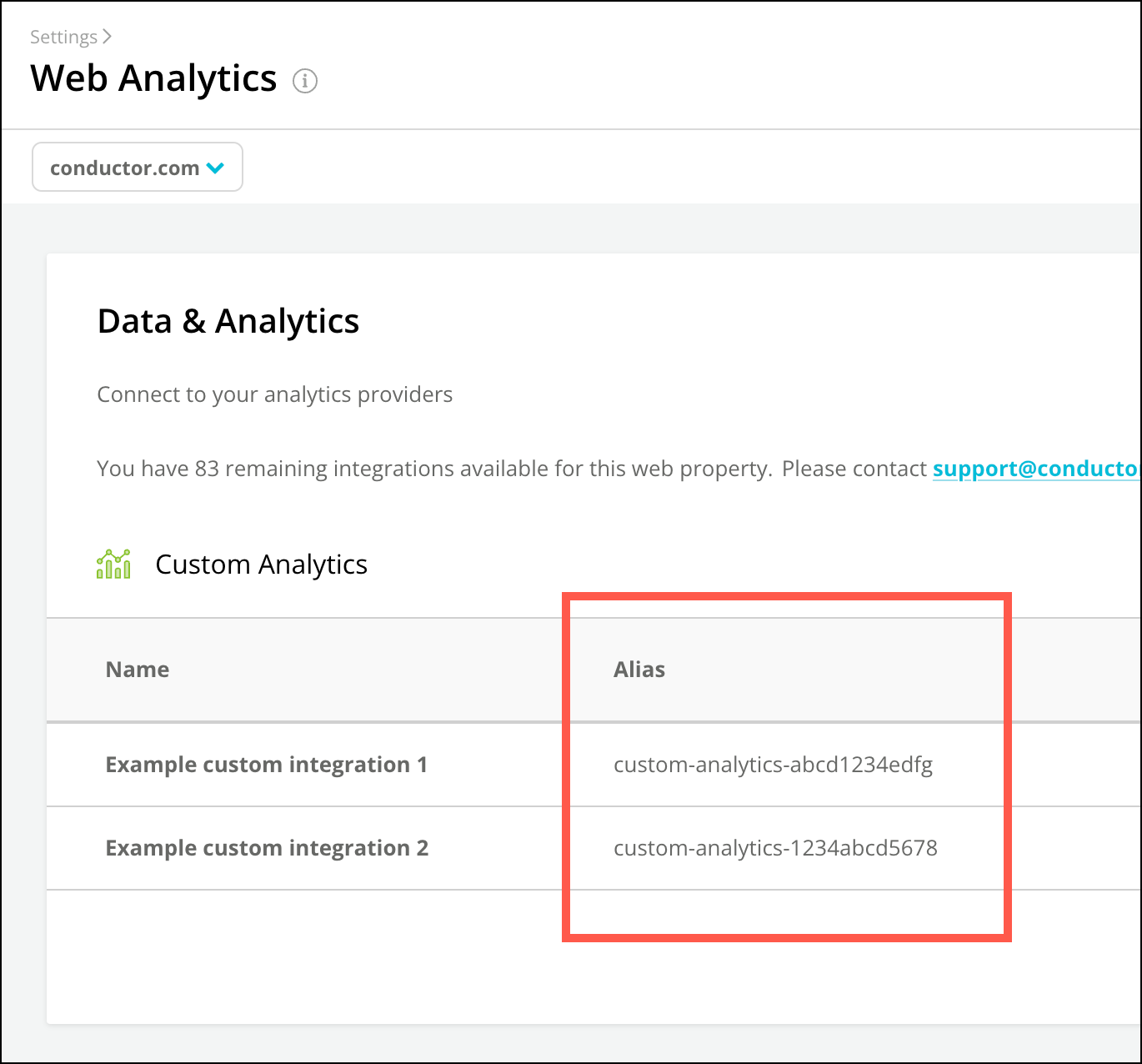
To configure a custom integration, you’ll need to create it in Conductor and then get a unique identifier called an Alias. An integration cannot be configured without an Alias. The Alias is simply a unique identifier Conductor will generate specifically for your organization to use for configuring a new integration. Aliases look likecustom-analytics- followed by 12 random characters.
Each Alias belongs to one integration, and each integration covers one website domain. If you send analytics for several domains, you need one Alias for each domain. If you manage many sites, contact Support. Conductor can configure one Alias to feed several integrations, in which case each file you send is shared across all of them.
To get your Alias (or Aliases):
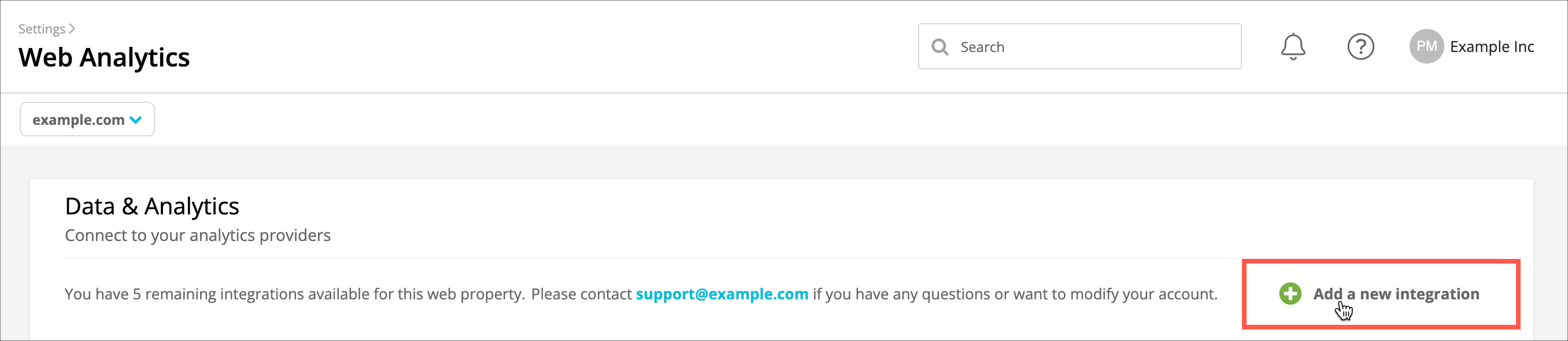
- Click here or follow the path Integrations > Web Analytics in Conductor.
- Click Add a New Integration.
-
From the form, select Custom Analytics.
- Click Create Custom Integration.
-
Complete the following fields in the integration configuration screen:
-
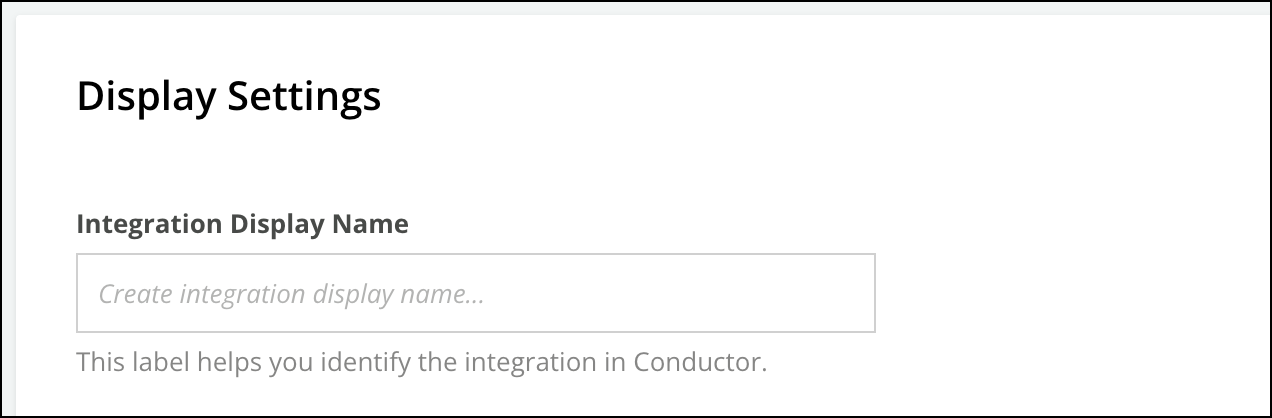
Add an Integration Display Name.
-
Choose one or more Related Search Engines to associate your data with.
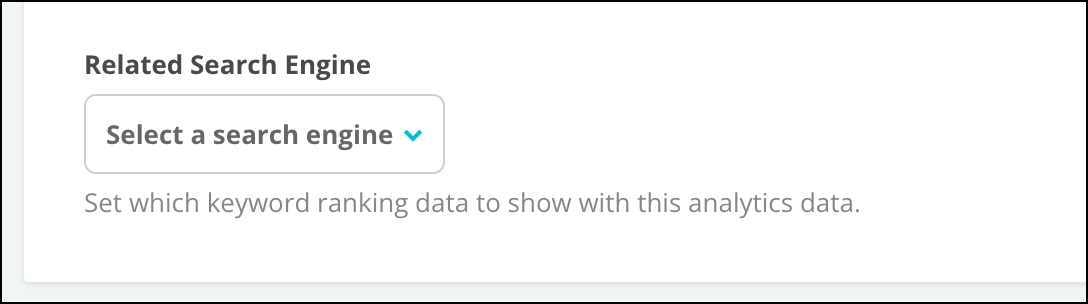 This setting does not filter your page-level data by search engine. Conductor treats every row in a page-level file as organic search traffic, so your page-level files must contain only organic search traffic from the search engines you want to report on.
 - Click Save and Complete (You can configure the rest of the integration later.) You are returned to the Web Analytics screen.
-
Add an Integration Display Name.
-
You can find your Alias in the list of integrations here.
File Format and Naming Convention
This integration uses a flat file to send analytics data via SFTP from your analytics provider to Conductor. To accommodate this feature, files must be in the .csv format with the following naming convention:Report{Period Start Date in YYYYMMDD}-{Period End Date in YYYYMMDD}.csv
As an example for a monthly file name for November 2023:
Report20231101-20231130.csv
Reportis a fixed prefix, not a placeholder. Every file name starts with the wordReport, followed by the start date, a hyphen, and the end date, each written as eight digits.- File names are not case-sensitive, including the file extension. You can also send a .zip file using the same naming convention; Conductor unpacks it automatically.
- Understandably, the Period Start Date and Period End Date will be different based on whether the report is “Weekly” or “Monthly”
- Weekly date ranges in Conductor occur from Sunday to Saturday. For example, if sending a weekly .csv file for the first week of May 2017, the Period Start Date is “20170430” and Period End Date is “20170506”.
- Monthly date ranges in Conductor occur from the first day of the month through the last day of the month. For example, if sending a monthly .csv file for the month of April, the Period Start Date is “20170401” and Period End Date is “20170430”.
- Conductor does not accept any other date range. A weekly file must start on a Sunday and end on the following Saturday, and a monthly file must cover one complete calendar month.
- Conductor reads the dates in the file name as plain calendar dates and does not convert time zones.
- Conductor uses the dates in the file name to decide which period the data belongs to, and does not compare them with the data in the file. A file with the wrong dates in its name is reported under the wrong period.
- You may note that the result of creating these files will lead to identically named page files and identically named domain files. Conductor can identify the appropriate files as long as they are sent to the expected directories through your SFTP process. Just be sure the correct file is assigned to the appropriate directory.
Accessing Conductor’s SFTP Server
Your team can use any method to send Conductor data through SFTP. Use the following details to access Conductor’s SFTP server and send the necessary files:-
Host
Enter the following string (do not include the quotation marks):
analytics-sftp.conductor.com -
Port:
22 - Username: {the Conductor username—an email address—of the user configuring this integration}
- Password: {The Conductor password of the user configuring this integration}
-
Destinations: Each of the four files you send will have its own destination—all in the same SFTP Home Directory. You’ll see the available SFTP Home Directories available to you after authorizing your credentials. Each Conductor account you have access to appears as a top-level folder named with that account’s SFTP username (for example,
custom-ab12cd). This folder name is not your login name. If you have access to multiple SFTP Home Directories, contact Support to determine the correct directory for the analytics integration you are configuring. For each of the files, the destination within the SFTP Home Directory will include:- The Alias associated with the integration.
-
The report type associated with the file:
- WEEKLY_PAGE
- WEEKLY_DOMAIN
- MONTHLY_PAGE
- MONTHLY_DOMAIN
{SFTP Home Directory}/{Alias for the integration}/{Report type}
For example, the directory structure you might use for each report destination will look like the following:
custom-ab12cd/custom-analytics-1a2b3c4d5e6f/WEEKLY_PAGEcustom-ab12cd/custom-analytics-1a2b3c4d5e6f/WEEKLY_DOMAINcustom-ab12cd/custom-analytics-1a2b3c4d5e6f/MONTHLY_PAGEcustom-ab12cd/custom-analytics-1a2b3c4d5e6f/MONTHLY_DOMAIN
You don’t need to create these folders. When Conductor sets up your integration, it creates all four report folders under your Alias.
Corrections and historical data
To correct data for a period Conductor has already received, upload a corrected file with the same name to the same report folder. Conductor processes it and replaces the earlier data for that period. You can send historical data for earlier periods. Send one file per week or month, named for that period and placed in the matching folder. You can upload several files at once, because Conductor processes each file separately.File Content Descriptions
Requirements for all files
These rules apply to all four files:- The first row is always read as the header row. A file that contains only a header row and no data is not processed.
- Conductor looks for the Visits or Sessions column using these headers, in this order, and uses the first one it finds:
sessions,Sessions,All Visits,Visits,visits. Metric headers are case-sensitive, so use one of these exact spellings. - Don’t add spaces before or after any header. Columns without a header are dropped.
- Use a comma as the delimiter, and wrap any value that contains a comma in double quotes. Avoid backslashes in values, because Conductor treats a backslash as an escape character.
- Save files as UTF-8 without a byte-order mark (BOM). Both Windows and Mac/Linux line endings work.
- Conductor finds metric columns by their header names, so additional metric columns can appear in any order.
- Conductor imports metric values as you send them and doesn’t recalculate or aggregate them. Your analytics tool decides how traffic is counted, such as by landing page or by all page views, so choose one method and use it in every file.
Conductor removes every character except digits and the decimal point from metric values. For example, a European-style decimal such as
1,5 becomes 15, and minus and percent signs are lost. Don’t use thousands separators, and always use a period as the decimal separator. If a value still isn’t a number after this cleanup, the whole file fails to process.URLs in page-level files
Conductor drops invalid URLs and URLs from other domains without notifying you. Which subdomains Conductor keeps depends on how your domain is registered in Conductor:- Registered as
example.com: Conductor keepsexample.com,www.example.com, and other subdomains such asblog.example.com. - Registered as
www.example.com: Conductor keeps onlywww.example.comURLs.
- The capitalization of the protocol, such as
HTTPSandhttps. - A default port, such as
:443forhttps. - Raw or percent-encoded characters, such as a space and
%20. - The order of query parameters.
- The
utm_sourceandsrsltidquery parameters, which Conductor removes. - A fragment, such as
#section, which Conductor removes.
httpandhttps.www.and nowww..- A trailing slash, such as
/blogand/blog/. Only the root path is treated the same with or without one. - Capitalization in the path, such as
/Blogand/blog. - Any other query parameter, including other
utm_parameters.
Weekly Domain-Level File
This file must:- Contain your domain’s domain-level analytics data.
- Segment data by organic and paid marketing channel.
- Include data in a weekly range, where the week begins on Sunday and ends on Saturday.
-
Include data in columns as described below:
-
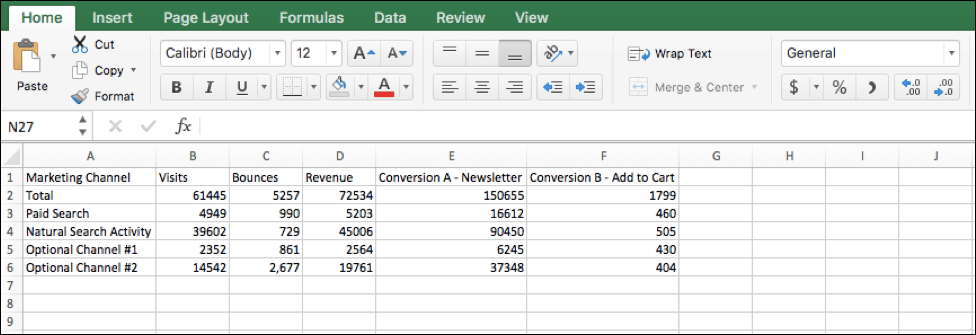
Column A – Marketing Channel
The first column in the file must be titled “Marketing Channel” in the topmost row. Values in this column below the first row reflect the names of the marketing channels that drive traffic to your domain.
This column must include the following three values:
- Natural Search Activity: This is your organic traffic channel. Conductor also recognizes Natural Search and Organic Search as the organic channel.
- Paid Search: This is your paid traffic channel.
- Total: This is your total site traffic across all marketing channels, including channels you don’t list in this file. Conductor uses this value as given and does not check it against the other rows. Channel names are not case-sensitive. You can include other values in this column if you segment by other channels. However, Conductor ignores any channel other than the three values above unless Conductor Support has mapped that channel name for your integration.
- Column B – Visits or Sessions The second column in the file must be titled “Visits” or “Sessions” (depending on how you name this metric in your analytics) in the topmost row. Values in this column below the first row reflect your Visit or Sessions values for the given marketing channel listed in the first column. Values must be whole integers.
- Columns C-K – Other Metrics The third column, and any other higher columns in the file, can be titled however you title the metrics each column represents. Values in this column below the first row reflect the other metrics you want to integrate into Conductor. Values must be whole integers and must be accepted metrics, as described in the Accepted Metrics section above.
-
Column A – Marketing Channel
The first column in the file must be titled “Marketing Channel” in the topmost row. Values in this column below the first row reflect the names of the marketing channels that drive traffic to your domain.
This column must include the following three values:
Example Image
Important Notes About this File
- Must be sent weekly no later than Sunday at 12 P.M. Eastern Time.
- Must be saved as a .csv file.
- Must be named following the naming conventions described above.
- Must contain a Column A titled “Marketing Channel”.
- Rows in Column A must include “Total”, “Paid Search”, and “Natural Search Activity”. Any other rows are optional.
- Column B must be titled either “Visits” or “Sessions”.
- The remaining cells in Column B must reference whole integer data from a Sunday through Saturday weekly range of time.
- You can include up to nine other metrics in the remaining columns and must follow the same conditions as Column B. Any other metrics chosen must also appear in each .csv file for this integration.
Monthly Domain-Level File
This file must:- Contain your domain’s domain-level analytics data.
- Segment data by organic and paid marketing channel.
- Include data in a monthly range, from the first of the month to the last day of the month, regardless of the day of week those days fall on.
-
Include data in columns as described below:
-
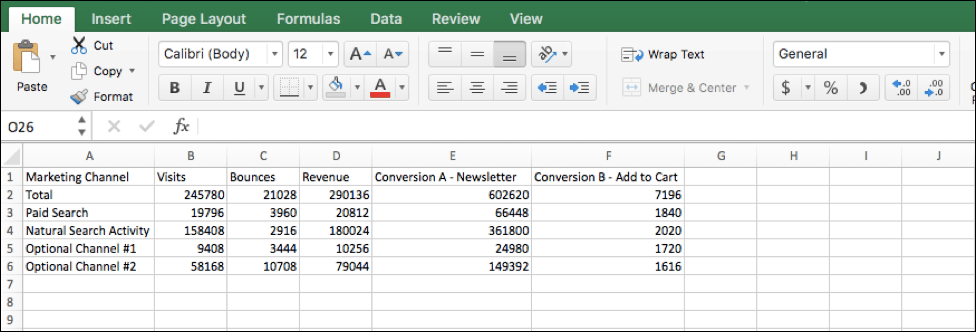
Column A – Marketing Channel
The first column in the file must be titled “Marketing Channel” in the topmost row. Values in this column below the first row reflect the names of the marketing channels that drive traffic to your domain.
This column must include the following three values:
- Natural Search Activity: This is your organic traffic channel. Conductor also recognizes Natural Search and Organic Search as the organic channel.
- Paid Search: This is your paid traffic channel.
- Total: This is your total site traffic across all marketing channels, including channels you don’t list in this file. Conductor uses this value as given and does not check it against the other rows. Channel names are not case-sensitive. You can include other values in this column if you segment by other channels. However, Conductor ignores any channel other than the three values above unless Conductor Support has mapped that channel name for your integration.
- Column B – Visits or Sessions The second column in the file must be titled “Visits” or “Sessions” (depending on how you name this metric in your analytics) in the topmost row. Values in this column below the first row reflect your Visit or Sessions values for the given marketing channel listed in the first column. Values must be whole integers.
- Columns C-K – Other MetricsThe third column, and any other higher columns in the file, can be titled however you title the metrics each column represents. Values in this column below the first row reflect the other metrics you want to integrate into Conductor. Values must be whole integers and must be accepted metrics, as described in the Accepted Metrics section above.
-
Column A – Marketing Channel
The first column in the file must be titled “Marketing Channel” in the topmost row. Values in this column below the first row reflect the names of the marketing channels that drive traffic to your domain.
This column must include the following three values:
Example Image
Important Notes About this File
- Must be sent monthly on the first day of each month by 12 P.M. Eastern Time.
- Must be saved as a .csv file.
- Must be named following the naming conventions described above.
- Must contain a Column A titled “Marketing Channel”.
- Rows in Column A must include “Total”, “Paid Search”, and “Natural Search Activity”. Any other Rows are optional.
- Column B must be titled either “Visits” or “Sessions”.
- The remaining cells in Column B must reference whole integer data from a monthly range of time beginning on the first of the month and ending on the last day of the month.
- You can include up to nine other metrics in the remaining columns and must follow the same conditions as Column B. Any other metrics chosen must also appear in each .csv file for this integration.
Weekly Page-Level File
This file must:- Contain your domain’s page-level analytics data.
- Include data in a weekly range, where the week begins on Sunday and ends on Saturday.
-
Include data in columns as described below:
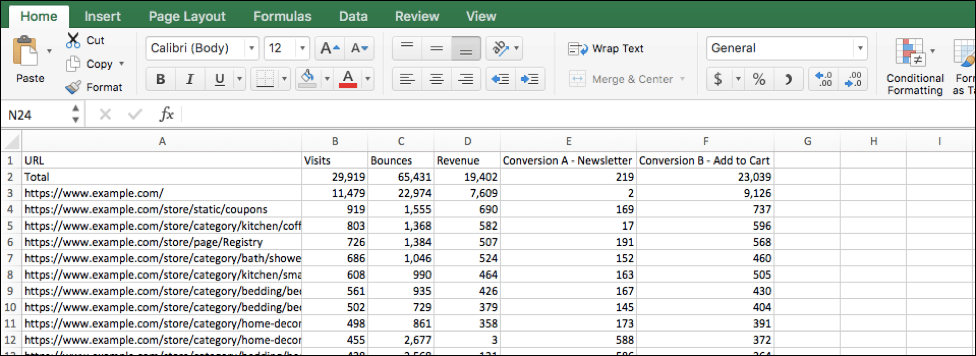
- Column A – URL Values in this column below the first row reflect the list of webpages that received organic traffic during the time period the file includes data for. Values must have a complete URL structure including a protocol and must belong to your domain, as described in URLs in page-level files above. Include only organic search traffic, because Conductor treats every row as organic and does not filter by search engine. There is no limit to the number of URLs you can include in the file.
- Column B – Visits or Sessions The second column in the file must be titled “Visits” or “Sessions” (depending on how you name this metric in your analytics) in the topmost row. Values in this column below the first row reflect your Visit or Sessions values for the Organic channel. Values must be whole integers.
- Columns C-K – Other Metrics The third column, and any other higher columns in the file, can be titled however you title the metrics each column represents. Values in this column below the first row reflect the other metrics you want to integrate into Conductor. Values must be whole integers and must be accepted metrics, as described in the Accepted Metrics section above.
Example Image
Important Notes About this File
- Must be sent weekly no later than Sunday at 12 P.M. Eastern Time.
- Must be saved as a .csv file.
- Must be named following the naming conventions described above.
- Must contain a Column A titled “URL”
- Rows in Column A must include the exact URL strings for pages on your site that received organic traffic during the weekly date range associated with the file.
- Pages in Column A must have a protocol and must belong to your domain in Conductor. URL Strings cannot contain space characters.
- Column B must be titled either “Visits” or “Sessions”.
- The remaining cells in Column B must reference whole integer data from a Sunday through Saturday weekly range of time.
- You can include up to nine other metrics in the remaining columns and must follow the same conditions as Column B. Any other metrics chosen must also appear in each .csv file for this integration.
Monthly Page-Level File
This file must:- Contain your domain’s page-level analytics data.
- Include data in a monthly range, from the first of the month to the last day of the month, regardless of the day of week those days fall on.
-
Include data in columns as described below:
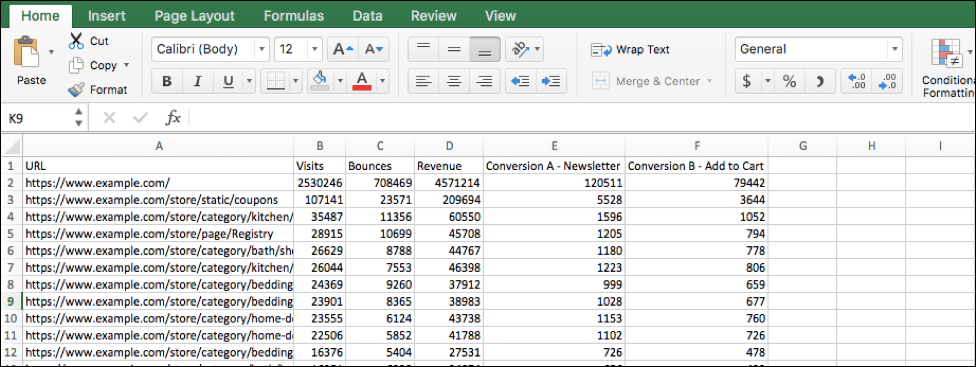
- Column A – URL Values in this column below the first row reflect the list of webpages that received organic traffic during the time period the file includes data for. Values must have a complete URL structure including a protocol and must belong to your domain, as described in URLs in page-level files above. Include only organic search traffic, because Conductor treats every row as organic and does not filter by search engine. There is no limit to the number of URLs you can include in the file.
- Column B – Visits or Sessions The second column in the file must be titled “Visits” or “Sessions” (depending on how you name this metric in your analytics) in the topmost row. Values in this column below the first row reflect your Visit or Sessions values for the Organic channel. Values must be whole integers.
- Columns C-K – Other Metrics The third column, and any other higher columns in the file, can be titled however you title the metrics each column represents. Values in this column below the first row reflect the other metrics you want to integrate into Conductor. Values must be whole integers and must be accepted metrics, as described in the Accepted Metrics section above.
Example Image
Important Notes About this File
- Must be sent on the first day of each month by 12 P.M. Eastern Time.
- Must be saved as a .csv file.
- Must be named following the naming conventions described above.
- Must contain a Column A titled “URL”.
- Rows in Column A must include the exact URL strings for pages on your site that received organic traffic during the monthly date range associated with the file.
- Pages in Column A must have a protocol and must belong to your domain in Conductor. URL Strings cannot contain space characters.
- Column B must be titled either “Visits” or “Sessions”.
- The remaining cells in Column B must reference whole integer data from a monthly range of time beginning on the first of the month and ending on the last day of the month.
- You can include up to nine other metrics in the remaining columns and must follow the same conditions as Column B. Any other metrics chosen must also appear in each .csv file for this integration.
Troubleshooting
If you are seeing errors, discrepancies, or otherwise unexpected behavior with the integration process or with the data coming through a completed integration, please refer to the following troubleshooting tasks. If—after reviewing these tasks—you cannot resolve the issues you are experiencing, please reach out to Conductor’s Support team.Conductor does not send you an error when a file fails to process or is skipped. Conductor Support can see the processing status of each report, so contact Support if your data doesn’t appear.
File Formatting
- Issue: Files are not saved in the correct .csv format, causing data import errors.
- Solution: Ensure that all files are saved in the .csv format before sending them to Conductor.
File Naming Conventions
- Issue: Files are named incorrectly, deviating from the required naming convention.
- Solution: Ensure that file names follow the format
Report{Period Start Date in YYYYMMDD}-{Period End Date in YYYYMMDD}.csv, as described in the File Format and Naming Convention section above. The Alias belongs only in the folder path, not in the file name. Files with an incorrect name are skipped without an error.
Missing or Incomplete Data
- Issue: Some required columns or data points are missing or incomplete in the .csv files.
- Solution: Review the data and make sure all required columns (e.g., Marketing Channel, URL, Visits/Sessions) are present and filled with appropriate data.
Disallowed Metrics
- Issue: The integration includes calculated or unique metrics, which are not accepted by Conductor.
- Solution: Ensure that all metrics included in the .csv files are accepted metrics, as specified in the guide.
Date Ranges
- Issue: The date ranges in the file names do not match the actual data in the files.
- Solution: Ensure that the date ranges in the file names and the data in the files are aligned. Conductor reports data under the period named in the file name and does not check it against the data. To correct a period that has already been processed, upload a corrected file for that period, as described in Corrections and historical data above.
Data Delivery Timing
- Issue: Files are not sent to Conductor on the specified weekly and monthly timeframes.
- Solution: Set up a reminder system to ensure that the files are sent through SFTP (or to [email protected] if using email) on the correct days and times.
URL and Domain Mismatch
- Issue: URLs in the page-level files do not belong to the specified domain in Conductor.
- Solution: Verify that all URLs provided in the page-level files belong to the same domain as specified in the Conductor integration. If your domain is registered with
www., Conductor keeps onlywww.URLs, as described in URLs in page-level files above.
Data Limitations
- Issue: The number of metrics exceeds the maximum allowed by Conductor.
- Solution: Ensure that the total number of metrics (including Visits/Sessions) does not exceed ten.
Metric Names
- Issue: The metric names in the .csv files do not match the expected metric names in Conductor.
- Solution: Check that the metric names in the .csv files match the expected names in Conductor, such as “Visits” or “Sessions.” Metric headers are case-sensitive and must not have leading or trailing spaces. See Requirements for all files above for the exact headers Conductor accepts.
Data Processing Delay
- Issue: Data does not appear in Conductor within two weeks after you integrate.
- Solution: If the data takes longer than two weeks to appear, contact Conductor Support for assistance and to check for any potential data processing issues.
2025 Integration Upgrade
To provide the best insights and experience with data in Conductor, we are making changes to our Adobe integration. As a result, if you currently access Conductor on eu.app.conductor.com, you must update any existing custom integration files to be sent to the following Host as described in the File Format and Naming Convention section above:analytics-sftp.conductor.com
FAQs
Can I correct data I already sent?
Can I correct data I already sent?
Yes. Upload a corrected file with the same name to the same report folder. Conductor processes it and replaces the earlier data for that period.
Can I send historical data?
Can I send historical data?
Yes. Send one file per week or month, named for that period and placed in the matching report folder. You can upload several files at once.
Will I be notified if a file fails to process?
Will I be notified if a file fails to process?
No. Conductor does not send errors for files that fail or are skipped. Conductor Support can see the processing status of each report, so contact Support if your data doesn’t appear.
What happens if I send a file after the deadline?
What happens if I send a file after the deadline?
Conductor still processes it. The weekly and monthly deadlines are not enforced, but sending files on time keeps your data current.
Which period does each file cover?
Which period does each file cover?
The weekly file due on Sunday covers the Sunday-to-Saturday week that ended the day before. The monthly file due on the first of the month covers the calendar month that just ended.
Which time zone do the file name dates use?
Which time zone do the file name dates use?
None. Conductor reads the dates in the file name as plain calendar dates and does not convert time zones.
Do I need to create the report folders?
Do I need to create the report folders?
No. Conductor creates the WEEKLY_PAGE, WEEKLY_DOMAIN, MONTHLY_PAGE, and MONTHLY_DOMAIN folders under your Alias when it sets up your integration.
Can I send .zip files?
Can I send .zip files?
Yes. Name the .zip file using the same naming convention as a .csv file. Conductor unpacks it automatically.
Can I log in to the SFTP server with an SSH key?
Can I log in to the SFTP server with an SSH key?
No. The SFTP server for custom analytics accepts only a Conductor username and password.
Can I switch between Visits and Sessions later?
Can I switch between Visits and Sessions later?
Yes. Conductor reads each file on its own, so you can change which of these columns you send. If a file contains both, Conductor uses the first header it finds in this order:
sessions, Sessions, All Visits, Visits, visits.Do I need to delete files after Conductor processes them?
Do I need to delete files after Conductor processes them?
No. Conductor leaves your files in place on the SFTP server. You can delete them whenever you like.