
New Page Groups
Conductor’s new Page Groups settings activity lets you create and manage more flexible groupings. While Conductor transitions to the new Pages reports, the new Page Groups settings activity supports three group types: Legacy Smart, Legacy Custom, and these new flexible groups. Page groups let you define the business-relevant areas of your site—a campaign, a product line, a region, a content type, an ownership area—so you can filter your Pages reporting to match how your team thinks about your site. Every new group you create is flexible: define it with rules, hand-pick the pages yourself, or do both in the same group. Flexible groups are available as filters in the new Pages report.View your page groups
You can review your existing page groups in the table on Page Group settings activity (Pages > Settings > Page Groups (new)). See each group, with details including:- Group Type. Group type determines how membership is defined and which reports the group can filter.
- Flexible groups are Conductor’s new page groups. These support rules, manual page selection, or both. Available as a filter only in new reports.
- Legacy smart groups allow rules only, using legacy AND/OR logic.
- Legacy custom groups allow manually selected pages only.
- Website. Indicates the website from which pages are grouped.
- Search Engine. Search Engine and Location is required for legacy groups only. This allows the group to be used in older reports.
- Description. If you created a description for a group, it appears here.
- Date Created
- Creator. The user who created the group.
- Last Updated
- Last Updated By. The user who most recently made changes to the group.
Create a page group
Not sure which pages to group together or why? Refer to the What page groups should I create? FAQ to learn more.- Go to the Page Group settings activity in Conductor or follow the path Pages > Settings > Page Groups (new).
- Click Create Page Group.
- Enter a clear name and, optionally, a description so others on your team know what the group contains.
- Select the website the group applies to. Groups are scoped to a single website. To report across multiple websites, create a group per website and apply them together as filters—or duplicate an existing group and point the copy at a different website.
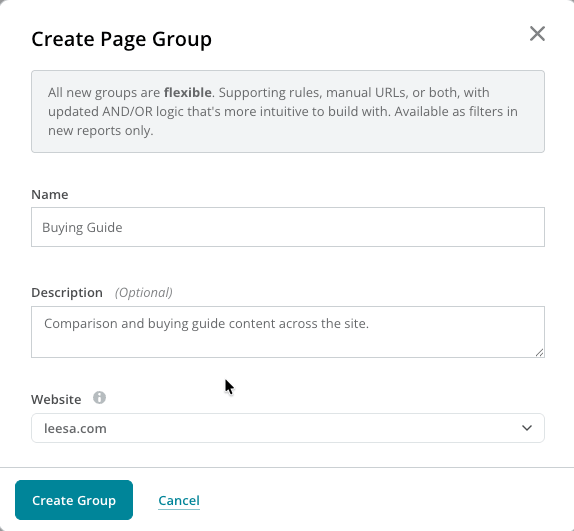
- Click Create Group. Conductor opens the group so you can define which pages belong to it.
- Define the group with rules, hand-picked pages, or both (see below for instructions).
- Click Save and Close to save the page group.
Add pages matching rules
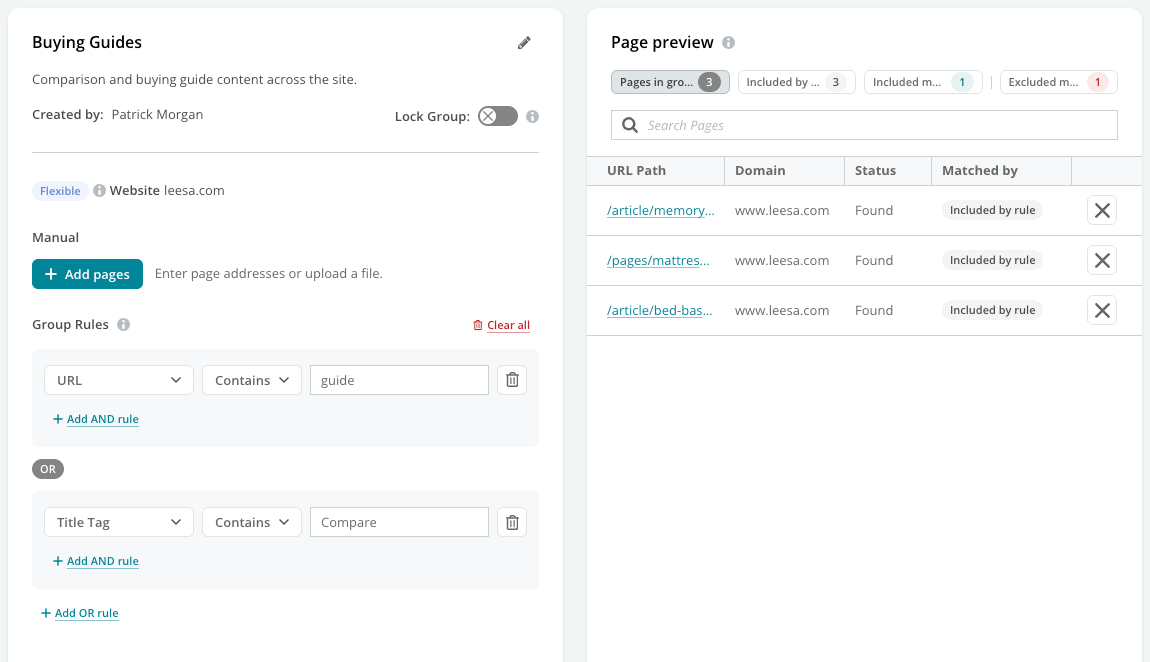
Groups can be rule-based, so any page whose attributes match what you define joins the group automatically. To add a rule:- Click + Add first rule.
- Choose a field: the page’s URL, Title Tag, Meta Description, or H1–H6 Tags.
- Choose an operator: Contains, Does not contain, Equals, Does not equal, Matches regex, or Does not match regex. Use Matches regex to capture every variation of a URL pattern or phrasing with a single rule. What is regex?
- Enter a value, then click the check to apply the rule.
- Add any AND rules to narrow the group—for example, only pages whose URL contains
guideand whose title tag does not containarchive. Every condition inside a rule group has to be true for a page to match. - Add OR rules to create an alternative set of criteria. A page joins the group when it satisfies any one rule group, so this is how you capture two unrelated patterns in the same group.
- Review the Page preview, which updates as you build, so you can confirm your rules are catching the right pages. Modify the rules if needed.
Add pages manually
Need something the rules don’t catch? You can hand-pick pages to add to the group. Rules and manual selections work together in the same group.- Click + Add pages.
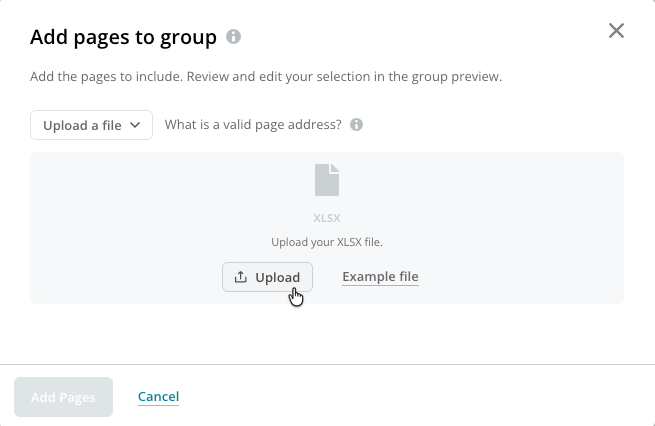
- Add the pages one of two ways:
- Keep Add manually selected and paste or type page addresses, one per line. Each address has to belong to the group’s configured domain or subdomain and start with
http://orhttps://. - Choose Upload a file and upload an XLSX file of page addresses. Download the Example file first to see the format Conductor expects.
- Keep Add manually selected and paste or type page addresses, one per line. Each address has to belong to the group’s configured domain or subdomain and start with
- Click Add Pages.
Review the pages in a group
Page preview lists every page defined in the group, organized by how it was added. Click a chip above the table to filter the list:- Pages in group. The subset of pages you added to the group by rule or manually that were found among your website’s discovered pages.
- Included by rule. Pages that match a rule set for this group.
- Included manually. Pages you added by hand.
- Excluded manually. Pages you removed from a rule’s results.
- The URL Path column indicates the specific page address.
- The Domain column identifies the domain to which the page belongs.
- The Status column shows Found for pages Conductor has matched in your analytics. A page Conductor hasn’t matched yet shows Not Found.
- The Matched by column tells you how Conductor found each page for membership in the group. These can be:
- Included by rule. Pages that match a rule set for this group.
- Included manually. Pages you added by hand.
- Excluded manually. Pages you removed from a rule’s results. (See below.)
Exclude pages manually
You can also exclude specific pages from a group—even ones matching your rules. Just find the page you want to exclude in Page preview and click the X in its row. To put a page back, click the Excluded manually chip and click the restore icon in the page’s row.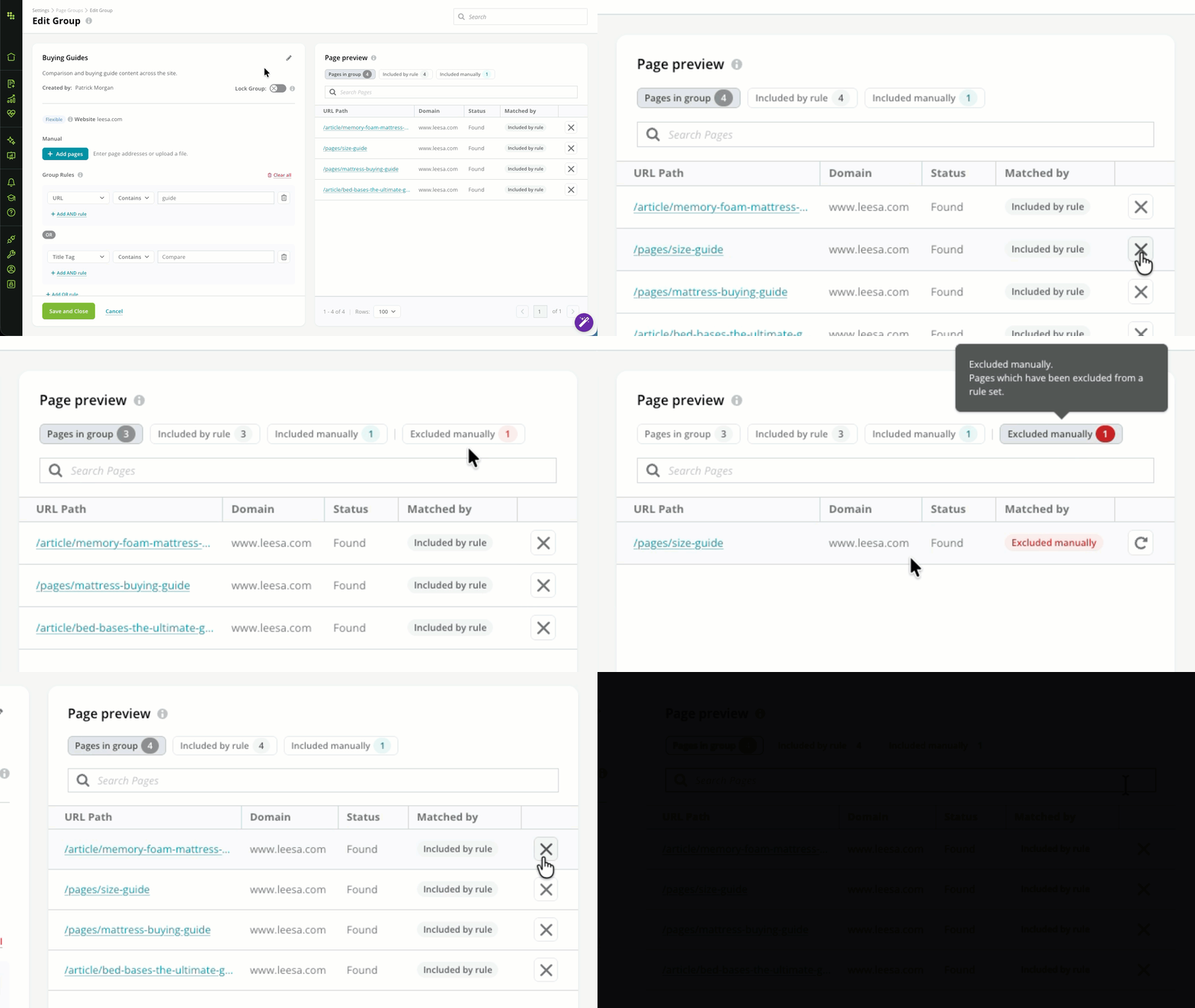
Edit a page group
You can make changes to a page group after you create it.- Go to page group settings in Conductor or follow the path Pages > Settings > Page Groups (new).
- Click the name of the page group you want to edit.
- Click the pencil next to the group name to modify the name or description, edit the rules that define the group, use + Add pages to add pages, or adjust your exclusions in Page preview.
- If you changed a rule, review the Page preview to confirm the group includes the right pages.
- Click Save and Close to save your changes.
Lock a page group
Lock a group that your team reports on regularly so nobody changes it by accident. Open the page group and turn on Lock Group. While a group is locked, its name, description, page settings, and rules are read-only—but the group keeps reporting as normal. Only the group’s creator or an Admin can lock or unlock a group.Duplicate a page group
Duplicating a group copies its rules and pages into a new group, which is the fastest way to apply the same definition to another website.- Go to page group settings in Conductor or follow the path Pages > Settings > Page Groups (new).
- Find the page group you want to copy in the list.
- Click the ⋮ button next to the page group, then click Duplicate.
Delete a page group
- Go to page group settings in Conductor or follow the path Pages > Settings > Page Groups (new).
- Find the page group you want to delete in the list.
- Click the ⋮ button next to the page group, then click Delete. To delete several groups at once, select their check boxes and click Actions > Delete.
Legacy Page Groups
Conductor still supports legacy page groups in both the legacy Pages report and the new Pages report.Create a Page Group
Not sure which pages to group together or why? Refer to the What page groups should I create? FAQ to learn more. To create a page group you need to complete some high-level details, regardless of whether it is a smart or custom page group. Note that you can create page groups only from pages brought in through your integrated web analytics provider.- Go to page group settings in Conductor or follow the path Settings > Page Groups.
- Select the web property group for which you want to create a page group.
- Click the Create a Page Group button.
- In the Page Group Details section, complete the following fields**:**
- Enter a name that is distinct and descriptive. Be sure to use a name that other people on the team can easily know what the page group contains, just by looking at the name.
- Add a description of the page group.
- Use the Tag field to group together page groups. The tag value can be used to view data across related page groups. For example, “Buying Guide”, “Product Pages”, or “Templates”, or content types such as “Blogs” or “Mobile Pages”.
- Use the Owner field to enter the person or team responsible for this page group. The owner value can be used to help you analyze how each owner is performing. The value in this field can be any person or team, not necessarily a Conductor user.
- If applicable, select a search engine to associate for this page group. You’ll see data for this page group only when you are viewing data for the search engine you select here.
- Choose to create a smart or custom page group:
Create a Smart Page Group
- If not selected already, click the Create Smart Page Group tab.
- Add rules to define which pages are in the page group. Both ranking pages and preferred URLs will be included in grouping.
- Apply OR and AND statements to select pages that meet multiple criteria. Sections of rules using the OR operator can be separated with AND operators. For example, you can create a page group of all pages within this domain where the URL contains “bedding” or the URL contains “pillow” AND the Title Tag does not contain “bedding sets”.
- Use Matches regex or Does not match regex to select for URLs that contain a specific structure. What is regex?
- Note: You can create rules based only on a page’s:
- URL
- Title tag
<h>tags- Meta Description
- Click Preview Page Group to view which URLs will be included in the page group. Doing so lets you preview and modify the rules as needed before saving the page group.
- Click Create Page Group to save the page group.
Create a Custom Page Group
- If not selected already, click the Create Custom Page Group tab.
- In the text box on the tab, enter the URLs for the pages you want to group into the page group. These URLs must be separated by lines. Consider collecting URLs on a spreadsheet and copying and pasting the list into this text box. Note that:
- You are limited to as many as 10,000 URLs per custom page group.
- These URLs are case sensitive. If your analytics provider records an organic session to www.example.com/careers but you have entered www.example.com/Careers as the URL in the custom page group, Conductor will not consider this a match.
- Click Preview Page Group. Doing so lets you preview and modify the page group as needed before saving it. After validation, Conductor performs both of the following actions:
- Removes duplicate URL entries. If a URL appears multiple times in your page group, Conductor removes the duplicates and that URL is saved only once.
- Assigns statuses to URL entries.
- Click Create Page Group to save the page group.
Edit a Page Group
You can edit your page groups after you create them. You might want to add or remove pages from a custom page group or change the rules that define a smart page group.Edit a Smart Page Group
- Go to page group settings in Conductor or follow the path Settings > Page Groups.
- Select the web property that includes the page group you want to edit.
- Click the Edit button next to the page group you want to modify.
- Edit any of the page group’s details, including the name, description, tag, or owner.
- Edit the rules that define which pages make up the group. You can add, remove, or edit rules in the page groups.
- Click Save Page Group to save your changes.
Edit a Custom Page Group
- Go to page group settings in Conductor or follow the path Settings > Page Groups.
- Select the web property that includes the page group you want to edit.
- Click the Edit button next to the page group you want to modify.
- Edit any of the page group’s details, including the name, description, tag, or owner.
- Edit the pages that are included in the custom page group:
- To add pages, you can enter additional URLs in the text box at the bottom of the Edit Page Group screen.
- To remove pages, you can select the Remove check box in the row for the page you want to remove from the page group.
- Click Preview Page Group. Conductor validates each URL as described above. After validation, Conductor performs both of the following actions:
- Removes duplicate URL entries. If a URL appears multiple times in your page group, Conductor removes the duplicates and that URL is saved only once.
- Assigns statuses to URL entries. URLs can have one of three statuses:
- Matched. This status means that Conductor has already discovered the page and will report on the URL when the segment is created.
- Invalid. A URL is invalid if it is:
- Missing the protocol.
- Not part of your Conductor domain.
- Not structured like a URL.
- Not Matched. This status means that the URL is not currently tracked by Conductor and there is no data to report. Not Matched URLs will be reported on when Conductor discovers them either from the SERP or as a Preferred URL, or from your web analytics provider.
- Click Save Page Group to save your changes.
Delete a Page Group
You can delete page groups you don’t want to use in Conductor anymore.- Go to page group settings in Conductor or follow the path Settings > Page Groups.
- Select the web property that includes the page group you want to delete.
- In your list of page groups, click Delete to remove the segment. Note that deleting a page group removes the page group from any place it is used in Conductor.