
- Access to this activity: Only Admins can make changes in Pages & Crawling.
- Scope of changes to subdomain settings: Subdomain settings apply to every web property matching that subdomain across all of the accounts in your organization. If two accounts in your organization share a subdomain (for example, both use support.yoursite.com), a change you make here affects both. Review the Settings Used By column before making changes.
Pages & Crawling vs. Web Properties
These two settings activities are related but serve different purposes:- Web Properties (Settings > Web Properties) are added at the account level to define what Conductor tracks and collects data for—your keywords, analytics integrations, Google Search Console connections, and AI search tracking. When you add a new web property to an account, you can also select the subdomains you want to crawl for Pages reporting.
- Pages & Crawling (Settings > Pages & Crawling) are configured at the organization level, and control which subdomains and URL patterns appear in Pages reports and how crawling works across all of your accounts. It is a scoping, discovery, and crawling layer on top of your existing Web Properties. While you can add subdomains as part of the Web Properties tracking workflow, management of your Pages reporting subdomains occurs in Pages & Crawling.
Decide which pages to include
The core question to answer for each subdomain is: does your team actively manage SEO/AEO and content performance for this part of the site? If yes, it belongs in scope. If no, it is noise—you can leave it out. Good candidates to keep in scope:- Your primary domain and the main subdomains where you publish content.
- Content subdomains your team optimizes (blog, support, resources, newsroom).
- Subdomains where you have active keyword and prompt tracking or analytics data.
- Any subdomain you will use to make content or technical optimization decisions in Conductor.
- Development, staging, and test environments (dev., staging., test., qa.).
- Internal tool subdomains where the audience is employees, not search users (admin., app., portal., dashboard.).
- Subdomains with no active or planned SEO or AEO program.
- Subdomains you don’t own or control (partner, vendor, or third-party subdomains).
- Use the Pages Used column in the Subdomains table to see the number of pages counted toward your Pages reporting for this subdomain during the last full data week. Subdomains with very few pages are good candidates for removing, and likely are just “noise”. Note that not every page Conductor finds is counted here—see What does the Pages Used column count? and Why does a subdomain show 0 pages in Pages Used when I know it has pages? below.
- If you wouldn’t include a page in an SEO performance report you’d share with your team, it probably doesn’t belong in scope. When in doubt, start broad and refine later—it’s easier to exclude additional patterns than to over-exclude and miss data you need.
Add a subdomain to Pages reporting
Add a subdomain when you want a new part of your site to appear in Pages reporting.- Go to Settings > Pages & Crawling.
- Click Add Subdomain.
- In the Subdomain Setup form, select the subdomain you want to add in one of the following ways:
- Enter the subdomain in the Subdomain field (for example, blog.example.com)
- Select one from the Suggested list of domains Conductor already knows about from your account.
- After Conductor checks for matching web properties, and it matches your selected subdomain, click Continue.
- Under How should we find your pages?, choose the URL sources Conductor uses to discover pages for this subdomain (see Edit URL sources and exclusions below for what each source means). All available sources are selected by default.
- Click Add URLs to Include to enter any specific pages that should always be included, one URL per line.
- Click Add URLs to Exclude to enter URL patterns to leave out, using robots.txt-style patterns, one per line.
- Click Save and Complete.
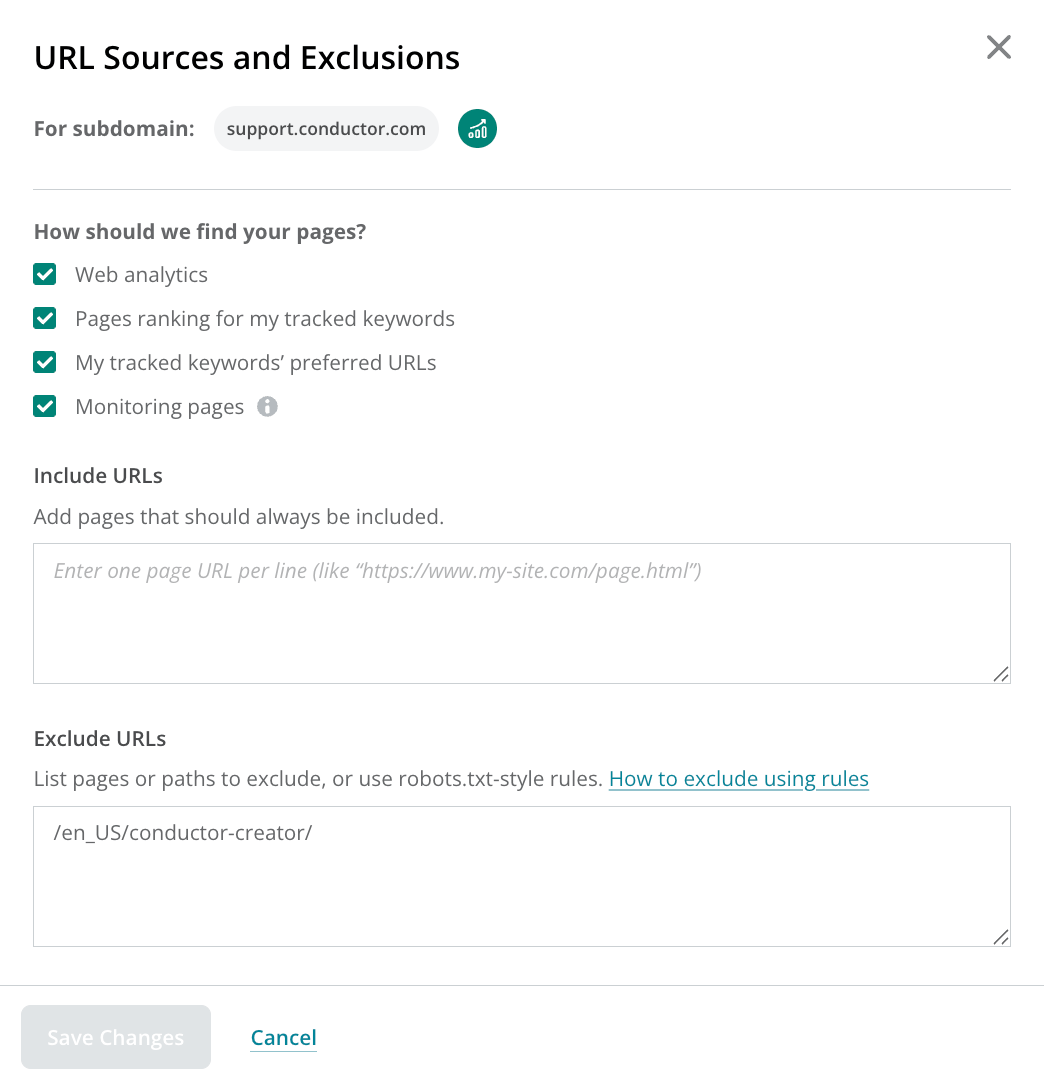
Edit a subdomain’s settings
You can choose specific settings for any subdomain after you add it, including managing how Conductor crawls the subdomain for technical data. In the Subdomains table, find the subdomain you want to change and click Manage in the Actions column to open its settings.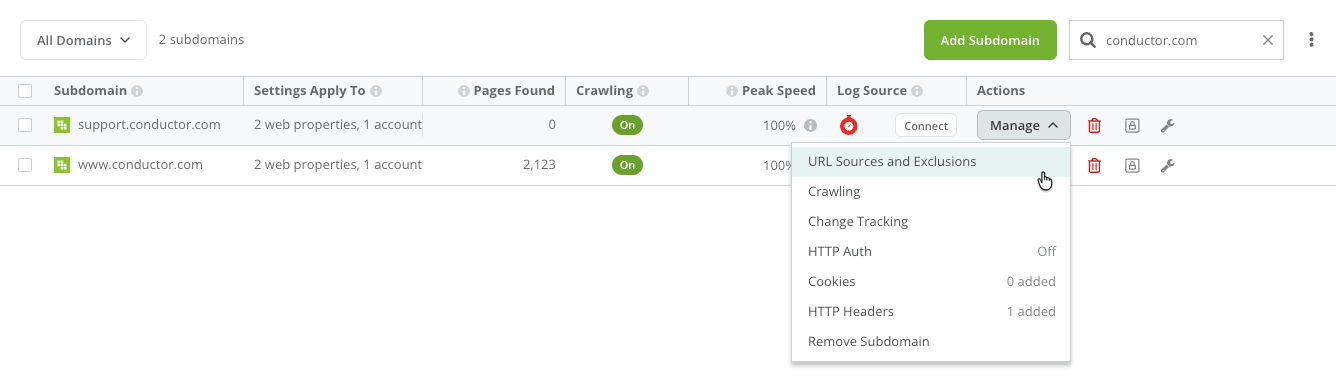
Edit URL sources and exclusions
Click Manage > URL Sources and Exclusions to control how Conductor finds pages for this subdomain. Under How should we find your pages?, select or clear any of the following sources:- Web analytics: pages from your integrated analytics platform (such as GA4 or Adobe) that have received organic traffic. For most teams this is the most important source, so keep it enabled.
- Pages ranking for my tracked keywords: pages Conductor has identified as ranking for keywords you track. Keep this enabled if you have active keyword tracking for the subdomain.
- My tracked keywords’ preferred URLs: pages you’ve manually designated as the preferred URL for tracked keywords. Keep this enabled if you use preferred URL configuration.
- Monitoring pages: pages discovered through Conductor’s site crawl. This source appears only for subdomains you’ve also added to Conductor Monitoring. It gives the most comprehensive discovery but also the broadest set of URLs, so use exclusions to keep the scope focused.
- Click Add URLs to Include to list pages that should always be included, one URL per line.
- Click Add URLs to Exclude to leave out pages or paths using robots.txt-style patterns, one pattern per line (for example, /checkout/, /wp-admin/, or /search?).
Edit crawling settings
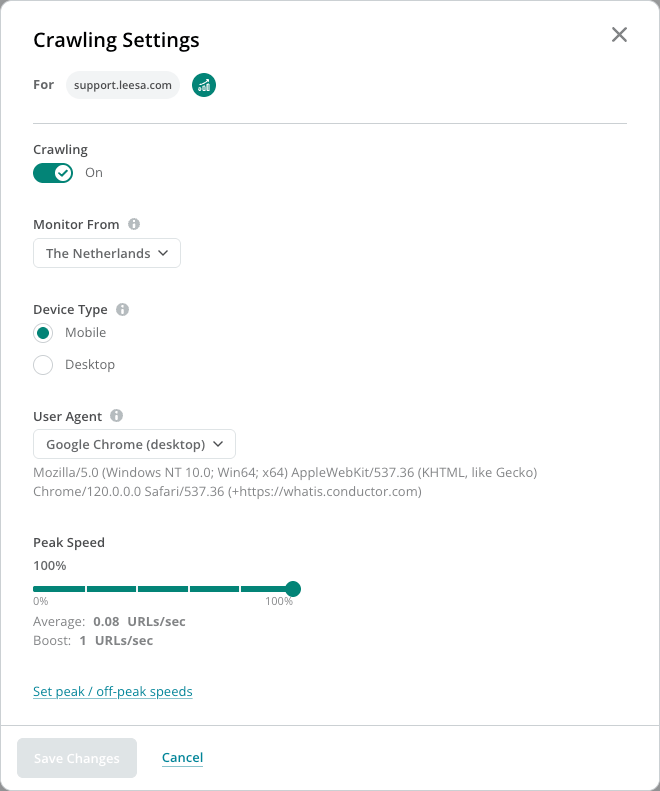
Click Manage > Crawling to adjust how Conductor crawls the subdomain. The defaults work well for most sites.-
Crawling: choose whether to crawl pages on this subdomain for technical data. This toggle is enabled by default. Disabling the toggle prevents technical data—such as changes to title tags or meta descriptions—from appearing for the pages in this subdomain in Pages reporting. Other data for that page—such as analytics data, Google Search Console data, and more—may still appear for that page.
Disabling crawling does not remove the subdomain’s pages from Pages reporting. It only prevents technical data from appearing for these pages in Pages reporting.
- Monitor From: the location Conductor crawls from. Set this to match where your audience is if your site uses geo-redirects or GeoIP blocking.
- Device Type: choose Mobile or Desktop. Set this to Mobile if your site uses mobile-first design or you want to audit the mobile experience.
-
User Agent: the user agent Conductor identifies as when crawling. Options include:
- Google Chrome (desktop)
- Google Chrome (mobile)
- Googlebot (desktop)
- Googlebot (mobile)
- BingBot (desktop)
- BingBot (mobile)
- Slurp
- YandexBot
- Baiduspider
- Screaming Frog
- DuckDuckGo
- SeznamBot
- Conductor
- Peak Speed: controls how fast Conductor crawls, shown as a percentage with the resulting average and boost rates in URLs per second. Reduce this if your server is resource-constrained. Click Set peak / off-peak speeds to schedule different speeds for peak and off-peak hours.
Edit change tracking settings
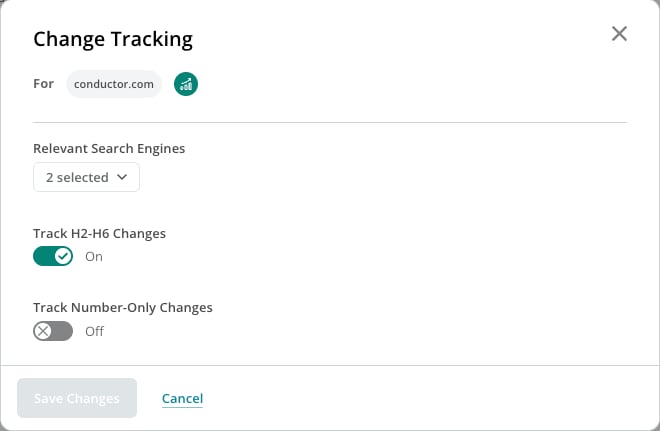
Click Manage > Change Tracking to control which on-page changes Conductor logs in the Changelog of Page Details.- Relevant Search Engines—choose which search engines’ robots rules Conductor respects during crawling. This setting affects how Conductor reviews the robots.txt and meta robots rules on your website. Because search engines have different rules and regulations for how they crawl websites, you can specify whether Conductor should look at directives for certain search engines.
- Track H2-H6 Changes—Conductor can include or exclude tracked changes to H2–H6 tags on your website. Keep in mind that setting this toggle to Yes may greatly increase the total number of tracked changes for each URL—and Conductor does limit the total number of tracked changes to 70,000.
Note: Enabling Track H2–H6 Changes also enables reporting on those elements in the Content tab in the Page Details report.
- Track Number-Only Changes—Conductor can include or exclude tracked changes to tags where only a number value has changed. This might be helpful for your site if you want to ignore changes to numbers that frequently change, such as quantities, prices, or dates. Turning this setting off can decrease the overall number of tracked changes on your website.
HTTP Auth
Staging and testing environments
Conductor provides great solutions for crawling your staging and testing environments, allowing you to do comparisons with the production environment before green lighting a release or migration. Staging and testing environments are usually protected from all outside visitors as well as search engines. If you’re wondering why you should be protecting your staging environment or you want to learn about different protection methods, be sure to read our Academy article on this topic.Allowing Conductor access to the staging environment
There are several ways in which you can give Conductor access to your staging environment based on what protection method you are using. HTTP Auth is the best way to protect your staging environment and you can read more about it here. Conductor allows you to set up HTTP Auth directly in its apps, which means that you can easily enable us to monitor your staging environment. Use the HTTP Auth toggle to enable a form to enter a Username and Password for the site.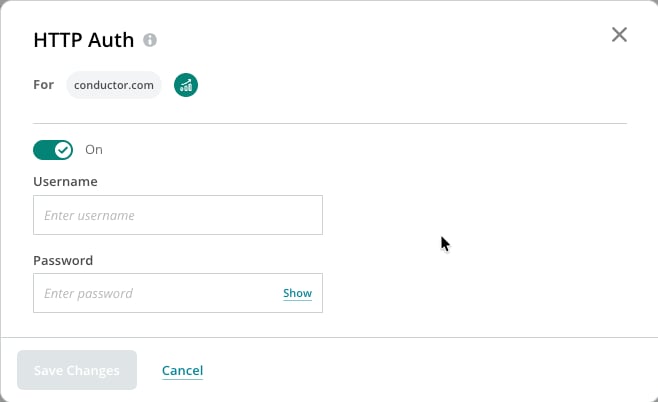
Cookies
By default Conductor doesn’t accept or transmit cookies when requesting URLs on websites. However, some websites can require cookies to load certain elements which Conductor needs to crawl the website properly and report accurate data. You can set custom cookies to allow Conductor access to these pages. Click Add to add a Cookie Name and Value for one or more cookies.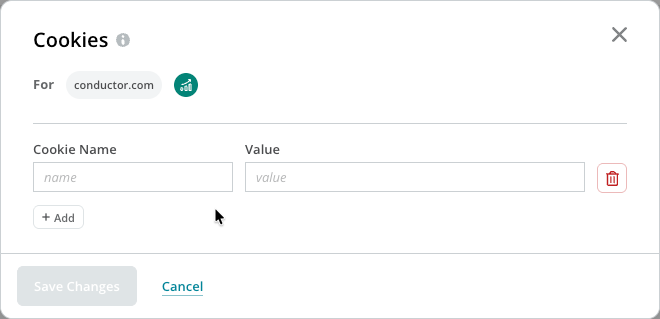
HTTP Headers
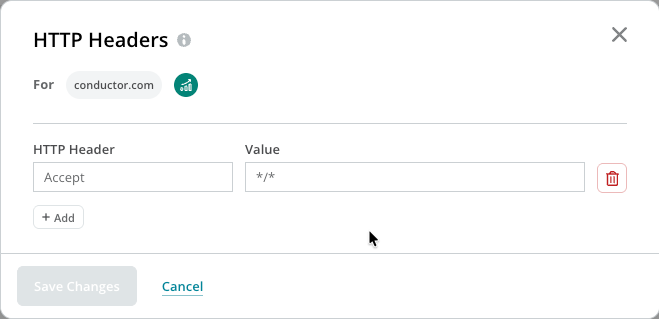
HTTP headers serve for transferring additional (not displayed) information between Conductor and your website’s server. Based on HTTP headers you can identify our crawling as well as whitelist Conductor in case our crawler is being blocked by your web server. Use the HTTP Headers section to enter one or more HTTP Headers, which may be:- Default HTTP headers. By default, Conductor sends the following HTTP headers with the crawling requests.
- Custom HTTP headers. You can also set custom HTTP headers that will be part of Conductor’s requests. Out of the box, Conductor supports the following custom HTTP headers:
AcceptAccept-LanguageAuthorizationCache-controlForwardedProxy-AuthorizationRefererX-*
Set default crawl settings for new subdomains
To configure the baseline crawl settings applied to any new subdomain Conductor adds or identifies in the future, you can set the default User Agent and the default Monitor From location. Just click Set Defaults in the top-right above the Subdomains table.Remove a subdomain
If a subdomain no longer belongs in your Pages reporting, you can remove it:- Find the subdomain in the Subdomains table.
- Click Manage in the Actions column.
- Select Remove Subdomain.
FAQs
What do I need to know about crawl speed?
What do I need to know about crawl speed?
The relation between web server capacity and monitoring speed
In order to avoid performance issues on your website and to align with your business needs, before using Conductor it is essential that you verify what crawl speed your infrastructure can support and adjust your settings accordingly.Although it is important to assess web server capacity before using the application, Conductor helps predict server overload by continuously assessing your website’s performance. It does this through its throttling algorithm, which looks at the time it takes to get a response from the web server and at the response itself. If the algorithm detects an issue (for example, slower speeds, increased errors, etc.), it may slow down crawling automatically until the impact on the web server has been remedied.The relation between website size and monitoring speed
Once you have verified web server capacity, for larger websites you may decide to crawl at a faster speed in order to keep up to date on your website’s changes as well as possible. For example, if your website has 200,000 pages, you may wish to configure Conductor to request a page every second.For smaller websites, you may decide to crawl at a slower speed. So, if your website is only a couple of thousand pages, the optimal crawl frequency may be very low. For example, if your website has 2,000 pages, you may only need Conductor to request a page once every 10 seconds.When does the monitoring location matter?
When does the monitoring location matter?
Geo redirects
When you operate globally or in multiple countries, you might have multiple domains with different language versions of your website (example.com, example.co.uk, example.de, etc.) and a geo redirect setup in place that redirects visitors to the relevant domain version based on their location.So when you want to monitor example.com but the default monitoring location is set to the UK, Conductor will get redirected to example.co.uk and it will not be able to monitor example.com.If this is the case, you can change the default monitoring location to the US to ensure that Conductor doesn’t get redirected to a different domain and will be able to monitor example.com.GeoIP blocking
Some websites are only available for visitors located in a certain region, and visitors outside of this region are not able to access the website.So for example, when your website is only available in the US, but your default monitoring location is set to the EU, Conductor will not be able to access and monitor the website.If this is the case, you can change the monitoring location for the website to the US, which will allow Conductor to access the website and monitor it properly.Is there a limit to the number of pages crawled for each subdomain?
Is there a limit to the number of pages crawled for each subdomain?
How can I ensure my highest-priority pages are always crawled for technical data?
How can I ensure my highest-priority pages are always crawled for technical data?
Should I remove a subdomain or just turn off crawling?
Should I remove a subdomain or just turn off crawling?
- Remove the subdomain when you don’t want its pages in Pages reporting at all. Removing a subdomain takes its pages out of the report entirely and stops Conductor from crawling them.
- Turn crawling off when you do want the subdomain’s pages in your reporting, but you don’t want Conductor’s crawler requesting pages from your server. Those pages stay in the Pages report with their performance data—web analytics, Google Search Console, citations—but they won’t have technical data such as indexability, schema, titles, or headers.
Does turning off crawling stop Conductor from finding pages on that subdomain?
Does turning off crawling stop Conductor from finding pages on that subdomain?
What does the Pages Used column count?
What does the Pages Used column count?
- A page counts if it has performance data but no technical data—for example, because crawling is turned off for the subdomain, or because the page hasn’t been crawled yet.
- A page doesn’t count if there’s no performance to report on it. Redirects and missing (404) pages are the most common examples, and they can still appear in your Pages report.
Why does a subdomain show 0 pages in Pages Used when I know it has pages?
Why does a subdomain show 0 pages in Pages Used when I know it has pages?
- The column only reflects the most recent full data week. If the subdomain had pages two weeks ago but none last week, it shows zero.
- Its pages aren’t a countable URL type. If the pages Conductor found were redirects or missing pages, they can appear in the Pages report but won’t count toward Pages Used. A subdomain returning
403(Forbidden) responses across most of its URLs, for example, will register those pages as missing and show zero here. - The subdomain is genuinely inactive, and no pages were found for it recently.
Why do my pages have no technical data or show as missing?
Why do my pages have no technical data or show as missing?
403 (Forbidden), your server, CDN, or WAF is very likely rejecting our requests.Work through these in order:- Confirm Conductor’s crawlers are allowed. Your security team needs to allow our crawlers by IP subnet or user agent—see the values in Edit crawling settings. This is the fix in most cases.
- Check that crawling is toggled on for the subdomain in the Subdomains table.
- Check for access protection. If the subdomain is behind HTTP Auth, add credentials under Manage > HTTP Auth. If it requires cookies or specific headers to serve content, configure those too.
- Check the subdomain’s size. Subdomains over 400,000 pages won’t be fully crawled in a single week—see the crawl limit FAQ above.
What happens to historical data when I remove a subdomain?
What happens to historical data when I remove a subdomain?
Do Pages & Crawling settings affect my Conductor Monitoring configuration?
Do Pages & Crawling settings affect my Conductor Monitoring configuration?
Does Conductor Intelligence use a separate crawler from Conductor Monitoring? If so, will it double the load on my site if I have both products?
Does Conductor Intelligence use a separate crawler from Conductor Monitoring? If so, will it double the load on my site if I have both products?
Why is my crawl speed set to 300% by default, and can I lower it?
Why is my crawl speed set to 300% by default, and can I lower it?
If I remove a subdomain, can I add it back later?
If I remove a subdomain, can I add it back later?
Can I automatically carry over my exclusion rules from Conductor Monitoring into Pages & Crawling?
Can I automatically carry over my exclusion rules from Conductor Monitoring into Pages & Crawling?