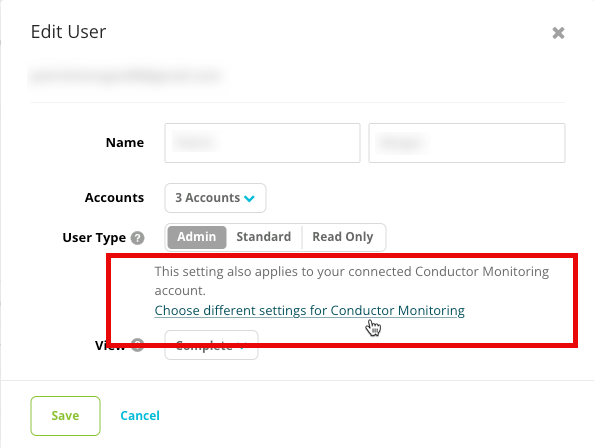
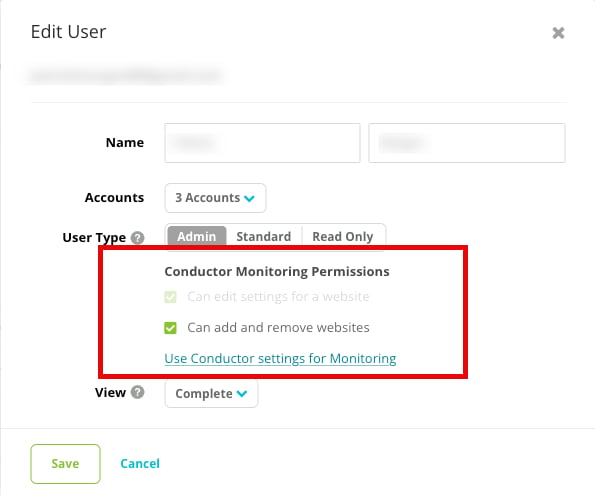
This article is about configuring users in Conductor Intelligence and Conductor Creator. If you are looking for information about configuring users in Conductor Monitoring, you can find it in this article.
Review Your Users at a Glance
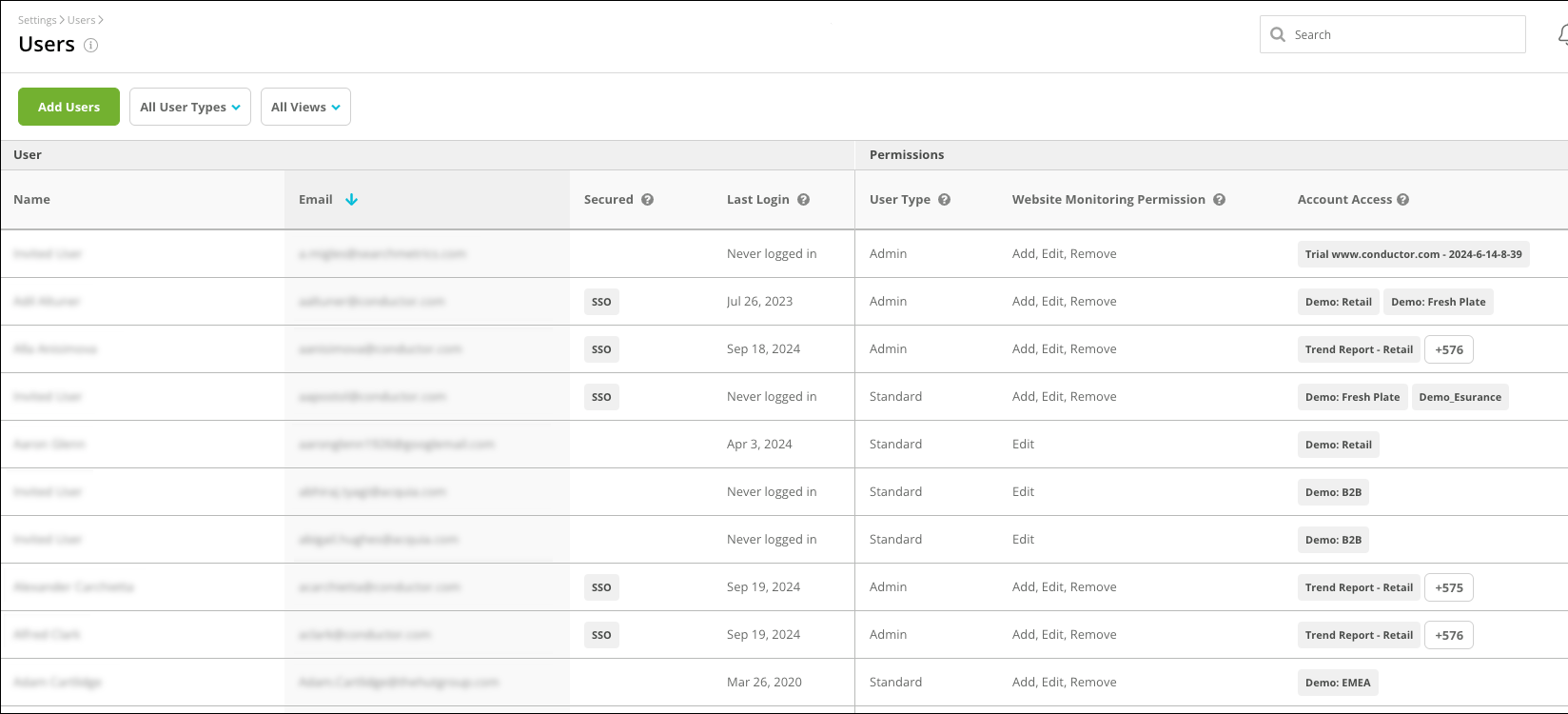
You can use the Users activity to view a list of users with access to your account. Each row indicates the following information about the user:- Name
- Whether the user has Secured their sign in experience with two-factor authentication (2FA) or single sign-on (SSO)
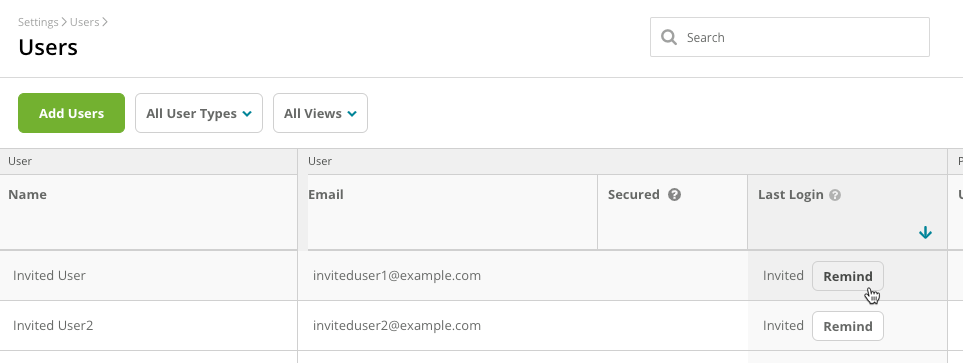
- Last Login date—you can also send a reminder from the Users table.
- User type
- If any, Conductor Monitoring Permissions
- Accounts Access for Conductor Intelligence accounts you both have access to
Export Your Users Table
If you want to export the data in the Users table for further analysis and action, you can download a Microsoft Excel file using the Share icon, and selecting Download XLSX.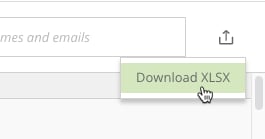
Add Users to Conductor
There is no limit to the number of users you can add to your account. Note that there are three user types, with three different permission levels. You can learn more about these user types in the What are the Differences Between User Types in Conductor article.
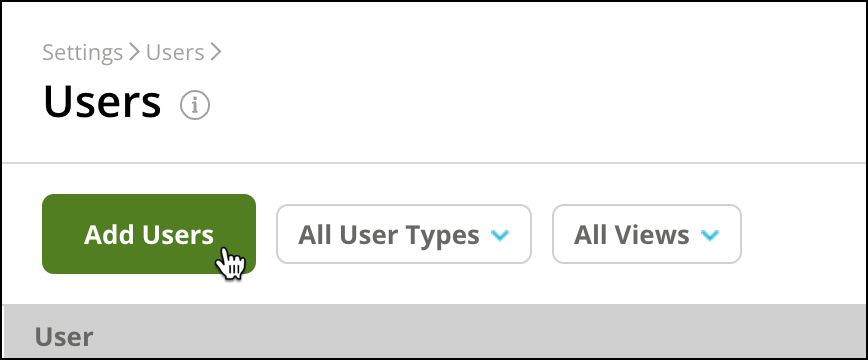
- Follow the path Settings > Users in Conductor.
- Click Add Users.
The Add Users form appears:
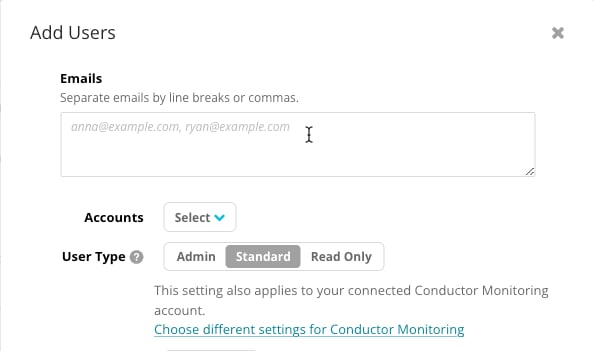
- Enter the following information:
- Emails:
- Enter one or more email addresses for the user or users you want to add to Conductor. Multiple entries may be entered separated by commas or line breaks.
- Note that you should select email addresses associated with the organization for which the user works. Conductor blocks email addresses from @gmail.com, @yahoo.com, and @hotmail.com to promote using addresses provided by your organization. Generally, the broad availability of personal email hosts makes them inherently less secure and controllable than email hosting that’s managed by the business itself.
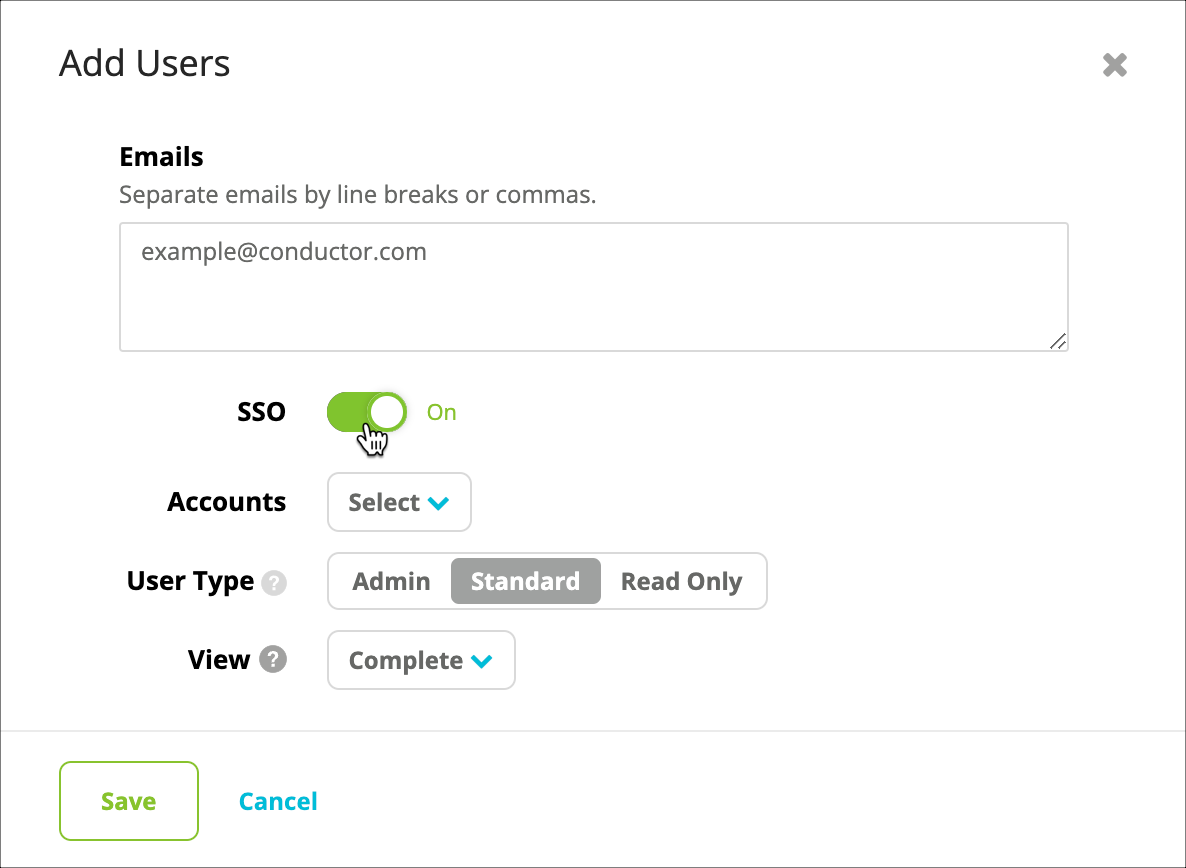
- Note also that if your organization uses a Single Sign On (SSO) integration with Conductor, you will also see an SSO toggle in the Add Users form after entering your e-mail address. You can use this toggle to disable a user’s access to your SSO integration:
- Accounts. Choose one or more accounts to which the user should have access.
- User Type. Select whether the user has Admin, Standard, or Read Only permissions. Review the differences between user types here. If your account and the relevant user have access to Conductor Monitoring, you can also determine their permissions here.
- Emails:
- Click Save. The user will receive an automated email from Conductor prompting them to set up their credentials. If using SSO, the user will receive an email prompting the user to sign in to Conductor.
Edit and Administrate User Settings
To manage your own user profile, go to Manage My Profile: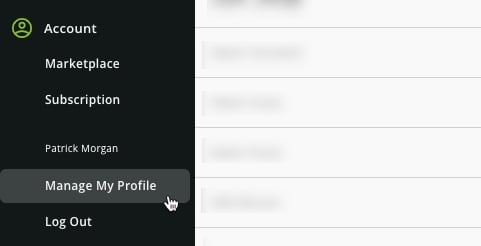
Edit Basic User Settings
- Click Edit. The Edit User form appears.
- Update the following information, as needed:
- First Name
- Last Name
- SSO. This toggle appears only if your organization uses Single Sign On with Conductor.
- In the on position (toggle is on the right), the user’s access management is performed through their organization’s integrated SSO platform.
- In the off position (toggle is on the left), the user’s access management is performed in the Conductor platform.
- Accounts
- User Type. If your account and the relevant user have access to Conductor Monitoring (powered by ContentKing), you can also determine their permissions here.
Deactivate and Activate Users in Conductor
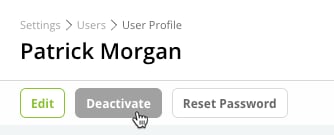
You might have new team members join your organization and others leave. You can administrate these users in Conductor over time.- To deactivate a user, click the Deactivate button at the top of the User Settings activity.
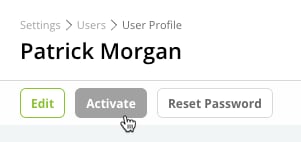
- To reactivate a user, click the Activate button at the top of the User Settings activity.
Enable Two-Factor Authentication (2FA)
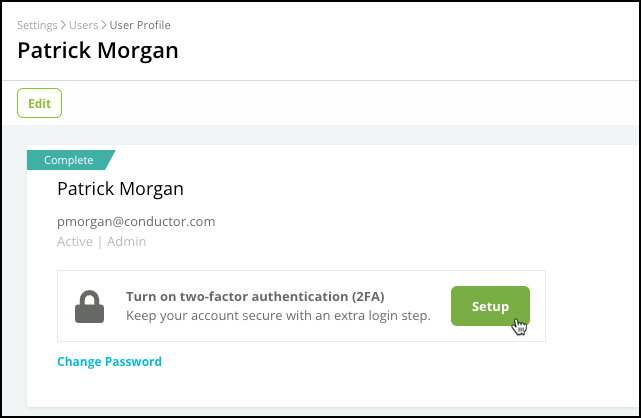
2FA adds an extra layer of security to the authentication process, making it harder for hackers to gain access to user accounts. By requiring users to provide a second form of authentication, such as a one-time code or biometric data, the likelihood of unauthorized access to the account is greatly reduced. In your own user profile, click Setup and follow the instructions to set up your preferred multi-factor authenticator app, like Authy or Google Authenticator. You will:- Enter your current Conductor password.
- Scan the QR code with your authenticator app of choice, or using the unique code provided.
- Enter the authenticator’s code.
- To enable 2FA in Conductor, you must sign into the platform using your email address and password (rather than using Google OAuth). If you are currently signed in through Google OAuth, you can sign out of Conductor and then sign back in with your email address and password to see the option for enabling 2FA.
- Users that use single sign-on (SSO) cannot also use 2FA.
Reset a User’s Password
You can reset a user’s password if they forget their credentials. Note that if your organization uses Single Sign On with Conductor, you cannot reset a user’s password. If SSO is turned off for your organization, all users will receive an email prompting them to create a password in Conductor. At the top of the User Settings activity, click Reset Password. The user will receive an email prompting them to create a new password.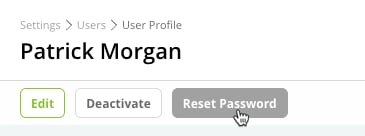
Resend a User’s Initial Setup Email
If a user needs to set up a Conductor account, but the link in their initial setup email has expired, you can resend the email. At the top of the relevant user, click Resend Invitation to Log In.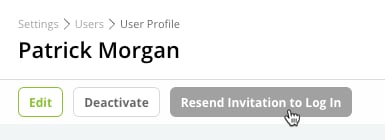
Change Your Password
If you are editing your own settings, you can change your password here:- At the top, click Change Password.
- Enter your old password, your new password, and confirm your new password. Note that your password must include a special character, a number, an uppercase and lowercase letter, and be at least 8 characters long.
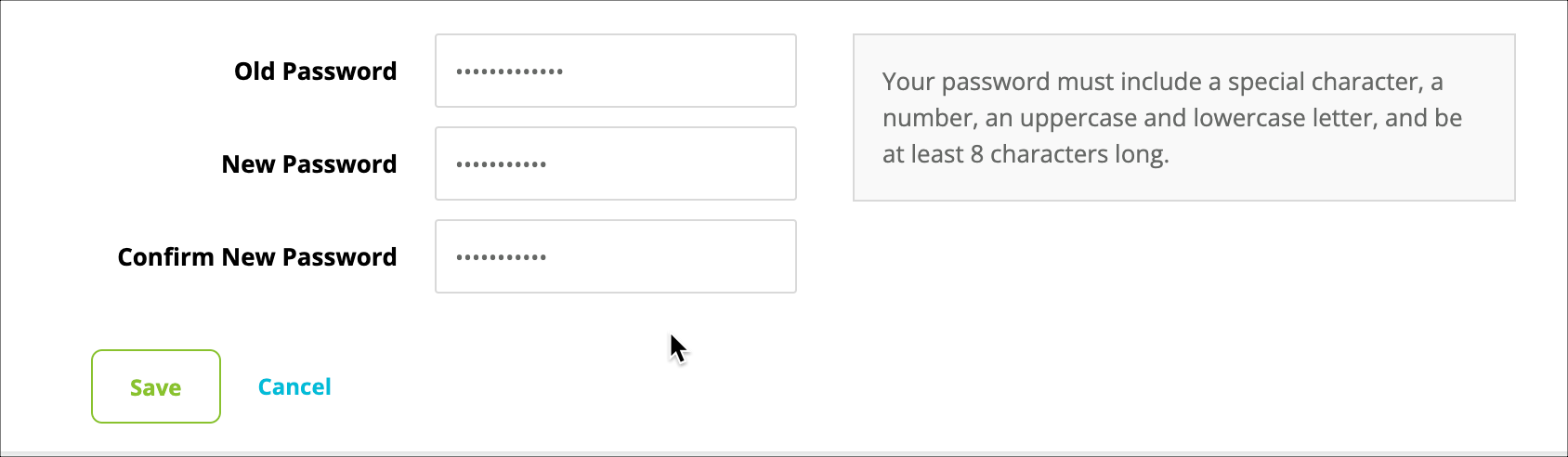
- Click Save.
Edit Your Default Web Properties
To help users see the information that is most relevant to them, you can choose the web properties and search engines for which Conductor shows data. By default, data appears for the first web property you configured in Conductor. In the Preferences section, choose which web property and search engine context the user sees by default.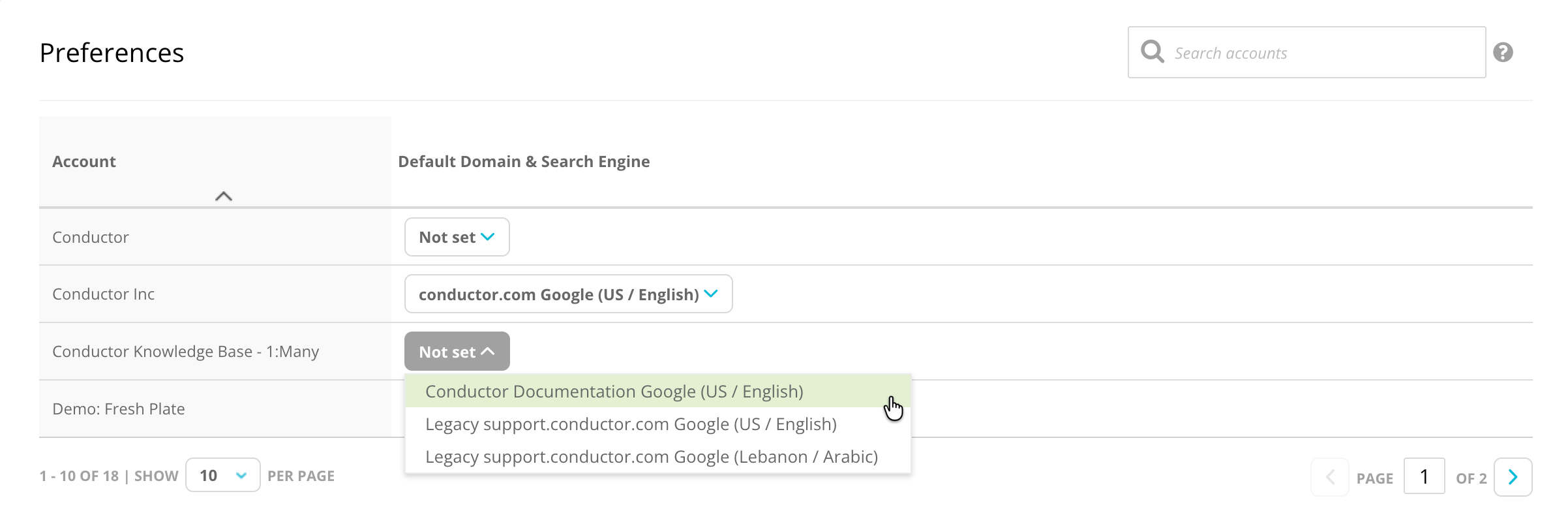
Determine a User’s Access in Conductor Monitoring
By default, when users have access to Conductor Monitoring, their Conductor Intelligence and Conductor Creator permissions map to Conductor Monitoring permissions as follows:- Conductor Intelligence/Creator Admin = Conductor Monitoring Manager
- Conductor Intelligence/Creator Standard = Conductor Monitoring Editor
- Conductor Intelligence/Creator Read Only = Conductor Monitoring Viewer