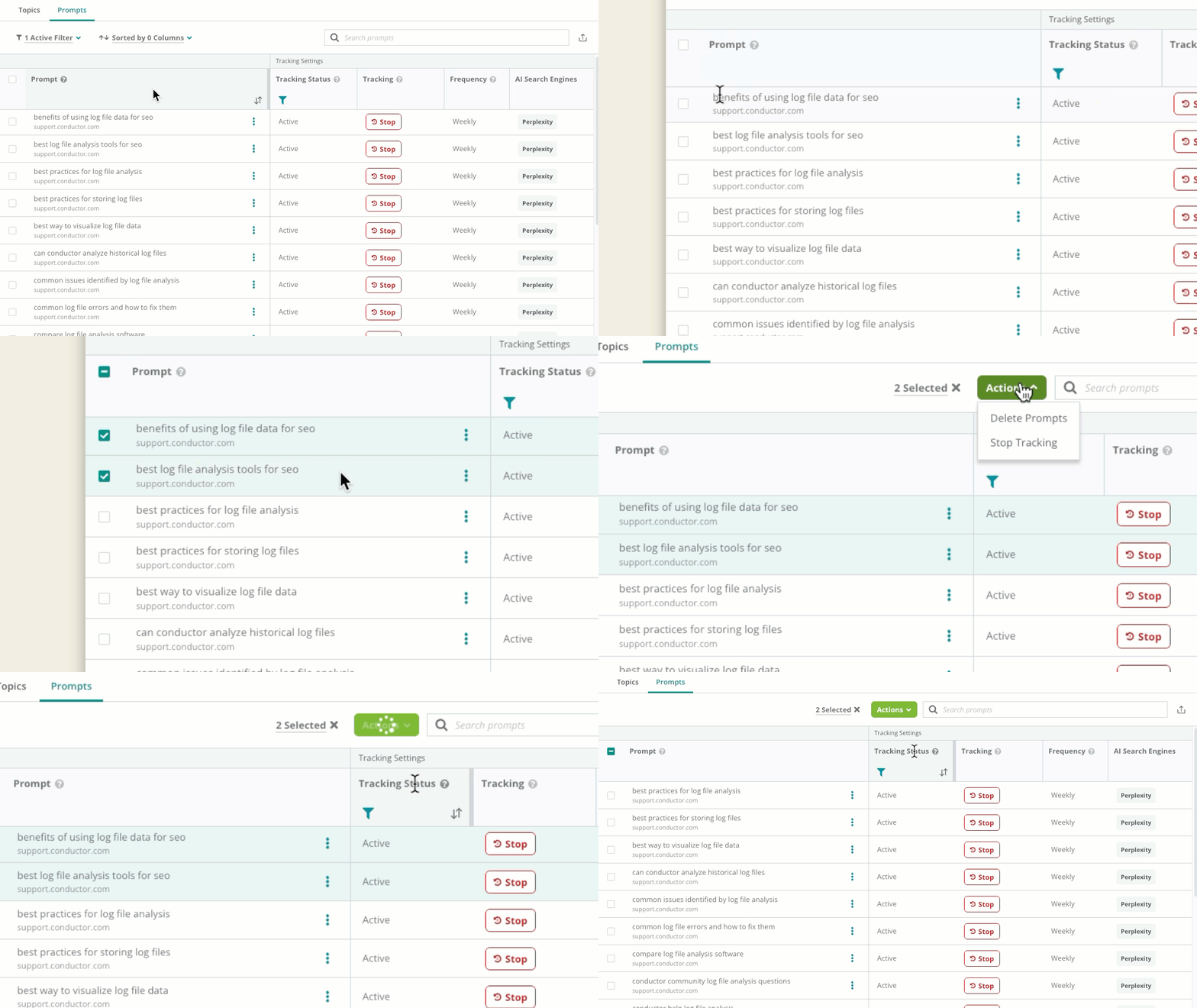
Add the brands, topics, and prompts you want Conductor to track so it can gather mentions and citations in AI search results.
To use Conductor Intelligence’s AI Search Performance reporting in the AI Search Performance report, you must add the brands and topics you want to track so that the platform can gather mentions and citations of your brands and personas in AI search results for the tracked topics—and understand how your actions are affecting your AEO / GEO performance.Note that you can perform all this configuration from the Topics and Prompts settings activity in the Settings menu, rather than the AI Search Performance report. However, you can easily access Topics and Prompts from the report using the Settings button in the report header.
Tracking your brand in AI search costs AI Response Credits, and a handful of choices decide how quickly you use them. Work through the steps below to plan what you’ll track, see what it costs, and check it against the credits you have.
Configure the brands, topics, and prompts you want to track
Add your brands, topics, and prompts in a seamless guided workflow:
In the Topics and Prompts settings activity, click the Add Topics and Prompts button.
If you track more than one website in Conductor, use the Website menu to choose the website for which you want to track topics and promtps.
Choose the brands you want to associate with the topics you add. Add brand names that are most closely tied to your company’s identity or key product offerings. If you have previously added brands to your account, you will see them added automatically. Enter any other brands you want to track.
Default Brands Note that, by default, Conductor generates one or more relevant brands for your website. You can choose to keep these or change them.Competitor brands Conductor generates brands for your competitors by default. You can add more from the Web Properties activity in Settings. Refer to these instructions to learn how.
Click Next: Select AI Search Engines.
Choose the AI SearchEngines you want to monitor for your topics. You can choose from the following engines, but keep in mind that tracking multiple AI engines for each topic will use more credits, each according to their specific credit usage.
ChatGPT (Auto)
ChatGPT (Search)
Claude Sonnet
Gemini
Google AI Mode
Google AIO
Grok (Auto)
Microsoft Copilot
Perplexity
Click Next: Tracking Settings.
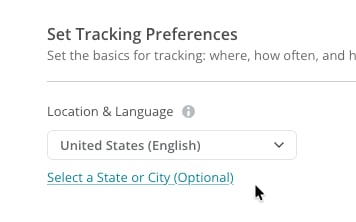
In the Tracking Settings tab, select the Location & Language (and, optionally, a city or state), Tracking frequency, and Number of prompts per topic. Note:
Currently, Conductor supports the following engines across over 160 countries. City- and state-level tracking is not available for prompts tracked on Google AI Mode.
Tracking frequency can be set to Daily, Weekly, or Monthly. See What’s the difference between Daily, Weekly, and Monthly tracking? for guidance on choosing the right cadence and what to expect from each. Note that Daily tracking will substantially increase your credit usage for the prompts you track at a daily frequency.
Available cities and states reflect the same list Conductor Intelligence uses for our keyword tracking. If there are specific locations that are not available, contact Support to request the location be added. To add specific cities or states, you’ll need to select the country and language first—a link to add more specific locations then appears below.
The number of prompts per topic is used to estimate your credit usage, and can be tailored to each topic in a later step.
Review your Credit Usage Forecast. Set the number of topics you want to track and then see whether your remaining credit budget will cover the forecasted usage. Conductor will indicate when you don’t have sufficient credits to cover topic tracking. To model several configurations side by side before you commit, use the scoping calculator above.
Click Next: Select Topics.
Add topics you want to track. You can:
Choose from suggested topics generated by Conductor’s AI engine, based on a combination of LLM models with your existing keyword data in Conductor.
Add your own topics.
Fine-tune the topics you want to generate by adding custom instructions for topic generation with the Provide instructions button. Just click Regenerate Topics after adding your instructions.
Guide Conductor’s AI Use the Provide instructions button to provide guidance to Conductor’s AI engine. For example: Establish hard constraints“Focus 100% on B2B topics; exclude any B2C or retail-oriented ideas.”
“Follow this pattern: [Technology] + [Industry] + [Outcome]. Example: ‘Blockchain in Logistics for Transparency’.”“Focus on emerging trends for the next 6 months. Do not suggest evergreen or historical topics.”
For each of your topics, choose the number of prompts you want to track. Note: The number of topics and prompts you track is limited based on your AI Response Credit budget. Learn more.
Click Next: Configure Prompts.
In the Prompt Types tab, select whether you want to track Branded Prompts, Non-Branded Prompts, or both. Selecting this option will tell Conductor to generate prompts that do not mention specific brands (yours or others’).
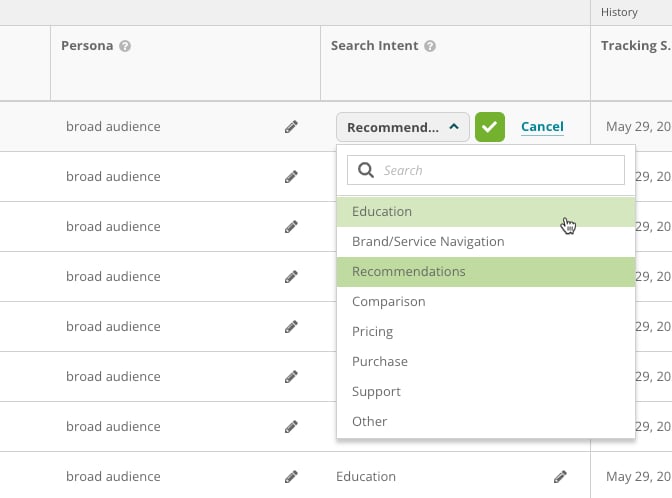
In the Search Intents tab, select the search intent prompts for your topics should reflect. Conductor will generate prompts based on this guidance.
In the Personas tab, select the personas that prompts for your topics should reflect. Conductor will generate prompts based on this guidance.
Don’t Skip on Personas Assigning a well-configured persona gives Conductor’s AI prompt generation robust context for the prompts it creates for you. If you haven’t yet set up personas, do that first before continuing with prompt generation in the next step. For guidance on how to configure the best personas, refer to How to Create Effective Personas for AI Search Tracking in the Learning Library on Conductor’s Community.
In the Instructions tab, enter any custom instructions you want to guide Conductor’s generation of prompts for the topics you are adding.
Click Next: Review Prompts. Conductor will generate prompts for your topics. This may take some time.
Fine-tune the prompts you want to generate by adding custom instructions for prompt generation with the Provide instructions button. Just click Regenerate Topics after adding your instructions.
Guide Conductor’s AI Use the Provide instructions button to provide guidance to Conductor’s AI engine. For example:
“Model prompts after: ‘Best [Product] for [Persona] in [Year].’ Keep the structure consistent across all results.”“Align all prompts with the 2026 Winter Holiday season and specific regional shopping traditions in Northern Europe.”
Once generated, review the prompts in the table. You can select prompts to delete or edit them to your specifications.
Note! As you create and track prompts, you can include a minimum of 5 prompts and a maximum of 500 prompts for a given topic.
Click Next: Final Review.
The Credit Usage Forecast now reflects the specific credit usage your tracked topics and prompts will require and the amount of time you’ll be able to track data before your account runs out of credits.
Click Start Tracking (or Submit for Approval, if you are a Standard user and Admin Approval is enabled). Conductor will begin collecting data for the prompts and will publish data in the AI Search Performance report once it has been collected.
Admin Approval gives teams a governed way to collaborate on AI search tracking: Standard users propose topics and prompts, and an admin reviews them before tracking starts.Account admins can turn Admin Approval on or off at any time with the Require Admin Approval toggle in Settings > Topics and Prompts. It is off by default.When Admin Approval is enabled:
Topics and prompts created by Standard users are marked Awaiting approval until an admin reviews them.
The table on the Topics tab includes a list of each topic you have tracked in Conductor. Review information including:
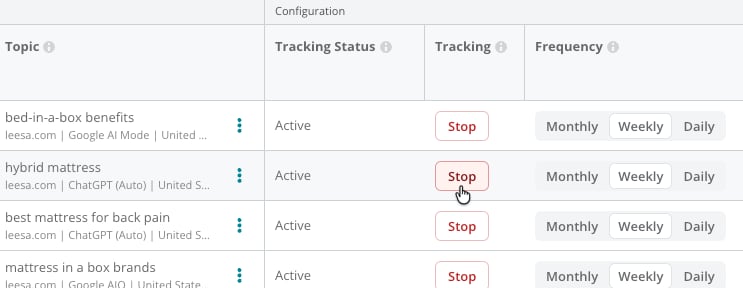
Tracking status lets you Stop or Start tracking the topic. Tracking monitors the responses of the AI Search engine to actively tracked prompts at the defined frequency.
Frequency. Frequency indicates whether the topic is collecting data Daily, Weekly, or Monthly. Switching to Monthly schedules the next collection for the beginning of the following month. This setting applies to the entire topic and cannot be adjusted for individual prompts.
Active Prompts indicates the number of active prompts tracked for the topic.
Approval Pending indicates how many of a topic’s prompts are awaiting an admin’s approval before tracking can begin (only used when Admin Approval is enabled).
Inactive Prompts indicates how many of a topic’s prompts are no longer being tracked. Historical data for inactive prompts is still available in AI Search Performance.
Weekly Rate indicates how many AI Response Credits the topic uses per week, based on its active prompts, AI search engine, and tracking frequency.
Tracking Started indicates when tracking began or was last restarted.
Tracking Started By indicates the user who tracked the topic.
Last Updated indicates the most recent date that the topic’s reporting or tracking settings were updated.
Last Updated By indicates the user who updated the topic most recently.
Track topics on more search engines after you start tracking them
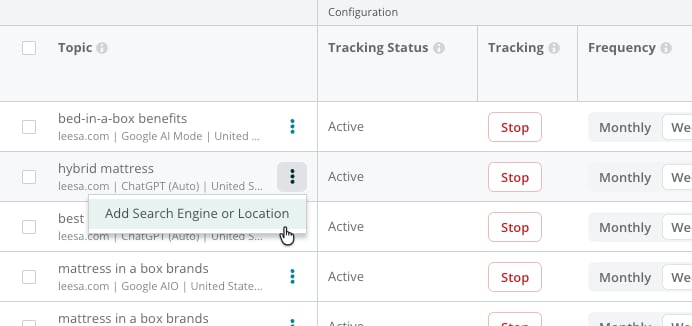
If you want to start tracking a previously-tracked topic on another search engine, just click the three-dot icon in the table and select Add Search Engine or Location.
Add topics to search engines and locations in bulk
Rather than adding one topic at a time, you can expand several topics across multiple search engines and locations at once:
On the Topics tab, use the check box next to each topic name to select the topics you want to expand.
In the Actions menu above the table, select Add Search Engine or Location.
Choose the AI search engines and the locations you want to add for the selected topics.
Review the updated Credit Usage Forecast, which reflects the new additions, then confirm.
Conductor automatically skips any search engine or location a topic is already tracking, so you won’t create duplicates—only new combinations are added. This makes it easy to scale tracking across new engines and countries in just a few clicks.
You can fix typos or reword previously-created topics you already track, rather than recreating it from scratch and losing your historical data.
On the Topics tab, find the topic you want to rename.
Click the three-dot icon in the topic’s row and select Edit Name.
In the Edit name dialog, enter the new name in the Name field. The dialog tells you how many topics the change affects: topics that share the name across other search engines and locations are kept in sync and are renamed too.
Click Save.
Because the rename applies to every version of the topic—across all the search engines and locations where you track it—your naming stays consistent across your whole tracking setup. The topic keeps its prompts, tracking settings, and the data already collected for it, so you don’t need to create a new topic and start over.
Choose the new name carefullyTopic names are meaningful system signals: Conductor uses them to classify the semantically related content it considers part of the topic. Make sure a new name still reflects the semantic meaning of the prompts configured for the topic.
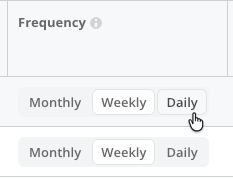
If you want to change the tracking frequency of a topic, identify the topic in the Topics tab and use the setting in the Frequency column to set your desired frequency.
You can also change the tracking frequency for several topics at once rather than editing them one by one:
On the Topics tab, use the check box next to each topic name to select the topics you want to update.
In the Actions menu above the table, select Update Tracking Frequency.
Choose the new frequency—Daily, Weekly, or Monthly—and confirm. Review the updated Credit Usage Forecast before applying, since daily tracking substantially increases credit usage.
Updating in bulk keeps tracking frequencies consistent across large sets of topics and aligned with your monitoring goals. Frequency applies to the entire topic and cannot be set for individual prompts.
Stop or start tracking topics you’ve configured in Conductor
On the Topics tab, find the topic you want to stop tracking in the table.
In the Tracking column:
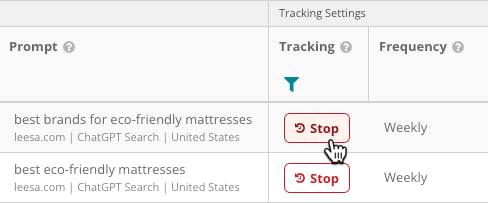
Click the Stop button if you want to stop tracking the topic.
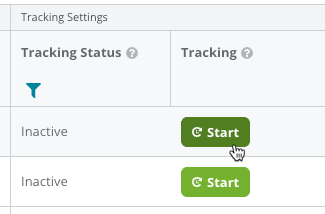
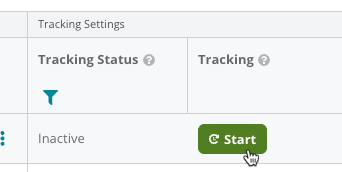
Click the Start button (or the Request Start button, if you are a Standard user and Admin Approval is enabled) if you want to start tracking the topic again.
You can also stop and start tracking topics in bulk using the check box next to each topic name and the Actions menu above the table. (Note that bulk stopping is not available for Standard users when Admin Approval is enabled.)
The table on the Prompts tab includes a list of each prompt tracked for the topics you track with Conductor. Review information including:
Tracking status lets you Stop or Start tracking the prompt. Tracking monitors the responses of the AI Search engine at the defined frequency.
Frequency. Frequency indicates whether the topic is collecting data Daily, Weekly, or Monthly. Switching to Monthly schedules the next collection for the beginning of the following month. This setting applies to the entire topic and cannot be adjusted for individual prompts.
Topic indicates the tracked topic this prompt is collecting responses for.
Stop or start tracking prompts configured for your tracked topic
On the Prompts tab, find the prompt you want to stop tracking in the table.
In the Tracking column:
Click the Stop button if you want to stop tracking the prompt.
Click the Start button (or the Request Start button, if you are a Standard user and Admin Approval is enabled) if you want to start tracking the prompt again.
Stopping a prompt doesn’t delete its data. If you later track the same prompt for a different topic—on the same AI search engine and location—its historical data comes with it. Learn more.
Add a prompt to or remove a prompt from a prompt group
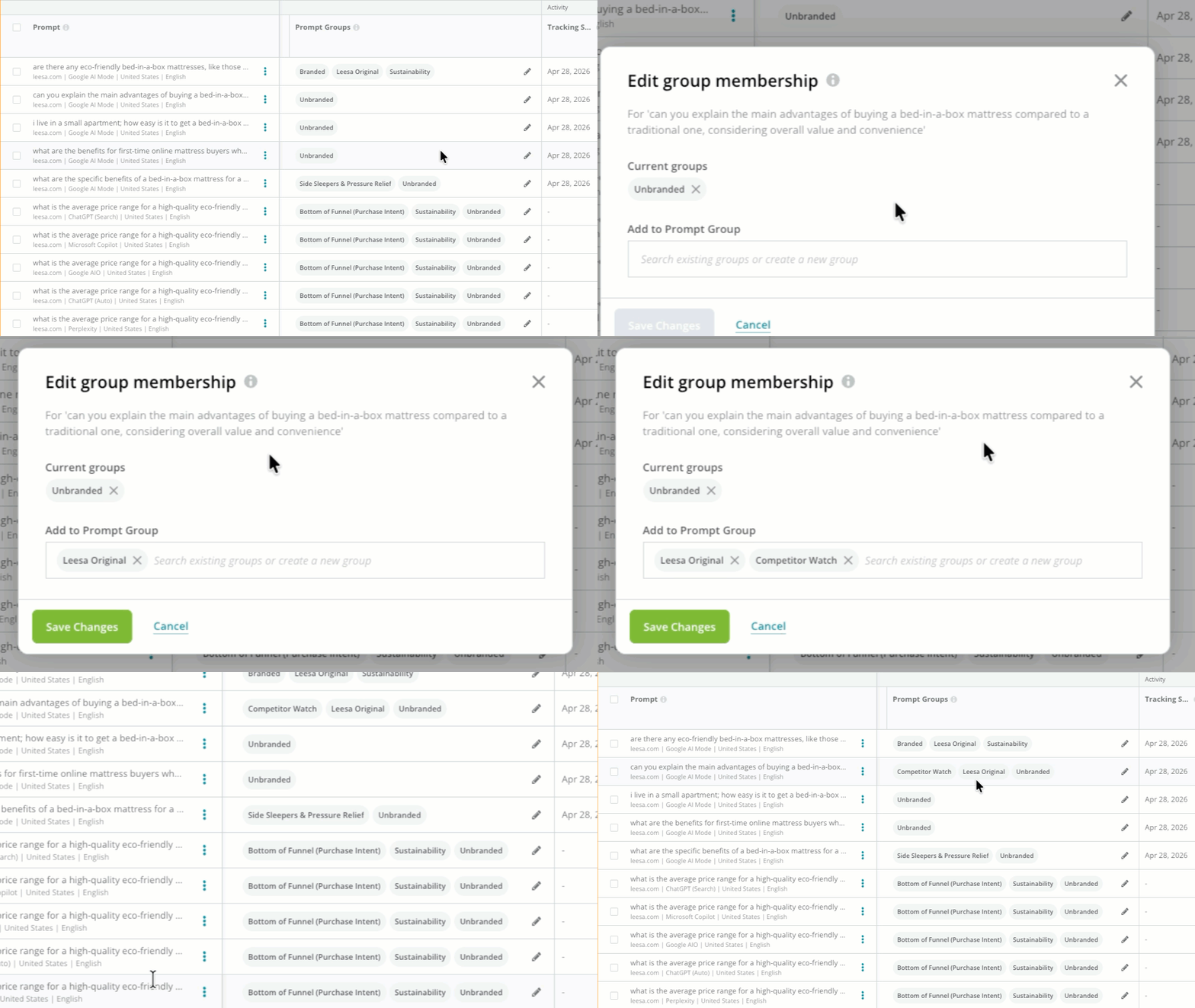
You can use the Prompt Groups column to view each prompt’s membership in your configured prompt groups. If you want to make changes to a prompt’s group membership:
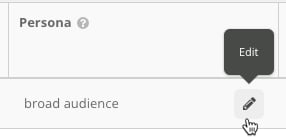
Click the Edit (pencil) icon.
Remove the prompt from any groups it is in under Current Groups.
Use the Add to Prompt Group menu to add the prompt to any of your other prompt groups.
In both the Topics and Prompts tabs, you can click the three-dots icon above the table and select Download XLSX to export a Microsoft Excel file with all the data in either table.

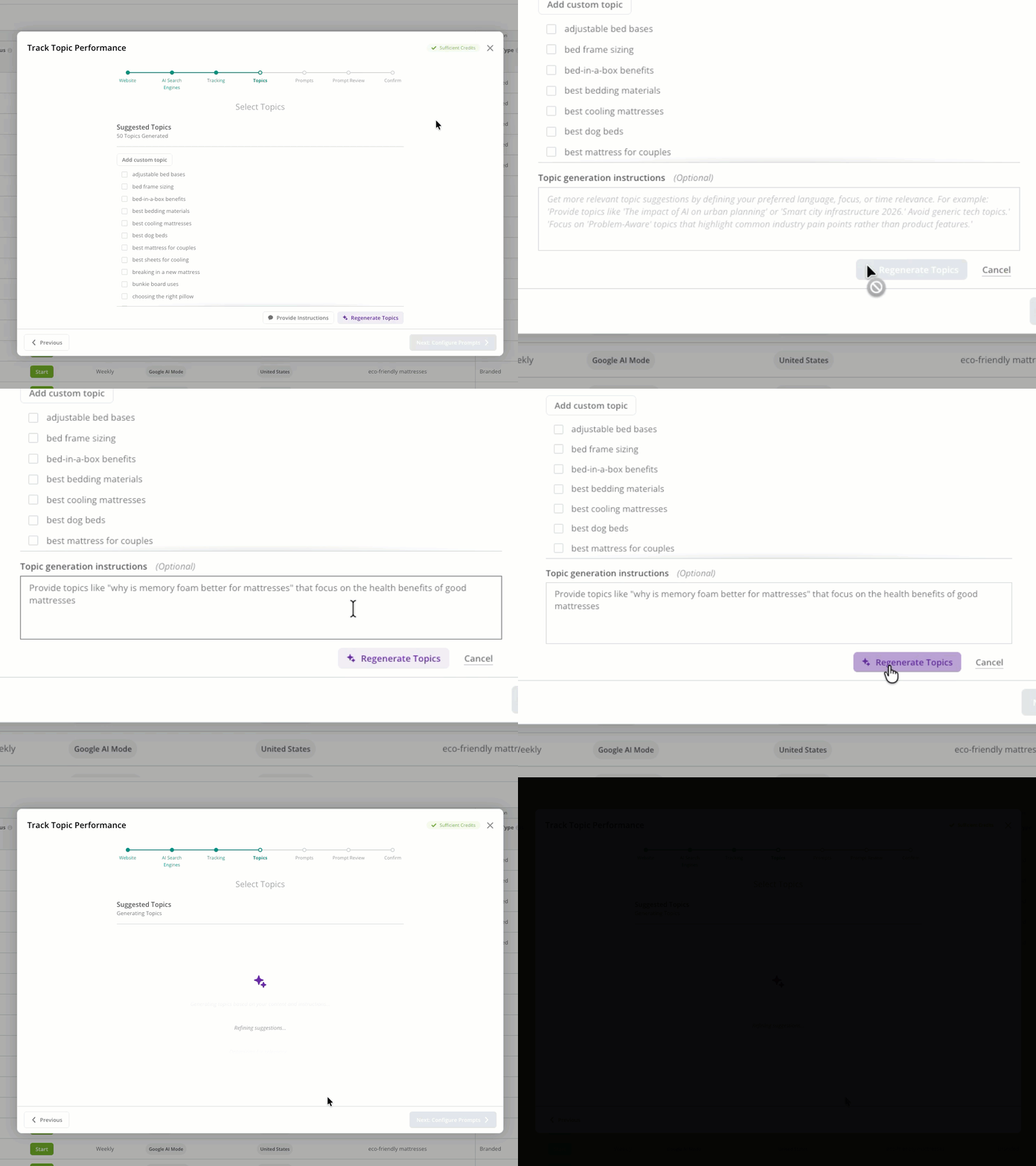 Guide Conductor’s AI Use the Provide instructions button to provide guidance to Conductor’s AI engine. For example: Establish hard constraints “Focus 100% on B2B topics; exclude any B2C or retail-oriented ideas.”
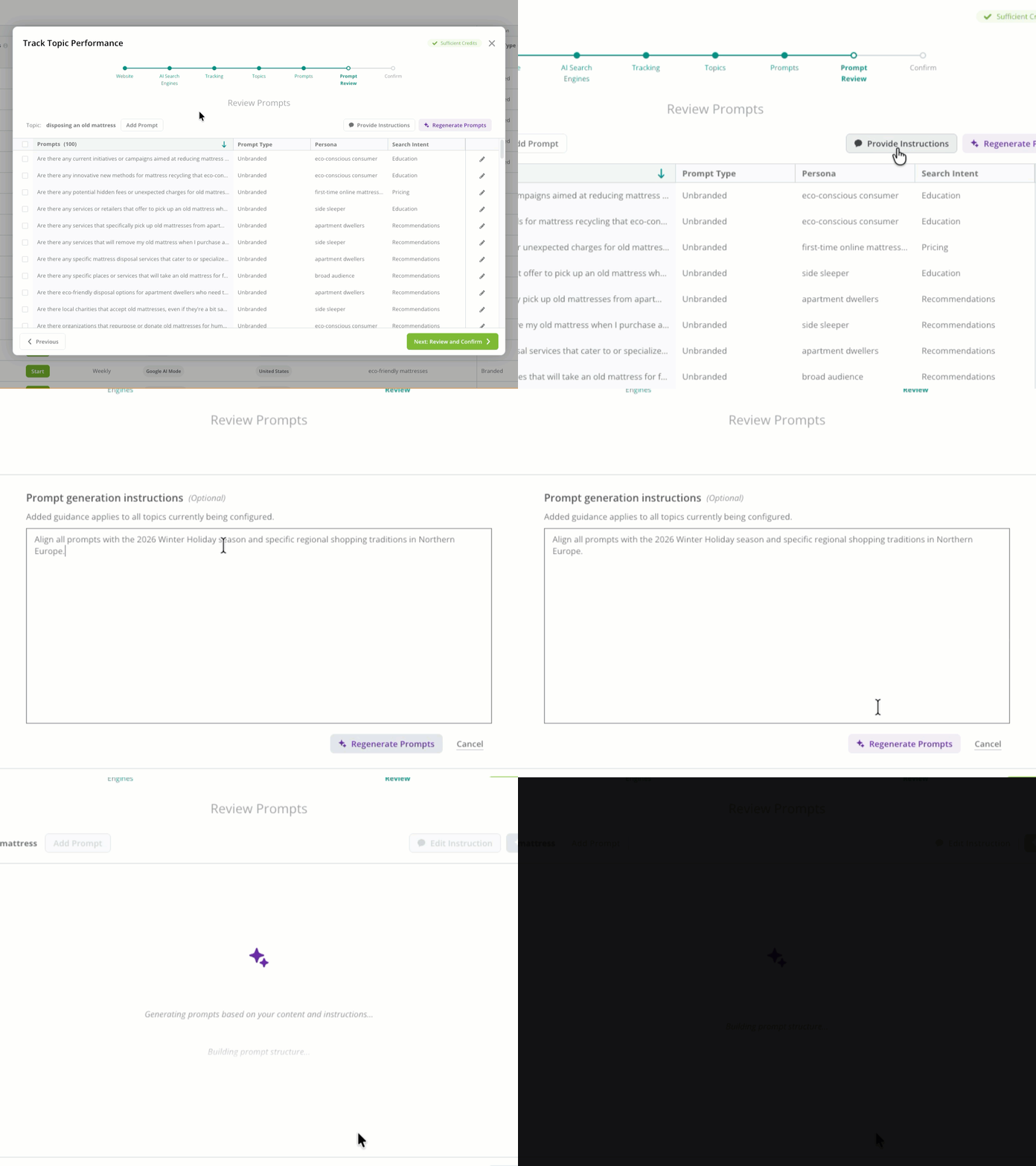 Guide Conductor’s AI Use the Provide instructions button to provide guidance to Conductor’s AI engine. For example: