
Keyword Group Basics
What is a keyword group?
What is a keyword group?
What is a standard keyword group?
You can build standard keyword groups in Conductor from a list of keywords you want to group together.What is a smart keyword group?
Conductor builds smart keyword groups from rules you determine to group keywords together along certain parameters. Smart keyword groups update automatically when you add or deactivate keywords in Conductor.Why would I use one type of keyword group over another?
You create standard keyword groups manually by grouping individual keywords into a keyword group. Standard keyword groups are best to use when you have a distinct set of keywords you want to track together. For example, if you have specific terms you used in a recent campaign or made site improvements for, and you want to track those specific terms, use a standard keyword group.Smart keyword groups automatically add keywords that you’re tracking that match rules you’ve defined. Smart keyword groups are best to use when you want to capture keywords that match certain criteria.How often does Conductor update smart keyword groups?
How often does Conductor update smart keyword groups?
How many rules can I create for a single smart keyword group?
How many rules can I create for a single smart keyword group?
Creating Keyword Groups
Where do I create and manage keyword groups in Conductor?
Where do I create and manage keyword groups in Conductor?
How many keyword groups can I create?
How many keyword groups can I create?
What keyword groups should I create?
What keyword groups should I create?
Branded Terms
Create a smart keyword group using rules to include any keywords that contain your brand in them. This helps you measure your rankings for keywords where the searcher is deliberately seeking out your brand.Non-Branded Terms
Create a smart keyword group using rules to exclude any keywords that contain your brand in them. This helps you measure your rankings for keywords where the searcher could discover your brand through your content.Product Lines
Create a group for each of your business units or product lines. For example, if your organization is a bank, you may want to create groups such as “Products - Credit Cards” and “Products - Checking”.Smart or standard groups could work equally well depending on the types of keywords you are trying to group.Projects and Campaigns
Create a standard keyword group that contains the keywords for a specific SEO project or campaign, such as page optimizations, new content, and link-building programs. You can even use groups to track progress for implementing changes by creating standard keyword groups such as “Not Optimized” or “Optimized.”More Ideas
Here are more ways you can use keyword groups.-
Search Intent or Buyer’s Journey
Create groups to represent different stages of the buyer’s journey.
- Discovery Keywords Keywords that contain “who,” “what,” “when,” “where,” “why,” or “how.”
- Comparative Keywords Keywords that contain “vs,” “best,” “or,” or “compare.”
- Transactional Keywords Keywords that contain “price,” “how much,” or “cost.”
- Mission-Critical Keywords Create keyword groups grouped around important keywords or a leader’s favorite keywords (e.g., “CEO’s Favorite Keywords”), to separate as an individual report.
- Top Revenue Terms Monitor your top revenue-generating and highest-traffic keywords as a group so you can keep watch that their performance improves or remains steady.
- Seasonal Create groups for seasons, holidays, or special events such as Black Friday. For example, an e-commerce website may group “Season - Summer” keywords like “beach towels” and “sunscreen” in order to plan optimization efforts ahead of the season search volume spikes.
- Competitive Terms Create a “Competitive Terms” keyword group with keywords where you are trying to outperform your competitors. You could also add keywords where your competitors are performing well but you are not to a “Competitive Gaps” keyword group to use as a project.
- Paid Search Terms Create a standard group with keywords you are bidding on and use it to build synergy between your organic and paid search efforts.
- PR Watchlist Is the PR team about to do a media blitz? Create a keyword group for related keywords and monitor ranking before, during, and after the PR initiative.
What are best practices for creating and using keyword groups?
What are best practices for creating and using keyword groups?
- Reference your website navigation Base your keyword groups on your website navigation. This will give you a sense of familiarity on how your groups are set up in the platform.
- Use a naming convention across your keyword groups Follow a hierarchical naming scheme for your keyword groups to organize them properly. Reference how your navigation is organized by sections, main folders, and subfolders to try to mimic its naming organization.
- Create keyword groups around search intent You can also create intent-based keyword groups, which provide insight for often content-heavy keywords. An “Intent – Early” group can contain question-based keywords, an “Intent – Mid” group can contain comparison-based keywords, and an “Intent – Late” group can contain buying decisions or transactional queries like “cost of”, “pricing”, “buy”, “sale”, and so on. Read this article for more information about Search Intent.
- Be mindful when creating rules for smart keyword groups Always use the Preview button before you create a group to double-check the keywords that will be included in your group. For example, when you use a “contains” condition for “men” your group will also include keywords that include “women”. Make sure your rules are specific and groups are only pulling the keywords relevant for that certain group.
- Reminder: keyword groups are configured for accounts—not web properties Keep in mind that when you create keyword groups, it is for an entire account and will apply to multiple web properties. Therefore, it is a good practice to create groups that are applicable for all domains instead of targeting just one.
What characters and symbols can I use in keyword group names?
What characters and symbols can I use in keyword group names?
- Commas ,
- Double quotes ”
- Left bracket [
- Right bracket ]
Are keyword group names case sensitive?
Are keyword group names case sensitive?
Can I create location- and device-specific keyword groups?
Can I create location- and device-specific keyword groups?
Should all of my keywords belong to a keyword group?
Should all of my keywords belong to a keyword group?
Can I create sub-keyword groups within keyword groups?
Can I create sub-keyword groups within keyword groups?
Managing Keyword Groups
Why are there more keywords in my keyword group than I thought I added?
Why are there more keywords in my keyword group than I thought I added?
| Web Property | Search Engine | Location | Device |
| abc.com | Google (US / English) | United States | Desktop |
| xyz.com | Google (US / English) | United States | Smartphone |
| abc.com | Google (US / Spanish) | New York | Desktop |
| xyz.com | Google (US / Spanish) | New York | Smartphone |
| abc.ca | Google (Canada / English) | Toronto | Desktop |
Can I export a list of my keyword groups from Conductor?
Can I export a list of my keyword groups from Conductor?
- Go to the Keyword Groups activity in the Settings menu.
- Highlight and copy the contents of the table.
- Open a Microsoft Excel spreadsheet.
- Follow the path Edit > Paste Special… .
- From the “As” menu in the form that appears, select the “Text” option and click OK.
- Repeat steps 2 through 5 for each “page” of the table, adding new rows to the spreadsheet as you go.
Can I export a list of keywords in a keyword group?
Can I export a list of keywords in a keyword group?
- Go to the Keywords report.
- Filter the report to show only the keywords in the keyword group you are interested in.
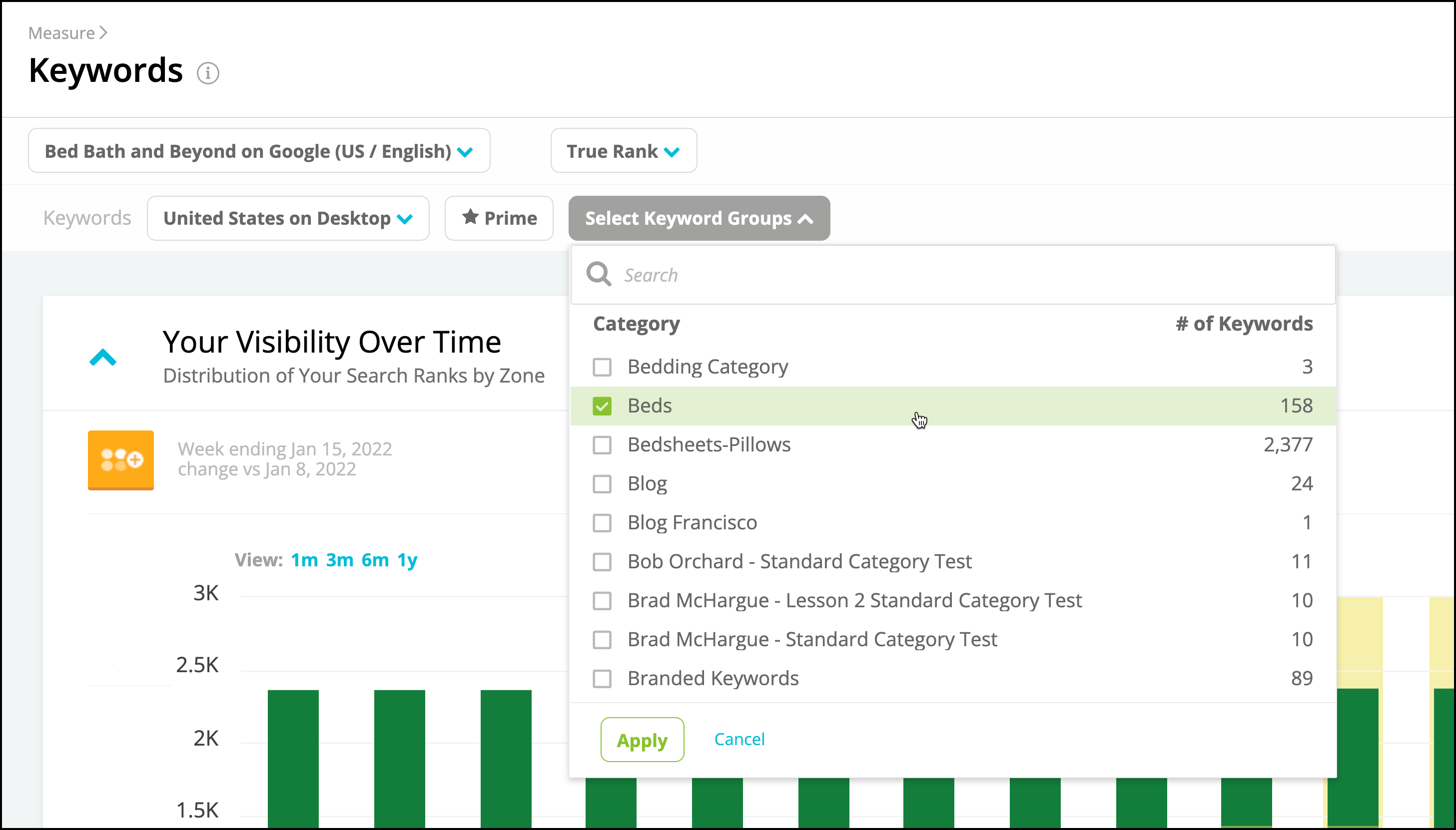
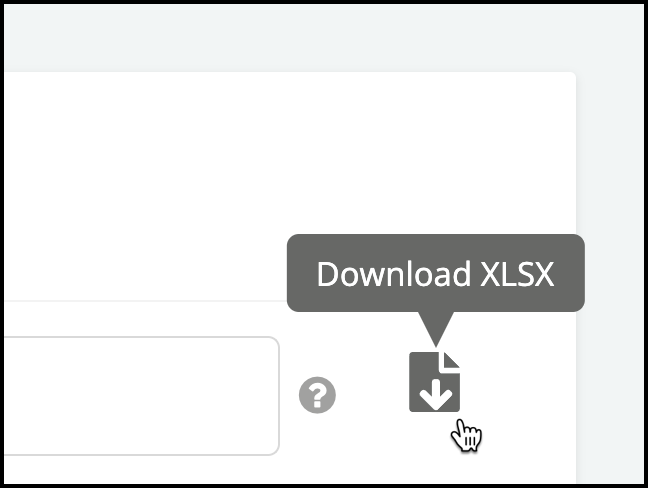
- Export the table:
Can I delete keyword groups with the Keyword Bulk Update tool?
Can I delete keyword groups with the Keyword Bulk Update tool?
Can I update a standard keyword group without updating one keyword at a time?
Can I update a standard keyword group without updating one keyword at a time?
- Create a new standard keyword group with Keyword Bulk Update
- Remove keywords from a standard keyword group
Create a new standard keyword group with Keyword Bulk Update
- In the Settings menu, click Keyword Bulk Update.
- Select the web property for which you want to create a new keyword group.
- From the options on the screen, select “Use only the search engines and locations where I currently track keywords”.
- Click Download Active Keywords.
- Enter data into the spreadsheet:
- In the Active (A/I) column, enter A for each row.
- In the Keyword column, enter the keywords that you want to add to your new standard keyword group. Refer to this FAQ to learn what characters and symbols Conductor allows in keyword names.
- In the Search Engine column, enter the search engine you want to track the keyword on. Refer to this FAQ to confirm which engines and languages Conductor supports.
- In the Standard Keyword Group column, enter the name of the keyword group you want to create and to which you want to add each of these keywords. Note that Conductor is case sensitive for values in the Standard Keyword Groups column. Make sure you use consistent casing for keyword group names to avoid creating errant duplicate keyword groups.
- In the Preferred URL column, leave each row blank.
- In the Prime column, enter N for each keyword.
- In the Daily Reporting column, leave each row empty.
- In the Location column, enter the location in which you want to track this keyword. Refer to this FAQ to download the list of supported locations and devices.
- In the Device column, enter the device on which you want to track this keyword. Refer to this FAQ to download the list of supported locations and devices.
- Save and close the Excel file.
- Back in Conductor, click Next.
- Select Merge with Existing Keywords.
- At the bottom of the page, choose your saved Excel file in the Upload Spreadsheet section.
- Click Next (You will have a chance to review your changes before they are saved to your account).
- Verify the change details presented. In the Change Details table, green indicates additions to your keyword data and red indicates items that will be removed. If you want to make changes to the data or to the method of upload, click Back and make the necessary changes.
- After viewing and verifying that all the changes are correct, scroll to the bottom of the Change Details table and click Save.
Remove keywords from a standard keyword group with Keyword Bulk Update
- In the Settings menu, click Keyword Bulk Update.
- Select the web property for which you want to create a new keyword group.
- From the options on the screen, select “Use only the search engines and locations where I currently track keywords”.
- Click Download Active Keywords.
- Update data in the spreadsheet:
- Use a filter on the Standard Keyword Groups column, to find the keyword group from which you want to remove keywords.
- For the keywords you want to remove from this keyword group, remove the appropriate keyword group from the Standard Keyword Groups column. If the keyword belongs to more than one standard keyword group, be sure to remove only the keyword group from which you want to remove this keyword.
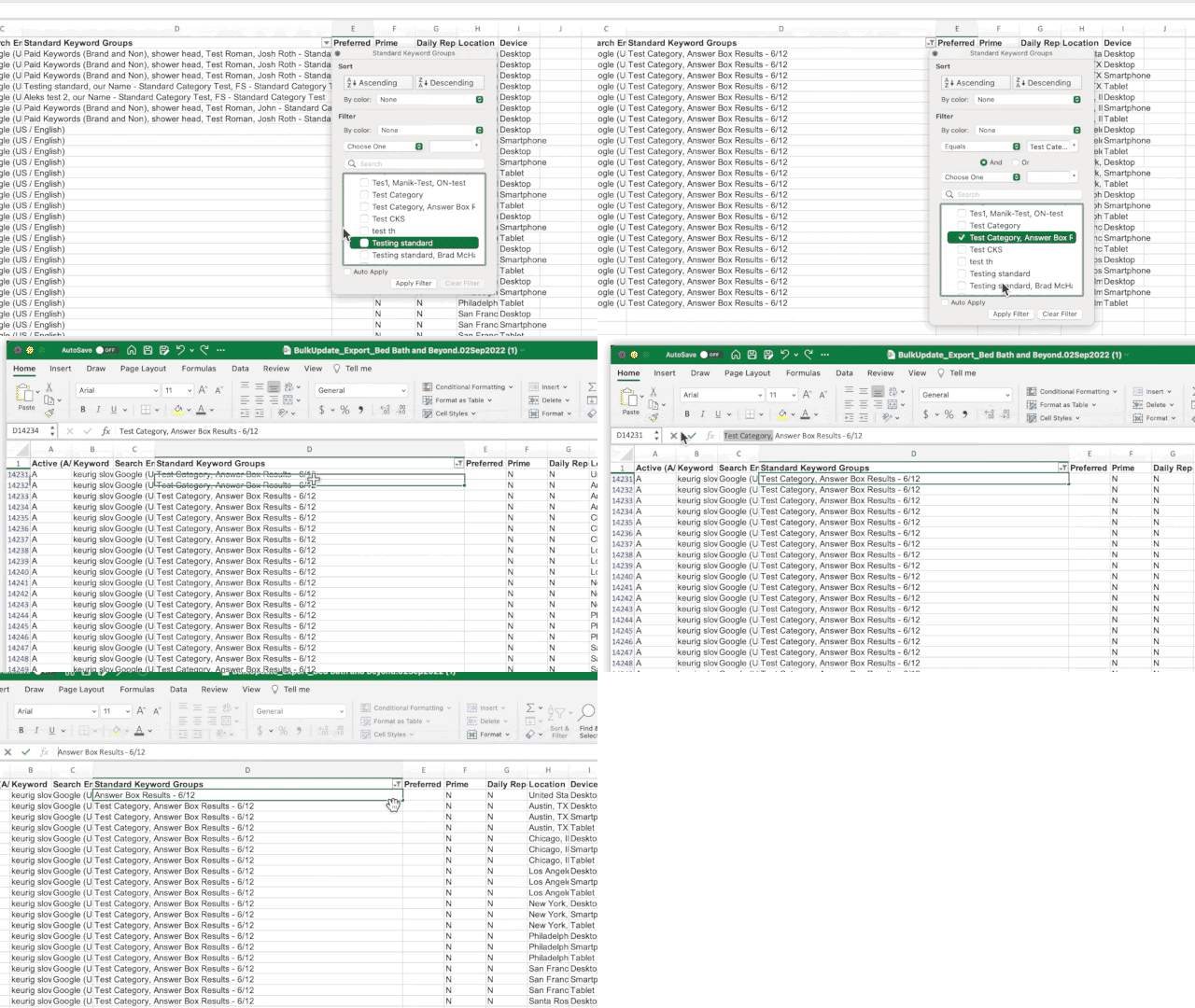
- Save and close the Excel file.
- Back in Conductor, click Next.
- Under Standard Keyword Groups, select Override Existing Keyword Groups.
- At the bottom of the page, choose your saved Excel file in the Upload Spreadsheet section.
- Click Next. (You will have a chance to review your changes before they are saved to your account.)
- Verify the change details presented. In the Change Details table, you should see: A row for each keyword you want to remove from the keyword group. The keyword group from which you are removing the keyword, highlighted in red to indicate that the keyword will be removed from the group
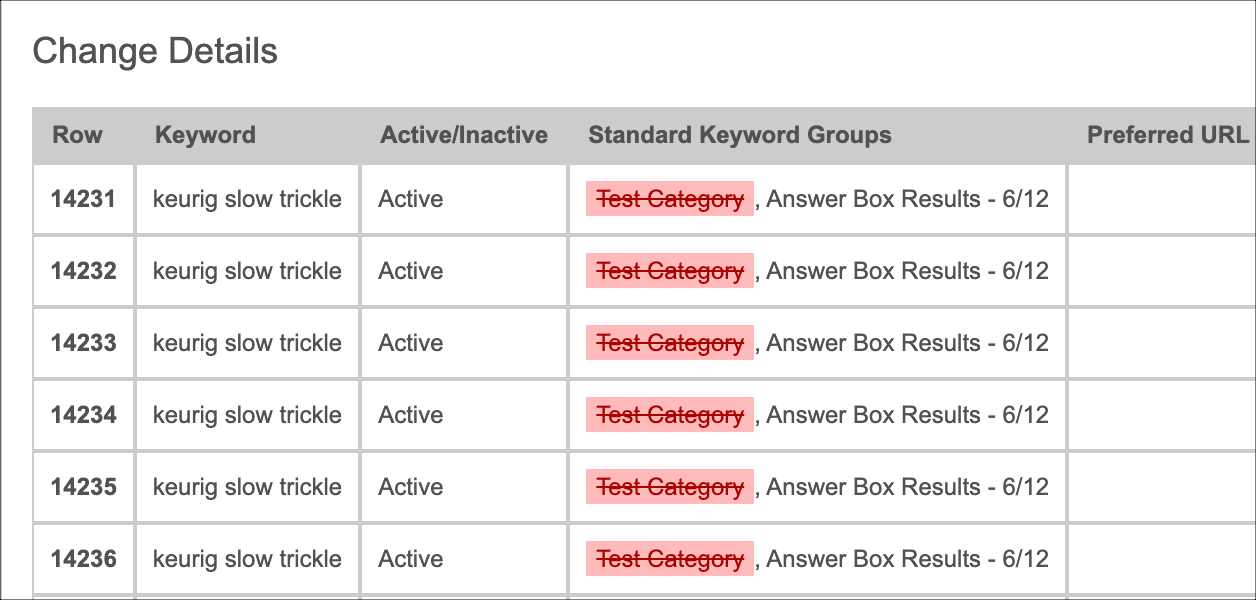
- If you want to make changes to the data or to the method of upload, click Back and make the necessary changes.
- After viewing and verifying that all the changes are correct, scroll to the bottom of the Change Details table and click Save.
Can I combine multiple keyword groups using AND logic?
Can I combine multiple keyword groups using AND logic?
- OR – any selected group. For example: choosing the
BrandedORUnbrandedkeyword groups includes keywords from either group. - AND – all selected groups. For example: choosing the
InsuranceANDEnglishkeyword groups includes only the keywords belonging to both groups.
The Keyword Groups Report
What is a Content Opportunity Score?
What is a Content Opportunity Score?