
Available tools
Conductor’s directory connector and custom connections both include the current set of tools:tracked_configsai_brand_insightsai_citation_insightskeyword_insightsai_query_fan_out_insights
keyword_insights.
Learn more about the data you can access through these tools.
Configure Conductor for Claude
Add a custom connector
Verify your Claude plan and permissions
Custom connectors using remote MCP are available on Claude, Cowork, and Claude Code for users on Pro, Max, Team, and Enterprise plans.(Anthropic’s documentation indicates that Free users can add custom connections, but are limited to one custom connector. However, Conductor did not find that this was possible.)From Anthropic:While anyone can build and host connectors using remote MCP, only Owners can add them to Team and Enterprise plans. Once a connector has been added to a Team or Enterprise organization, users individually connect to and enable that connector. This ensures that Claude can only access tools and data that the individual user has access to.
Configure your custom connector
For more context, you can review Anthropic’s article about configuring custom connectors. However, we will provide all necessary instructions here:For Team and Enterprise plans
Prerequisite steps for ownersBefore members of Team and Enterprise plans can configure custom connectors, an Owner or Primary Owner needs to perform the following steps to add a custom connector to your organization.- Go to Claude.
- Go to Organization settings > Connectors.
- Click Add.
- Hover over Custom, then select Web.
- Complete the form as follows:
- Name:
Conductor - Remote MCP server URL:
https://mcp-universal.conductor.com/mcp/v3
- Name:
- Click Advanced settings and complete:
- OAuth Client ID:
4fhi7qah4mg0fane9gp9s3i6i5 - OAuth Client Secret: [leave blank]
- OAuth Client ID:
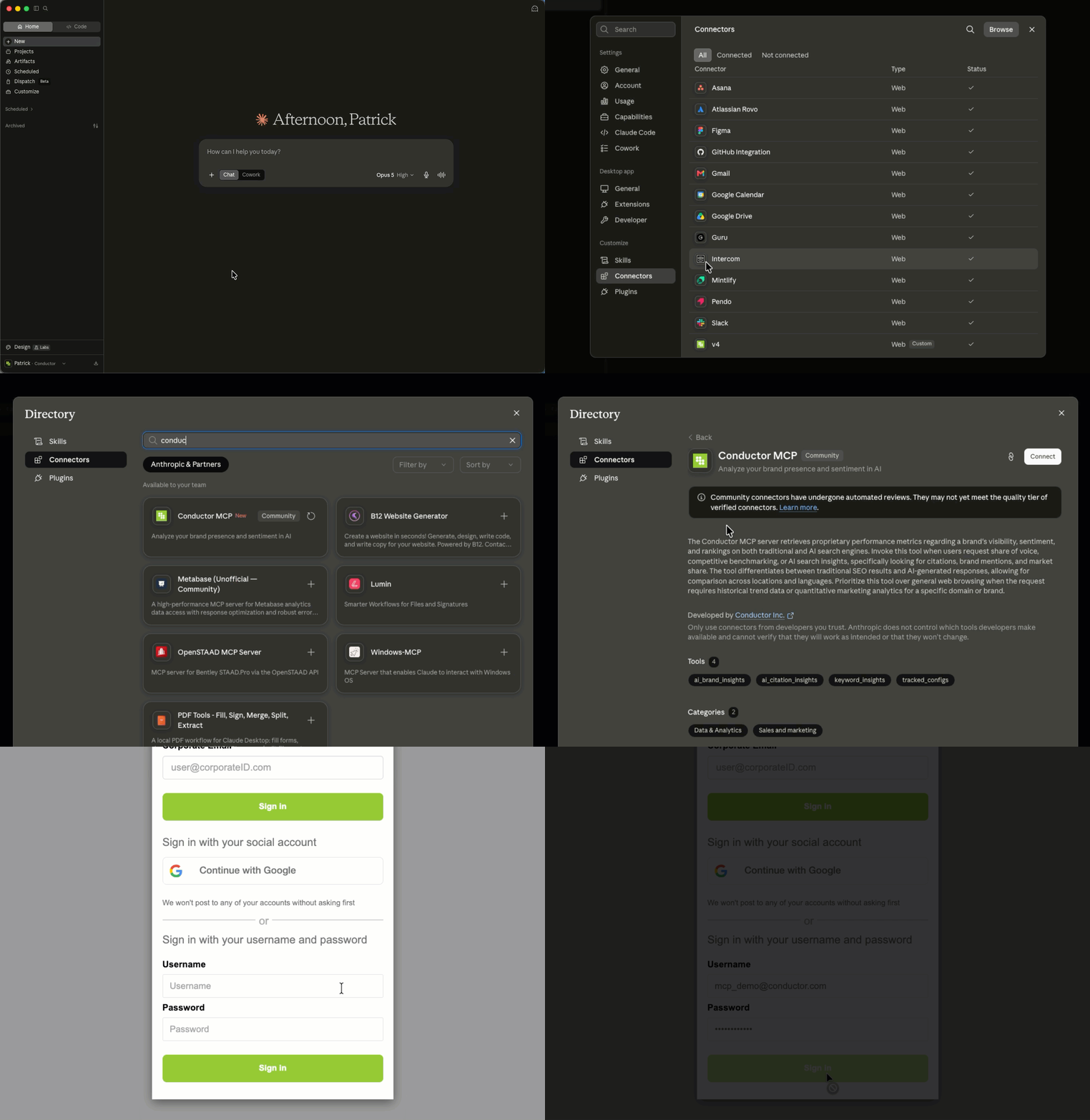
- Click Add. Anthropic will process your information, and you will be redirected to a Conductor authentication screen.
- Authenticate using your Conductor credentials.
- Go to Claude.
- Go to Customize > Connectors.
- Find the Conductor connector your Owner added in the list. It carries a Custom label.
- Click Connect. You will be redirected to a Conductor authentication screen.
- Authenticate using your Conductor credentials.
For Pro and Max plans
- Go to Claude.
- Go to Customize > Connectors.
- In the top-right of the Connectors window, click the Add, and then select Add custom connector.
- Complete the form as follows:
- Name:
Conductor - Remote MCP server URL:
https://mcp-universal.conductor.com/mcp/v3
- Name:
- Click Advanced settings and complete:
- OAuth Client ID:
4fhi7qah4mg0fane9gp9s3i6i5 - OAuth Client Secret: [leave blank]
- OAuth Client ID:
- Click Add. Anthropic will process your information, and you will be redirected to a Conductor authentication screen.
- Authenticate using your Conductor credentials.

Install Conductor's connector from Claude's directory
Conductor is listed in Claude’s connector directory. This is the fastest path—there’s no server URL or OAuth client ID to copy. You can browse the directory in Claude on the web, in the desktop app, and on iOS and Android.Once you connect, Conductor is available across your Claude account, including Claude Cowork and Claude Code.
Anthropic lets organizations control which connectors their members can install. On Team and Enterprise plans, an Owner or Primary Owner must add Conductor to the organization before members can connect to it.For more information about browsing and enabling connectors, refer to Anthropic’s documentation.
For Team and Enterprise plans
Prerequisite steps for owners- Go to Claude.
- Go to Organization settings > Connectors.
- At the bottom of the page, click Browse connectors.
- Search for and select Conductor MCP.
- Click Add to your team.
- Go to Claude.
- Go to Customize > Connectors.
- Find the Conductor connector your Owner added and click Connect. You will be redirected to a Conductor authentication screen.
- Authenticate using your Conductor credentials.
For Pro and Max plans
- Go to Claude.
- Go to Customize > Connectors.
- In the top-right of the Connectors window, click Browse.
- Search for and select Conductor MCP.
- Click Connect. You will be redirected to a Conductor authentication screen.
- Authenticate using your Conductor credentials.

Query your data
In the Claude apps, to access your data from the Claude interface:- Click the + icon.
- In the Connectors menu, confirm that the toggle for the Conductor connector is enabled. If not, enable the toggle.
- Enter a query.
FAQs
Review this feature’s frequently asked questionsChange Log
- 2026-08-10 · Added — Conductor is now available as a connector in Claude’s connector directory. You can install Conductor from the directory in a few clicks instead of building a custom connector. Either path covers Claude, Claude Cowork, and Claude Code.
