Alerts notify you about all important changes that happen on your website.
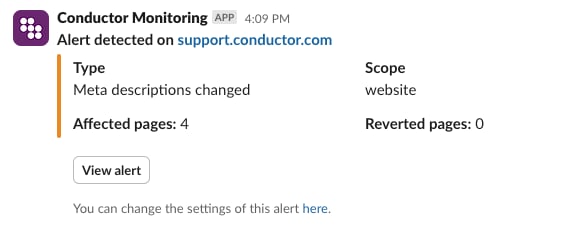
Alerts notify you about all important changes that happen on your website. By default, you receive them via email, but you can also get them via Slack.The Conductor Monitoring Alerts consist of two different concepts:
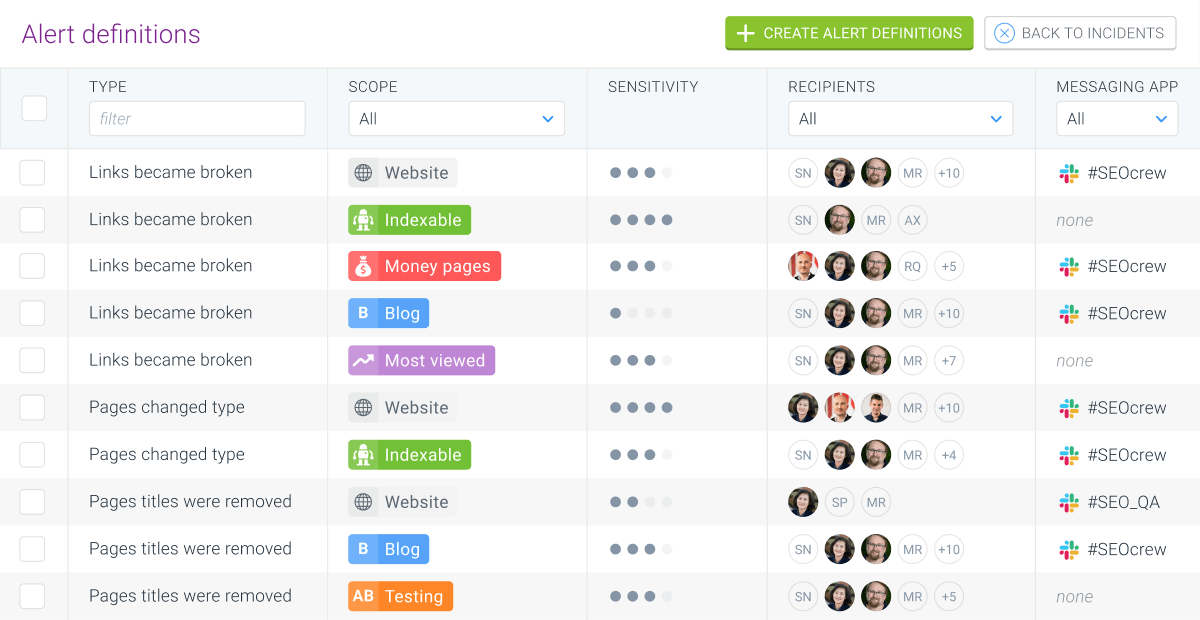
Alert definitions are specific configurations of an alert.An alert definition consists of the following parameters that can be configured:
Alert type and trigger
Scope
Sensitivity
Recipients
Slack
When adding a website, Conductor Monitoring comes with a default set of alert definitions to ensure that you are alerted about the most important changes and issues on your website without having to configure the alerts at all.However, you can also fully customize these default alerts and create as many additional alert definitions with different configurations as you need.
You can read more about how to configure the alert definitions here: Configuring Alerts
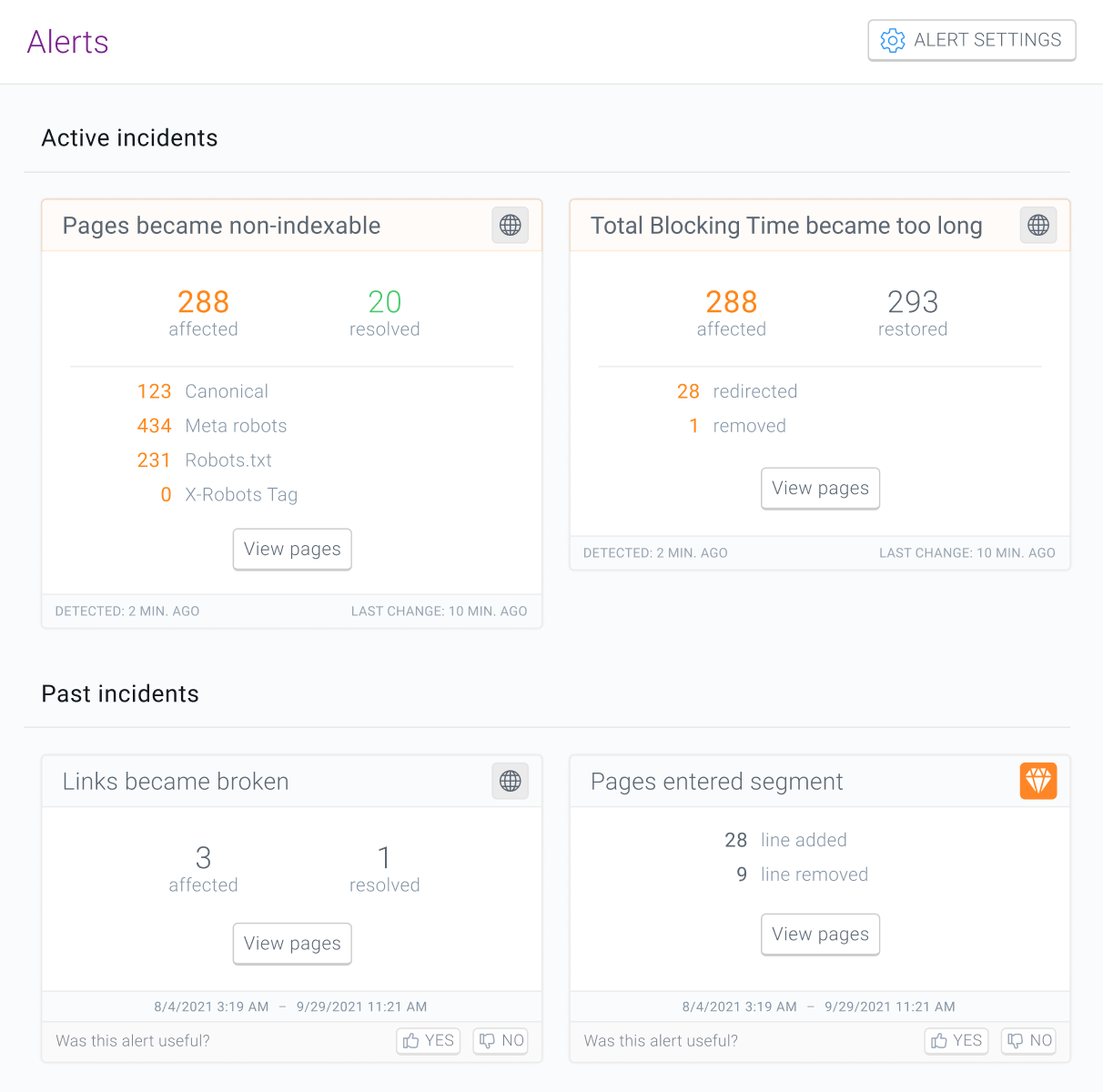
Alert incidents refer to the specific events that occur on your website and trigger an alert based on your alert definitions.You can always find active incidents (incidents that are currently happening on the website) and past incidents when going to Alerts in Conductor Monitoring.
Alerts and Tracked Changes are two distinct features of Conductor Monitoring.The Tracked Changes feature allows you to view all changes that Conductor Monitoring has detected on your website. Depending on your plan, you can track changes historically up to 60 months back.Alerts are proactively sent by Conductor Monitoring when important changes are happening on the website, allowing you to react to these changes in time. Alerts are sent if the type of the change and the impact it has on the website or selected segment meet the alert configuration.
The best practice for the use of Conductor Monitoring Alerts is to not get alerted about every single change that is being detected on the website, as not all changes are important enough to require an alert.
If you need data about all changes that Conductor Monitoring has detected on the website, you can always get it using Tracked Changes.
An alert opens when an incident occurs on the website that triggers the alert based on the alert definition.You can always find all the incidents that Conductor Monitoring is currently detecting on the website in the Active incidents section of the Alerts screen.When an incident isn’t active anymore, the alert closes. There are two reasons why an alert closes:
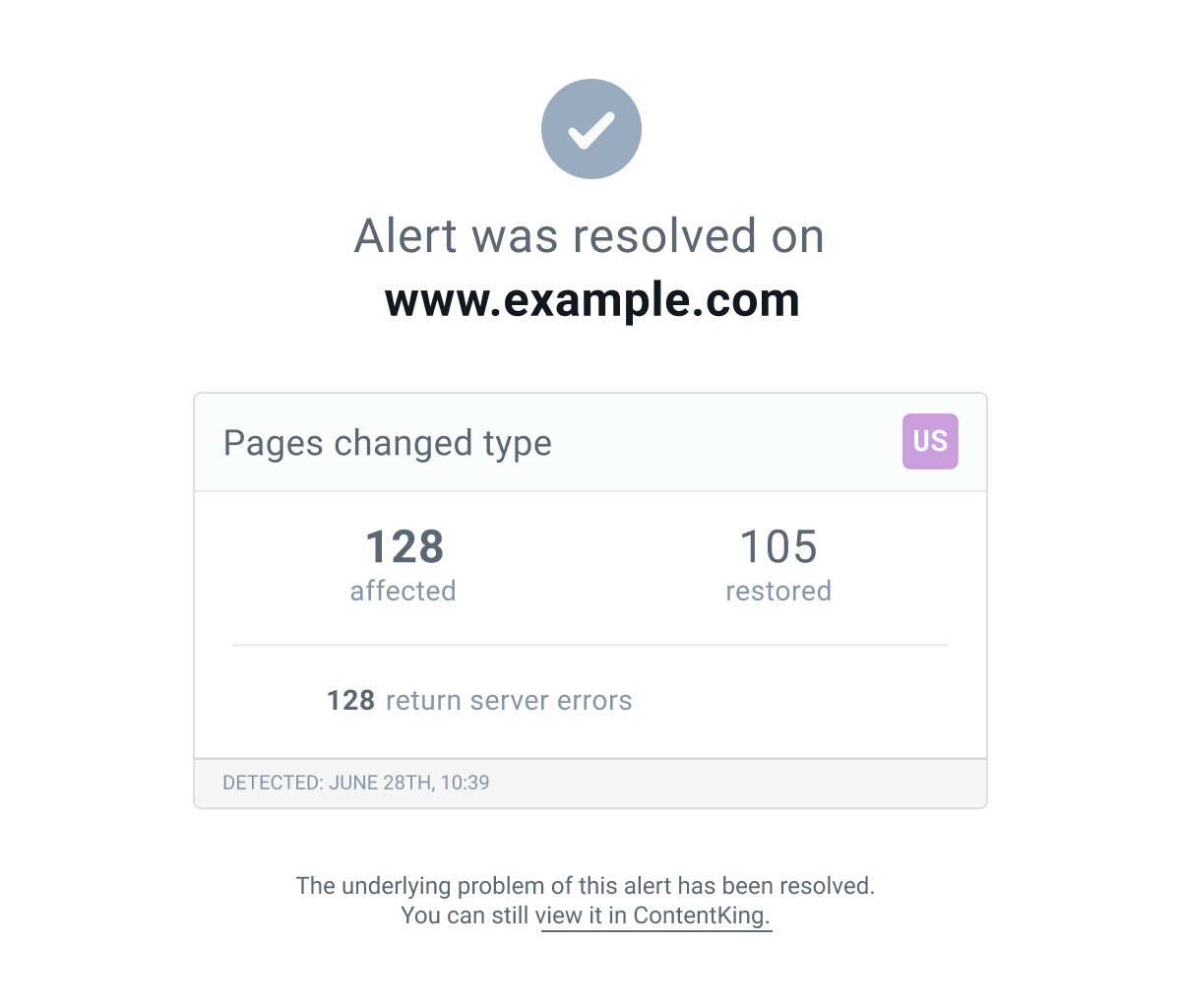
The problem is resolved (or the change is reverted) on all affected pages. In this case you receive a second email and Slack notification explaining that the alert was resolved.
No changes to the alert incident (newly affected or resolved pages) are detected for 24 hours.
When an alert closes, it’s not being updated anymore and the incident moves from Active incidents to Past incidents in Conductor Monitoring. If Conductor Monitoring then finds a new page with that change, a new alert incident opens.
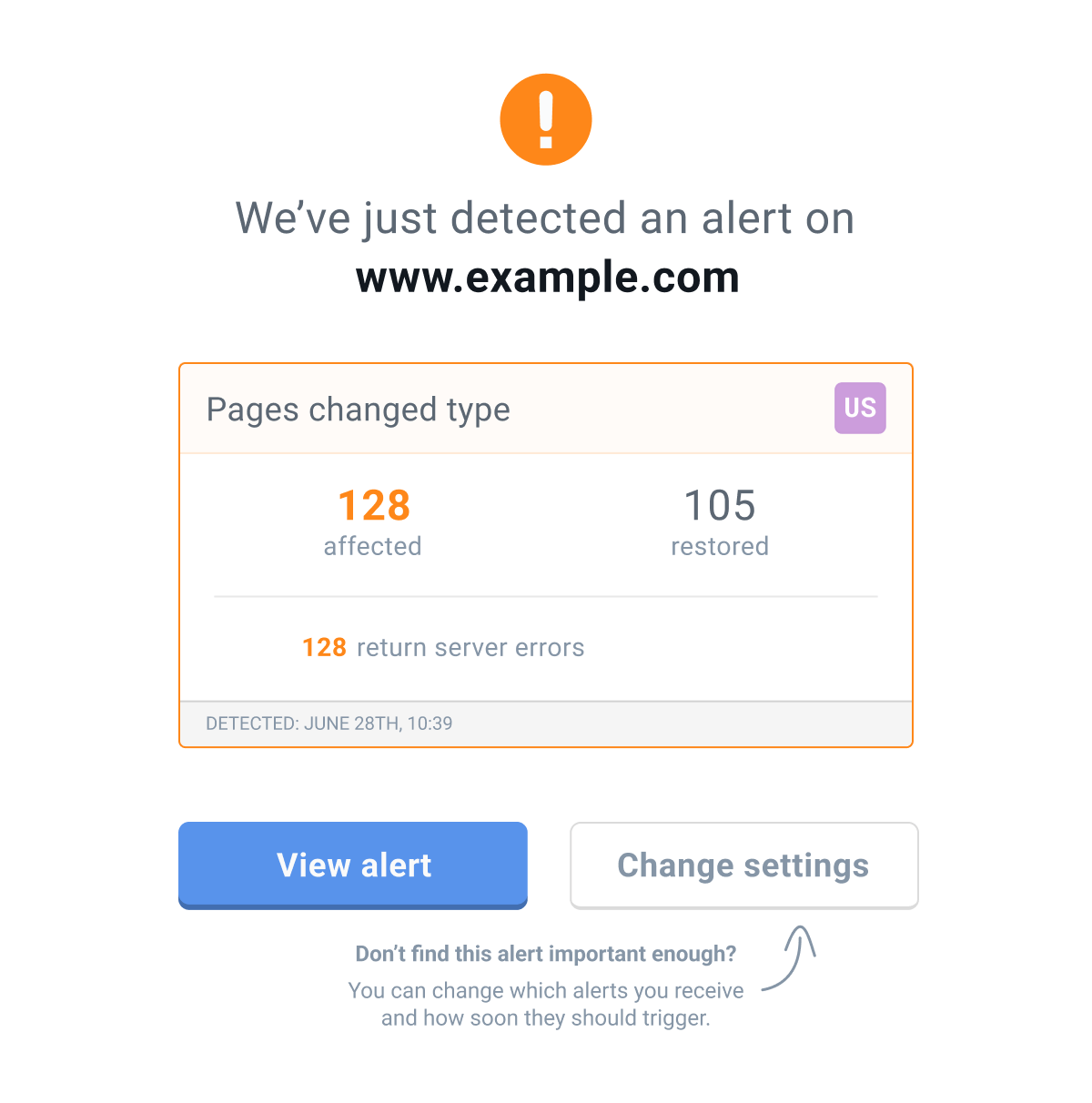
When you receive an alert via email, it will look like this:
Certain alert types also offer additional information about the changes.For example, in the screenshot above you can see that from the 2,231 pages that changed type, 658 were redirected, 812 were removed, and 761 returned server errors.When an alert is resolved, the email looks like this:
Rate our alerts to help us make them even more useful
In the second email and the second Slack notification that is sent when an alert is resolved, you can also leave us feedback about the alert.Your feedback is extremely valuable to us as it allows us to make the alerts even better and more useful for you.You can also leave feedback about the alerts on the Alert incidents screen in the app.
Can Conductor Monitoring send alerts to a webhook?
Conductor Monitoring sends alerts by email, to Slack, and to Microsoft Teams. The Microsoft Teams integration delivers alerts through an incoming webhook that you create in Teams. Conductor Monitoring doesn’t support sending alerts to other custom webhook endpoints. To retrieve alerts programmatically, use the List alerts endpoint of the Conductor Monitoring Reporting API.
Why are my alerts firing constantly or not at all?
Constantly firing alerts are usually caused by overly broad alert definitions, high sensitivity settings, or lack of segmentation—resulting in notifications for minor or irrelevant changes.Conversely, alerts may not fire at all if the alert definition is too narrow, sensitivity is too low, the affected pages are outside the alert’s scope, or recipients are not assigned. Always check your alert definitions, sensitivity levels, and segmentation to ensure alerts are targeted and actionable. You can also bulk edit alert settings to fine-tune their behavior as needed.For best results, use segments to focus alerts on important site areas and adjust sensitivity so only significant changes trigger notifications. Assign recipients based on their roles or site responsibility to avoid alert fatigue or missed issues. If you’re still experiencing issues, review the alert incidents and configuration screens to identify misconfigurations or gaps in coverage.
Assistant
Responses are generated using AI and may contain mistakes.