Alerts in Microsoft Teams
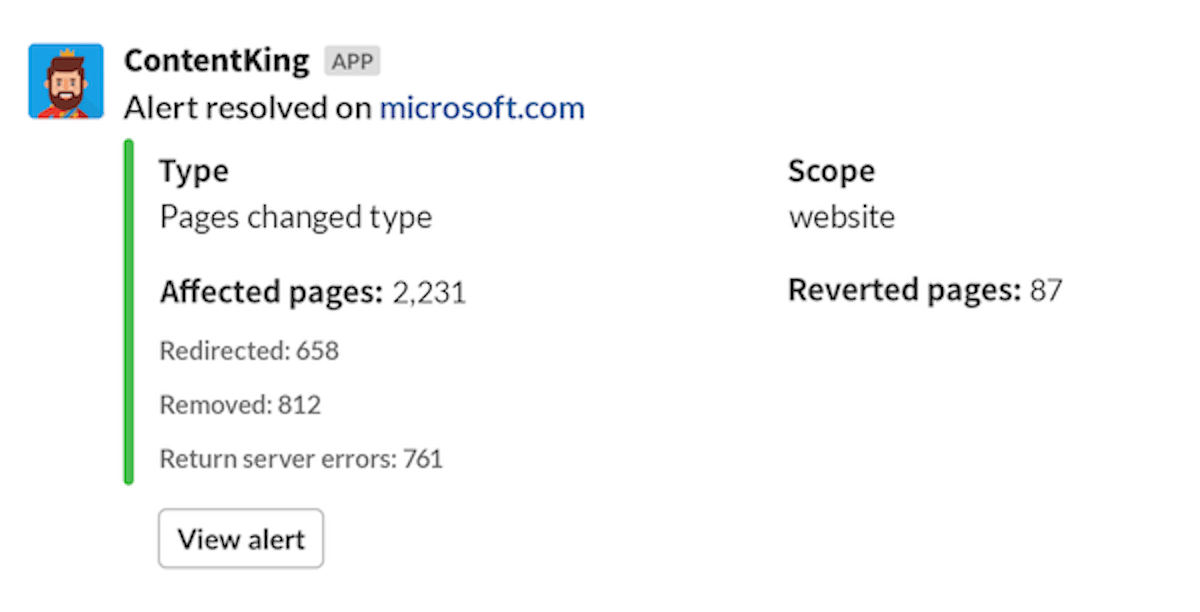
Alerts in Conductor Monitoring are sent when important issues and changes occur on your website. You can read more about the Alerts in a dedicated article about Alerts. When an alert opens, it will be delivered to Microsoft Teams right away, bringing your entire team up-to-speed at once and facilitating discussions: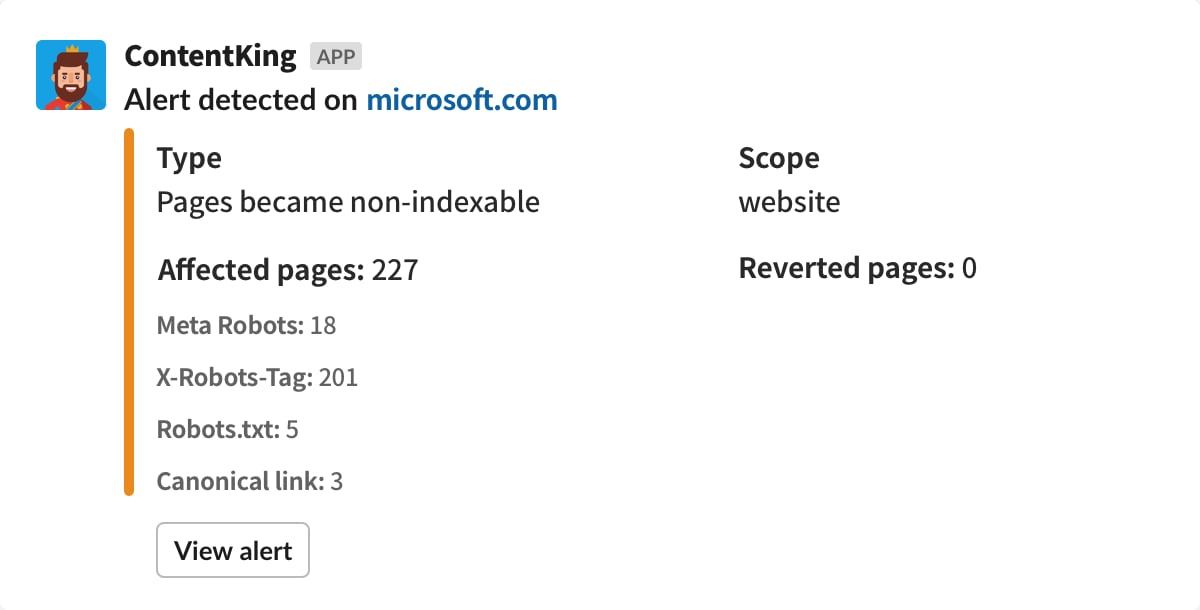
Connecting the Microsoft Teams integration
The process of configuring the Microsoft Teams integration consists of two steps:- Setting up a webhook workflow in Microsoft Teams
- Passing the webhook workflow to Conductor Monitoring
Setting up a webhook in Microsoft Teams
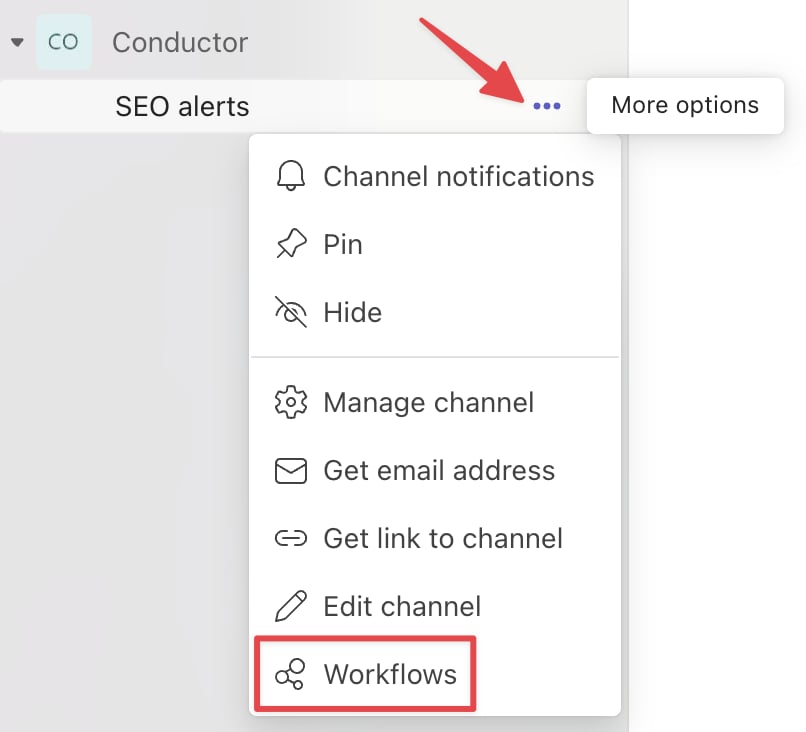
To set up a Microsoft Teams channel webhook:- In Teams, click the More options button on the channel and select Workflows.
- Select Post to a channel when a webhook request is received:
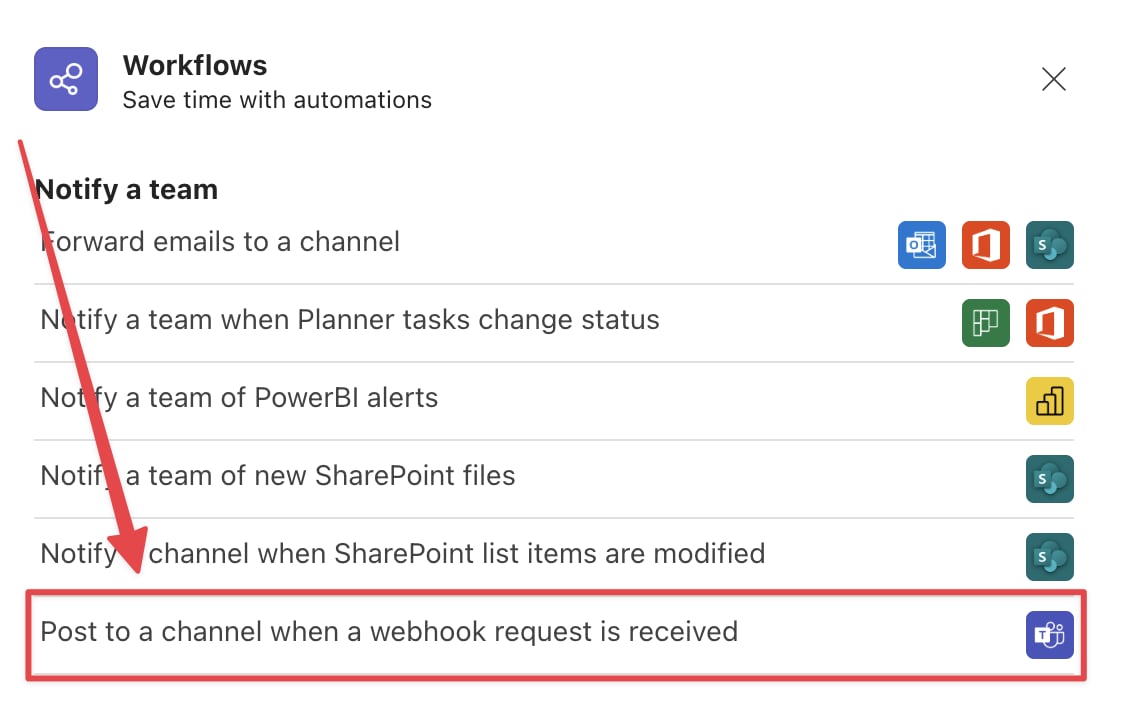
- Click Next.
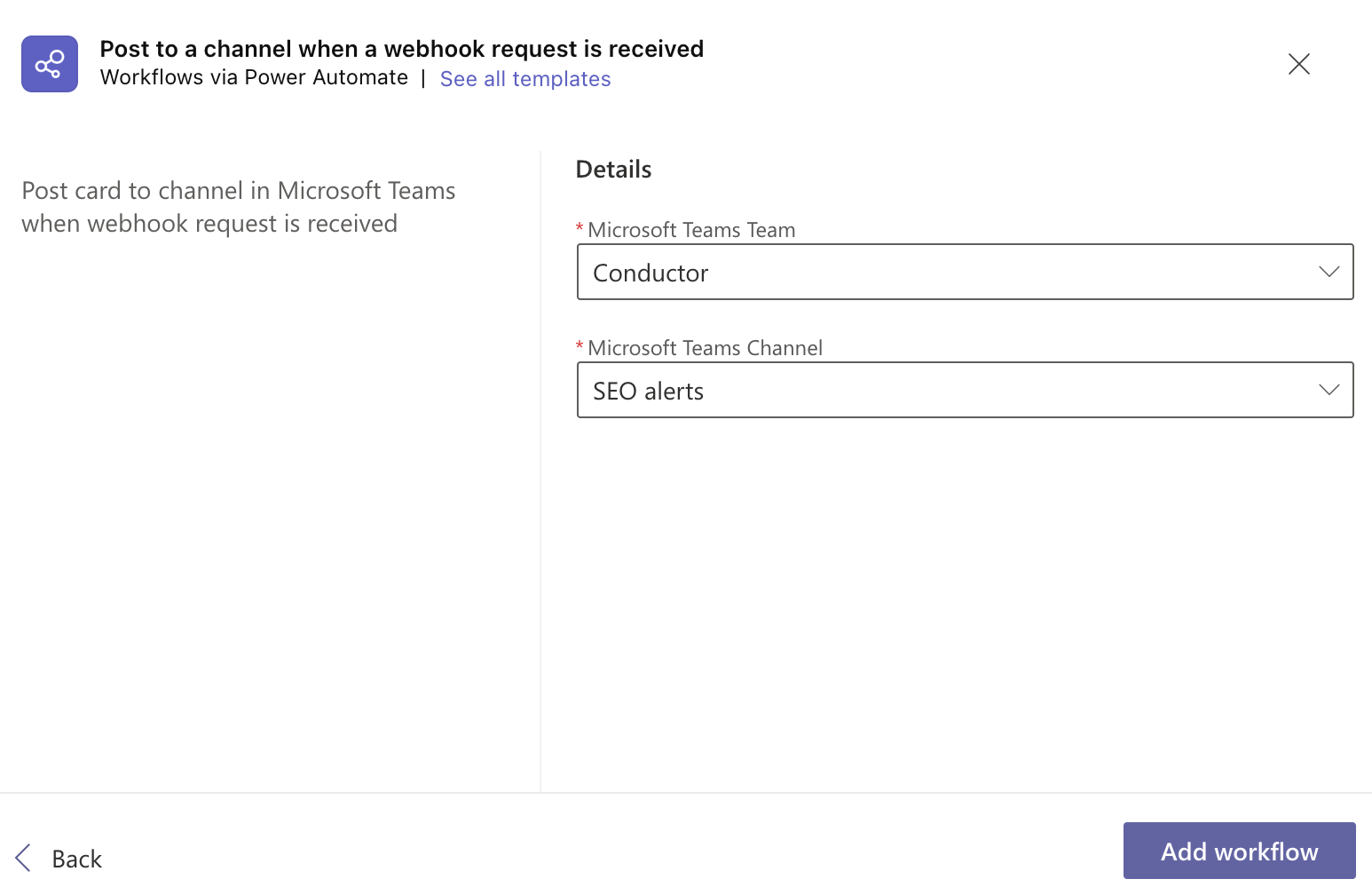
- Add a workflow to the specified Team and Teams Channel:
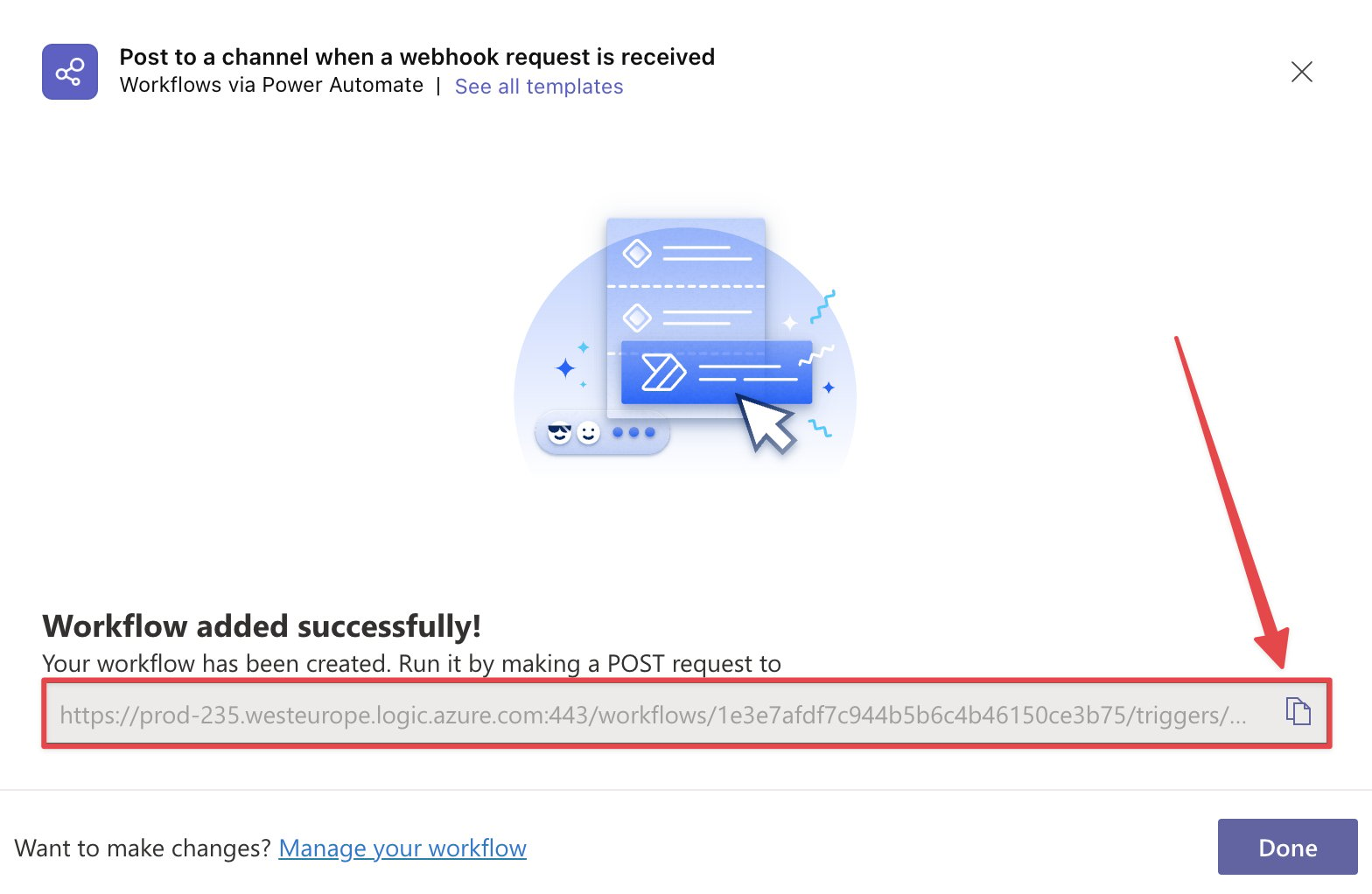
The Workflow is added.
- Copy the webhook link:
Passing the webhook to Conductor Monitoring
- Go to the Alerts screen and click the Alert settings button in the top-right corner.
- Select an alert.
- On the Alerts definitions screen select the alert(s) you want to send to Microsoft Teams.
- In the Messaging apps section select add Teams channel.
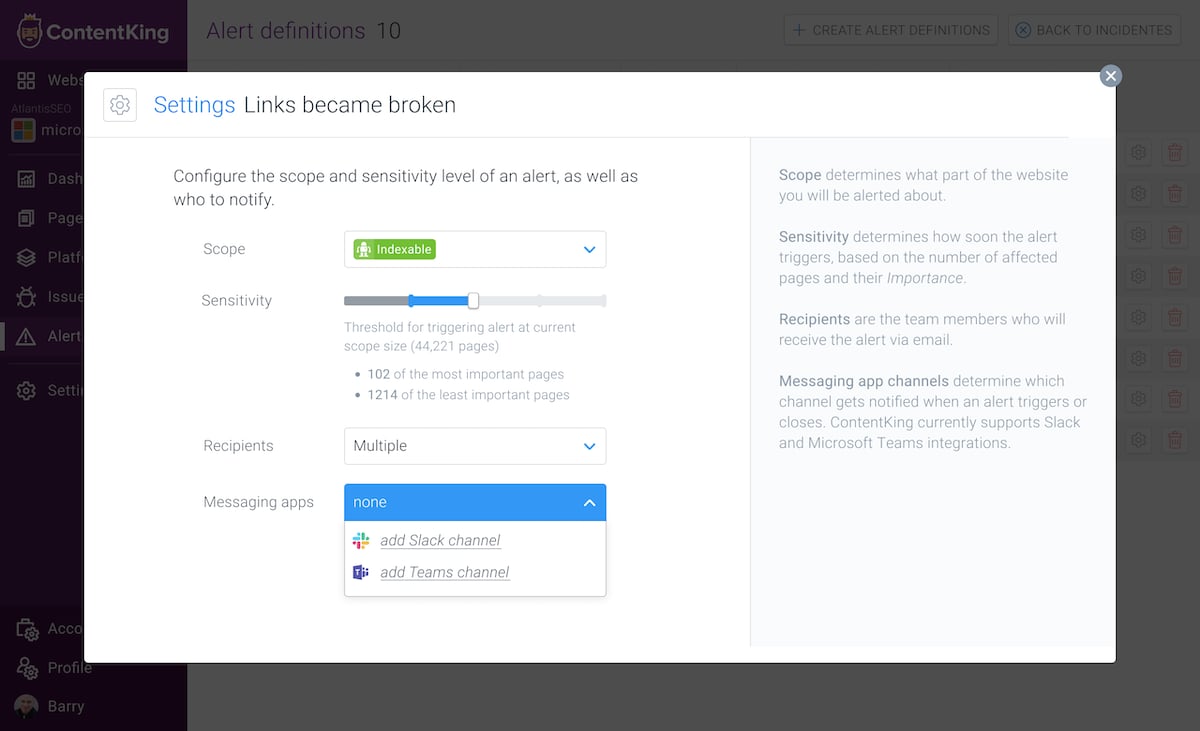
- Name how you want the channel to be displayed in Conductor Monitoring and enter the Webhook URL you generated in Microsoft Teams in the steps above.
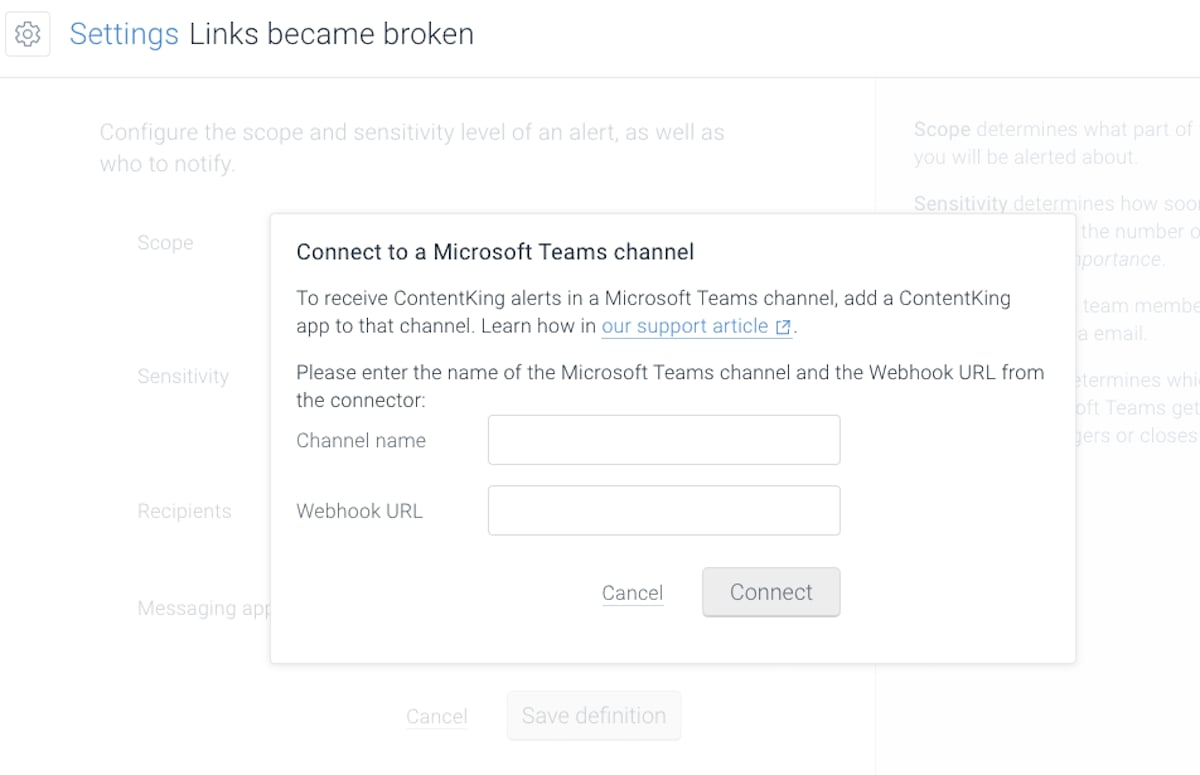
- Connect the Microsoft Teams channel to Conductor Monitoring by clicking Connect.
Adding Microsoft Teams channel to a new alert definition
To create new alerts that will be sent directly to the Microsoft Teams channel follow the steps below:- Go to the Alerts screen and click the Alert settings button in the top-right corner.
- On the Alerts definitions screen, click Create alert definitions.
- Select the alert type you want to create.
- Depending on the alert type you selected in the previous step, set the trigger(s).
- Set the scope, sensitivity level, and the recipients.
- Select Messaging app and choose the relevant Microsoft Teams channel.
- Click Save definition.
Adding Microsoft Teams channel to multiple alerts at once
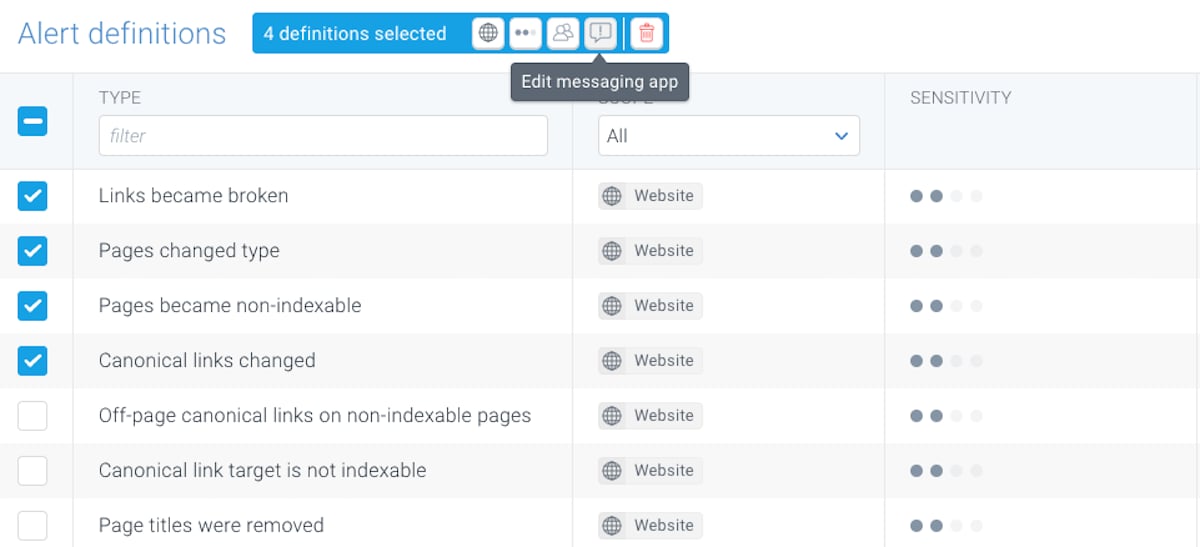
In just a few clicks you can connect the Microsoft Teams channel to multiple alert definitions.- Go to the Alert Definitions screen.
- Select all the Alerts you want to send to Microsoft Teams.
- Click the Messaging app icon in the toolbar at the top.
- In the window that appears select the Microsoft Teams channel you need.