This article describes two-factor authentication in our Conductor Website Monitoring product. You can also configure two-factor authentication in our Conductor Intelligence product. Learn how in this article.
Setting up 2FA
Authenticator app
We recommend using the Google Authenticator app for the 2FA in Conductor Website Monitoring, although other authenticator apps are also supported. Google Authenticator is available for iOS as well as for Android. Download Google Authenticator to your mobile device to get started.Setting up 2FA in Conductor Website Monitoring
- Go to the account you want to enable for 2FA and click Profile, and in the Two-factor authentication section click Set up 2FA.
- Scan the QR code in the pop-up window with the Authenticator app on your mobile device.
- Enter the 6-digit code generated by the Authenticator app into the field below.
Having trouble scanning the QR code?
If you are not able to scan the QR code with your mobile device, you can generate the 6-digit code manually. Here is how to do it:- In the window with the QR code, click Having trouble scanning the QR code?.
- You will see a screen with the following information: Account and Key.
- In the Authenticator app, select the Manual entry option and enter the Account and the Key from the Conductor Website Monitoring screen.
- Enter the 6-digit code generated by the Authenticator app into the field on the Conductor Website Monitoring screen.
Logging in with 2FA
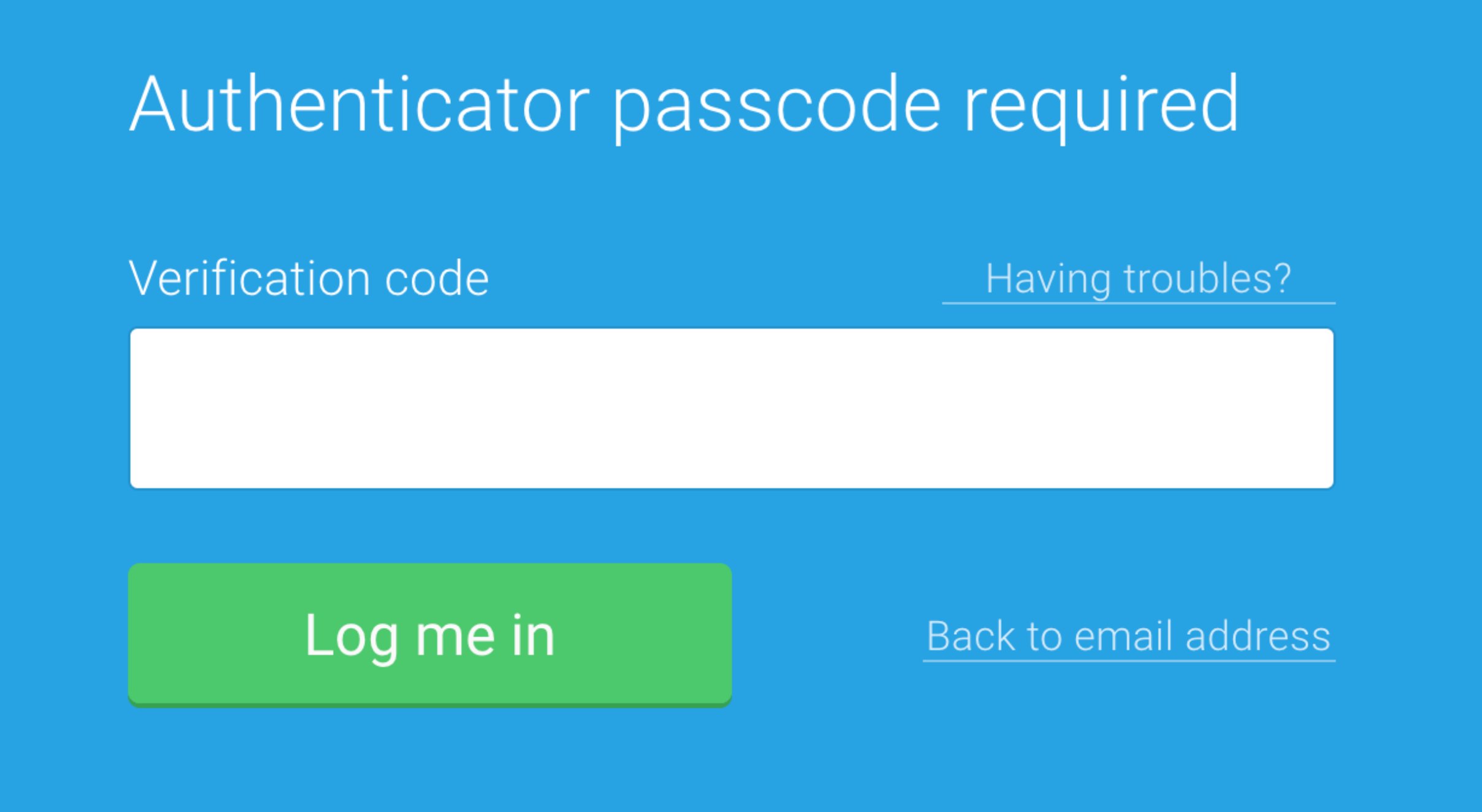
After you activate 2FA in your account, you will be required to enter a one-time code generated by the Authenticator app every time you log in. After entering your email address and password, you will see this screen: