Conductor also has an extension for our Conductor Monitoring product. This article is about Conductor Intelligence’s Google Chrome extension. If you are looking for information about our Conductor Website Monitoring extension, you can find it in this article.
Download and Access Conductor’s SEO Chrome Extension
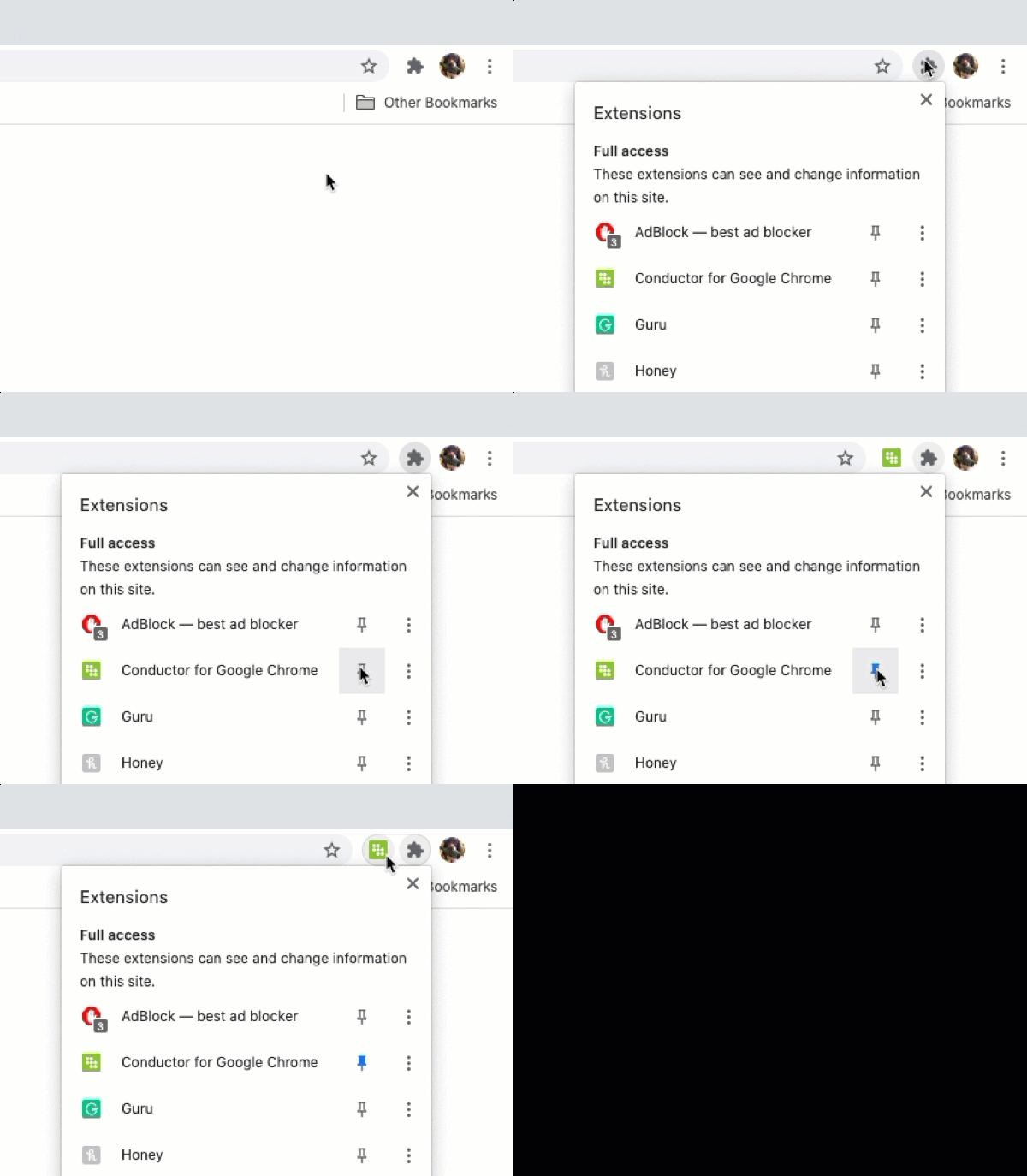
To add the extension to your Chrome browser, go to this Chrome Store page. After download, you can open the extension by clicking the Conductor logo from your extensions.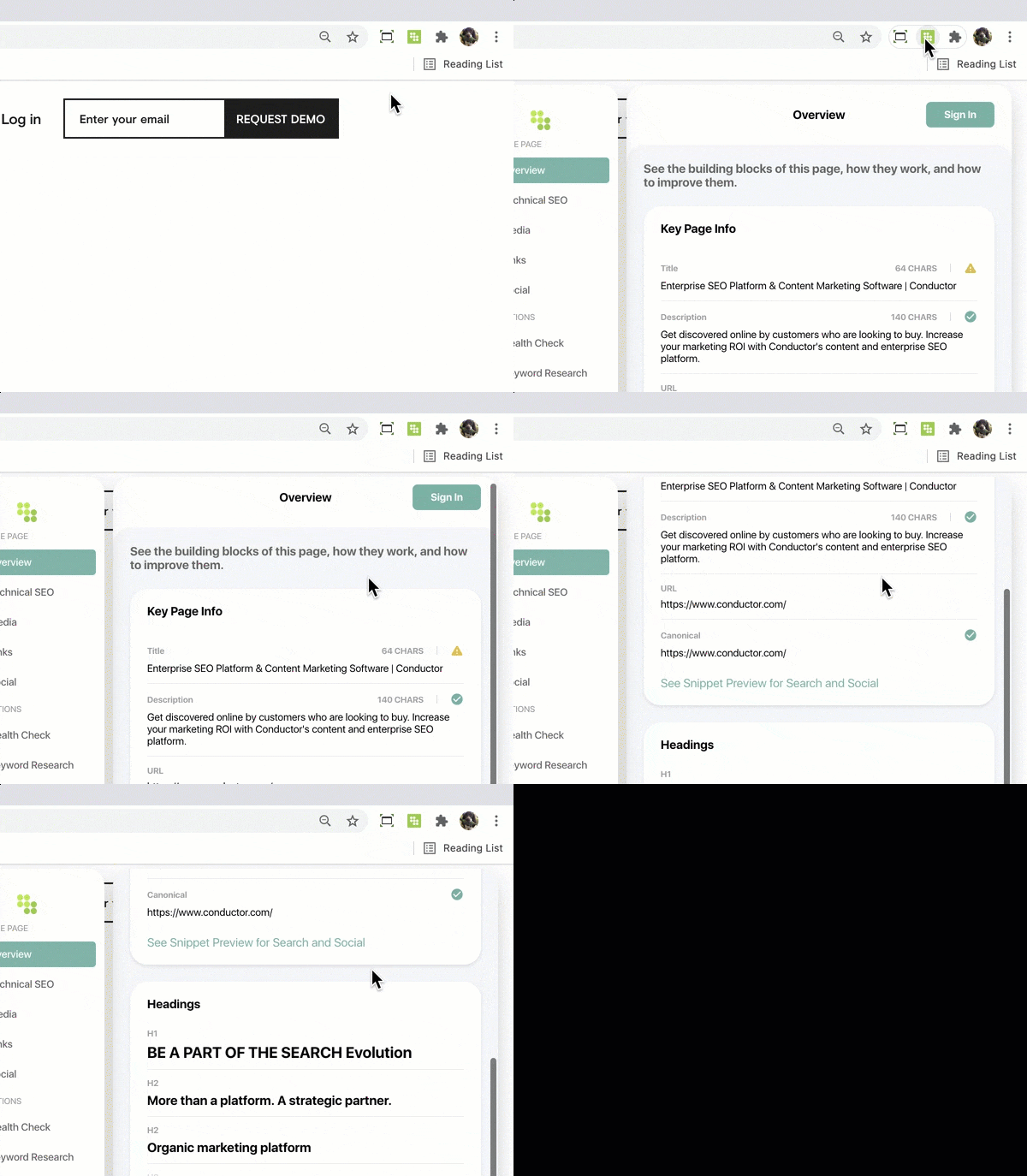
Access More Features by Signing In
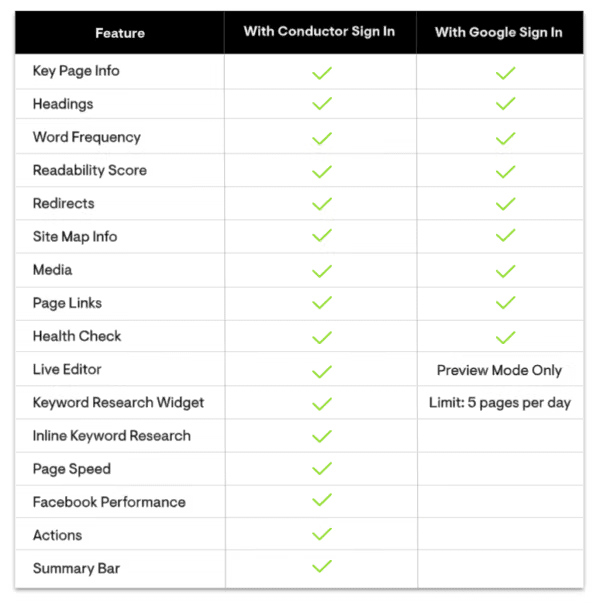
The activities and data you can access with Conductor for Google Chrome depend on the account you used to sign in. You can access all the features in this SEO Chrome extension using a Conductor account, or limited features using a Google account.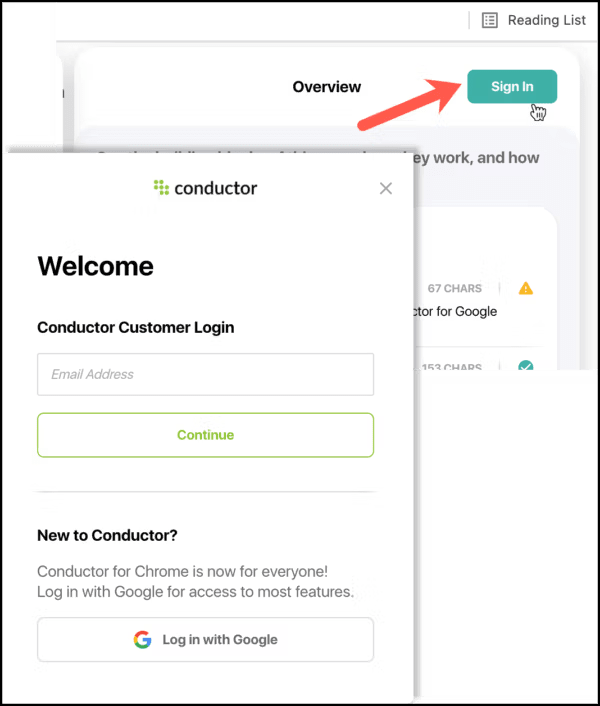
Review a Page’s Structure (Overview)
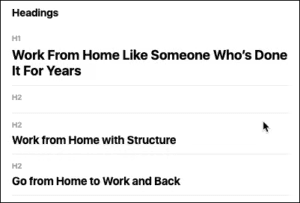
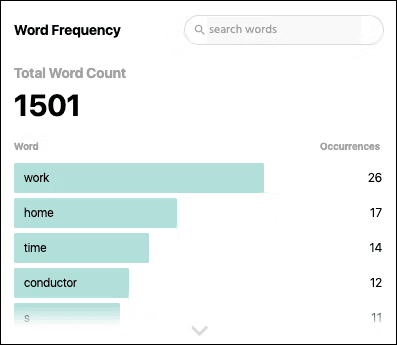
To better understand the basics about a page—its fundamental SEO elements, its structure, and its contents—you can use the Overview section. In this section you can review: Key Page Info. See the page’s SEO building blocks, including title tag, meta description, URL, and canonical page. Click the check icon or warning icon to read about recommendations for each item.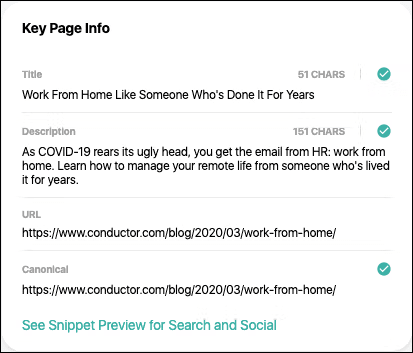
Identify Critical SEO Details (Technical SEO)
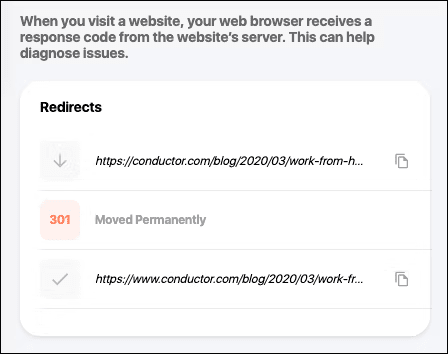
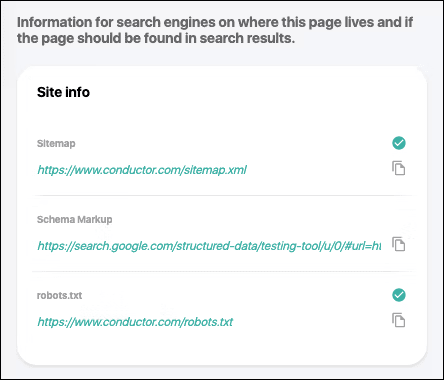
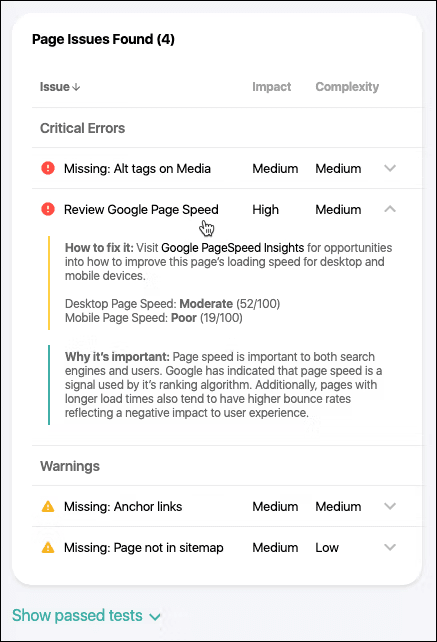
To dig into the technical health and performance of a page, you can use the Technical SEO section. In this section you can review: Page Speed. Use this metric to determine how quickly the page loads on mobile and desktop. Conductor receives these values directly from Google’s PageSpeed Insights API.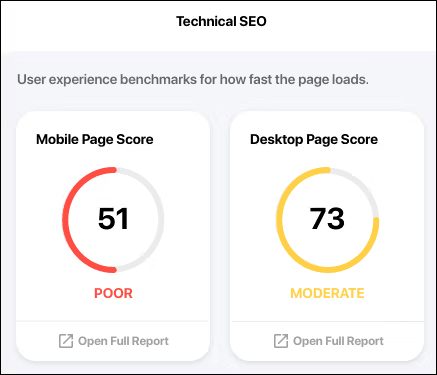
Browse the Alt Descriptions for Media (Media)
Learn about the images and video on the page by easily reviewing the alt tags for each. This can provide quick wins for pages with poor alt tags or no alt tags at all. Click the check icon or warning icon to read about recommendations for each item in the list.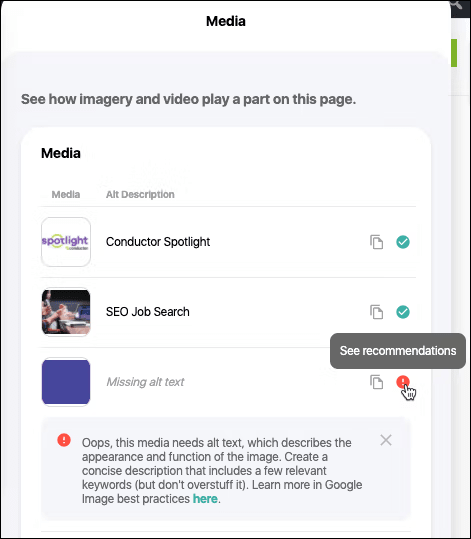
Review Details about the Links on a Page (Links)
See information about links on this page. Learn how many internal and external links appear, the anchor text for each, the destinations for each, and whether they are “nofollow”. Click the check icon or warning icon to read about recommendations for each link in the list.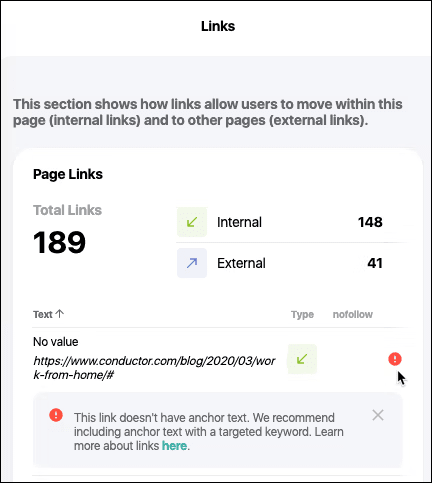
See How this Page Performs Across Different Social Metrics (Social)
The Social section provides you with information about how your page has performed across multiple metrics taken from Facebook’s API. Review what kind of engagements the page gets most. Metrics here reflect the all-time engagements the page has received. This feature is available only if you sign in with a Conductor account.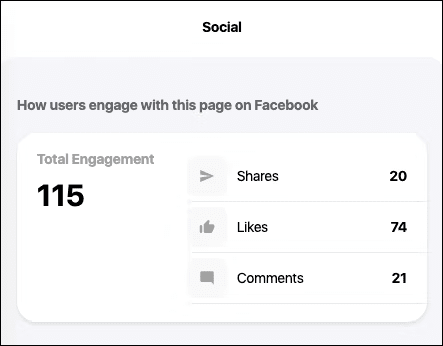
Identify Potential Optimization Opportunities (Health Check)
The Health Check section lets you diagnose potential issues with your page across a number of tests. Taken together, passing these tests can set up the page for success in search. Conversely, failures can highlight where a page has room to improve. You’ll see a visualization with your score at the top of the section.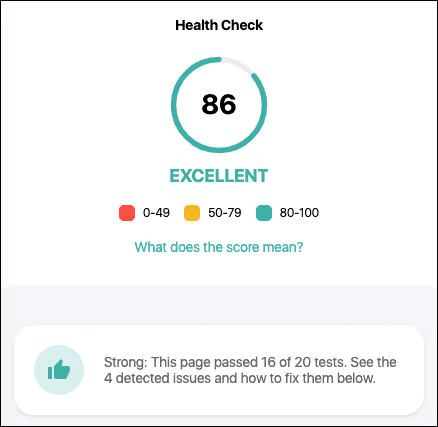
Identify Keywords This Page Ranks For (Keyword Research)
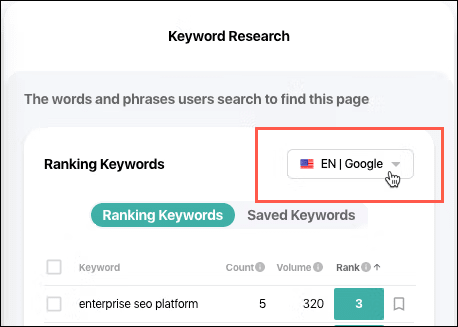
In the Keyword Research section, you can review all the keywords for which a page ranks. No need for paid tools to gather this data: see this information—along with monthly search volume and rank—right in the extension.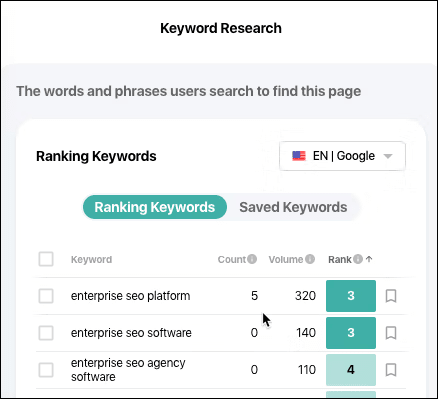
Discover Keywords Related to This Page’s Content (Keyword Research)
You can quickly and easily research data from Conductor’s keyword index. After installing the extension, simply highlight the word or phrase you want to research, and click the icon that appears.
Review related keywords, see monthly search volume, and—where they appear—investigate related “People also ask” queries. Use this information to find which words and phrases your audience uses most often to search for the topic this page is about.
Then, click a keyword to see the top-ranking content that appears for those words and phrases in search engine results. Finally, click through to review those ranking pages and learn more about what related content gets the top ranks.
You can determine the search context you want to research by using the drop-down in Keyword Research section:
Configure How Conductor for Google Chrome Behaves (Settings & Support)
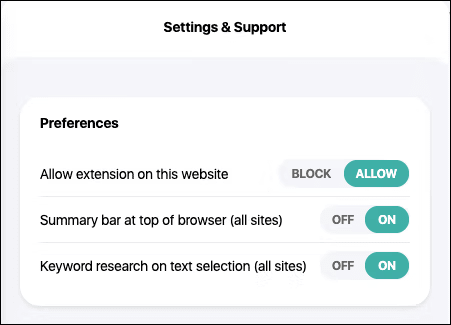
You can choose to configure this SEO Chrome extension in the way that best suits your workflows. You can determine whether you want to:- Block the extension on certain websites. Blocking the extension on a page will block it from use on any page that shares the same root domain.
-
Show the Summary Bar at the top of the browser. The Summary Bar shows you high-level metrics about the page you are viewing. Note that, by default, the Summary Bar is disabled. This feature is available only if you sign in with a Conductor account.
- Health Check. This is a proprietary, holistic measure for a page’s overall effectiveness. The score reflects a number of criteria, weighted by their individual importance or effect on your pages’ organic marketing success. You can also see this metric in the Health Check section.

- Readability Score. This is Conductor’s proprietary measure for how easily an average reader can read a page. We analyze the number of words, syllables, and sentences used on your page to apply the Flesch-Kincaid formula for readability in calculating this score. You can also see this metric in the Overview section.
- Facebook Engagement. This metric sums the Reactions, Comments, and Shares this page has generated on Facebook anywhere it has been posted. This feature appears only if you are signed in.
Note that you must sign in with a Google or Conductor account to see Facebook data.
- Health Check. This is a proprietary, holistic measure for a page’s overall effectiveness. The score reflects a number of criteria, weighted by their individual importance or effect on your pages’ organic marketing success. You can also see this metric in the Health Check section.
- Disable inline keyword research with text selection.
Frequently Asked Questions
What features are available in the Conductor for Chrome extension?
The features in each tier depend on whether you sign into the extension with a Conductor account or with a Google account: