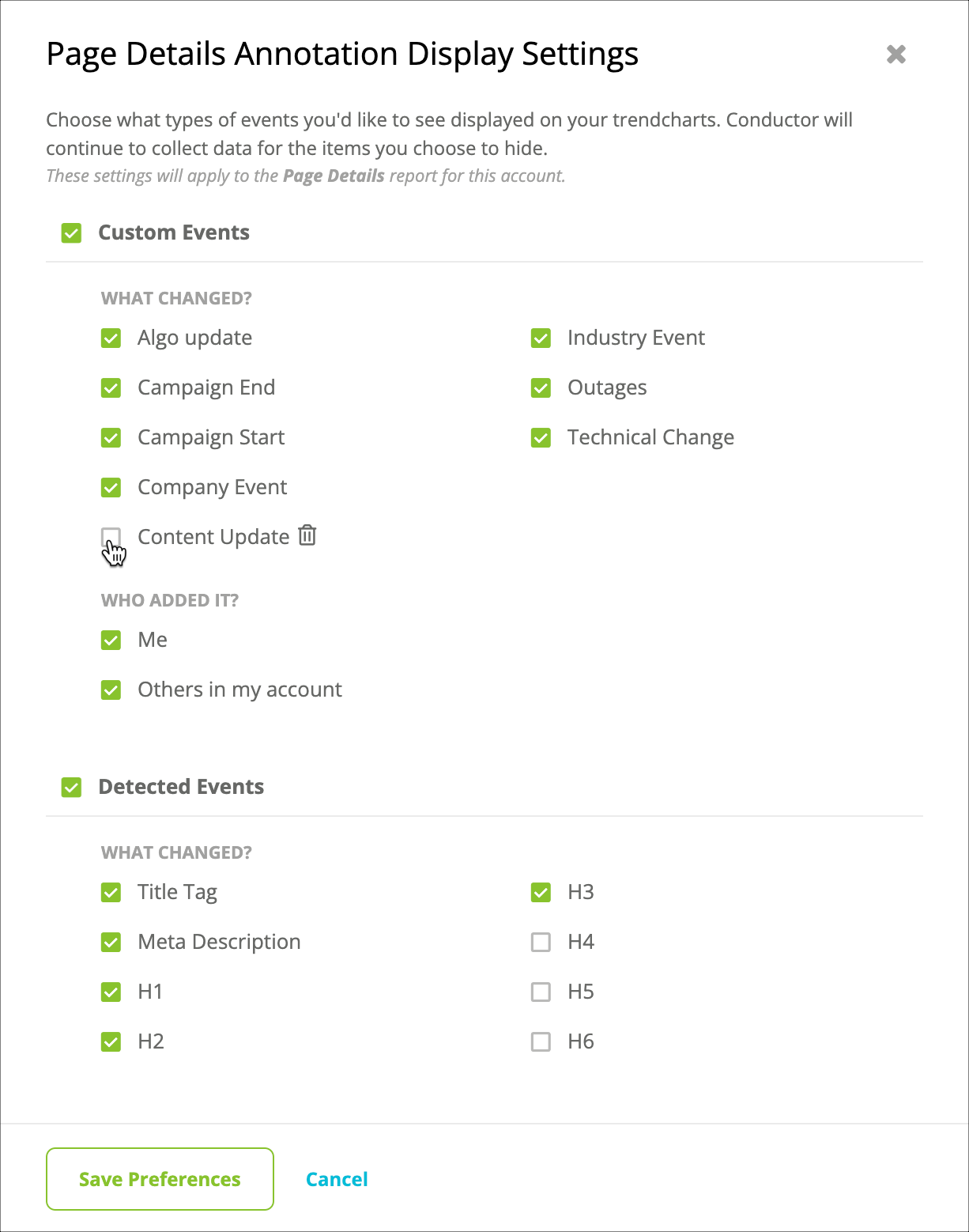
- Title tags
- Meta Descriptions
- h1-h6 tags
Create a custom annotation
- In Pages, Page Details, or Keywords, do one of the following:
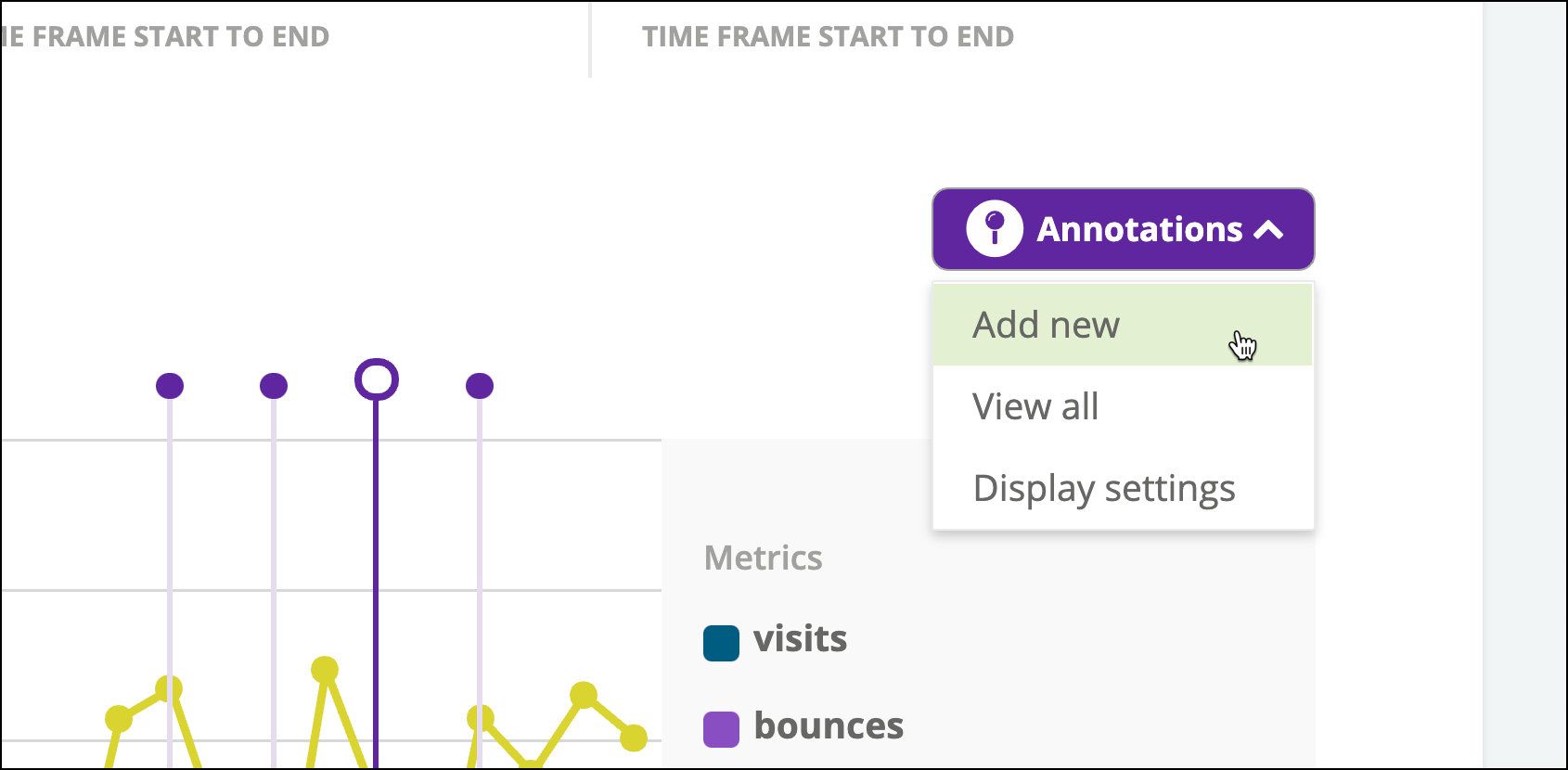
- Follow the path Annotations > Add New.
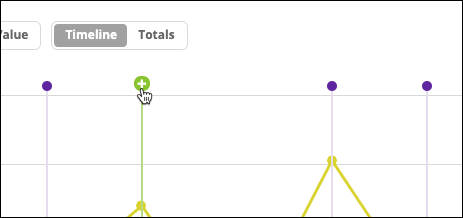
- Hover over a date in the chart and click the green icon.
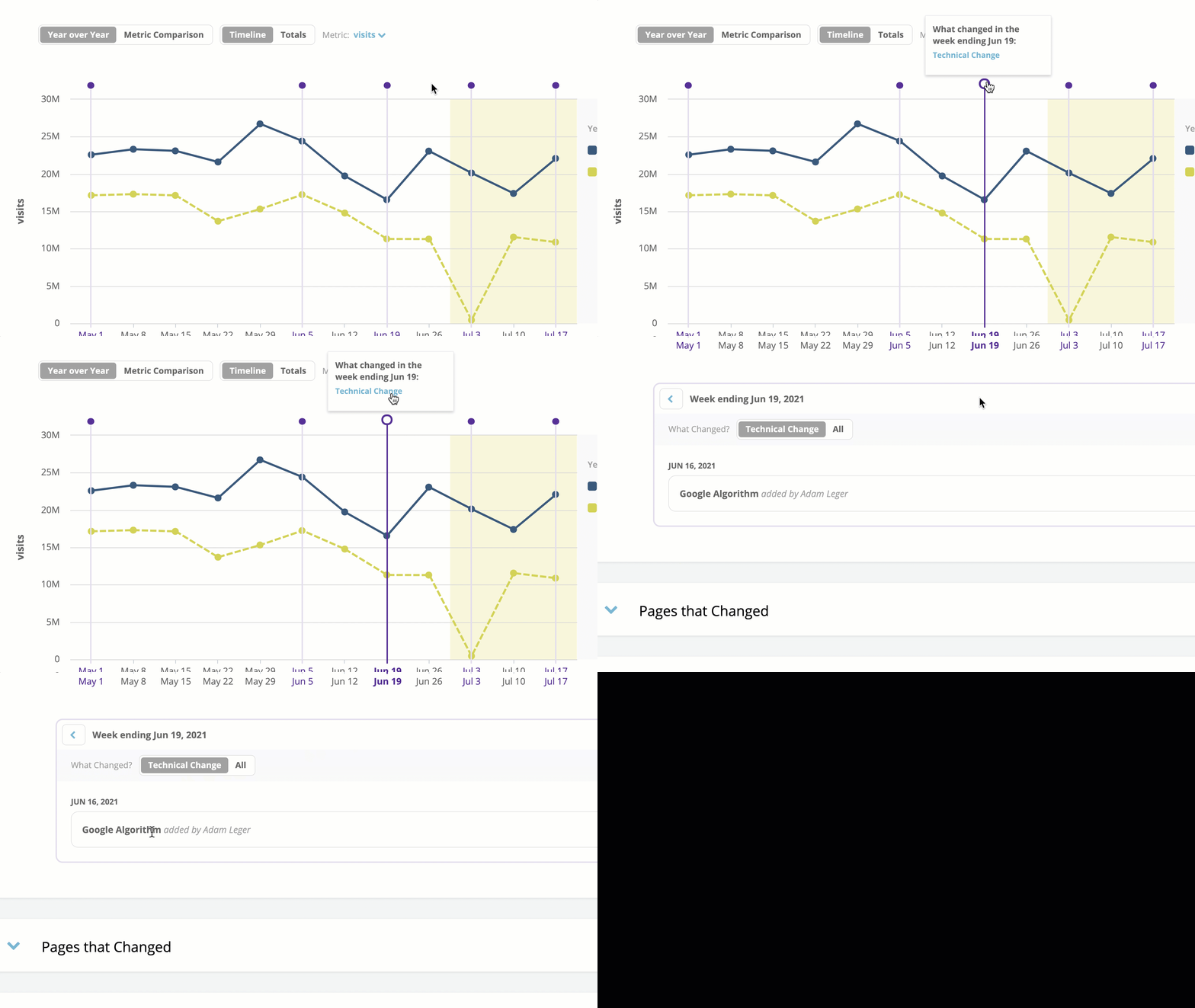
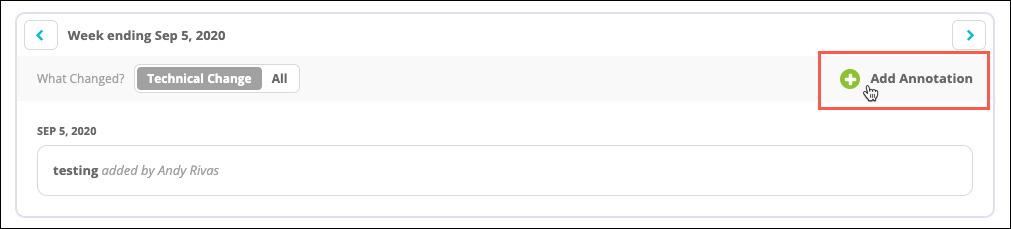
- Open an existing annotation (the purple pins) and click the Add Annotation icon.
- Follow the path Annotations > Add New.
- Enter details about the annotation that reflect the note you are making:
- Enter a description for the annotation.
- Give the date (if not already selected) you want to associate with the annotation. Note that you can select dates in the future as well as in the past.
- Select the type of change associated with the event. You can also create types if the default list does not include a type you want to use.
- Select the page or pages you want this annotation to apply to. You can choose just a single page, multiple individual pages, pages associated with a particular page group, or every page on your site. Note: you can even enter a page that does not yet have traffic, and is not reported on in Conductor. This allows you to add annotations to Conductor when an event occurs (such as a campaign start or when an article was published), and does not require you to wait until it appears in your platform reports.
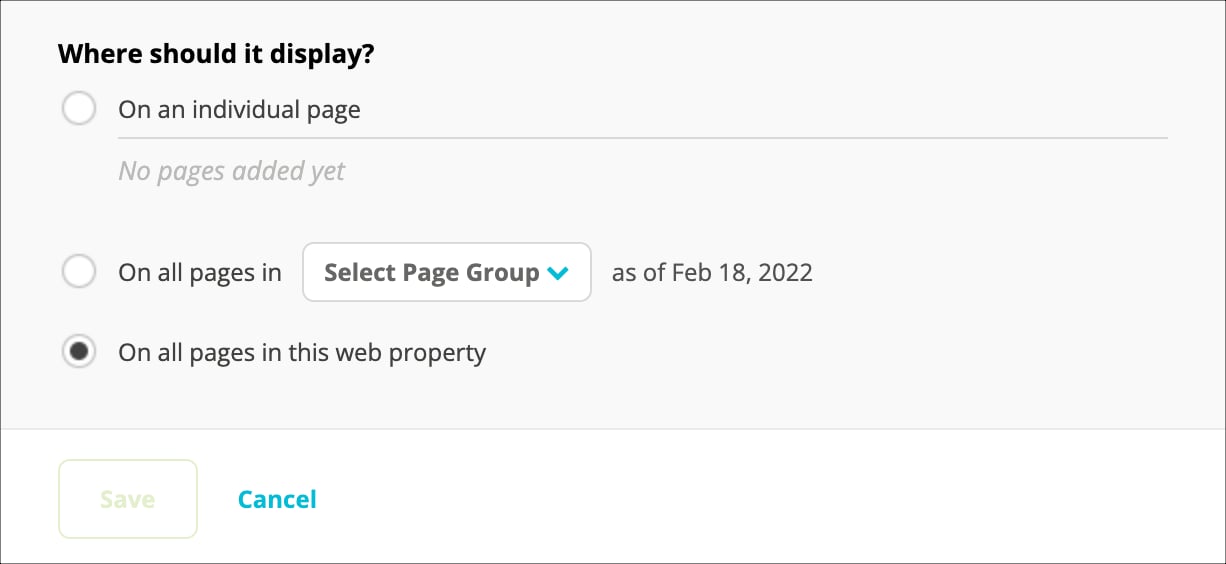
- Click Save.
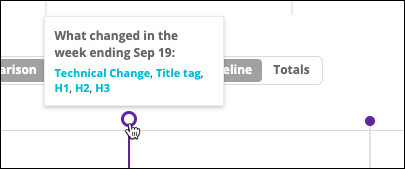
Review your annotations
Curious what annotations your team has created and that Conductor has generated for your technical changes? Just follow the path Annotations > View All.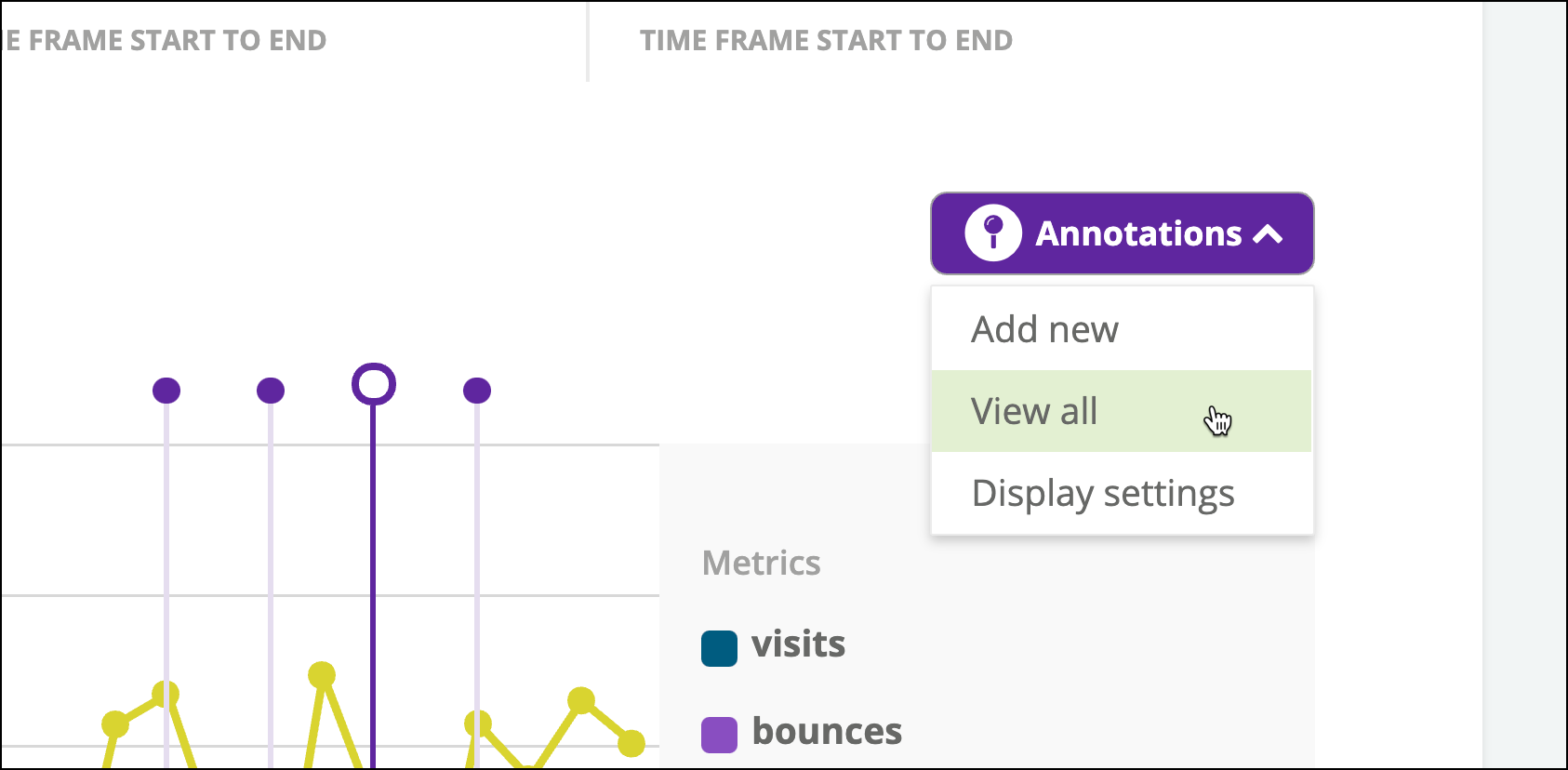
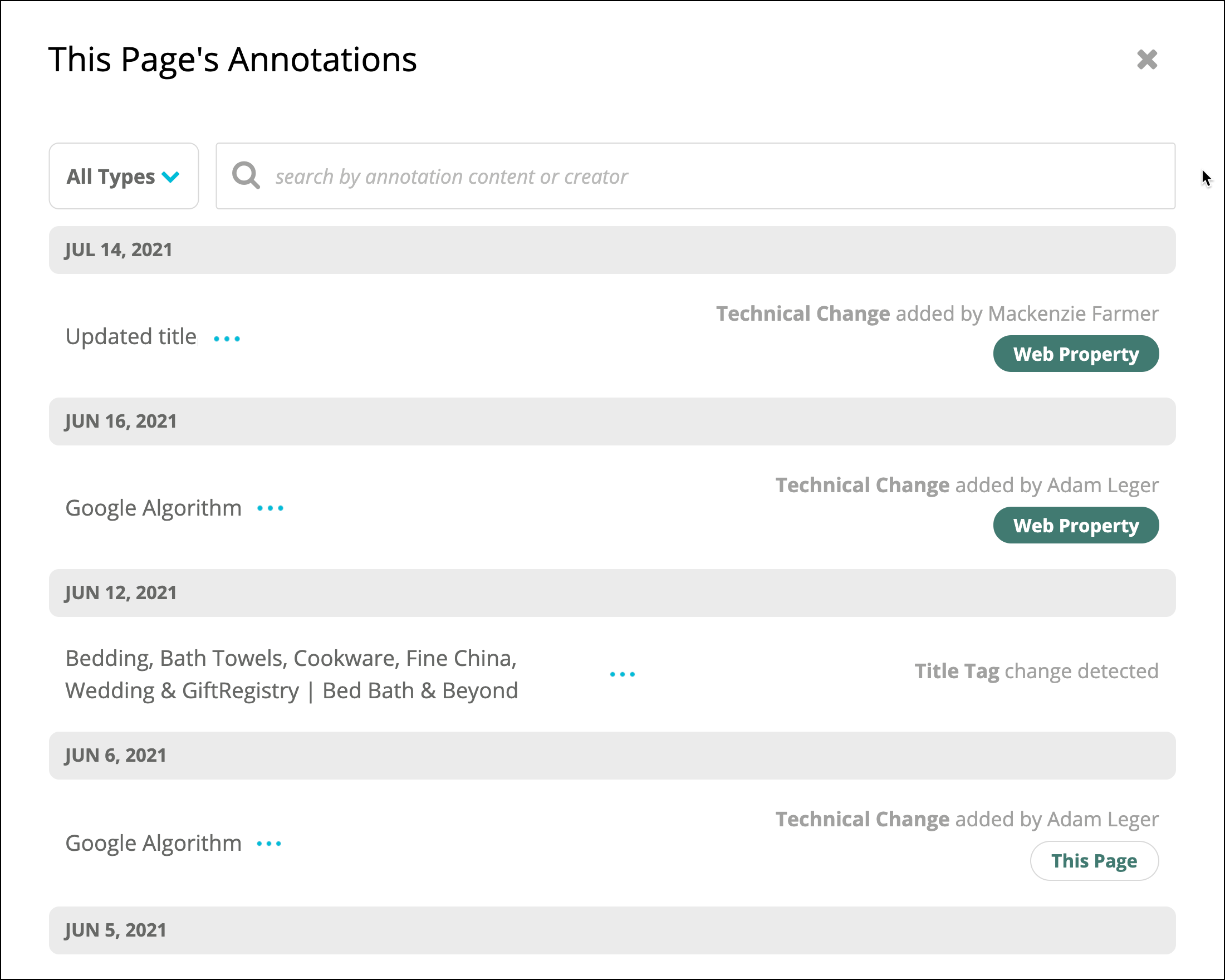
Want to download your annotations?
You can download the annotations that are associated with the report you are viewing. From the View all window, click the Share icon and select Download XLSX. The resulting Microsoft Excel file includes all the annotations associated with the Pages report, Page Details report, or Keywords report you are viewing. Note that any filters or view settings are not applied to the downloaded file.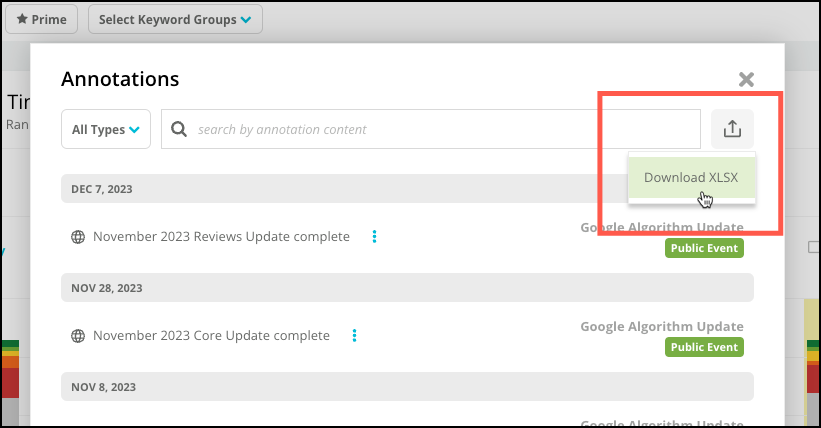
Manage the annotations that appear
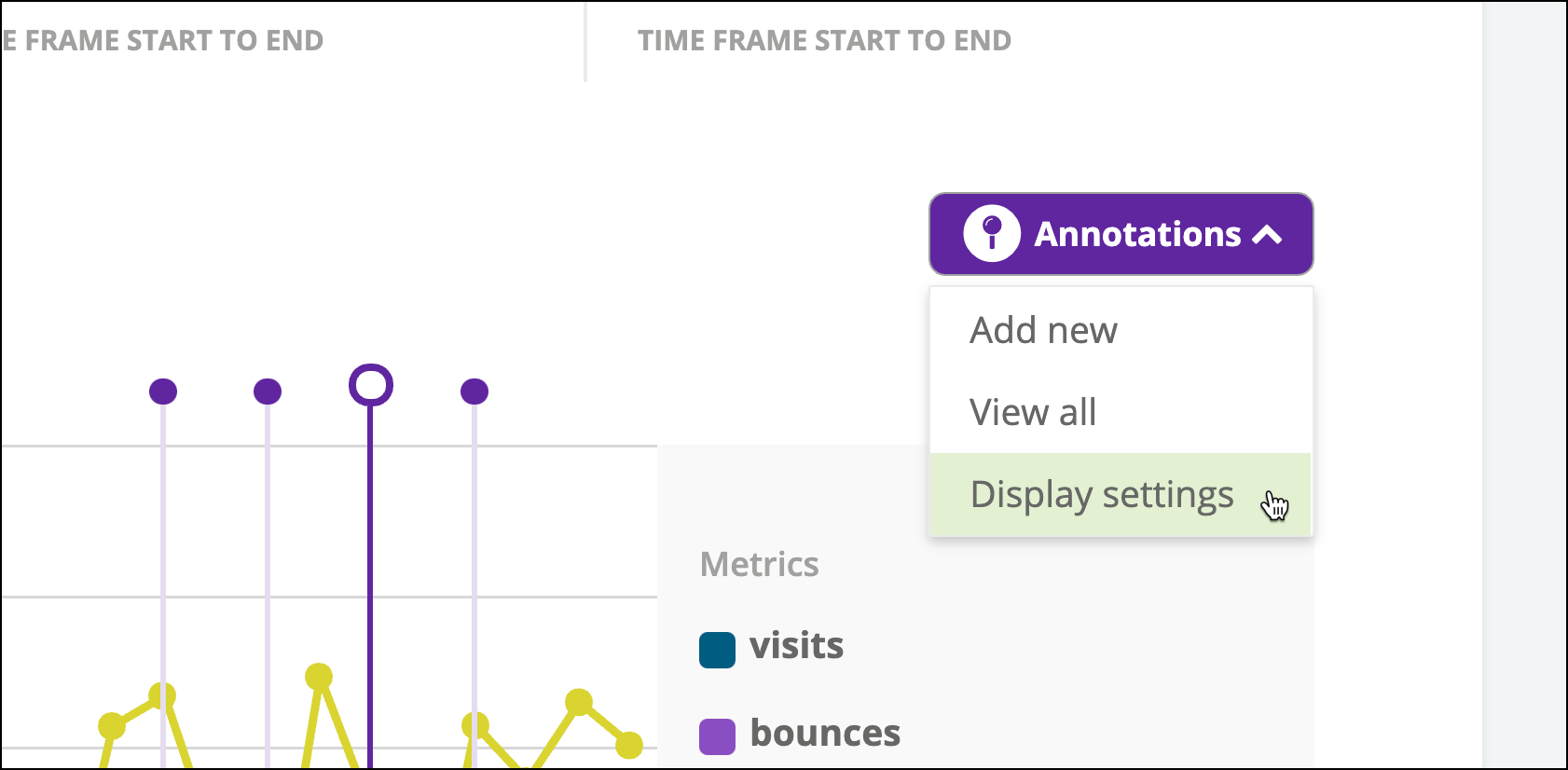
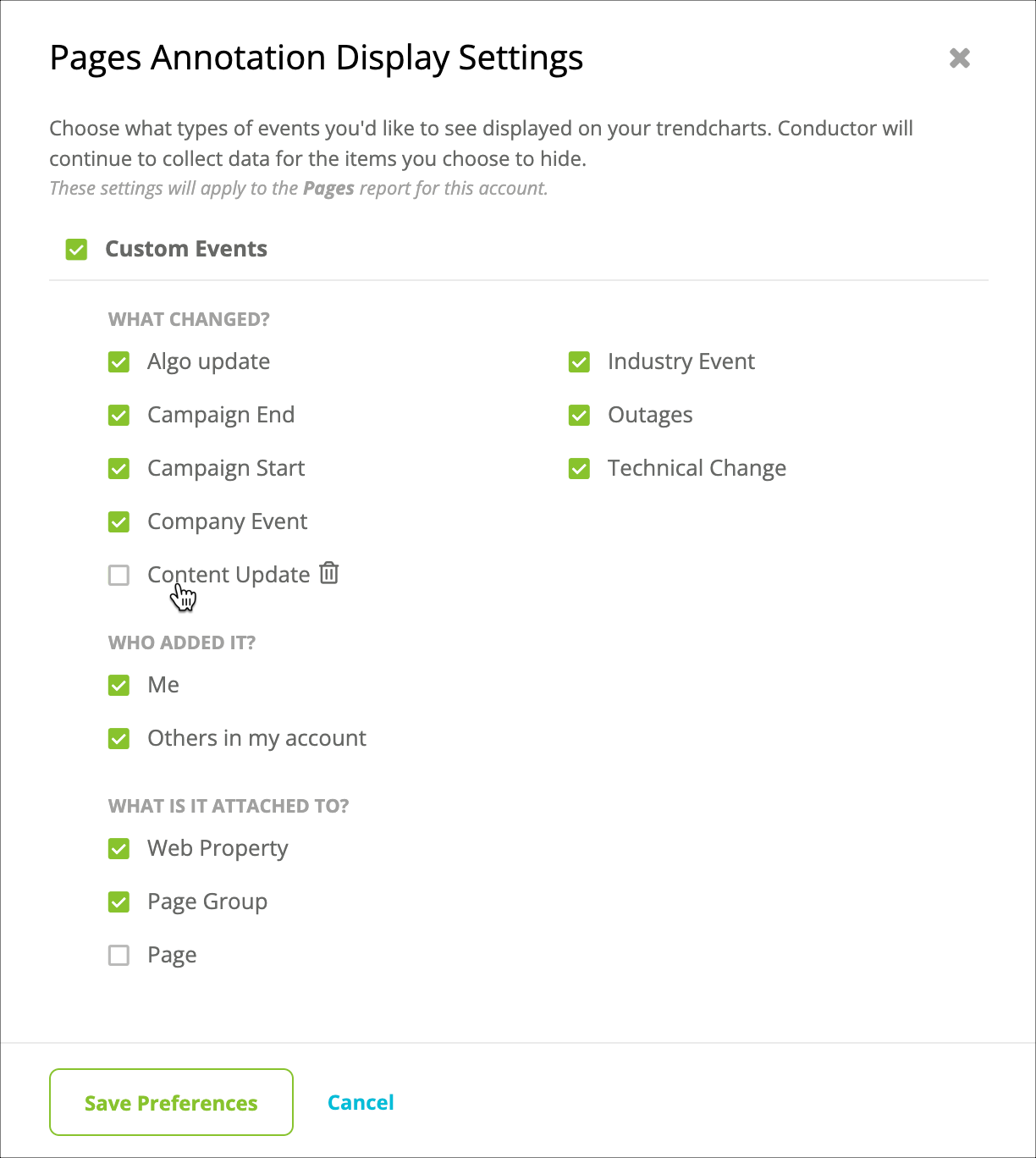
By default, all types of annotations appear through Content Activity Reporting (though, in the Keywords and Pages report, these annotations are limited to the custom annotations you have created). To determine the events for which annotations appear through Content Activity Reporting, you can follow the path Annotations > Display Settings.