
Conductor customers: Review this lesson in our Community
 Keyword research is the process by which you research popular search terms people type into search engines like Google and include them strategically in your content so that your content appears higher on a search engine results page (SERP).
Keyword Research Workflow
🔍 Look at Your Ranking Non-Branded Keywords Understand what your ranking unbranded keywords are. Type your domain in Conductor’s Explorer feature to see and download your keyword report – this is a list of all keywords your domain is currently ranking for. 🥧 Use the “P.I.E.” Methodology To easily understand your current positioning on search results, remember to use P.I.E. methodology where you filter your list by:- Protect keywords (keywords where you rank in the top 10 organic positions = where you are doing well)
- Improve keywords (keywords where you rank in positions 11 - 30 = where quick-win opportunities exist)
- Expand keywords (keywords where you rank in position 31 and beyond = where you may not have significant ranking, but are still relevant keywords to your business)
- Relevancy – should I be ranking / targeting to rank for this keyword? (Review Search Intent)
- Monthly Search Volume – is this keyword being used / searched? How many people are searching for this keyword?
- Rank – am I ranking for this keyword?
- Modeled Traffic – if I’m ranking for this keyword, how much traffic does it bring to my site?
 There are 3 ways to upload keywords in the platform:
1️⃣ Add keywords with Add Keywords form
There are 3 ways to upload keywords in the platform:
1️⃣ Add keywords with Add Keywords form
 2️⃣ Add keywords directly from reports in Conductor
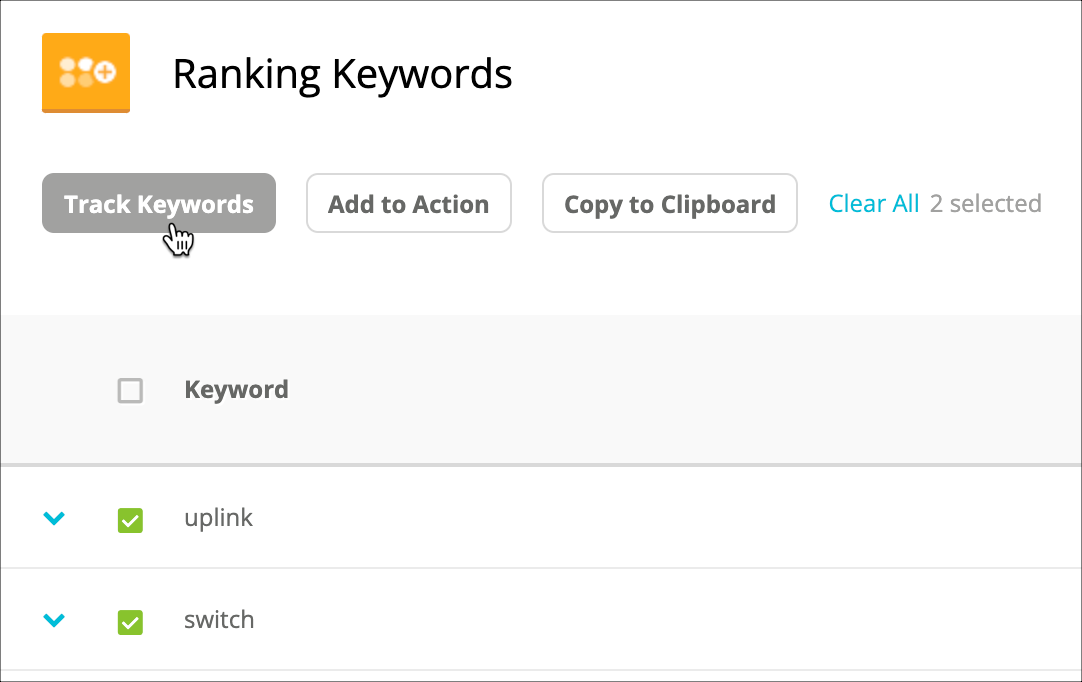 3️⃣ Upload keywords in bulk
 Conductor Knowledge Base - How to Add KeywordsConductor Knowledge Base - What Characters & Symbols Can be Tracked
Uploading Keywords Best Practices & Reminders
⏰ Keyword Upload DEADLINE is Every THURSDAY at 5PM To ensure that your keyword data is crawled and is published the following week, upload them in the platform before THURSDAY 5PM EST. 🗺️ Be Mindful When Selecting the Correct Search Engine, Location, Language, & Device When uploading keywords, you will always need to input what search engine, location, language, and device these keywords will be tracked on. Make sure you choose the correct options. ⚠️ When Using Keyword Bulk Update, Always be Careful When Choosing “Merge” and “Override” Upload Options Both of these rules work the same for Keywords and Keyword Groups.- Merge means you are only ADDING/CHANGING what’s in the Excel file you are uploading (all other keywords in the platform not included in the Excel file will remain unchanged)
- Override means you want to DELETE everything and OVERRIDE all data currently in your account and acknowledge only what you are uploading (it will “factory reset” your tracked keywords and only maintain the ones you are uploading)
 Keyword Groups are useful for categorizing your keywords in the Conductor platform.
There are 2 types of keyword groups in the platform. It can be a SMART Keyword Group or a STANDARD Keyword Group:
Keyword Groups are useful for categorizing your keywords in the Conductor platform.
There are 2 types of keyword groups in the platform. It can be a SMART Keyword Group or a STANDARD Keyword Group:
- Smart Keyword Groups are best for capturing keywords that match certain criteria. Smart categories automatically add keywords that match rules (AND, OR) that you’ve defined.
- Standard Keyword Groups are useful for a distinct set of keywords you want to track together that cannot be pulled setting rules. For example, for terms you used in a recent PPC campaign or made site improvements for, use a standard keyword group.
Creating Keyword Groups Best Practices & Reminders
🧭 Reference Your Website Navigation Base your keyword groups on your website navigation. This will give you a sense of familiarity on how your groups are set up in the platform. 🗂️ Use A Similar Format of Naming Keywords Groups Follow a hierarchical naming scheme for your keyword groups to organize them properly. Reference how your navigation is organized by sections, main folders and then subfolders and try to mimic its naming organization. 🎯 Create ‘Intent’ Keyword Groups Other than the sections of your website navigation, you can also create intent keyword groups which are good breakdowns for possible content-heavy keywords. ‘Intent – Early’ can contain question-based keywords, ‘Intent – Mid’ can contain comparison-based keywords, and ‘Intent – Late’ can contain buying decisions or transactional queries like cost of, pricing, buy, sale, etc. Read this articlefor more information about Search Intent. 🤔 Be Mindful when Creating Rules for Smart Keyword Groups Always use the ‘preview’ button and double check the keywords you pull when setting the rules for smart keyword groups. For example, when you use “contains = men” this will also pull keywords containing women. Make sure your rules are specific and groups are only pulling the keywords relevant for that certain category. ⚠️ Reminder: Keyword Groups are Account Level (not domain level) Keep in mind that when you create keyword groups, it is account based and will apply to every domain / web property in the account. So, it is a good practice to create groups that are applicable for all domains instead of targeting for only one. Page Groups are used to group together pages in the Conductor Platform. Each group should contain pages that are similar, closely related, or have something in common.
There are 2 ways to create page groups in the platform. It can be a SMART Page Group or a CUSTOM Page Group:
Page Groups are used to group together pages in the Conductor Platform. Each group should contain pages that are similar, closely related, or have something in common.
There are 2 ways to create page groups in the platform. It can be a SMART Page Group or a CUSTOM Page Group:
- Smart Page Groups are rule-based. They can be topical, based on page templates from your CMS, divisions of business units, or themes your rules can capture from the URL structure.
- Custom Page Groups are made from specific pages that you want to track in a single page group. They can represent any set of pages from your integrated web analytics profile.
Creating Page Groups Best Practices & Reminders
🌐 Generate Website URL List It is a good practice to start creating Page Groups by having a complete URL list of your website. This allows you to easily scan and recognize subfolder patterns that you can use as a guide as you create groups in the platform. You can do this easily by exporting the table from the Pages feature 🗂️ Reference Website URL Structure Usually, pages are grouped by subfolders, so scan and study your URL list and take notes of recurring subfolder patterns. 🔀 Use Excel’s “Text to Column” Feature to break down URLs This feature easily separates long URLs by subfolder in each column. Doing this could give you a better look on your subfolders and enable you to easily sort and filter data. 🤔 Be Mindful when Creating Rules for Smart Page Groups Always use the ‘preview’ button and double check the pages you pull when setting the rules for smart page groups. For example, if you have a ‘men’ section and you set a rule with “contains = men”, this will also pull URLs containing women. Make sure your rules are specific and groups are only pulling the pages relevant for that certain group. ⚠️ Page Groups are Domain Level Unlike Keyword Groups that are account-level, Page Groups are created per domain, so make sure you are on the right domain/web property when creating your groups. Also, be mindful that each page group can have up to 25 rules and can include up to 10,000 URLs. ⚙️ Custom Page Groups Use Cases Use custom Page Groups if the URLs you want to put in a group cannot be easily pulled by setting rules. As with everything else, a space will tend to get messy after a long period of time—especially when it is managed by many people. The same goes with your Conductor account. With ever-changing industry trends that affect the relevance of your keywords, groups, and pages, it shouldn’t be a surprise if your account ends up overfilled, leading to old or irrelevant data mixed in with new priorities and initiatives. This can easily put your configuration in disarray and lead to less-than-helpful reporting.
If you find yourself in this situation, you are encouraged to do an account refresh!
An account refresh is a process for checking and updating your current account setup to make sure it still represents your current priorities. This includes:
As with everything else, a space will tend to get messy after a long period of time—especially when it is managed by many people. The same goes with your Conductor account. With ever-changing industry trends that affect the relevance of your keywords, groups, and pages, it shouldn’t be a surprise if your account ends up overfilled, leading to old or irrelevant data mixed in with new priorities and initiatives. This can easily put your configuration in disarray and lead to less-than-helpful reporting.
If you find yourself in this situation, you are encouraged to do an account refresh!
An account refresh is a process for checking and updating your current account setup to make sure it still represents your current priorities. This includes:
- Confirming that your tracked keywords are up to date by removing keywords no longer relevant to your organization and adding new keywords for your current initiatives.
- Checking and reconfiguring keyword and page groups for more targeted reporting.